Repository navigation
MCP SSO Setup
Deutsche Fassung: MCP-mit-SSO-einrichten
This guide connects an MCP client — Claude Code, VS Code or a configuration dialog such as Keyzapper — to Weave via single sign-on. Afterwards the client searches with the signed-in user's account: it sees exactly the knowledge spaces that person sees in the portal, nothing more.
The authoritative version with all background is docs/integrations/vscode-mcp-sso.md (German). This page is the step-by-step version for Entra ID. For Keycloak the same steps apply accordingly; the differences are in the docs.
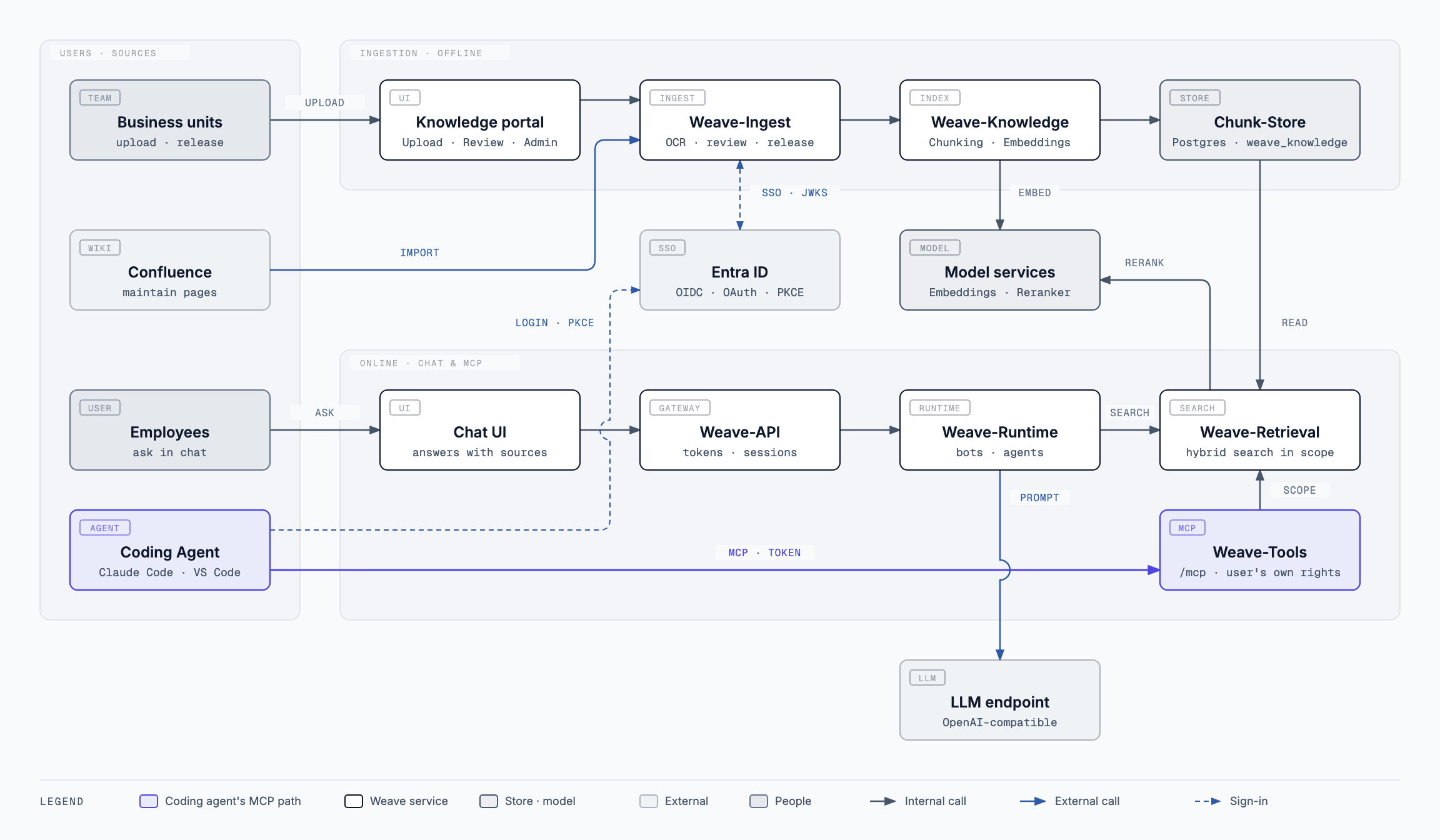
Business units bring knowledge in through the knowledge portal or Confluence. Employees ask in the chat. A coding agent signs in with Entra ID and calls Weave-Tools via MCP; Weave-Tools searches through Weave-Retrieval only in the knowledge spaces the signed-in person may see. Vector and HTML versions live in the repository under docs/diagrams.
- The client calls
https://<weave-host>/mcpwithout a token and receives401pointing to the discovery address. - At
/.well-known/oauth-protected-resource/mcpit learns which identity provider to sign in with and which scope it needs. - It opens the browser login at Entra (authorization code with PKCE) and receives an access token for the Weave MCP API.
- Weave checks signature, issuer, audience and scope and maps the token to an
existing Weave user via the Entra object ID (
oid).
Weave creates no users and takes no permissions from the token. Anyone who doesn't exist in the portal or is deactivated gets no access via MCP either.
| Role | Part |
|---|---|
| Entra administrator | Part 1 |
| Weave operator | Part 2 and Part 3 |
| Every user | Part 4 and Part 5 |
These five values come up in every part. Note them once, then just fill them in.
| Placeholder | Where from | Example |
|---|---|---|
<tenant-id> |
Entra → Overview → Tenant ID | 00000000-… |
<api-client-id> |
Application (client) ID of the API app from step 1 | 11111111-… |
<public-client-id> |
Application (client) ID of the client app from step 5 | 22222222-… |
<weave-host> |
Public host name under which /mcp is reachable |
weave.example.org |
<port> |
Any free local port for the login callback | 8976 |
Client IDs are not secrets. A client secret is not needed anywhere and must not be distributed.
You need two app registrations: one for the Weave MCP API (the resource) and one for the MCP clients (the caller). The app registration the portal signs in with is neither of them.
Step 1 — Register the app. Entra → App registrations → New registration.
Name e.g. weave-mcp-api, accounts in this directory only, no redirect URI.
The Application (client) ID is <api-client-id>.
Step 2 — Set the Application ID URI. Expose an API → Application ID URI →
Add. Accept the suggestion api://<api-client-id>.
Common mistake: No scope name goes here. If it says
api://<api-client-id>/mcp.read, the scope later becomes…/mcp.read/mcp.read. The preview below the "Scope name" field shows this.
Step 3 — Add the scope. Expose an API → Add a scope:
| Field | Value |
|---|---|
| Scope name | mcp.read |
| Who can consent |
Admins only (consent is then granted in step 7) |
| Admin consent display name | Read Weave via MCP |
| Admin consent description | Allows the app to search Weave and read released knowledge via MCP on behalf of the signed-in user. |
| State | Enabled |
The preview now shows api://<api-client-id>/mcp.read.
Step 4 — Enforce token version 2. Manifest → set
requestedAccessTokenVersion to 2 (under api in the new manifest editor),
save.
Without this setting Entra issues v1 tokens with the issuer
https://sts.windows.net/<tenant-id>/. Weave expects the v2 issuer and rejects every token — sign-in works, access doesn't.
Step 5 — Register the app. New registration, name e.g. weave-mcp-client,
accounts in this directory only. The Application (client) ID is
<public-client-id>.
Step 6 — Set up the redirect URI and public client. Authentication → Add a platform → Mobile and desktop applications:
- For Claude Code:
http://localhost:<port>/callback - For VS Code also
http://127.0.0.1:33418and, if used in the browser,https://vscode.dev/redirect(platform "Web" for that one)
Below, set Allow public client flows to Yes. Don't create a client secret.
Step 7 — Grant the permission. API permissions → Add a permission →
My APIs → weave-mcp-api → Delegated → mcp.read → Add. Then click
Grant admin consent for …. The status must show a green "Granted".
Step 8 — Check the portal's sign-in provider. The portal must already sign
in via Entra (same tenant). Note this provider's slug from the administration;
it is needed as MCP_OAUTH_PROVIDER_SLUG in a moment.
Step 9 — Set values in weave.yaml. Under services.tools.settings and
services.ingest.settings, fill in value for each:
# Tools
MCP_OAUTH_ISSUER        = https://login.microsoftonline.com/<tenant-id>/v2.0
MCP_OAUTH_RESOURCE_URL  = https://<weave-host>/mcp
MCP_OAUTH_SCOPES        = ["api://<api-client-id>/mcp.read"]

# Ingest
MCP_OAUTH_PROVIDER_SLUG    = <slug from step 8>
MCP_OAUTH_AUDIENCE         = <api-client-id>
MCP_OAUTH_SUBJECT_CLAIM    = oid
MCP_OAUTH_REQUIRED_SCOPES  = ["mcp.read"]
- The issuer is tenant-specific, never
commonororganizations. -
MCP_OAUTH_AUDIENCEis the bare GUID of the API app, withoutapi://. -
TOOLS_INTROSPECTION_TOKENmust be identical in Ingest and Tools;weave_config.py rendertakes care of that.
For Helm, python scripts/weave_config.py helm-values carries the values into
config.tools and config.ingest.
Step 10 — Expose the ingress. Enable ingress.toolsMcp in the Helm chart.
Whether on its own host or the portal's host — what matters is that these
paths reach the MCP service and not the portal:
/mcp-
/.well-known/oauth-protected-resource(also covers…/mcp)
On a dedicated host the default path: / is enough. If MCP shares the host
with the portal, / belongs to the portal; then list only the two paths above:
ingress:
  toolsMcp:
    enabled: true
    hosts:
      - host: <weave-host>
        paths:
          - path: /mcp
            pathType: Prefix
          - path: /.well-known/oauth-protected-resource
            pathType: Prefix
    tls: [...]   # as for the other ingresses
Then roll out.
Step 11 — Fetch discovery.
curl -i https://<weave-host>/.well-known/oauth-protected-resource/mcpExpected: 200 with JSON containing "resource": "https://<weave-host>/mcp"
and the Entra issuer under authorization_servers.
Step 12 — Call MCP without a token.
curl -i https://<weave-host>/mcpExpected: 401 with a WWW-Authenticate header naming resource_metadata
and the scope.
If either returns an HTML page or a 404 from the portal, the routing from
step 10 is missing. Only continue with part 4 once both calls look right.
| Field | Value |
|---|---|
| Name | weave |
| Type | HTTP |
| URL |
https://<weave-host>/mcp — with /mcp
|
| Header | leave empty |
| Client ID | <public-client-id> |
| Callback port |
<port> — the same as in step 6 |
| Scopes | api://<api-client-id>/mcp.read |
Save. The dialog writes the project-local .mcp.json; it contains no secrets,
Claude Code manages the tokens itself.
claude mcp add --transport http --scope project --client-id <public-client-id> --callback-port <port> weave https://<weave-host>/mcpYou don't need to pass the scope here; the server names it in its 401
response.
The project file .vscode/mcp.json in the repository is already prepared.
Change the URL to https://<weave-host>/mcp; VS Code asks for the client ID
on start. Details in the
docs.
Step 13 — Sign in to the portal via Entra once. Only then does Weave store the account's Entra object ID. Skip it, and you can sign in to Entra via MCP, but Weave won't recognise you.
Step 14 — Sign in from the client.
- Claude Code:
/mcp→weave→ Authenticate, sign in to Entra in the browser. - VS Code:
MCP: List Servers→weave→ Start, browser login.
The server then shows "connected", and the tools list_collections and
search are available.
| What you see | Cause | Fix |
|---|---|---|
| Client reports "Failed", browser shows a portal 404 page | URL without /mcp, or the paths reach the portal |
Check the URL, step 10 |
421 Misdirected Request |
Host doesn't match MCP_OAUTH_RESOURCE_URL
|
Correct the host in the resource URL or add it to MCP_ALLOWED_HOSTS
|
503 service misconfigured |
Resource URL or TOOLS_INTROSPECTION_TOKEN missing |
Step 9, roll out again |
AADSTS50011 (redirect URI mismatch) |
Port in the client ≠ registered redirect URI | Align the port and step 6 |
AADSTS65001 (consent required) |
Admin consent missing | Step 7 |
AADSTS7000218 (client_secret required) |
Public client flows off | Step 6, "Allow public client flows" |
AADSTS9010010 (resource does not match scope) |
Entra rejects the resource https://<weave-host>/mcp sent along |
Try setting the API app's Application ID URI to https://<weave-host>/mcp and adjust the scopes accordingly |
Sign-in works, then always 401
|
v1 token, wrong issuer or wrong audience | Step 4 and step 9 (v2.0, bare GUID) |
403 insufficient_scope |
Token without mcp.read
|
Scope in the client (part 4) and step 7 |
401 although everything looks right |
User unknown, deactivated or never signed in to the portal via Entra | Step 13 |
- docs/integrations/vscode-mcp-sso.md — authoritative version, also for Keycloak (German)
- Rechte-und-Sichtbarkeit, section "MCP mit eigener Anmeldung (SSO)" (German)
- Betrieb (German)