Repository navigation
Getting Started
PyQt6extn forked was from old abandoned PySide2exn repo and modified for PyQt6
The PyQt6extn was manually tested in different test environment(in different OS, Python3 and PyQt6 versions). The following data was obtained by conducting tests using Example codes (same one which is given in the Example Section) in the respective version of PyQt6 and Python in Windows and Linux
Recommended
Windows, Linux, MaxOSX.
Python3 > 3.11 and PyQt6 >6.5.2
- Install PyQt6extn using
pip
pip install PyQt6extn
- or if whl file is exists
pip install PyQt6extn-*****.whl
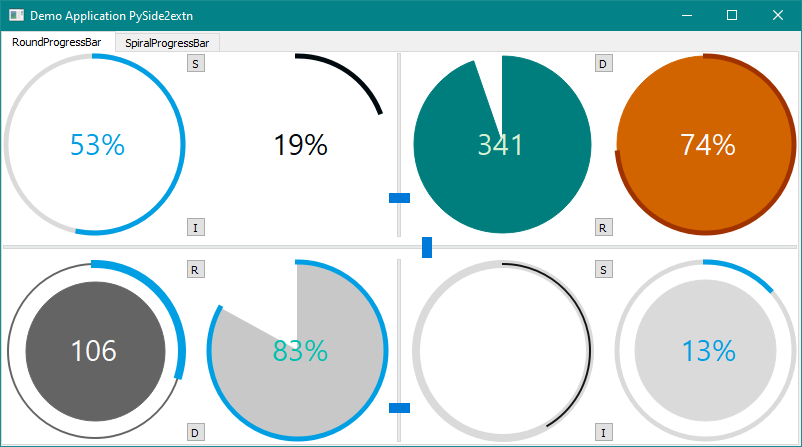
Quick demo help you to check weather you have successfully installed the Python Package and you are good to go. It comes with a UI loaded with all the widgets in this package with its different customized views. Users can easily differentiate the different styling elements used by widgets.
After installing the PyQt6extn the users can try out quick demo by:
- Open the
cmdorterminal
#RUN
/usr/bin/pyqt6exn-demo
# or
python3
>> from PyQt6extn.demo import demo
>> demo.main()   #PRESS ENTER AND YOU WILL GET A DEMO APPLICATION
Many a time designing a GUI is better done using the inbuild QtDesigner as it greatly reduces the designing time. The PyQt6extn widgets doesn’t natively have the drag and drop widget feature but you can turn a QFrame to a roundProgressBar widget or to any other PyQt6extn widgets. The steps to do is detailed below:
- Place a QFrame in the exact place where you want the PyQt6extn widget to be.
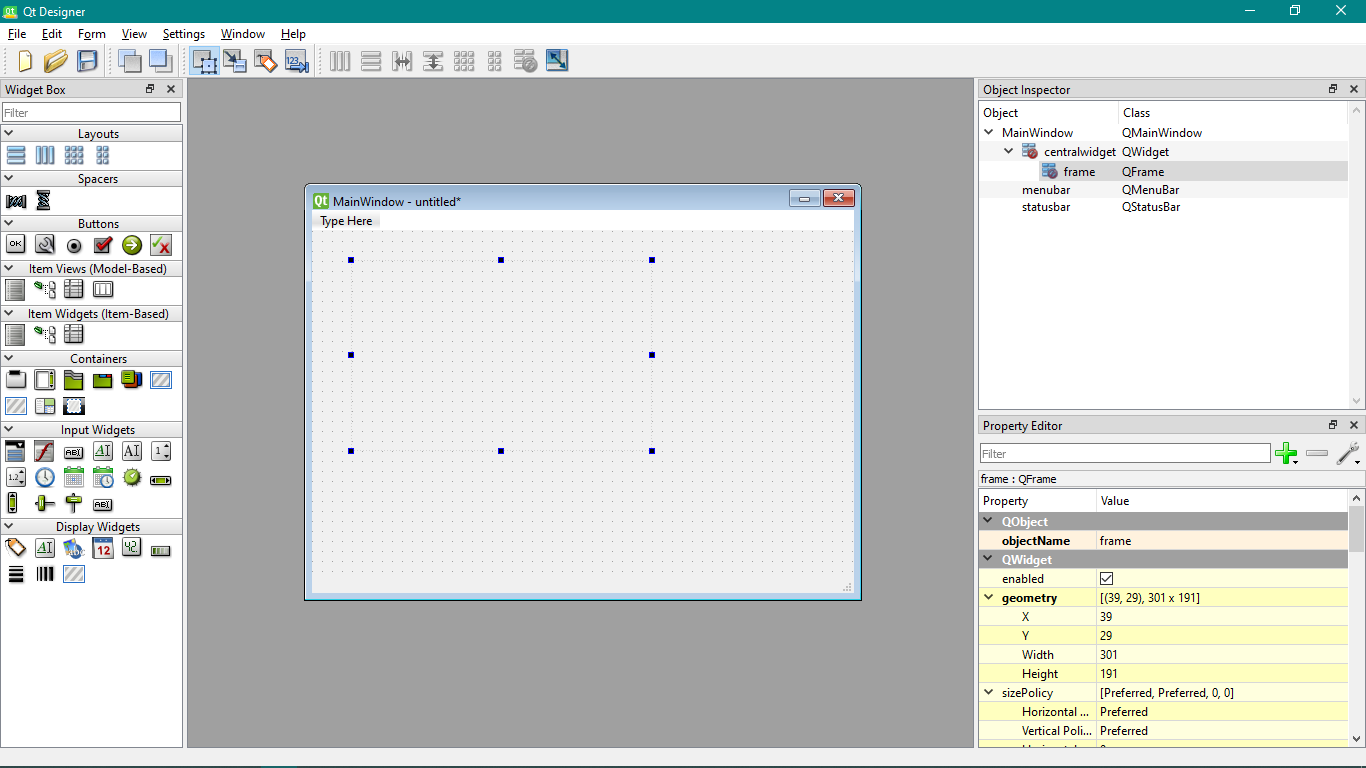
- Go to the
Object Inspectorand right click on the QFrame you just created, then click on thePromote tomenu, you will see a Promote Widget window popup.
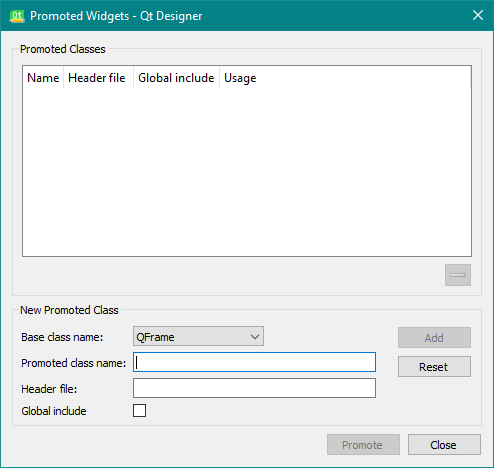
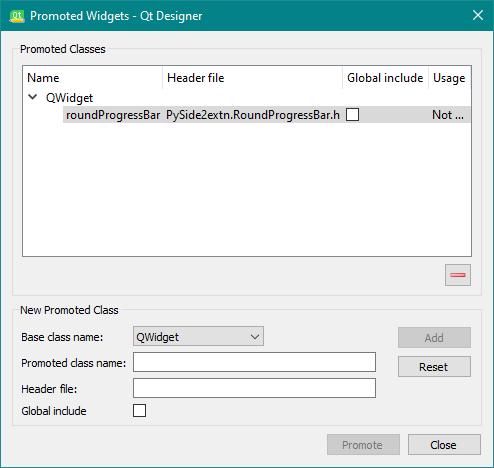
- Create a new Class: for which enter the details(see image) in the
Base Class Name,Promoted class nameandHeader fileslots and pressAdd. Here we used the roundProgressBar Class, but you can use any other class in the PyQt6extn package.-
Base Class Name Always:
QWidget -
Promoted Class Name : The class name of the widget you want to use:
roundProgressBarorspiralProgressBar. -
Header File: It is always the
PyQt6extn.RoundProgressBar.horPyQt6extn.SpiralProgressBar.h - Note: SAME AS PySide2extn and PySide6extn on screenshots!
-
Base Class Name Always:
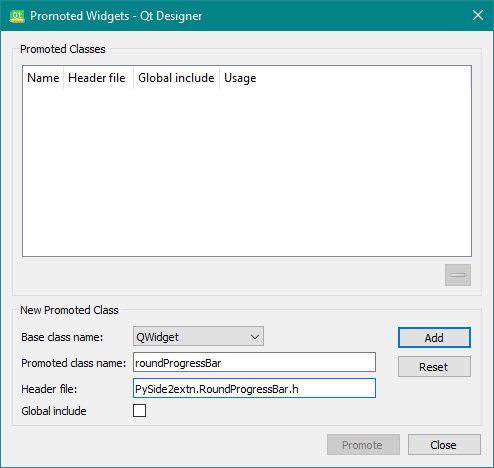
- After adding you can see a new Promoted Classes gets one new widget. Then close the Popup.
- After this again right click on the QFrame that we have created and click on
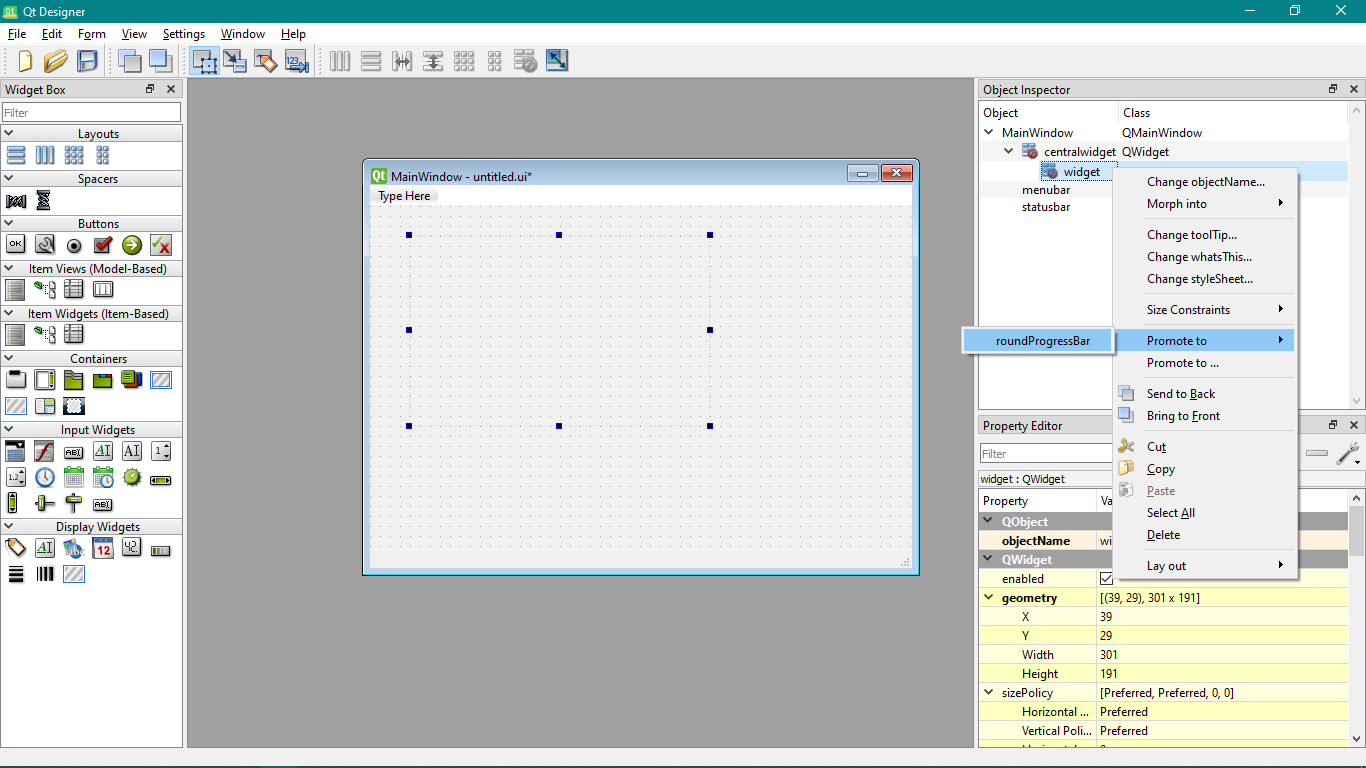
Morph intoand select theQWidgetoption. Now the QFrame has changes to QWidget. Now once more right click on to the newly formed QWidget and select:Promote Toand select theroundProgressBaroption from there.
-
That’s it, you have placed a PyQt6extn Widget into your Application. At present in the QtDesigner you will not see any image of the roundprogressbar but you can use the roundProgressBar inside the python code you write. Convert the
.uifile to python file using thepyuic5/pyuic5/pyside6-uicand create a new file and write the following code to display the new made window.import sysfrom PyQt6 import QtCore, QtGui, QtWidgets from PyQt6.QtCore import (QCoreApplication, QPropertyAnimation, QDate, QDateTime, QMetaObject, QObject, QPoint, QRect, QSize, QTime, QUrl, Qt, QEvent) from PyQt6.QtGui import (QBrush, QColor, QConicalGradient, QCursor, QFont, QFontDatabase, QIcon, QKeySequence, QLinearGradient, QPalette, QPainter, QPixmap, QRadialGradient, QPen) from PyQt6.QtWidgets import *
#IMPORT PYSIDE2EXTN WIDGET YOU USED IN THE QTDESIGNER FOR DESIGNING. from PyQt6extn.RoundProgressBar import roundProgressBar
#UI FILE CONVERTED FROM .ui to python file ui.py from ui import Ui_Form
class MainWindow(QWidget): def init(self): super(MainWindow, self).init() self.ui = Ui_Form() self.ui.setupUi(self)
if name=="main": app = QApplication(sys.argv) window = MainWindow() window.show() sys.exit(app.exec_())
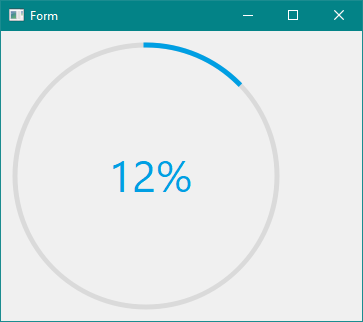
Run this file and we can see the roundProgressBar in the QFrame we made.
Dive deeper into the package check the links below.