Home
M-Commander 6.1.0 is based on GNU Midnight Commander. What every release brings is listed on the Releases page.
For building, testing and contributing, see Coding style, QA testing, which describes the Docker sandbox the panel plugins are tried in, and Local build check, which runs the CI build locally.
For developing extensions with the Lua runtime, see Lua.
For writing the help and the man pages, see Help markup.
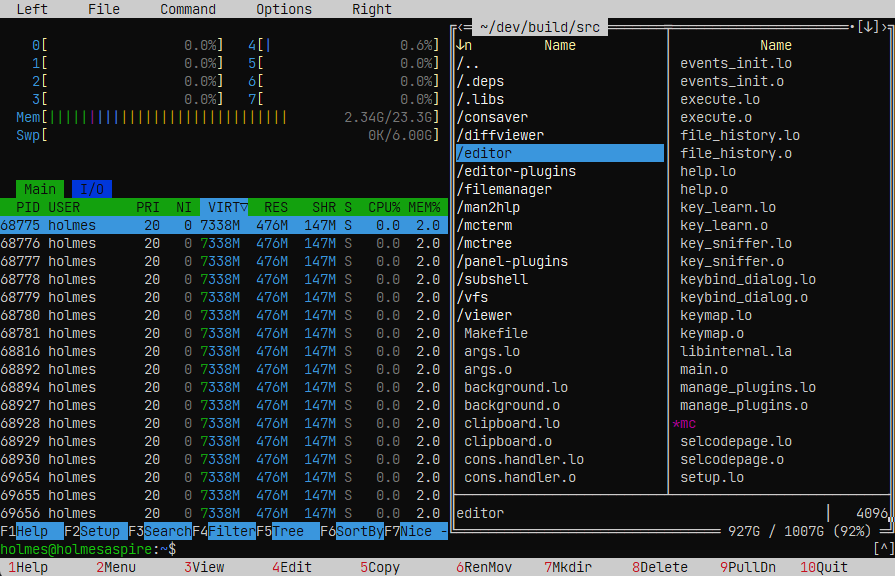
The fork grows outside the core. Panel contents can be supplied by a dynamically loaded plugin, not only by the local filesystem; scripts reach the editor, the panels, the viewer and the UI through a versioned host ABI, with Lua itself living in a plugin rather than in the core; and the shell runs in an embedded terminal instead of the old subshell.
Plugins for archives, Git, Docker, Kubernetes, MongoDB, S3, FTP, SFTP, Samba and others ship with it. The editor and the file viewer were extended considerably as well.
Packages for Debian, Ubuntu, Fedora, Arch and macOS are attached to every
release. Ubuntu users can
take them from the PPA ppa:bluepanels/mcommander, and macOS users from the
Homebrew tap:
brew install blue-panels/tap/mcommanderThe package is called mcommander and it installs beside the mc of the
distribution, which can stay where it is. The program is mcommander, with
mc6 as a short alias; the others are mcedit6, mview, mdiff, mctree
and mcstruct. Its directories are its own: ~/.config/mc6,
~/.local/share/mc6 and ~/.cache/mc6. On first start the matching mc
directory is copied into each new one, and the original is left untouched.
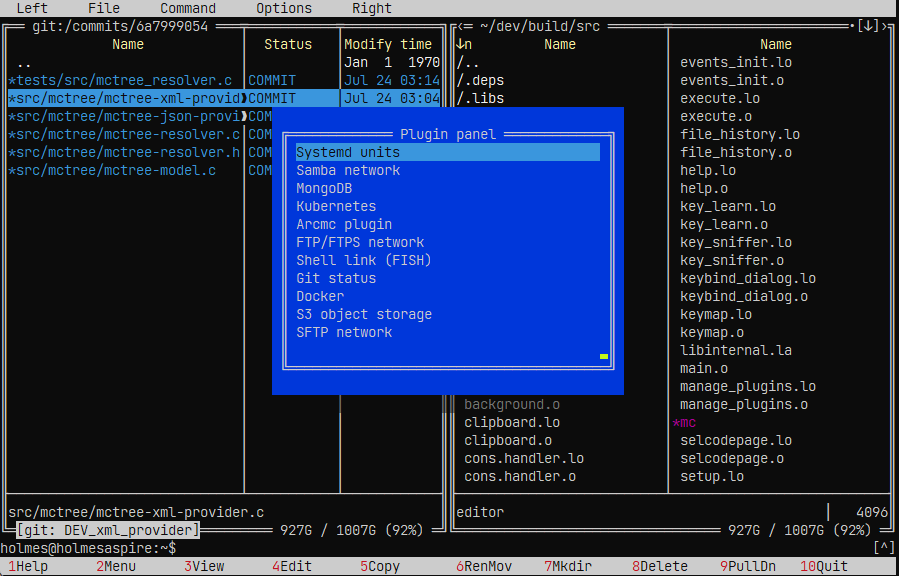
A plugin panel works like a regular file panel: it supports navigation, file viewing and the standard operations through F4, F5 and F6.
Plugins can add:
- their own data sources;
- entries in the panel menus and in the drive menu;
- settings and help;
- loading and saving of files;
- navigation history inside the plugin.
A plugin can also hand another plugin an open seekable stream, and magic.ini
routes a file to the plugin that understands it. That is what lets an archive
on a remote host open without downloading it whole.
User plugins are loaded from ~/.local/lib/mc6/panel-plugins.
Lua support is a plugin that speaks the core ABI, so the language is not built into mc. A script can read and change editor documents in transactions, provide panels and file operations, supply the viewer with generated content, build native dialogs and full screens of widgets, run processes and answer events.
Scripts are managed in the Manage Plugins dialog, and the API is documented in Lua plugins and the Lua API reference. Several of the viewers described below are Lua scripts themselves.
The mcstruct plugin shows a binary file as a tree of named fields from a text description of the format (STL5 def-files), synced with a hex dump, and edits fields in place. See the mcstruct guide: starting it, keys, the language, shipped def-files, settings and skin.
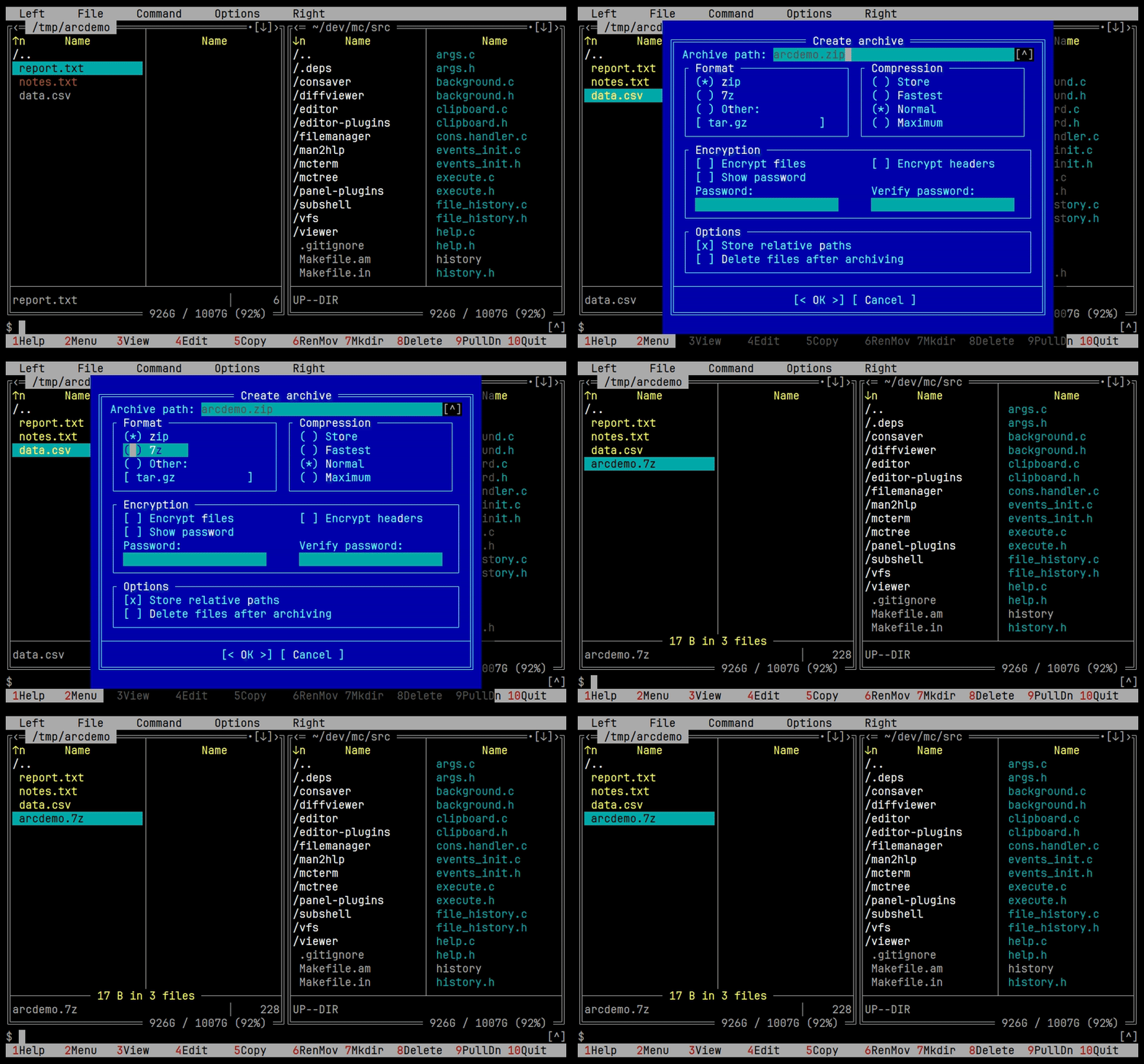
The arcmc plugin makes it possible to open archives directly in a panel. It replaced the built-in tar and cpio filesystems, which the core no longer has.
See the complete arcmc guide for keyboard actions, external archiver configuration, extfs helpers and adding formats without recompiling mc.
Supported:
- browsing archives and nested archives;
- adding and deleting files;
- creating ZIP, 7z, TAR and CPIO;
- compression settings;
- passwords and encryption for the formats that support them;
- bulk extraction;
- display of progress, speed and remaining time;
- cancellation of long operations.
During extraction, absolute paths and .. components are checked, so the contents of an archive cannot escape the selected directory.
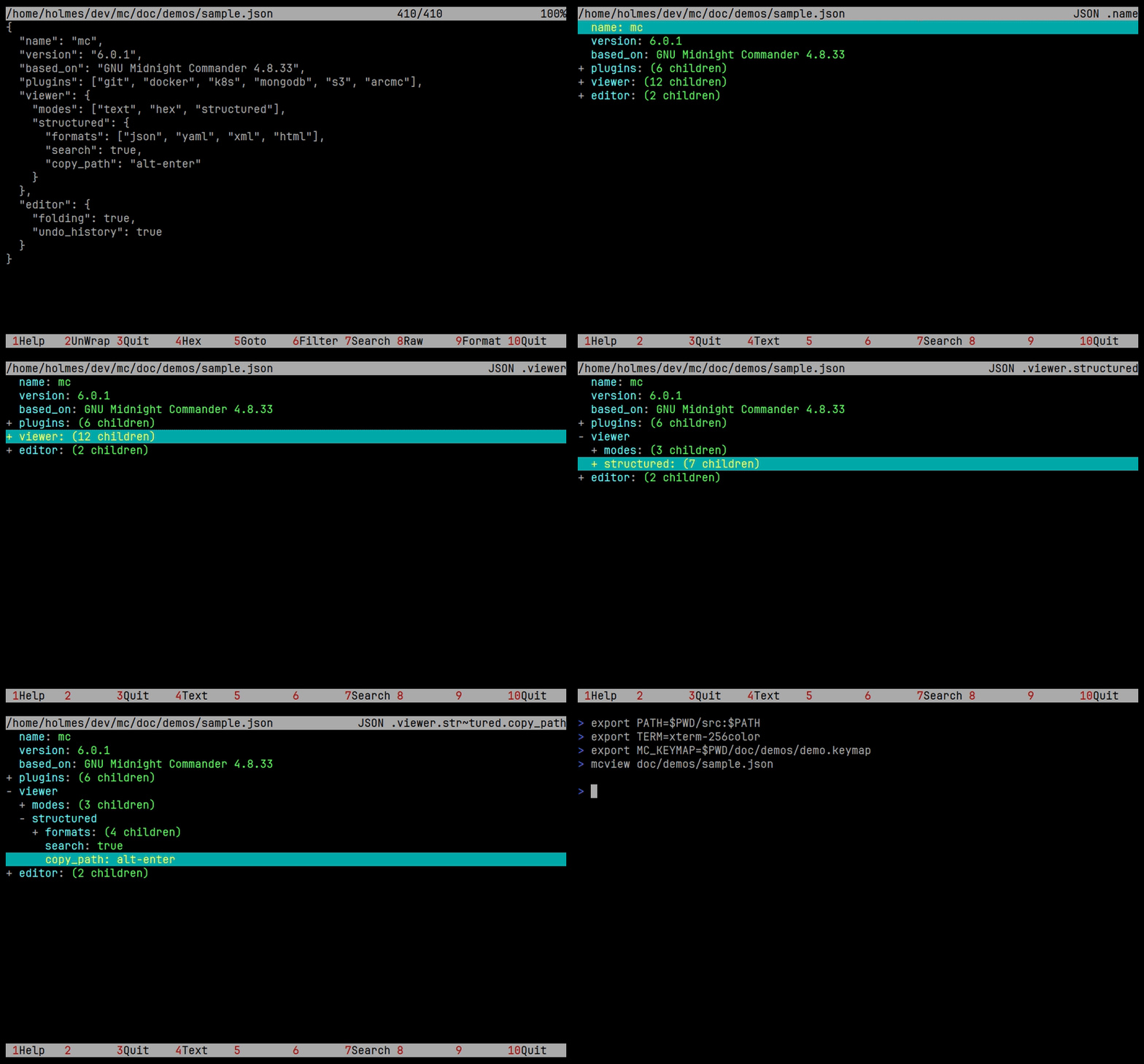
mcview gained a tree mode for:
- PNG/JPEG;
- JSON;
- YAML;
- XML;
- HTML.
It is available both in the fullscreen viewer and in Quick View.
In tree mode you can expand and collapse nodes, set the expansion depth, search the whole structure and copy the path to the selected element in a format similar to jq.
The mcview_structured_auto option makes supported files open in structured mode automatically.
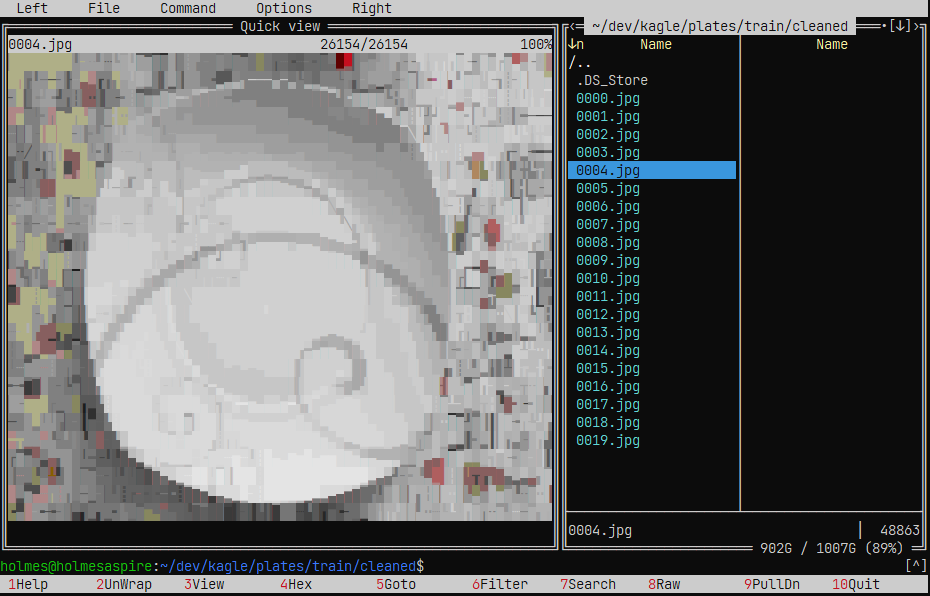
PNG, JPEG and other raster images open directly in the viewer. The picture is rendered by Chafa into terminal characters and colours and is redrawn to fit the viewer when the window is resized. Any file with an image/* MIME type is handled this way; the rule lives in magic.ini and can be changed by the user.
The renderer is a Lua file handler, lua-chafa, and needs the chafa binary. F8 switches between the rendered picture and the raw bytes of the file.
Where the terminal draws sixel graphics, the lua-sixel handler shows the real
picture instead of characters, in the viewer and in the terminal alike. A short
description of the image is printed above it, and i switches to the full
properties.
Markdown is rendered by a Lua file handler, lua-markdown.
-
F3on a.mdfile shows the document laid out instead of its source,F8brings the text back; - text is flowed to the width of the window, up to 120 columns, and laid out again when the window is resized;
- headings, bold, italic, strikethrough and code get real styling through nroff and SGR, every heading level in a colour of its own;
- code blocks are coloured by the syntax rules of the editor, picked by the
language written at the block, by a file name, or by a
#!/bin/shline; - tables are aligned in columns and drawn with box-drawing rules;
- lists nest, each level with its own bullet; ordered lists and task lists as boxes;
- quotes get a frame, one per level of quoting;
- mermaid diagrams: flowcharts, sequence diagrams, class diagrams in colour;
- links are shown as OSC 8 hyperlinks and open on a click in a terminal that supports them;
- LaTeX formulas: symbols, fractions, roots, subscripts and superscripts, matrices, cases;
- footnotes and reference links, numbered in the order they are first referenced;
- the html a document carries is turned into the markup that says the same;
- definition lists and horizontal rules;
- CJK, emoji and combining marks are measured in the columns the terminal gives them.
An image is shown by its text and by the name of the file or the address it comes from. A file over 16 MB is left as it is.
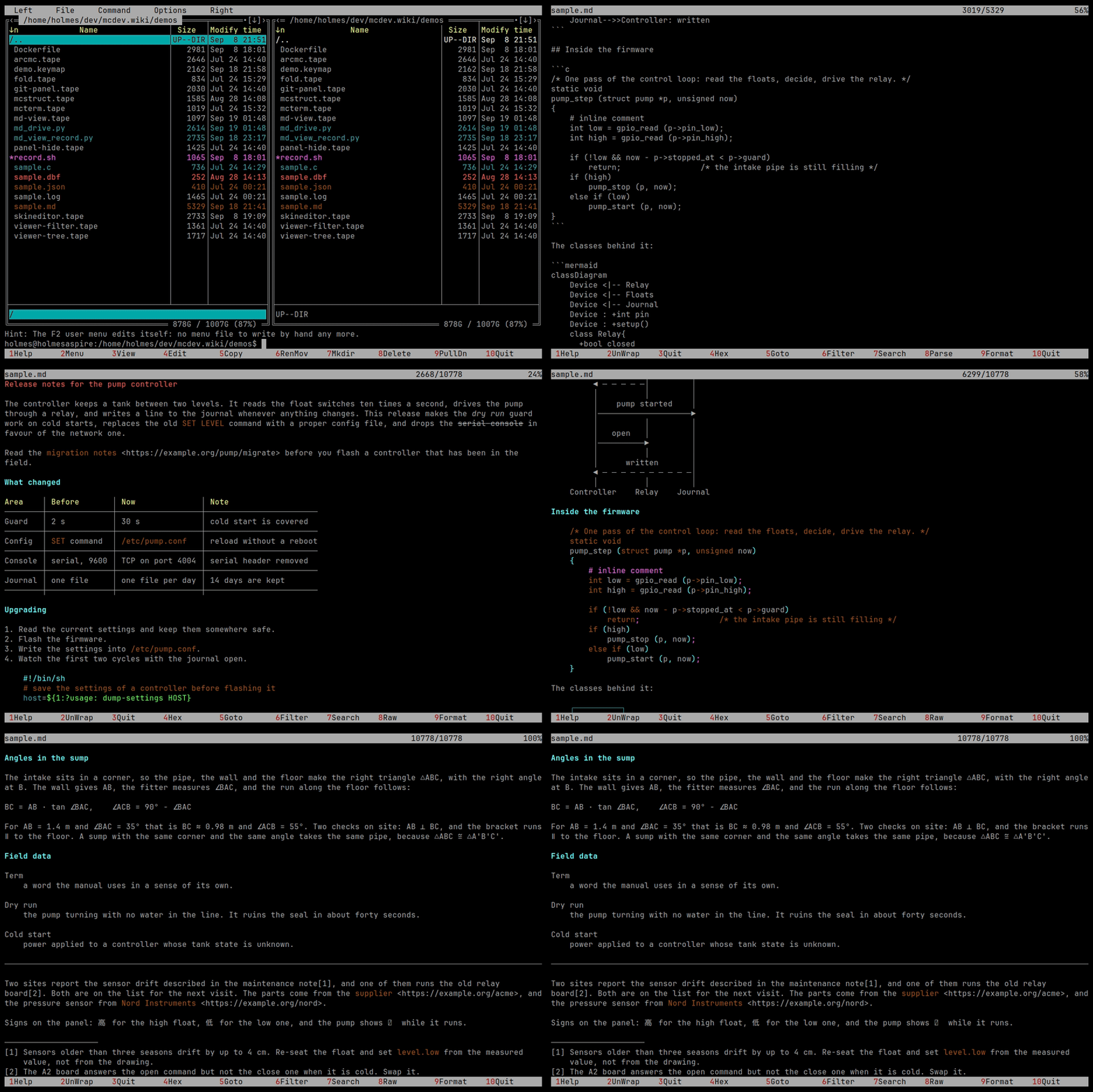
A mermaid block is drawn with box-drawing characters rather than shown as code.
A flowchart becomes boxes laid out in layers, with the lines routed in the room
between them and rounded where they turn. Every node keeps the shape it was
written with: a box for [], a rounded box for (), a circle for (()) and a
diamond for {}. The diamond of a decision is drawn with braille dots.
                  ⡠⠊⠉⠉⠉⠉⠉⠉⠉⠉⠑⢄         yes   ┌──────────┐
 ( Start ) ────▶◇  Условие?      ◇──────┬─────▶│ One step │────▶ ( End )
                  ⠑⢄⣀⣀⣀⣀⣀⣀⣀⣀⡠⠊       no      └──────────┘
A sequence diagram keeps the order of the messages, their text and the frames of its branches. In a class diagram every class has a colour of its own, and the lines leaving it carry that colour, so a line is read together with the class it starts from.
The same mechanism gives a file a readable form of its own:
- ELF binaries are read by
readelf: headers, sections, segments and dynamic data; - Java classes are decompiled by Procyon;
- dBase, FoxPro and Clipper tables open as pageable tables, with the structure, the record card and a choice of encoding.
F8 switches between the generated view and the bytes of the file in every case.
The viewer can now work with commands that never finish their output, for example:
docker logs -f
journalctl -f
Data is read without blocking the interface and is updated as it arrives.
The filter offers:
- plain search;
- regular expressions;
- case sensitivity;
- whole word search;
- charset selection;
- checking the expression beforehand.
The filter applies to the current data source and shows only the matching lines, without creating a second file or a separate process.
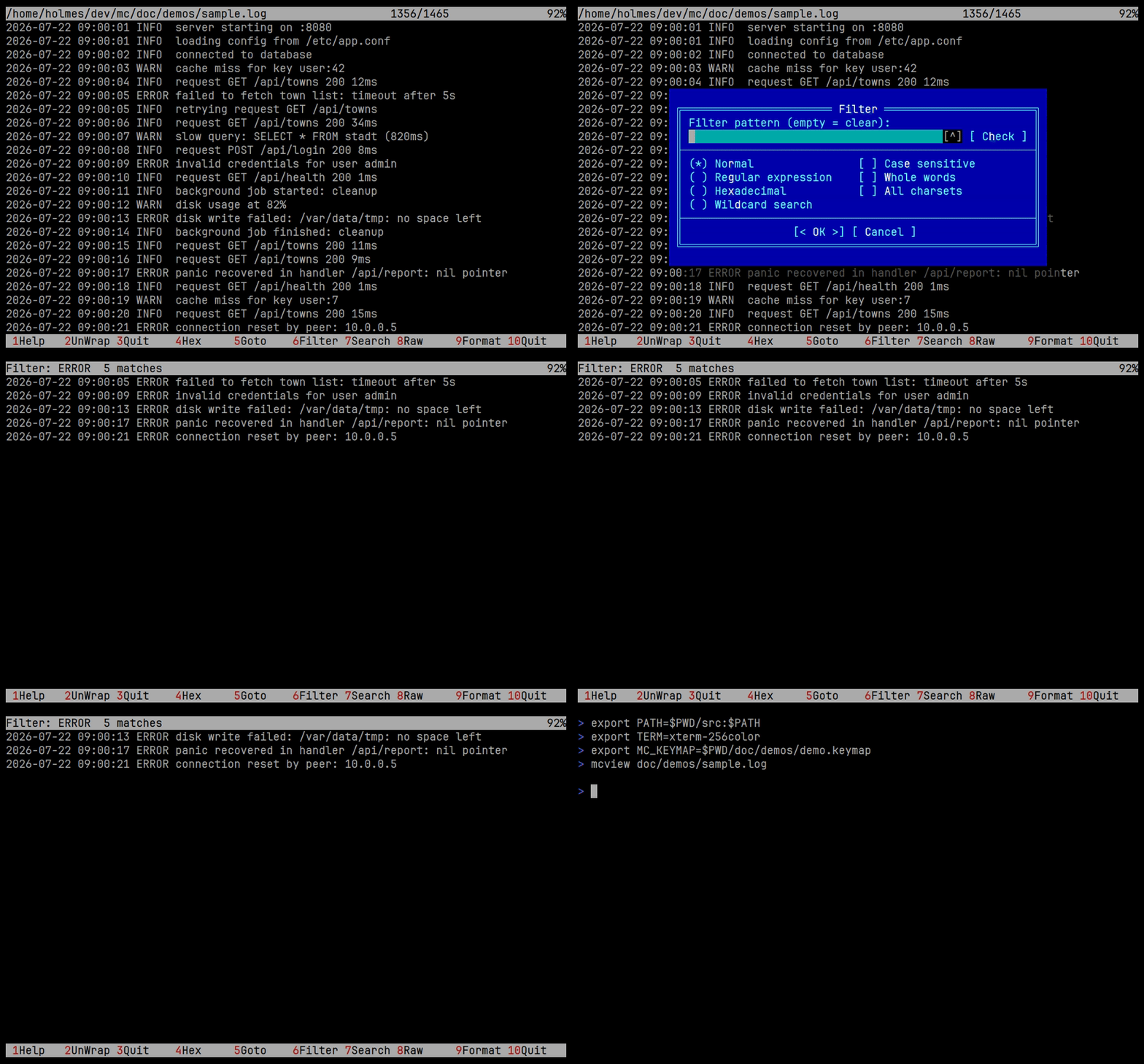
The log fetch parameters can be changed directly in the viewer, without closing it or returning to the panel. You can set the number of records loaded, the time interval, fetching the log of the previous container instance, and continuous refresh mode.
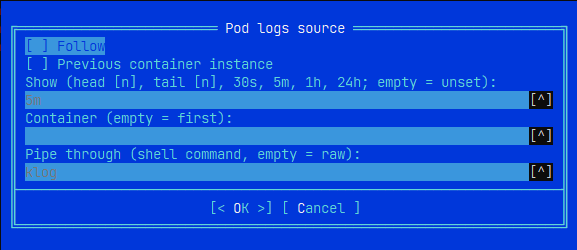
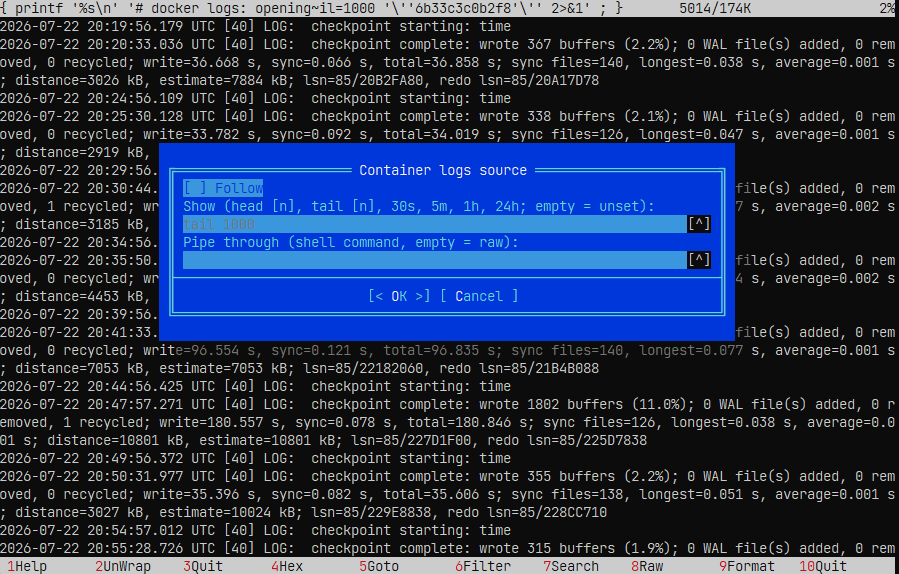
The fetched data can also be passed to an external command for transformation or formatting. This is available both for Docker logs, in the Container logs source dialog, and for Kubernetes logs, in the Pod logs source dialog.
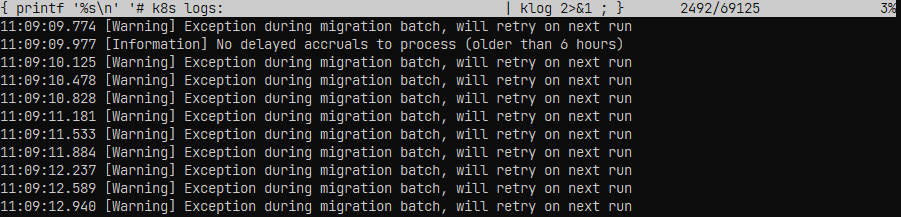
Without extra processing, structured logs, such as Serilog records in JSON, can be inconvenient to read:
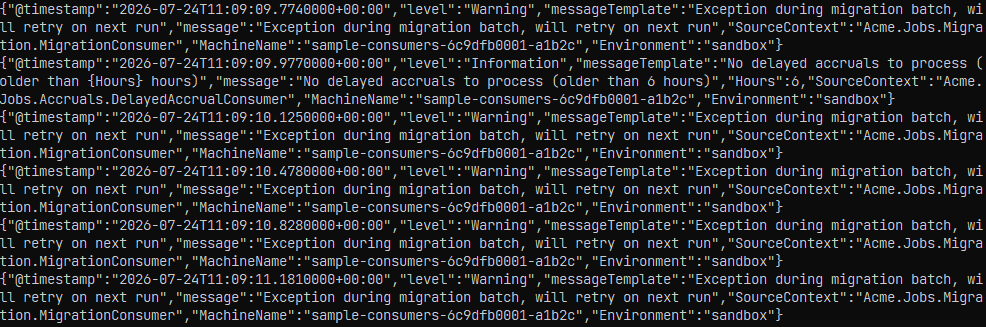
In the source dialog you can set the log fetch parameters and specify the processing command in the Pipe through field:
After processing, the data is shown in a more readable form:
mcview gained support for ANSI colours and a terminal replay mode.
Standard and bright colours, the 256-colour palette, True Color, bold and underlined text, italics and reverse video are supported.
Terminal mode handles the control sequences for positioning, screen erasing and scrolling regions. This makes it possible to view script(1) recordings and saved output of fullscreen terminal programs.
The None, SGR and Term modes are switched with F9. ANSI colour rendering can be turned on and off with Shift+F9.
The mcterm component runs the shell inside the file manager, and it has
replaced the old subshell: a command typed on the command line goes to the
shell already running there, and the command line shows that shell's own
prompt, colours and cursor. The terminal is toggled with Ctrl+O, starts in the
directory of the active panel and follows it, tracking the prompt, the running
command, the exit status and the directory through OSC 133 and OSC 7.
It keeps a bounded scrollback: PgUp/PgDn, Shift with the arrows, Home,
End and the wheel browse it, and typing returns to the live output. Output can
be marked with the mouse or with Shift and the arrows and copied with
Ctrl+Insert; Alt+Shift+S keeps only the rows that carry the selected text,
and Alt+S lifts that filter. Ctrl+L scrolls the screen into the history,
Ctrl+Alt+L clears the history as well. Long lines wrap, and the history is
laid out again when the window changes width.
While the terminal has the screen to itself it has a function key bar of its own; the manual says which keys belong to mc and which to the program running inside.
Terminal emulation is done by the viewer's own engine, without an external library.
The editor has a plugin framework of its own. A plugin can register actions, add entries to the editor menus and handle keys.
Plugins are enabled and disabled per user in the Manage Plugins dialog, which also opens the settings of the selected plugin.
Three plugins ship with the editor:
- the spell checker;
- etags support;
- the ctags navigator.
The spell checker and etags support were moved out of the editor core into plugins. The ctags navigator is new: it jumps to definitions and declarations, searches symbols and files, finds references, browses members, completes symbols and keeps the history of jumps. Indexes are managed per repository and can be rebuilt from the plugin.
User plugins are loaded from ~/.local/lib/mc6/editor-plugins.
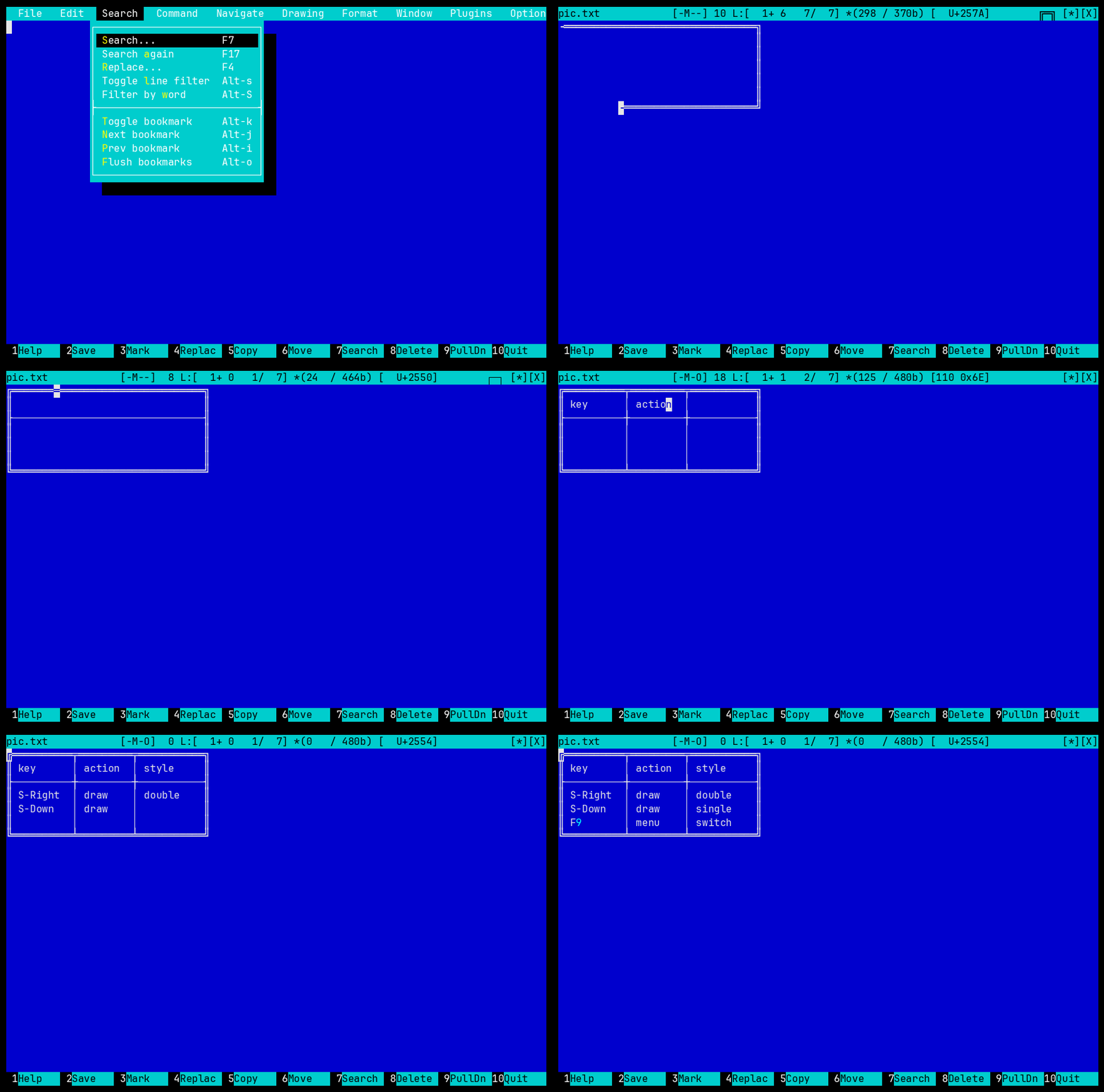
The editor draws box-drawing characters by itself. The Drawing menu turns single or double lines on, Shift+arrows then draw from the cursor, and the same menu stops drawing.
Every cell is recomputed from the lines that meet in it, so corners, tees and crossings appear on their own, and a single line crossing a double one gets the mixed glyph. With overwrite mode on (Insert) the text of the cells is typed without moving the frame.
This is a Lua editor script, draw-table, shipped in lua/scripts/editor/draw-table.
The Search dialog (F7) has a Filter action that hides every line which does
not match, with the type, case, whole word and charset settings of the dialog
itself. The line numbers stay original, and the gutter marks each hidden run.
Alt+S lifts the filter or puts the last one back on, and Alt+Shift+S filters
by the selection or by the word under the cursor without opening a dialog.
The dialog also opens with the selected text already in the search field.
mcedit can fold multi-line blocks by the {}, [] and () brackets.
Folding is available:
- through the indicator in the editor gutter;
- through the Command menu;
- through
Alt+Shift+F.
The command uses the selected area, or determines the nearest enclosing block relative to the cursor.

Alt+Shift+U opens the list of undo and redo operations.
For every group the line, the operation type, the number of characters and a fragment of the changed content are shown. From the list you can jump to any available point of the history.
Alt+Shift+M opens the list of recorded macros.
For the selected macro you can look at the sequence of actions, run it, delete it, or open the corresponding definition in mc.macros.
If a file cannot be saved because of insufficient permissions, the editor offers to repeat the operation through sudo -S tee.
A failed attempt does not close the editor and does not lose the current buffer.
Caching of character positions inside long lines was added. This reduces the delays during navigation, selection and redrawing of logs, CSV files and minified data.
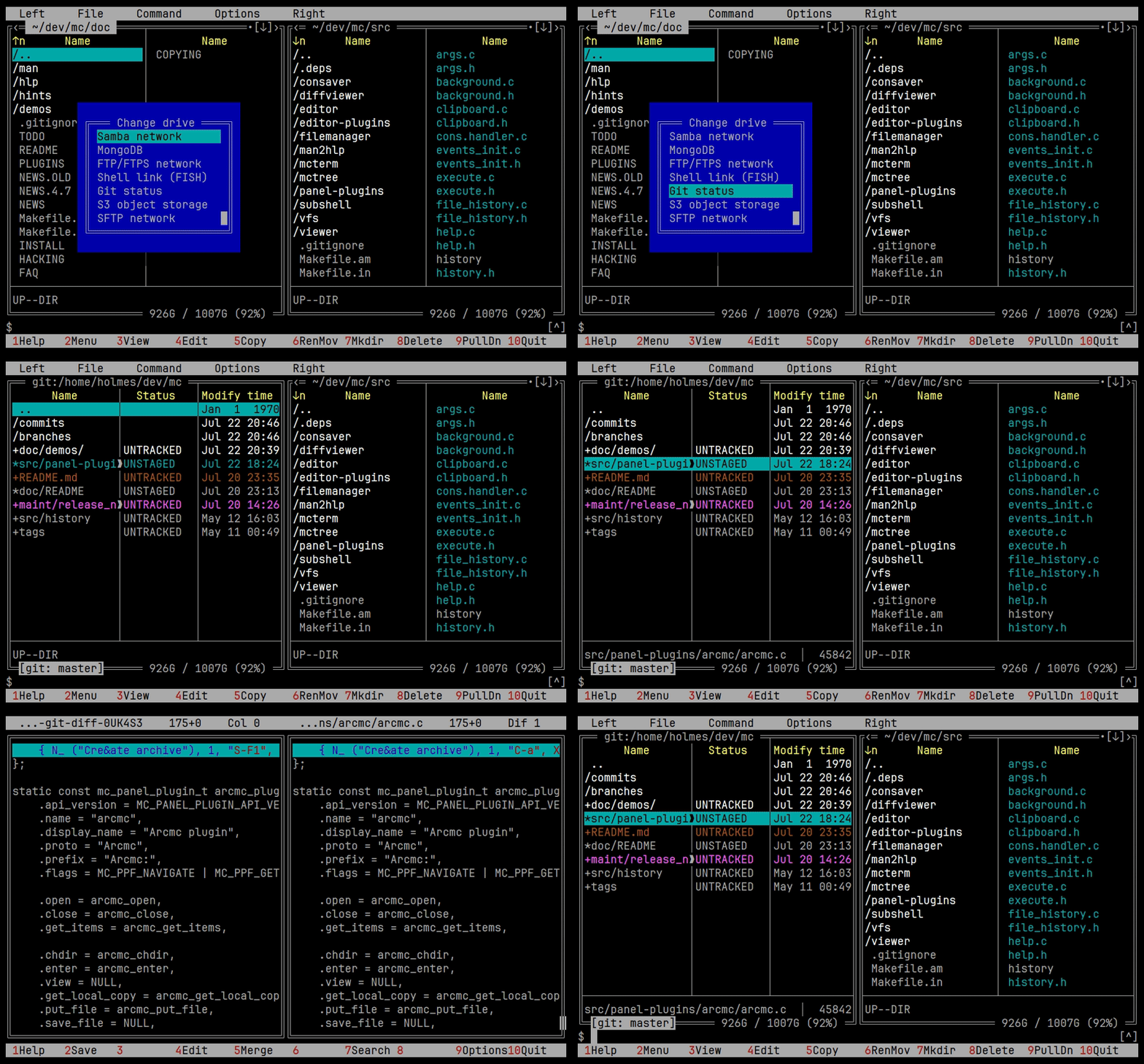
The Git plugin shows commits, branches and changed files. The built-in diff viewer is used for comparison.
Repositories can be saved as favorites. When a changed file is selected, the other panel moves to the corresponding file in the working directory.
The Docker plugin gives access to:
- containers;
- container files;
- images;
- volumes;
- networks;
- mounts;
- command execution;
- logs.
Local and SSH profiles are supported. For logs you can configure the number of lines, the time range, the previous run and the continuous reading mode.
A formatting script for .NET and Serilog logs is included.
The Kubernetes plugin works through kubectl and makes it possible to browse pods, nodes, services and workloads.
Contexts, namespaces, describe, YAML, exec, resource deletion and log viewing are also available.
The plugin makes it possible to browse connections, databases, collections and documents.
Filtering, projection, sorting, limiting the number of results, paged reading of large collections and document editing are supported.
The S3 plugin supports uploading, downloading and deleting objects, creating buckets, viewing metadata and streaming objects into the viewer.
Compatible storages can be used, including MinIO, Ceph and Cloudflare R2.
The SQLite plugin opens a database as a panel of tables, columns and rows. It is read only.
The FTP plugin supports FTP and FTPS, active and passive mode, proxies, keepalive and IP version settings.
The SFTP plugin supports password and key authentication, compression, progress display and streaming of files.
The Samba plugin gives access to SMB servers and shared resources.
F2 opens a menu the list edits: Ins adds an entry, F4 opens it in a
dialog of a hotkey, a label and the commands, Del removes it, Ctrl-Up and
Ctrl-Down move it, and Shift-F4 opens the file it is kept in. The entries
live in menu.ini, one group each, in the directory or in ~/.config/mc6, and
nowhere else. Nothing is shipped: the menu of a new user is empty and asks for
its first entry, and F5 takes entries from a menu file written by hand - his
own, or one an installed mc left behind.
An entry can also be a submenu: Ins asks which to add, a submenu is shown with a
slash after its name, Enter opens it and Esc goes back up.
The commands take the substitutions of the old menu, %f, %s, %{prompt}
and the rest; two checkboxes say whether the output goes to the viewer and
whether the command runs without the shell of the panel. A command of several
lines is written in the editor, from the dialog.
The menu that used to ship is on a page of its own, The user menu that shipped until 6.0.4. A menu file written by hand still works, and mc offers once to import it.
Users can create their own panel display modes and choose the set and the width of the columns.
Alt+Shift+S filters the panel as the pattern is typed: Quick Search and Quick
Filter share the pattern, and Ctrl+G removes the filter. Alt+C asks for the
directory in the mini status of the panel rather than in a dialog, with
directory completion above the input.
The permission_colors option colours each permission bit by what it is, the
way eza does, while the file type keeps the colour of the row.
Three separate dialogs were added.
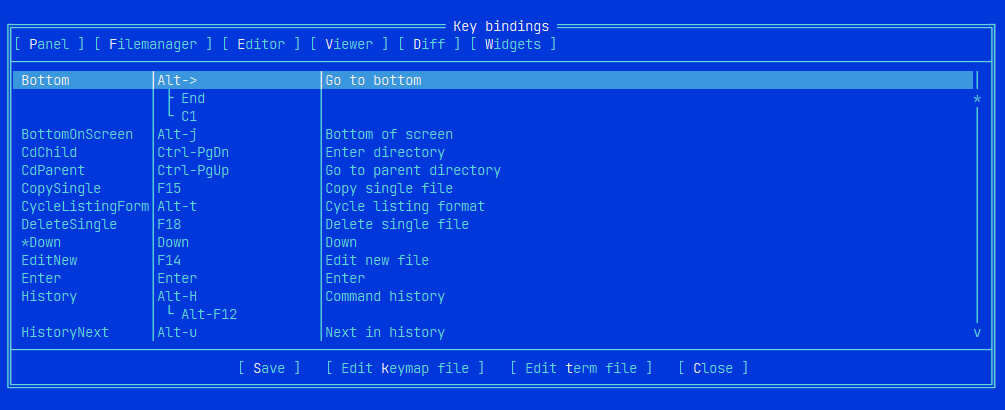
Key Bindings changes the key bindings and finds conflicts between them, with the bindings grouped by area into tabs.
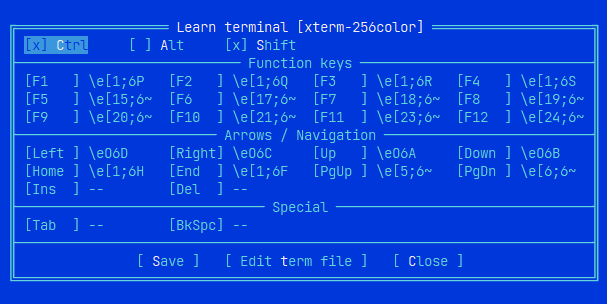
Learn Keys recognises the modifiers, so Ctrl, Alt and Shift are captured together with the base key.
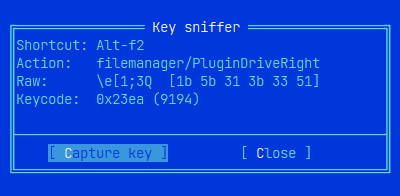
Key Sniffer shows the escape sequence the terminal sends for a key, along with the shortcut, the mapped action and the keycode.
Terminal settings are stored in:
~/.config/mc6/term/<TERM>
The fork is devoted to five directions:
- Extensible panel plugins, and a plugin API that lets them pass data to each other.
- Scripting through Lua, itself a plugin rather than a part of the core.
- The viewer for structured data, binary formats, logs and terminal recordings.
- The editor: plugins, drawing, folding, filtering, history.
- The embedded terminal in place of the subshell.