Repository navigation
Controllers
PC5 lets each game see your controller in one of three ways: as an Xbox controller, as a DualSense plugged into a PC, or as a keyboard and mouse with a button mapping you choose. The choice is made in the game's menu and kept for that game. This page explains the three modes, the button mapping, playing with more than one player, leaving a game, and answering a game's Windows pop-ups.
- In the library, choose the game and press △.
- Choose Controller and press ✕ (or left / right) until it shows the mode you want.
- Start the game. The change takes effect the next time the game starts.
| Mode | The game sees | Use it for |
|---|---|---|
| Xbox controller | An Xbox controller (XInput). The default. | Most games from the last twenty years, which look for an Xbox controller. Games that read controllers through Windows.Gaming.Input, DirectInput or Windows' joystick API find it too, as Windows shows an Xbox 360 controller. |
| DualSense | A DualSense plugged in by USB, as on a PC. The game gets the touchpad and the motion sensors, and its own rumble, light bar and adaptive trigger effects reach the controller. | Games that know the DualSense, or look for controllers another way (DirectInput, raw input, SDL). |
| Keyboard & mouse | A keyboard and a mouse. Each button and stick direction sends the key or mouse button you choose in Button mapping. | Games without controller support. |
Which one to try: start with Xbox controller. If the game doesn't react to the controller, try DualSense. If the game has no controller support at all, use Keyboard & mouse.
Older games that read controllers with DirectInput see the Xbox controller as Windows shows one: "Controller (XBOX 360 For Windows)", with both triggers on one axis (the left one up, the right one down), the D-pad as a hat and ten buttons. A mod that turns a game's DirectInput controls into XInput isn't needed for that from 1.6.5.
A USB keyboard and mouse plugged into the PS5 work in every mode, alongside the controller. The mouse wheel works too (from 2.0.2).
With Keyboard & mouse, the game menu gets a Button mapping row.
 Keyboard & mouse adds the Button mapping row to the game's menu.
- Choose the game, press △, and set Controller to Keyboard & mouse.
- Choose Button mapping and press ✕.
- Choose a button or a stick direction and press ✕. The key picker opens.
- Choose a key, a mouse button or Nothing, and press ✕.
- Press ○ to go back. Each change is saved at once and applies the next time the game starts.
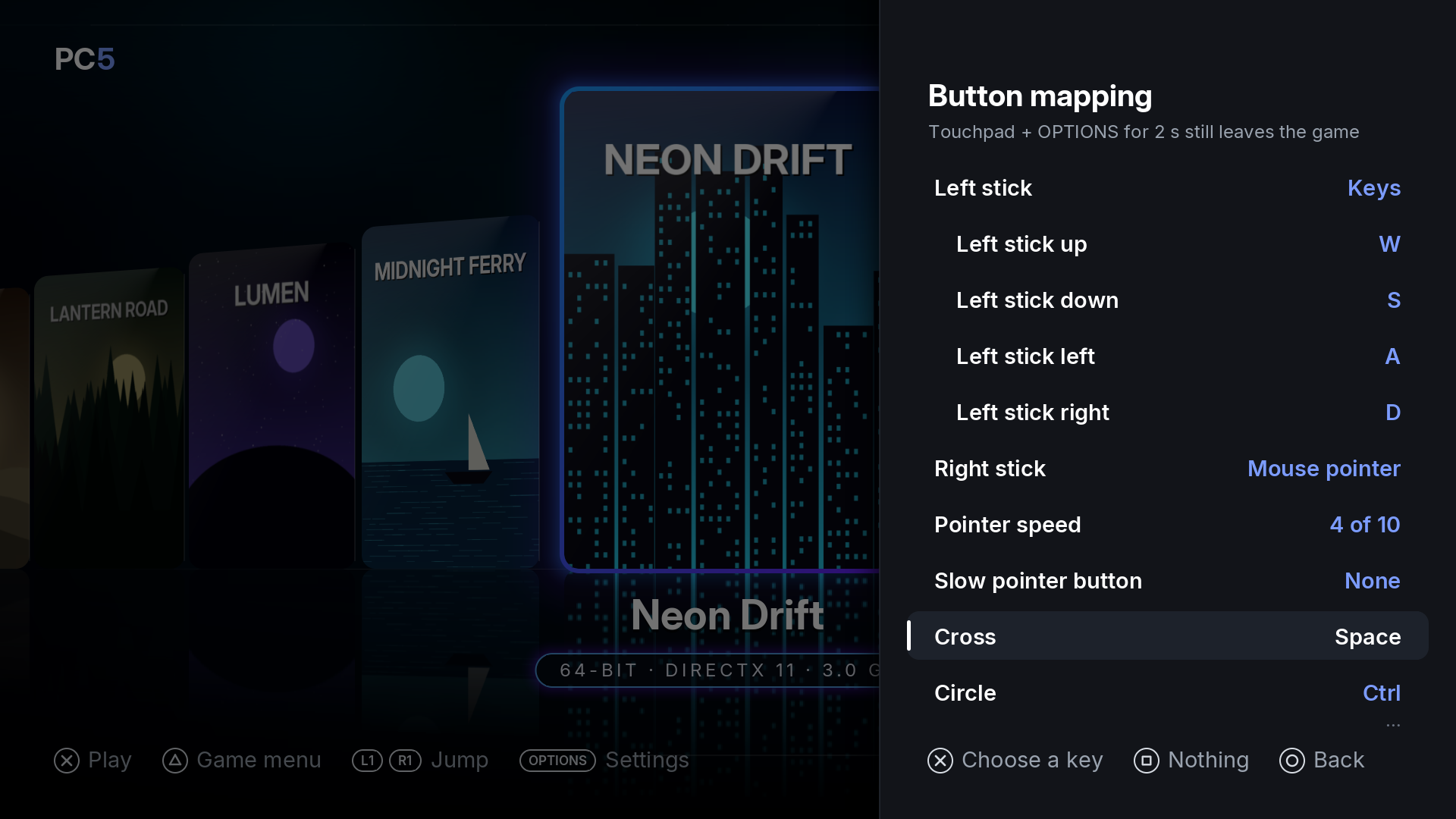 Button mapping: what each stick and button sends.
 The key picker: every key, mouse button and Nothing.
| Button | On the Button mapping screen |
|---|---|
| ✕ | Choose a key for the button or direction (or change a stick's use, the pointer speed, or reset) |
| Left / right | Step through the values without opening the key picker |
| □ | Set the button or direction to Nothing |
| ○ | Back to the game's menu |
The key picker has the letters A to Z, the digits 0 to 9, F1 to F12, Space, Enter, Esc, Tab, Backspace, Shift, Ctrl, Alt, the four arrows, Insert, Delete, Home, End, Page up, Page down, Pause, the punctuation keys ; = , - . / ` [ \ ] ', left, right and middle click, Wheel up and Wheel down (each press turns the mouse wheel one notch: a visual novel's rollback, a map's zoom), and Nothing.
Each stick can be:
| Use | What it does |
|---|---|
| Keys | Sends four keys, one for each direction. The four directions then appear below the stick, each with its own key. A diagonal sends both. |
| Mouse pointer | Moves the mouse pointer. Only one stick can be the pointer: choosing it for one stick sets the other to Keys. |
| Nothing | Does nothing. |
While a stick is the pointer, Pointer speed sets how fast it moves, from 1 to 10 (4 by default).
Slow pointer button picks a button that slows the pointer while you hold it, for placing and aiming precisely (None by default). Slower by sets how much, from 10 % to 90 % (50 % by default). While a button is the slow button it does only that: its row says Slows the pointer.
Reset to default, at the bottom of the list, brings back this layout:
| Control | Sends |
|---|---|
| Left stick | Keys: W (up), S (down), A (left), D (right) |
| Right stick | Mouse pointer, speed 4 of 10 (as Keys: the arrow keys) |
| ✕ Cross | Space |
| ○ Circle | Ctrl |
| □ Square | R |
| △ Triangle | E |
| L1 | Q |
| R1 | F |
| L2 | Right click |
| R2 | Left click |
| L3 (left stick press) | Shift |
| R3 (right stick press) | V |
| D-pad | Up, down, left and right arrows |
| Options | Esc |
| Create | Tab |
| Touchpad | Enter |
With DualSense, the game finds a DualSense as if it were plugged into a PC by USB. Games that support the DualSense show PlayStation buttons, and get:
- the touchpad and the motion sensors;
- their own rumble, at the strength set in Settings › In games › Vibration;
- their own light bar colour and adaptive trigger effects, from the moment the game sets them. Until then, PC5's Light bar and Adaptive triggers settings apply.
Up to four players can play a game with local multiplayer (split screen, couch co-op), each with their own controller, in Xbox controller and DualSense mode. On the PS5 each controller belongs to a signed-in user, so each player signs in:
- Turn on another controller and press its PS button.
- Sign in with it as another user on the console, or as a guest.
- Within a second the game finds that player's controller, while it runs. Players join in the order they sign in, and a player who signs out leaves: the next one to sign in takes their place.
- With Xbox controller, the game finds up to four Xbox controllers, each with its own rumble.
- With DualSense, player 1 is the DualSense, and players 2 to 4 are Xbox controllers.
- Keyboard & mouse is for one player.
- Player 1 is whoever started PC5. Only player 1's controller leaves the game, opens the on-screen keyboard and gets PC5's light bar and adaptive triggers. Everyone's rumble follows Settings › In games › Vibration.
- Which controller is which player, and whether a game has local multiplayer at all, is up to the game. Some games ask each player to press a button first.
The strength of a game's rumble, the light bar and the adaptive triggers follow Settings › In games, whichever mode is chosen. See Settings.
A game's rumble plays on the controller's two motors, as on a PC. From PC5 1.9.4, PC5 sets each controller to the PS5's compatible vibration mode when the game starts; before that, on many consoles the motors stayed still while the adaptive triggers still played. If a game's rumble still doesn't reach the controller, check Settings › Accessories › Controllers › Vibration Intensity in the PS5's own settings, and report it with the game's log: its PW_WINE64 rumble line shows what the console answered.
Hold the touchpad and Options together for two seconds, whichever mode is chosen. The controller gives a short buzz, the game is asked to close (it can save), and if it hasn't closed after five seconds it is ended. You are back in PC5, or on the home screen if you started the game from its home screen tile.
This combo always leaves the game. Don't use it to close a pop-up.
Click the touchpad with two fingers in a game, whichever mode is chosen, and the PS5's on-screen keyboard opens over the game. Type, then choose Done: the text is typed into the game, where its text box has the cursor (a name, a chat line, a server's address). Cancel closes the keyboard without typing anything.
- Put the cursor in the game's text box first, with the controller or the pointer.
- The game gets the text as characters typed on Windows. A game that reads the keyboard's keys rather than the characters typed doesn't see it.
- The two-finger click itself never reaches the game. A click with one finger reaches it as before.
- If the game needs Enter to accept the text, press the button that sends Enter, or ✕ in its menu.
Some games show a Windows box before they start, such as a warning about the computer's specs or a Yes / No question. With Xbox controller or DualSense:
| Button | In a Windows box |
|---|---|
| ✕ | Presses the highlighted button (OK, Yes) |
| D-pad | Moves between the buttons |
The game only gets these as keys while such a box is in front, so they don't get in the way while you play.
With Keyboard & mouse, the buttons send the keys they are mapped to, as always. With the default layout, ✕ is Space (which presses the highlighted button), the D-pad sends the arrow keys and the touchpad sends Enter.
That isn't possible: the game picks up its controller when it starts. Leave the game, change the mode in its menu, and start it again.