Repository navigation
Playing games
Your installed games are on PC5's Home tab, a row of covers under the chosen game's background, and on the Library tab, all of them in a grid. From there you start a game, open its menu to set it up, and come back to PC5 when you leave it. This page covers Home and Library, starting and leaving a game, the game menu and frame generation.
 PC5 opening.
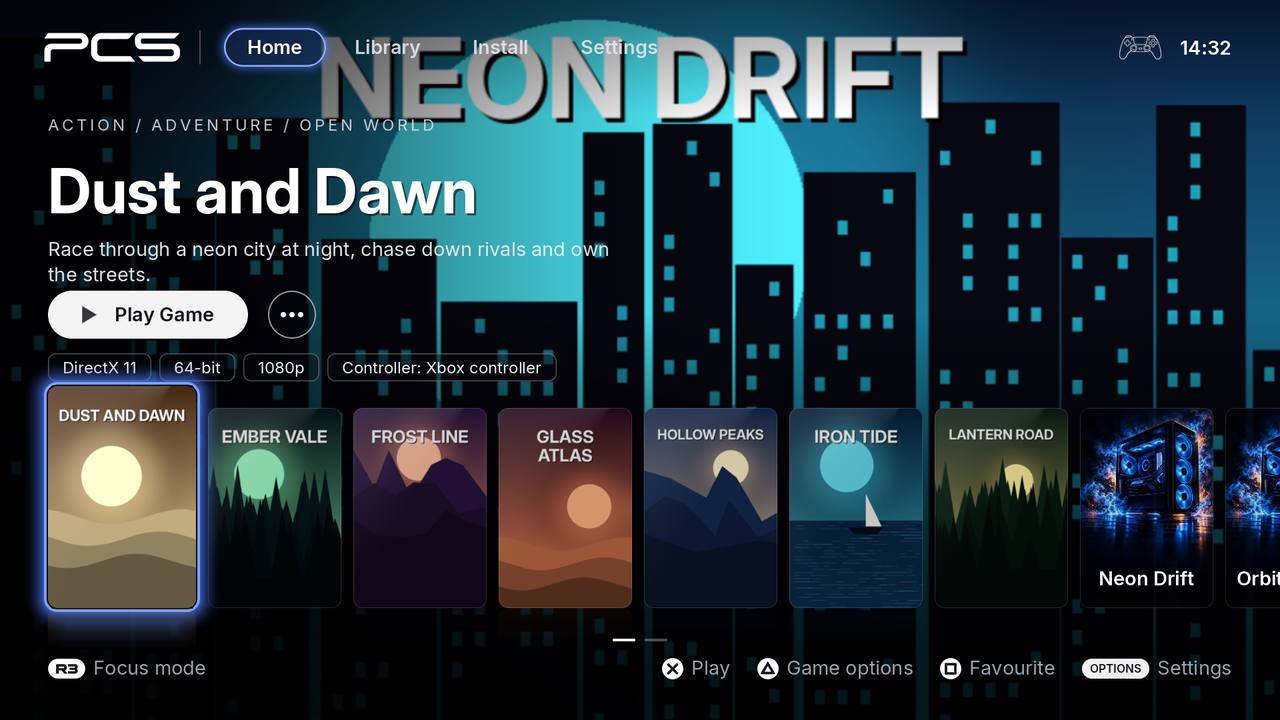 Home. Behind it, the chosen game's background (see Backgrounds); over it, its genres, its logo or name, a line about it, Play Game, ••• for its menu, and its settings: what it draws with, 32-bit or 64-bit, its resolution and its controller. The chosen cover is lit in blue.
A game without a background of its own shows PC5's picture instead, and a game without a cover shows PC5's cover with its name on it.
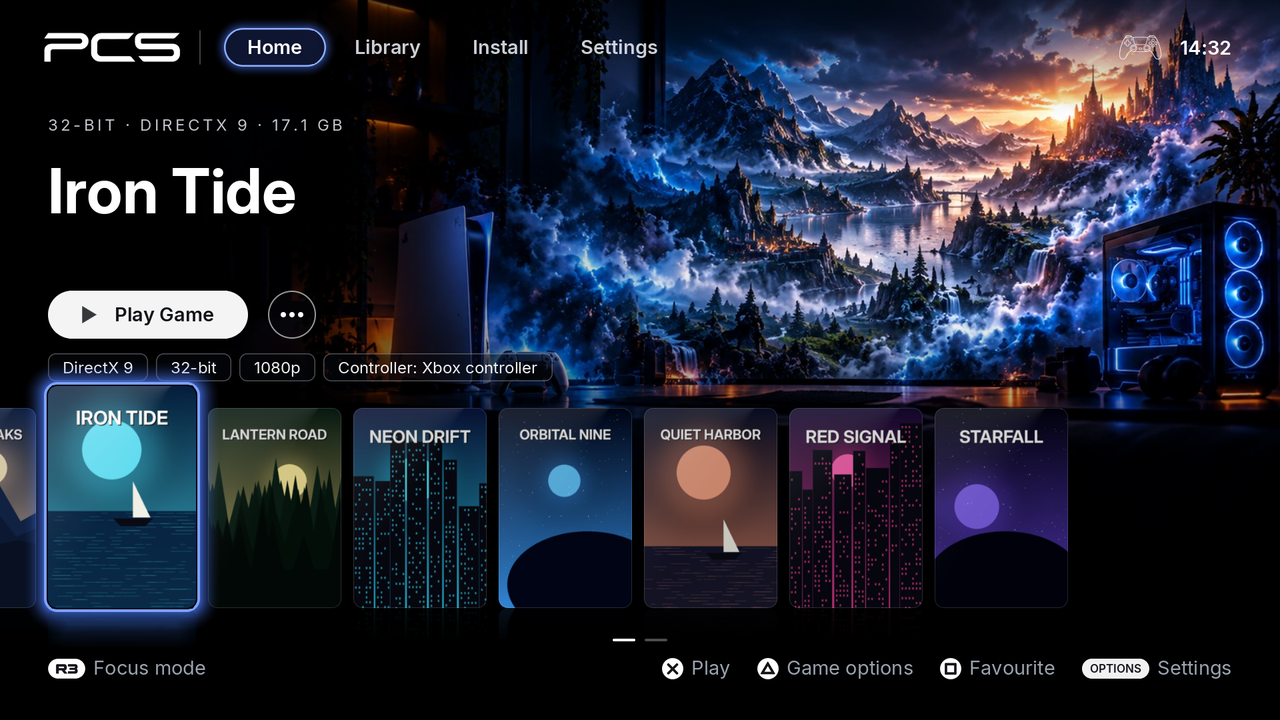
| Button | On Home |
|---|---|
| Left / right, or the left stick | Move between games |
| L1 / R1 | The previous or next tab: Home, Library, Install, Settings |
| ✕ | Play the chosen game |
| △ | The chosen game's menu |
| □ | Mark the game as a favourite, or unmark it (a star on its cover) |
| R3 | Focus mode: only the game's picture, until R3 again |
| Options | Settings |
If the console is set to confirm with ○, PC5 follows it: ○ plays and chooses, and ✕ goes back.
When PC5 opens, the game you played last is chosen. The library holds up to 128 games. The clock at the top right is the console's.
 Library: every game in a grid, with filters along the top.
The filters are All, Recently played (newest first), Favourites, USB drive (games installed on a USB drive) and Needs attention (games that can't start as they are, with the reason on Home). L2 / R2 change the filter; ✕, △ and □ work as on Home.
Install has installing and uninstalling games and the game compatibility list (the same as Settings › Game maintenance; see Installing games). Settings is PC5's settings (see Settings).
A USB keyboard works in PC5's own screens too:
| Key | Does what |
|---|---|
| Arrow keys | Move |
| Enter or Space | ✕ (choose) |
| Escape or Backspace | ○ (back) |
| F1, Tab or the menu key | Options |
| F2 or Delete | □ |
| F3 | △ |
| Page Up / Page Down | L1 / R1 |
| Home / End | L2 / R2 |
| F4 | R3 |
- Choose the game in the library.
- Press ✕ (or choose Play in its menu).
PC5 shows a loading screen with the game's name until the game shows its first picture.
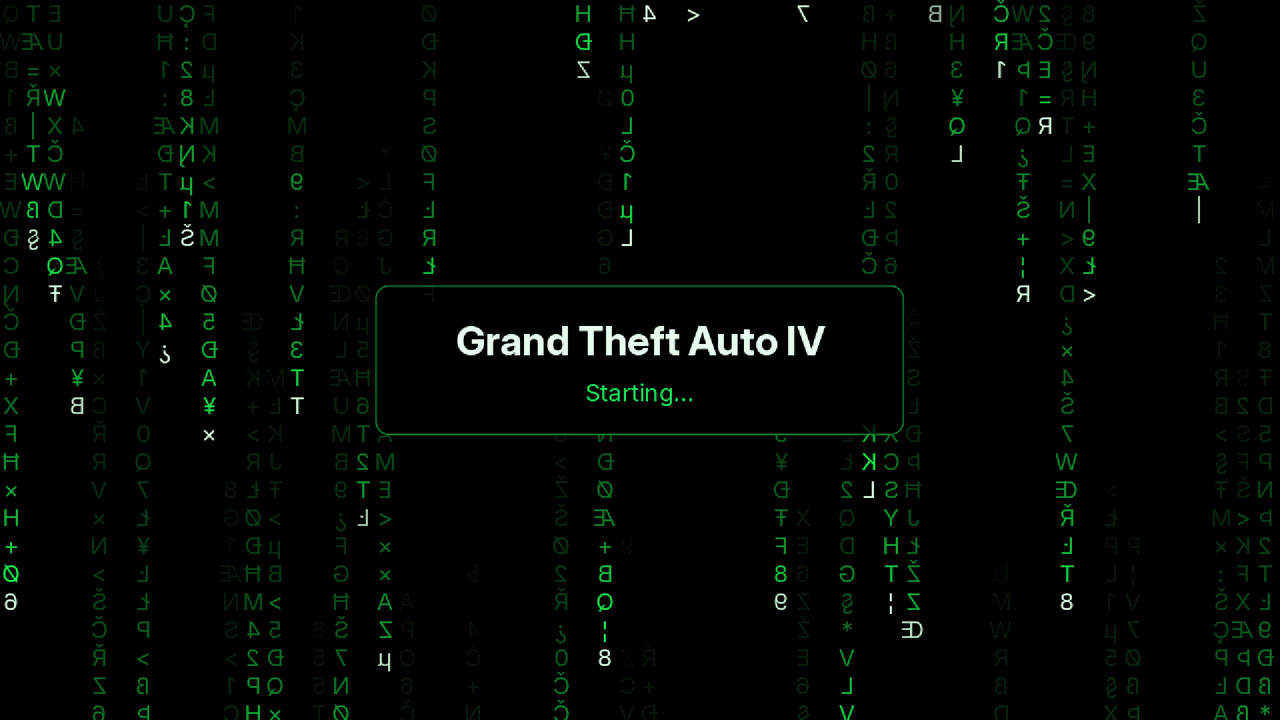 The loading screen, shown until the game draws its first picture.
Good to know:
- Each game's Windows language is the PS5's language, so a game that follows the Windows language follows the console.
- PC5's settings (overlay, vibration, light bar, triggers) and the game's own settings (controller, frame generation, launch options) are read each time the game starts. A change takes effect the next time you start it.
Hold the touchpad and Options together for two seconds.
- The controller gives a short buzz: the hold was taken.
- PC5 asks the game to close (as Alt+F4 does on a PC), so it can save.
- If the game hasn't closed after five seconds, it is ended.
- You are back in PC5. If you started the game from its home screen tile, you are back on the home screen.
This works in every controller mode and can't be remapped. Don't use it to close a pop-up in the game: it always leaves the game. See a game's Windows pop-ups for those.
If the game crashed or closed before showing anything, PC5 tells you when it opens again, and keeps the log. See Reporting a problem.
Choose a game in the library and press △. Its menu has what you change most, and three groups: Graphics, Appearance and Manage. The row chosen says what it does under its name.
 The game menu. Its settings are kept for this game only.
| Row | What it does |
|---|---|
| Play | Starts the game. |
| Controller | What the game sees: Xbox controller (the default), DualSense, or Keyboard & mouse. Press ✕ or left / right to change it. See Controllers. |
| Button mapping | Only with Keyboard & mouse: what each button and stick sends. See Controllers. |
| Mouse pointer | Shown (the default): the pointer stays as the game shows it. Hides when unused: it hides when you haven't moved it or clicked for 5 seconds, for a game that leaves it in a corner. See Controllers. |
| Graphics › | Graphics API, frame generation, resolution, aspect ratio, memory, video memory and CPU sharing. See Graphics. |
| Appearance › | The game's cover, its background, its home screen tile and the tile's picture. See Appearance. |
| Manage › | The program PC5 starts, its files, updating the game and uninstalling it. See Manage. |
○ goes back from a group to the menu, and from the menu to the library. △ closes the menu from anywhere in it.
 Graphics: what changes how the game is drawn.
| Row | What it does |
|---|---|
| Graphics API | Only for games drawn with Direct3D or DirectDraw: what turns the game's graphics into Vulkan, which the console draws with. See Graphics API below. |
| Frame generation | Off (the default) or 30 → 60 fps. See Frame generation below. |
| Resolution | Only for games drawn with Direct3D, Vulkan or OpenGL: 1080p (the default), 1440p or 4K. See Resolution below. |
| Aspect ratio | Keep (the default) or Stretch. See Aspect ratio below. |
| Memory | Only for 32-bit games: Auto (the default from 1.9.8) or 4 GB. Auto is as on Windows: a game made for more memory (its program says so) gets 4 GB of address space, any other gets 2 GB. 4 GB gives every game 4 GB, room for big textures and mods, but an older game not made for it can crash with it. From 1.4.0 to 1.9.7 every game had 4 GB; a game left as it was is Auto from 1.9.8. |
| Video memory | For 32-bit games and for 64-bit Direct3D 10, 11 and 12 games: Auto (the default) or Full. For a 32-bit game, Auto tells it it has 2 GB of video memory: some older games misread more than that, and refuse to start or say they need more than there is. For a 64-bit game, Auto tells it 4 GB: the console's memory is shared between the game and its graphics, and a game told 8 GB of its own could take so much that the rest ran out ("failed to allocate memory"). A 64-bit game also has 5 GB and 6 GB: for a game that warns there is too little video memory on Auto, more room for its textures and less for the rest. If it then crashes or says it ran out of memory, go back a step. Full tells the game all the console's. |
| CPU sharing | Off (the default) or On. The console runs each of a game's threads on a CPU of its own until it waits, where Windows lets them take turns, so a game that keeps more threads busy than its 13 CPUs can stop for seconds at a time and carry on after a while, or after the PS button. On gives the game's threads turns, as on a PC. It applies the next time the game starts. |
 Appearance: how the game looks in PC5 and on the home screen.
| Row | What it does |
|---|---|
| Cover | Another of the covers found for the game, one found for a name you type, or the card made from its icon. See Changing a cover or background. |
| Background | Another of the backgrounds found, one found for a name you type, or none. See Changing a cover or background. |
| Home screen tile | Off or On: a tile on the PS5's home screen, an app of its own that starts this game. See Home screen tiles. |
| Tile picture | The tile's picture: a square one from SteamGridDB (with your key), or one made from its cover. See The tile's picture. |
 Manage: the game's program, a newer version, and uninstalling.
| Row | What it does |
|---|---|
| Change program | The program PC5 starts for this game ("Now: …"). Choose another one if PC5 picked the wrong one. See Choosing the right program. □ on a program offers it at Play too (from 2.0.9): a game with an expansion that has a program of its own then asks which to start each time you play it, and the one you pick stays its program. □ again stops offering it. |
| Steam emulator | Only for a game with Steam's library (steam_api.dll or steam_api64.dll): Auto (the default) or Off. See Games made for Steam below. |
| Game files | Only for games PC5 installed: the game's own folder, to copy, move, rename and delete its files (on its drive, for a game installed on a USB drive). See File manager. |
| Update | Only for games PC5 installed: copies a newer version from the USB drive over the game. Its saves, settings and options stay. See Updating a game. |
| Report a problem | (From 2.0.4.) A QR code for GitHub's issue form, filled in from the game's newest log: the game, its program, PC5's version, what went wrong, the log's name and the game's settings. Attach that log on the form. See Reporting a problem. |
| Uninstall | Deletes the game, keeping its saves or not, after asking. See Uninstalling a game. |
Steam doesn't run on the console. A game that asks Steam's library (steam_api.dll or steam_api64.dll, Valve's) for Steam would quit, so with △ › Manage › Steam emulator on Auto (the default), PC5 puts the gbe_fork Steam emulator in its place each time the game starts, and the game plays as if Steam were there, offline:
- Valve's library is kept beside it, as
steam_api64.dll.pc5-valve. Off puts it back at the next start. - The emulator's settings are in a
steam_settingsfolder beside it: the game's app ID when the game has asteam_appid.txt, the player's name "Player", offline, and no DLC the game doesn't have. Change them there if a game needs something else; PC5 doesn't write over them. - A game that has a Steam emulator or fix of its own is left exactly as it is, its settings and saves with it: a Steam library anywhere in its folder that isn't Valve's, or another emulator's files (
steam_emu.ini,OnlineFix.ini,ColdClientLoader.ini,SmartSteamEmu.ini,steam_api64_o.dlland the like). PC5 puts none beside it.
A game whose program is wrapped in Steam's DRM (SteamStub) needs Steam itself, which the emulator can't stand in for: PC5 says so when you start it, instead of starting it. A copy of the game without it, such as one from GOG, can run.
Frame generation shows a game at 60 fps when it runs at 30. It is set for each game: △ › Graphics › Frame generation, Off by default.
 Frame generation on: the game is held at 30 fps and shown at 60.
How it works: the game is held at 30 fps, and before each of its frames PC5 shows one made between it and the one before, with ps5-framegen's interpolator (AMD FSR3's optical flow).
What to expect:
- It suits games that keep 30 fps or a little more. When a game falls below 30, its frames are shown as they come, without frames in between, until it keeps up again.
- Frames made in between can show smearing around fast movement and at the screen's edges.
- The game reacts a little later than without it.
- The overlay's FPS counts every frame shown, the made ones too, so it shows about 60.
- It works with games drawn with Direct3D 8 to 12, Vulkan or OpenGL. It doesn't apply to DirectDraw or plain Windows drawing, nor to 10-bit (HDR) output.
- A change takes effect the next time the game starts.
A game drawn with Direct3D, Vulkan or OpenGL can be drawn at 1080p (the default), 1440p or 4K: △ › Graphics › Resolution, kept for that game.
- The console shows 1080p and 4K pictures as they are, and a 1440p one scaled up to 4K.
- A higher resolution is slower: 1440p is nearly twice the work of 1080p, and 4K four times. A game that is already slow at 1080p gets slower.
- Games drawn with DirectDraw or plain Windows drawing are drawn at 1080p, so the row isn't shown for them.
- A change takes effect the next time the game starts.
From 1.9.2, △ › Graphics › Graphics API chooses who turns a game's Direct3D or DirectDraw into Vulkan. Auto (the default) is what PC5 chooses, and suits most games; the others are for a game that doesn't run, or doesn't look right, that way:
| Choice | Direct3D 8 to 11 | Direct3D 12 | DirectDraw |
|---|---|---|---|
| Auto | DXVK | VKD3D-Proton | WineD3D with OpenGL |
| WineD3D | Wine's own Direct3D, with OpenGL | — | — |
| WineD3D on Vulkan | Wine's own Direct3D, drawing with Vulkan itself | — | Wine's own, drawing with Vulkan itself |
| Wine's VKD3D | — | Wine's own Direct3D 12 | — |
From 1.9.3 it opens a window with the game's choices and what each does, the one in use marked In use: choose one with ✕, or leave with ○. It applies the next time the game starts, and stays with the game. Wine's own Direct3D is usually slower than DXVK and VKD3D-Proton, and WineD3D on Vulkan is the newest of them; if a game only runs with one of them, say so in its issue or compatibility report.
A game whose picture has another shape than the screen's, such as a 4:3 game, is shown in its own shape with black bars beside it. △ › Graphics › Aspect ratio › Stretch fills the screen with it instead, kept for that game.
- A stretched picture is wider than it was drawn: round things look oval.
- Set the game's own resolution in its options to the 4:3 one it was made for, such as 1024x768: a game that draws its own bars inside a 16:9 picture keeps them, as PC5 can't tell them from the picture.
- A change takes effect the next time the game starts.
.NET Framework games and tools (XNA through FNA, MonoGame, WinForms) run with Wine Mono, the open-source stand-in for Microsoft's .NET Framework that Wine itself uses.
- The first time a .NET game starts, PC5 shows Setting up .NET for your games, once while it copies the runtime (some 230 MB) to
/data/prospero-win/pc5/. Every .NET game uses that one copy, so the next ones start straight away. - A .NET game installed with an older PC5 gets what it needs the next time it starts.
- It isn't Microsoft's .NET: programs that mix .NET and C++ (C++/CLI) don't run, and some WPF doesn't.
PC5 can show an overlay over every game: FPS, frame time, CPU and GPU usage, CPU and SoC temperatures, and memory. Turn it on in Settings › Overlay. See Settings.
If PC5 can't start a game, it says why: for example "Game can't start" with the reason. See Troubleshooting for PC5's messages and what to do about them.
Games installed in /data/prospero-win some other way (not with PC5) show up in the library too, and get a cover the first time PC5 opens. Their program is set in their prospero-win profile, so Change program doesn't apply to them.