


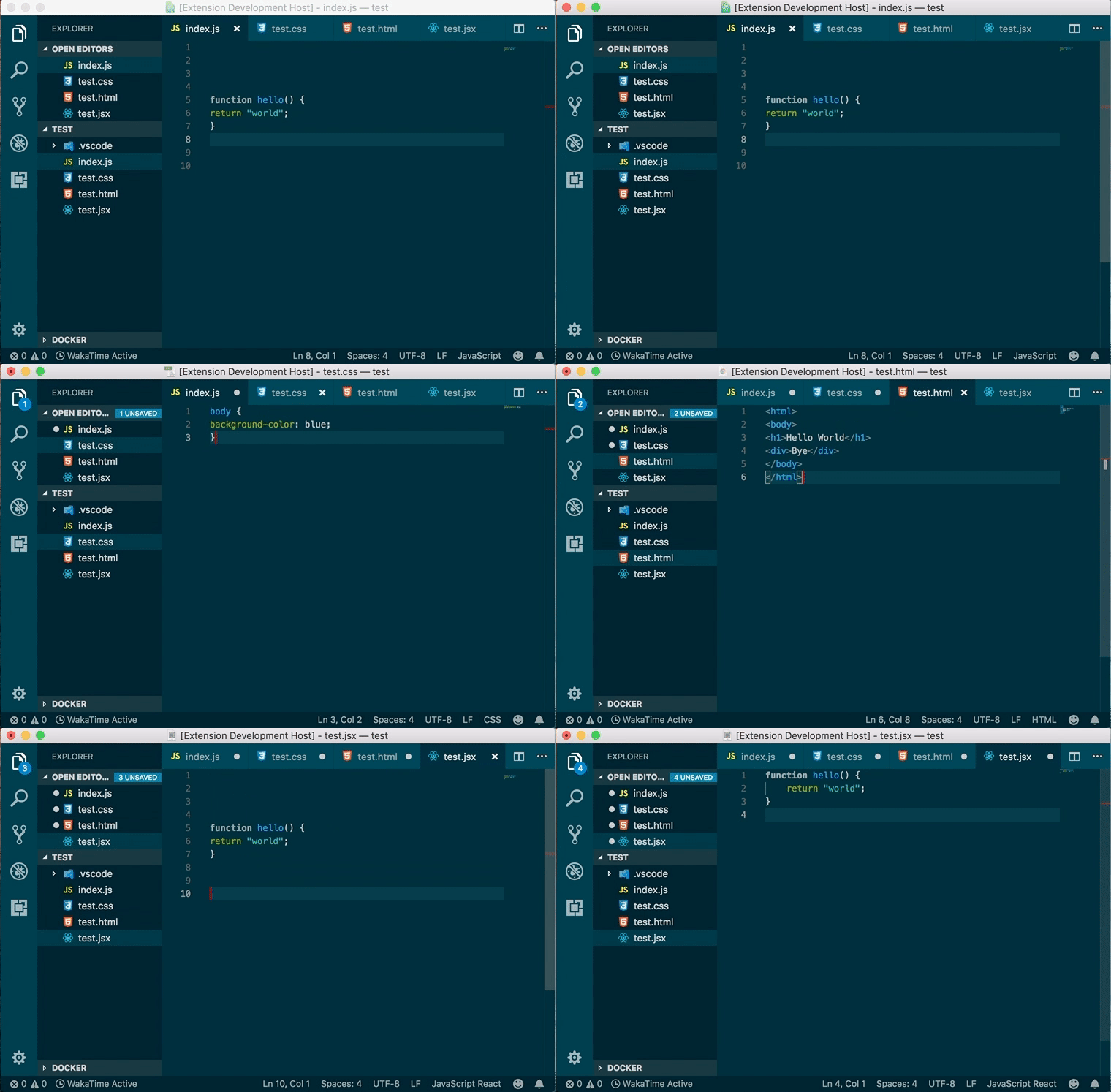
Search for Unibeautify extension and click Install.
See Install an extension for more details.
code --install-extension Glavin001.unibeautify-vscodeSee https://github.com/Unibeautify/vscode/blob/master/src/beautifiers.ts for list of supported beautifiers.
| # | Beautifier | Documentation |
|---|---|---|
| 1 | ClangFormat | https://unibeautify.com/docs/beautifier-clangformat.html |
| 2 | ESLint | https://unibeautify.com/docs/beautifier-eslint.html |
| 3 | JS-Beautify | https://unibeautify.com/docs/beautifier-js-beautify.html |
| 4 | PHP-CS-Fixer | https://unibeautify.com/docs/beautifier-php-cs-fixer.html |
| 5 | PHP_CodeSniffer | https://unibeautify.com/docs/beautifier-php_codesniffer.html |
| 6 | Prettier | https://unibeautify.com/docs/beautifier-prettier.html |
| 7 | Pretty Diff | https://unibeautify.com/docs/beautifier-pretty-diff.html |
Important: You must first configure for the extension to work properly.
Use the Unibeautify Assistant for an interactive setup of your configuration file. Simply select the languages you want and the configuration assistant will walk you though the options available. At the end, simply download or copy to your clipboard your configuration.
See https://unibeautify.com/docs/config-file.html for details.
Given the following scenario:
- Enable language JavaScript
- Enable beautifier Prettier
- Configure option
indent_styleto bespace - Configure option
indent_sizeto be2
Create a .unibeautifyrc.yml file in your project's root directory with the following contents:
---
JavaScript: # Enable language
  beautifiers: ["Prettier"] # Enable beautifiers
  indent_style: "space"
  indent_size: 2
Then look at https://unibeautify.com/docs/beautifier-prettier.html and https://unibeautify.com/docs/options-for-languages.html for more supported options.
From Stack Overflow:
- Windows: Shift + Alt + F
- Mac: Shift + Option + F
- Ubuntu: Ctrl + Shift + I
Open the Command Palette (Ctrl +Shift+ P or Command + Shift + P on Mac) and search for format:

Format Document- Formats the entire editor document.Format Selection- Formats only the selection. Only appears when text selected.
This section is for you if you are seeing the following error message after running Format Document or similar:

See https://code.visualstudio.com/docs/languages/overview#_adding-a-file-extension-to-a-language for VSCode documentation on file.associations setting.
For example, the .vscode/settings.json below adds the .myphp file extension to the php language identifier:
{
  "files.associations": {
    "*.myphp": "php"
  }
}| Before | After |
|---|---|
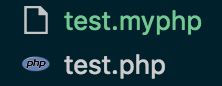 |
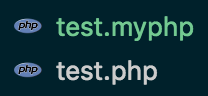 |
By default all languages supported by Unibeautify will be enabled.
You can disable a specific language by setting the language options to false as shown below.
Important: You must restart/reload VSCode after enabling/disabling a language.
Example .unibeautifyrc.yml:
---
CSS: false # Disable CSS!
JavaScript: # Enable TypeScript
  beautifiers: ["Prettier"] # Enable beautifiers
  indent_style: "space"
indent_size: 2| Before | After |
|---|---|
| Beautified CSS files |  |
See CONTRIBUTING.md.