
Open the WSL Manager application (download it first from bostrot/wsl2-distro-manager if you don't have it yet), click "Add new instance", then enter the required data.
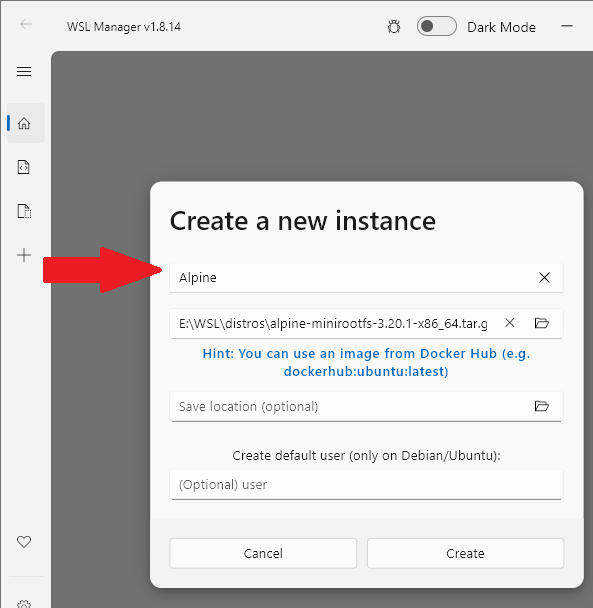
Open Alpine Linux from Windows Terminal then enter the following command
wget -q -O /etc/apk/keys/sgerrand.rsa.pub https://alpine-pkgs.sgerrand.com/sgerrand.rsa.pub && wget https://github.com/sgerrand/alpine-pkg-glibc/releases/download/2.35-r1/glibc-2.35-r1.apk
apk update && apk upgrade
apk add glibc-2.35-r1.apk libstdc++ bash curl openrc sudo ttf-freefont wslu --no-cache
export DISPLAY=localhost:0.0
echo -e "user\nuser" | adduser -h /home/user -s /bin/ash user
echo -e "root\nroot" | passwd root
su -l root
echo '%wheel ALL=(ALL) ALL' > /etc/sudoers.d/wheel
adduser user wheel
echo "echo 'Welcome to AlpineWSL :D'" > /etc/motd
echo "rc-status" > .profile
echo "touch /run/openrc/softlevel" >> .profile
echo "alias a=wslact" >> .profile
echo "alias c=wslusc" >> .profile
echo "alias v=wslview" >> .profile
echo "clear" >> .profile
echo "/etc/motd" >> .profile
chmod +x /etc/motd .profile
rm -rf .ash_history glibc-2.35-r1.apk /etc/apk/keys/sgerrand.rsa.pub
If you haven't set WSL auto shutdown when idle, shutdown WSL with the following command
wsl --shutdown
Close Windows Terminal then reopen it.
Install the GUI application you need, for example gedit.
apk add gedit
Then open the gedit application.
WSLg should create a shortcut for the application automatically, if not, create the shortcut yourself with the target
C:\Windows\System32\wslg.exe ~ -d Alpine -u user "/usr/bin/gedit"
or
"C:\Program Files\WSL\wslg.exe" -d Alpine --cd "~" -- gedit
Adjust the shortcut according to your needs