Repository navigation
Export
Export writes a file that other programs can read: a slicer for your 3D printer, or a CAD program.
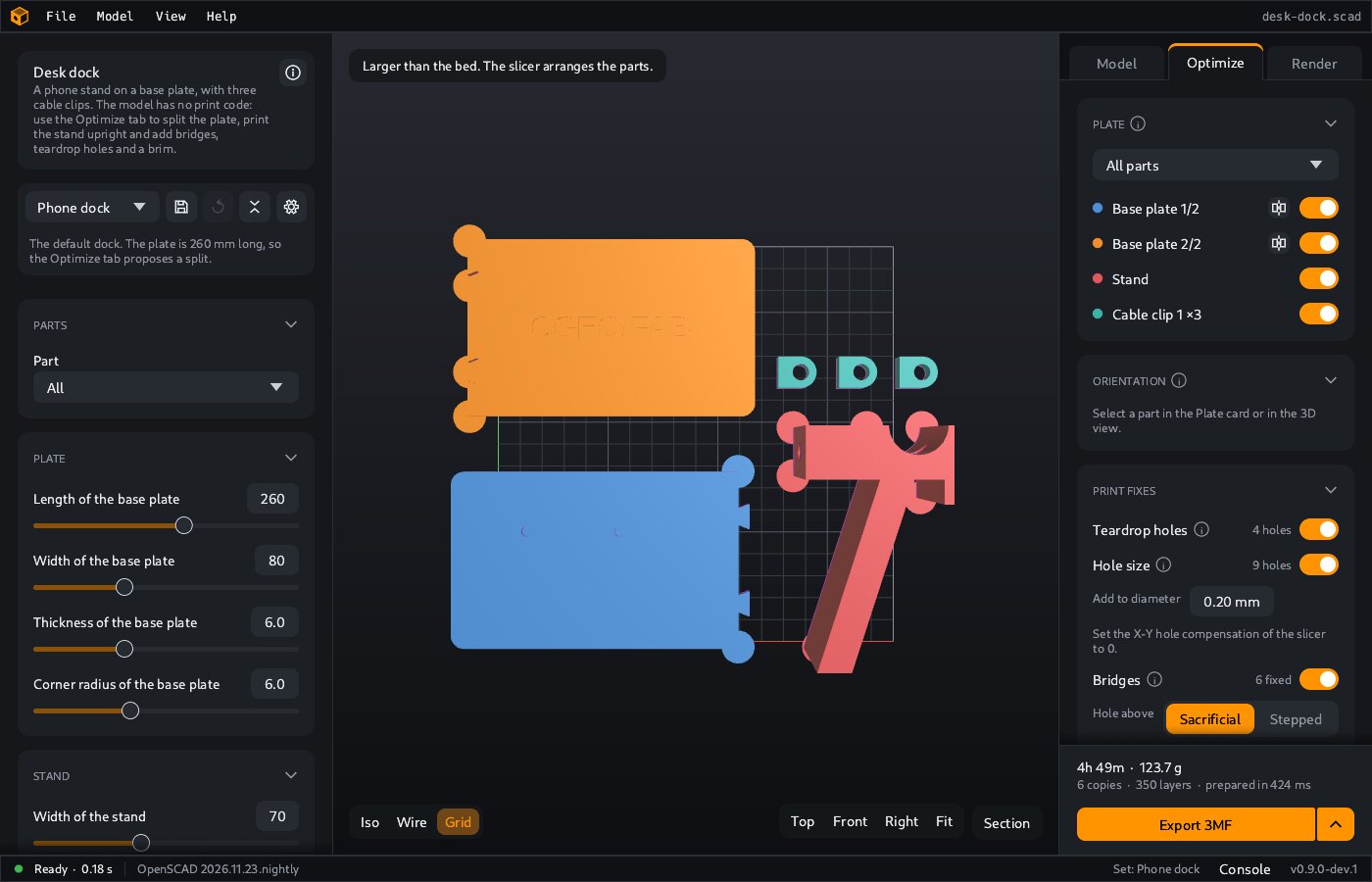
- Open the Optimize tab. Export 3MF is at the bottom of the right panel.
- Hold the mouse on Export 3MF. The text tells what the file will contain, for example "Plate: 4 parts, 6 copies. Bed chamfer, 3 teardrops."
- Click Export 3MF to write the plate as a 3MF file. For a different file, click the arrow at the right of Export 3MF. A menu opens above the button. Click an item in the menu.
- Select a place and a name for the file. The proposed name is the model name. When a parameter set is active, the set name is added, for example
box-big.stl. The dialog opens in the folder of your last export. Before your first export, it opens in the folder of the model.
The Model menu of the menu bar has the export commands too: Export STL (binary), Export 3MF and Export STEP (AP214, faceted). You can use them in all three tabs. They write the same files as STL: the plate, Export 3MF and STEP: the model as built.
| Command | What the file contains |
|---|---|
| Export 3MF | The plate of the Optimize tab: all print parts on the bed, in print position, with the print fixes that are on. Each print part is one object, and each copy is one item, so your slicer shows them as separate objects. The file also contains the values of all parameters. |
| STL: the plate | The same plate as an STL file. |
| STEP: the model as built | The model as OpenSCAD made it, for a CAD program. It has no plate and no print fixes. When the dropdown of the Plate card shows one part, the file contains only that part, in its place in the model. |
| Multicolor 3MF: PrusaSlicer 2.9, Multicolor 3MF: OrcaSlicer | These items show when the model has named parts. See Multicolor prints. |
You do not have to open the Optimize tab before an export from the Model menu. When the plate is not ready, CgeoCAD prepares it first. A model that you did not change in the Optimize tab gives all parts in the rotation of the model, with no print fixes, on the print area from File > Settings > Printer.
CgeoCAD has one plate. When the parts need more room than the bed, the file still contains all of them. Your slicer arranges them on its plates.
A part that is too large for the print area is also in the STL or the 3MF file, but your printer cannot print it. The message after the export names each part that is too large. Split it in the Optimize tab, or set a larger print area. When no part is on the plate, Export 3MF and STL: the plate are not available. Hold the mouse on Export 3MF to see the reason. STEP still works.
For a print in more than one color, see Multicolor prints.
| Format | Use it for |
|---|---|
| STL | A slicer for a 3D printer. It contains only the triangles of the surface. |
| 3MF | A slicer for a 3D printer, when you want separate objects and your values in the file |
| STEP | A CAD program. STEP has flat faces in place of triangles. A closed model becomes one solid that CAD programs can edit. |
The bar at the bottom of the Model tab shows data about the model:
- Size in mm: width × depth × height.
- Volume in cm³.
- Triangles: the number of triangles of the surface.
- Open edges: the bar and the status bar show them only when the model has a problem. A model with open edges is not a closed solid, and a slicer can give wrong results for it.
Two more checks in the 3D view:
- Faces that point the wrong way show in purple.
- Press
Wto see the triangles of the surface (wireframe).
The Check card of the Optimize tab lists the print problems: overhangs, bridges and parts that are too large. See Optimize.
Part colors, explode and section are for the view only. The parts with a % mark in the model (reference parts) are never in an export.
For technical readers. The STL is binary. The 3MF holds the parameter values in its metadata. Each object of a plate 3MF has the name of its print part. The STEP file is AP214: coplanar triangles become planar faces, and a closed mesh becomes one FACETED_BREP solid. An open mesh becomes an open shell. To export without the window, see Command line.