Repository navigation
Parameters
A parameter is a value of the model that you can change, for example a width, a wall thickness or a text. The author of the model decides which parameters exist and which limits they have.
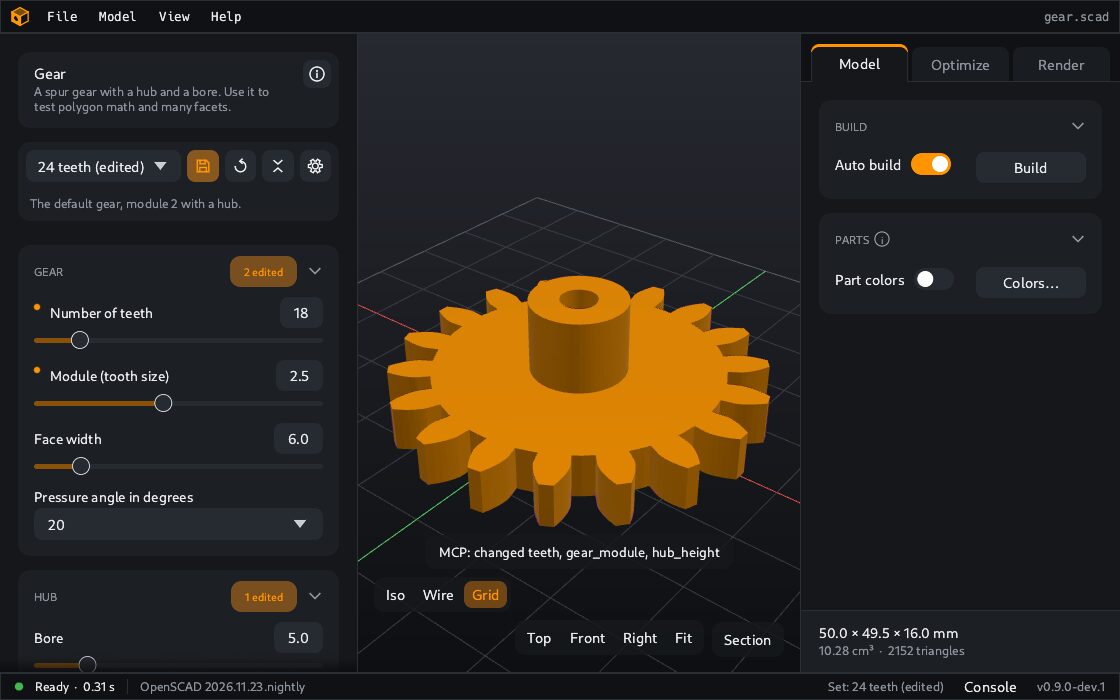
The Parameters panel on the left shows all parameters of the open model.
The card at the top of the panel shows the name and the description of the model. Click the i button in the card to see all information about the model: for example the author, the license, the model file and the number of parameters and sets.
| Control | Use |
|---|---|
| Slider | A number between two limits. Drag the slider, or type the number in the box. |
| Dropdown list | One value from a fixed list |
| Switch | On or off |
| Text box | A text, for example a label on the part |
| Number boxes in a row | A value with more than one number, for example a position with X and Y |
The parameters are in groups. Click the header of a group to close or open it. The button with two chevrons at the right of the set list closes all groups. When all groups are closed, the same button opens them again. CgeoCAD remembers the closed groups for each model.
If the author wrote a description for a parameter, the panel shows the description as the label.
When you change a value, CgeoCAD makes the model again. This is the "build". The status bar at the bottom shows the state and the time.
A build of a large model can take a long time. In that case you can stop the automatic build:
- Open the Model tab on the right.
- Turn off Auto build in the Build card.
- Change all the values that you want.
- Click Build, or press
F5.
While Auto build is off, the status bar shows "Parameters changed. Press F5." after a change.
- An orange dot marks a value that you changed.
- The arrow next to the value sets this one value back.
- The header of a group shows how many values you changed in it, for example "2 edited".
- Reset all sets all values back. It is the button with the round arrow at the right of the set list.
Your values stay while the model is open. To keep them for later, save them as a parameter set.
Some models have no parameters. You can still look at the model, prepare it for printing, export it and make a photo.
For technical readers. CgeoCAD reads the same comments as the OpenSCAD Customizer. See Write models for CgeoCAD.