Repository navigation
First steps
This page shows how to start a model, how to open a model and how to look at it.
At the first start, a welcome tour shows the main features one step at a time. Click Next and Back, or press the Right and Left arrow keys. Press Esc to close the tour.
To see the tour again, use Help > Welcome tour.
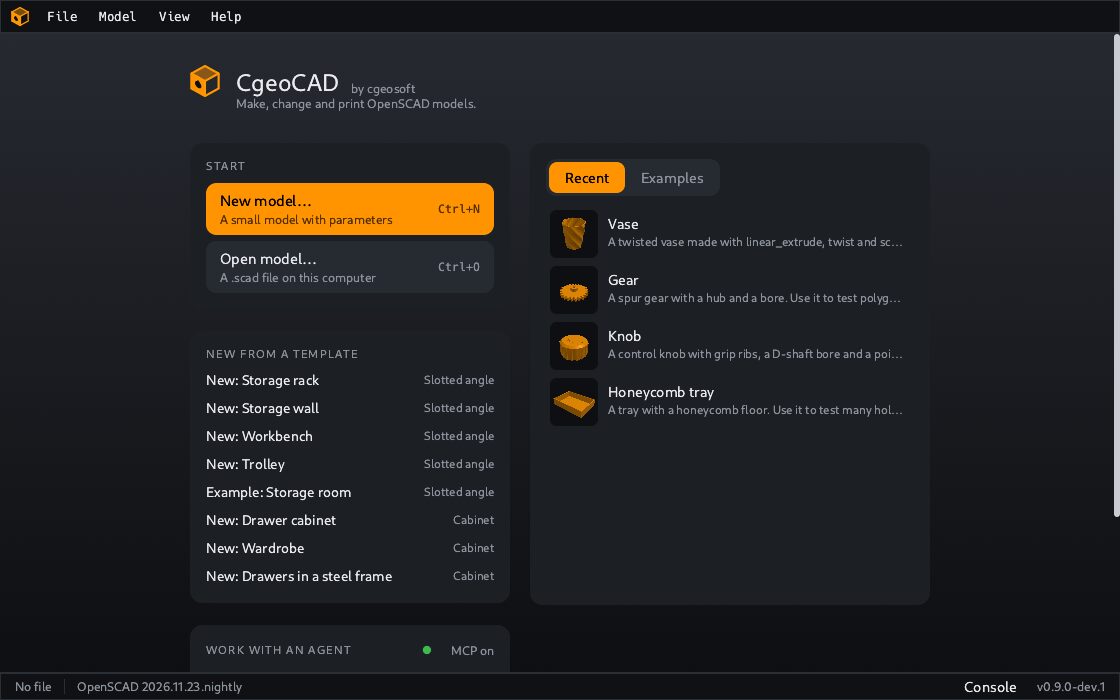
When no model is open, the window shows the start page. The start page has:
- New model…: make a new model.
-
Open model…: open a
.scadfile. - Work with an agent: the state of the MCP server, and the steps to connect an AI assistant. See AI assistant.
- A card with two tabs:
- Recent: the last 8 models that you opened. Each row shows a picture of the model, its title and its description. A model with no title shows its file name. A model with no description shows its folder.
- Examples: the sample models, each with a picture.
The title and the description come from the title and description fields of the model definition, the .yml file next to the model. The picture is the Iso view of the model. CgeoCAD makes it again when the model opens (after the first build) and when it closes, so the picture shows your last values.
When you have no recent models, for example at the first start, the card shows Examples. Otherwise it shows Recent.
- Press Ctrl+N, or click New model… on the start page, or use File > New model….
- Type a file name and select a folder.
- CgeoCAD writes the file and opens it.
The new model is a box with four parameters: width, depth, height and corner radius. Change the file in a text editor, or let an AI assistant write it. CgeoCAD builds the model again when the file changes on disk.
A model is a file with the extension .scad. You can open it in four ways:
- Press Ctrl+O, or use File > Open…, and select the file.
- Drop the file on the CgeoCAD window.
- Select a model in the list of recent models. The File menu shows the last 10 models. The Recent tab of the start page shows the last 8 models.
- Use File > Examples, or the Examples tab of the start page, to open a sample model.
If you have no model, start with an example. File > Examples > Gear is a good first model. File > Examples > Desk dock shows the print preparation. See Prepare a model for printing.
The examples are copies in the settings folder of CgeoCAD. You can change them. Your changes stay.
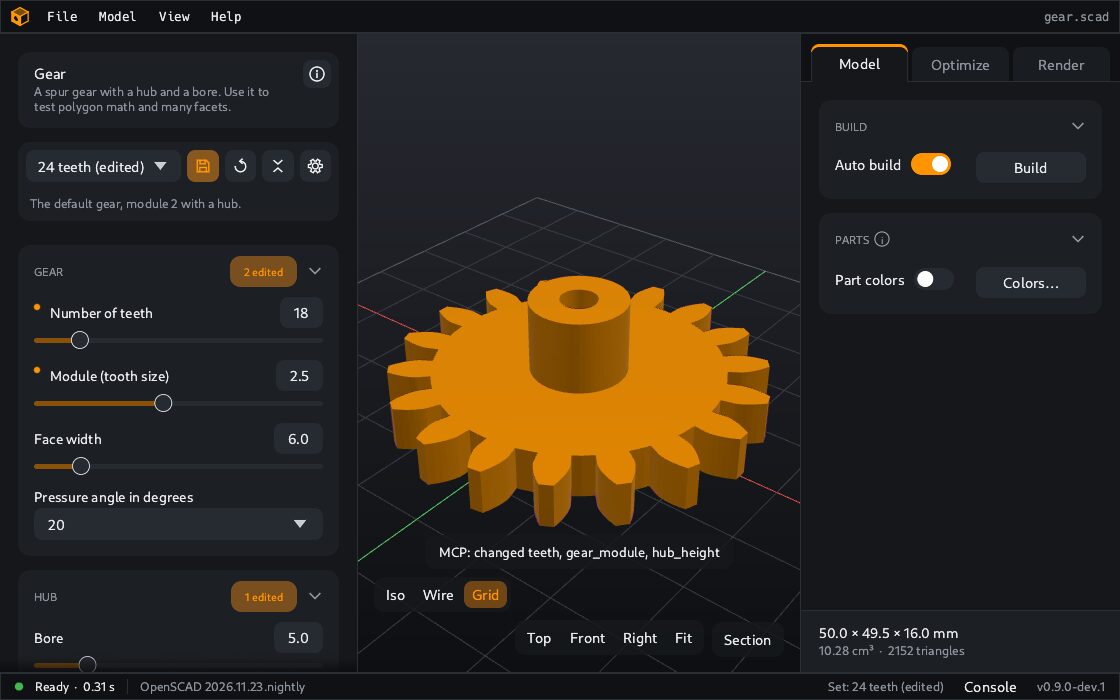
| Area | Position | Content |
|---|---|---|
| Menu bar | Top | All commands: File, Model, View and Help |
| Parameters panel | Left | The values that you can change. See Change the parameters. |
| 3D view | Middle | The model |
| Sidebar | Right | Three tabs: Model, Optimize and Render |
| Status bar | Bottom | The state of the model, its size and the Console button |
The three tabs of the sidebar change what the 3D view shows:
- Model: the shape of the model and its parts.
-
Optimize: the parts on the bed of your printer, and the print layers. Press
O. See Optimize. -
Render: a photo of the part. Press
R.
Point to a tab name to see its key. Press the same key again to go back to the Model tab.
Each tab has cards. Click the header of a card to close it or to open it. Some cards have an i icon after the name. Put the mouse on the icon to read what the card does. The Optimize tab has Export 3MF at the bottom, and the Render tab has Render and Save PNG at the bottom. These bars do not close. The Model menu also has the export commands. See Export.
| You do this | The view does this |
|---|---|
| Drag with the left mouse button | Turns around the model |
| Drag with the right or the middle button | Moves to the side |
| Hold Shift and drag with the left button | Moves to the side |
| Turn the mouse wheel | Moves nearer or farther |
Double click, or press F
|
Shows the full model |
The buttons at the bottom right of the 3D view:
- Top, Front and Right set a fixed direction. View > Iso in the menu goes back to the start direction.
- Fit shows the full model.
- Section opens a menu that cuts the model. See Section.
The buttons at the bottom left of the 3D view turn a display on or off:
- Iso shows the model with no perspective: parallel lines stay parallel. Off, the view has perspective. The Render tab always uses perspective.
- Wire shows the triangles of the model.
- Grid shows or hides the floor grid.
The status bar shows, from left to right:
- The state of the build and the time it took. Ready means that the model is up to date. CgeoCAD calls the OpenSCAD step "build".
- The OpenSCAD version. It shows in red when the program has no Manifold backend. See Install.
- The number of open edges, if the model has some. See Export.
- The Console button. It shows the messages of OpenSCAD. Look there when a model shows an error.
The bar at the bottom of the right panel shows the data of the tab: in the Model tab the size, the volume and the triangles of the model, in the Optimize tab the print time and the plate, in the Render tab the samples and the image size.
If you or another program change the .scad file on disk, CgeoCAD loads the model again. The values that you changed in CgeoCAD stay.
Go to Change the parameters.