Repository navigation
Parameter sets
A parameter set is a named group of values for one model. For example, a box model can have the sets "small", "big" and "for the workshop". You select a set and all sliders move to the saved values.
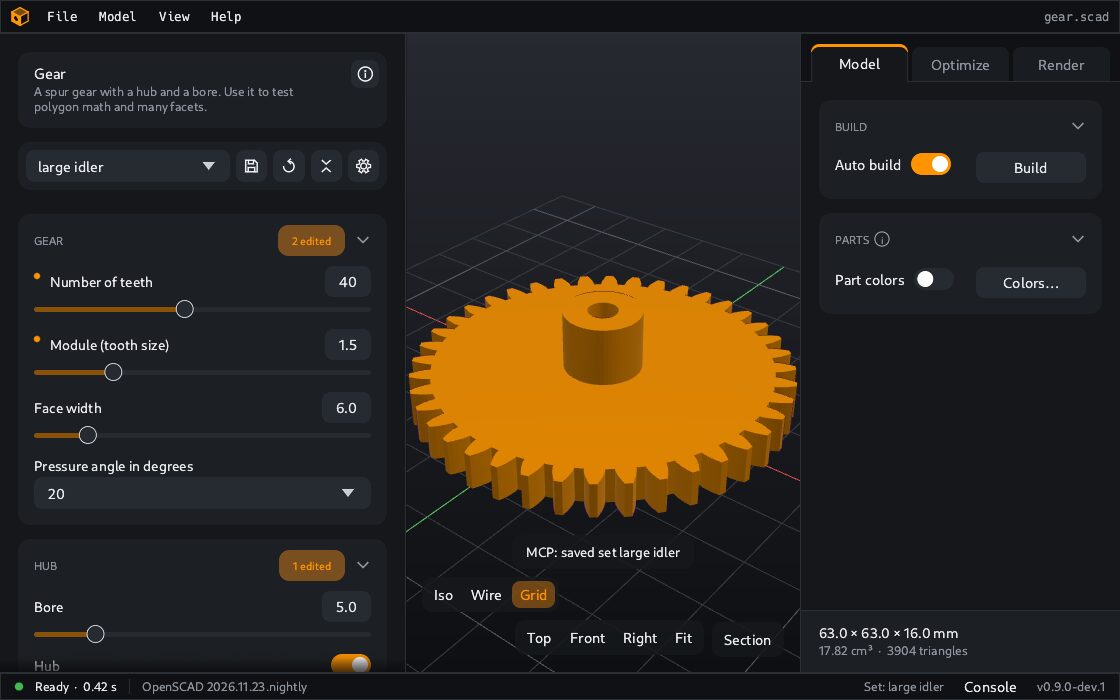
The top of the Parameters panel has one box for the sets:
- A list of the sets.
- The disk button that saves the values.
- The reset button that sets all values back to the model defaults, and the button that closes or opens all parameter groups.
- The gear button at the end, with New set… and Delete.
- Below them, the description of the selected set, when the set has one.
The sets of a model are in its definition file: box.yml next to box.scad. The file also holds the title, the description and the part names of the model. See Model definition.
| Task | How |
|---|---|
| Load a set | Select it in the list. |
| Go back to the values of the model file | Select Model defaults in the list. |
| Save your values as a new set | Click the gear button, then New set…. Type a name. |
| Save your changes to the selected set | Click the disk button. |
| Delete the selected set | Click the gear button, then Delete. Confirm in the window that opens. |
The disk button is orange while the set has changes that are not saved.
If no set is selected, the disk button asks for a name and makes a new set.
- When you open a model, CgeoCAD loads the set that you used last for that model. If there is no record, it loads the first set of the file.
- If Model defaults was your last selection, the values stay at the defaults of the model.
- CgeoCAD also remembers your last parameter values for each model. With Model defaults, it loads these values. With a set, it loads them only if you did not save your changes to the set. The set then shows as edited.
- CgeoCAD also remembers the settings of the right panel for each model: the tab (Model, Optimize or Render), auto build, the Optimize values, the print settings, the photo settings, part colors and explode.
- A model without a definition file gets one at the first save of a set.
With auto save, CgeoCAD writes your changes to the selected set a moment after your last change (0.6 seconds).
- Open File > Settings.
- Select the Parameter sets page.
- Turn on Auto save.
- Click Save.
Auto save is off by default. With Model defaults selected, it saves nothing.
When you select a set that has a description, an info box below the list shows it. CgeoCAD only shows this text. To add it, edit the definition file in a text editor (see below).
If another program changes the definition file, the list of sets updates. The active set gets the new values, unless you have changes in it that are not saved.
Each example in File > Examples has some sets. Select them to see how the values change the model. The first set of each example has the default values.
For technical readers. The sets are the sets block of the model definition:
sets:
  Big:
    description: For the workshop. Prints in 6 hours.
    values:
      width: 80
      shape: round
      offset: [0, 5]
lid: true- A parameter that is not in the set keeps the default of the model.
- When CgeoCAD saves a set, it writes all parameters of the model to the set. The description of the set stays.
- CgeoCAD writes only the
setsblock again. The other blocks of the file and their comments stay as they are. Comments in thesetsblock are lost. - The command line uses the same sets with
-P.cgeocad sets model.scad --jsonwrites the sets in the format of the OpenSCAD Customizer, foropenscad -p. - A model without a
.ymlfile can have a.jsonfile in the format of the OpenSCAD Customizer (from version 0.7 or OpenSCAD). CgeoCAD reads its sets and its text. The first save writes the.ymlfile with all of it. The.jsonfile stays as it is.