Repository navigation
Read Edit Export
- Search titles, or include message text and other branches. Search options include case, whole-word, wildcards and regular expressions.
- Use the branch selector to revisit alternate replies. Reasoning and tool/system records have separate display switches.
- Markdown, tables, code, formulas and local attachments appear in the reading view. User questions retain their original line breaks.
- The turn navigator helps move through long conversations. Appearance and language controls are in the top right; the interface has eleven languages.
Turn on Edit mode at the top of the window. Use the star next to a conversation’s menu or Edit → Star current chat to toggle a star. Stars and manual ordering are saved with the archive. Use Select starred chats beside Invert selection to add all starred chats to the selection, including chats outside the search results.
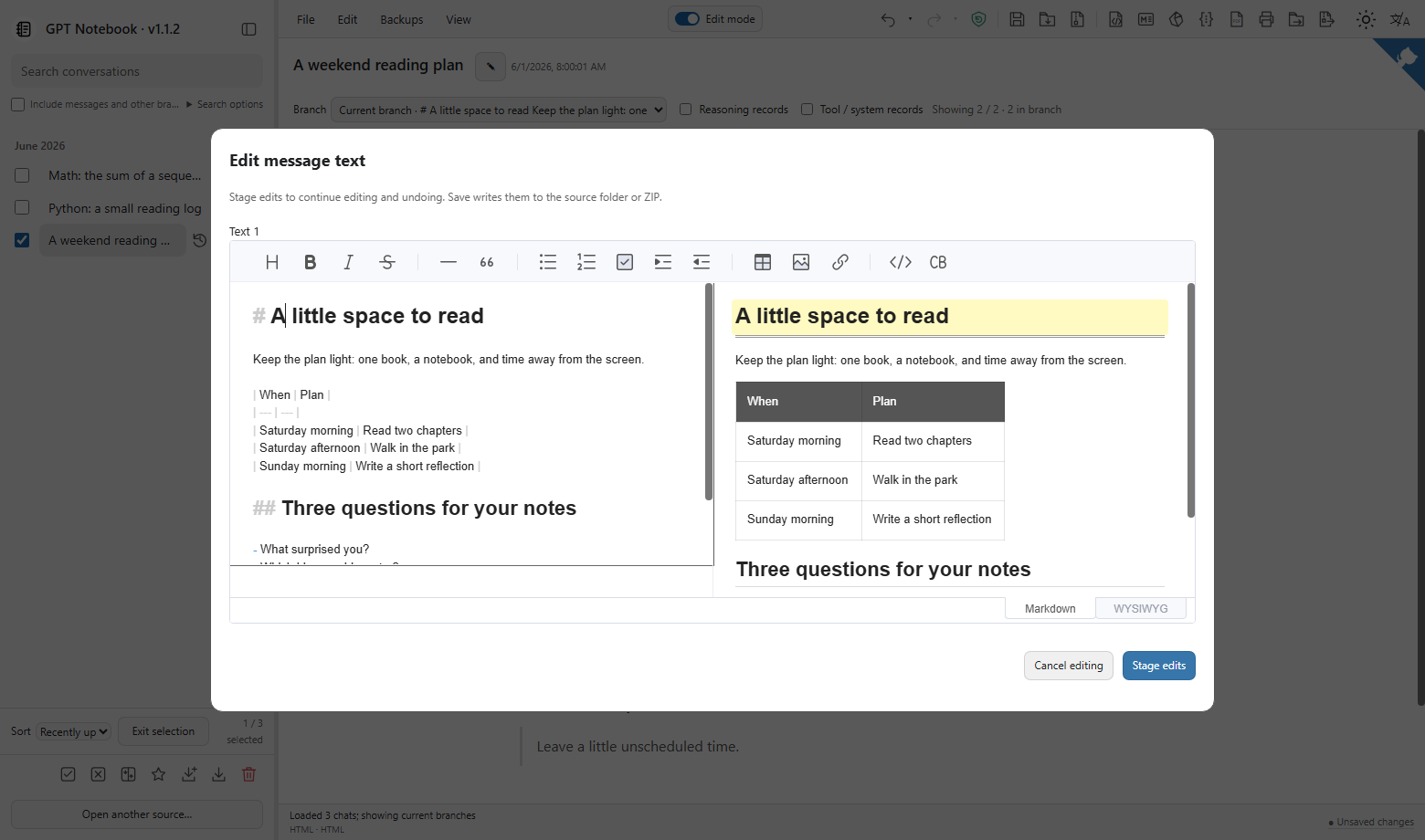
Click Edit on a message, or the pencil beside a title. The editor offers Markdown and visual modes. Choose Stage edits, then use Save when ready. Staging alone does not write to your archive. Undo/redo remains available.
Use the export toolbar or a conversation's menu. Choose Current chat, Selected chats or All chats. Use Select multiple in the sidebar to prepare a selection.
| Format | Result |
|---|---|
| HTML | A standalone readable copy with media |
| Markdown | Markdown files and media in a ZIP |
| Obsidian | A vault with linked notes, formulas and media. Open it in Obsidian. |
| JSON | Original-structure JSON and media in a ZIP |
| PDF / Print | Browser print dialog; choose Save as PDF for a PDF |
| Data folder / ZIP | Source-data copy with its archive structure |
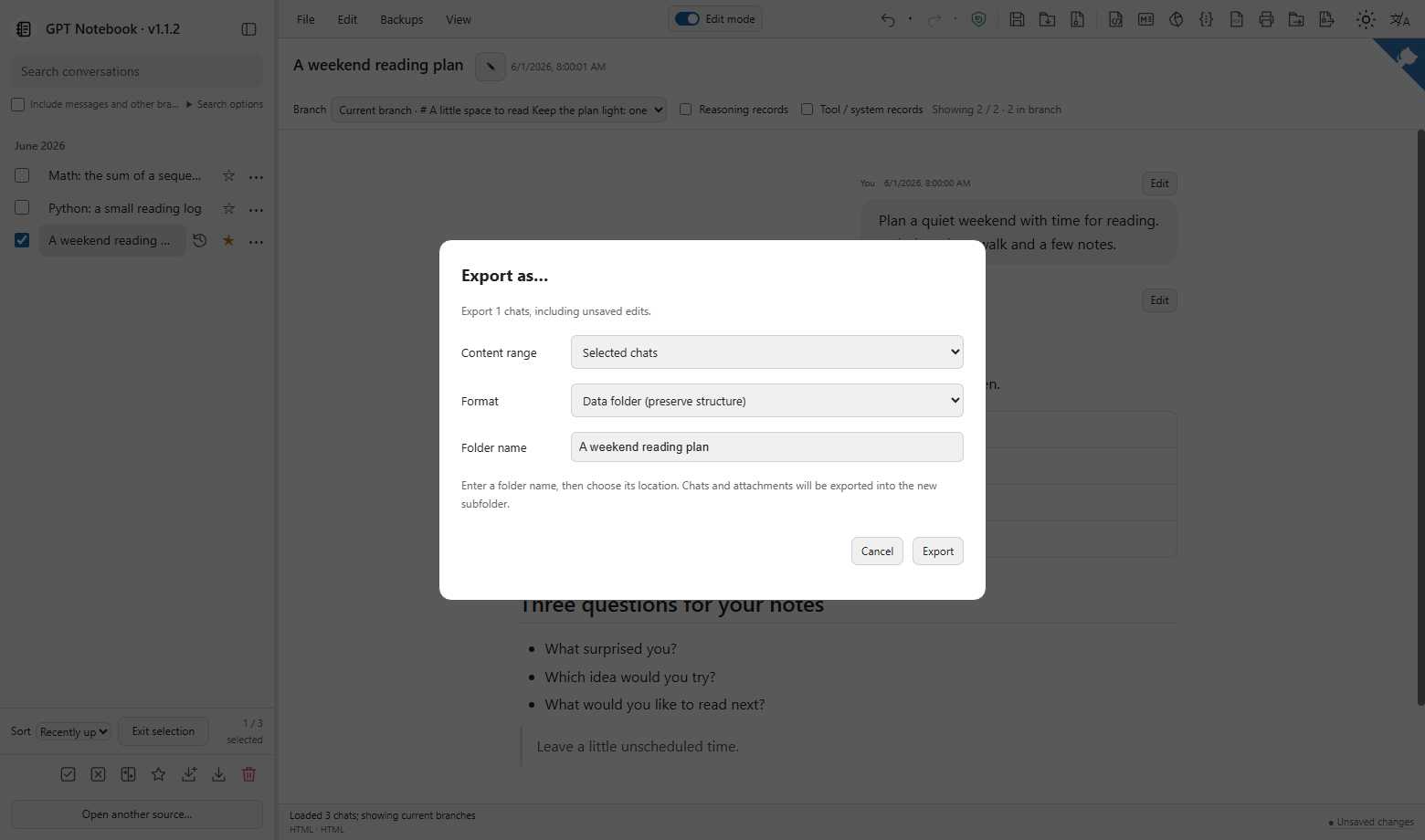
Export uses the current draft, including unsaved edits, and does not mark it saved. An exported HTML containing conversations should be treated as private data.
Select PDF in the export toolbar and choose the range. Set paper size, margins and orientation. In the browser print window, select Save as PDF as the destination, then save. Choose a physical printer for a paper copy.
For separately editable archives, see Split and merge archives.
Choose Data folder, enter Folder name, then click Export. In the browser picker, select the parent location, such as Desktop. The app creates the named subfolder there and writes the selected chats and attachments. The parent can contain other files. Choose a different name if that folder or file already exists.
All export formats show preparation and generation progress. Packing and file writes show progress when totals are available. PDF/Print shows preparation progress until the system print window takes over.