
QuickAdd 2.25.0
Captures can now write note properties. Templates can update notes you already have instead of only creating new ones. Macros that search for a note ask for everything on one form, and a Macro can switch one-page input on for all its steps. Destination folders can be dragged into the order you want.
Captures can write properties
Say you track books as notes with a status, a rating, and tags in their properties. Until now a Capture could only add text to a note's body, so changing a book's status meant opening the note and editing the property by hand. Now a Capture can target a property directly.
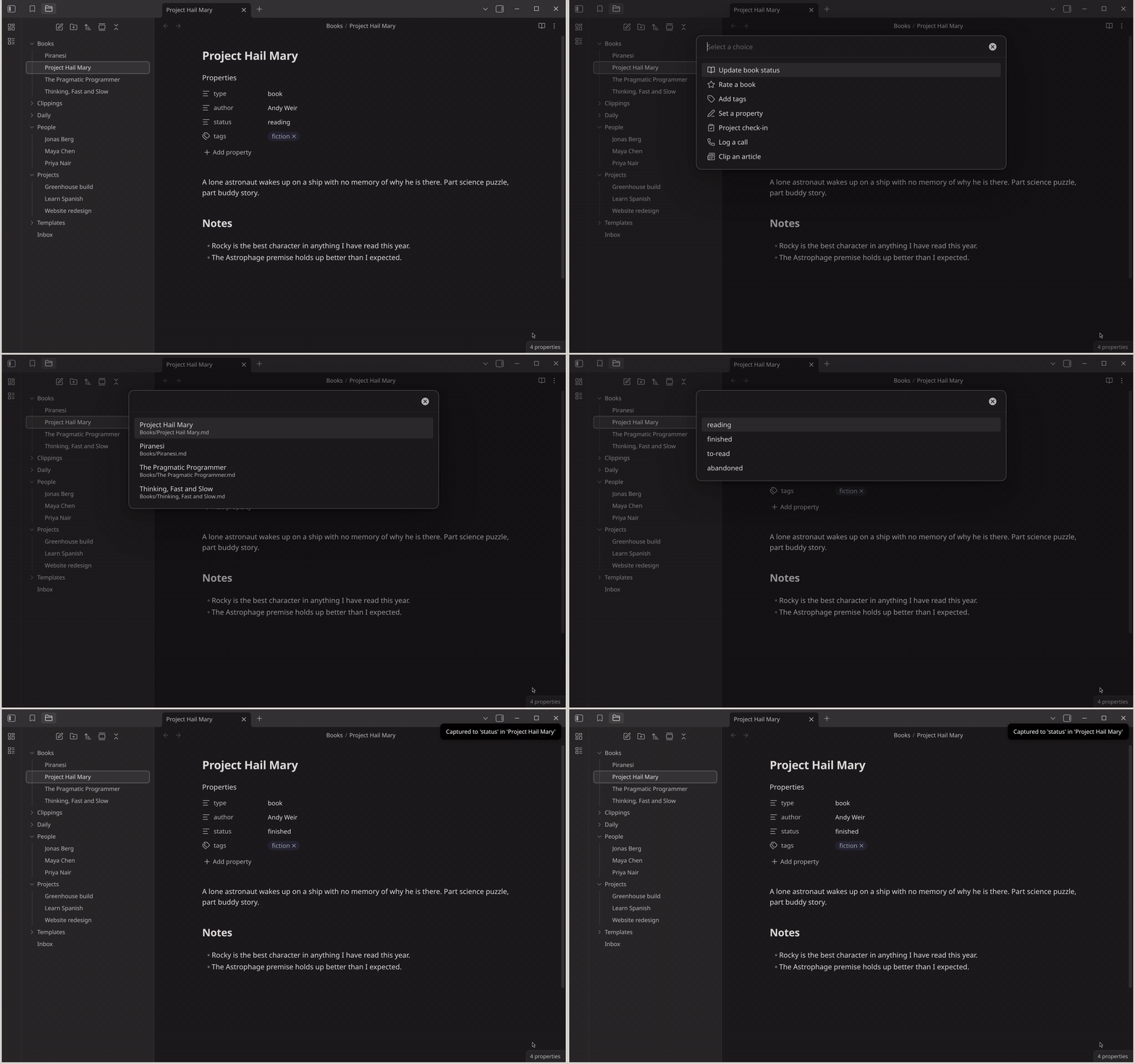
That "Update book status" capture is set up like this:
- Capture to is
property:type=book, so the picker only offers notes whosetypeisbook. - Capture format is
{{VALUE:reading,finished,to-read,abandoned}}, which gives you the list to choose from. - Write position is Property, the property is
status, and the action is Set value.
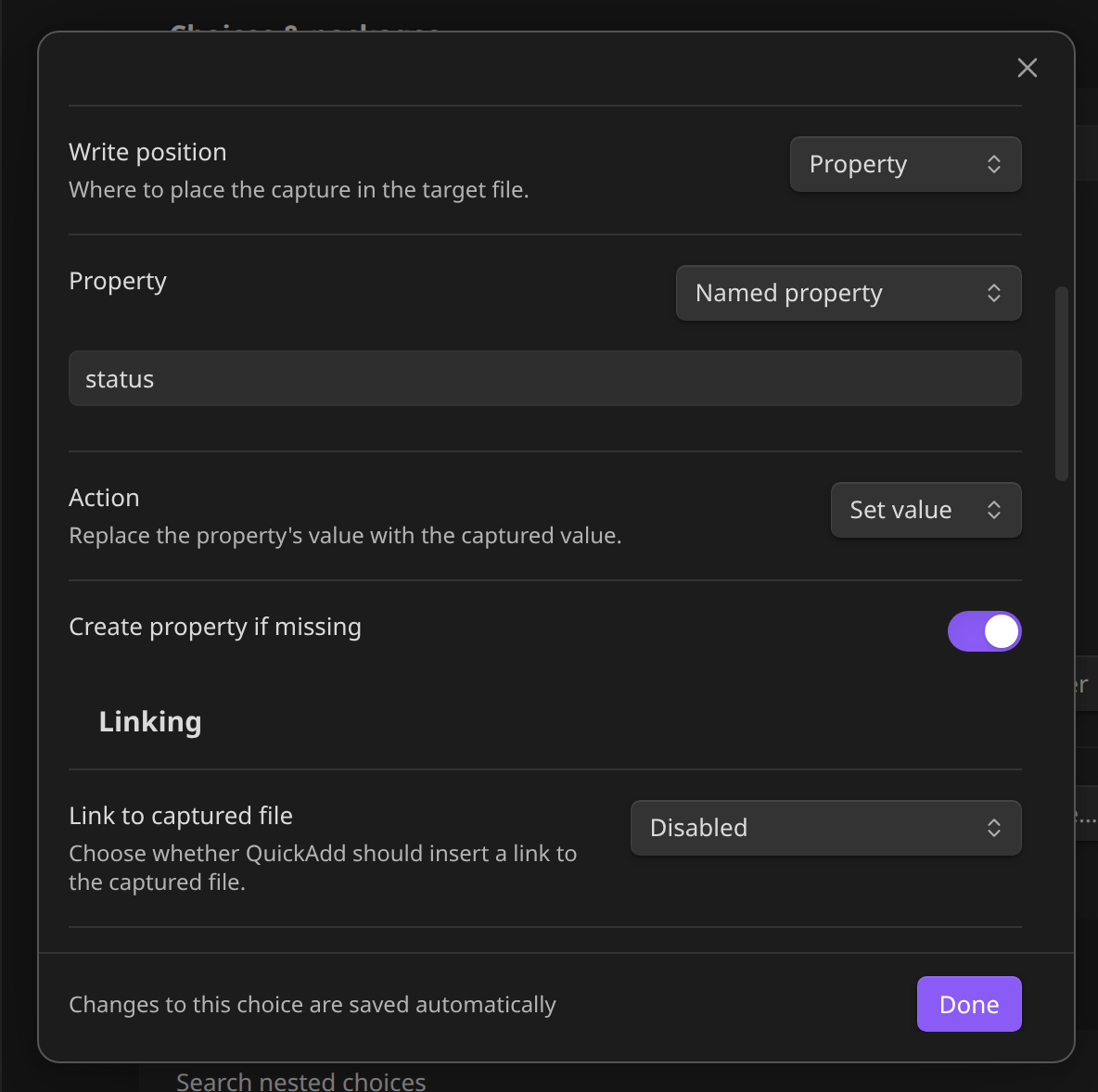
Property is either a name you type here, or Choose when capturing. The second option opens a picker with the target note's own properties when the capture runs. With Create property if missing on, you can also type a name that is not there yet.
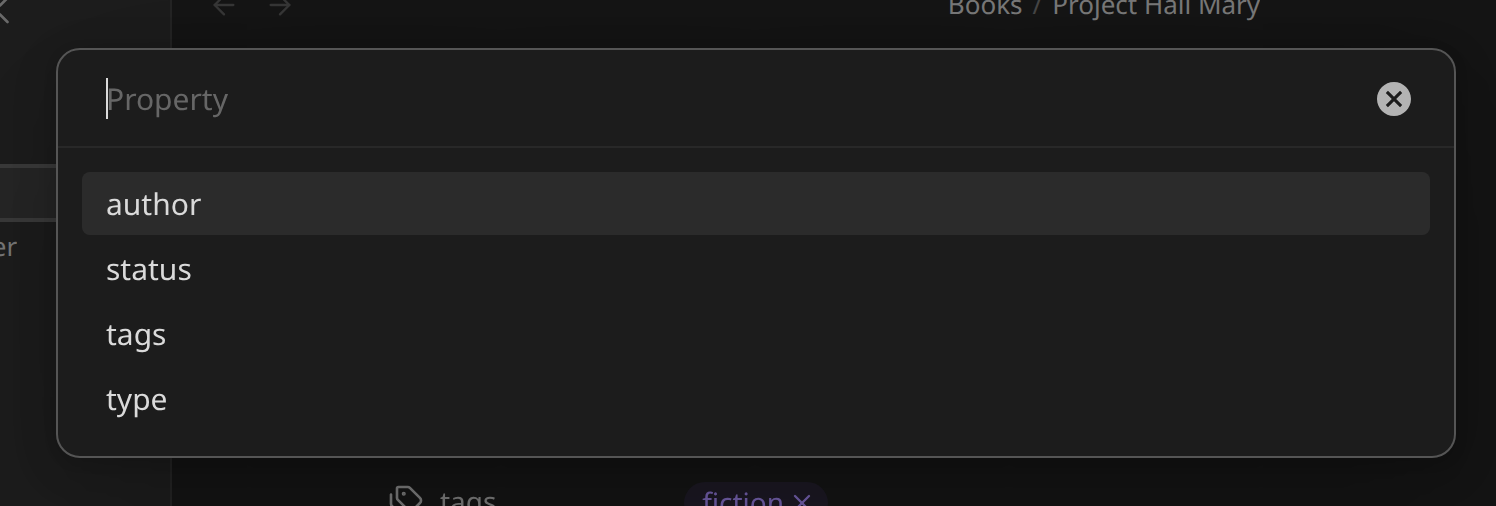
Action is Set value or Add to list. Set value replaces what is there. Add to list adds to a list property such as tags and keeps the existing items in order, skipping anything already in the list. A capture that adds tags to the note you are in looks like this:
{{VALUE:fiction,non-fiction,psychology,programming,science,history|multi}}
with Capture to active file on, property tags, action Add to list.
QuickAdd respects the property's type. A rating property that Obsidian knows as a Number gets a number input and is written as rating: 5, not "5". A Checkbox property gets a checkbox. A multi-select or {{FILE:People|multi|link}} stays a list, so you can set people to links to the notes you picked. The note's body and its other properties are left alone. If the note does not exist yet, Create file if it doesn't exist works as before, and the property is applied after any Templater new-file template runs, so the template cannot overwrite it.
Scripts and the CLI can pass typed values straight through. This adds two items to tags, and the comma inside the first stays part of that item:
await quickAddApi.executeChoice("Add project tags", {
	tags: ["Research, writing", "work"],
});
Docs: Capture into a property. Thanks to @Stumbling-epiphany for the request (#1736, #1747).
Templates can update existing notes
Search existing notes before creating finds a matching note before a Template creates a duplicate. Picking a match opened it and skipped the template, so there was no way to apply the template to a note you already had.
A Template choice now has a When selecting an existing note setting with four options: Open note (the default, and what you had before), Append template to bottom, Insert template at top, and Replace entire note.
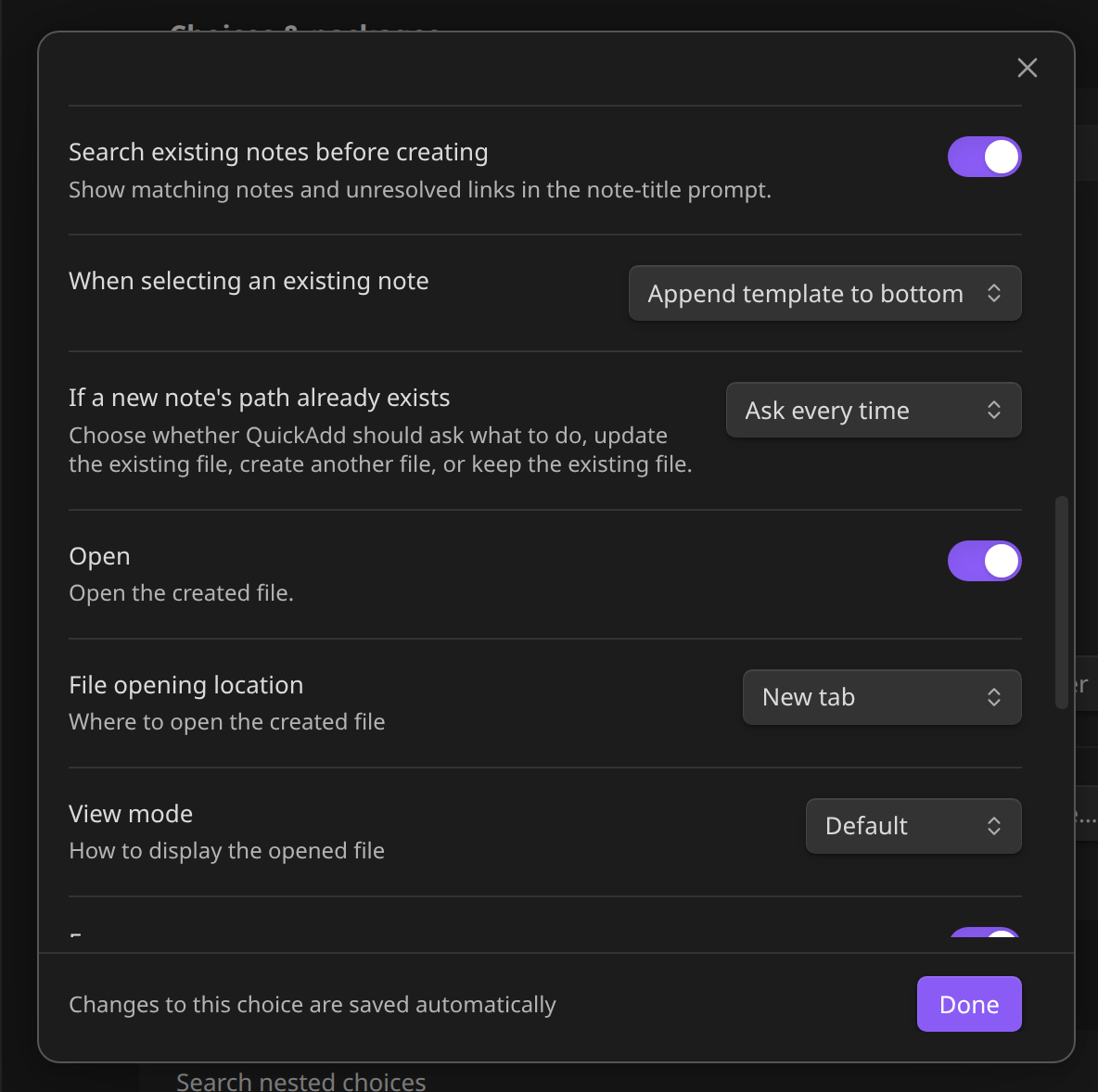
Here is a "Project check-in" Template set to append. Its template file is:
## {{DATE:YYYY-MM-DD}} check-in

**Status:** {{VALUE:On track,At risk,Blocked}}
{{VALUE:What happened this week?}}
Run it, start typing a project name, and the picker labels each existing note with what will happen to it. Pick one and the template is filled in and appended to that note.
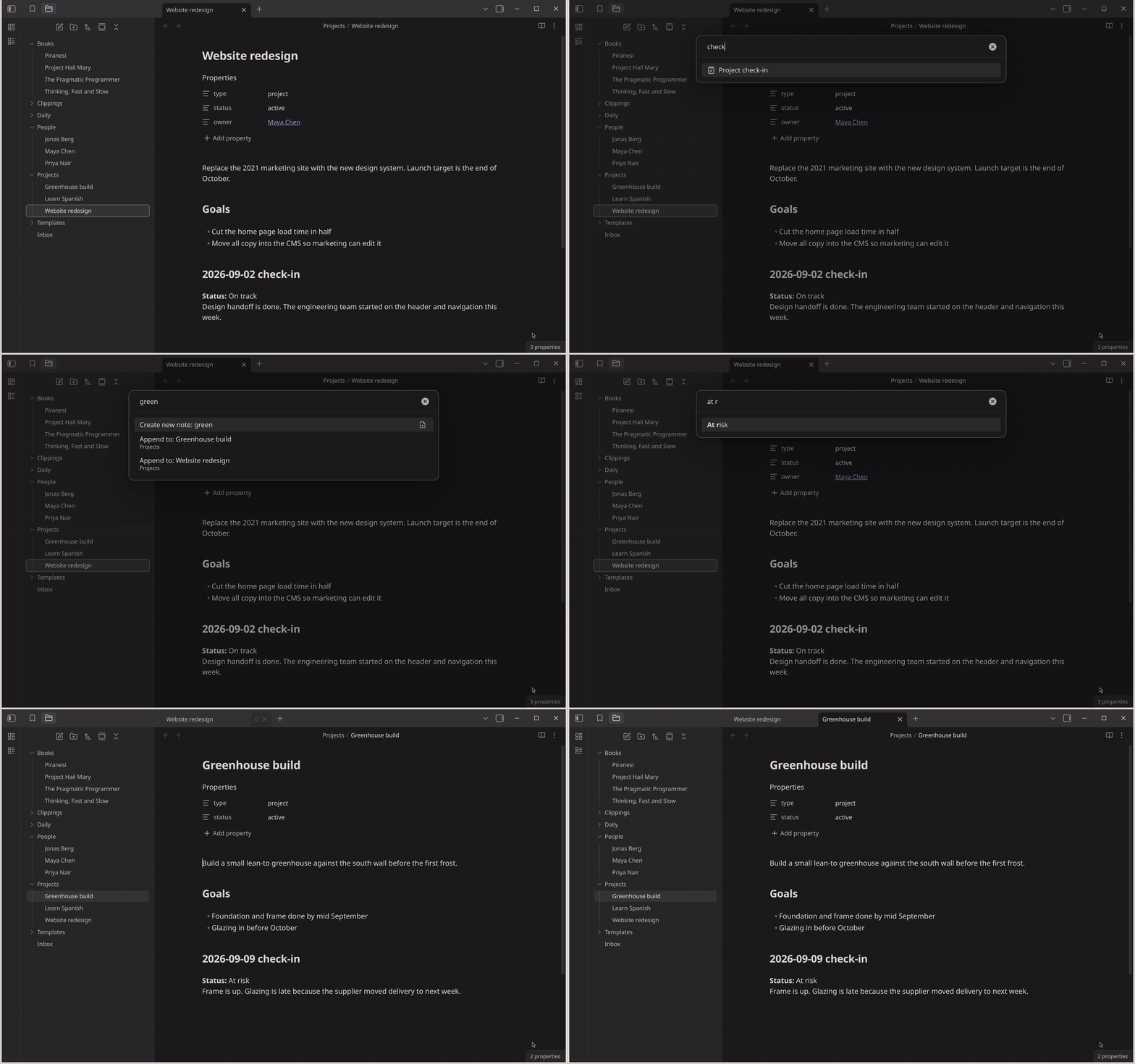
The selected note keeps its name and folder, so File name format and New note location are skipped. {{TITLE}} and the plain {{VALUE}} are the selected note's name, and every other prompt in the template is still asked. Append and insert merge frontmatter the same way the existing update options do, and the update finishes before the next Macro step runs. The Create new note row still creates a new note, and the old "if the file already exists" setting, now called If a new note's path already exists, only applies to that new note.
Docs: Search for an existing note first. Thanks to @Stumbling-epiphany for the request (#1739, #1746).
Macros: find or create the note and answer the rest on one form
A "Log a call" Macro runs a Person Template that searches existing notes, then a Capture that adds a line under that person's ## Log heading. With one-page input on, this used to go wrong: the Capture's answer was taken as the note title, the search was skipped, and you got a new note named after whatever you typed.
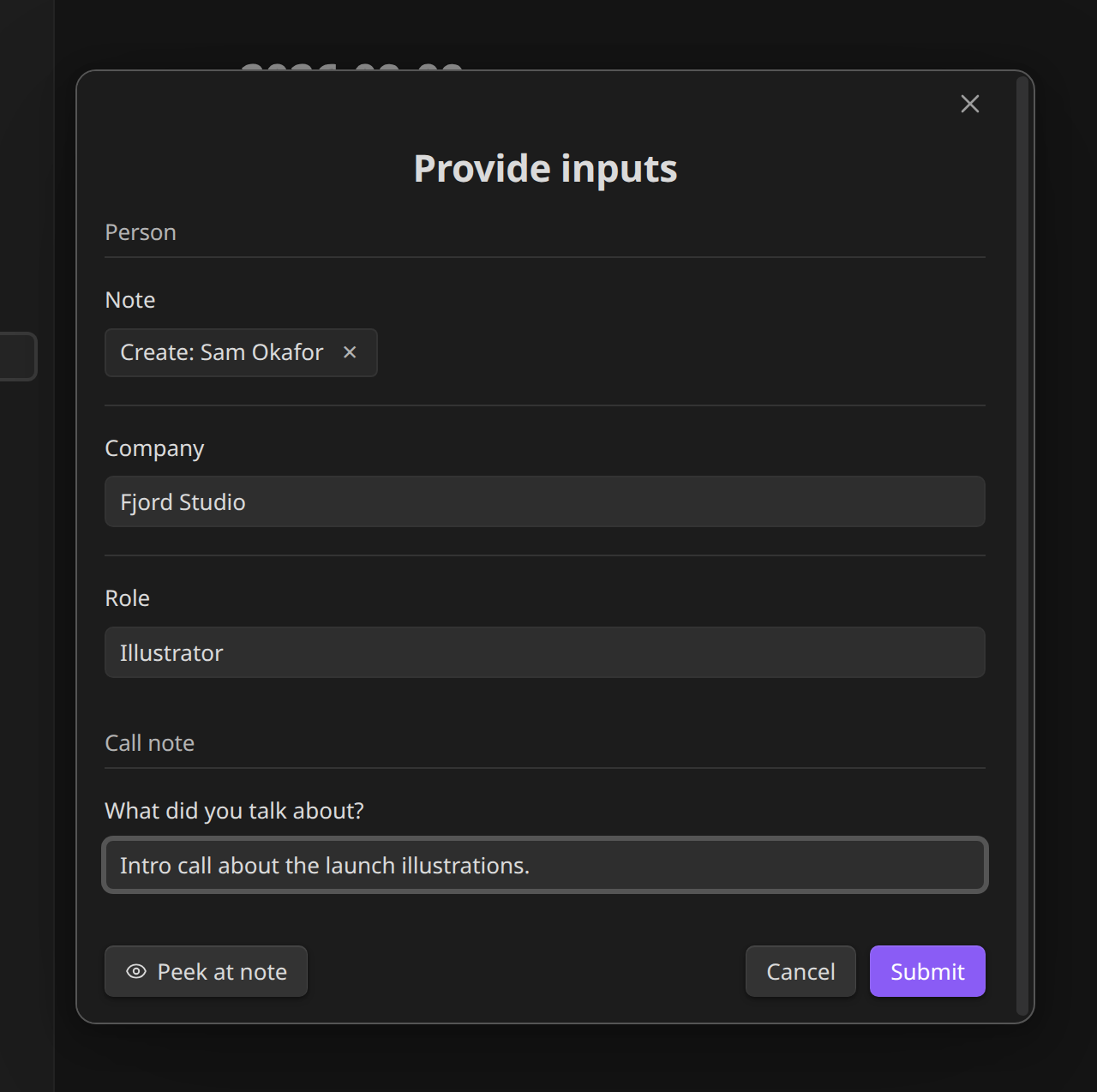
Now the form has a Note field. Search for an existing note or create a new one, and the Capture's question keeps its own answer.
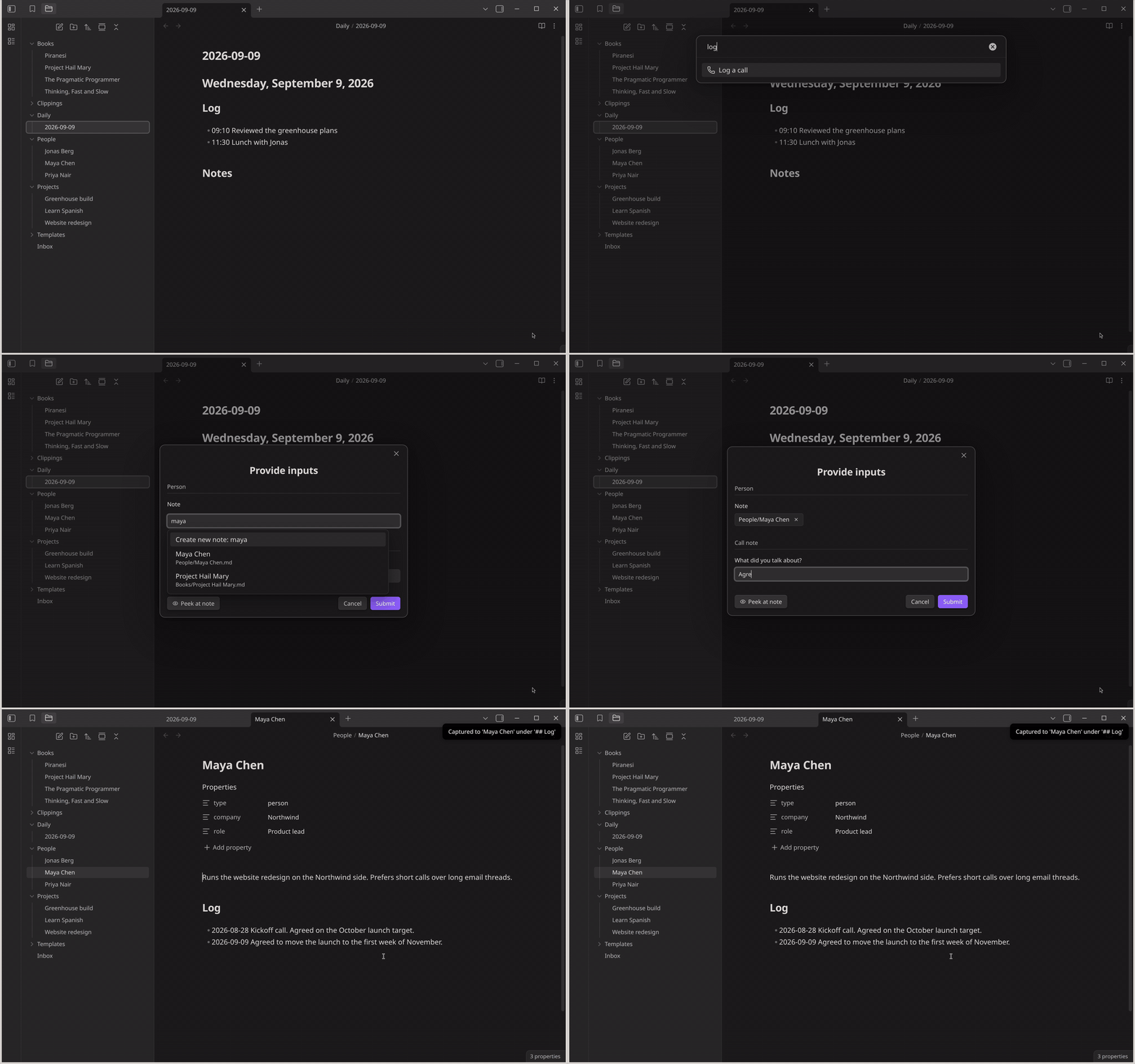
The Template's own prompts, here Company and Role, only appear when you are creating a new note, because the Template is set to Open note for existing ones. Choose an update action instead and they stay, since the template needs them. Inputs that are only used in the new note's name or folder are never shown for an existing note. Switching between notes keeps what you have typed.
Enter on a typed title creates that note even when an existing note is a close match. Type the exact name or alias of an existing note and it is selected instead. Ctrl/Cmd+Enter accepts a typed title and reveals any remaining creation fields before saving.
Macros also get their own One-page input override, which used to exist only on Templates and Captures. Set it to Always on the Macro and every step follows, so you no longer need the global toggle on for one Macro's sake. A step with its own Always or Never keeps that, and nested Macros inherit from the enclosing one. If the Template inside is set to Never, QuickAdd shows its note picker first and then collects the remaining inputs together.
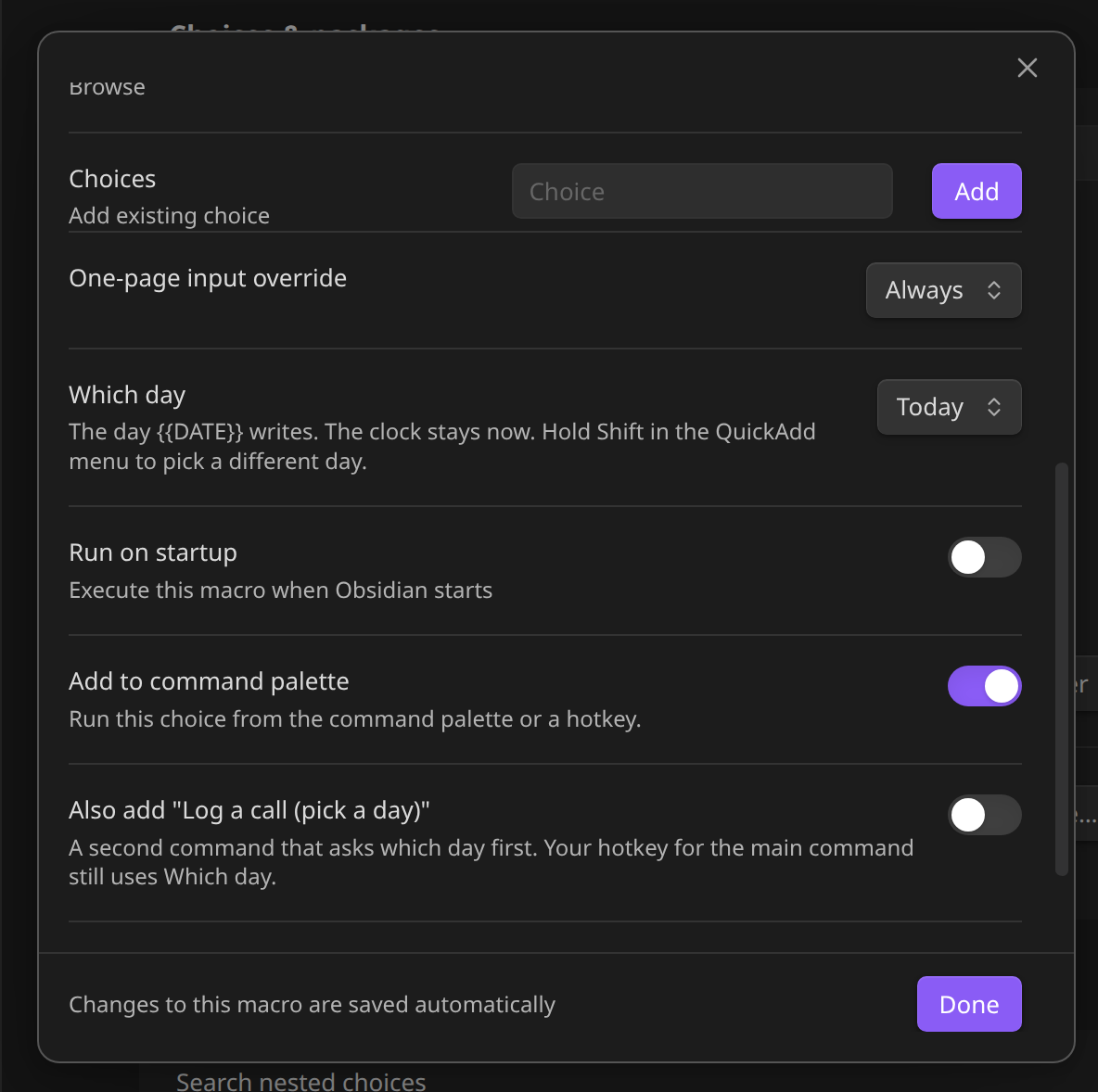
Docs: Macro overrides, Choose or create a note. Thanks to @Stumbling-epiphany for both reports (#1737, #1738, #1741).
Drag to reorder destination folders
A Template choice that creates notes in one of several specific folders asks which one at run time. The list of folders could only be added to at the bottom, so the picker's order was the order you happened to add them in. Now you can drag a folder by its handle, or focus the handle and press ArrowUp or ArrowDown. The folder picker follows this order, and with Include subfolders on, each folder's subfolders are listed right after it.
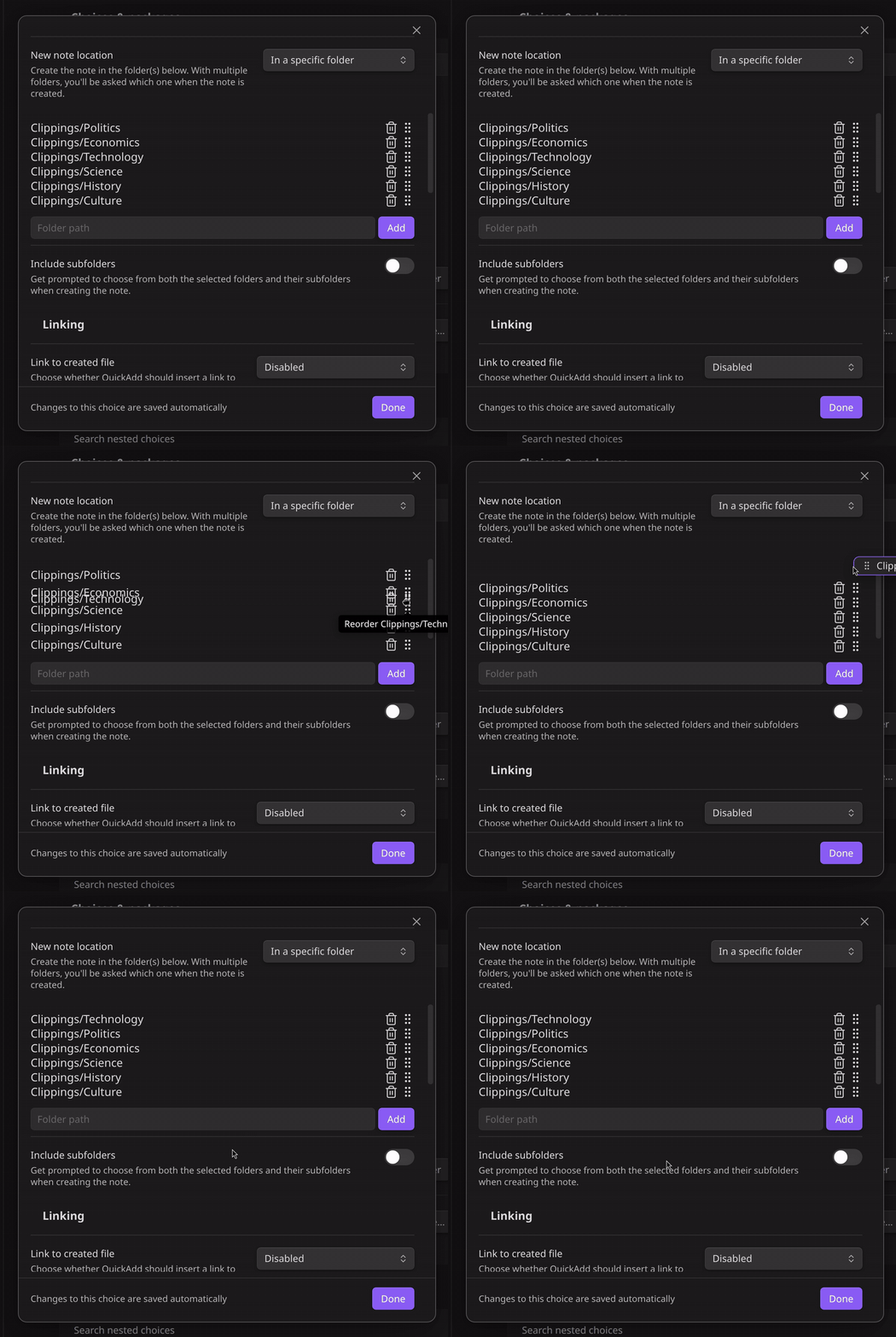
Docs: New note location. Thanks to @RumiaKitinari for the request (#1734, #1735).
Full changelog: 2.24.2...2.25.0

