
QuickAdd 2.29.0
With QuickAdd 2.29.0:
- a date you enter once shows up as a date again when you reuse it with
{{VALUE}} - you can jot down several ideas in a row, each in a fresh prompt
[[link suggestions put the note you mean first, even one you haven't created yet- the Macro builder tells scripts with the same name apart
- package import and export look like the rest of Obsidian's settings
To update, open Settings → Community plugins and click Check for updates. Each section below shows what changed and gives you a setup you can copy.
Reuse a date with {{VALUE}}
{{VDATE:due date,YYYY-MM-DD}} asks for a date. A later {{VALUE:due date}} in the same format repeats your answer, so you only type the date once. Since QuickAdd 1.14.0, that repeat wrote QuickAdd's internal value instead of the date:

Now it writes the date, in the format of the first {{VDATE}} with that name.
This Capture adds a checklist for a new order to the client note you have open. It asks for the delivery date once and puts it on every task:
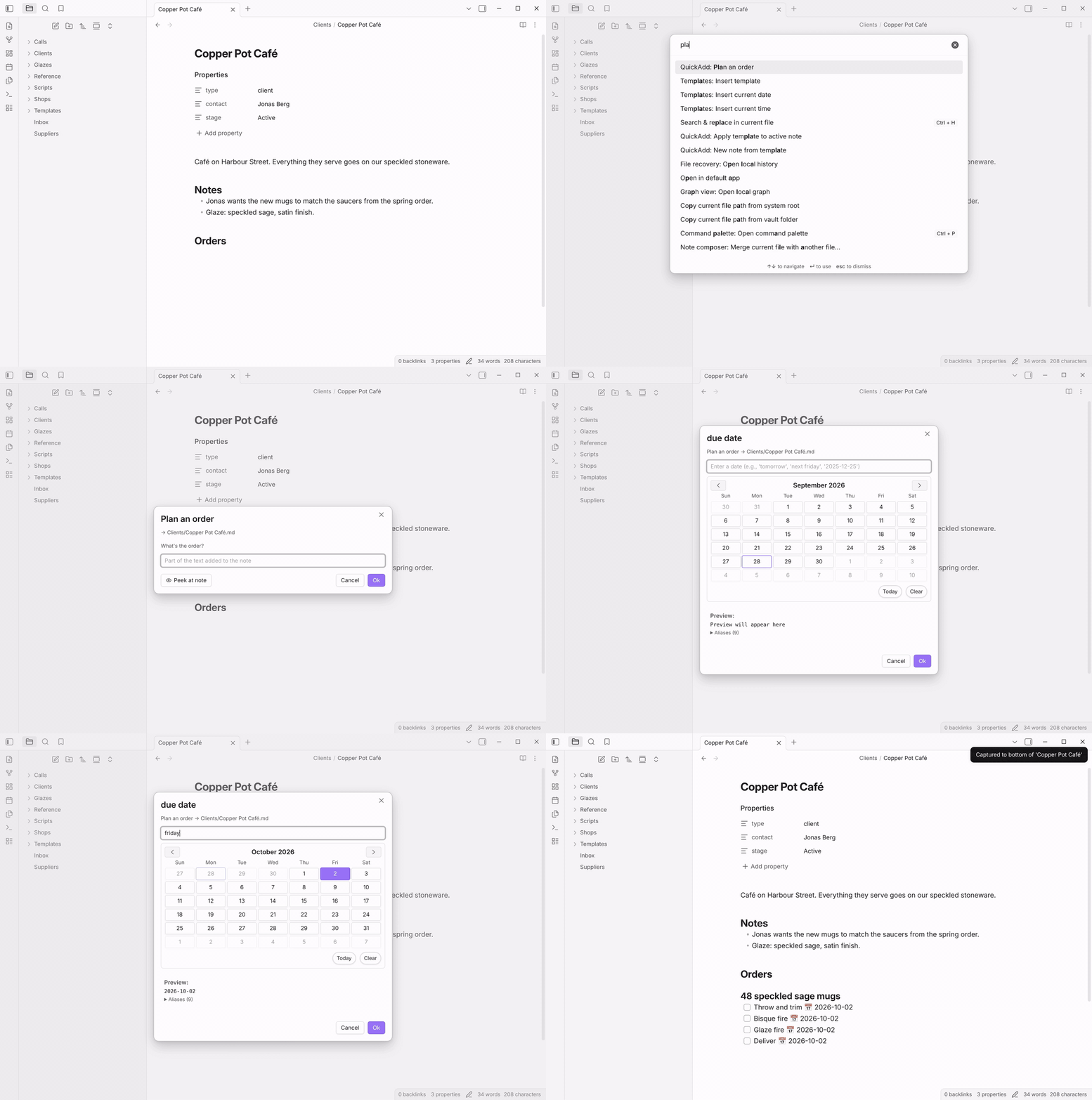
To build it:
-
Open Settings → QuickAdd and choose New choice → Capture.
-
Click the name at the top of the settings window, rename it
Plan an order, and click Ok. -
Turn Capture to active file on.
-
Set Write position to Bottom of file.
-
Turn Capture format on and enter:
### {{VALUE|label:What's the order?}} - [ ] Throw and trim 📅 {{VDATE:due date,YYYY-MM-DD}} - [ ] Bisque fire 📅 {{VALUE:due date}} - [ ] Glaze fire 📅 {{VALUE:due date}} - [ ] Deliver 📅 {{VALUE:due date}} -
Turn Add to command palette on and click Done. You can leave Also add "Plan an order (pick a day)" off.
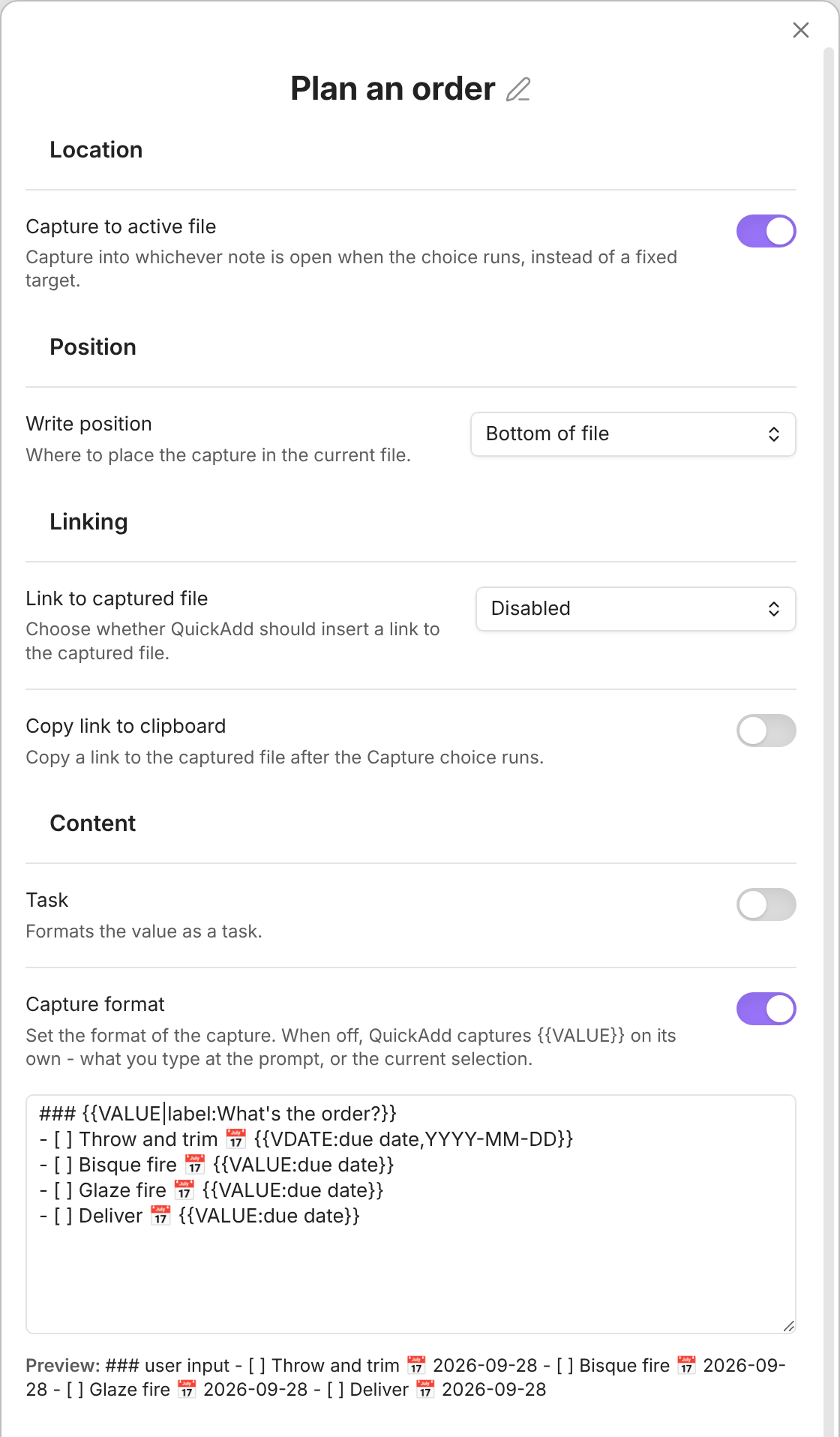
The preview under Capture format already shows the same date on all four lines.
Open a client note and run QuickAdd: Plan an order. Type the order and press Enter. In the date prompt, type friday: the calendar jumps to that Friday and the preview shows the date. Press Enter, and QuickAdd adds this to the bottom of the note:
### 48 speckled sage mugs
- [ ] Throw and trim 📅 2026-10-02
- [ ] Bisque fire 📅 2026-10-02
- [ ] Glaze fire 📅 2026-10-02
- [ ] Deliver 📅 2026-10-02
A few things to know:
- The date prompt understands phrases such as
tomorrow,next monday, andin two weeks, or you can pick a day in the calendar. {{VALUE:due date}}uses the format of the first{{VDATE:due date,…}}. Writing{{VDATE:due date,YYYY-MM-DD}}on every line also works, and still asks only once.📅marks a due date for the Tasks plugin. Leave it out if you don't use Tasks.- With One-page input for choices on (in Settings → QuickAdd, under Input), the form asks for the due date first, in a calendar field, then for the order.
- Notes you captured before this update keep the
@date:text. To find them, search your vault for"@date:", including the quotes.
Docs: Reuse the date with {{VALUE:<name>}}. Thanks to @the1gofer, whose format in #645 led to this fix (#1854, #1861).
Jot down several ideas in a row
A Capture closes after each entry, so writing down ten ideas means running it ten times. The new Brain dump example opens a Capture again after each entry: type, press Enter, type the next one, and press Esc when you're done. Every entry becomes its own line in Inbox.md.
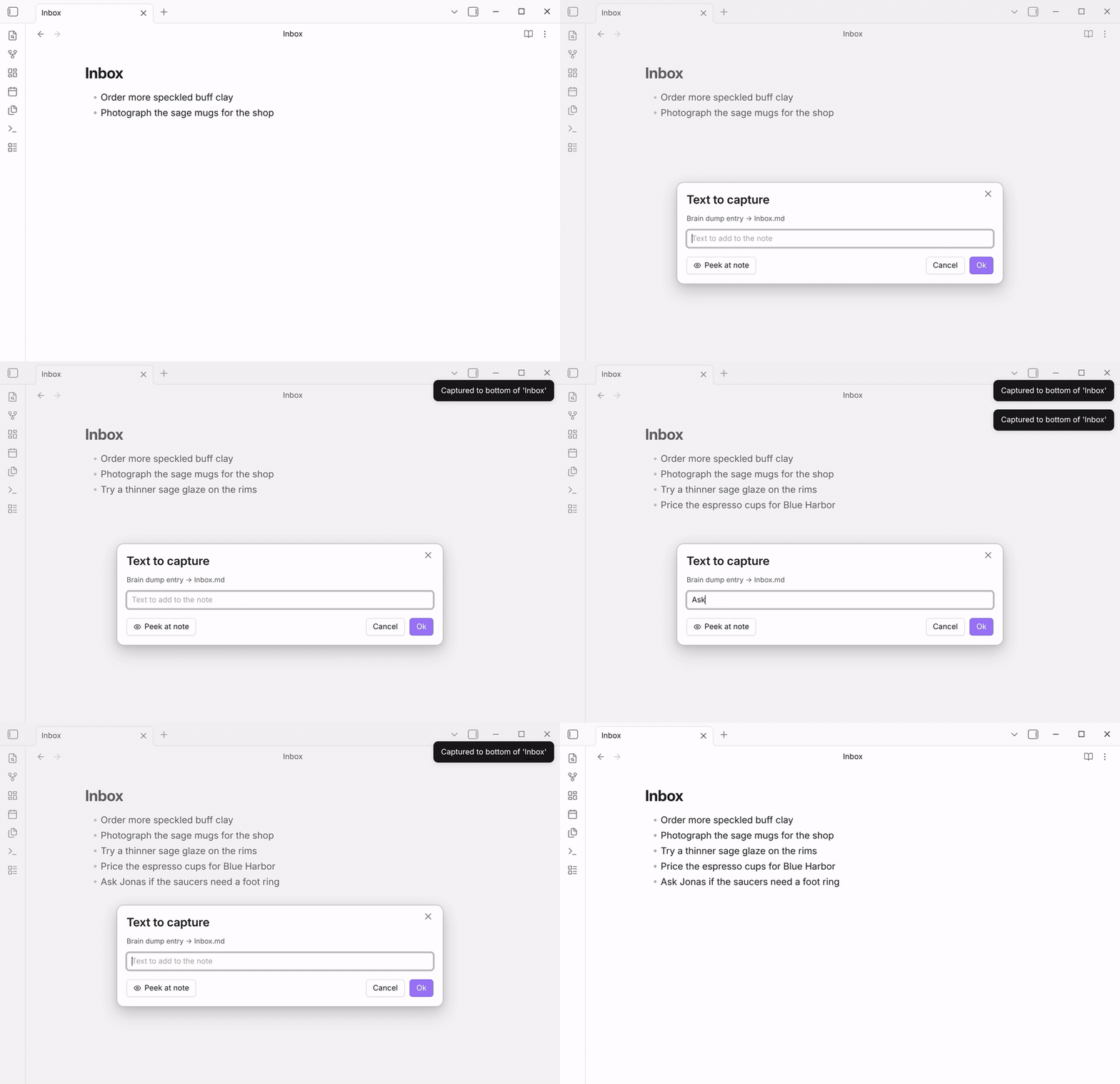
To set it up:
- Open Macro: Brain dump in the docs and click Copy package.
- In Obsidian, open Settings → QuickAdd. Under Choices & packages, click Import package… and paste into the box.
- Below the box, QuickAdd shows what the package adds. Under Choices it lists Brain dump, the macro you run, and Brain dump entry, the Capture it opens. Under Files it lists the script brainDump.js, which it saves to
scripts/brainDump.js. A script can do anything in your vault, so QuickAdd asks you to look at it first: click View contents under the script, then tick I have reviewed each script above and trust the source. - Click Import package, then Close.
Run QuickAdd: Brain dump from the command palette. A prompt titled Text to capture opens. Type an entry and press Enter: QuickAdd adds it to Inbox.md and opens an empty prompt for the next one. Press Esc to stop. Nothing is written for the prompt you close. After three entries, the note ends like this:
- Try a thinner sage glaze on the rims
- Price the espresso cups for Blue Harbor
- Ask Jonas if the saucers need a foot ring
A script could already open a Capture again and again this way, but before 2.29.0 each new prompt started out filled with the entry you had just saved. The last entry also came back the next time you ran the Capture, so pressing Enter added it twice. Now an entry you saved never comes back, whenever a Macro runs another choice, as a step or through quickAddApi.executeChoice.
A few things to know:
- Brain dump entry writes to the bottom of
Inbox.mdand creates the note if it's missing. To use another note, hover over Brain dump entry in Settings → QuickAdd, click its cog, and change Capture to. - To repeat a Capture you already have, hover over Brain dump and click its cog, then click the cog on the brainDump step and enter that Capture's name in Capture choice.
- If the Capture you name doesn't ask for anything, the macro runs it once and stops with a notice, so it can't keep writing the same line.
- Text you type and then close with Esc is kept as a draft and shown the next time the prompt opens, as in any QuickAdd prompt. To turn that off, switch off Persist input prompt drafts under Settings → QuickAdd → Input.
Thanks to @churnish for asking for a way to capture several entries in a row (discussion #763, #1853, #1863).
Link to notes you haven't created yet
When you type [[ in a QuickAdd prompt, the suggestions include links you've written to notes that don't exist yet. Obsidian calls these unresolved links, and QuickAdd marks them UNRESOLVED. Until now they always came last, below every existing note that matched even slightly. Now they're ranked like note names: an exact match first, then names that start with what you typed, then names with a word that starts with it, then looser matches. The looser matches are also sorted by how close they are, instead of in the order your vault lists them.
Say your notes mention your glaze supplier, [[Nora Lindqvist]], but she doesn't have a note yet. Typing [[Nora now lists her first:
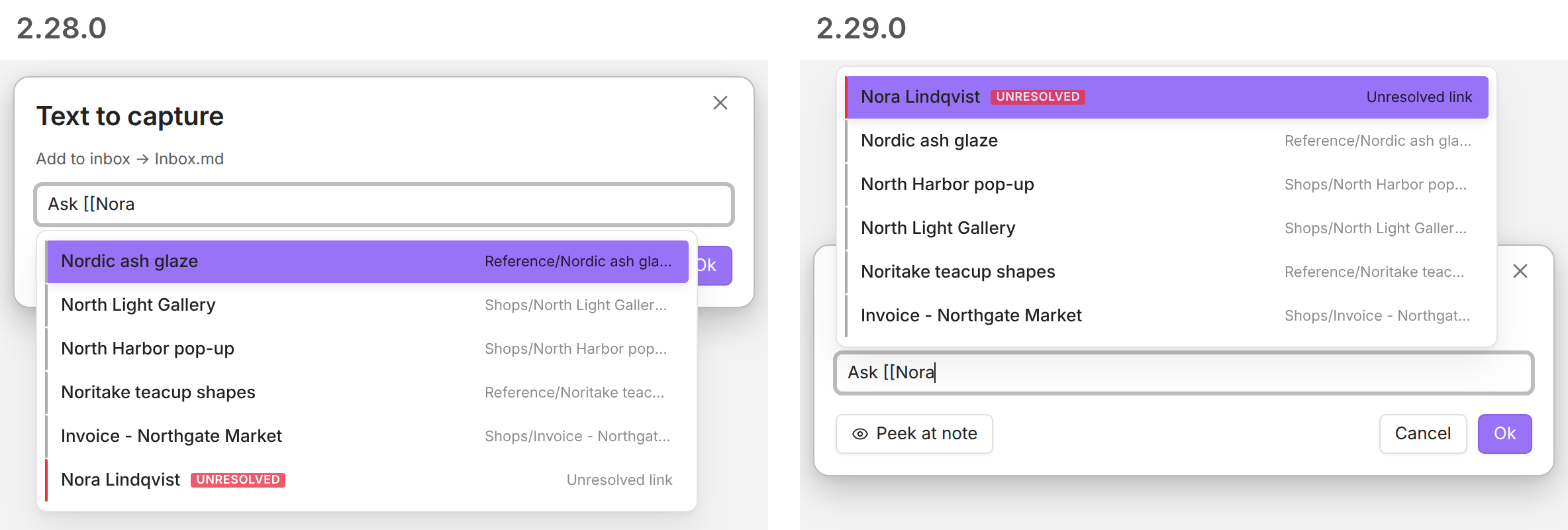
Try it in any prompt that asks for text, such as Brain dump from the previous section. Type Ask [[Nora, press Enter to pick the first suggestion, finish the line, and press Enter:
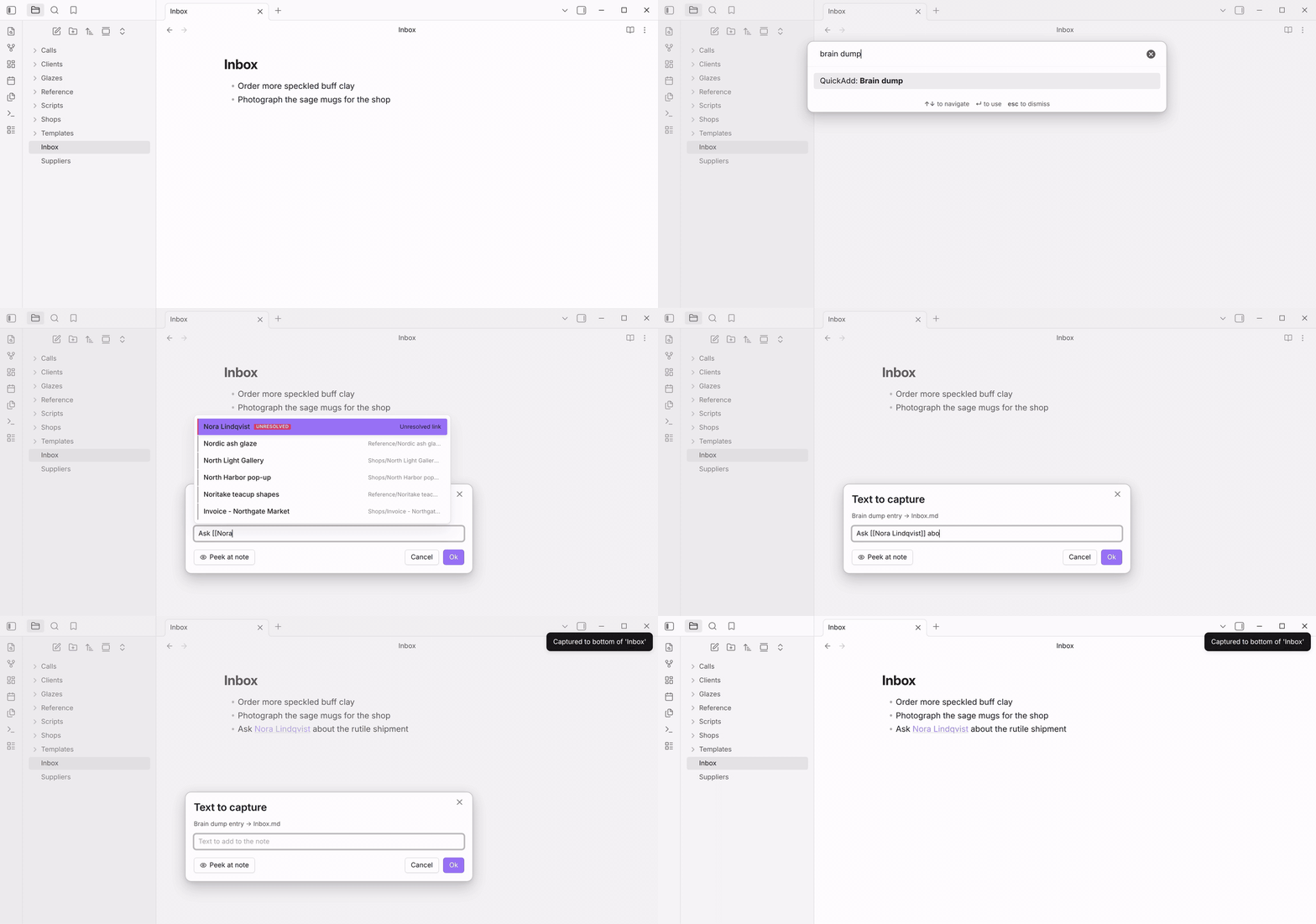
- Ask [[Nora Lindqvist]] about the rutile shipmentAn existing note still wins when it matches just as well. If you also had a note called Nora, it would come first, and Nora Lindqvist second.
Thanks to @anoldgreydog for the report and screenshot (#838, #1851).
Pick the right script when two share a name
If you keep a script per workflow, some may share a file name, such as Scripts/Books/fetch.js and Scripts/Movies/fetch.js. In the Macro builder, both used to show up as fetch, and picking the second one from the User scripts box added the first, so the Macro ran the wrong script. Now you can tell them apart. To see it, you need two scripts with the same file name in different folders. Open Settings → QuickAdd, hover over one of your macros, and click its cog:
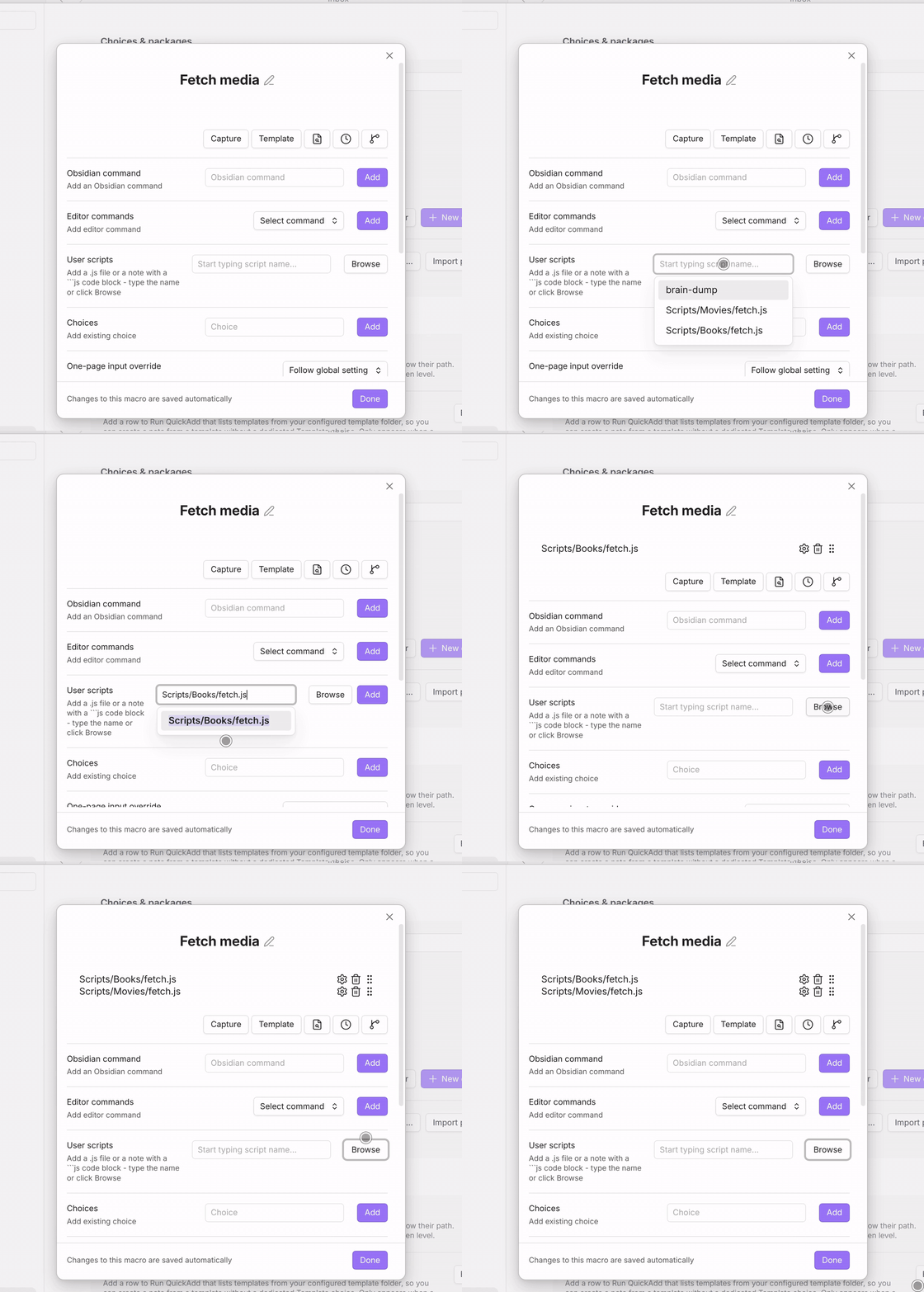
- Type part of the name in the User scripts box. Scripts that share a name are listed by their path in your vault, so you can pick the right one and click Add. Scripts with a unique name look the same as before.
- Browse shows each script's name with its path below, and you can search by folder: typing
moviesfindsScripts/Movies/fetch.js. - A step you add for one of these scripts is named after its path, so the list of steps shows which script each one runs.
Macros you already have keep working: each step still runs the script it saved.
Thanks to @AE-SAY-WAY for #941 and #942 (#1850, #1852).
Package import and export look like Obsidian
The import and export windows now use Obsidian's own callouts, tags, and setting groups, so they match the settings they open from and follow your theme:
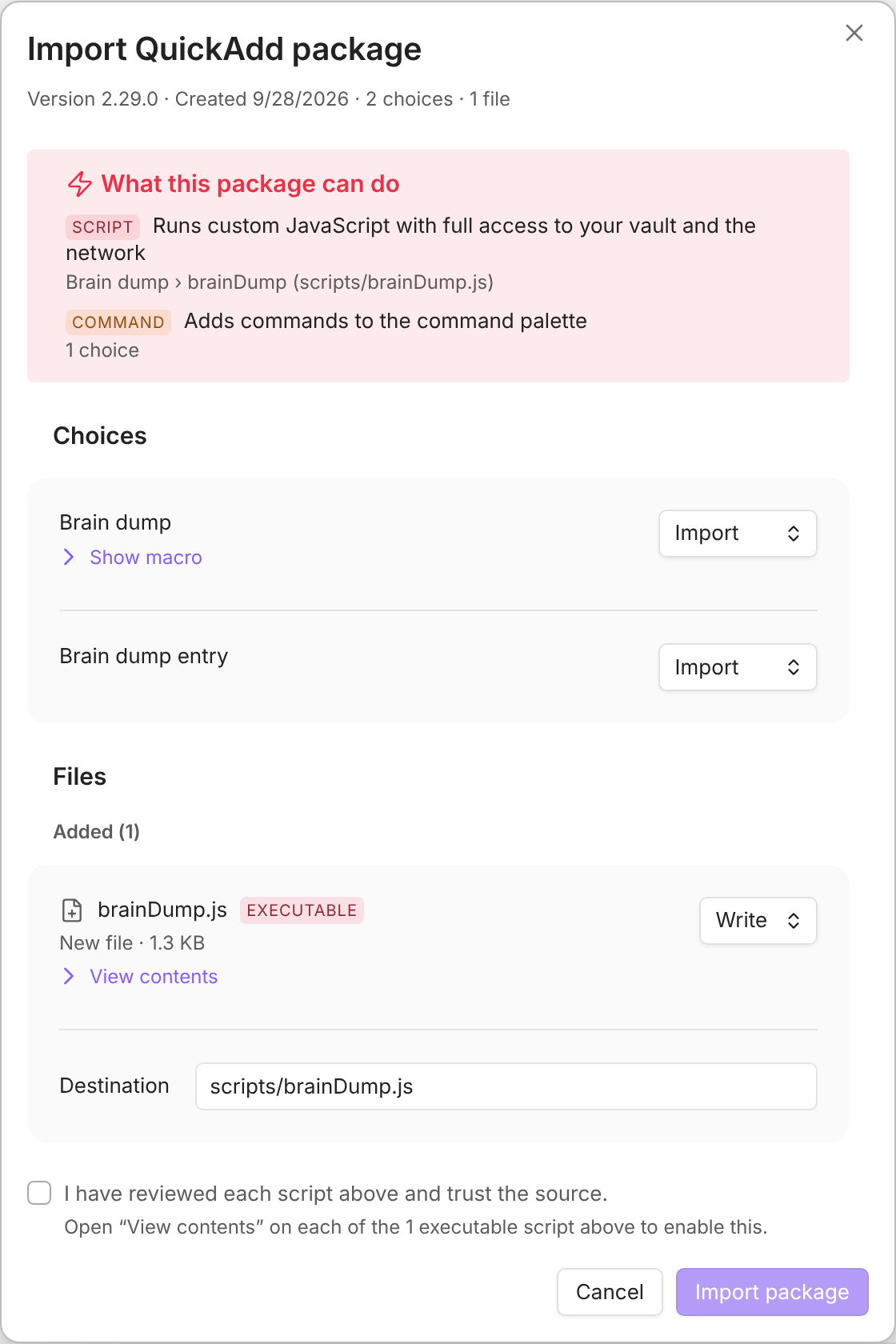
- Warnings are callouts, the same boxes as
> [!warning]in a note. What this package can do is red when the package can run code, and orange otherwise. To see the orange one, export a single Capture with Export package… and import it again. - Labels such as SCRIPT and COMMAND are small tinted tags.
- Choices and files sit in cards like the ones in Obsidian's settings.
- The title and buttons stay in place while the rest scrolls.
The review also no longer tells you to reload for packages that add commands. Imported commands already work right away. The note now appears only for a package with a macro that runs on startup: "Importing doesn't run startup macros. They first run the next time Obsidian starts or you reload QuickAdd."
Also in this release
-
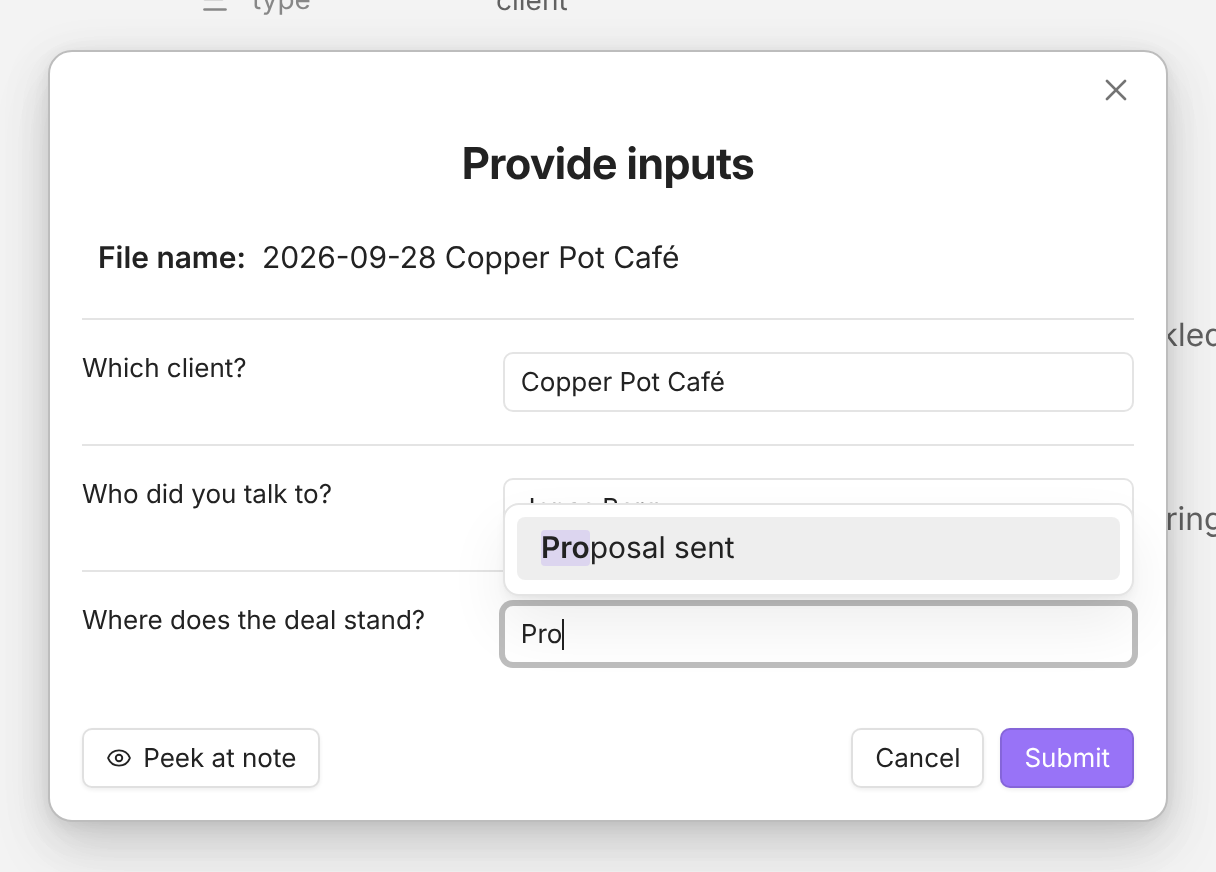
Suggestion lists stay clear of Submit. In the one-page form, the list for the last field used to cover Cancel and Submit, so clicking Submit hit the list and the form stayed open. When the list would reach those buttons, it now opens above the field. Single-line prompts do the same (#1839).
-
Pressing Esc no longer logs an error. Cancelling a prompt used to add "MacroAbortError: Input cancelled by user" to Obsidian's developer console when a button in a note started the run (a script that calls
executeChoicewithoutawait), and in the Macro builder's Browse pickers. A cancelledquickadd:run choice="<name>" uicommand from the Obsidian CLI now also reportsaborted: true(#1841). -
A Capture no longer starts a new note with a blank line. With Write position set to Bottom of file and Create file if it doesn't exist on, the note the Capture created began with an empty line (#1864).
-
The What's new window shows code examples as written. This is the window that opens after an update, listing the notes of every release since your last one. It added a
#to lines such as## Journalinside code blocks, so a copied example had the wrong heading. Code blocks and inline code also get Obsidian's styling now (#1859). -
New in the docs:
- Set a property on the new note with an inline script, such as a number that counts the notes in a folder (#1848, #1858).
{{MVALUE}}only suggests LaTeX commands. For multi-line text with#tag and[[link search, use{{VALUE|type:multiline}}(#1847).- Seeing
+3or{{DATE+3}}in your note? Obsidian's Open today's daily note and Insert template fill in only their own placeholders. Run the file from a QuickAdd Template choice instead (#1846).
Full changelog: 2.28.0...2.29.0


