
QuickAdd 2.30.0
A Capture can now find your daily note by itself, so it keeps working when you change your Daily notes settings. Paste or select a list and each line becomes its own entry. When you pick a note, you can find it by any of its aliases. A choice's settings open as a page in Settings, choices you add on your phone show up on your laptop without a reload, and AI agents like Claude Code can write through your choices instead of editing your notes by hand.
A few things also work differently, mostly blank lines at the bottom of notes and how |label: names a prompt. If you capture to the bottom of notes, label your prompts, or run your own scripts, read What works differently further down.
To update, open Settings → Community plugins and click Check for updates. The examples below come from the vault of a small pottery studio. Swap in your own notes and names as you go.
Capture to your daily note
Most daily-note Captures spell out the folder and date format by hand, such as Daily/{{DATE:YYYY-MM-DD}}.md. If you later change your Daily notes settings, the Capture keeps writing to the old place, and a note it creates skips your daily note template.
Now you can click Daily note next to Capture to. QuickAdd fills in {{DAILY}}, the path of the day's daily note, read from Obsidian's Daily notes settings (or from Periodic Notes, if it manages your daily notes). It also turns on Create file if it doesn't exist, so a missing note is created from your daily notes template, just as Open today's daily note would create it.
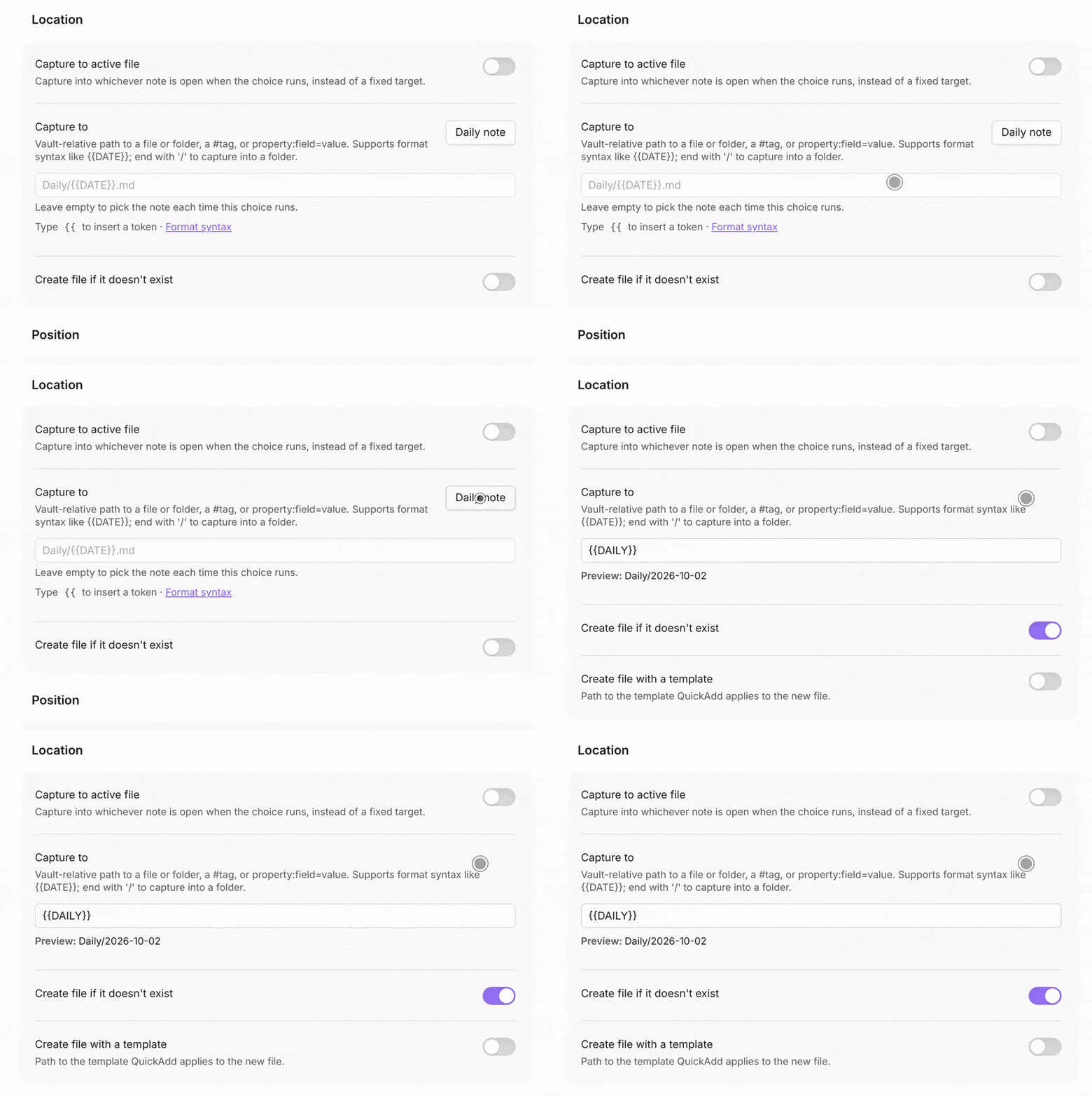
Here's a journal Capture built on it. Run it from anywhere, type a line, and it lands under ## Journal in today's note:
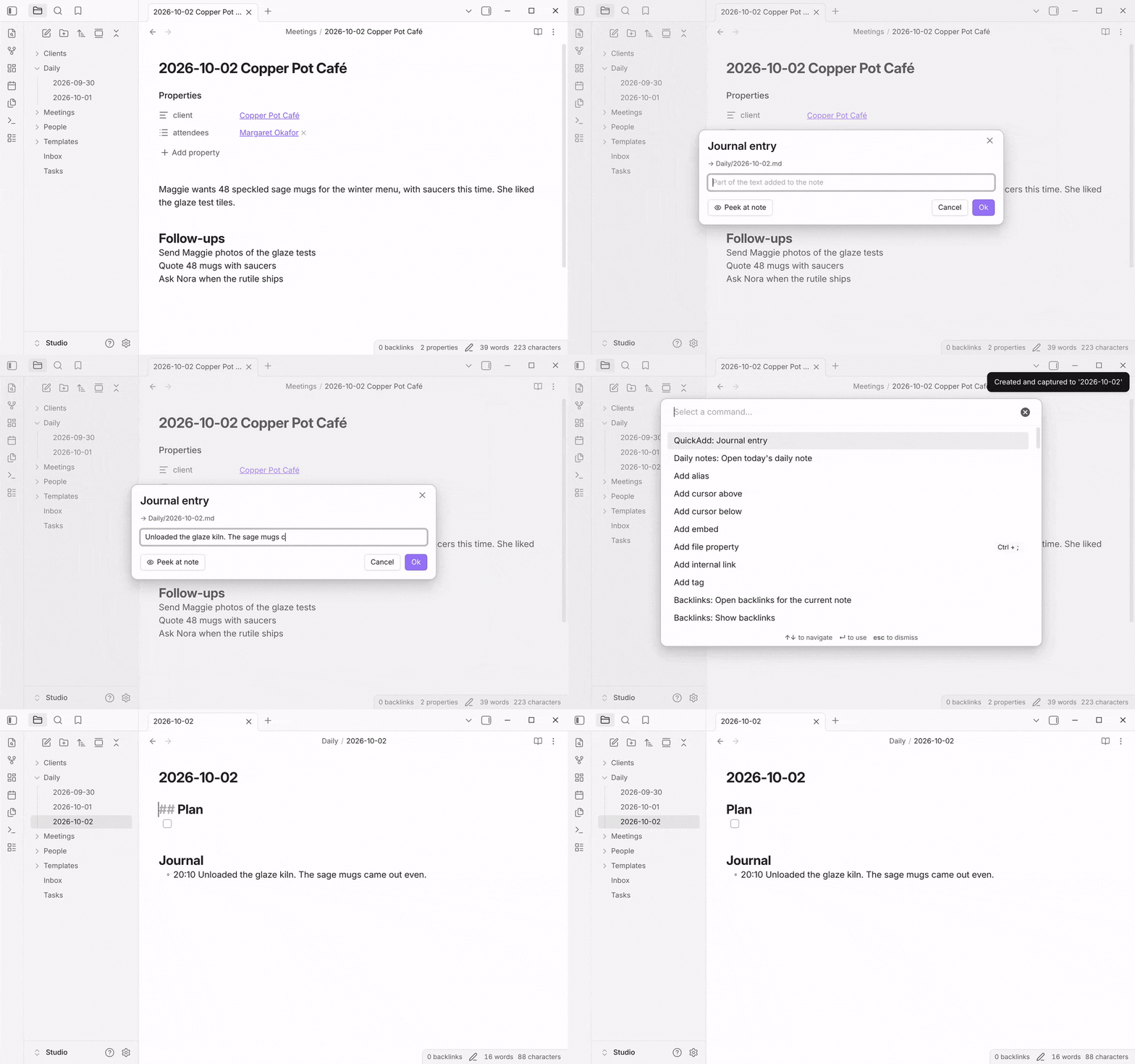
To build it:
-
Set up Obsidian's daily notes, if you haven't. In Settings → Core plugins, turn on Daily notes. Then, in Settings → Daily notes, set New file location to your daily notes folder, such as
Daily, and Template file location to a template with a## Journalheading. This example usesTemplates/Daily note.md:## Plan - [ ] ## Journal
If you use Periodic Notes for your daily notes instead, that works too.
-
Open Settings → QuickAdd, click New choice, and choose Capture. The choice's settings open.
-
In Name, enter
Journal entry. -
Click Daily note next to Capture to.
-
Set Write position to After line… and enter
## Journalin Insert after. Insert at end of section and Create line if not found are already on. -
In Capture format, enter:
- {{DATE:HH:mm}} {{VALUE}} -
Turn on Add to command palette and click the back arrow at the top.
Run QuickAdd: Journal entry, type an entry, and press Enter. Today's note is created from your template if it doesn't exist yet, and gets:
## Journal
- 09:42 Unloaded the glaze kiln. The sage mugs came out even.
If your template has no ## Journal heading, QuickAdd adds one at the top of the note the first time.
A few things to know:
- The preview under Capture to shows the note the Capture will write to today. If it says Unresolved: {{DAILY}}, neither the Daily notes core plugin nor Periodic Notes is managing daily notes: turn one on, as in step 1.
- The Capture follows its Which day setting. Turn on Also add "Journal entry (pick a day)" and the QuickAdd: Journal entry (pick a day) command writes to the daily note of the day you pick.
{{DAILY|link}}writes a link to the day's note, such as[[2026-10-02]], so you can use it in any format.- If you run it while neither is on, the Capture stops with "{{DAILY}} needs the Daily notes core plugin, or Periodic Notes with daily notes, turned on." instead of writing somewhere else.
With Periodic Notes 0.0.17, {{WEEKLY}}, {{MONTHLY}}, {{QUARTERLY}}, and {{YEARLY}} do the same for your other periodic notes. A week is named after its first day, the way Periodic Notes names it.
Docs: The daily note, Weekly, monthly, quarterly, and yearly notes, Capture: Add entries to your daily note. Thanks to @tomireland (#107), @chanraerae (#296), and @moorebi (#82), who each reported a Capture writing somewhere other than Obsidian's daily note (#2005, #2010, #2027).
Turn a list into one entry per line
Select three follow-ups in a meeting note and run a task Capture, and you used to get one task with three lines in it. Turn on One entry per line and the Capture writes its format once for each line, so you get three tasks:
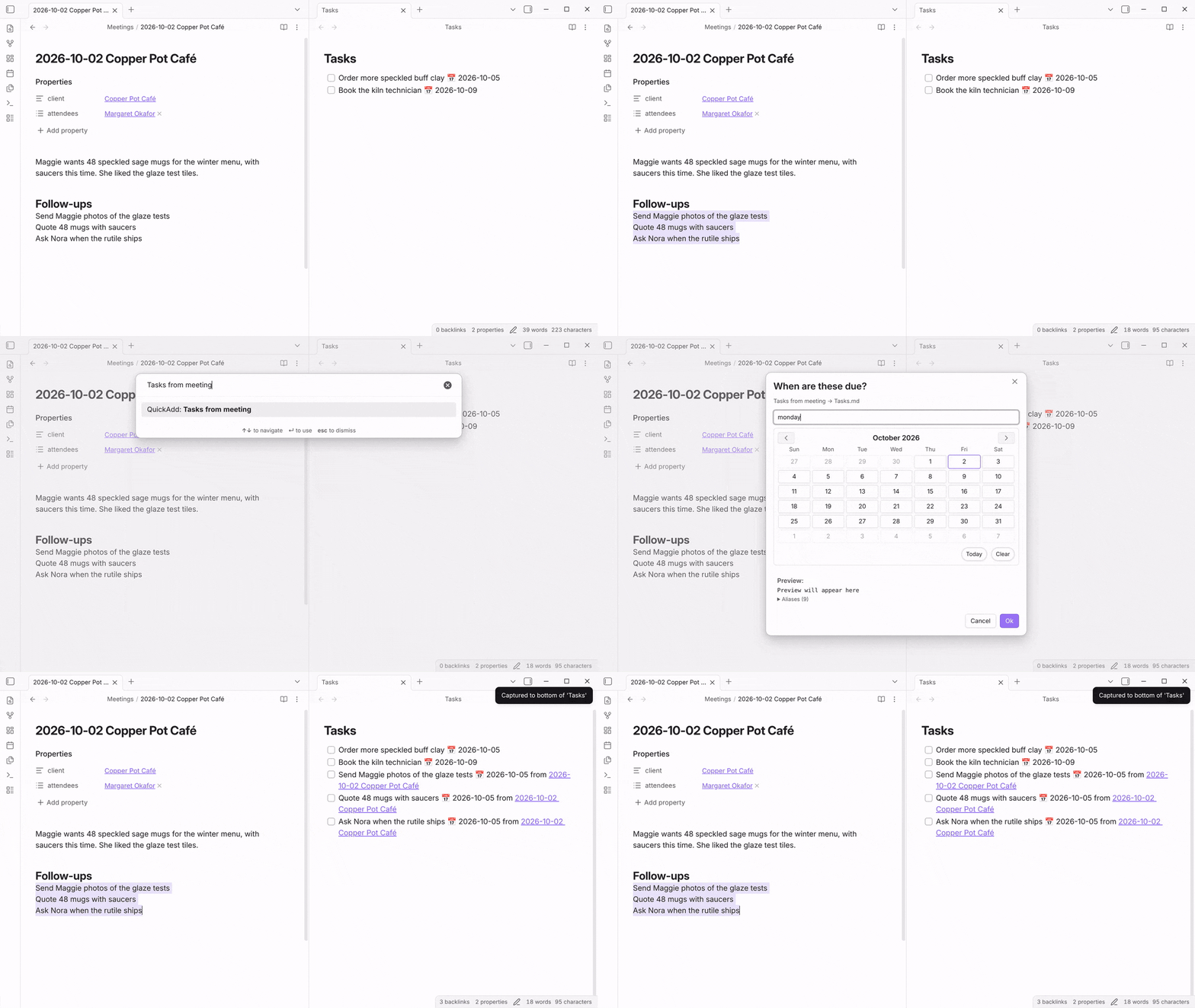
To build it:
-
Create a note called
Tasksif you don't have one. -
In Settings → QuickAdd, click New choice and choose Capture. Set Name to
Tasks from meeting. -
In Capture to, enter
Tasks.md, and set Write position to Bottom of file. -
Turn on Task and One entry per line.
-
In Capture format, enter:
{{VALUE}} 📅 {{VDATE:due,YYYY-MM-DD|label:When are these due?}} from {{LINKCURRENT}} -
Turn on Add to command palette and click the back arrow.
Open a meeting note and select the lines you want as tasks:
## Follow-ups
Send Maggie photos of the glaze tests
Quote 48 mugs with saucers
Ask Nora when the rutile ships
Run QuickAdd: Tasks from meeting, type monday in the date prompt, and press Enter. On Friday, October 2, 2026, the bottom of Tasks gets:
- [ ] Send Maggie photos of the glaze tests 📅 2026-10-05 from [[2026-10-02 Copper Pot Café]]
- [ ] Quote 48 mugs with saucers 📅 2026-10-05 from [[2026-10-02 Copper Pot Café]]
- [ ] Ask Nora when the rutile ships 📅 2026-10-05 from [[2026-10-02 Copper Pot Café]]
Nothing selected? Then QuickAdd asks for the text in a box that takes several lines. Paste or type your list, pressing Enter between lines, and press Ctrl+Enter (Cmd+Enter on a Mac) to capture.
A few things to know:
- Blank lines are skipped, and spaces around each line are trimmed.
- Every other prompt is asked once and used for every line, like the due date here.
{{RANDOM:6}}is the exception: each line gets its own value, which is handy for block IDs. - A value from a script, an
obsidian://quickaddlink, or the CLI is split into lines the same way. 📅marks a due date for the Tasks plugin. Leave it out if you don't use Tasks.
Docs: One entry per line. Thanks to @samawelch (discussion #660) and @Fred-Vatin (discussion #689) for asking (#2013).
Find notes by their aliases
If you give your notes aliases, such as a nickname for a person or a short name for a client, you can now type them when you pick a note: in {{FILE:...}} and in the Capture to picker. The row shows the alias with the note's name beneath it, like Obsidian's quick switcher, and picking it uses the note itself.
This Capture logs a phone call in the client's note. Typing cpc finds Copper Pot Café, and typing maggie finds Margaret Okafor:
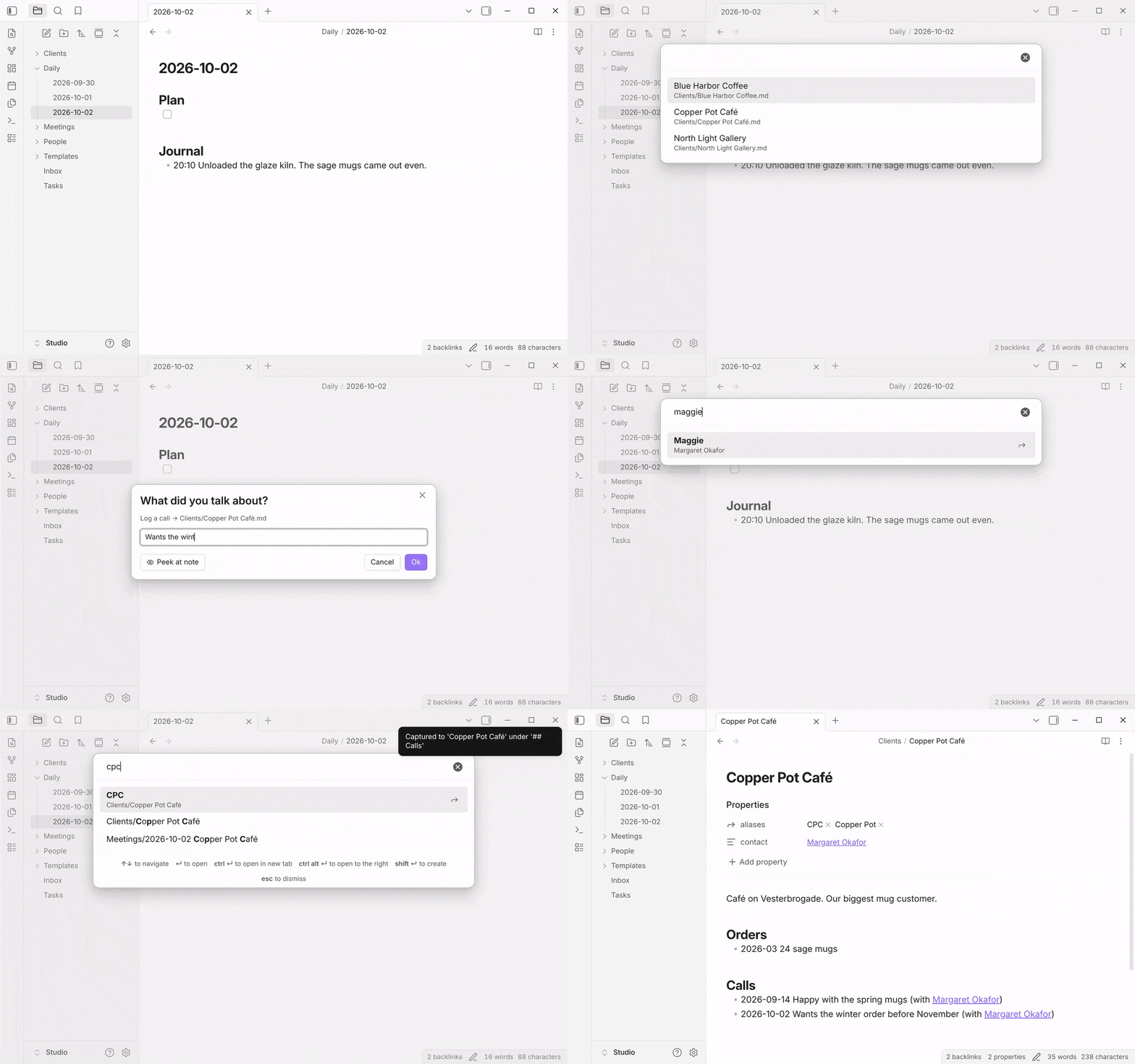
The notes it uses have aliases in their properties. Clients/Copper Pot Café.md starts with:
---
aliases:
  - CPC
  - Copper Pot
---
And People/Margaret Okafor.md starts with:
---
aliases:
  - Maggie
---
To build it:
-
In Settings → QuickAdd, click New choice and choose Capture. Set Name to
Log a call. -
In Capture to, enter
Clients/. The slash at the end means "pick a note in this folder each time". -
Set Write position to After line… and enter
## Callsin Insert after. -
In Capture format, enter:
- {{DATE:YYYY-MM-DD}} {{VALUE|label:What did you talk about?}} (with {{FILE:People|link|label:Who did you talk to?}}) -
Turn on Add to command palette and click the back arrow.
Run QuickAdd: Log a call, type cpc and press Enter, type what the call was about and press Enter, then type maggie and press Enter. The client note gets:
## Calls
- 2026-09-14 Happy with the spring mugs (with [[Margaret Okafor]])
- 2026-10-02 Wants the winter order before November (with [[Margaret Okafor]])
A few things to know:
- What gets written doesn't change: picking
Maggiestill writes[[Margaret Okafor]]. - Aliases work in every note picker:
|custom,|multi, and the one-page form too. - If you type an alias exactly, QuickAdd picks its note instead of offering to create a new one.
These pickers are also much faster in big folders. In a folder with 20,000 notes, each keystroke took over a second; now it takes well under a tenth of a second. In the one-page form, Capture to is now the same searchable picker instead of a dropdown, and the form opens in about 0.1 seconds instead of 6.
Docs: {{FILE}}, Capture to: friendlier names in the picker. Thanks to @Stumbling-epiphany for asking (#2062, #2074, #2099, #2101).
A choice's settings open as a page in Settings
Open a choice's settings and they now open as a page inside Settings → QuickAdd, like Obsidian's own settings pages, instead of a second window on top. On a computer, hover over the choice and click its gear. On a phone, tap ⋮ next to the choice and then Configure. The back arrow takes you back to your list of choices, and so does Esc (press it twice if you're typing in a field).
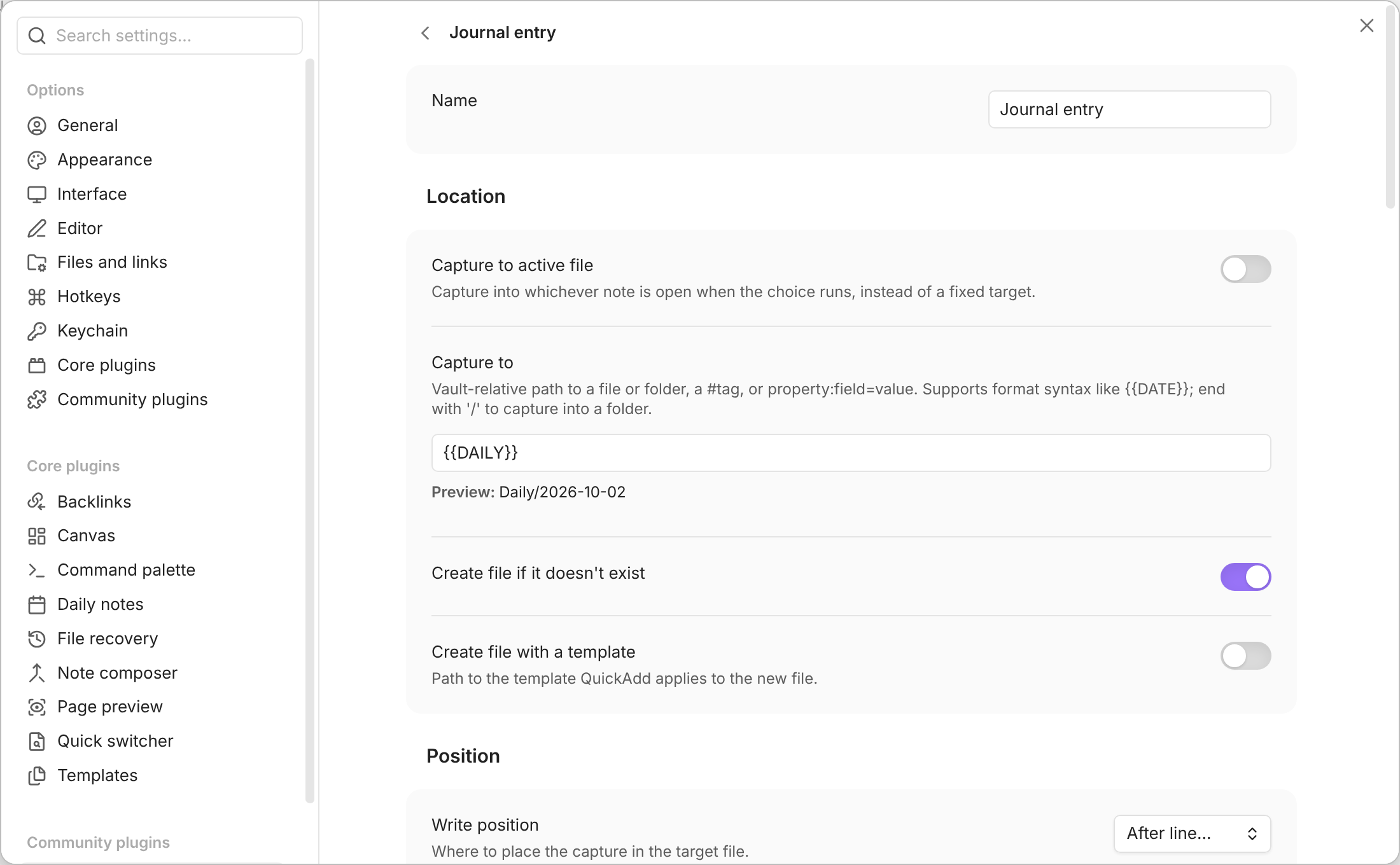
- Rename a choice in the Name field at the top. The page title follows as you type.
- Your changes are saved when you leave the page, when Obsidian goes to the background, and when you quit. If another device changes the same choice while you have it open, you keep both sets of changes.
- In a Macro, the settings of a step added with the Capture or Template button, and a Conditional's Then and Else, open as pages on top of the Macro. The back arrow returns you to the Macro as you left it.
- On a phone, the page fills the screen, with the choice's name and a back arrow at the top. The field you're typing in and its suggestions stay above the keyboard.
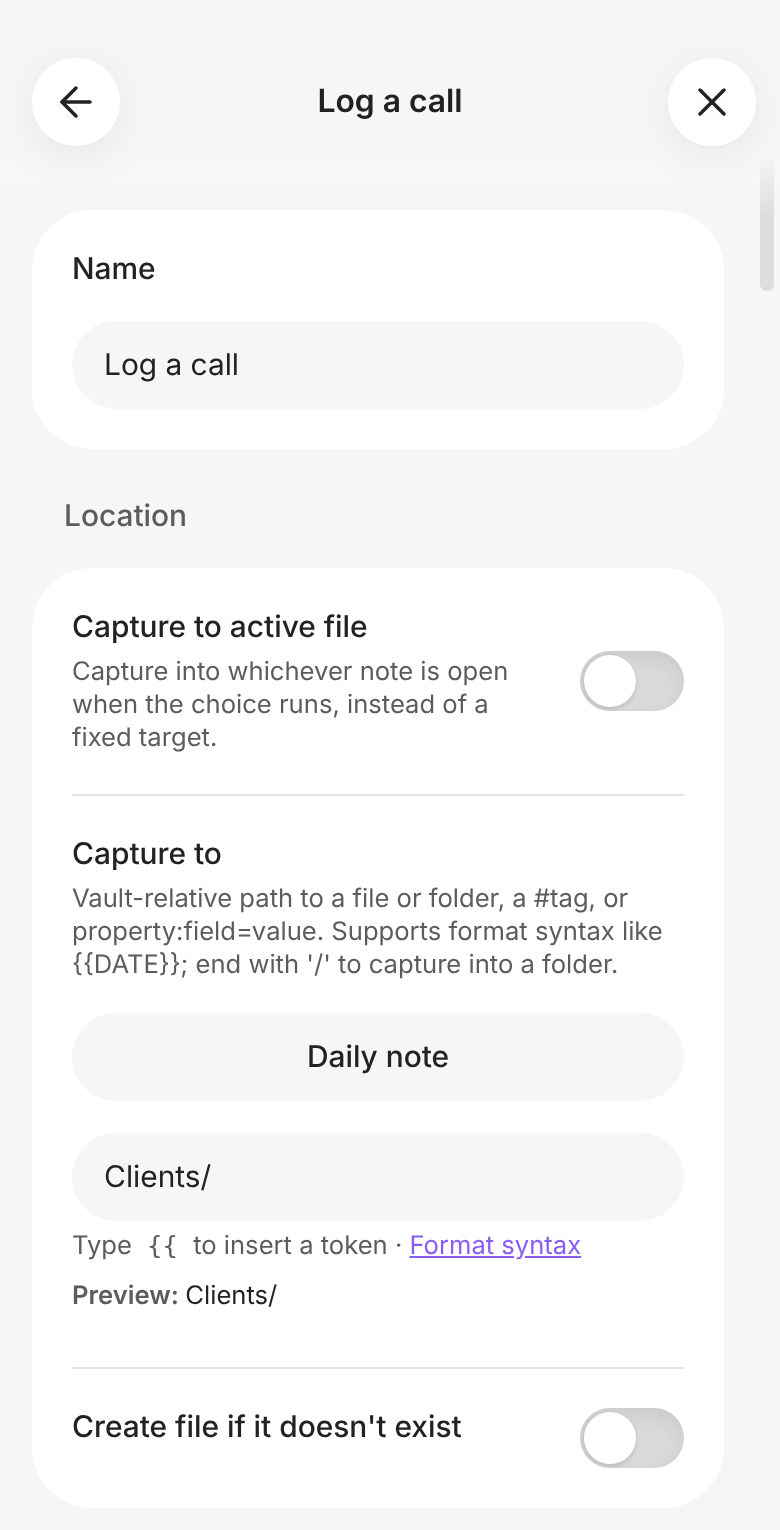
(#2141)
Changes from your other devices apply right away
QuickAdd used to keep the settings it loaded when Obsidian started. A choice you added on your phone showed up on your laptop only after you restarted Obsidian or reloaded QuickAdd. Now, when Obsidian Sync or another sync tool brings in changed QuickAdd settings, QuickAdd applies them at once. New, renamed, and deleted choices update their commands too, and your hotkeys stay.
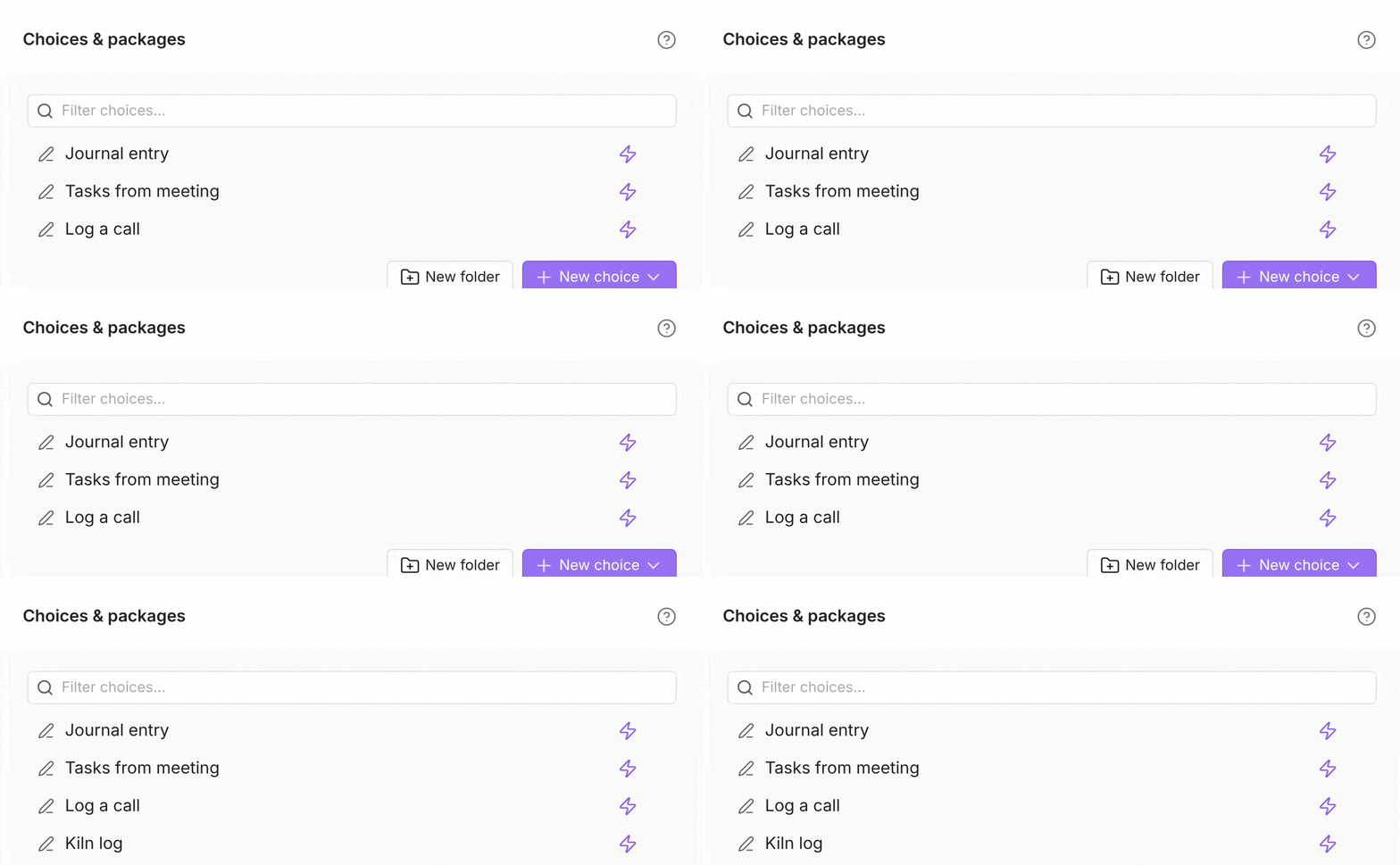
You don't lose anything you're in the middle of: edits you haven't saved yet are kept, and if two devices change different choices at about the same time, both changes survive. The same goes for a second Obsidian window on the same vault, or for editing QuickAdd's data.json by hand.
Thanks to @hollowhemlock, whose #1749 led to the settings merge this builds on (#2015).
Let AI agents write through your choices
Coding agents such as Claude Code and Codex can edit the notes in your vault directly. Ask one to "log this in my journal", and it will read your QuickAdd settings and copy a choice's format by hand, often missing a detail: the template for a new daily note, a task checkbox, the heading. QuickAdd now ships an agent skill that tells the agent to run your choice instead.
Install it in your vault folder:
npx skills add chhoumann/quickaddThe skill goes in your agent's skills folder, such as .claude/skills/quickadd/ for Claude Code. You can also copy skills/quickadd/SKILL.md there yourself.
With Obsidian open on your computer, ask the agent "Log in my journal that Margaret confirmed 48 mugs with saucers." It uses Obsidian's command line in three steps. First, obsidian quickadd:list lists your choices. Each Template and Capture now says what it writes, so the agent can pick the right one. Here's the entry for Journal entry, shortened:
{
  "id": "2213d8d5-0b83-41dc-ae93-a9ebac49d37c",
  "name": "Journal entry",
  "type": "Capture",
  "writes": {
    "target": "{{DAILY}}",
    "position": "after",
    "line": "## Journal",
    "format": "- {{DATE:HH:mm}} {{VALUE}}"
  }
}
Then it asks the choice what it needs, and runs it with that input:
$ obsidian quickadd:check id=2213d8d5-0b83-41dc-ae93-a9ebac49d37c fields
{"command":"quickadd:check","ok":false, … "missing":[{"id":"value","label":"Enter value","type":"text", …}], …}

$ obsidian quickadd id=2213d8d5-0b83-41dc-ae93-a9ebac49d37c vars='{"value":"Margaret confirmed 48 mugs with saucers"}' verify
{"command":"quickadd","ok":true,"verified":true,"effect":"changed","file":"Daily/2026-10-02.md", …}
And the line lands where your Capture puts it, under ## Journal in today's note:
- 21:13 Margaret confirmed 48 mugs with saucersThe skill tells the agent to never answer QuickAdd's prompts for you and to run Macros only when you ask. If you ask it to set up a new Capture, it writes a package and imports it with choices=import, which can't replace a choice you already have. The command line needs Obsidian running on a computer, with Settings → General → Command line interface turned on.
Docs: Let an AI agent write through your choices, quickadd:list (#1965, #2084).
What works differently
No more surprise blank lines at the bottom of a note
A Capture now follows one rule: it adds a line break only where it needs to end a line. It doesn't add blank lines of its own, so the blank lines between entries come from your format. In a format, \n (a backslash followed by n) stands for a line break, so \n\n at the end of a format leaves a blank line after the entry.
Bottom of file. A Capture with the format - {{VALUE}}\n used to leave a blank line before each new entry. Run it three times in 2.29.0, and your inbox looked like this:
- Try a thinner sage glaze on the rims

- Call the clay supplier

- Price the espresso cups
In 2.30.0, the same Capture writes a tight list:
- Try a thinner sage glaze on the rims
- Call the clay supplier
- Price the espresso cups
To keep a blank line between entries, end the format with \n\n or start it with \n. Captures with Task on already worked this way and are unchanged.
Create line if not found → Bottom follows the same rule: the heading it adds no longer gets a blank line above it.
Add project update from the meeting notes package is affected: its ## Update - <date> heading now sits right under the note's last line. To get the blank line back, open Settings → QuickAdd, hover over Add project update and click its gear, and add \n at the start of Capture format, so it reads \n{{TEMPLATE:Templates/Project update.md}}. Or import the package again from that page and choose Overwrite.
After line… no longer swallows the blank line below the text it inserts (except with Task on, which still replaces it, as before). This showed most with Insert at end of section, where the blank line before the next heading disappeared the first time you captured:
## Log
first entry
- new entry

### Notes
Before, - new entry was followed directly by ### Notes. The AI tool insert_under_heading had the same problem and is fixed too.
Append to bottom in a Template choice now leaves exactly one blank line between the note and the template, however the note ends. If the note ends in several blank lines, they become one; if it has none, one is added. It's the Update action you get when you set If the target file already exists to Update existing file.
Docs: Write position. Thanks to @ericaxu (#55) and @ricir (#312) for the first reports of stray blank lines (#1886, #1917, #1969).
|label: is now the prompt's title
{{VALUE:attendees|label:Comma-separated names}} used to open a prompt titled attendees, with the label as small text above the field. Now the label is the title, and the one-page form names the field the same way:
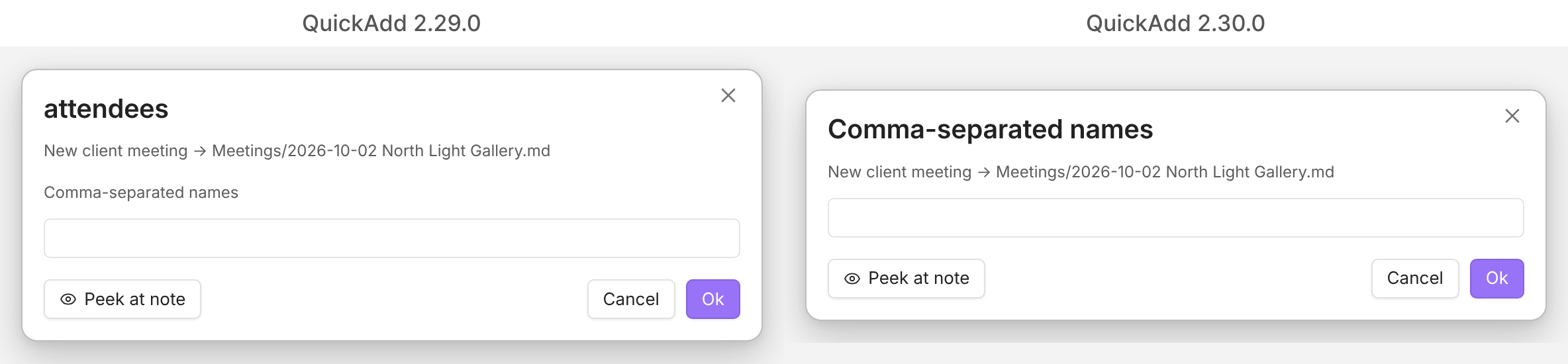
If you used |label: for instructions, rewrite it as the question you want to see, such as |label:Who attended?. The answer is still saved under the name before the |, so {{VALUE:attendees}} elsewhere in the format reuses it as before.
Two more places now use |label::
{{VDATE:due,YYYY-MM-DD|label:When is it due?}}titles the date prompt. Before, QuickAdd readlabel:When is it due?as the default date, and the Capture failed with "unable to parse date variable".- A plain
{{VALUE|label:What's the order?}}is titled by its label instead of the choice's name.
Docs: Name the prompt, Name the date prompt (#1896, #1915).
What you type is written exactly as you typed it
Your answers to prompts, selected text, the clipboard, value- parameters in an obsidian://quickadd link, and the values you pick in {{FIELD}} and {{FILE}} are now written as they are. A {{...}} placeholder or a Templater <% %> tag inside them stays plain text.
Say you answer a - {{VALUE}} Capture with Plan {{DATE:YYYY}} with <% tp.date.now("YYYY") %>. QuickAdd now writes exactly that. Before, it wrote Plan 2026 with 2026, and an answer containing {{VALUE:x}} opened another prompt. A selection with a ```js quickadd block no longer runs as code either.
Placeholders and Templater tags in the format itself still work, and can still use your answer, as in <% "{{VALUE:title}}".toUpperCase() %>.
If you write scripts: a value your script sets and a format writes with {{VALUE:x}} is also written as it is. If your script relied on a placeholder in that value being filled in, pass the value through quickAddApi.format() first.
Docs: Format syntax (#1954, #1925).
User scripts: a missing or non-.js script stops the Macro
A Macro step or Conditional now runs a script only if it's a .js file (any case, so Script.JS works) or a note with a ```js code block. For anything else, the Macro stops with:
QuickAdd: (ERROR) Could not run scripts/legacy.cjs. A user script must be a .js file or a note with a ```js code block. Rename the file so it ends in .js.
The Macro builder only lets you add .js files and notes, so this only affects a step you already have, or one in an imported package, that points at another kind of file.
A step whose script was moved, renamed, or deleted now stops the Macro with one notice:
QuickAdd: (ERROR) Could not find scripts/gone.js. If you moved or renamed the script, update its path in the macro.
Before, QuickAdd showed two errors and ran the rest of the Macro anyway, and a Conditional whose script was missing quietly took its Else branch.
Docs: User scripts troubleshooting (#1892, #1983).
Importing a package never replaces a choice by surprise
When a package has a choice that's already in your vault, the import review now offers Overwrite, Duplicate, or Skip for it. Import is offered only for choices that are new. Before, Import was also offered for a choice you already had, and it replaced it.
On the command line, quickadd:package-import choices=import now refuses a package with a choice that's already in your vault, and changes nothing:
{"ok":false,"command":"quickadd:package-import","error":"Already in this vault: \"Capture to Inbox with GPS\". Import only adds new choices, so choose overwrite, duplicate or skip for it."}Pass choices=overwrite to replace them, or leave out choices to overwrite existing choices and import new ones.
Docs: Import a package (#2021).
The one-page form no longer picks a note for you
In the one-page form, a required note picker, such as Capture to for a folder or a {{FILE:...}} field, used to start with the first note already picked. If you didn't notice and clicked Submit, your entry went into that note. Now the picker starts empty, and Submit (or Ctrl+Enter, Cmd+Enter on a Mac) won't send the form until you pick one. Instead, QuickAdd shows a notice such as QuickAdd: Choose a file for "Who did you talk to?". and takes you to the field.
Here's Log a call from earlier with One-page input override set to Always in its settings:
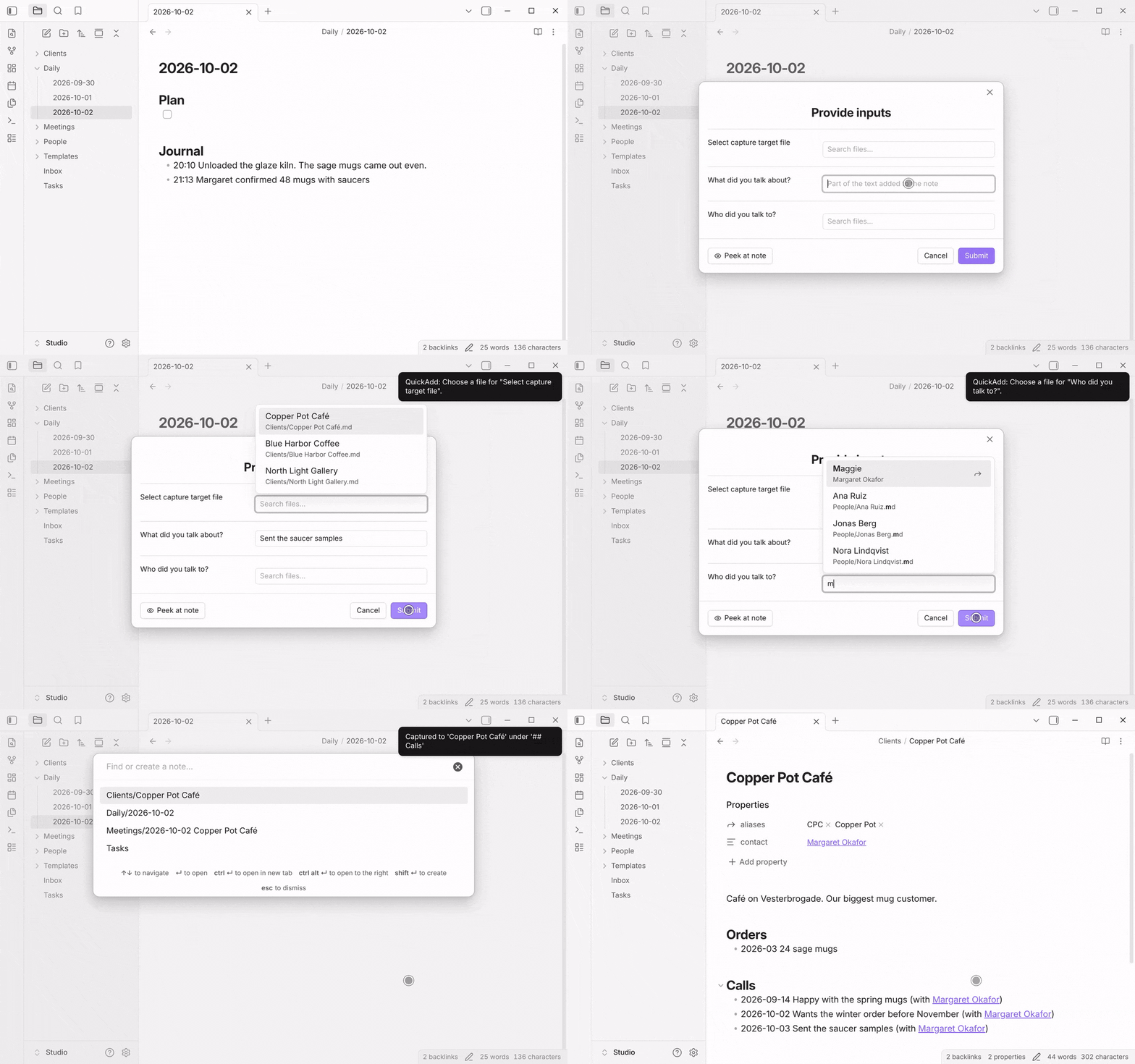
A few things to know:
- A note you pass in, from a script, an
obsidian://quickaddlink, or the CLI, still starts picked. - A picker with
|optionalalso starts empty, and now stays empty unless you pick a note. Before, it was filled with the first note too. |multipickers already started empty and are unchanged.
Docs: One-page input form (#2155).
Capture format and File name have no toggle
Capture format and File name (formerly File name format) are always shown. Leave the field empty to get what the switched-off toggle gave you: a Capture writes {{VALUE}} on its own, and a Template asks for the note's name. Type in it to use your own format.
Choices with text in the field, or with the toggle off, run exactly as before. If a choice had text saved behind a switched-off toggle, its settings show an empty field, which is how it already ran.
Docs: Capture format, File name (#2004).
New After line… Captures start with the usual options on
When you set Write position to After line… on a new Capture, Insert at end of section and Create line if not found (placed at the Top) start switched on. Most After line… Captures need both: without the first, each entry lands above the previous one, and without the second, a capture into a brand-new note fails because the heading isn't there yet. Captures you already have keep their settings (#2016, #2036).
Rarely changed settings moved to an Advanced page
The QuickAdd settings tab is about half as long. Settings most vaults never touch moved to a new Advanced page, the last entry in the tab:
- "New note from template" in the launcher and Search nested choices
- Use editor selection as default Capture value, Name pasted images after the note title, Persist input prompt drafts, and Date aliases
- Show input cancellation notifications
- Convert string front matter variables to typed properties (Beta)
- Global variables
- Allow URI x-callback-url
Your values didn't change, and searching in Settings still finds them. Docs: Settings → Advanced (#2025).
Running Templater a second time is deprecated
QuickAdd already runs Templater on everything it writes, so two older ways of running it again are deprecated. Nothing is removed yet; each shows a notice once per session:
- Run Templater on entire destination file after capture. It runs every
<% %>in the note, including inside code blocks. The option now appears only on Captures that already have it on, marked "(deprecated)". Turn it off. - A Macro step
Templater: Replace templates in the active fileright after a Template or Capture step, with or without a Wait in between. It runs your templates twice. Remove the step.
Docs: Run Templater on the whole file afterwards, Coming from Templater (#2020).
Also in this release
Improvements
- Confirmations look like Obsidian's. Deleting a choice, folder, Macro step, provider, or model, overwriting an exported package, and moving a note to match a choice now use Obsidian's own confirmation dialog, with Cancel and a red Delete, and Enter to confirm (#2009).
- Template folders use Obsidian's folder list. Click Add folder to pick a folder from your vault, and × to remove one (#1974).
- Tab indents in the Capture format box, so you can write nested lists. Tabbing through the settings still skips past the box. Thanks to @darthmachina for the original request (#764, #1894).
- The format preview keeps line breaks, so a multi-line format previews as the lines it writes (#1898).
- The one-page form asks in the same order as one prompt at a time: fields in the order the format uses them, a Capture's note picker first, and a Template's folder before its file name (#1897, #1955, #2002). A Template that looks for an existing note asks for the date after you pick the note, and not at all when you open an existing one (#1887).
- Submit and Cancel stay in view on a long one-page form (#1918, #1923), and the date prompt's buttons no longer end up below the edge of the window (#1888, #1921).
- Suggestion lists in settings close after you pick and put the best match first. Lists under a field are as wide as the field and show long paths in full (#1900, #1901).
- The package import review shows code inside a choice's settings, such as a
```js quickaddblock in a Capture format, with View code, and says why Import package is disabled. A.baseor.canvasfile without code no longer asks for a script review (#1892, #1902, #1920). After importing, the result scrolls into view and the only button left is Close (#1899). - An update looks right without a restart. Some windows used to keep the previous version's look until you restarted Obsidian (#1913).
- QuickAdd is about 10% smaller (1.23 MB → 1.11 MB) after dropping three dependencies (#1960, #1963, #1970).
- Notices say "QuickAdd" once, instead of
QuickAdd: (WARNING) QuickAdd: …(#2042, #2054). - A failed AI request shows one notice, and cancelling the AI Assistant's picker shows none (#2088, #2091).
- Big vaults are faster. Filtering choices in settings no longer slows down with hundreds of choices (about 500 ms → 40 ms per key with 340 choices).
{{FIELD:x|inline:true}}reads notes from Obsidian's cache: with 20,000 notes, a run after an edit took about 8 seconds and now takes about 0.1 seconds, after a slower first run (#2111, #2114, #2119). - Searching in Settings finds Template folders, even in a vault that has none yet (#2060).
- Dialogs put Cancel first and the main button last: the multi-select, the checkbox prompt, and Edit folder (#2087, #2094).
- The multi-select looks like Obsidian's lists. Checkboxes show what's selected, and the first Esc clears your search instead of cancelling the run (#2096, #2105).
- Pickers bold what you typed in Capture to and the Macro script picker (#2097, #2103).
- On phones, dialogs stay above the keyboard. The date prompt's Ok, the multi-select's Cancel and Done, and the field you're typing in used to hide behind the on-screen keyboard (#2133).
- Phone layouts: the Macro builder's script list is wide enough to read, the New choice menu shows whole labels, a picked note's name shows in full in the one-page form, and dragging a choice shows a small label instead of the whole row (#2058, #2076, #2112, #2131, #2135, #2137).
- The After line… options have shorter labels, and path and format fields in settings no longer underline placeholders as misspelled (#2050, #2130).
Fixes
Captures that look for a heading now see the same headings Obsidian shows in the outline:
- Insert at end of section no longer stops at a
#line inside a code block, a%%comment, or a$$math block, and keeps a section's last line inside the section when the next heading follows it directly (#1977, #2011, #2035). Thanks to @Stumbling-epiphany for #2029. - After a line that isn't a heading, such as a callout, the section now ends at the next blank line, heading, or the end of the note. Before, an entry could land at the bottom of the note under another heading (#1930).
- Choose heading when capturing lists only real headings. It used to list comments in the note's properties, and picking one broke them (#1989).
- Notes with Windows (CRLF) line endings have headings again (#2024).
- Create line if not found with Ordered among siblings no longer adds a second copy of a heading after a line of inline code that starts with three backticks (#2006).
{{linksection}}links only to headings Obsidian can open, including one you added just before the note saved (#1914, #2031).
Templater:
- A Capture that creates a note no longer waits 2.5 seconds when Templater's Trigger Templater on new file creation is on. It waits for Templater itself, about 0.3 seconds (#1988).
- When Templater fails after rendering, the rendered note is kept instead of going back to the raw
<% %>tags (#1916).
Dates:
- A date prompt with
|timeshows your local time. Outside UTC, typingtomorrow 3pmin Copenhagen showed 13:00 in the time field, and clicking another day then wrote 13:00 (#1951). - A date kept from a cancelled run shows as a date, not
@date:2026-09-30T19:59:50.401Z(#1936). - A
{{VALUE:due}}inside an included{{TEMPLATE:…}}reuses the date from{{VDATE:due,…}}, as it already did in the format itself (#1962).
Prompts and formats:
- A draft you clear and close with Esc no longer comes back (#1867), and a script that asks the same question in a loop gets an empty prompt each time (#1889).
- An included
{{TEMPLATE:…}}is filled in like the Capture format itself, so a multi-select in it adds one property item per pick (#1893). - A long run of backticks in a template no longer freezes Obsidian (#1911).
- A folder you typed in a Template choice without clicking Add is kept when you leave its settings (#1998).
- A Capture format or File name that was switched on but left empty now means the default. In 2.29.0 and earlier, turning the toggle on and leaving without typing saved exactly that: such a Capture wrote nothing, and such a Template stopped with "File name is empty after formatting". Now the Capture writes
{{VALUE}}and the Template asks for the note's name (#2049). {{FIELD}}offers every value again from the second prompt on. It stopped at 1,000, so values went missing in large vaults (#2113).- Filtering choices in settings by a folder's name shows the choices in that folder instead of an empty folder (#2126).
- Renaming a choice that another device deleted in the meantime no longer adds a command for it (#2064).
- Quitting Obsidian no longer loses a QuickAdd setting you changed in the second before you quit (#2141).
Packages:
- A package with an incomplete Capture no longer breaks on every run. Such a Capture imported fine, then failed each time with
Cannot read properties of undefined (reading 'enabled'). Import the package again to fix one you already have (#1980). - Typing a file's destination in the import review keeps focus, and a destination that is a folder is flagged instead of failing with
EISDIR(#1895).
Macros and scripts:
- A Conditional on a variable nothing has set treats it as empty: Is falsy takes Then, and the "Variable 'x' is not defined" warning is gone (#1982).
- A Macro stopped from a branch or a Capture step shows its reason once (#1944).
- Browse in the Macro builder finds a note script by the name it shows (#1937).
quickAddApi.formatputs your variables back when you cancel one of its prompts, andrequestInputsno longer leaves a trailing,after a multi-select answer (#1890, #1948).- A Macro with a step this version doesn't know, or with the retired Infinite AI Assistant, runs from
quickadd:checkandquickadd:runand skips that step, instead of failing withCannot read properties of undefined (reading 'kind')(#2061). - Clicking Add in the Macro builder with nothing chosen does nothing instead of showing errors (#2125).
- The AI tool
append_to_notewrites through the open editor, so it no longer glues its text onto a line you haven't saved yet (#1891).
New in the docs
- The order prompts appear in, and how to be asked for one value first (#2008).
- The API reference documents
datePromptandformat, and howexecuteChoiceandabort()behave (#1952). - The first Capture and Macro walkthroughs work in a brand-new vault (#2071, #2089).
- Example date formats use the calendar year
YYYYinstead of the week yeargggg, which is a year off in the last days of December (#1934). - The Capture to Inbox with GPS script starts its entry on a new line when the inbox doesn't end with one. Before, it glued the entry onto the last line, for example after a Brain dump. Import the package again and choose Overwrite to get the fix (#1941).
- Smaller fixes: the field management example in the API reference (#2055), and the
effectthatx-successsends on the URI page (#2082).
For contributors: the dev toolchain moved to Vitest 5 and needs Node 22.12 or later. This doesn't affect the plugin (#2019).
Full changelog: 2.29.0...2.30.0


