PalWheel is a customizable quick-action wheel for Palworld, built for UE4SS.
Its purpose is simple: put frequently used Palworld actions within quick reach without digging through multiple menus or remembering a long list of hotkeys.
With PalWheel, you can place Pals, weapons, Palworld menus, Pal actions, emotes, and Custom Shortcuts on configurable radial wheels, use AUX shortcuts directly with controller buttons or the mouse, and switch spheres through a separate Sphere Wheel.
Current version: 2.0
Author: CHUBBYALVIN
Platform: Palworld for Windows
Framework: UE4SS
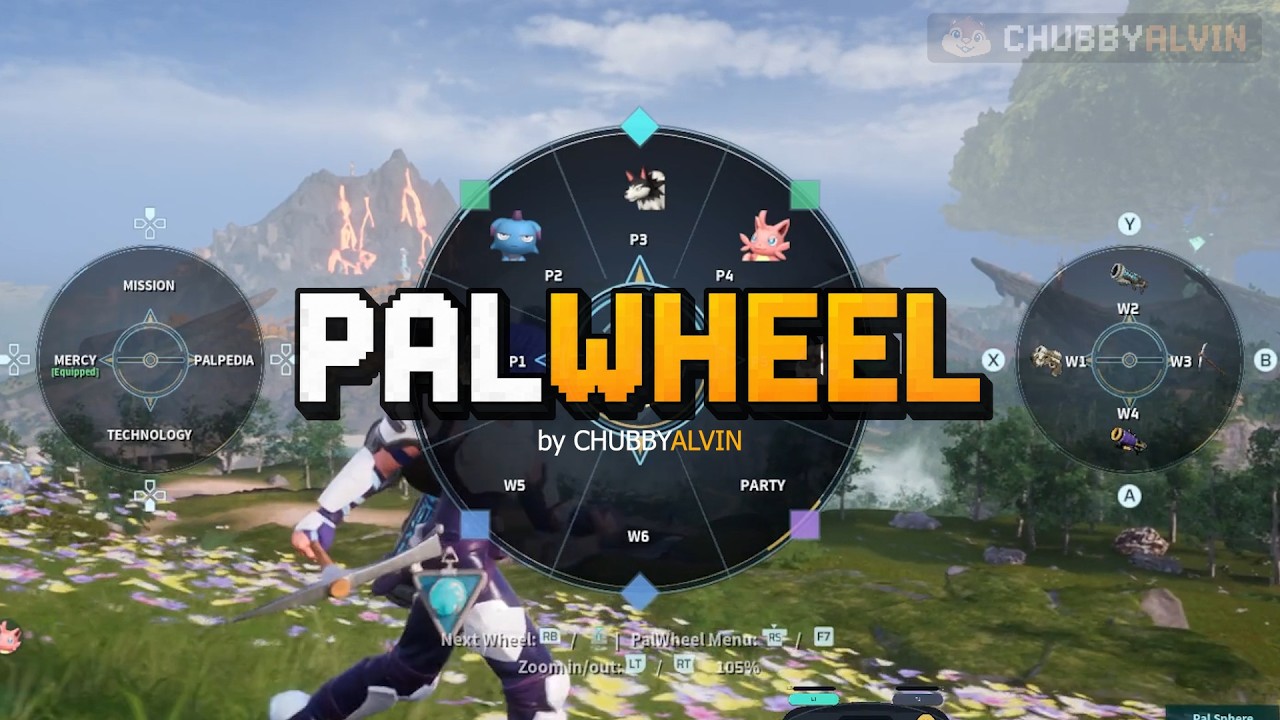
Watch the PalWheel v2.0 Video Guide
PalWheel supports up to three Main Wheels.
Each Main Wheel has 12 saved assignment positions and can display 4 to 12 visible slots, giving you up to 36 saved Main Wheel assignments.
Main Wheel slots can be assigned to:
- Party Pals
- Weapons
- Palworld menus
- Pal actions
- Emotes
- Mercy Toggle
- Custom Shortcuts
- Empty slots
You can keep one compact wheel for your most-used actions or spread different functions across two or three wheels.
Whenever the Main Wheel is open, PalWheel also shows two direct shortcut groups:
- AUX I — D-pad
- AUX II — Face buttons
Each AUX group has 4 assignable shortcuts.
AUX slots do not require Main Wheel radial selection. You can activate them directly with their assigned D-pad or face button, or click an AUX slot with the mouse. This works regardless of whether the Main Wheel was opened from controller or keyboard/mouse.
Spheres use their own dedicated Sphere Wheel instead of taking Main Wheel assignment space.
The Sphere Wheel:
- Supports 5 to 10 visible sphere slots
- Uses your configured sphere order
- Checks whether each sphere is currently available
- Prevents unavailable spheres from being selected
- Works with normal sphere throwing and supported Sphere Launchers
Press F7 by default to open the PalWheel Menu.
From there you can configure:
- Main Wheel assignments
- AUX assignments
- Sphere order
- Number of active Main Wheels
- Visible slot count for each Main Wheel
- Sphere Wheel slot count
- PalWheel controls
- Custom Shortcuts
- Wheel skin
- Additional PalWheel options
Changes remain in draft until SAVE & APPLY is selected.
PalWheel can turn wheel slots into configurable keyboard shortcuts.
This lets you put:
- Palworld keyboard actions
- Hotkeys from other Palworld mods
- Your own commonly used shortcuts
directly on a PalWheel slot.
The first 36 valid active Custom Shortcuts are available in the assignment picker.
PalWheel reads the party capacity reported by Palworld.
If another compatible mod increases the local party capacity, PalWheel can expose matching additional Pal slots such as Pal 6, Pal 7, and beyond.
Assignments to those extra Pal slots remain saved if the additional capacity is temporarily unavailable.
- Weapon 1
- Weapon 2
- Weapon 3
- Weapon 4
- Weapon 5
- Weapon 6
- Pal 1 through Pal 5 in a standard party
- Additional Pal slots when Palworld reports a larger party capacity
- Inventory
- Party
- Technology
- Mission
- Palpedia
- Guild
- Options
- Build
- World Map
These use Palworld's native menu actions and corresponding in-game terminology.
- Feed Pal
- Pet Pal
- Photo Mode
- Pal Command — Peaceful
- Pal Command — Defensive
- Pal Command — Aggressive
PalWheel supports assignable vanilla Palworld emotes, including:
- Beckon
- Dance
- Wave
- Sit in Chair
- Sit on Ground
- Surprised
- Hand Over
- Sleep
- Kick
Mercy Toggle can equip or remove a supported mercy accessory when available:
- Ring of Mercy
- Pal Tamer's Glasses
Inventory space is required when removing an equipped accessory.
Custom Shortcuts can trigger configurable keyboard keys with supported Ctrl / Shift / Alt modifiers.
The in-game shortcut picker lets you choose one optional modifier at a time:
- None
- Ctrl
- Shift
- Alt
Valid existing shortcuts.tsv entries that use supported multi-modifier combinations can still be loaded and used.
| Input | Action |
|---|---|
| Hold L1 / LB | Open Main Wheel |
| Right Stick | Select a slot |
| Release L1 / LB | Activate the selected slot |
| Return Right Stick inward after selecting | Activate the selected slot |
| R1 / RB | Next Main Wheel |
| R3 / RS while Main Wheel is open | Open PalWheel Menu |
| L2 / LT and R2 / RT while Main Wheel is open | Camera Zoom when enabled |
If multiple Main Wheels are active, R1 / RB cycles through them.
| Input | Action |
|---|---|
| Hold Caps Lock | Open Main Wheel |
| Mouse movement | Select a slot |
| Left Click | Activate the selected slot |
| Middle Mouse | Next Main Wheel |
| F7 | Open or close PalWheel Menu |
On keyboard/mouse, releasing Open Wheel closes the wheel without activating an action.
AUX shortcuts are available whenever the Main Wheel is open.
| Slot | Input |
|---|---|
| 1 | D-pad Left |
| 2 | D-pad Up |
| 3 | D-pad Right |
| 4 | D-pad Down |
| Slot | Input |
|---|---|
| 1 | Face Left / Square / X |
| 2 | Face Top / Triangle / Y |
| 3 | Face Right / Circle / B |
| 4 | Face Bottom / Cross / A |
You can also click any visible AUX slot directly with the mouse.
AUX assignments are configured from the PalWheel Menu.
The Sphere Wheel is separate from the Main Wheels.
- Hold Palworld's sphere-throw control.
- Press or hold Open Wheel.
- Equip and aim a supported Sphere Launcher.
- Press or hold Open Wheel while still aiming.
Use the radial selector to choose a sphere.
Unavailable sphere slots are visibly marked and cannot be selected.
Sphere order and the number of visible Sphere Wheel slots can be changed from the PalWheel Menu.
Press F7 by default to open the PalWheel Menu.
| Input | Action |
|---|---|
| D-pad or Left Stick | Move between controls |
| Cross / A | Select |
| Circle / B | Back |
| Triangle / Y | Save / Apply when available |
The menu provides access to:
- Main Wheel assignments
- AUX assignments
- Sphere Wheel order
- Main Wheel count
- Main Wheel slot counts
- Sphere Wheel slot count
- PalWheel Controls
- Custom Shortcuts
- Wheel skin
- Slow Motion
- Controller Zoom
- Haptics
- Sphere Follow Target
- Instructions
- Restore Defaults
Changes remain in draft until SAVE & APPLY is selected.
RESTORE DEFAULTS loads the packaged PalWheel defaults into the current draft.
It resets:
- 36 Main Wheel assignments
- 8 AUX assignments
- 10 Sphere assignments
- Main Wheel count
- Main Wheel slot counts
- Sphere Wheel slot count
- Wheel skin
- Slow Motion
- Controller Zoom
- Haptics
- Follow Target
It does not reset PalWheel Controls or Custom Shortcuts.
If the menu is closed with unsaved changes, PalWheel asks whether to discard them.
Open:
PalWheel Menu → CONTROLS
You can change:
- Open Wheel
- Next Wheel
- Keyboard/mouse PalWheel Menu
- Controller PalWheel Menu
- Open Wheel behavior: Hold or Toggle
Select CHANGE, choose the new binding, then CONFIRM.
Changes remain in draft until SAVE & APPLY is selected.
The keyboard Open Wheel, Next Wheel, and PalWheel Menu bindings must be different from each other.
The three controller PalWheel bindings must also be different.
PalWheel warns when some controller choices overlap with AUX, Zoom, or detected Palworld controls.
RESTORE DEFAULT CONTROLS restores the packaged keyboard/controller bindings and changes Open Wheel behavior back to Hold.
The default PalWheel controller Open Wheel input is L1 / LB.
If that button is still assigned to a conflicting Palworld action, either:
- Move the conflicting Palworld action to another control, or
- Change PalWheel's Open Wheel binding under PalWheel Menu → CONTROLS
An optional controller-binding preset is included under:
Optional\PalWheel_Controller_Binding_Preset\
Review the included README before using the preset.
Preset note: The included
UserOption.savpreset is intended for the Steam version of Palworld. Microsoft Store / PC Game Pass users should configure conflicting controller bindings manually rather than copying this preset into WGS storage.
Open:
PalWheel Menu → SHORTCUTS
You can:
- Add a shortcut
- Duplicate a shortcut
- Edit its Label
- Edit its ID
- Choose a key
- Choose one optional Ctrl, Shift, or Alt modifier
- Enable or disable it
- Delete it
- Reload
shortcuts.tsv - Restore the packaged shortcut rows into the draft
Only active valid shortcuts appear in the assignment picker.
The first 36 valid active shortcuts are selectable.
Shortcut IDs must be unique.
Labels can contain up to 20 characters.
An unmodified Custom Shortcut cannot use a key that is currently assigned to PalWheel's Open Wheel, Next Wheel, or PalWheel Menu controls. Adding Ctrl, Shift, or Alt makes it a distinct shortcut where supported.
Renaming a shortcut keeps wheel slots connected to it.
Deleting a shortcut changes slots using it to Empty after SAVE & APPLY.
Most users should use the in-game shortcut editor.
For advanced editing, PalWheel also uses:
PalWheel\Saved\shortcuts.tsv
Close Palworld before editing it externally.
Keep the file in UTF-8 tab-separated format.
After editing, either restart Palworld or use:
PalWheel Menu → SHORTCUTS → RELOAD FILE
Do not manually edit settings.lua.
Normal settings, controls, and assignments should be changed through the PalWheel Menu. If settings.lua becomes damaged, back it up or rename it and let PalWheel create fresh defaults.
These settings support the core PalWheel experience but are not required to use its quick-action features.
Slow Motion can reduce game speed while a PalWheel wheel is open, including the Main Wheel or Sphere Wheel.
It is automatically disabled when PalWheel detects multiplayer.
When enabled, controller Camera Zoom lets you adjust camera distance while the Main Wheel is open.
Zoom changes apply to the current session.
Controller highlight haptics can provide a short vibration when the selected radial slot changes.
Sphere Wheel Follow Target can be enabled or disabled for controller use.
PalWheel scans Assets for wheel skins using names such as:
wheel_01.png
wheel_02.png
Included skins:
wheel_01.pngwheel_02.png
PalWheel includes localization for the supported Palworld languages packaged with the mod.
Custom Shortcut labels and IDs remain user-defined and are not automatically translated.
- Palworld for Windows
- A working UE4SS installation for Palworld
- Close Palworld.
- Install UE4SS for Palworld.
- Download the latest PalWheel release ZIP.
- Extract the included
PalWheelfolder into your UE4SSModsfolder.
Common UE4SS locations include:
Palworld\Pal\Binaries\Win64\ue4ss\Mods\
or:
Palworld\Mods\NativeMods\UE4SS\Mods\
The final installed structure should contain:
PalWheel\
├─ Assets\
├─ Optional\
├─ Saved\
├─ Scripts\
├─ THIRD_PARTY_LICENSES\
├─ LICENSE.md
└─ enabled.txt
- Launch Palworld and enter a world.
PalWheel creates its user files under:
PalWheel\Saved\
including:
settings.lua
shortcuts.tsv
- Close Palworld.
- Back up
PalWheel\Savedif desired. - Preserve your generated
Saved\settings.luaandSaved\shortcuts.tsvif you want to keep your current settings and Custom Shortcuts. - Replace the existing PalWheel mod files with the files from the new release.
- Launch Palworld.
Do not copy old Scripts or localization files back over a newer release.
Older-version note: PalWheel v2.0 stores Main Wheel, AUX, and Sphere assignments in
Saved\settings.lua. A legacySaved\assignments.luafrom older PalWheel versions is no longer used by v2.0 and can be removed.
The GitHub repository intentionally does not need enabled.txt; that file is included in the packaged manual release.
Assets\
Optional\
Saved\
Scripts\
├─ Localization\
├─ PalworldKeyInjector.dll
├─ main.lua
├─ config.lua
├─ mappings.lua
└─ supporting PalWheel modules
THIRD_PARTY_LICENSES\
LICENSE.md
README.md
The final release archive contains the complete installable PalWheel folder.
- Confirm UE4SS is installed and working.
- Confirm
PalWheel\Scripts\main.luaexists. - Check the UE4SS log for lines beginning with:
[PalWheel]
Remove the conflicting Palworld binding or choose another PalWheel Open Wheel control under:
PalWheel Menu → CONTROLS
Confirm that:
- The shortcut is valid
- It is active
- Its ID is unique
- It is within the first 36 valid active definitions
If shortcuts.tsv was edited externally, use RELOAD FILE or restart Palworld.
The slot is available only when Palworld reports the required party capacity.
The assignment remains saved while that capacity is unavailable.
Confirm that a supported mercy accessory is available:
- Ring of Mercy
- Pal Tamer's Glasses
You also need inventory space when removing an equipped accessory.
If damaged settings prevent PalWheel from working:
- Close Palworld.
- Back up or rename:
PalWheel\Saved\settings.lua
- Restart the game.
PalWheel will create fresh defaults.
- Palworld for Windows
- UE4SS for Palworld
- Controller and keyboard/mouse support
- Automatic expanded-party support where Palworld reports a larger local party capacity
PalWheel is an unofficial community mod and is not affiliated with Pocketpair.
Game updates or UE4SS changes may affect compatibility.
PalWheel is distributed under an All Rights Reserved license.
Source availability does not grant permission to copy, redistribute, publish modified versions, or create derivative works.
Copyright © 2026 CHUBBYALVIN. All Rights Reserved.
You may download and use PalWheel for personal, non-commercial use and configure it for your own use.
Unless you have prior written permission from CHUBBYALVIN, you may not:
- Redistribute or reupload PalWheel
- Publish modified versions
- Repackage the mod for another distribution
- Incorporate PalWheel source code, scripts, or assets into another project
- Sell or commercially redistribute the mod
- Claim authorship of PalWheel or substantial portions of it
See LICENSE.md for the full terms.
Use game modifications at your own risk.
Back up important saves and configuration files before installing or updating mods.
PalWheel is provided as-is without warranty, and the author is not responsible for loss or damage resulting from its use.
If you enjoy PalWheel and would like to support my modding work, you can leave an optional tip on Ko-fi.
