English | 简体中文 | 日本語 | 한국어 | Español | Français | Português | हिन्दी
Hold-to-talk voice input for Pi. Cloud streaming via Deepgram or fully offline with local models.



v5.0.1 — Security patch — API keys no longer leak into project config. Mic audio can't be redirected to remote servers via malicious repo settings. Shell injection fixed in API key onboarding. Config writes are now atomic. Full changelog →
Click to watch the demo video
# In a regular terminal (not inside Pi)
pi install npm:@codexstar/pi-listenpi-listen supports two transcription backends:
| Deepgram (cloud) | Local models (offline) | |
|---|---|---|
| How it works | Live streaming — text appears as you speak | Batch mode — transcribes after you finish recording |
| Setup | API key required | No API key, models auto-download on first use |
| Internet | Required | Not required after model download |
| Latency | Real-time interim results | 2–10 seconds after recording stops |
| Languages | 56+ with live streaming | Depends on model (1–57 languages) |
| Cost | $200 free credit (lasts 6–12 months for most developers) | Free forever |
Run /voice-settings inside Pi to choose your backend and configure everything from one panel.
Sign up at dpgr.am/pi-voice — $200 free credit, no card needed.
export DEEPGRAM_API_KEY="your-key-here" # add to ~/.zshrc or ~/.bashrcNo setup needed — run /voice-settings, switch backend to Local, and select a model. It downloads automatically.
Note: Local models use batch mode — they transcribe after you finish recording, not while you speak. For live streaming as you speak, use Deepgram.
On first launch, pi-listen checks your setup and tells you what's ready:
- Backend configured (Deepgram key or local model)
- Audio capture tool detected (sox, ffmpeg, or arecord)
- If everything checks out, voice activates immediately
pi-listen auto-detects your audio tool. No manual install needed if you already have sox or ffmpeg.
| Priority | Tool | Platforms | Install |
|---|---|---|---|
| 1 | SoX (rec) |
macOS, Linux, Windows | brew install sox / apt install sox / choco install sox |
| 2 | ffmpeg | macOS, Linux, Windows | brew install ffmpeg / apt install ffmpeg |
| 3 | arecord | Linux only | Pre-installed (ALSA) |
All configuration lives in one place: /voice-settings. Four tabs cover everything you need.
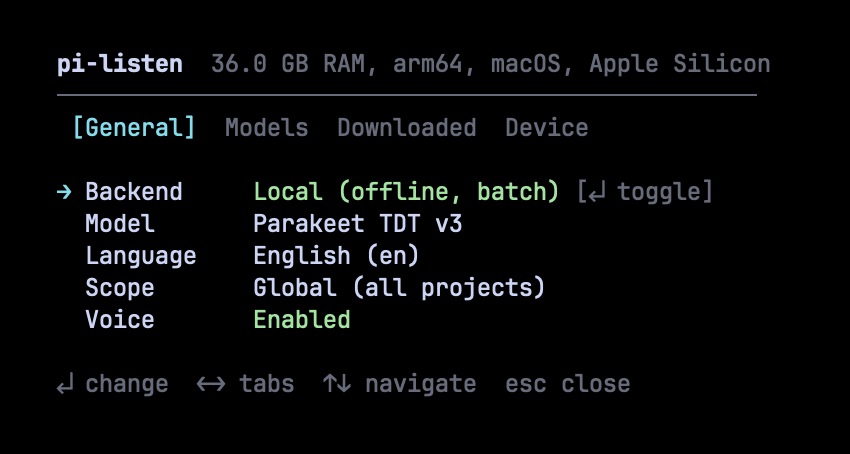
Toggle between Deepgram (cloud, live streaming) and Local (offline, batch mode). Change language, scope, and enable/disable voice — all with keyboard shortcuts.
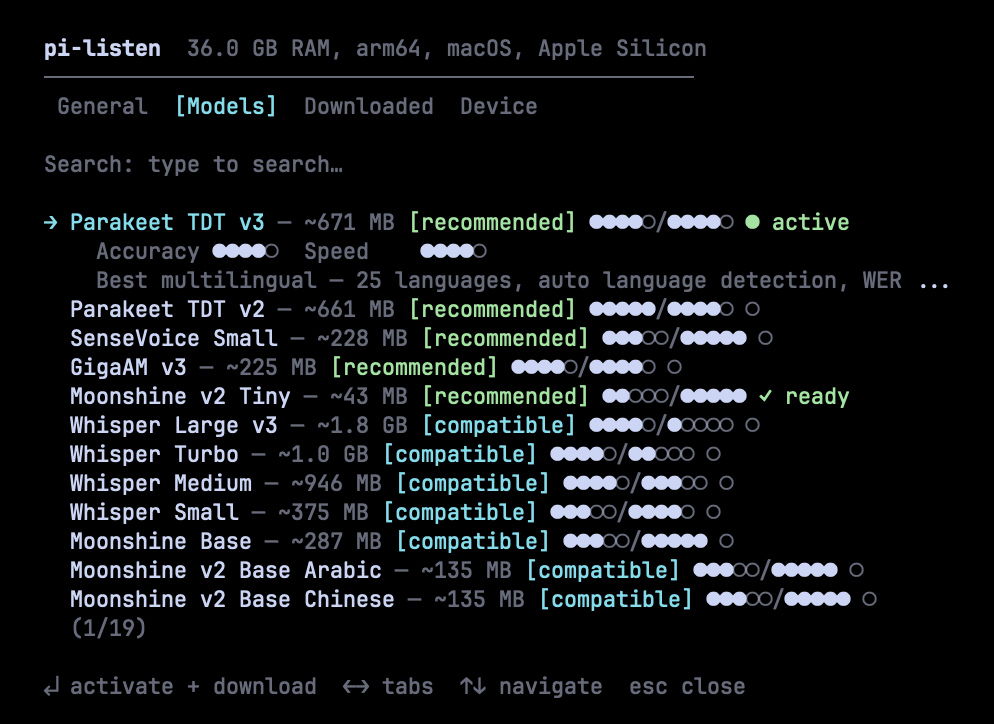
Browse 19 models from Parakeet, Whisper, Moonshine, SenseVoice, and GigaAM. Each model shows accuracy and speed ratings (●●●●○/●●●●○), fitness badges, and download status. Fuzzy search to find models fast. Press Enter to activate and download.
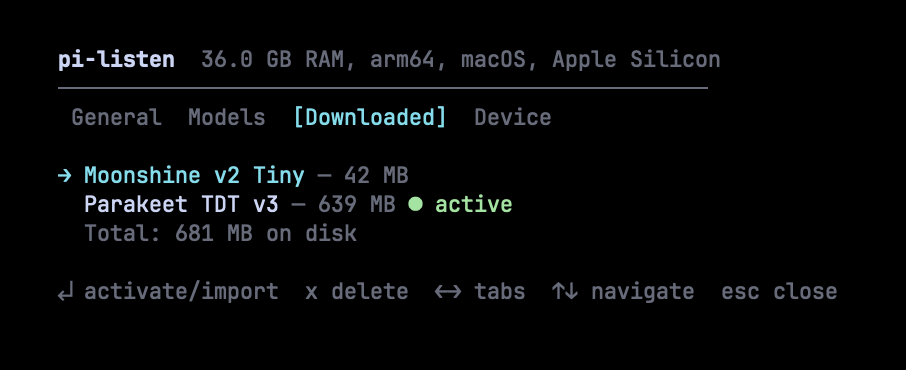
See what's installed, total disk usage, and which model is active. Press Enter to activate, x to delete. Models from Handy are auto-detected and can be imported without re-downloading.
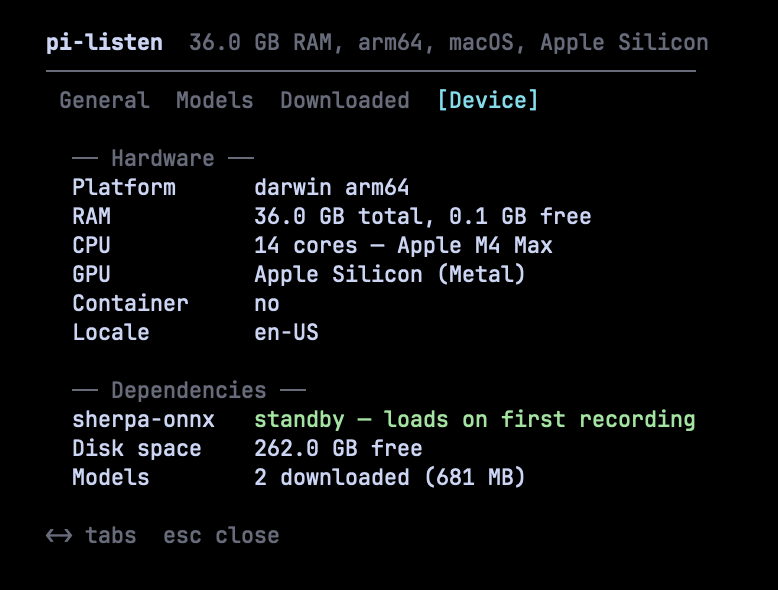
See your hardware profile (RAM, CPU, GPU), dependency status (sherpa-onnx runtime), available disk space, and total downloaded models. Model recommendations are based on this profile.
| Action | Key | Notes |
|---|---|---|
| Record to editor | Hold SPACE (≥1.2s) |
Release to finalize. Pre-records during warmup so you don't miss words. |
| Toggle recording | Ctrl+Shift+V |
Works in all terminals — press to start, press again to stop. |
| Clear editor | Escape × 2 |
Double-tap within 500ms to clear all text. |
- Hold SPACE — warmup countdown appears, audio capture starts immediately (pre-recording)
- Keep holding — live transcription streams into the editor (Deepgram) or audio buffers (local)
- Release SPACE — recording continues for 1.5s (tail recording) to catch your last word, then finalizes
- Text appears in the editor, ready to send
| Command | Description |
|---|---|
/voice-settings |
Settings panel — backend, models, language, scope, device |
/voice-models |
Settings panel (Models tab) |
/voice test |
Full diagnostics — audio tool, mic, API key |
/voice on / off |
Enable or disable voice |
/voice dictate |
Continuous dictation (no key hold) |
/voice stop |
Stop active recording or dictation |
/voice history |
Recent transcriptions |
/voice |
Toggle on/off |
19 models across 5 families. Sorted by quality — best models first.
| Model | Accuracy | Speed | Size | Languages | Notes |
|---|---|---|---|---|---|
| Parakeet TDT v3 | ●●●●○ | ●●●●○ | 671 MB | 25 (auto-detect) | Best overall. WER 6.3%. |
| Parakeet TDT v2 | ●●●●● | ●●●●○ | 661 MB | English | Best English. WER 6.0%. |
| Whisper Turbo | ●●●●○ | ●●○○○ | 1.0 GB | 57 | Broadest language support. |
| Model | Accuracy | Speed | Size | Languages | Notes |
|---|---|---|---|---|---|
| Moonshine v2 Tiny | ●●○○○ | ●●●●● | 43 MB | English | 34ms latency. Raspberry Pi friendly. |
| Moonshine Base | ●●●○○ | ●●●●● | 287 MB | English | Handles accents well. |
| SenseVoice Small | ●●●○○ | ●●●●● | 228 MB | zh/en/ja/ko/yue | Best for CJK languages. |
| Model | Accuracy | Speed | Size | Languages | Notes |
|---|---|---|---|---|---|
| GigaAM v3 | ●●●●○ | ●●●●○ | 225 MB | Russian | 50% lower WER than Whisper on Russian. |
| Whisper Medium | ●●●●○ | ●●●○○ | 946 MB | 57 | Good accuracy, medium speed. |
| Whisper Large v3 | ●●●●○ | ●○○○○ | 1.8 GB | 57 | Highest Whisper accuracy. Slow on CPU. |
Plus 8 language-specialized Moonshine v2 variants for Japanese, Korean, Arabic, Chinese, Ukrainian, Vietnamese, and Spanish.
Hold SPACE → audio captured to memory buffer
                ↓
Release SPACE → buffer sent to sherpa-onnx (in-process)
                ↓
         ONNX inference on CPU (2–10 seconds)
                ↓
         Final transcript inserted into editor
Models download automatically on first use. Downloads are resumable, verified after completion, and deduplicated (no double-downloads). The settings panel shows real-time download progress with speed and ETA.
Models from Handy (~/Library/Application Support/com.pais.handy/models/) are auto-detected and can be imported via symlink (zero disk duplication).
| Feature | Description |
|---|---|
| Dual backend | Deepgram (cloud, live streaming) or local models (offline, batch) — switch in settings |
| 19 local models | Parakeet, Whisper, Moonshine, SenseVoice, GigaAM — with accuracy/speed ratings |
| Unified settings panel | One overlay panel for all configuration — /voice-settings |
| Device-aware recommendations | Scores models against your hardware. Only best-in-class models get [recommended]. |
| Enterprise download pipeline | Pre-checks (disk, network, permissions), live progress with speed/ETA, post-verification |
| Handy integration | Auto-detects models from Handy app, imports via symlink |
| Audio fallback chain | Tries sox, ffmpeg, arecord in order |
| Pre-recording | Audio capture starts during warmup — you never miss the first word |
| Tail recording | Keeps recording 1.5s after release so your last word isn't clipped |
| Live streaming | Deepgram Nova 3 WebSocket — interim transcripts as you speak |
| 56+ languages | Deepgram: 56+ with live streaming. Local: up to 57 depending on model. |
| Continuous dictation | /voice dictate for long-form input without holding keys |
| Typing cooldown | Space holds within 400ms of typing are ignored |
| Sound feedback | macOS system sounds for start, stop, and error events |
| Cross-platform | macOS, Windows, Linux — Kitty protocol + non-Kitty fallback |
extensions/voice.ts                Main extension — state machine, recording, UI, settings panel
extensions/voice/config.ts         Config loading, saving, migration
extensions/voice/onboarding.ts     First-run wizard, language picker
extensions/voice/deepgram.ts       Deepgram URL builder, API key resolver
extensions/voice/local.ts          Model catalog (19 models), in-process transcription
extensions/voice/device.ts         Device profiling — RAM, GPU, CPU, container detection
extensions/voice/model-download.ts Download manager — resume, progress, verification, Handy import
extensions/voice/sherpa-engine.ts   sherpa-onnx bindings — recognizer lifecycle, inference
extensions/voice/settings-panel.ts  Settings panel — Component interface, overlay, 4 tabs
Settings stored in Pi's settings files under the voice key:
| Scope | Path |
|---|---|
| Global | ~/.pi/agent/settings.json |
| Project | <project>/.pi/settings.json |
{
  "voice": {
    "version": 2,
    "enabled": true,
    "language": "en",
    "backend": "local",
    "localModel": "parakeet-v3",
    "scope": "global",
    "onboarding": { "completed": true, "schemaVersion": 2 }
  }
}Run /voice test inside Pi for full diagnostics.
| Problem | Solution |
|---|---|
| "DEEPGRAM_API_KEY not set" | Get a key → export DEEPGRAM_API_KEY="..." in ~/.zshrc |
| "No audio capture tool found" | brew install sox or brew install ffmpeg |
| Space doesn't activate voice | Run /voice-settings — voice may be disabled |
| Local model not transcribing | Check /voice-settings → Device tab for sherpa-onnx status |
| Download failed | Partial downloads auto-resume on retry. Check disk space in Device tab. |
- Cloud STT — audio is sent to Deepgram for transcription (Deepgram backend only)
- Local STT — audio never leaves your machine (local backend)
- No telemetry — pi-listen does not collect or transmit usage data
- API key — stored in env var or Pi settings, never logged
See SECURITY.md for vulnerability reporting.
MIT © 2026 @baanditeagle
Made by @baanditeagle
Website · 𝕏 Twitter · GitHub · npm · Report a Bug · Pi CLI

