Repository navigation
Lyrics and Metadata Editor
PulseDeck includes integrated Synced & Static Lyrics and a full Track Info & Metadata Editor so you can inspect technical audio properties, fix tags, change cover art, and follow time-synced lyrics without leaving the app.
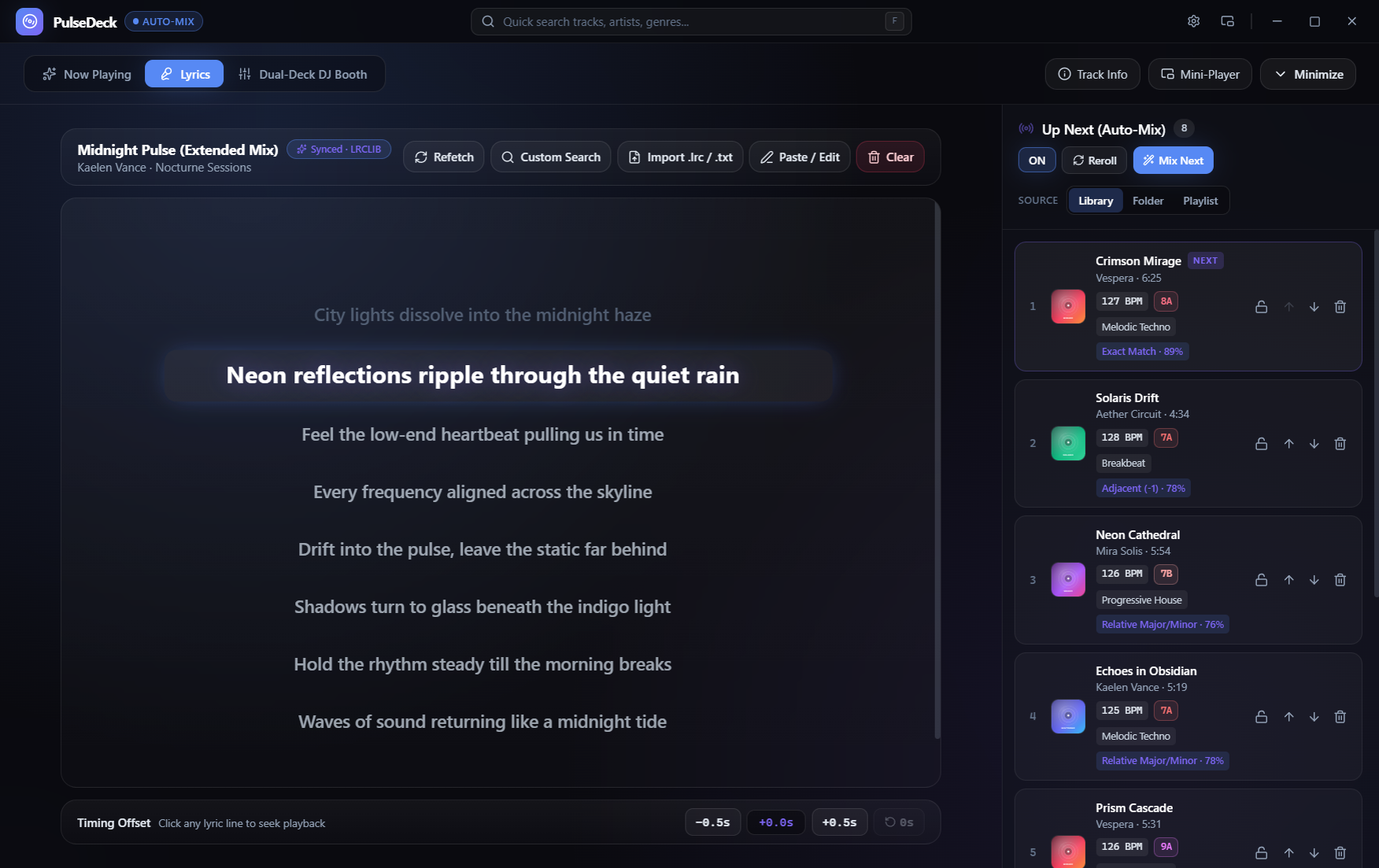
Press L anywhere (or click the Microphone icon on the bottom player bar) to open the Lyrics view inside the Now Playing stage.
For each track, lyricsService resolves lyrics in this strict order—always preferring time-synced LRC lyrics over plain static lyrics:
-
SQLite Cache (
track_lyrics) — Instant load on repeat plays. -
Local Sidecar Files — Checks
<track>.lrcand<track>.txtalongside the audio file in the same folder. -
Embedded Audio Tags — Reads synced (
SYLT) or unsynced (USLT/ Vorbis / MP4) lyrics embedded directly inside the file. -
Online Lookup via LRCLIB — If Auto-Fetch Lyrics Online (LRCLIB) is enabled in Settings, queries
lrclib.net/api/getfollowed by/api/searchwith smart title/artist token scoring and duration tolerance matching.
- Click-to-Seek: In synced mode, clicking any lyric line jumps playback straight to that timestamp.
-
Per-Track Timing Offset: Adjust synchronization with
-0.5s,+0.5s, or Reset (0s) (persisted per track up to±15,000 ms). - Custom Search: If an auto-matched track has an alternate remix name or misspelled artist tag, click Custom Search to search LRCLIB manually and pick from matching synced/plain results.
-
Import & Manual Edit: Click Import .lrc / .txt to load a local lyrics file (
<= 1 MB), click Paste / Edit to write or tweak.lrc/ plain lyrics directly, or Refetch / Clear as needed.
Open Track Info for any track via:
- Keyboard shortcut
I(for the currently playing track), - The Track Info (
i) button in the bottom player bar or Now Playing header, or - Right-click → Track Info / Edit Metadata on any row in the library table or album grid.
-
Technical Audio Details: Format, Container, Codec & Profile, Bitrate (
kbps), Sample Rate (kHz), Channel layout (Mono / Stereo / multi-channel), File Size, Duration, Date Added, and Play Count. -
Audio Analysis Readout: Analyzed BPM (with
tag/analyzed/manualsource badge), Camelot & Musical Key badge, ReplayGain offset (dB), and Energy score. - File Location: Full path display with one-click Copy Path and Reveal in File Explorer / Reveal in Finder.
Edit and save any of the following directly into PulseDeck's library database:
- Title, Artist, Album, Album Artist, Genre, Year, Track #
-
BPM and Musical / Camelot Key (entering either musical key like
F#mor Camelot key like11Aautomatically normalizes and synchronizes both) -
Custom Cover Artwork: Click Change Cover on the album art preview to pick any
.png,.jpg,.jpeg, or.webpimage (<= 20 MB, cached safely underuserData/artwork/).
How Edits Survive Rescans: Saving edits marks
metadata_edited_aton the track. PulseDeck never writes destructively over your audio files on disk and preserves all your custom edits even if the file timestamp changes during future rescans. To revert back to the file's original embedded tags at any time, click Reload File Tags.