Alpha release: WPFX is actively evolving. Feedback and experimentation are welcome.
WPFX is a lightweight, code-first library for building WPF UIs entirely in C#. No XAML.
You can clearly see your design as a collapsible WPF UIElement tree in C# code.
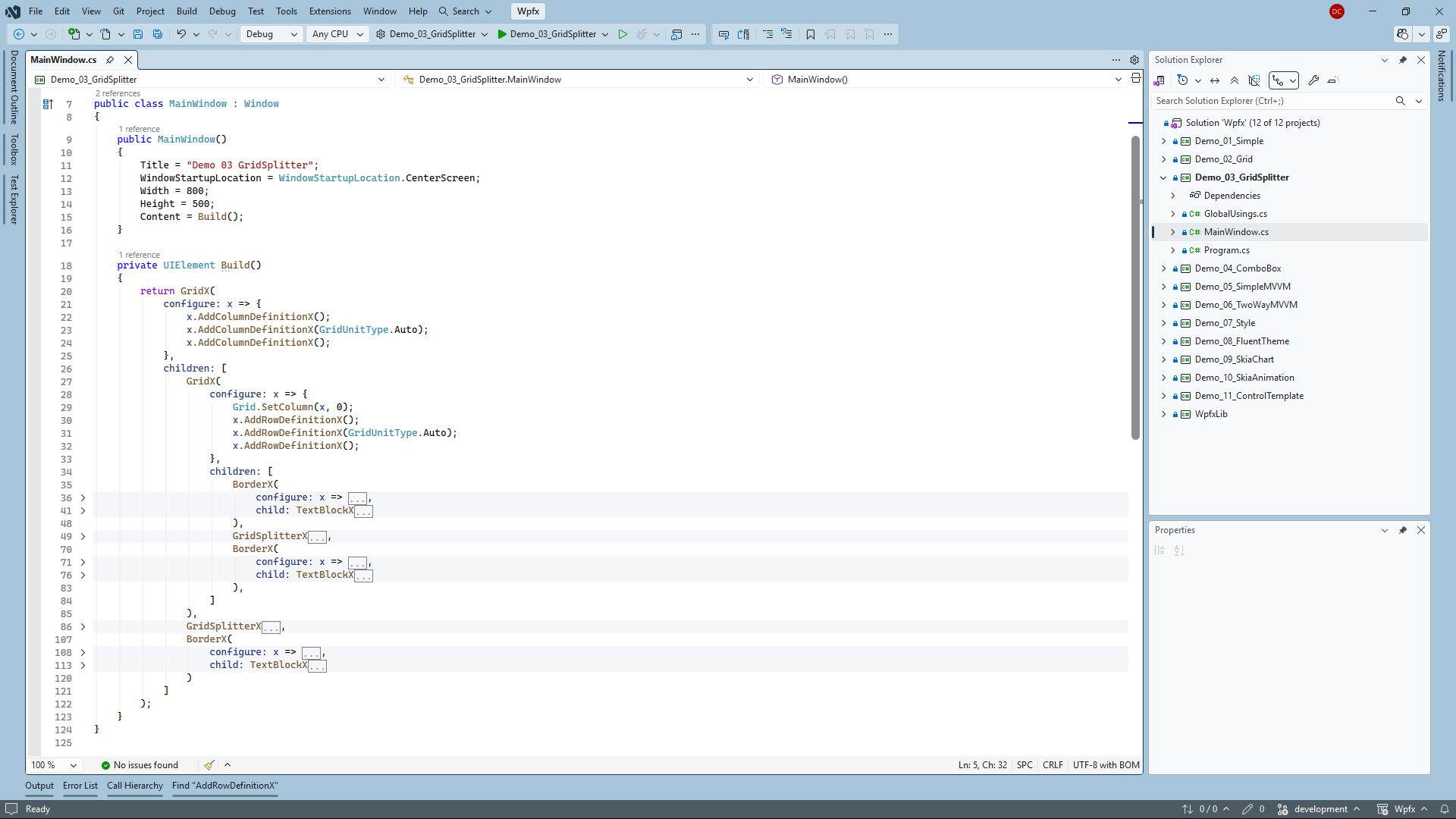
WPFX embraces a declarative, tree-oriented composition style inspired by modern UI frameworks such as Flutter, while keeping configuration in familiar C# code and remaining fully compatible with WPF.
WPFX is intentionally lightweight — the library fits in a single source file of fewer than 300 lines.
Build familiar WPF controls and supporting types using X helper methods:
| WPF type | Static helper method |
|---|---|
StackPanel |
Wpfx.StackPanelX() |
Grid |
Wpfx.GridX() |
Border |
Wpfx.BorderX() |
Button |
Wpfx.ButtonX() |
Slider |
Wpfx.SliderX() |
TextBox |
Wpfx.TextBoxX() |
Thickness |
Wpfx.ThicknessX() |
CornerRadius |
Wpfx.CornerRadiusX() |
- Pure C# layout — no
.xamlfiles required - Declarative, tree-oriented UI composition
- Natural parent/child composition using
childrenandchild - Modern C# collection expressions for clean UI tree definitions
- Direct configuration of native WPF controls through the
configurelambda - Works with existing WPF concepts including data binding, commands, events, MVVM and dependency injection
WPFX is designed around a few simple principles.
The structure of the UI should be immediately obvious from the source code.
WPFX reduces visual noise by replacing repeated new expressions with X helper methods and taking advantage of modern C# features such as collection expressions.
The goal is for the code to read like a tree, similar to the structure of a JSON document, making parent/child relationships easy to follow.
Every X helper method creates a standard WPF object.
The optional configure lambda provides direct access to that object, allowing standard WPF properties, bindings, commands and events to be configured without introducing another abstraction layer.
WPFX encourages defining the entire visual tree inside a dedicated Build() method.
This provides a single, easily identifiable location for the application's UI, while allowing constructors, helper methods, event handlers and application logic to remain separate.
Controls can be configured where they are declared, allowing the UI to be written in a natural top-to-bottom order.
Traditional WPF often requires controls to be declared first and manipulated later.
WPFX encourages writing UI logic directly alongside the control it belongs to, following the natural flow of the visual tree. This keeps related code together and reduces the need to jump between XAML and code-behind or between distant sections of the same file.
- Windows
- .NET 8 SDK (or later)
- WPF
Choose whichever installation method best suits your project.
Install the latest release of UserExtensions.Wpfx.
dotnet add package UserExtensions.WpfxWPFX is intentionally lightweight.
If you prefer not to take a package dependency, simply copy Wpfx.cs directly into your project. The library is contained in a single source file, making it easy to inspect and modify if desired.
Add a GlobalUsings.cs file to your project with the following content:
global using static UserExtensions.Wpfx;This makes the X helper methods available directly throughout your project, without needing the Wpfx static class prefix.
using System.Windows;

namespace Demo_01_Simple;

public static class Program
{
    [STAThread]
    public static void Main()
    {
        var app = new Application();

        var win = new MainWindow();

        app.Run(win);
    }
}using System.Windows;
using System.Windows.Controls;
namespace Demo_01_Simple;
public class MainWindow : Window
{
private int _count = 0;
private TextBlock? _txtInfo;
public MainWindow()
{
Title = "Demo 01 Simple";
WindowStartupLocation = WindowStartupLocation.CenterScreen;
Width = 600;
Height = 400;
Content = Build();
}
private UIElement Build()
{
return StackPanelX(
children: [
ButtonX(
configure: x => {
x.Content = "Update";
x.Margin = ThicknessX(10);
x.Padding = ThicknessX(10);
x.HorizontalAlignment = HorizontalAlignment.Left;
x.VerticalAlignment = VerticalAlignment.Top;
x.Click += (s, e) => {
_count++;
_txtInfo?.Text = $"Count: {_count}";
};
}
),
TextBlockX(
configure: x => {
_txtInfo = x;
x.Margin = ThicknessX(10);
x.Text = $"Count: {_count}";
}
)
]
);
}
}