Repository navigation
button bar
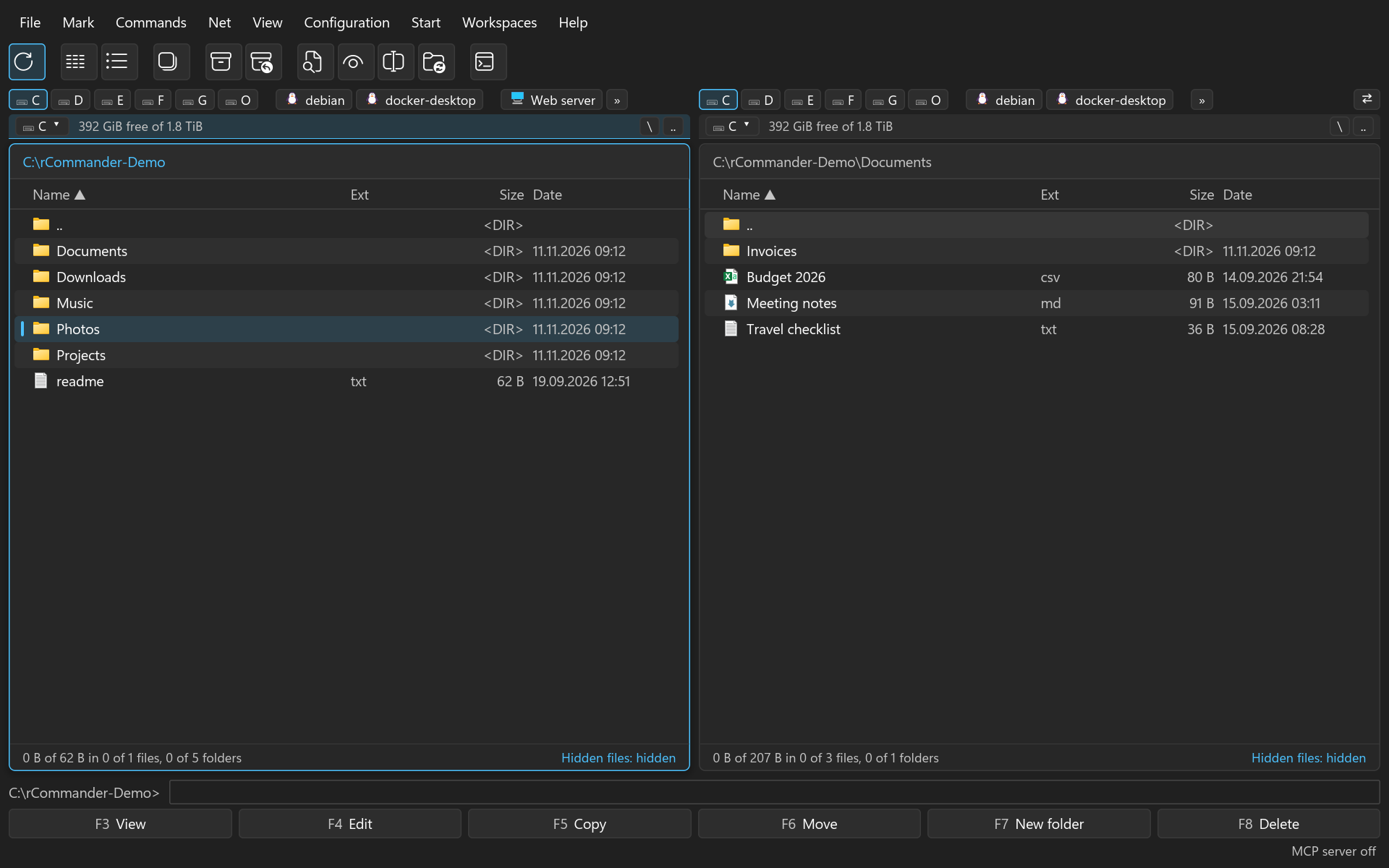
The button bar sits under the menu bar, as in Total Commander: one click starts a program with the files of the panel, runs one of rCommander's commands or one of your own commands, or opens a sub-bar of further buttons as a menu. A second, vertical bar can stand between the two panels. rCommander starts with the bar Default: Reread, Brief and Full view, Invert selection, Pack, Unpack, Find files, Quick View, Multi-rename, Synchronize folders and the terminal.
-
A click runs the button for the active panel. A button with
▾opens its sub-bar as a menu under it; a click on a row of the menu runs that button, a click beside the menu closes it. - Icons and tooltips: as in Total Commander, each button shows an icon at the size Settings > Appearance gives - its own symbol (a file, or one of rCommander's own symbols), else an own command's symbol, else for rCommander's commands the matching icon (Reread, Brief, Full, Pack, Unpack, Find files, Quick View and others), else on Windows the program's own icon. Only a button with no icon at all shows its name as text. The tooltip always names the button; what does not fit the bar's width waits behind ».
- A right click on a button opens its menu: Change..., Delete, Insert button... and Edit bar....
- The keyboard: Alt+Shift+F11 puts the keyboard into the button bar, Alt+Shift+F12 into the vertical one. The arrows along the bar move between the buttons, Home and End go to the first and the last, Enter runs the button, the arrow across the bar (Down, or Right in the vertical bar) or Space opens its sub-bar, Shift+F10 its menu, Escape goes back to the panel. In a menu Up and Down choose, Enter or Right run or open, Left and Escape go back.
Drop files from a panel or from the Explorer on a button that starts a program, and the program gets them after its own parameters, one argument each - the way Total Commander does. Only local files go: an entry on a server or inside an archive is left out, and the status line says so. A button that runs rCommander's commands takes no files.
Hold Shift while you drop a file on a bar, and it becomes a new button that starts that file, after the button you dropped it on, or at the bar's end.
Configuration > Button bar..., the command palette's Button bars and a button's Change... open the button bars window:
- Bar: which bar to edit, with New, Delete bar and Import .bar.... A bar that another bar opens as its sub-bar is not deleted; change that button first.
- Name of the bar, and its items in a list: Add button, Add separator, Remove, and Ctrl+Up and Ctrl+Down move the item at the cursor.
-
The form of a button: whether it runs a command or opens a sub-bar. A command is what an
own command holds - a program with Total Commander's parameters such as
%P%Nor%S(Browse... chooses one), its start folder, its window and Run as administrator; or rCommander's commands by name, such ascm_SrcFullorview_brief; or one of your own commandsem_.... A sub-bar is another of your bars. -
Symbol: a
.pngor.icofile, on Windows also an.exeor.dllwith the number of the icon in it, or one of rCommander's own symbols chosen with Choose symbol... (see below); without one, an own command's button shows the symbol the own command has, a button of rCommander's commands its icon, and a program's button the program's own icon on Windows. - Tooltip: what the pointer shows, and the button's text when it has no icon at all. An own command's button without one takes the own command's tooltip.
- Use as button bar and Use as vertical bar show the bar there; Save keeps the changes.
Sub-bars nest at most four levels deep, and none may open a bar above it; rCommander keeps up to 64 bars of 128 buttons each.
rCommander brings its own collection of symbols for buttons and own commands, as Total Commander
brings WCMICONS.DLL: 467 symbols in nine categories (files and folders, editing, tools, network
and servers, development, media, system, arrows, status), drawn in the colour of the theme's text
in light and dark alike. Choose symbol... beside Browse... - in this window and in the form
of an own command - opens them in place of the form:
- Search by a symbol's name or an English word for it (folder, trash, terminal, upload); the grid narrows as you type.
- Categories on the left: Recently used (the symbols your own commands and bars use already), All symbols, then the nine categories.
- The grid shows the symbols at the size of your bars; a click puts the cursor on one, a double click takes it. Below, the symbol at the cursor shows large, as the button will show it, with its name and the button's tooltip.
- The keyboard: it starts in the search; Tab moves between search, categories, grid, OK and Cancel; the arrows move in the grid (Up and Down from the search too) and choose the category in the list; Home, End, PageUp and PageDown move in the grid; Enter takes the symbol at the cursor; Escape goes back to the form unchanged.
OK puts the symbol into the form; it is kept by its name, so it stays the same symbol in later versions. Should a later version no longer have it, the button shows its name as text until you choose another. A file with its icon number remains the other way to a symbol; the symbols of Total Commander's imported bars stay files as before.
Import .bar... reads a Total Commander .bar file - ANSI or Unicode - with every sub-bar it
opens, and shows each button with what it becomes: an rCommander command, an own command, a
program, a sub-bar, a separator, or why it is left out (a folder change, a cm_ command
rCommander does not know is named). Nothing is saved before Import; a bar whose name is taken
gets a number. In a symbol's or a sub-bar's path, %COMMANDER_PATH% is the folder of the file you
import.
The View menu shows or hides each bar of the window, as Total Commander's layout settings do: the button bar, the vertical button bar, the drive buttons, the command line, the status bar and the function-key bar. The same switches are in Settings > Appearance > Window, with which bar each place shows and the size of the symbols (16, 24 or 32 pixels):
| Setting | Default |
|---|---|
Show the button bar (appearance.button_bar) |
on |
Show the vertical button bar (appearance.vertical_button_bar) |
off |
Bar above the panels, bar between the panels (buttonbar.horizontal, buttonbar.vertical) |
0, the first bar |
Size of the button symbols (buttonbar.icon_size) |
24 pixels |
Show the drive buttons, the command line, the status bar (appearance.drive_bar, appearance.command_line, appearance.status_bar) |
on |
button_bars_list and button_bars_get read the bars, button_bars_run runs a button with what
you stored, asked for like a program's start; a button that starts as administrator or asks for
its parameters is yours to run. Saving, deleting and importing bars is for people only. A symbol
of rCommander's own collection reads as rc-symbol:<name>. See the MCP server.