Turn any PDF into an AI-powered Knowledge Base — with chat, diagrams, citations, and a deployable website.
DocOracle is an open-source project that transforms any PDF document into a fully structured AI knowledge base. It extracts every page, analyzes every diagram with Gemini Vision, builds searchable data, and optionally generates an interactive website where users can ask questions and get answers grounded in the original document — with page-level citations and relevant diagrams displayed alongside every response.
English · 繁體中文 · 简体中文 · 日本語 · Deutsch
You might be wondering: "Can't I just upload my PDF to ChatGPT or Claude and ask questions?"
You can — but here is what happens when you do:
| Uploading PDF to ChatGPT/Claude | DocOracle | |
|---|---|---|
| Page citations | Vague or missing — the LLM cannot reliably tell you which page an answer comes from | Every answer includes exact page numbers, because the pipeline preserves page boundaries |
| Diagrams and images | Ignored or poorly described — most LLMs skip over visual content entirely | Every diagram, table, and photo is analyzed by Gemini Vision with detailed spatial descriptions and retrieval tags |
| Large documents (200+ pages) | Context window overflow — the LLM silently drops content, leading to incomplete or hallucinated answers | The pipeline processes every page individually, then builds retrieval-optimized chunks — no content is lost |
| Consistency | Different answers each time you ask the same question | Structured JSON data ensures deterministic retrieval — the same question always finds the same evidence |
| Reusability | Locked inside one chat session — you cannot share, search, or build on it | Output is standard JSON files that can power a website, feed a RAG system, or integrate into any application |
| Glossary and structure | None — you get raw answers with no navigation | Auto-generated glossary with category badges, chapter/section navigator with summaries and keyword tags |
| Shareable product | A private chat thread | A deployable website that anyone on your team (or your readers, students, or customers) can use |
In short, uploading a PDF to an LLM gives you a disposable conversation. DocOracle gives you a permanent, structured, shareable knowledge base that preserves every page, every diagram, and every citation.
DocOracle serves different types of users depending on their technical background and goals. Read the category that matches you.
These users want to turn a PDF into an AI knowledge base without writing code or running scripts.
You are: Anyone with a PDF who wants to try DocOracle immediately, without installing anything.
What you do: Visit the DocOracle Live Demo, click "Try with Your PDF," upload your document, and wait for the pipeline to process it. Once complete, you can chat with the AI about your document — with citations and diagrams — directly in your browser.
What you need: A web browser and a PDF file. Nothing else.
This is the fastest way to experience DocOracle. No downloads, no Terminal, no API keys.
You are: Someone who uses AI-powered web builders like Base44, Lovable, Vibecoding.ai, or Cursor, and you want to build your own AI knowledge base website from your PDF.
What you do: Run the DocOracle pipeline (or have an AI agent run it for you — see Category 2) to process your PDF into 4 JSON data files. Then use your preferred no-code builder to create a website that reads those JSON files and provides an AI chat interface. You can use DocOracle's website source code as a reference or prompt template.
What you get: A standalone website you own and control, powered by your document's content.
You are: Someone who already has a website (company site, WordPress blog, portfolio, etc.) and wants to add an AI-powered "Ask My Document" chat widget to it.
What you do: Same as 1.2, but instead of building a full website, you build a lightweight chat widget using a no-code tool, then embed it into your existing site via <iframe> or <script> tag.
What you get: An AI chat window embedded in your current website — visitors can ask questions about your PDF content without leaving your site.
These users are comfortable with Terminal, Python, and/or JavaScript, and want more control over the pipeline and output.
You are: A developer who knows React/Node.js and wants to quickly build an AI knowledge base for a client or project — without writing the entire PDF processing pipeline from scratch.
What you do: Clone this repo, place your PDF in input/, run the pipeline, and launch the website. Customize the UI, swap the LLM provider, or extend the API as needed. See the Quick Start section below.
What you get: A working AI knowledge base website in under a day, with chat, glossary, section navigation, and visual asset retrieval — all ready to demo or deploy.
You are: A developer or data engineer who wants the structured JSON output from the pipeline, but does not need the website. You plan to feed the data into your own RAG system, search engine, or custom application.
What you do: Copy the ready-made prompt below, paste it into any capable AI agent (ChatGPT, Claude, Manus AI, Open Claw, Claude Cowork, etc.), and attach your PDF. The AI agent will execute the full pipeline and produce the PDF_PROJECT_OUTPUT/ folder with all deliverables.
What you get: 4 key JSON files (page_chunks.jsonl, glossary.json, sections.json, visual_assets_index.json) plus evaluation questions, a system prompt, and visual asset metadata — all in standard JSON format readable by any programming language.
Copy-paste prompt for this use case: See
docs/PROMPT_PIPELINE_ONLY.md
You are: A developer, founder, or technical user who wants an AI agent to do everything — process the PDF and build a complete, deployable AI knowledge base website — in a single session.
What you do: Copy the ready-made prompt below, paste it into a capable AI agent (Manus AI, Claude Cowork, Open Claw, etc.), and attach your PDF. The AI agent will execute the full pipeline, generate the JSON data, and then build and deploy an interactive website with AI chat, glossary, section navigation, and visual asset retrieval.
What you get: A fully functional AI knowledge base website, ready to share with your team, clients, or audience.
Copy-paste prompt for this use case: See
docs/PROMPT_PIPELINE_AND_WEBSITE.md
You are: A Python developer or data engineer who already has a frontend or application. You only need a reliable PDF-to-structured-data pipeline.
What you do: Use only the pipeline/ directory. Run the scripts locally on your machine. The output JSON files can be integrated into any tech stack — Python, PHP, Go, Java, Ruby, or anything that reads JSON.
What you get: Clean, structured JSON data with page-level text chunks, a glossary, section hierarchy, and visual asset metadata — ready to plug into your existing system.
These users have documents they want to make searchable and AI-powered, but may need technical help with setup.
You are: An HR manager or training lead with employee handbooks, SOPs, compliance manuals, or onboarding materials in PDF format.
Your goal: Let employees ask questions like "What is the leave policy?" or "How do I submit an expense report?" and get instant, accurate answers with page references — instead of searching through a 200-page PDF.
How to use DocOracle: Have your IT team run the pipeline (or use an AI agent with the prompts in Category 2), then deploy the website internally for your staff.
You are: An author, technical writer, or publisher who has written a book or manual and wants to offer readers an AI-powered companion.
Your goal: Let readers ask "What does Chapter 5 cover?" or "Explain the relationship between aperture and depth of field" and get answers grounded in your book, with page citations.
How to use DocOracle: Process your book's PDF through the pipeline, then deploy the website as a companion to your publication. Your readers get an "Ask the Book" AI experience.
You are: A researcher working with lengthy government reports, academic papers, policy documents, or technical specifications.
Your goal: Quickly find specific clauses, data points, or arguments buried in a 500-page document — without reading it cover to cover.
How to use DocOracle: Run the pipeline on your document and launch the website locally (no need to deploy publicly). Use the AI chat to query your document with full citation support.
You are: A teacher, professor, or tutoring center with textbooks, lecture notes, or study materials.
Your goal: Give students an AI study assistant that answers questions like "What is Newton's Third Law?" with answers grounded in the actual textbook — citing specific pages, not generating generic responses.
How to use DocOracle: Process the textbook PDF, deploy the website for your students. Every answer includes page numbers, so students can verify and read further in the original material.
| # | User Type | Technical Level | What You Use | What You Get |
|---|---|---|---|---|
| 1.1 | Live Demo user | None | Live Demo website | Instant AI chat with your PDF |
| 1.2 | No-code builder (standalone site) | Low | Pipeline + No-code tool | Your own AI knowledge base website |
| 1.3 | No-code builder (embed widget) | Low | Pipeline + No-code tool | AI chat widget on your existing site |
| 2.1 | Full-stack developer | High | Pipeline + Website template | Customizable AI knowledge base MVP |
| 2.2 | AI Agent user (pipeline only) | Medium | Copy-paste prompt + AI agent | Structured JSON data files |
| 2.3 | AI Agent user (pipeline + website) | Medium | Copy-paste prompt + AI agent | Complete AI knowledge base website |
| 2.4 | Backend / Data engineer | High | Pipeline only | JSON data for your own system |
| 3.1 | Corporate / HR | Low (needs IT help) | Pipeline + Website | Internal employee knowledge base |
| 3.2 | Author / Publisher | Low-Medium | Pipeline + Website | AI companion for your book |
| 4.1 | Researcher / Academic | Medium | Pipeline + Website (local) | Private document knowledge base |
| 5.1 | Teacher / Educator | Low-Medium | Pipeline + Website | AI study assistant for students |
DocOracle takes a PDF and produces a complete, deployable AI knowledge base in two stages:
Stage 1: Pipeline — A set of Python scripts that process your PDF on your local machine. The pipeline extracts text from every page, uses Gemini Vision to analyze diagrams and tables, classifies page types, builds a glossary, generates section summaries, and creates retrieval-optimized chunks.
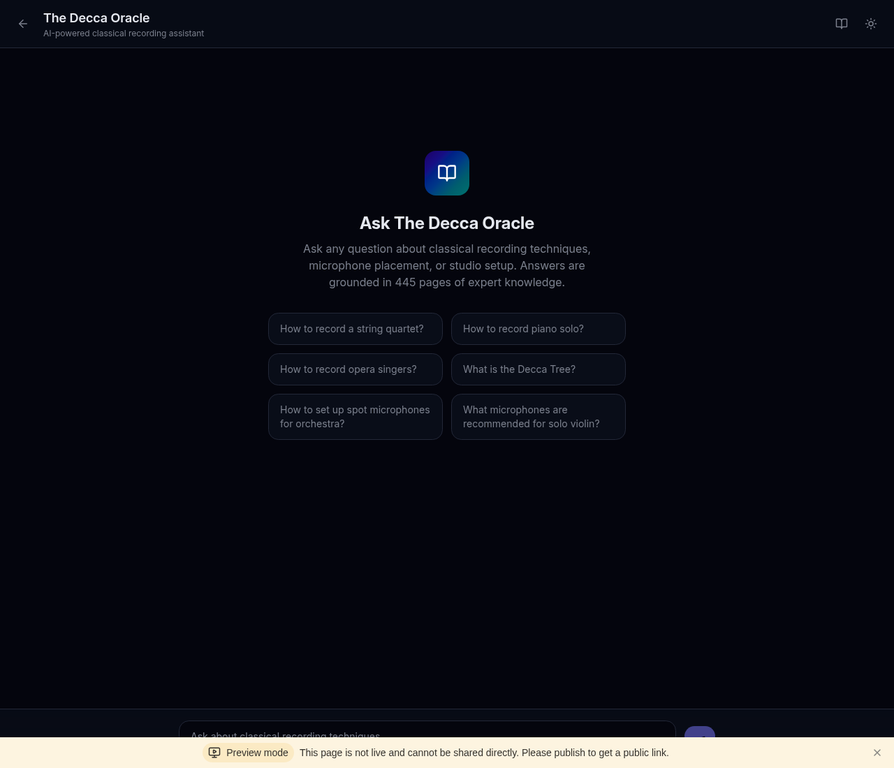
Stage 2: Website — A full-stack web application (React + Express + tRPC) that serves the processed knowledge base. Users can chat with the AI, browse the glossary, navigate the book structure, and see relevant diagrams alongside answers.
┌─────────────┐     ┌──────────────────┐     ┌─────────────────────┐
│             │     │                  │     │                     │
│  Your PDF   │────▶│  Pipeline (12    │────▶│  AI Knowledge Base  │
│  (any book) │     │  Python scripts) │     │  Website (React +   │
│             │     │                  │     │  Express + Gemini)  │
└─────────────┘     └──────────────────┘     └─────────────────────┘
     input/              pipeline/                 website/
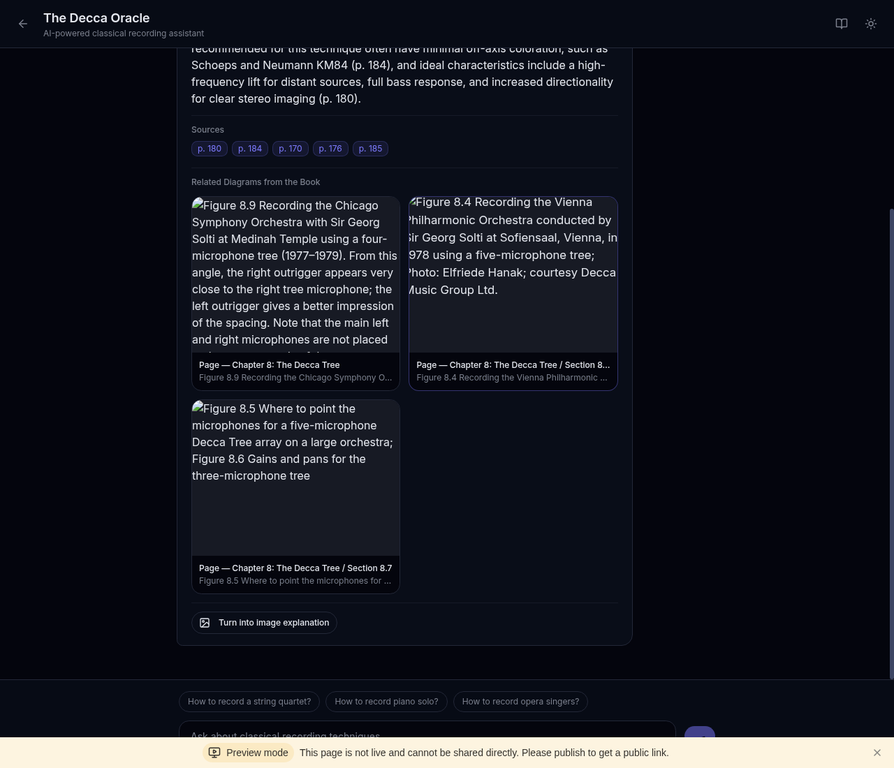
Ask any question about the book's content. Every answer includes page-level citations, and relevant diagrams are automatically retrieved and displayed.
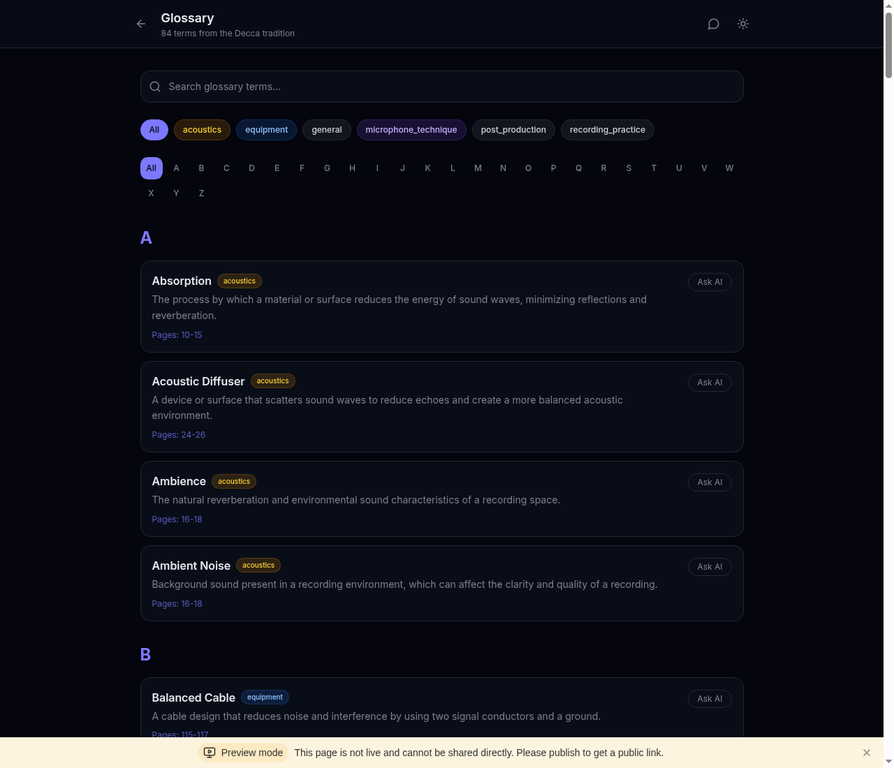
Browse all technical terms with alphabetical filtering and category badges. Each term links to its source pages.
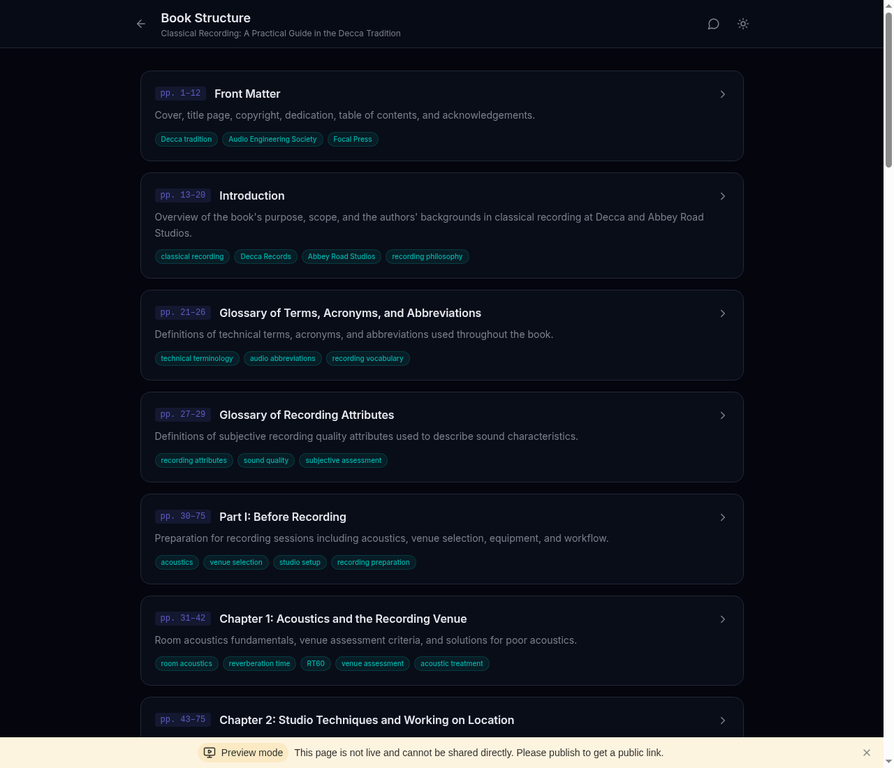
Explore the full chapter and section structure with summaries and keyword tags.
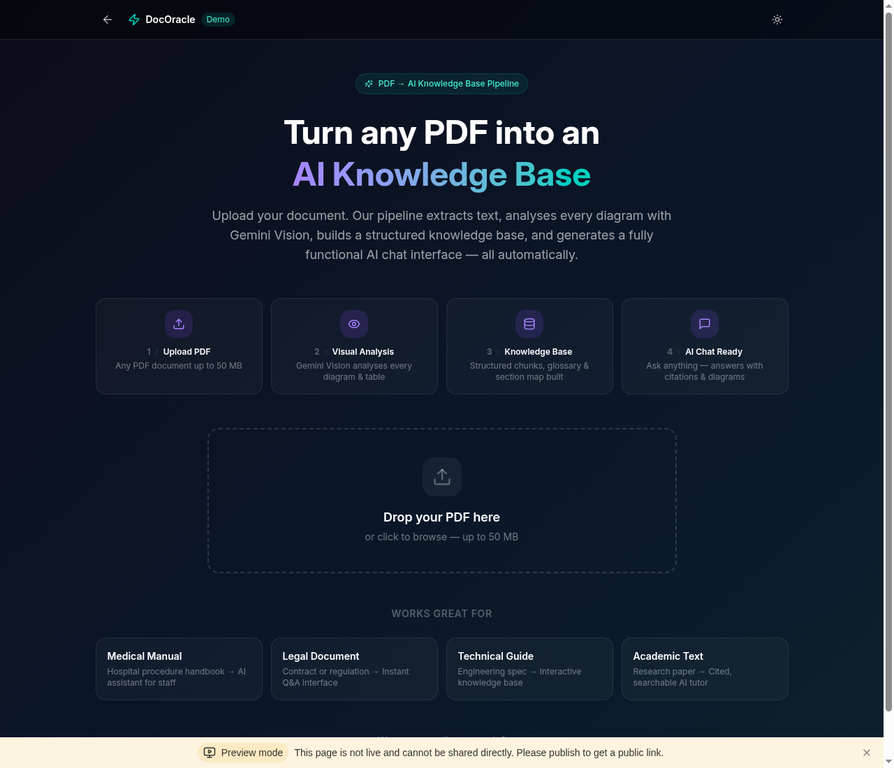
The built-in demo page lets anyone upload a PDF and experience the full pipeline in action.
| Feature | Description |
|---|---|
| Gemini Vision Analysis | Every diagram, table, and image is analyzed by Gemini Vision with detailed spatial descriptions |
| AI Chat with Citations | Ask questions and get answers grounded in the document, with page numbers cited |
| Visual Asset Retrieval | Relevant diagrams automatically appear alongside chat answers |
| Glossary Browser | Alphabetical glossary with category badges and page references |
| Section Navigator | Full book structure with summaries and keyword tags |
| Image Explanation | "Turn into image explanation" button generates AI visual summaries of complex answers |
| Dark/Light Theme | Toggle between dark and light modes |
| PDF Upload Demo | Built-in interface for uploading and processing new PDFs |
This section is for developers (User Types 2.1 and 2.4). If you are a non-technical user, see Category 1 above.
| Requirement | Version | Purpose |
|---|---|---|
| Python | 3.9+ | Pipeline scripts |
| Node.js | 18+ | Website |
| pdftotext | any | Text extraction (sudo apt-get install poppler-utils) |
| Gemini API Key | — | Vision analysis and chat (Get free key) |
git clone https://github.com/dev-james0723/DocOracle.git
cd DocOraclecp /path/to/your/book.pdf input/pip install -r pipeline/requirements.txtexport GEMINI_API_KEY="your-gemini-api-key"bash pipeline/run_all.shThe pipeline will process your PDF through 12 steps. Processing time depends on page count:
| Pages | Estimated Time |
|---|---|
| 50 | ~15 minutes |
| 200 | ~1 hour |
| 500 | ~3 hours |
# Copy the 4 key output files to the website
cp output/05_retrieval/page_chunks.jsonl website/server/data/
cp output/04_gold_master/glossary.json website/server/data/
cp output/04_gold_master/sections.json website/server/data/
cp output/10_visual_assets/visual_assets_index.json website/server/data/visual_assets.json

# Install and start the website
cd website
npm install
npm run dev
Open http://localhost:3000 in your browser. Your AI knowledge base is ready.
If you prefer to have an AI agent do the work for you, DocOracle provides ready-made prompts that you can copy and paste into any capable AI agent.
| AI Agent | Best For | Notes |
|---|---|---|
| Manus AI | Pipeline + Website (end-to-end) | Full autonomous execution with file system access |
| Claude (with Projects or Artifacts) | Pipeline prompt execution | Excellent at following structured prompts |
| ChatGPT (with Code Interpreter) | Pipeline prompt execution | Can run Python scripts and process files |
| Open Claw | Pipeline + Website | Open-source AI agent with tool use |
| Claude Cowork | Pipeline + Website | Collaborative coding and deployment |
| Cursor | Website customization | AI-powered code editor, great for modifying the website template |
Use this when you want the structured data files but plan to build your own frontend or integrate into an existing system.
Full prompt with instructions: docs/PROMPT_PIPELINE_ONLY.md
Quick summary of what the prompt tells the AI agent to do:
- Accept your uploaded PDF
- Extract text from every page using
pdftotext - Convert every page to a high-resolution image
- Analyze visual pages with Gemini Vision API
- Build page-level canonical records with citations
- Generate a glossary, section map, and FAQ seeds
- Create retrieval-optimized chunks for RAG
- Extract and index all visual assets (diagrams, tables, photos)
- Produce the complete
PDF_PROJECT_OUTPUT/folder
Output you receive: A folder containing page_chunks.jsonl, glossary.json, sections.json, visual_assets_index.json, evaluation questions, a system prompt, and all extracted visual assets with metadata.
Use this when you want the AI agent to process your PDF AND build a complete, deployable website in one session.
Full prompt with instructions: docs/PROMPT_PIPELINE_AND_WEBSITE.md
Quick summary of what the prompt tells the AI agent to do:
Everything in Prompt A, plus:
- Build a React + Express + tRPC website
- Implement AI chat with retrieval-augmented generation (RAG)
- Display page-level citations in every answer
- Retrieve and show relevant diagrams alongside answers
- Add a glossary browser with alphabetical filtering
- Add a section navigator with summaries
- Deploy the website (or provide deployment instructions)
Output you receive: A fully functional AI knowledge base website, plus all the JSON data files from the pipeline.
For AI agents that support skill/instruction files (such as Manus AI), DocOracle provides a SKILL.md file at the repository root. This file contains structured instructions that an AI agent can load to understand and execute the DocOracle pipeline autonomously.
The pipeline consists of 12 Python scripts that run sequentially:
| Step | Script | What It Does |
|---|---|---|
| 1 | 01_build_inventory.py |
Classifies every page as text, diagram, photo, or mixed |
| 2 | 02_generate_page_records.py |
Creates detailed records for each page using Gemini Vision |
| 3 | 03_merge_all_records.py |
Merges text extraction and vision analysis into gold-master records |
| 4 | 04_build_visual_summary.py |
Generates summaries for high-risk visual pages |
| 5 | 05_build_sections_glossary.py |
Builds chapter/section structure and glossary |
| 6 | 06_build_glossary_faq.py |
Generates FAQ seeds from the content |
| 7 | 07_build_retrieval.py |
Creates retrieval-optimized chunks for RAG |
| 8 | 08_build_eval.py |
Generates 80+ evaluation questions for testing |
| 9 | 09_identify_visual_pages.py |
Identifies all pages with diagrams, tables, or images |
| 10 | 10_build_visual_assets.py |
Extracts visual assets as individual images |
| 11 | 11_build_visual_metadata.py |
Pairs each visual asset with descriptive metadata |
| 12 | 12_build_url_map.py |
Builds the URL mapping for web display |
After the pipeline completes, you get this output:
output/
├── 00_source/           # Original PDF copy
├── 01_inventory/        # Page-by-page classification
├── 02_page_records/     # Detailed record per page (JSON)
├── 03_visual_reviews/   # Vision analysis for diagram pages
├── 04_gold_master/      # Authoritative merged records
│   ├── glossary.json        ← KEY FILE: all technical terms
│   ├── sections.json        ← KEY FILE: chapter structure
│   └── faq_seeds.json       # Generated FAQ questions
├── 05_retrieval/        # RAG-optimized chunks
│   ├── page_chunks.jsonl    ← KEY FILE: searchable text chunks
│   └── section_chunks.jsonl # Section-level chunks
├── 06_eval/             # 80+ evaluation questions
├── 07_skill/            # System prompt for the AI
└── 10_visual_assets/    # Extracted diagrams and images
    ├── visual_assets_index.json  ← KEY FILE: visual asset metadata
    ├── diagrams/        # Diagram screenshots + descriptions
    ├── mixed/           # Mixed content screenshots
    └── photos/          # Photo screenshots
The 4 key files marked above are what the website needs. Everything else is supplementary.
The sample_output/ directory contains excerpts from a real pipeline run so you can see the data format before running your own:
page_chunks_sample.jsonl — Each line is a searchable text chunk:
{
  "page": 45,
  "chapter": "Chapter 2: Studio Techniques",
  "text": "The control room should ideally be...",
  "has_visual": false
}
glossary_sample.json — Technical terms with definitions:
{
  "term": "Decca Tree",
  "definition": "A three-microphone array using omnidirectional microphones...",
  "category": "Microphone Techniques",
  "pages": [192, 193, 194]
}
visual_assets_sample.json — Diagram metadata with descriptions:
{
  "page": 120,
  "type": "diagram",
  "description": "Piano recording setup showing two spaced omnidirectional microphones...",
  "retrieval_tags": ["piano", "microphone placement", "spaced pair"]
}DocOracle/
├── README.md # This file
├── SKILL.md # AI agent instruction file
├── LICENSE # MIT License
├── CONTRIBUTING.md # Contribution guidelines
├── .gitignore # Protects PDFs and API keys
├── pipeline/ # Python processing scripts
│ ├── run_all.sh # One-command pipeline runner
│ ├── config.yaml # Configuration template
│ ├── requirements.txt # Python dependencies
│ └── 01-12_*.py # 12 pipeline scripts
├── website/ # Full-stack web application
│ ├── client/ # React frontend
│ ├── server/ # Express + tRPC backend
│ └── server/data/ # Place output files here
├── docs/ # Documentation and prompts
│ ├── PIPELINE_PROMPT.md # Full pipeline instruction document (v2.0)
│ ├── PROMPT_PIPELINE_ONLY.md # Copy-paste prompt for AI agents (pipeline only)
│ ├── PROMPT_PIPELINE_AND_WEBSITE.md # Copy-paste prompt for AI agents (pipeline + website)
│ ├── USER_GUIDE.md # Step-by-step user guide
│ └── GITHUB_GUIDE.md # GitHub publishing guide
├── sample_output/ # Example output files
├── input/ # Place your PDF here
└── screenshots/ # README screenshots
Copy pipeline/config.yaml to pipeline/config.local.yaml and customize:
llm:
  provider: "gemini"          # or "openai", "anthropic"
  api_key: ""                 # or use GEMINI_API_KEY env var
  vision_model: "gemini-2.5-flash"

pipeline:
  max_pages: 0                # 0 = process all pages
  image_dpi: 200              # higher = better quality
concurrency: 5 # parallel API requestsProcessing costs depend on your PDF size and the LLM provider:
| PDF Size | Gemini (Free Tier) | Gemini (Paid) | OpenAI GPT-4o |
|---|---|---|---|
| 50 pages | Free (within limits) | ~$1-2 | ~$3-5 |
| 200 pages | ~3-4 days (rate limited) | ~$5-10 | ~$15-25 |
| 500 pages | ~9-10 days (rate limited) | ~$10-20 | ~$30-50 |
The Gemini free tier allows approximately 50 vision requests per day. For faster processing, use the paid tier.
If you want to integrate DocOracle's output into your own application instead of using the provided website:
The pipeline output is standard JSON. You can read page_chunks.jsonl, glossary.json, sections.json, and visual_assets_index.json from any programming language (Python, PHP, Java, Ruby, Go, etc.) and build your own search and chat interface on top.
Key integration points:
- Search — Load
page_chunks.jsonland implement keyword or semantic search across chunks - Chat — Send matching chunks as context to any LLM (Gemini, GPT-4, Claude, etc.)
- Visual Assets — Use
visual_assets_index.jsonto find and display relevant diagrams - Glossary — Load
glossary.jsonfor term definitions and tooltips - Navigation — Use
sections.jsonfor chapter/section structure
Contributions are welcome. Please open an issue first to discuss what you would like to change.
- Fork the repository
- Create your feature branch (
git checkout -b feature/amazing-feature) - Commit your changes (
git commit -m 'Add amazing feature') - Push to the branch (
git push origin feature/amazing-feature) - Open a Pull Request
This project is licensed under the MIT License — see the LICENSE file for details.
Important: DocOracle is a tool for processing documents you have legal rights to use. The pipeline and website code are open source; the documents you process are your responsibility. Never upload copyrighted material you do not have permission to use.
This project was built using:
- Google Gemini — Vision and language model for document analysis
- React + Tailwind CSS — Frontend framework
- Express + tRPC — Backend API
- poppler-utils — PDF text extraction
DocOracle — Because every document deserves to be understood.