Repository navigation
Updates and recovery
Use the same installer format for upgrades. The ZIP contains the EXE installer. Verify downloads with the release signature instructions.
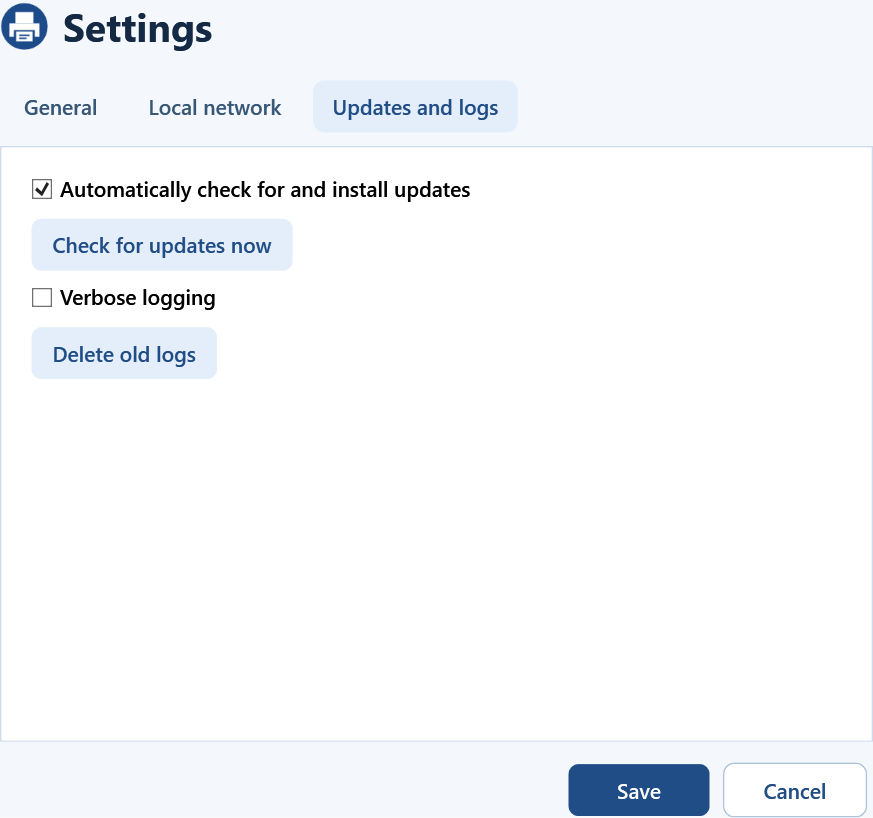
Automatic updates are enabled by default for profiles without a saved preference. PrintBridge checks shortly after startup and about every 12 hours while running. Use Settings → Updates and logs → Check for updates now for an immediate check. Updates wait for printing to finish and verify the signed release before starting setup.
- Let any pending print jobs finish.
- In PrintBridge choose More → Restore original port.
- Approve the Windows prompt if it appears and confirm the queue shows the restored port.
Restoration returns a switched queue to the port saved during setup. For a separate queue, it removes the PrintBridge-created queue when safe. If the original port still points to an outdated printer address, check it in Windows before using direct printing.
Restore the original port before uninstalling the MSI or switching installer formats. The EXE uninstaller can also offer to clean up the queue integration.