Repository navigation
VPN and changing printer addresses
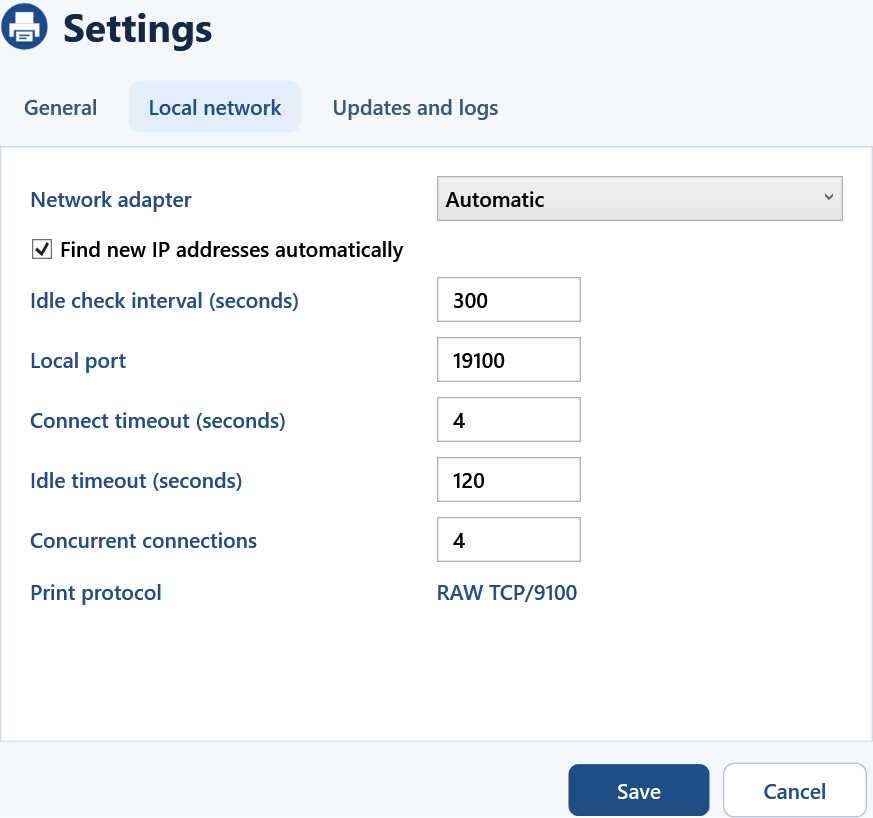
PrintBridge connects through a physical Wi-Fi or Ethernet adapter. In Automatic mode it prefers adapters on the printer's subnet and remembers the last successful adapter. Use Settings → Local network → Network adapter if you want to pin the connection to one adapter.
The Routing panel compares the PrintBridge adapter's route with the default Windows route. The list of detected VPN interfaces provides diagnostic context. If the VPN policy blocks local LAN access, contact the VPN administrator or check whether local LAN access is permitted.
A router can assign a different address after a restart or DHCP lease change. The configured Windows queue points to PrintBridge's local port, so you do not need to edit the Windows port for each address change. With automatic discovery enabled, PrintBridge looks for the saved device identity and updates its destination once it confirms the printer.
If printing stops after an address change, choose More → Find printer and verify the printer's address and identity. The default idle check interval is five minutes. Incoming print jobs start connection attempts immediately.