Repository navigation
Home
Sync game saves across Windows and Linux. Run one central server, install clients on each PC, and GSBS keeps saves in sync — automatically and reliably.


GSBS is a self-hosted game save sync service. A lightweight server stores one copy of each save per user; clients on every machine watch save folders and upload changes automatically. When you sit down on a different PC, your saves are already there.
| Feature | Details |
|---|---|
| Auto-upload | Watches save locations, uploads on change |
| Auto-discovery | Scans Steam, Epic, GOG, Ubisoft, Heroic, Lutris, and more |
| Cross-OS sync | Windows ↔ Linux saves converge for PCGW-tracked games |
| Offline queue | Failed uploads retry automatically from a persistent outbox |
| Pull on new client | Only writes saves where the game is actually installed |
| OS-aware paths | Resolves %USERPROFILE%, Steam libraries, Proton compatdata, and more |
| WebUI + admin | Dashboard, save versions, activity log, admin overview |
| Client auto-update | Daily GitHub Releases check; install from the tray menu |
| Multi-user | Many users, each with multiple clients (desktop + laptop) |
| E2E encryption | Optional client-side AES-GCM encryption; passphrase never leaves the client |
| Server dashboard | Client status |
|---|---|
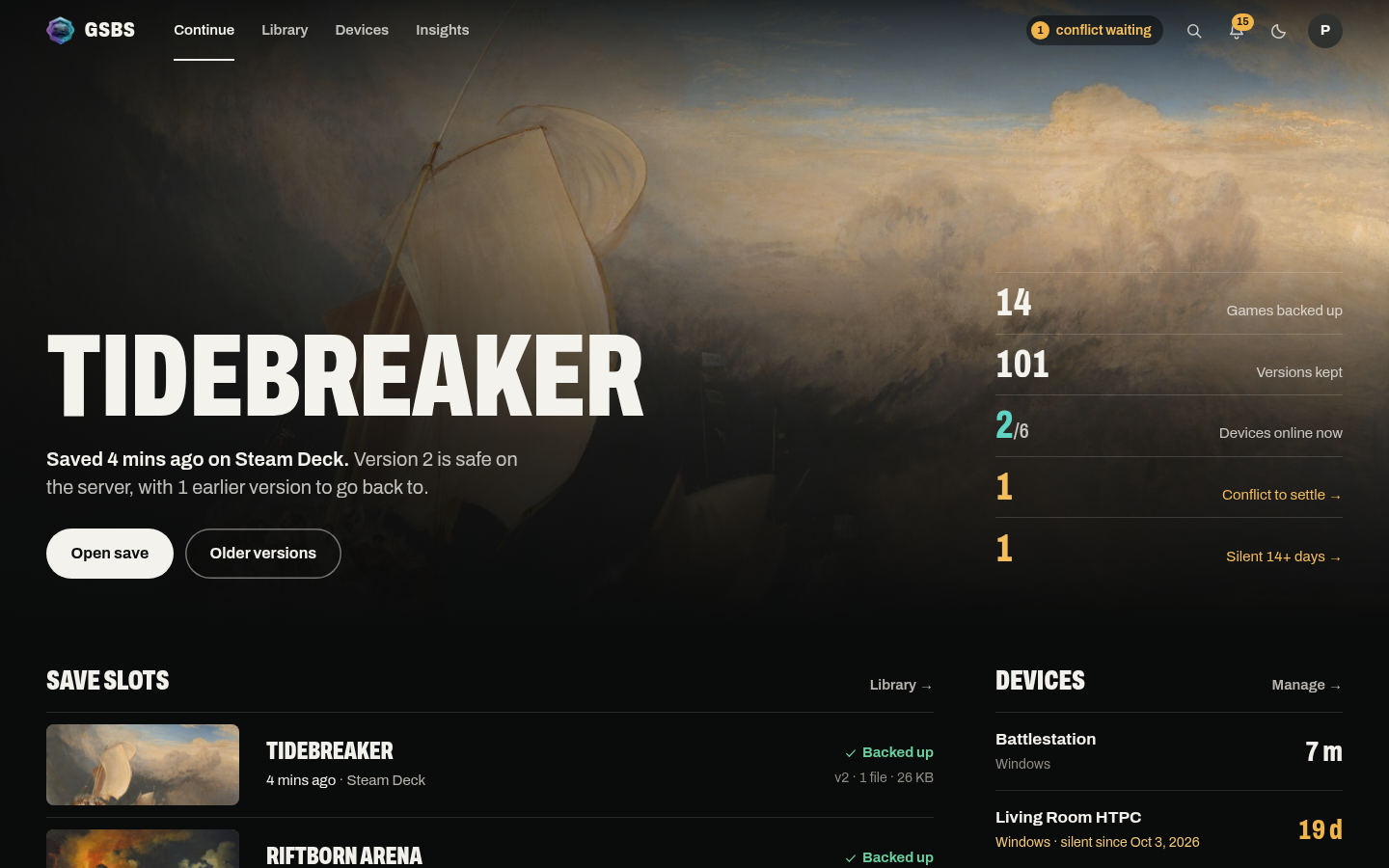 |
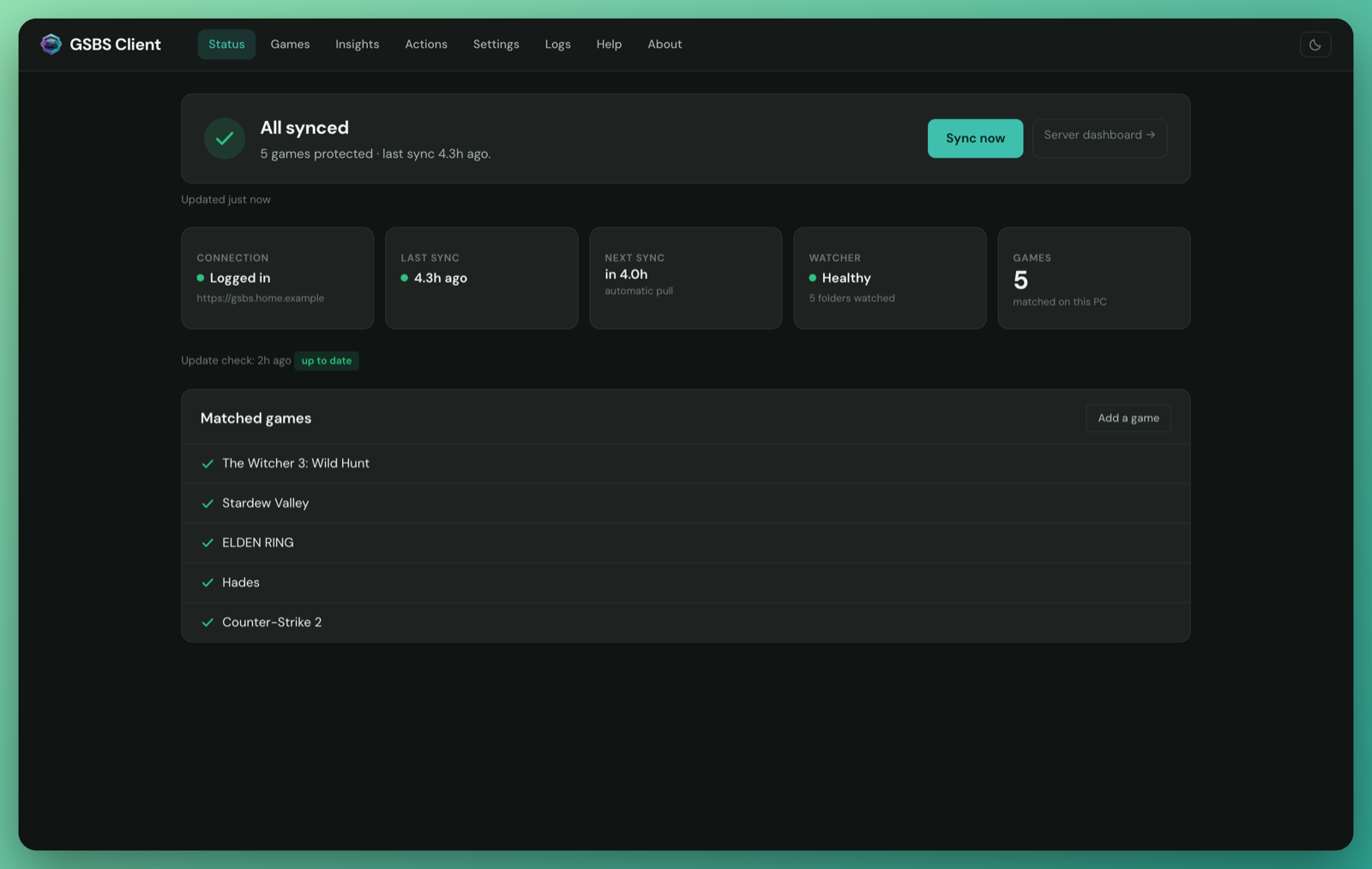 |
| Client setup wizard | Admin overview |
|---|---|
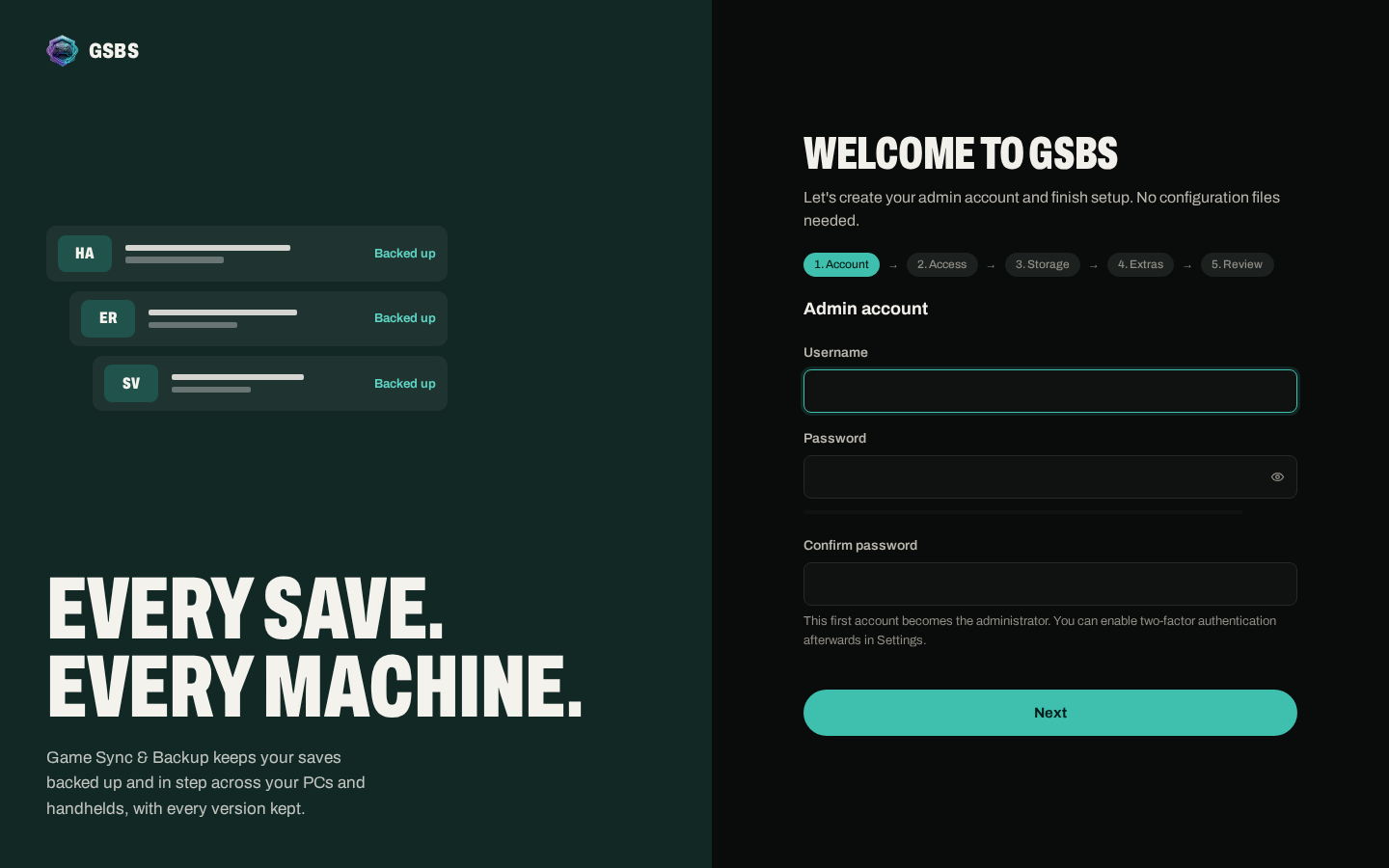 |
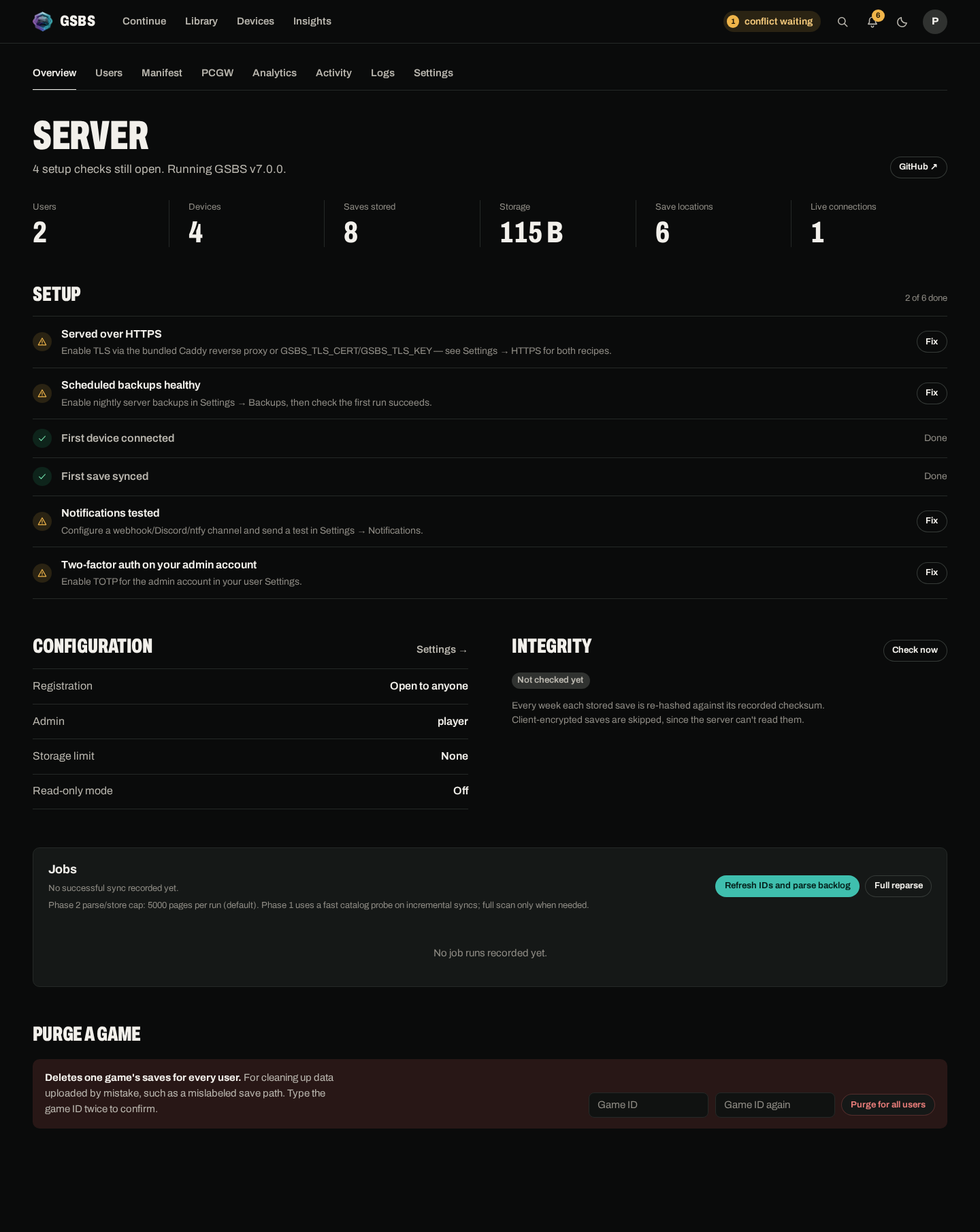 |
git clone https://github.com/dlommm/GSBS-Game-Sync-Backup-Service.git
cd GSBS-Game-Sync-Backup-Service
cp .env.example .env
# Edit .env — set GSBS_SESSION_SECRET (openssl rand -hex 32)
docker compose up -d
See Installation for all server options (Docker Compose, bare Docker, binary).
Download from GitHub Releases:
| Platform | Install |
|---|---|
| Windows | Run gsbs-client-setup-X.Y.Z-windows-amd64.exe
|
| Linux (Debian/Ubuntu) | sudo dpkg -i gsbs-client_X.Y.Z_amd64.deb |
| Linux (portable AppImage) | chmod +x gsbs-client-*.AppImage && ./gsbs-client-*.AppImage |
Open the server WebUI, register an account, create an API token, then use Login… in the client tray to connect. GSBS discovers your installed games and starts syncing automatically.
See Client Setup & Usage for the full setup walkthrough.
┌─────────────────────────────────────────┐
│              GSBS Server                │
│  Auth · WebUI · Save storage · PCGW job │
└─────────────────────────────────────────┘
                      ▲
      ┌───────────────┼───────────────┐
      │               │               │
┌─────┴─────┐   ┌─────┴─────┐   ┌─────┴─────┐
│  Client   │   │  Client   │   │  Client   │
│ (Windows) │   │  (Linux)  │   │    …      │
└───────────┘   └───────────┘   └───────────┘
Game save locations come from PCGamingWiki (synced weekly). The server projects them into a manifest that clients download. Clients resolve OS-specific paths locally, watch the correct directories, and push only changed files.
See How It Works for a deep-dive on path keys, cross-OS sync, and the PCGW integration.
| Page | What it covers |
|---|---|
| Installation | Server and client install on every platform |
| Client Setup & Usage | Tray, auto-discovery, sync behavior, E2E encryption, logs |
| Server Configuration | All environment variables, Docker, Compose, TLS, admin |
| How It Works | Architecture, data model, path keys, PCGW, cross-OS sync |
| Troubleshooting | Common problems and fixes |
| Upgrading | Server and client upgrade procedures, version notes, rollback |
| API Reference | Full REST API reference |
| Changelog | Release history |
| FAQ | Frequently asked questions |
| Contributing | Build from source, tests, conventions |