Repository navigation
Client Setup and Usage
Everything about the GSBS client: data locations, first-run setup, tray menu, auto-discovery, sync behavior, E2E encryption, and logs.
The client stores all state in a single directory:
| Platform | Path |
|---|---|
| Windows |
%APPDATA%\gsbs (e.g. C:\Users\<user>\AppData\Roaming\gsbs) |
| Linux | ~/.config/gsbs |
Files inside:
| File | Description |
|---|---|
config.json |
Server URL, token, sync settings, launcher paths, watch_paths
|
manifest.json |
Cached game save locations from the server (v2-first) |
discovery.json |
Last game discovery scan results |
outbox/ |
Pending uploads when the server was unreachable |
conflicts.json |
Detected save conflicts (local vs server both changed) |
tray_state.json |
Cached game titles and last sync times for the tray |
gsbs.log |
Full structured client log |
client.lock |
Single-instance lock (prevents two tray instances) |
If the client is not logged in, it opens a browser setup page at http://127.0.0.1:41234 automatically.
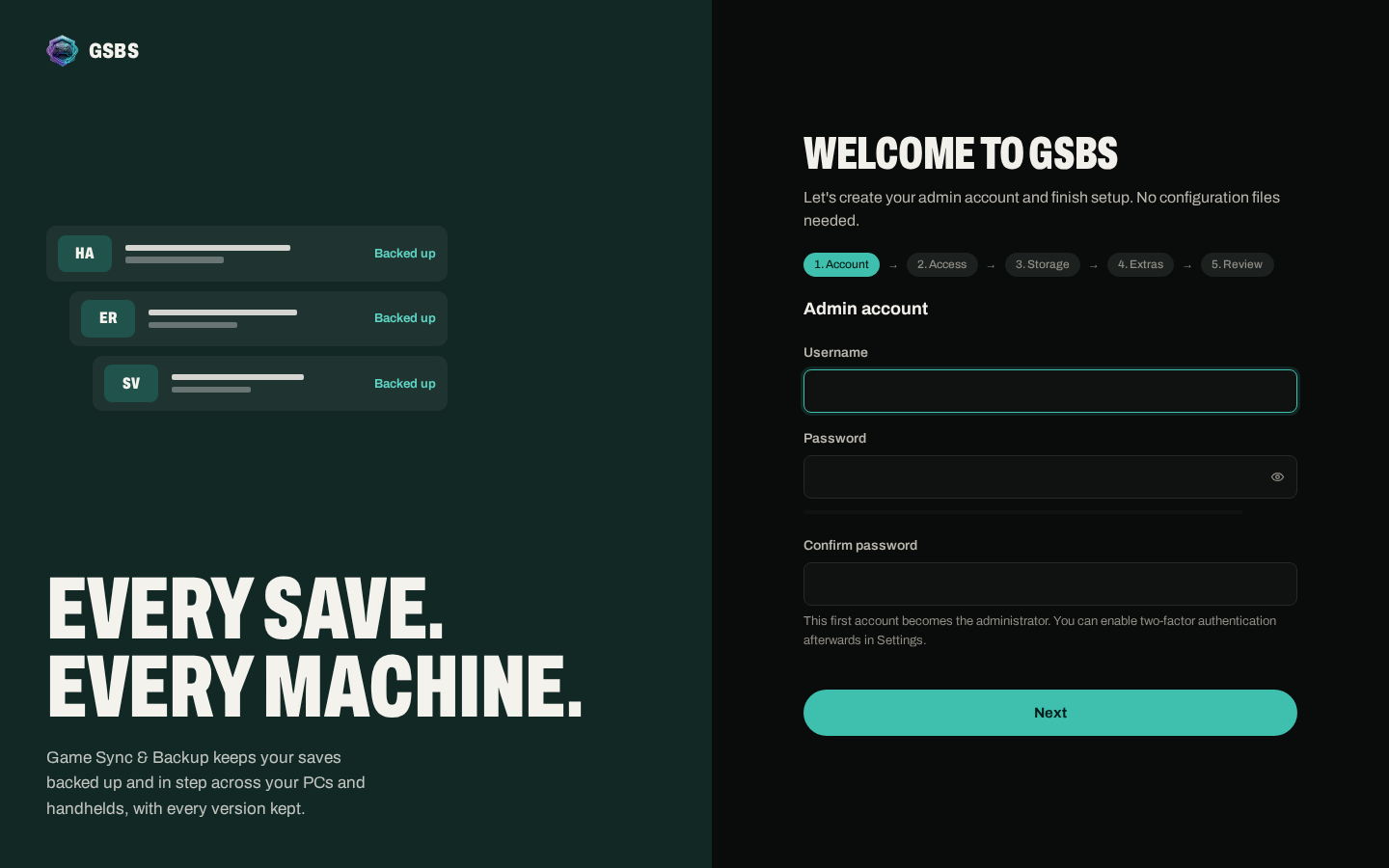
- Enter your Server URL (e.g.
https://gsbs.yourdomain.com). - Enter your username and password (or register on the server WebUI first).
- The wizard polls for discovery progress and lists matched games.
- Once logged in, GSBS starts syncing automatically.
On Windows, the tray Login… item opens this browser page by default. A native dialog fallback is available via a direct sub-item if the browser page fails to bind a port.
| Item | What it does |
|---|---|
| Status | Last sync time, in-progress, paused, or last error |
| Sync now / Pause | Manual sync or pause/resume all syncing |
| Synced games | Up to 12 recently synced games with status icons |
| Discovered games | Installed games matched to the server manifest |
| Issues | Conflict count, pending uploads, last error |
| Account & Setup (submenu) | Server URL, sync interval, login, detect launcher paths, refresh manifest |
| Advanced (submenu) | Edit config, view log, open data folder, run at startup, version, updates |
Tray status icons:
| Icon | Meaning |
|---|---|
| ✓ | Synced OK |
| ⚠ | Conflict or warning |
| ↑ | Uploaded |
| ⏳ | Pending |
| ⊘ | Disabled |
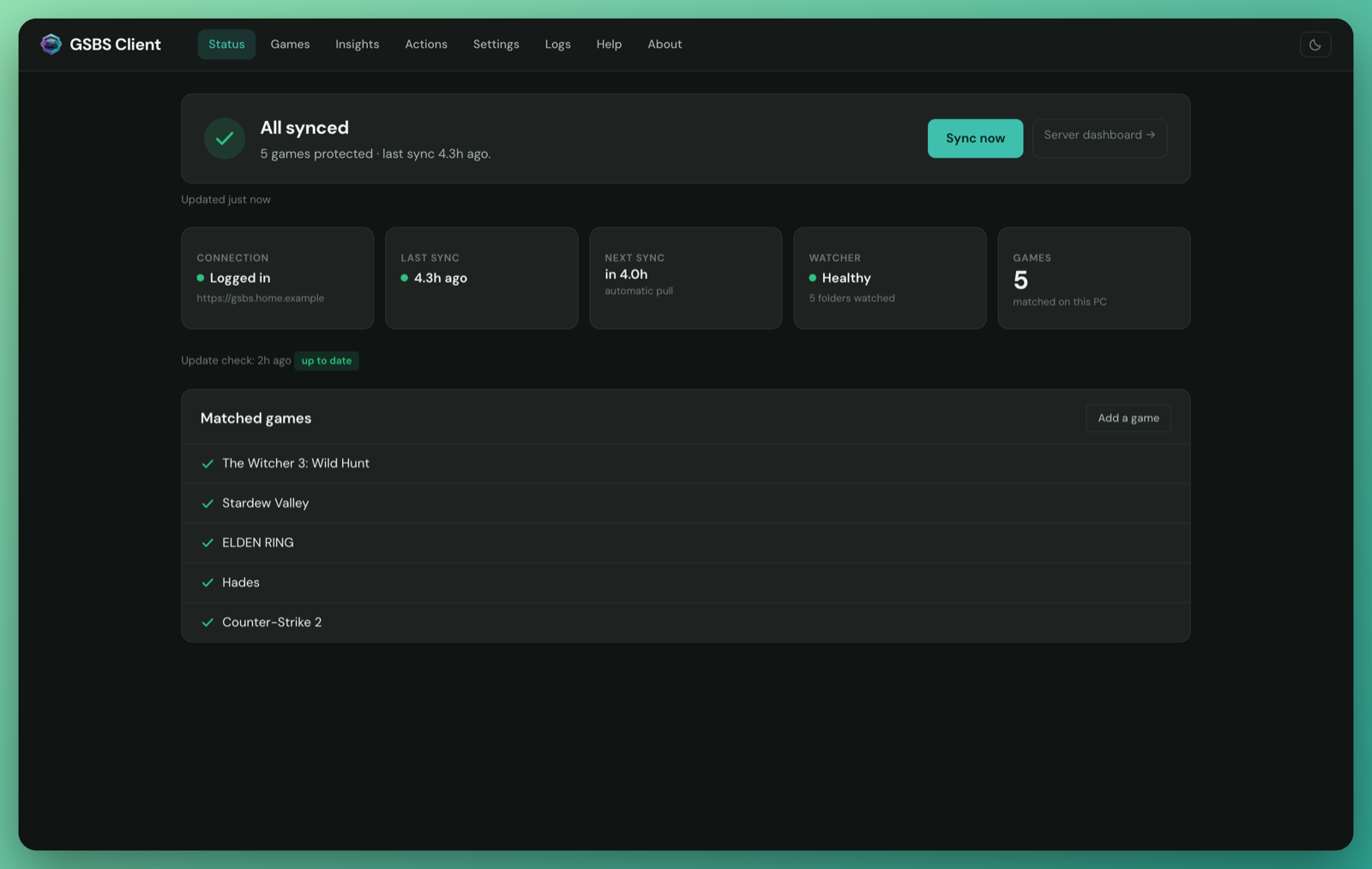
Advanced → Local status page opens http://127.0.0.1:41234/dashboard in your browser. This page shows:
- Live sync status and last error
- Watched games and their readiness
- Pending outbox uploads
- Conflicts
- Last update check result and
auth_failedstate
The page auto-refreshes every 5 seconds. Sync Now on the page triggers an immediate sync.
The client sends OS toast notifications for:
- Sync complete / failed
- New saves uploaded (debounced per game)
- Conflicts detected
- First-run discovery summary
- Setup required (not logged in)
- Update available
On startup and every discovery_interval (default 4h), the client scans supported launchers for installed games and matches them against the server manifest.
Supported launchers:
Steam, Epic Games, GOG Galaxy, Ubisoft Connect, EA App, Heroic, Lutris, Bottles, Prism Launcher, and Flatpak Steam.
| Mode | Behavior |
|---|---|
discovered (default for new installs) |
Only watch games matched to the manifest and installed via a supported launcher |
legacy (default when omitted in existing configs) |
Watch any manifest path whose save directory already exists on disk |
Each discovered game gets a readiness classification:
| Tray label | Reason | Fix |
|---|---|---|
✓ <game> |
Ready — syncing | Nothing needed |
⚠ not in server manifest |
no_manifest_entry |
Run PCGW sync on server, or use Add a game manually… |
⚠ no saves for this OS |
wrong_platform |
Use Add a game manually… with your local folder |
⚠ save folder not found |
save_dir_missing |
Launch the game once, or set game_install_paths in config |
⚠ no valid save rule |
malformed_rules |
Fix the manifest entry on the server |
⊘ <game> |
disabled |
Click to re-enable, then Refresh manifest |
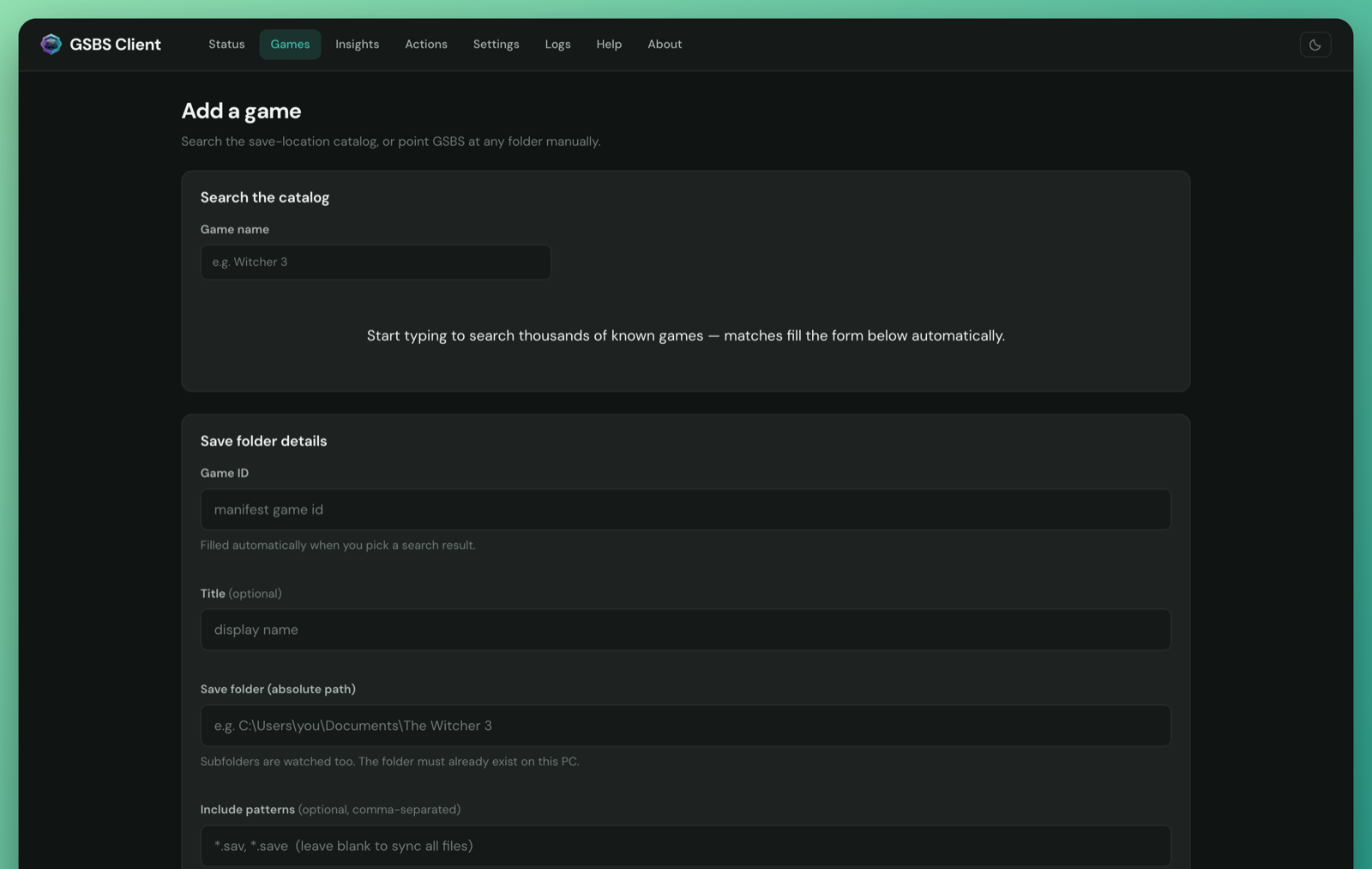
If a game is not in the manifest or uses a non-standard save path:
- Tray → Discovered games → Add a game manually…
- Search the manifest by name and click Use this, or paste an absolute save folder path.
- GSBS writes a
watch_pathsentry toconfig.jsonand restarts sync.
GSBS can sync saves between Windows and Linux for games tracked by PCGamingWiki.
How it works: Each PCGW save rule carries a slot_label — an OS-neutral integer index. The client derives path_key from (game_id, slot_label, is_config), so Windows and Linux clients produce the same path_key for the same logical save slot. The server holds one record per (user, game_id, path_key).
Proton / Steam Deck: For Windows games running under Steam/Proton on Linux, the client resolves the compatdata path automatically:
<SteamLibrary>/steamapps/compatdata/<AppID>/pfx/users/steamuser/AppData/Roaming/<Game>/
No manual path configuration is needed for PCGW-tracked games.
Note:
watch_pathsentries inconfig.jsonare OS-specific by design — they use a hash of the full rule and do not cross-sync between Windows and Linux.
Add watch_paths to config.json for games not covered by the manifest:
{
  "watch_paths": [
    {
      "game_id": "my-game",
      "path_key": "my-game-save-0",
      "directory": "%APPDATA%/MyGame/saves",
      "include_patterns": ["*.sav", "*.dat"],
      "recursive": false
    }
  ]
}| Field | Description |
|---|---|
game_id |
Server game ID (any unique string for manual entries) |
path_key |
Stable identifier for this save slot |
directory |
Save root directory (supports placeholders) |
include_patterns |
Glob patterns relative to directory; omit with sync_all: true for all files |
sync_all |
Upload all files under directory
|
recursive |
Watch subdirectories |
When a push fails after retries, the file is queued in outbox/ with exponential backoff (2m–30m cap). Entries older than 7 days are dropped. Auth and quota errors are not retried automatically.
When the server returns HTTP 401 (token revoked or expired), the outbox stops all retries immediately. The auth_failed state appears in:
-
Local status page (
http://127.0.0.1:41234/status) — showsauth_failed: true. - Tray tooltip — indicates auth failure next to the sync state.
Re-login via tray Login… or gsbs-client login to resume.
Enable End-to-end encryption in WebUI Settings. Then set in config.json:
{
  "encryption_passphrase": "your-local-only-passphrase"
}
Warning: The passphrase never leaves the client and is not backed up by the server. If you lose it, encrypted saves cannot be recovered. Set the same passphrase on every client.
New pushes are encrypted with AES-GCM. Existing plaintext saves remain until naturally re-uploaded. Pulls decrypt locally before writing.
-
Upload: File watcher debounces changes (2s) and pushes with SHA256 metadata. Files already matching the last successful push hash are skipped locally. The server also returns
{"status":"unchanged"}when content matches. - Startup reconciliation: On startup, the client scans all local save files under watched directories and uploads any not yet on the server — even without file-change events. Already-matching files are skipped.
-
Download: Summary + hash comparison fetches only changed saves. SSE
save-updatedevents from other machines trigger immediate pulls. -
Conflicts: Default policy is
last_write_wins. Both-changed conflicts are recorded inconflicts.json. Resolve from the tray or WebUI dashboard. -
Versions: The server keeps the last N versions per save (configurable via
GSBS_SAVE_VERSION_RETENTION, default 8). Restore from WebUI Versions or Open dashboard in the tray.
The client checks GitHub Releases on startup (after 30 seconds) and every 24 hours.
Update check statuses:
| Status | Meaning |
|---|---|
available |
A newer version is ready to install |
up_to_date |
Already on the latest version |
disabled |
Checks disabled via update_check_enabled: false
|
metered_skip |
Connection is metered and skip_sync_when_metered is true |
network_error |
Could not reach GitHub |
api_error |
GitHub API returned an unexpected response |
manifest_mismatch |
latest-client.json did not match the expected format |
unsupported_arch |
No binary for this platform in the release |
Manual Check for updates… always shows the explicit outcome — it never silently shows "latest" on failure. The tray shows an in-progress state while the check runs.
Apply: The client downloads the platform binary, verifies SHA256 from latest-client.json, replaces the running binary, and restarts with --minimized.
Config options:
{
  "update_check_enabled": true,
  "update_repo": "dlommm/GSBS-Game-Sync-Backup-Service"
}| Platform | Log path |
|---|---|
| Windows | %APPDATA%\gsbs\gsbs.log |
| Linux | ~/.config/gsbs/gsbs.log |
Set GSBS_LOG_LEVEL=debug (environment variable) for structured sync diagnostics. Add "verbose_log": true to config.json for per-file push/pull detail. The log rotates at 5 MiB; one .old backup is kept.
Key log prefixes:
| Prefix | Covers |
|---|---|
update: |
Update check result and apply steps |
watcher_* |
File change events and push outcomes |
reconcile_* |
Startup reconciliation uploads |
push_* |
Push errors and cache hits |
pull: |
Download and write outcomes |
sync: |
Sync loop, manifest refresh, watch path diff |
gsbs-client login          # Interactive login (also opens browser setup page)
gsbs-client list           # List synced games and saves
gsbs-client debug-sync <game_id> [--dry-run]   # Inspect resolved paths and readiness
debug-sync --dry-run prints readiness, resolved watch dirs, path_key, and which files would upload without sending any data.
-
Windows: Tray checkbox Run at startup (writes a Registry Run key, launches with
--minimized). -
Linux: Same checkbox creates
~/.config/autostart/gsbs-client.desktop.
Only one tray instance runs at a time. A second launch shows a notification and exits.