Repository navigation
Brushes Selections And BlockEdit
Press 4 for the Brush and 5 for the Eraser. Drag to paint. Each stroke is one undo step.
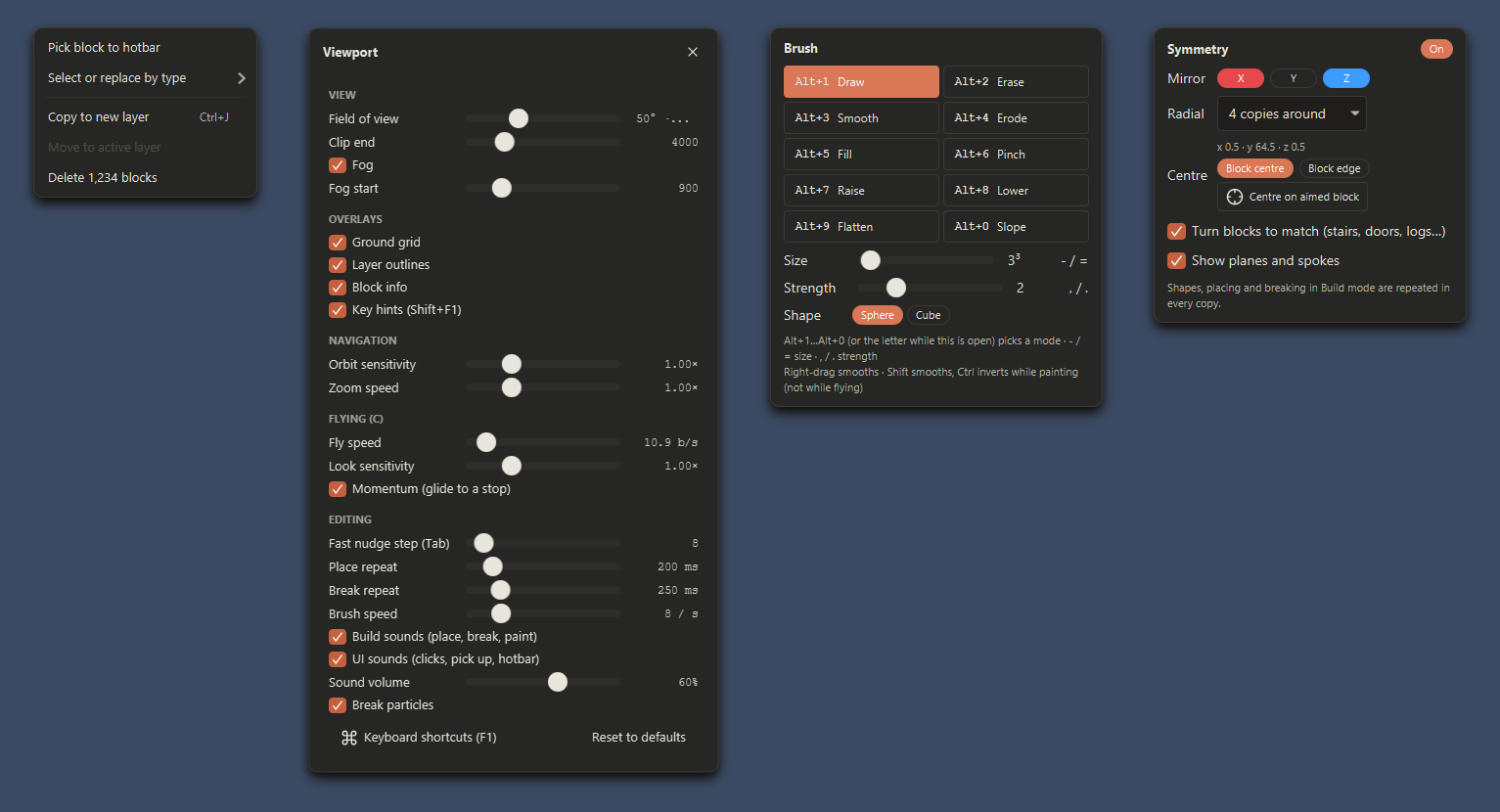
The brush modes are Draw, Erase, Smooth, Erode, Fill, Pinch, Raise, Lower, Flatten and Slope. Switch with Alt+1 to Alt+0 in that order, or open the settings with Shift+right-click to change mode, size, strength and shape.
- Right-drag smooths.
- [ and ] (or - and =) make the brush smaller or bigger (1 to 16).
- , and . make it weaker or stronger (1 to 5).
- Shift+drag smooths and Ctrl+drag inverts the mode (not while flying).
Press 2 for Select mode.
- Left-click sets pos1 and right-click sets pos2. The blocks in that box become the selection.
- Drag to marquee select. pos1 and pos2 are set to the corners of the box around the selection.
- Shift+click adds a block to the selection and Ctrl+click removes it.
- Ctrl+A selects every block of the active layer. Alt+A deselects.
- Esc clears the region and selection.
- Shift+right-click (or the Menu key) opens the context menu.
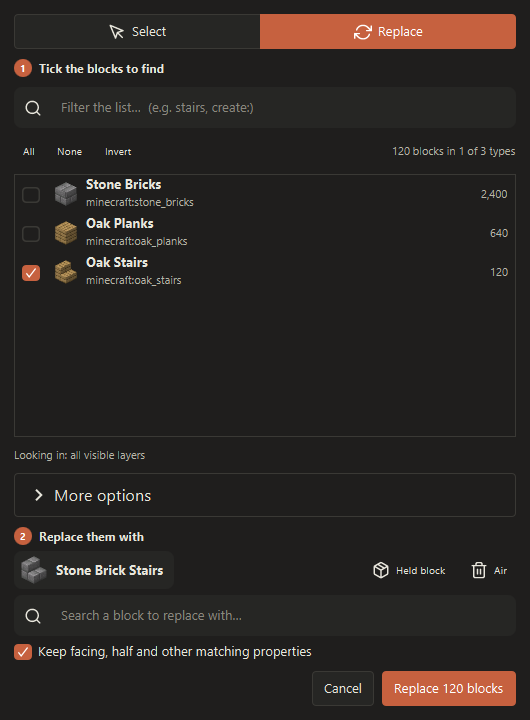
Alt+T finds blocks by kind and can swap them, keeping facing and other shared properties.
-
Ctrl+C copies and Ctrl+X cuts the selection. The clipboard is shared with
/copyand/paste. - Ctrl+V pastes: the copy follows the mouse, click to put it in the active layer (it stays selected). Right-click or Esc cancels.
- Ctrl+J copies the selection to a new layer. Ctrl+Shift+J moves it.
- Ctrl+R fills the selection with the held block.
- Delete deletes the selected blocks.
Press G, R or S for the gizmos. They work on the selected layers, or on the selected blocks.
- Drag an arrow, a square or the centre to move along an axis, in a plane or freely.
- Drag a ring to turn in 90 degree steps.
- Scale: drag a square handle to stretch along that axis, or the centre to scale evenly (whole blocks, nearest neighbour).
- Esc or right-click cancels the drag.
Hold Ctrl when you grab a gizmo to move a copy and leave the original where it was.
Press T or / to open the command line, like Minecraft's chat. Tab completes and the up and down arrows browse your history. Commands take one slash and work on every visible, unlocked layer. /help lists them.
| Command | Action |
|---|---|
/pos1, /pos2 [x y z] |
Set a corner (default: the block you aim at) |
/set <pattern> |
Fill the region, e.g. stone, 70%stone,30%andesite, hand
|
/replace [from] <to> |
Replace blocks |
/walls, /faces, /overlay, /center <pattern>
|
Side walls, all faces, a layer on top, the middle |
/smooth [passes], /naturalize
|
Smooth the terrain, grass, dirt and stone by depth |
/hollow [thickness] [pattern] |
Hollow out shapes, keeping a shell |
/copy, /cut, /paste [-a] [-s], /rotate, /flip
|
Clipboard, relative to pos1 |
/move, /stack [n] [dir] [-a]
|
Move or repeat the region's contents |
/expand, /contract, /shift <n> [dir], /outset, /inset
|
Resize or move the region |
/line, /sphere, /cyl, /pyramid (/h... hollow) |
Shapes at pos1 |
/count, /distr, /size, /sel
|
Region info, clear the region |
/undo, /redo, /help
|
Undo, redo, list commands |
Plugins can add their own commands. See Using plugins.