Usage
Start the daemon, then drive it from the CLI, TUI, or GUI. They're all clients of the same daemon — run any combination at once.
RUST_LOG=info resonanced # foreground; or `resonance daemon enable` to autostart# State & effects
resonance status # show power, preset, effects, EQ, meters
resonance power on|off # master bypass
resonance set fidelity 70 # effect intensity 0–100
# (fidelity|ambience|surround|dynamic_boost|bass)
resonance preamp -3.5 # preamp gain in dB
resonance reset # flat EQ, effects off, 0 dB preamp
# Presets & profiles
resonance load /path/to/preset.fac # load a .fac / EqualizerAPO .txt
resonance import preset.txt [name] # parse + save as a profile (no load)
resonance export my-eq.txt # write current EQ as EqualizerAPO .txt
resonance save <name> # save current state as a named profile
resonance profile <name> # load a saved profile
resonance profiles # list saved profiles
resonance rm-profile <name> # delete a profile
resonance rename <from> <to> # rename a profile
resonance list [dir] # list preset files (default: XDG library)
resonance autoeq "HD 600" # download an AutoEq correction + import it
# Output devices & per-output mappings
resonance devices # list output devices, mark the active one
resonance output <name>|auto # pin an output (or follow the system default)
resonance map <profile> # auto-load <profile> for the active output
resonance unmap # remove the active output's mapping
resonance maps # list output → profile mappings
# A/B compare
resonance store a|b # stash the current state into a slot
resonance recall a|b # restore a stashed slot
# Service control (systemd / launchd / Windows Run key)
resonance daemon start|stop|restart|enable|disable|install|uninstall|status
# Shell completions
resonance completions bash|zsh|fish|elvish|powershellFile paths (load / import / export / list) are resolved relative to your
current shell directory, not the daemon's.
resonance-tuiA ratatui terminal UI: interactive EQ curve with draggable band nodes, a live spectrum, the band table with per-band gain graph, effect sliders, and toggleable per-application / per-output volume panels. Undo/redo, a file-picker preset browser, save/export, A/B slots, and a reference/measurement overlay are all built in.
resonance-guiAn egui desktop app: a full-width EQ graph with colour-coded frequency response, per-band gain bars, click/drag band editing, a prominent power toggle, resizable panels, per-channel EQ, the reference/Auto-EQ overlay, and several themes (Settings → gear icon).
Press F1 (or ?) in the GUI to toggle the Controls & shortcuts overlay:
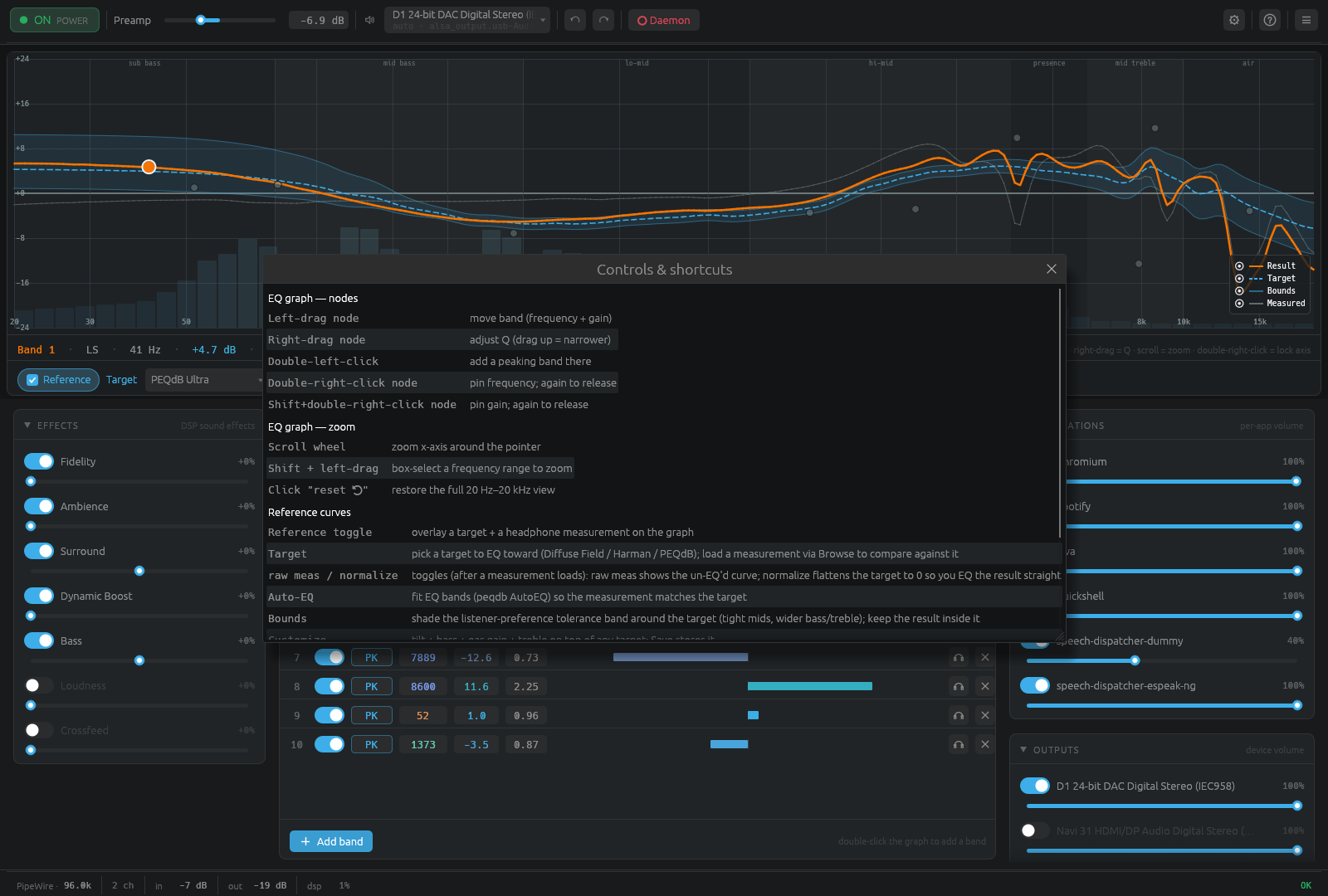
| Action | Shortcut |
|---|---|
| Move band (frequency + gain) | Left-drag node |
| Adjust Q | Right-drag node (drag up = narrower) |
| Add a peaking band | Double-left-click the graph |
| Pin frequency / gain | Double-right-click / Shift+double-right-click node |
| Zoom x-axis | Scroll wheel |
| Box-select a range to zoom | Shift + left-drag |
| Reset to 20 Hz–20 kHz | Click the reset ↺ |
| Undo / redo | Ctrl+Z / Ctrl+Y (or Ctrl+Shift+Z) |
| Toggle help | F1 / ? |
On Linux and macOS the daemon listens on a Unix socket:
-
Linux:
$XDG_RUNTIME_DIR/resonance.sock -
macOS:
$TMPDIR/resonance.sock
Override with RESONANCE_SOCKET=/some/path. On Windows the clients use a
localhost TCP port instead (its number is stored in resonance.port under
%TEMP%; RESONANCE_SOCKET overrides that path too).
Set RUST_LOG=info (or debug) for daemon logging.