Working with Play is easy. You don’t even need a sophisticated IDE as Play compiles and refreshes the modifications you make to your source files automatically. So you can easily work using a simple text editor.
However, using a modern Java or Scala IDE provides cool productivity features like auto-completion, on-the-fly compilation, assisted refactoring and debugging.
Play provides a command to simplify Eclipse configuration. To transform a Play application into a working Eclipse project, use the eclipsify command:
[My first application] $ eclipsify
You then need to import the application into your Workspace with the File/Import/General/Existing project… menu.
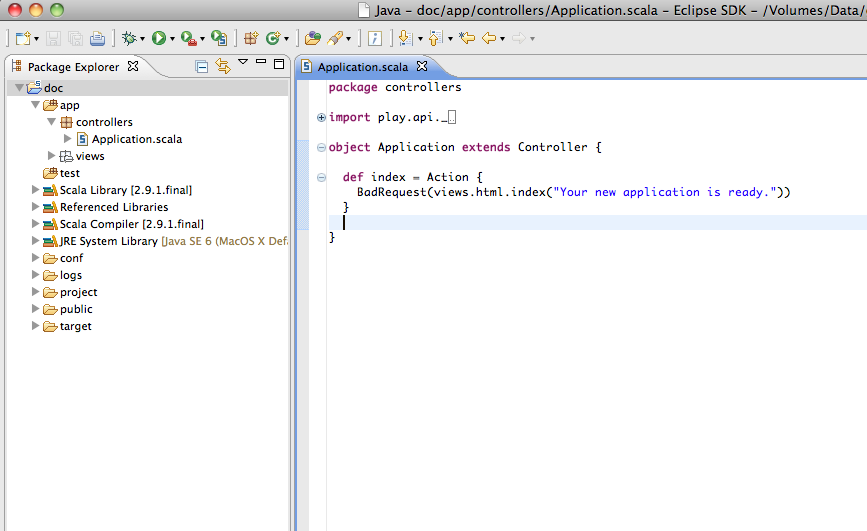
You can use the Connect JPDA launcher using Debug As to start a debugging session at any time. Stopping the debugging session will not stop the server.
If you make any important changes to your application, such as changing the classpath, use eclipsify again to regenerate the configuration files.
Do not commit Eclipse configuration files when you work in a team!
The generated configuration files contain absolute references to your framework installation. These are specific to your own installation. When you work in a team, each developer must keep his Eclipse configuration files private.
Play provides a command to simplify Intellij IDEA configuration. To transform a Play application into a working IDEA module, use the idea command:
[My first application] $ idea
You then need to import the application into your project (File->New Module->Import existing Module)

You can use the Connect JPDA launcher using Debug As to start a debugging session at any time. Stopping the debugging session will not stop the server.
If you make any important changes to your application, such as changing the classpath, use idea again to regenerate the configuration files.
Next:
Explore the sample applications
Read the Play 2.0 manual: