JavaDatabase
Play 2.0 provides a plugin for managing JDBC connection pools. You can configure as many databases you need.
To enable the database plugin, configure a connection pool in the conf/application.conf file. By convention the default JDBC data source must be called default:
# Default database configuration
db.default.driver=org.h2.Driver
db.default.url="jdbc:h2:mem:play"
To configure several data sources:
# Orders database
db.orders.driver=org.h2.Driver
db.orders.url="jdbc:h2:mem:orders"

# Customers database
db.customers.driver=org.h2.Driver
db.customers.url="jdbc:h2:mem:customers"
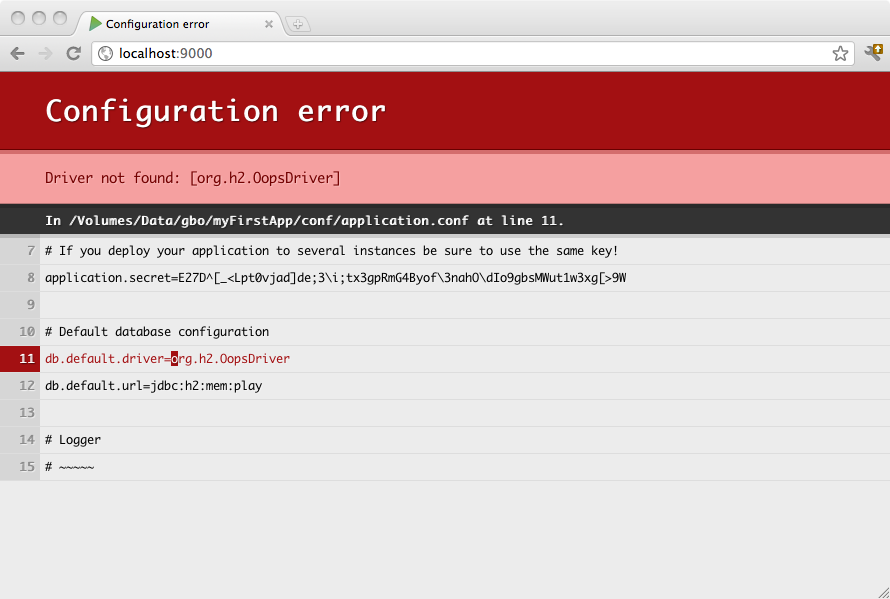
If something isn’t properly configured you will be notified directly in your browser:
The play.db package provides access to the configured data sources:
import play.db.*;

DataSource ds = DB.getDatasource();The same way you can retrieve a JDBC connection:
Connection connection = DB.getConnection();
Some libraries expect to retrieve the Datasource reference from JNDI. You can expose any Play managed datasource via JDNI by adding this configuration in conf/application.conf:
db.default.driver=org.h2.Driver
db.default.url="jdbc:h2:mem:play"
db.default.jndiName=DefaultDS
Other than h2 for in-memory database, useful mostly in development mode, Play 2.0 does not provide any database driver. Consequently, to deploy in production you will need to add your database driver as a dependency.
For example, if you use MySQL5, you need to add a dependency for the connector:
val appDependencies = Seq(
     // Add your project dependencies here,
     ...
     "mysql" % "mysql-connector-java" % "5.1.18"
     ...
)