





Take a screenshot locally → it auto-uploads via SSH → the remote file path lands on your clipboard. Built for pasting screenshots into Claude Code, OpenAI Codex, Aider, or any other AI agent running over SSH on a remote box, where you can't drag-and-drop images. macOS, Linux (X11 & Wayland), Windows, WSL.
npm install -g @flamerged/sshshotFork of HendrikYtt/clipshot with macOS support added (cherry-picked from upstream PR #1, with both Codex-flagged P1 bugs fixed) and modern dev tooling (Yarn 4, ESLint 9, Husky, lint-staged, branch protection). Original credit and license preserved.
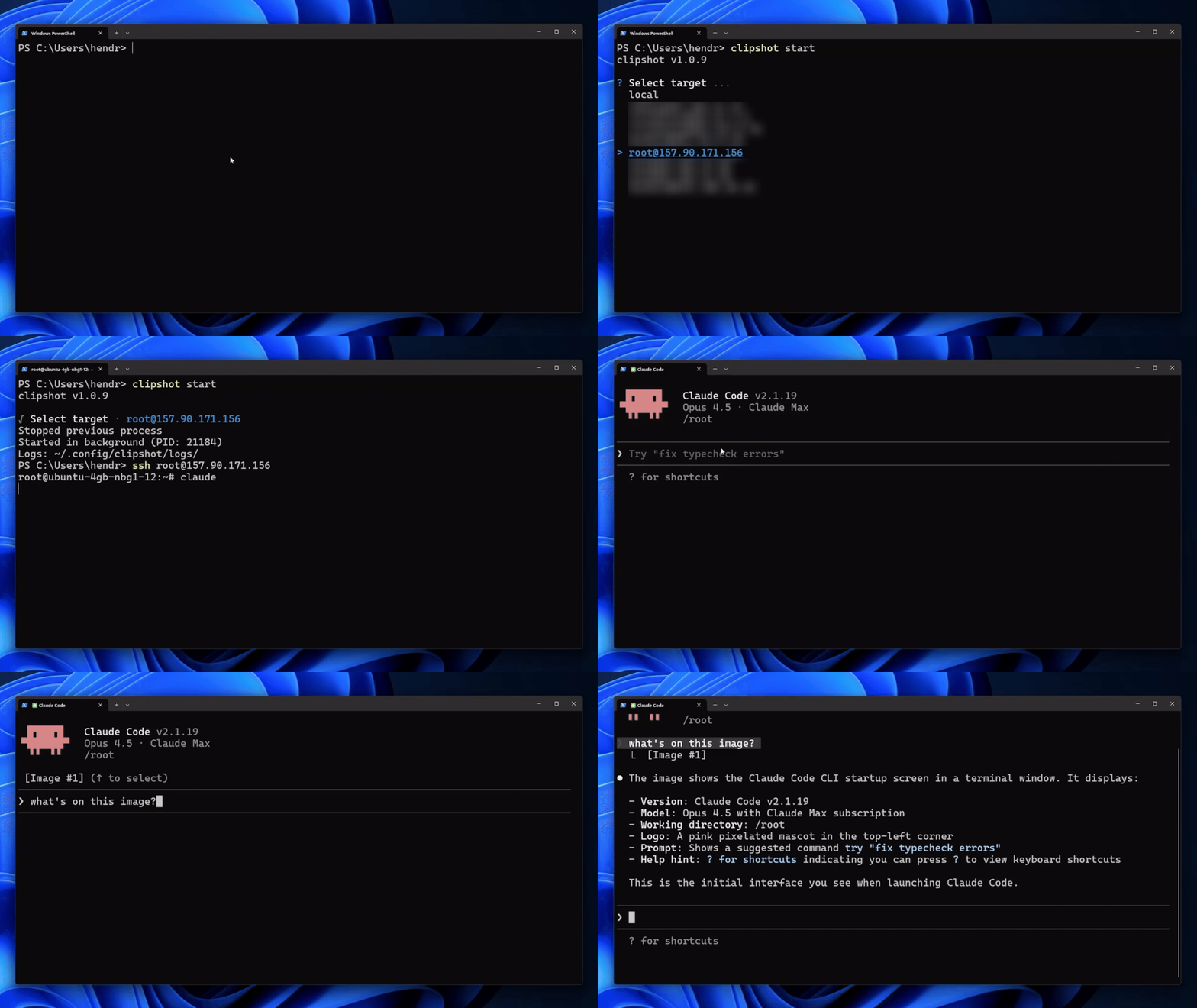 Upstream demo on Windows. macOS and Linux X11 demos are on the Roadmap.
You SSH'd into a remote dev box to use Claude Code, Codex, Aider, or any other CLI AI agent. You want to ask it about a screenshot. But you can't paste an image into a remote terminal — there's no drag-and-drop, no clipboard sharing, and uploading via scp then typing the path manually breaks your flow.
sshshot runs as a tiny background daemon on your local machine. The moment you take a screenshot:
- Locally — sshshot detects the new screenshot (clipboard or screenshot folder).
- Uploads it — pipes the image bytes through SSH to
~/sshshot-screenshots/screenshot-<timestamp>.pngon your remote. - Pastes back — replaces your clipboard with the remote absolute path to that file.
- You paste the path into Claude Code / Codex / wherever — the AI's tool layer reads the file and sees your screenshot.
No manual scp. No typing paths. Just Cmd+Shift+4, then Cmd+V into your AI prompt.
# install globally
npm install -g @flamerged/sshshot

# first run — interactive setup, auto-detects hosts from ~/.ssh/config
sshshot

# later
sshshot start    # start daemon (pick a remote)
sshshot stop     # stop daemon
sshshot status   # is it running, and against which remote
sshshot config # change remotesTwo screenshot flows are supported:
-
Cmd+Shift+3 / 4 / 5 — saves a
.pngfile to your Desktop (or whereverdefaults read com.apple.screencapture locationpoints). Zero dependencies. This is what most people use. -
Cmd+Ctrl+Shift+3 / 4 / 5 — image goes straight to clipboard, no file. Requires
pngpaste:brew install pngpaste
If pngpaste isn't installed, the daemon logs a warning and falls back silently to the file-watcher path.
Both X11 and Wayland are supported. The daemon auto-detects which session you're in (XDG_SESSION_TYPE / WAYLAND_DISPLAY) and uses the right tool. Install one of:
# Wayland (default on modern Ubuntu/Fedora/etc.)
sudo apt install wl-clipboard   # Debian/Ubuntu
sudo dnf install wl-clipboard   # Fedora
sudo pacman -S wl-clipboard     # Arch

# X11 (older sessions, X-only environments)
sudo apt install xclip          # Debian/Ubuntu
sudo dnf install xclip          # Fedora
sudo pacman -S xclip            # Arch
If the wrong tool is installed for your session type, the daemon will print a clear "install X" message at startup and clipboard reads/writes will silently no-op until you fix it.
Works out of the box — uses PowerShell's System.Windows.Forms.Clipboard. WSL is auto-detected via /proc/version.
- Claude Code over SSH — paste the path; Claude reads the file via its
Readtool. - OpenAI Codex CLI — same flow; Codex reads files referenced in prompts.
- Aider, Continue, any AI agent that can read local files on the remote — works.
- Plain ssh sessions where you want to ship a screenshot to a teammate's box — also works; you just paste the path into a chat.
- Auto-detects SSH remotes from
~/.ssh/config(does not scan shell history — by design, see Security) - Local mode for when you don't need a remote — saves to
~/sshshot-screenshots/, copies the local path - Remote mode uploads via your existing SSH config (ControlMaster connection reuse honored if you've set it)
- Per-source MD5 deduping — Mac file-saved and clipboard screenshots can't collide and re-upload each other (a real bug Codex caught in upstream PR #1)
- Background daemon — start once, take screenshots all day
- WSL support (reads Windows clipboard from inside Linux)
sshshot                  first-time setup, then start the daemon
sshshot start            start daemon (prompts for which remote)
sshshot stop             stop the running daemon
sshshot status           show running PID + target remote
sshshot target           show current active target + available targets
sshshot target <name>    switch active target without restarting the daemon
sshshot pause            keep daemon alive but stop touching the clipboard
sshshot resume           resume processing screenshots
sshshot toggle           flip pause/resume in one command
sshshot config           add/remove SSH remotes
sshshot uninstall        stop daemon + remove ~/.config/sshshot
When you want to take a screenshot for Slack/GitHub/iMessage and don't want sshshot replacing your clipboard with the remote path, don't stop the daemon — pause it:
sshshot pause     # daemon stays alive, target stays selected, clipboard untouched
# … take your local screenshot, paste it wherever …
sshshot resume    # back to processing screenshots into the remote
# or:
sshshot toggle    # flips between the two
sshshot status shows [paused] next to the running PID so you know which mode you're in. This is intentionally lighter than stop/start — no process restart, no re-prompting for which remote, instant flip.
If you have multiple remotes configured and want to change which one screenshots ship to without stopping/starting the daemon, use sshshot target:
sshshot target myhost     # next screenshot goes to "myhost"
sshshot target prod       # ...now "prod"
sshshot target local      # local-mode (saves to ~/sshshot-screenshots)
sshshot target            # show current active target
The daemon picks up the change on its next poll cycle (~200 ms). Works from any terminal, including Zed/VSCode integrated terminals — it's just a CLI command, no window-focus magic, no extra permissions.
Logs land in ~/.config/sshshot/logs/sshshot-<timestamp>.log (rotated hourly).
- TypeScript CLI. Single binary entry (
dist/index.js) that double-purposes as both the foreground configurator and the daemon (when invoked with--daemon <remote>). - Background daemon spawned with
spawn(..., {detached: true})(no shell, nonohup) so closing your terminal doesn't kill it. - 200 ms poll loop reads the clipboard and (on macOS) the screenshot folder, MD5-hashes new bytes, dedupes per source, then uploads.
- Upload mechanic:
ssh <remote> 'mkdir -p ~/sshshot-screenshots && cat > ~/sshshot-screenshots/<filename>'with the image piped to stdin. No temp files, noscp. - All OS-specific work is shell-outs (
xclip,pbcopy/pngpaste, PowerShellClipboard.GetImage()). No native modules, no Electron, no large runtime cost — the daemon idles around 30–80 MB resident.
Does this need any privileges? Sudo? Mac Screen Recording permission?
No. sshshot doesn't capture the screen — it forwards screenshots you took with your OS's built-in keystrokes. macOS pbcopy / pngpaste and reading ~/Desktop don't require TCC entitlements.
Will Claude Code / Codex actually see my screenshot, or just receive a string?
They receive the path as a string. Both tools (and most AI agents) are happy to call their built-in file-read on a .png you reference, decode the image, and use it as input. You don't have to do anything — just paste the path in your prompt and ask your question.
What about Cmd+Shift+5's video capture / screen recording feature?
sshshot only ships screenshot images (.png), not screen recordings (.mov). Recordings are out of scope.
Does this expose my screenshots to anyone else?
Only to the remote you select. Transport is plain SSH, so authentication and encryption are whatever your ~/.ssh/config already provides. The screenshot is uploaded under your remote user's home directory.
Why not use ShareX / Flameshot / Maccy / etc.? Those tools either capture and host externally (privacy: your screenshot lives on a 3rd-party server) or are clipboard managers without an SSH-paste path. sshshot's whole point is the remote box you already use becomes the destination.
Why not a browser extension? You'd still need a server to receive uploads, and AI agents running over SSH don't see your browser's clipboard. SSH-side delivery cuts out the middleman.
These are user-visible bugs surfaced by audit reviews — none silent, all observable in real workflows.
- SSH upload uses
BatchMode=yes+ an absolute upload timeout (via AbortController/kill) + a stdin EPIPE handler, so a hung remote doesn't permanently occupy an upload slot -
sshshot stophonors the daemon's 5 s in-flight-upload grace before SIGKILL — currently SIGTERM is sent and the process is killed before the daemon can finish a mid-flight upload - Decouple the poll loop from upload completion so a slow SSH upload can't cause the daemon to miss the next clipboard / file screenshot
- Process all stable macOS screenshots newer than
lastSeenScreenshotMtimein mtime order — currently a burst of multiple rapid screenshots only uploads the most recent one - Editing remotes via
sshshot configpreservesactiveTargetandpaused(currently both are silently dropped) - Typo'd CLI commands like
sshshot statprint a clear error and exit 1 — currently they fall through every known-command branch and run first-run setup, which is confusing - Fatal CLI errors set a non-zero exit code so scripts and CI detect failures (currently
main().catch(console.error)exits 0) -
loadConfigruntime-validates the parsed JSON shape (so a hand-edited{ "remotes": "host" }doesn't break the daemon);saveConfigwrites via temp-file + atomic rename so a crash mid-write can't truncate the file - Cache clipboard-tool availability at startup — currently a missing
pngpaste/xclip/wl-pasteis re-spawned every 200 ms poll -
~/.ssh/configparsing handles unreadable files (try/catch on read), dedupes auto-detected aliases, and filters?wildcards in addition to* -
removePidFileonly unlinks when the file's contents still matchprocess.pid, so a stop-and-restart race can't delete the new daemon's pid file - mtime-vs-daemon-start gate so a Screenshot-named file copied into the watch dir (restored from backup,
cp'd in, etc.) isn't mistakenly uploaded as a fresh screenshot
- Context-aware clipboard routing (macOS first) — replace clipboard with the remote path only when the foreground app is a terminal-ish thing (Terminal/iTerm2/Warp/Ghostty/Zed/VS Code/etc.). For Slack/GitHub/iMessage screenshots the image bytes stay on the clipboard.
pause/resumeis the short-term workaround. - Retry on SSH failure with exponential backoff — currently a failed upload silently drops the screenshot
- System notification on upload success / failure (
osascript -e 'display notification'on macOS,notify-sendon Linux) so the daemon's status is visible without tailing logs -
sshshot doctor— single command that reports Node version, platform/session detection, OS tool availability (pngpaste/xclip/wl-clipboard/pbcopy/PowerShell), config shape, daemon PID sanity, target reachability, SSH auth, and remote directory writability. Goes from "is it broken?" to "exactly this is missing" - Non-interactive CLI surface:
sshshot start <target>shorthand,sshshot start --local,sshshot status --json,sshshot config add/remove/list,sshshot uninstall --yes,--foregroundflag for debugging without detaching. Makes scripts, dotfiles, and launch agents painless - Start in
localmode without any SSH remotes configured — first-run UX should offer "local only" as a valid path; currentlysshshot startexits whenremotes.length === 0even thoughlocalis always a valid target -
sshshot last/sshshot history— show the most recent N uploads with timestamps + remote paths -
sshshot open— open the most recent screenshot in the system image viewer - Optional
pngquant/optipngcompression passthrough before upload — 80–90 % size reduction for similar visual quality, big win on slow links - Configurable remote upload directory (currently hardcoded to
~/sshshot-screenshots/); same for thelocalmode directory - Record macOS demo gif (current
demo-windows.gifis the upstream Windows/PowerShell flow) - Record Linux X11 / Wayland demo gif
- Optional inline image paste (instead of path) for tools that accept multipart pastes — future ergonomic win
- File Socket.dev false-positive review request once Supply Chain score plateaus
- ✅ macOS support (clipboard via
pngpaste+ screenshot-folder file watcher) - ✅ Linux Wayland clipboard via
wl-clipboard(X11 still supported viaxclip) - ✅ Localized macOS screenshot filenames (de, fr, es, pt, it, nl, sv, no, da, ja, ko, ru)
- ✅
fs.watchevent-driven detection (replaced 200ms polling on macOS, polling kept as backstop) - ✅
spawnSyncmigration forssh -Gand clipboard-write paths (no shell-interpolation surface) - ✅ Vitest test suite + CI (filename matching, hash dedupe, ssh-config parsing, safe-filename guard)
- ✅ npm Trusted Publishing via OIDC + Sigstore provenance attestations
- ✅ Conventional Commits + commitlint + branch-name enforcement (Husky)
- ✅ Auto-publishing via semantic-release (
fix:→ patch,feat:→ minor, breaking is manual)
sshshot is intentionally narrow about what it touches:
- Reads
~/.ssh/config— to enumerate hostnames you've already configured. Required for the auto-detect prompt during setup. - Reads/writes the clipboard — the whole point.
- Reads the macOS screenshot folder (file-watcher mode) and clipboard via
pngpaste— to capture the image you just took. - Pipes the image to a remote you selected via
ssh user@host— the upload mechanic.
What sshshot does not do, by deliberate design:
- Does not read your shell history (
~/.bash_history,~/.zsh_history). Reading shell history is the #1 behavioral signal of credential-stealing malware (info-stealers do exactly that to find AWS/SSH credentials), and Socket.dev's AI scanner correctly flags packages that do it. Earlier upstream versions scanned history; this fork removed it. Users without~/.ssh/configentries can add hosts manually via the setup prompt. - Does not capture the screen. The OS captures; sshshot only forwards what you produced via Cmd+Shift / Cmd+Ctrl+Shift / Print Screen.
- Does not phone home. No telemetry, analytics, or auto-update checks.
- Does not require root, sudo, or any TCC entitlement.
PRs welcome. The repo enforces:
masteris protected — CI must pass, conversation must resolve, signed commits required.- Squash-merge only (single commit lands on
masterper PR). - Pre-commit hook runs Prettier and ESLint on staged files via
lint-staged.
# clone and set up
git clone https://github.com/flamerged/sshshot.git
cd sshshot
corepack enable           # activates the pinned Yarn 4
yarn install              # generates yarn.lock the first time
yarn build                # tsc → dist/
yarn typecheck            # tsc --noEmit
yarn lint                 # eslint
yarn format # prettier --writeBuilt on clipshot by Hendrik Ytt. macOS support originally proposed in clipshot#1 by amoghbanta — the architecture (concurrent clipboard via pngpaste + screenshot-folder file watcher) is theirs; sshshot fixed two P1 bugs flagged in OpenAI Codex's review of that PR.
MIT — original copyright Hendrik Ytt, fork copyright Mersad Ajanovic.