Quickstart guide for rule elements
Rule elements are how the PF2e system handles most of the basic automation for feats, equipment, abilities, or effects. Before we start breaking them down we should clarify some Foundry specific terminology. This document will often refer to items, items are feats/ class features, spell effects, weapons, etc. In Foundry terms an item is something that goes onto an actor.
Rule elements are mostly stable, if you have an error or mistake nothing should break, but still some of the more advanced rule elements could in theory damage actors or cause Foundry to hang and require a restart. Take care when adding rule elements, make sure to do any troubleshooting/experimenting on a test actor.
A series of instructions in JavaScript Object Notation (JSON) that can be applied to an item, when that item is then put on an actor it modifies the character sheet in some way. It's another way to automation without coding! We use them as the preferred way to handle automation in the system, as they do not require hard coding into the actual system code. Despite looking a little odd at first glance they are much easier and more flexible to write than macros, and the system is building out a UI for rule elements to help you make them even easier.
- By default the GM can always see the rules tab on items. If you want to allow players to see this tab as well you can enable it in the system settings.
- Check that they have been activated:
- Open any item and check that the "rules" tab is revealed
- Try some out, head to the compendia, and find spell effects, pick one and drag it to your character.
- inspire courage is a good place to start.
- Open up the spell effect you chose and look at Rules Tab notice text in the boxes, that is a rule element
A correctly created rule element will do the work of several lines of macro. Once you get the hang of them it allows for easy automation.
The first Rule Element for this guide is the Item Bonus of the Armbands of Athleticism
{
    "key": "FlatModifier",
    "label": "Armbands of Athleticism",
    "selector": "athletics",
    "slug": "armbands-of-athleticism-1",
    "type": "item",
    "value": 2
}
They might be tricky to get the hang of, but once set up, will save you lines and lines of code.
Let's break these down:
- Key: This is the name given to the rule element within the code.
- If this is not correct your rule with do nothing!
- Label: Name your rule. Some rule elements will use this for displaying in the UI: e.g.,
FlatModifier, which will use the label for the modifier appearing in roll cards. If a label is omitted, the name of the rule element's parent item is used instead. - Selector: Specifies, or selects, what to apply your modifier to.
- There is a list at the bottom of the document.
- An incorrect selector will make your rule do nothing
- Add the
_idof an item to the selector to target a specific item or item type - Selectors for some rule elements can be arrays
- Slug: If more than one rule element has the same selector and label, all but the first will be dropped. A slug allows one to work around this limitation. It is not usually needed, however, since rarely will the selector/label combination have any collisions to worry about.
- Type: This is the modifier type
- With this set appropriately the modifier will be taken into account for bonus stacking rules
- Value: the value can be minus if you are applying a penalty
A slightly more advanced case appears in inspire courage, only one of these contains the new element, so this guide will keep the other two "minified"
{"key":"FlatModifier","label":"Inspire Courage","selector":"attack","type":"status","value":1}

{"key":"FlatModifier","label":"Inspire Courage","selector":"damage","type":"status","value":1}

{
    "key":"FlatModifier",
    "label":"Inspire Courage (vs fear)",
    "predicate": [
            "fear"
        ],
    "selector":"saving-throw",
    "type":"status",
    "value":1
}- Predicate: If you want your bonus to apply only at certain times, like only vs. fear.
- Predicates are an "array", which means they need to have
[]around them. You can separate multiple items with,. Every item in the array must be satisfied to enable the rule element.- For example, if you had a bonus that should kick in against fear effects from dragons you could use
"predicate": ["fear", "origin:trait:dragon"]to automate the bonus properly.
- For example, if you had a bonus that should kick in against fear effects from dragons you could use
- The things you predicate on are called "Roll Options". There are a lot of roll options to predicate off of, the quickest way to see what kinds of thing you can predicate on is to make an attack roll, save, or skill check then right click the roll in chat and choose "Inspect Roll", this will list all of the roll options.
- Think of each roll option as a statement about the state of the game or the actor, and predicates are tests of those statements to determine if the rule element should be active.
- An incorrect predicate will make your rule act unexpectedly, these are case sensitive.
- Predicates currently enjoy automation from the spell save button and weapon attacks/damage by querying all their traits. They can also be set in macros or using inline check buttons (see our style guide)
- You can use any of the basic logical tests as part of a predicate:
or,nor,and,nand,not, as well as comparisonslt(less than),lte(less than or equal to),gt(greater than),gte(greater than or equal to).
- Predicates are an "array", which means they need to have
This and the following section will present basic variations of all Rule Elements, most of these can be enhanced with the advanced Rule Element controls later in this guide.
FlatModifier was featured in the introduction already, and this is one of the rule elements that has a UI but we can use this to highlight some other features available to many rule elements: brackets, special values, and compound predicates. Here you can see the same rule element in the UI and in the full JSON format.

{
    "key": "FlatModifier",
    "selector": "damage",
    "value": {
        "brackets": [{
            "end": 6,
            "value": 2
        }, {
            "start": 7,
            "end": 14,
            "value": 6
        }, {
            "start": 15,
            "value": 12
        }]
    }
}
Let's start by looking at the brackets. Brackets are a way of changing the value based on some actor or item data. By default, brackets use the Level of the actor as their "field" but any actor or item data can be specified. The bracket is built up from multiple smaller objects that tell the value to change at different actor levels. The above rule element adds 2 damage from levels 1-6, then 6 damage at levels 7-14, then 12 damage from level 15 on. To scale off of something different we can specify the field as below.
{
    "key": "FlatModifier",
    "selector": "ac",
    "type": "status",
    "value": {
        "brackets": [{
            "start": 3,
            "end": 6,
            "value":  1
        }, {
            "start": 7,
            "value": 2
        }],
        "field": "item|system.level.value"
    }
}
This rule element will scale based on the level of the item the rule is on instead, most useful for spell effects that heighten. It adds 1 AC from levels 3-6, then 2 AC from 7 onward.
There is an alternative to using brackets. The value field supports using ternary operators, as well as some simple logical tests. This rule element below is identical in effect to the rule element above that uses brackets.
{
    "key": "FlatModifier",
    "selector": "ac",
    "value": "ternary(gte(@item.level, 3), ternary(gte(@item.level, 7), 2, 1), 0)"
}
A ternary has the format ternary(test, value if true, value if false) and here we have used two nested ternary calls and gte(@item.level, 3) to test if the item's level is greater than or equal to 3. gte, gt, lte, le, and eq are all available as tests. You can also use floor() or ceil() to round numbers as needed. For simple tests a ternary may be easier than brackets, but for complicated scalings it's easier to make brackets, particularly using the UI.
But what if you want a predicated bonus that should apply when some roll option isn't present? For this we need to look at compound predicates. Remember that in the predicate array each entry must be true, but we can include a sub-predicate as an entry. Here we want to add 2 damage to non agile strikes, so we use nor (Not OR) as our compound predicate. This will only add damage to strikes that are not agile. For those who used rule elements prior to PF2e system version 4.2 this is the equivalent of the older not predicate. The any predicate is now called or.
{
    "key": "FlatModifier",
    "selector": "damage",
    "predicate": [
        {"nor": ["item:trait:agile"]}
    ],
    "value": 2
}
These can be combined or further nested, to provide a large amount of customization of predicates. Like this example which applies a bonus to escape or force open actions while raging.
{
    "key": "FlatModifier",
    "predicate": [
        "self:effect:rage",
        { "or": ["action:escape", "action:force-open"] }
    ],
    "selector": "athletics",
    "type": "status",
    "value": 1
}
You can also store the selectors of a FlatModifier as an array, this has the benefit of letting you compact several rule elements into one, like this example from Inspire Courage
{
    "key": "FlatModifier",
    "selector": [
        "attack",
        "damage"
    ],
    "type": "status",
    "value": 1
}
Since both attack and damage get the same bonus we can combine them to the same RE. We can't include Inspire Courage's bonus to saves though as that is predicated on fear effects, while the attack and damage bonuses are not. Predicates would apply to all selectors.
For one last example let's come up with a bonus that applies in one of two situations. Let's say a feat gives a +1 bonus against the frightful presence of a dragon and the spells of a devil. This arbitrary example could be handled as two separate rule elements easily but we can also build a predicate that let us compact the entire thing into one.
{
  "key": "FlatModifier",
  "predicate": [
      { "or": [
          { "and": ["action:frightful-presence", "origin:trait:dragon"] },
          { "and": ["spell", "origin:trait:devil"] }
          ] }
  ],
  "selector": "saving-throw",
  "type": "circumstance",
  "value": 1
}
This new predicate is an or with two and statements under it, because it is satisfied when either of those sets are satisfied, while the and predicates are only satisfied when all of the pieces under them are present in the roll options.
Some final notes on flat modifiers: First is that if you have multiple flat modifiers to the same selector from the same item then you need to set a slug property. This lets Foundry tell the difference between each of the bonuses. Second is that you can specify the damage type when adding damage to a roll.
{
    "key": "FlatModifier",
    "selector": "strike-damage",
    "damageType": "acid",
    "value": 3
}
Note however that precision is not a damage type, it is a damageCategory, per the PF2e rules precision damage becomes the damage type of the base weapon before applying damage.
{
    "key": "FlatModifier",
    "selector": "strike-damage",
    "damageCategory": "precision",
    "value": 3
}
You can also interact with the badge value of an effect in a couple ways. First is directly referencing the value, for example this is the rule element on the Frightened condition
{
  "key": "FlatModifier",
  "selector": "all",
  "slug": "frightened",
  "type": "status",
  "value": "-@item.badge.value"
}
@item.badge.value references the "item badge", or "counter", which can be added to an effect on the sidebar of the effect. But a numeric counter is not the only badge type available. You can also add labeled counters, these add text labels to the effect in place of numeric labels, but still get referenced as numeric values. For example, this effect would look somewhat like an Oracle curse but if you put the above rule element on it it would act just like Frightened, but with a cap on the badge value of "extreme", giving a -4 penalty as it is the 4th badge value.
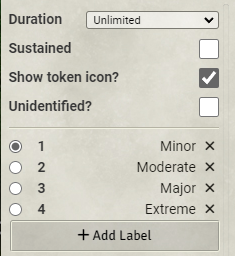
These badge values are also available in the roll options to be predicated on, If our effect was called "Fake Curse" for example we would see roll options such as this self:effect:fake-curse:1. The third option for the counter, "formula", works identically except the value of the badge is set randomly by a roll formula.
You can add immunity, weakness, resistance (IWR) to a creature with rule elements. The automation for application of damage is not complete yet but this rule element lets you easily track your IWR. Using any of them is quite straightforward.
example (fire weakness)
{
    "key": "Weakness",
    "type": "fire",
    "value": 5
}
But they can also be handed roll syntax to evaluate the value.
example (negative resist equal to half level minimum 1)
{
    "key": "Resistance",
    "type": "negative",
    "value": "max(1,floor(@actor.level/2))"
}
Immunity can be to a damage type or a condition.
example (bleed immunity)
{
    "key": "Immunity",
    "type": "bleed"
}
You can also set exceptions.
example (resist all except force, ghost touch, and positive)
{
    "key": "Resistance",
    "type": "all-damage",
    "value": 5,
    "exceptions": [
      "force",
      "ghost-touch",
      "positive"
    ]
}
You cannot set the type to a damage type or condition that does not exist however, if you added a resistance to "holy" damage the resistance would not appear, but changing the type to "good" would allow it to show up. Unique resistances, such as resistance 10 to ranged weapons or to strikes from dragons are not automatable at this time.
You can also use this rule element to remove an immunity. For example, if you have a creature with the construct trait the system will automatically add immunities tied to that trait to the actor. But this rule element would remove the healing immunity.
{
  "key": "Immunity",
  "mode": "remove",
  "type": [
    "healing"
  ]
}The FastHealing rule element can provide a reminder that you have fast healing active on the character.
LifeBoost
{
    "key": "FastHealing",
    "value": "@item.level * 2"
}A Damage Dice Rule element adds additional Dice to damage or critical damage rolls. The example adds 3d6 piercing damage to a critical strike with an improvised weapon.
DamageDice
{
    "critical": true,
    "key": "DamageDice",
    "selector": "damage",
    "diceNumber": 3,
    "dieSize": "d6",
    "damageType": "piercing",
    "predicate": [
            "item:tag:improvised"
        ],
    "label": "Shattering Strike"
}
dieSize and damageType can be omitted to add additional damage dice of the type and size that the weapon already has to the damage. You can also set the damage category to be persistent, precision, or splash. Note that DamageDice uses category rather than damageCategory like FlatModifier uses.
{
    "critical": true,
    "key": "DamageDice",
    "selector": "damage",
    "diceNumber": 2,
    "dieSize": "d6",
    "damageType": "fire",
    "category": "persistent"
}
The diceNumber or dieSize properties can be set in a value brackets object or ternary (see above), examples for such use are in the advanced section. Targeting a specific weapon with this rule is also explained in the advanced section.
The dieSize or damageType of the base strike can also be overridden like so.
{
    "key": "DamageDice",
    "override": {
        "damageType": "force",
        "dieSize": "d10"
    },
    "selector": "shortbow-damage"
}
The dieSize can also be upgraded by 1 step, rather than specifying the specific size to change to. This example upgrades strike damage dice by one step unless they are already d8 or higher.
{
    "key": "DamageDice",
    "override": {
        "upgrade": true
    },
    "predicate": [
        {
            "lte": [
                "item:damage:die:faces",
                6
            ]
        }
    ],
    "selector": "strike-damage"
}
You can also use DamageDice to alter spell damage, such as this example from Life Oracle, modifying Heal spells to use a d12.
{
    "key": "DamageDice",
    "override": {
        "dieSize": "d12"
    },
    "predicate": [
        "item:slug:heal", {
            "or": ["oracular-curse:stage:moderate", "oracular-curse:stage:major", "oracular-curse:stage:extreme"]
        },
        "all-living-targets"
    ],
    "selector": "spell-damage"
}To add a base speed value a BaseSpeed rule can be used.
BaseSpeed
{
    "key": "BaseSpeed",
    "selector": "fly",
    "value": 30
}
The selector for the BaseSpeed rule element differs from the list of selectors at the end of this file by omitting the "-speed" part.
This Rule Element can be used for effects that grant a specific proficiency for a roll, as the name suggests it sets the proficiency to the given value. It appears in the game as a modifier to the skill that makes up for the difference.
FixedProficiency
{
    "key": "FixedProficiency",
    "selector": "athletics",
    "value": 9
}
The Fixed Proficiency Rule supports a label and a name if the label is not unique.
This rule element is a bit trickier in that there are a lot of necessary fields. The easiest way to create your own custom strike would be to start from a finished strike like the monk's Tiger Claw strike here.
{
    "key": "Strike",
    "category": "unarmed",
    "damage": {
        "base": {
            "damageType": "slashing",
            "dice": 1,
            "die": "d8"
        }
    },
    "group": "brawling",
    "label": "Tiger Claw",
    "traits": [
        "agile",
        "finesse",
        "unarmed",
        "nonlethal"
    ]
}
If necessary an "ability": "int" entry could be used for a strike that scales its to-hit with intelligence, as the "Spiritual Weapon" spell could. This works with the other 3 character ability shorthands too. To add a Flat part to the damage like an ability modifier, add an additional Flat Modifier Element. An optional "range": 30 parameter can be given to denote the range of an attack. This only accepts a number or null. It no longer needs to specify melee.
The Note Rule Element adds additional text to the chat output of a roll. The note rule element has a UI, but full JSONs are shown here to demonstrate the underlying structure. This example adds a reminder to all reflex saves. The text in the title field will be put into <strong> tags automatically
{
    "key":"Note",
    "selector":"reflex",
    "title": "{item|name}",
    "text":"When you roll a success on a Reflex save, you get a critical success instead."
}
This will post a note when you roll a reflex save. But you may want to only have this note show up on a successful saving throw, so there is an outcome option. As seen on the Bravery feature
{
    "key": "Note",
    "predicate": [
        "fear"
    ],
    "selector": "will",
    "text": "When you roll a success at a Will save against a fear effect, you get a critical success instead.",
    "title": "{item|name}",
    "outcome": [
        "success"
    ]
}
Now this note will only show up on fear effects where you roll a success.
In each of these we have used {item|name} in the title field to auto fill in the name of the feat or feature automatically. We can go one further and use the same approach for the text itself as well
{
    "key":"Note",
    "selector":"initiative",
    "title": "{item|name}",
    "text":"{item|system.description.value}"
}
This will post the entire text of the item on every initiative roll your actor makes.
Some spells and items, while not armor, do impose a cap on the dexterity modifier. For those, a Dexterity Modifier Cap can be set per Rule Element.
DexterityModifierCap
{
    "key": "DexterityModifierCap",
    "value": 5
}A Rule Element for Feats, Spells, and Items that grant additional senses or increase the acuity of existing ones. For an unusual sense, a label should be provided.
Sense
{
    "key": "Sense",
    "selector": "darkvision"
}
{
"acuity": "imprecise",
"key": "Sense",
"range": 30,
"selector": "scent"
}For these Rules, the Label is queried from the language database.
The weapon potency and striking rule elements do basically the same as the flat modifier and damage dice rule elements, but with the additional feature of properly changing the damage rolls for things like backstabber (+2 to damage with a +3 potency rune) and deadly (more dice if striking rune).
WeaponPotency
{
    "key": "WeaponPotency",
    "selector": "{item|_id}-attack",
    "value": 1
}
Striking
{
    "key": "Striking",
    "selector": "{item|_id}-damage",
    "value": 1
}
While handwraps are automated by the system now if you had a similar item that granted its potency and striking runes to all weapons of some type you equipped you could use these as an example:
{
    "key": "WeaponPotency",
    "predicate": [
        "unarmed"
    ],
    "selector": "attack",
    "value": 1
}
{
"key": "Striking",
"predicate": [
"unarmed"
],
"selector": "damage",
"value": 1
}The Multiple Attack Penalty rule element can change the MAP Progression of specific strikes, or the character as a whole. The two sample Rule Elements implement a flurry ranger, put them on an Effect item and they'll make you hit very often
{
    "key": "MultipleAttackPenalty",
    "predicate": [
        "agile", "hunted-prey"
    ],
    "selector": "attack",
    "value": -2
}
{
"key": "MultipleAttackPenalty",
"predicate": [
"hunted-prey",
{ "not": "agile" }
],
"selector": "attack",
"value": -3
}The LoseHitPoints rule element is for effects that remove max and current HP from an actor. The only use in the system is Drained currently, but anything else that works similarly can be automated with it. This example below removes the actor's level from hit points. The difference between this and a negative FlatModifier to hp is that this also reduces the current HP on application, effectively damaging the actor at the same time as reducing the maximum.
{
    "key": "LoseHitPoints",
    "value": "@actor.level"
}AdjustStrike allows you to modify the properties of an existing strike by adding a trait from the strike. You must provide a definition for the strikes to be modified. You can define the adjustment to hit specific weapon names/slugs, such as the example below which adds the trip trait to the wolf jaws strike when flanking. The definition is structured exactly like a predicate, and can contain all the same statements.
{
    "definition": ["item:slug:wolf-jaws"],
    "key": "AdjustStrike",
    "mode": "add",
    "predicate": ["self:flanking"],
    "property": "weapon-traits",
    "value": "trip"
}
Any roll option can be used in the definition, so a rule element to add sweep to all finesse weapons can be done. Note that you want to provide the full roll option in the definition. item:trait:finesse instead of just finesse.
Both add and remove are allowed modes for this rule element.
AdjustModifier allows you to take a named modifier from some source and modify it before applying it. This is useful for feats that do things like breaking stacking rules like this rule from Mountain Stance that modifies the bonus from Bracers of Armor to allow for stacking of otherwise unstackable bonuses without the need to use a separate macro.
{
    "key": "AdjustModifier",
    "mode": "add",
    "relabel": "PF2E.SpecificRule.MountainStance.BracersOfArmor",
    "selector": "ac",
    "slug": "bracers-of-armor",
    "value": 4
}
Note that this combines with the flat modifier on the Bracers of Armor
{
    "key": "FlatModifier",
    "selector": "ac",
    "slug": "bracers-of-armor",
    "type": "item",
    "value": 1
}
The AdjustModifer searches for the bonus with the same selector with the same slug and adds 4. This supports add, multiply, and override so you could double a bonus, increase it by 50%, or replace it entirely with a static number as well by changing the mode. Relabel relabels the bonus, in this case it will appear as Mountain Stance w/ Bracers of Armor with the relabel field referring to our system localization files, but straight text in there works to provide a custom label.
The TokenLight rule element can be used to add light to a token with an effect. It should contain all the needed Foundry data for a light source, so any additional data you want to pass can be done. We suggest using a sample token to get the light looking good for you then take the values from that token to fill in the needed data for the rule element. The properties of the value object correspond with the Foundry API's LightData definition. The dim and bright properties can be bracketed.
{
    "key": "TokenLight",
    "value": {
        "animation": {
            "intensity": 4,
            "speed": 1,
            "type": "torch"
        },
        "bright": 20,
        "color": "#9b7337",
        "dim": 40,
        "shadows": 0.2
    }
}
Here is an example that contains all of the core Foundry light data fields
{
    "key": "TokenLight",
    "value": {
        "animation": {
            "intensity": 1,
            "speed": 1,
            "type": "lightdome"
        },
        "bright": 30,
        "color": "#9b7337",
        "dim": 0,
        "shadows": 0,
        "luminosity": 0.5,
        "gradual": false,
        "contrast": 0.5,
        "saturation": 0,
        "coloration": 1,
        "angle": 360,
        "alpha": 0.1
    }
}TokenName is a simple rule element that overrides a token's name. This is useful if you have a disguise effect.
{
    "key": "TokenName",
    "value": "Guy Incognito"
}You can define critical specialization conditions for abilities using the CriticalSpecialization rule element. Set a predicate for the conditions they get critical specialization. Barbarian Brutality for example:
{
    "key": "CriticalSpecialization",
    "predicate": ["self:effect:rage", "item:melee"]
}
By default these pull the critical specialization from the weapon group of the weapon, but these can be override. Spike Launcher, for example, is a firearm but uses the bow critical specialization. So this same rule element is used to tell the system that if you meet the requirements for critical specialization the text should be that of the bow.
{
    "alternate": true,
    "key": "CriticalSpecialization",
    "predicate": ["item:id:{item|_id}"],
    "text": "PF2E.Item.Weapon.CriticalSpecialization.bow"
}
This is just a call to the localization path for the bow weapon specialization. You can type any text in this to define your own.
The SubstituteRoll rule element allows you to manually set the result of a roll. This is mostly useful for assurance, but may be expanded to be how the system handles abilities like Devise a Stratagem, or Perfected Form.
Assurance is done in two parts, one is the SubstituteRoll and the other is an AdjustModifier to remove all non proficiency modifiers.
{
    "key": "SubstituteRoll",
    "label": "PF2E.SpecificRule.SubstituteRoll.Assurance",
    "selector": "{item|flags.pf2e.rulesSelections.assurance}",
    "slug": "assurance",
    "value": 10
}
{
"key": "AdjustModifier",
"predicate": [
"substitute:assurance",
{ "not": "bonus:type:proficiency" }
],
"selector": "{item|flags.pf2e.rulesSelections.assurance}",
"suppress": true
}The flags are set by the ChoiceSet rule element on the Assurance feat.
The MartialProficiency rule element creates a proficiency in a definable set of weapons. This RE from the Gunslinger class for example
{
    "definition": [
        "item:category:simple",
        { "or": [
            "item:group:firearm", "item:tag:crossbow"
        ] }
    ],
    "key": "MartialProficiency",
    "label": "PF2E.SpecificRule.MartialProficiency.SimpleFirearmsCrossbows",
    "slug": "simple-firearms-crossbows",
    "value": 2
}
This creates an expert (2) proficiency in all simple firearms and crossbows. A separate AE-Like rule can then increase the proficiency to master (3) by referencing the slug provided by this RE like so:
{
    "key": "ActiveEffectLike",
    "mode": "upgrade",
    "path": "system.martial.simple-firearms-crossbows.rank",
    "value": 3
}The ActiveEffect-Like Rule Element is incredibly powerful. It is more performant, flexible, and reliable than core Foundry active effects. The values it writes are done before many of the other steps of data preparation, making it safe to set data that other rule elements can read from, however this also means that you need to consider the order of data preparation for some modifications.
Some simple examples: Each feat in the barbarian dedication has this rule element on it using the add mode to count the number of feats taken from the dedication.
{
    "key": "ActiveEffectLike",
    "mode": "add",
    "path": "system.barbarianArchetype.featCount",
    "value": 1
}
This is paired with a flat modifier rule element on the Barbarian Resiliency feat to add 3 HP for every taken feat.
{
    "key": "FlatModifier",
    "selector": "hp",
    "value": "3 * @actor.system.barbarianArchetype.featCount"
}
The upgrade mode can also be used to increase ranks like so
{
    "key": "ActiveEffectLike",
    "mode": "upgrade",
    "path": "system.skills.rel.rank",
    "value": 1
}
This rule element is able to use brackets, like this rule element from Acrobat Dedication
{
    "key": "ActiveEffectLike",
    "mode": "upgrade",
    "path": "system.skills.acr.rank",
    "value": {
        "brackets": [{
            "end": 6,
            "start": 1,
            "value": 2
        }, {
            "end": 14,
            "start": 7,
            "value": 3
        }, {
            "start": 15,
            "value": 4
        }]
    }
}
The brackets used in this are the same as any other rule element, however care should be taken to not rely on other rule elements or active effects to modify the bracketed value. Character level, item level, ability scores, and other values not modified by rule elements should be safe to bracket on. Bracketing on the rank of a skill or weapon proficiency will not be safe since these are modified by other rule elements and the order of data preparation may yield unreliable results.
The modes available for use are 'multiply', 'add', 'downgrade', 'upgrade', and 'override'. It can write numbers, strings, and booleans and the value field accepts roll syntax similar to other rule elements.
you can add a field "priority" to control the order of application of the AE-likes. The lower the value the earlier the AE like gets applied during data preparation. without specifying they will default to 10 for multiply, 20 for add, 30 for downgrade, 40 for upgrade and 50 for override, making override usually effectively ignore all other AElikes.
You can also append to an array, such as adding a language to an actor like this example from the Basic Undead Benefits
{
  "key": "ActiveEffectLike",
  "mode": "add",
  "path": "system.traits.languages.value",
  "value": "necril"
}AE like REs can also be used to set or alter actor data used by the system for our more dynamic automation. One example of this is the automation present in feats such as such as Gang Up and Side by Side. It's not currently possible to have a RE predicate on allies being adjacent to or in melee range of a target in a generic way. The system is limited to using ally presence to add Flanking to an attack or damage roll. I.e., it can't add a circumstance bonus to the attack roll or an extra die of damage.
{
  "key": "ActiveEffectLike",
  "mode": "add",
  "path": "system.attributes.flanking.canGangUp",
  "value": 1
}
This RE enables the actor to be considered flanking if any ally is adjacent to their target. The field system.attributes.flanking.canGangUp is read by the system when determining flanking. The value can either be an integer, which is the minimum number of allies in melee range needed to gain Flanking, or the string "animal-companion", which provides flanking if any Animal Companion is adjacent to the target. Note that this follows the RAW: the former uses melee range while the latter uses adjacent, which is not the same if the potential flanker has Reach. In this case add does not numerically sum the values, as it usually does, but appends to a list of ways to gain ally-based Flanking. The detail that some of these abilities add Flanking, some make the target Flat-footed, and some do both, is not currently accounted for.
Other examples of this type of interaction is in the Deny Advantage feature, or on the Fetchling heritage
{
  "key": "ActiveEffectLike",
  "mode": "override",
  "path": "system.attributes.flanking.flatFootable",
  "value": "@actor.level"
}
{
"key": "ActiveEffectLike",
"mode": "override",
"path": "flags.pf2e.colorDarkvision",
"value": true
}We do not have full documentation of all the system functions that read actor data like this.
More complicated examples of AE like rule elements can be seen in deviant abilities. These abilities work by having "awakening" feats enhance already taken feats. So we need to know now only what feats have been taken but also which are still eligible to be awakened.
{
  "key": "ActiveEffectLike",
  "mode": "override",
  "path": "flags.pf2e.deviantAbilities.awakenedChoices",
  "priority": 10,
  "value": {
    "greater": [],
    "lesser": []
  }
}
This rule creates an object with two sub arrays, to work with the two levels of awakening feat. flags.pf2e.deviantAbilities.awakenedChoices.lesser would return [] in the console now. These arrays are then appended to by rules.
{
  "key": "ActiveEffectLike",
  "mode": "add",
  "path": "flags.pf2e.deviantAbilities.awakenedChoices.lesser",
  "value": {
    "label": "PF2E.SpecificRule.DeviantAbilities.AwakenedPower.BoneSpikesReach",
    "predicate": [
      {
        "not": "awakening:bone-spikes:reach"
      }
    ],
    "value": "bone-spikes:reach"
  }
}
{
"key": "ActiveEffectLike",
"mode": "add",
"path": "flags.pf2e.deviantAbilities.awakenedChoices.lesser",
"value": {
"label": "PF2E.SpecificRule.DeviantAbilities.AwakenedPower.BoneSpikesPoison",
"predicate": [
{
"not": "awakening:bone-spikes:poison"
}
],
"value": "bone-spikes:poison"
}
}This adds an entry to the array under the actor flags so that flags.pf2e.deviantAbilities.awakenedChoices.lesser returns [{value1},{value2}] where {value} are the value objects above. Then a ChoiceSet rule element can read this entire array to fill in its choices
{
  "choices": "flags.pf2e.deviantAbilities.awakenedChoices.lesser",
  "key": "ChoiceSet",
  "prompt": "PF2E.SpecificRule.DeviantAbilities.AwakenedPower.Prompt",
  "rollOption": "awakening"
}
This would then give two choices, the poison or the reach awakenings for the Bone Spikes feat. For more examples of using AE likes to store objects or arrays see the alchemist class' research fields, or automaton enhancements.
One snag you may encounter when working with ActiveEffectLike rule elements is that actor data preparation comes in separate phases. Actor data like ability score modifiers are determined early on in data prep, and so data from later steps cannot be used to modify them. For example, it would be impossible to make an effect that increases your strength score based on your current HP. The order of what data is prepared and when cannot be changed by rule elements. But when a rule element is applied can be changed by specifying the phase or priority of that rule element. The phases of data prep are, in order, applyAEs, beforeDerived, afterDerived, and beforeRoll. By default an ActiveEffectLike applies during the applyAEs phase. But if the data you want to modify is not ready in that phase you can move the application of the AE like to a later phase. For example, if you are playing with the stamina variant and want a new feat to increase the maximum resolve you can find the data path to the maximum resolve on the actor and use a RE to add to that, but resolve is based on your key ability modifier which is not ready itself during the applyAEs phase. So this RE
{
  "key": "ActiveEffectLike",
  "mode": "add",
  "path": "system.attributes.resolve.max",
  "value": 1
}
will not work. It is saying to add 1 to a value that does not exist yet, and that 1 will be overridden by the calculation later. Instead we can force the RE to apply at a later phase, specifically the afterDerived phase, as resolve is calulated just before this phase of RE application.
{
  "key": "ActiveEffectLike",
  "mode": "add",
  "path": "system.attributes.resolve.max",
  "value": 1,
  "phase": "afterDerived"
}
This is similar to the priority field explained above, however priority is the priority within the given phase. If you move the phase later then it may come too late to do other calculations. For example an AE like rule element adding 2 to strength but with the phase set as beforeRoll will come after resolve is calculated. So you would not see a corresponding increase to the resolve points from that. When implementing abilities that clash with data preparation order you may find it very difficult to implement them as written, and should consider falling back to a toggle.
RollOption is an new extension of the AE-like rule element, but made to be easier to use for setting roll options. It should be seen as the successor to the now depreciated SetProperty RE. A RollOption RE has two mandatory fields: domain and option. These correspond to the place under pf2e.flags.roll-options that the property is set. The option is the thing that gets predicated on in other rule elements.
{
    "key": "RollOption",
    "domain": "all",
    "option": "afraid-of-dragons"
}
This would set the roll option afraid-of-dragons, which another RE could pick up on.
{
    "key": "FlatModifier",
    "selector": "will",
    "value": -2,
    "type": "circumstance",
    "predicate": ["afraid-of-dragons"]
}
You can use any domain or option, but not all types of rolls check all domains for options. For example an Athletics roll does not check the damage-roll or ac domains. All rolls check the all domain, however we want to avoid overstuffing one domain. As a general rule use all if unsure or if multiple types of roll will predicate off this option. Other rule elements can be told to check non-standard domains by adding the line "roll-options":["domain1"]". Notice that the brackets indicate an array, so you can include multiple domains to check, but you must have the brackets there.
You can also use RollOption to create toggleable checkboxes, as of PF2e 3.8 this takes over for the ToggleProperty rule element.
{
    "domain": "ac",
    "key": "RollOption",
    "option": "nimble-dodge",
    "toggleable": true
}
Like most rule elements this will take the name of the item it is on as a label, but one can be provided:
{
    "domain": "all",
    "key": "RollOption",
    "option": "afraid-of-dragons",
    "toggleable": true,
    "label": "Dragons are scary"
}
For effects that should be defaulted to on you can set the default behavior inside the RE as well
{
    "domain": "all",
    "key": "RollOption",
    "label": "PF2E.SpecificRule.Psychic.UnleashPsyche.DamageLabel",
    "option": "unleash-psyche-damage",
    "toggleable": true,
    "value": true
}
RollOptions with toggles can also have suboptions, which create a selectable menu to choose from sub-options. From Spirit Instinct for example.
{
  "domain": "all",
  "key": "RollOption",
  "label": "PF2E.SpecificRule.Barbarian.Spirit.ToggleLabel",
  "option": "spirit-rage",
  "predicate": [
    {
      "or": [
        "class:barbarian",
        "feat:instinct-ability"
      ]
    }
  ],
  "suboptions": [
    {
      "label": "PF2E.SpecificRule.Barbarian.Spirit.PositiveDamage",
      "value": "positive"
    },
    {
      "label": "PF2E.SpecificRule.Barbarian.Spirit.NegativeDamage",
      "value": "negative"
    }
  ],
  "toggleable": true
}
This damage type is then referenced in an AdjustModifier rule element
{
  "damageType": "{item|flags.pf2e.rulesSelections.spiritRage}",
  "key": "AdjustModifier",
  "mode": "upgrade",
  "predicate": [
    "spirit-rage"
  ],
  "selectors": [
    "strike-damage"
  ],
  "slug": "rage",
  "value": 3
}
The spiritRage flag is set by turning the option field to camelCase.
The Choice Set Rule Element is a highly flexible Rule Element, prompting a character to make a choice from a list of options. This choice is then stored as a flag on the actor, which can be referenced in other Rule Elements, using the data path "flags.pf2e.rulesSelections..".
ChoiceSet
{
    "key": "ChoiceSet",
    "choices": [{
        "label": "PF2E.TraitFire",
        "value": "fire"
    }, {
        "label": "PF2E.TraitWater",
        "value": "water"
    }, {
        "label": "PF2E.TraitEarth",
        "value": "earth"
    }, {
        "label": "PF2E.TraitAir",
        "value": "air"
    }]
}
Another use is for the choices to be the uuids of items. In combination with Grant Item, this is used for subclass selection, and features like the Dwarf's Clan Weapon.
{
   "adjustName": false,
   "allowedDrops": {
       "label": "level-0 dwarf weapon",
       "predicate": ["item:level:0", "item:trait:dwarf", "item:type:weapon"]
   },
   "choices": [{
       "img": "systems/pf2e/icons/equipment/weapons/clan-dagger.webp",
       "label": "PF2E.Weapon.Base.clan-dagger",
       "value": "clan-dagger"
   }, {
       "img": "systems/pf2e/icons/equipment/weapons/clan-pistol.webp",
       "label": "PF2E.SpecificRule.ClanWeapon.ClanPistol",
       "value": "clan-pistol"
   }],
   "flag": "clanWeapon",
   "key": "ChoiceSet",
   "label": "PF2E.SpecificRule.ClanWeapon.Label",
   "prompt": "PF2E.SpecificRule.ClanWeapon.Prompt",
}
"prompt" creates a heading on the prompt, to tell the character what choice they are making.
"adjustName" determines whether to edit the name of the original item to include the selection made.
The choices are defined as an array. A label isn't needed if a uuid is supplied, as it will default to the item's name.
"flag" manually sets the flag's name for the rulesSelections data path. This is useful if you do not want it to use the item's name.
"allowedDrops" allows for other items to be dropped in, and defines which items are valid to be added. The "label" here is used to indicate what items can be dragged in.
You can also use a "rollOption" field, to store the choice on the actor as a flag. This adds a prefix to the Choice, so "rollOption":"prefix" would create a flag of "prefix:choice" on the actor. This is valuable when you wish to store the choice made, for reference on other items.
For an example, Canny Acumen uses a Choice Set to pick either one of the three saves, or Perception, and then an AELike to upgrade our proficiency in that choice.
{
    "key":"ChoiceSet",
    "choices":[{
        "label":"PF2E.SavesFortitude",
        "value":"system.saves.fortitude.rank"
    },{
        "label":"PF2E.SavesReflex",
        "value":"system.saves.reflex.rank"
    },{
        "label":"PF2E.SavesWill",
        "value":"system.saves.will.rank"
    },{
        "label":"PF2E.PerceptionLabel",
        "value":"system.attributes.perception.rank"
    }]
}
{
"key": "ActiveEffectLike",
"mode": "upgrade",
"path": "{item|flags.pf2e.rulesSelections.cannyAcumen}",
"value": {
"brackets": [
{
"end": 16,
"start": 1,
"value": 2
},
{
"start": 17,
"value": 3
}
]
}
}This pair of rule elements would let you choose a skill then train you in that skill.
{
    "choices": [{
        "label": "PF2E.SkillArcana",
        "value": "arcana"
    }, {
        "label": "PF2E.SkillCrafting",
        "value": "crafting"
    }, {
        "label": "PF2E.SkillNature",
        "value": "nature"
    }, {
        "label": "PF2E.SkillReligion",
        "value": "religion"
    }, {
        "label": "PF2E.SkillOccultism",
        "value": "occultism"
    }, {
        "label": "PF2E.SkillSociety",
        "value": "society"
    }],
    "key": "ChoiceSet",
    "prompt": "PF2E.SpecificRule.Prompt.Skill",
    "flag": "skill"
}
{
"key": "ActiveEffectLike",
"mode": "upgrade",
"path": "system.skills.{item|flags.pf2e.rulesSelections.skill}.rank",
"value": 1
}As a final example for ChoiceSet take this from oracle curses, which features individual choices being predicated as well as the entire ChoiceSet itself
{
    "adjustName": true,
    "choices": [{
        "label": "PF2E.OracleCurses.Label.Minor",
        "value": "minor"
    }, {
        "label": "PF2E.OracleCurses.Label.Moderate",
        "predicate": ["class:oracle"],
        "value": "moderate"
    }, {
        "label": "PF2E.OracleCurses.Label.Major",
        "predicate": ["feature:major-curse"],
        "value": "major"
    }, {
        "label": "PF2E.OracleCurses.Label.Extreme",
        "predicate": ["feature:extreme-curse"],
        "value": "extreme"
    }],
    "key": "ChoiceSet",
    "predicate": [{
        "or": ["class:oracle", "feat:first-revelation"]
    }],
    "prompt": "PF2E.UI.RuleElements.ChoiceSet.Prompt",
    "rollOption": "oracular-curse:stage"
}
It may help to break down this behavior in terms of the game rules. With oracle curses a multiclass oracle does not get the curse benefits until they take the First Revelation feat. So the entire ChoiceSet is predicated on either being an oracle as your class or having that feat. Then only oracles can access the moderate curse benefits, so that choice is predicated on being an oracle. Once the oracle is high enough level they get access to the major and extreme curse levels with the respective features so those choices are predicated on having those features. Finally it sets the stage of the curse as a roll option once chosen. So selecting the major curse adds the roll option oracular-curse:stage:major for feats and features to predicate on.
The Grant Item Rule Element allows an item to be granted to a character by another item. This occurs when the item is first added to the actor, and the Rule Element will not work if added to items already on a character.
The example here is the Shield Block feature for Fighter, to grant then the Shield Block general feat.
{
    "key": "GrantItem",
    "uuid": "Compendium.pf2e.feats-srd.jM72TjJ965jocBV8"
}
You can also use predicates to grant an item only to certain characters. This works like other predicates, and is useful for abilities and options granted depending on the character. Here, the Perpetual Infusion class feature grants a specific item depending on subclass.
{
    "key": "GrantItem",
    "replaceSelf": true,
    "uuid": "Compendium.pf2e.feats-srd.7LB00jkh6JaJr3vS",
    "predicate": ["feature:bomber"]
}
{
"key": "GrantItem",
"replaceSelf": true,
"uuid": "Compendium.pf2e.feats-srd.fzvIe6FwwCuIdnjX",
"predicate": ["feature:chirurgeon"]
}"replaceSelf" is used here to delete the original item once the Rule Element item is granted.
However, due to how Grant Item works, if a character is updated to meet the predicate after the rule has been added, the item still will not be granted. You can add "reevaluateOnUpdate":true to cause the Rule Element to check if the character meets the prerequisites at any point, at which point the GrantItem will execute. This is useful for features that grant you additional abilities if you meet their prerequisites at any point, such as Intimidating Prowess.
You can also use Grant Item with Choice Set, to allow the character to choose an item from a list, and grant it to themselves. This can be seen on the Rule Elements for subclass selection, such as the Druid's Order.
{
    "adjustName": false,
    "allowedDrops": {
        "label": "level 1 druid class feature",
        "predicate": ["item:level:1", "item:trait:druid", "item:type:feature"]
    },
    "choices": [{
        "value": "Compendium.pf2e.classfeatures.POBvoXifa9HaejAg"
    }, {
        "value": "Compendium.pf2e.classfeatures.NdeFvIXdHwKYLiUj"
    }, {
        "value": "Compendium.pf2e.classfeatures.u4nlOzPj2WHkIj9l"
    }, {
        "value": "Compendium.pf2e.classfeatures.fKTewWlYgFuhl4KA"
    }, {
        "value": "Compendium.pf2e.classfeatures.acqqlYmti8D9QJi0"
    }, {
        "value": "Compendium.pf2e.classfeatures.FuUXyv2yBs7zRgqT"
    }, {
        "value": "Compendium.pf2e.classfeatures.v0EjtiwdeMj8ykI0"
    }],
    "key": "ChoiceSet",
    "prompt": "Select a Druidic Order."
}
{
"key":"GrantItem",
"uuid":"{item|flags.pf2e.rulesSelections.druidicOrder}"
}If you are granting an item that has a ChoiceSet on it you can pre-select the choice to skip the dialog, for example if a feature granted you Assurance (Performance) you could use
{
    "key": "GrantItem",
    "preselectChoices": {
        "assurance": "performance"
    },
    "uuid": "Compendium.pf2e.feats-srd.Assurance"
}
Where the key assurance matches the flag of the ChoiceSet on the Assurance feat. If an item has multiple ChoiceSets you can specify all or some of the choices this way by adding to the preselectChoices object.
You can also grant conditions, and set the badge value during the grant, this for example grants the Stupefied 2 condition when either major or extreme are set as the oracle curse stage.
{
  "alterations": [
    {
      "mode": "override",
      "property": "badge-value",
      "value": 2
    }
  ],
  "key": "GrantItem",
  "onDeleteActions": {
    "grantee": "restrict"
  },
  "predicate": [
    {
      "or": [
        "oracular-curse:stage:major",
        "oracular-curse:stage:extreme"
      ]
    }
  ],
  "uuid": "Compendium.pf2e.conditionitems.e1XGnhKNSQIm5IXg"
}
The onDeleteActions object controls the behavior on deletion of the granter and grantee. grantee allows you to set the behavior of the granted item, while granter lets you control the behavior of the granting item, in most cases grantee will be the property to modifiy. In this case restrict locks the condition in place as long as the effect granting the condition is active. Other options here are cascade which will delete both the granted condition and the parent effect if either are removed, detach which will leave the condition in place if the parent effect is removed. The default case allows for the deletion of the granted effect without affecting the parent, but removing the parent removes the granted item.
The EphemeralEffect rule element allows you to place temporary effects that apply only during some calculation. For example an ability that gave the target a penalty to saves against your spells if you are frightened would be doable by this rule element. The use of this can be seen in the system on the Surprise Attack feature, which treats your target as flat-footed if you act before them on the first round of initiative when you rolled deception or stealth for your initiative
{
    "key": "EphemeralEffect",
    "predicate": [
        "encounter:round:1",
        {
            "lt": [
                "self:participant:initiative:rank",
                "target:participant:initiative:rank"
            ]
        },
        {
            "or": [
                "self:participant:initiative:stat:deception",
                "self:participant:initiative:stat:stealth"
            ]
        }
    ],
    "selectors": [
        "strike-attack-roll",
        "spell-attack-roll",
        "strike-damage",
        "attack-spell-damage"
    ],
    "uuid": "Compendium.pf2e.conditionitems.AJh5ex99aV6VTggg"
}While these Rule Elements can be used anywhere, just like the rest, they are usually used for temporary Effects and for technical reasons work better when used on an Effect item than with a toggleable RollOption.
Just as the name implies this Rule element adds Temporary HP to a character the moment the effect is added. Many Temp HP Effects derive their value from player stats, the Rage Element is a prime example of how this can be done with the system. The first example is from the Aeon Stone (Pink Rhomboid).
TempHP
{
    "key": "TempHP",
    "value": 15
}
{
"key": "TempHP",
"value": "@actor.level + @actor.abilities.con.mod"
}This will apply an effect icon to the token it is applied to.
By Default the Effect Icon is the Icon of the Item/feat/Effect that carries the Rule element, to change that an additional field can be used.
{
"key": "TokenEffectIcon",
"value": "systems/pf2e/icons/spells/all-is-one-one-is-all.jpg"
}This rule element will change the token of an actor to the boar token that is included in the system. It is useful for Wild Shape or can be customized to set expressions on PCs per effect item.
TokenImage
{
"key": "TokenImage",
"value": "systems/pf2e/icons/bestiary-1/boar.webp"
}You can also predicate the image change
{
"key": "TokenImage",
"value": "images/doggo_form.webp",
"predicate": ["self:effect:animal-form-canine"]
}You can also specify a token scale in this rule element, this is useful for token art that breaks the borders of the square.
{
"key": "TokenImage",
"value": "images/tokens/big-wings.webp",
"scale": 2.5
}This rule element can be used on a 2nd level enlarge spell effect to resize an actor and its token. Removing the item with this rule element will reset the size to the original token size again.
CreatureSize
{
"key": "CreatureSize",
"value": "large"
}{
"key": "ActorTraits",
"add": ["humanoid", "human", "elf"]
}You can use the RollTwice rule element to automatically set fortune or misfortune effects.
{
"key": "RollTwice",
"keep": "higher",
"selector": "attack-roll"
}By default if the source is an effect item then the effect will auto expire after a single roll is made. This behavior can be overriden by setting "removeAfterRoll": false in the rule element.
This rule element lets you create an aura template, which applies a specified effect to the relevant targets
{
"effects": [
{
"affects": "allies",
"events": [
"enter"
],
"uuid": "Compendium.pf2e.feat-effects.Ru4BNABCZ0hUbX7S"
}
],
"key": "Aura",
"radius": 10,
"slug": "marshals-aura",
"traits": [
"emotion",
"mental",
"visual"
],
"colors": {
"border": "#00FF00",
"fill": "#00FF00"
}
}This example applies to all allies when they enter the aura, and is removed when the ally leaves the aura.
You can change allies to all or enemies to change who's affected. Currently only enter is supported, but in the future you be able to use turn-start or turn-end to change when the effect will be applied. You can add "removeOnExit": false to make the effect persist after the target leaves the aura; if you skip this field, it will default to true. Currently there is no way to require a save before application.
Auras that directly grant conditions need an effect to contain the condition grant currently. This is an area the system will be improving on as GrantItem support is expanded.
You may also predicate who the aura is granted to, as well as determine if the originating actor is affected by the aura, such as this example from Commanding Aura that only afffects allied drow
{
"effects": [
{
"affects": "allies",
"events": [
"enter"
],
"includesSelf": false,
"predicate": [
"target:trait:drow"
],
"uuid": "Compendium.pf2e.bestiary-effects.iDLu83vhWoNIE7xt"
}
],
"key": "Aura",
"radius": 30,
"slug": "commanding-aura",
"traits": [
"emotion",
"mental"
]
}Traits such as "visual" and "auditory" will affect what kind of walls the aura can pass through; a visual aura can pass through a wall that permits sight but forbids sound, while an auditory aura cannot. If an aura doesn't have a trait like visual or auditory, it can't pass through that kind of wall.
This Rule Element uses brackets that do not depend on the players level but on the carrier items level instead (In this case the Spell Effect for Heroism)
{
"key": "FlatModifier",
"label": "Heroism",
"selector": "saving-throw",
"type": "status",
"value": {
"brackets": [
{
"end":5,
"start":3,
"value":1
},
{
"end":8,
"start":6,
"value":2
},
{
"start":9,
"value":3
}
],
"field": "item|system.level.value"
}
}in a value, the @ notation can be used to query anything in an Actor or Item.
{
    "key": "TempHP",
    "value": "@actor.level + @actor.abilities.con.mod"
}"value": {"brackets":[]} can be used to edit properties that are not the value property by declaring the properties in an object under "value". This example acts as a diceNumber Property on the lowest level of the Rule ELement.
{
    "key": "DamageDice",
    "predicate": [
            "melee",
            "power-attack"
    ],
    "selector": "damage",
    "value": {
        "brackets": [
            {
                "end": 9,
                "value": {
                    "diceNumber": 1
                }
            },
            {
                "end": 17,
                "start": 10,
                "value": {
                    "diceNumber": 2
                }
            },
            {
                "start": 18,
                "value": {
                    "diceNumber": 3
                }
            }
        ]
    }
}It is possible to override damage dice properties by using an override field. In this case the Rule element will model the effect of a critical fatal d12 strike against a creature that is immune to critical damage, by increasing the number of dice by one undeclared (weapon) die and the range of the die to d12, regardless of the base damage die size.
{
    "key": "DamageDice",
    "selector": "{item|_id}-damage",
    "critical": true,
    "diceNumber": 1,
    "override": {
        "dieSize": "d12"
    }
}To edit rolls derived from an item (only strikes and damage right now) you can prepend the selector with either a "slugified" version of the name (only small letters and "-") or the ID of the item. If you place the rule on the item you can use "{item|_id}" as part of the selector, this will be translated to the items ID without the hassle to look it up and is portable between items.
{
    "key": "DamageDice",
    "selector": "{item|_id}-damage",
    "diceNumber": 1,
    "dieSize": "d4",
    "damageType": "fire",
    "predicate": [
            "on-fire"
        ],
    "label": "Ignited"
}
Another way to prepend the selector is to use the "slugified" name of the weapon group or the weapon name like these:
{
    "key": "FlatModifier",
    "selector": "brawling-weapon-group-damage",
    "value": 1,
    "label": "Ignited"
}
{
"selector":"smoking-sword-damage",
"critical":false,
"key":"DamageDice",
"diceNumber":1,
"dieSize":"d6",
"damageType":"fire",
"label":"Stoke Flames"
}Some Rule Elements should only work if the character uses a specific proficiency, this can be done with brackets over "actor.system.skills.ath.rank" or with predicates. An Example is the Rangers Masterful Hunter Feature.
{
    "domain": "ranged-attack-roll",
    "key": "RollOption",
    "option": "ignore-range-penalty:3",
    "predicate": ["hunted-prey", {
        "gte": ["item:proficiency:rank", 3]
    }]
}For Strike rules elements, you can add options, e.g.
"options": ["dragon-jaws"]. Other rules elements can then target this with predicates. This is basically the same as giving a strike a trait, but it doesn't show up in the UI, which can be handy!
The type can be save, skill or attribute (attribute can only take perception as a selector). Adjustment can be one-degree-better or one-degree-worse
Example (Juggernaut Feat):
{
    "key": "AdjustDegreeOfSuccess",
    "type": "save",
    "selector": "fortitude",
    "adjustment": {
        "success": "one-degree-better"
    }
}
Example (Risky Surgery Feat):
{
    "key": "AdjustDegreeOfSuccess",
    "type": "skill",
    "selector": "medicine",
    "predicate": ["risky-surgery"],
    "adjustment": {
        "success": "one-degree-better"
    }
}
List of valid selectors
all (all checks and damage rolls)
str-based
dex-based
con-based
int-based
wis-based
cha-based
attack
attack-roll
strike-attack-roll
spell-attack-roll
str-attack
dex-attack
con-attack
int-attack
wis-attack
cha-attack
damage
strike-damage
spell-damage
attack-spell-damage
saving-throw
fortitude
fortitude-dc
reflex
reflex-dc
will
will-dc
initiative
perception
perception-dc
class
inline-dc
ac
hp
hp-per-level
all-speeds
land-speed
burrow-speed
climb-speed
fly-speed
swim-speed
skill-check
lore-skill-check
acrobatics
arcana
athletics
crafting
deception
diplomacy
intimidation
medicine
nature
occultism
performance
religion
society
stealth
survival
thievery
${tradition}-spell-dc
spell-dc