Configuration
FreeCAD AI stores all settings in a single JSON file and provides a GUI dialog for editing them. No environment variables or .env files are needed.
Open the settings dialog in any of these ways:
- Menu: FreeCAD AI > AI Settings
- Toolbar: click the "AI Settings" button in the FreeCAD AI toolbar
- Chat panel footer: click the gear icon at the bottom of the chat dock widget
The dialog has six sections: LLM Provider, Parameters, Behavior, MCP Servers, User Tools, and a Test Connection button.
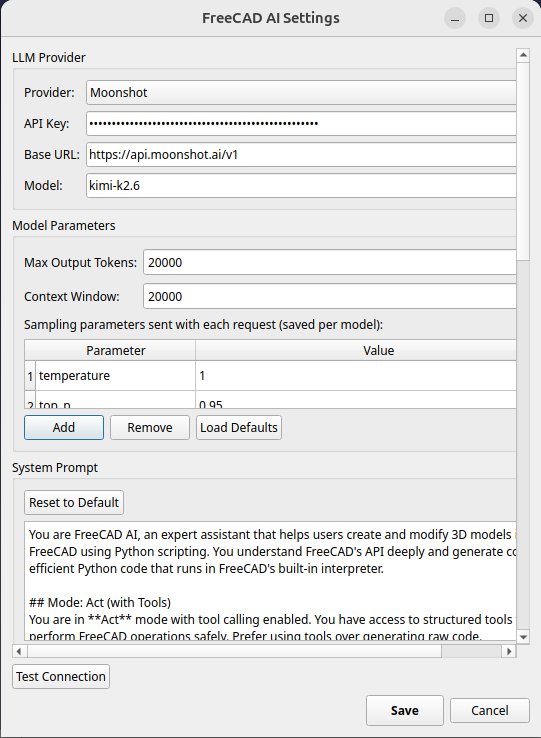
| Field | Description |
|---|---|
| Provider | Dropdown to select the LLM backend. Changing this auto-fills Base URL and Model with defaults. |
| API Key | Your provider's API key. Stored in plaintext in the config file. Leave empty for Ollama. |
| Base URL | The API endpoint. Auto-filled from provider presets but can be overridden. |
| Model | The model name to use. Auto-filled with the provider's recommended default. |
| Field | Description | Default |
|---|---|---|
| Max Output Tokens | Maximum number of tokens the LLM can generate per response. Range: 256--262,144. This controls output length only, not the context window. | 4096 |
| Temperature | Controls randomness. Lower values (0.1--0.3) produce more deterministic output; higher values (0.7--1.0) produce more creative output. Range: 0.0--2.0. | 0.3 |
| Field | Description | Default |
|---|---|---|
| Auto-execute code in Act mode | When checked, the assistant executes tool calls immediately without asking for confirmation. When unchecked, each tool call shows a confirmation dialog. | Off |
| Thinking | Controls LLM reasoning chains. See the Thinking Mode section below. | Off |
A list of configured Model Context Protocol servers. See MCP Integration for details.
- Add... -- opens a dialog to add a new MCP server (name, command, args, deferred, enabled).
- Remove -- removes the selected server from the list.
Each server in the list shows its status tags (e.g., (deferred), (disabled)).
Register your own Python functions as LLM-callable tools. Files in ~/.config/FreeCAD/FreeCADAI/tools/ are automatically discovered and validated.
-
Tool list -- shows all discovered tool files with status indicators:
-
✓valid (green) -- tool loaded successfully -
⚠warning (yellow) -- loaded with warnings (e.g., missing docstring) -
✗error (red) -- validation failed (e.g., syntax error, no typed functions)
-
-
Add... -- opens a file picker to copy a
.pyor.FCMacrofile into the tools directory. - Remove -- deletes the selected file from the tools directory.
- Reload -- re-scans and re-validates all tool files.
-
Also scan FreeCAD macro directory -- when checked, also scans
~/.config/FreeCAD/Macro/for compatible tool functions.
See Creating Custom Tools for the function convention and examples.
Click Test Connection to verify your provider settings. The workbench sends a small test request to the configured endpoint and displays the result:
- Green text -- connection successful, shows a snippet of the response.
- Red text -- connection failed, shows the error message.
The test temporarily applies whatever values are currently in the dialog (you do not need to save first).
After verifying, click Save to persist settings or Cancel to discard changes.
| Provider | API Key Required | API Style | Default Model | Tool Calling | Notes |
|---|---|---|---|---|---|
| Ollama | No | OpenAI-compatible | llama3 |
Yes | Local, free, no data leaves your machine |
| Anthropic | Yes | Native Anthropic | claude-sonnet-4-20250514 |
Yes | Best tool calling quality |
| OpenAI | Yes | OpenAI | gpt-4o |
Yes | Wide model selection |
| Gemini | Yes | OpenAI-compatible | gemini-2.0-flash |
Yes | Google AI, generous free tier |
| OpenRouter | Yes | OpenAI-compatible | anthropic/claude-sonnet-4-20250514 |
Yes | Multi-provider gateway, pay-per-token |
| Custom | Varies | OpenAI-compatible | (none) | No* | Any OpenAI-compatible endpoint |
* Custom providers have tool calling disabled by default. If your custom endpoint supports tool calling, the assistant will fall back to code generation.
No API key needed. Install Ollama and pull a model (see Installation#Ollama Setup (Local Models)).
- Set Provider to Ollama.
- Leave API Key empty.
-
Base URL:
http://localhost:11434/v1(default). -
Model: enter the model name you pulled, e.g.,
qwen3,llama3,qwen2.5-coder. - Click Test Connection, then Save.
Recommended models for FreeCAD AI:
-
qwen3-- good tool calling, 8B parameters, runs on most hardware -
qwen2.5-coder-- strong at code generation, 7B parameters -
llama3-- fast general-purpose model, 8B parameters
- Go to console.anthropic.com and create an account.
- Navigate to API Keys and create a new key.
- In FreeCAD AI settings:
- Provider: Anthropic
-
API Key: paste your key (starts with
sk-ant-) -
Base URL:
https://api.anthropic.com(default) -
Model:
claude-sonnet-4-20250514(default, recommended)
- Click Test Connection, then Save.
Anthropic uses its own native API format (not OpenAI-compatible). The workbench handles this automatically.
Available models: claude-sonnet-4-20250514, claude-haiku-3-20250414, claude-opus-4-20250514
- Go to platform.openai.com and create an account.
- Navigate to API Keys and create a new key.
- In FreeCAD AI settings:
- Provider: OpenAI
-
API Key: paste your key (starts with
sk-) -
Base URL:
https://api.openai.com/v1(default) -
Model:
gpt-4o(default, recommended)
- Click Test Connection, then Save.
Available models: gpt-4o, gpt-4o-mini, gpt-4-turbo, o1, o1-mini
- Go to aistudio.google.dev and sign in with your Google account.
- Click Get API Key and create a new key.
- In FreeCAD AI settings:
- Provider: Gemini
- API Key: paste your key
-
Base URL:
https://generativelanguage.googleapis.com/v1beta/openai(default) -
Model:
gemini-2.0-flash(default, recommended)
- Click Test Connection, then Save.
Gemini uses an OpenAI-compatible endpoint provided by Google, so no special handling is needed.
Available models: gemini-2.0-flash, gemini-2.0-flash-lite, gemini-1.5-pro
OpenRouter is a gateway that routes requests to many providers (Anthropic, OpenAI, Google, Meta, Mistral, and more). You get a single API key and pay per token.
- Go to openrouter.ai and create an account.
- Navigate to Keys and create a new key.
- In FreeCAD AI settings:
- Provider: OpenRouter
- API Key: paste your key
-
Base URL:
https://openrouter.ai/api/v1(default) -
Model:
anthropic/claude-sonnet-4-20250514(default) or any model from the OpenRouter catalog
- Click Test Connection, then Save.
Model names on OpenRouter use the provider/model format. Browse the model list to find alternatives.
Use this for self-hosted models (vLLM, text-generation-inference, LM Studio, etc.) or any endpoint that implements the OpenAI /chat/completions API.
- Set Provider to Custom.
- Enter the Base URL of your endpoint (e.g.,
http://localhost:8000/v1). - Enter an API Key if your endpoint requires one, or leave it empty.
- Enter the Model name your endpoint expects.
- Click Test Connection, then Save.
Note: tool calling is disabled for custom providers by default. The assistant will fall back to generating Python code directly instead of using structured tool calls.
Settings are stored at:
~/.config/FreeCAD/FreeCADAI/config.json
This file is created automatically on first launch. You can edit it by hand, but using the settings dialog is recommended.
{
  "provider": {
    "name": "anthropic",
    "api_key": "sk-ant-...",
    "base_url": "https://api.anthropic.com",
    "model": "claude-sonnet-4-20250514"
  },
  "mode": "plan",
  "max_tokens": 4096,
  "temperature": 0.3,
  "auto_execute": false,
  "max_retries": 3,
  "enable_tools": true,
  "thinking": "off",
  "mcp_servers": [],
  "user_tools_disabled": [],
  "scan_freecad_macros": false
}| Field | Type | Default | Description |
|---|---|---|---|
provider.name |
string | "anthropic" |
Provider identifier. One of: anthropic, openai, ollama, gemini, openrouter, custom. |
provider.api_key |
string | "" |
API key for the provider. Stored in plaintext. Leave empty for Ollama. |
provider.base_url |
string | "https://api.anthropic.com" |
API endpoint URL. Auto-filled from provider presets. |
provider.model |
string | "claude-sonnet-4-20250514" |
Model name to use for completions. |
mode |
string | "plan" |
Operating mode. "plan" shows generated code for review before execution. "act" executes tool calls directly (with optional confirmation dialog). |
max_tokens |
integer | 4096 |
Maximum output tokens per LLM response. Does not affect context window size. Range: 256--262,144. |
temperature |
float | 0.3 |
Sampling temperature. Lower = more deterministic, higher = more creative. Range: 0.0--2.0. |
auto_execute |
boolean | false |
When true and mode is "act", tool calls execute without a confirmation dialog. |
max_retries |
integer | 3 |
Number of times to retry a failed tool call before giving up. |
enable_tools |
boolean | true |
When true, the assistant uses structured tool calls. When false, it falls back to generating raw Python code. |
thinking |
string | "off" |
LLM reasoning mode. "off" = no reasoning (fastest). "on" = standard thinking. "extended" = extended thinking with higher token budget. See Thinking Mode below. |
mcp_servers |
array | [] |
List of MCP server configurations. See MCP Servers below. |
user_tools_disabled |
array of strings | [] |
Filenames of user tool files to skip when loading (e.g., ["broken_tool.py"]). |
scan_freecad_macros |
boolean | false |
Also scan FreeCAD's macro directory (~/.config/FreeCAD/Macro/) for compatible tool functions. |
Each entry in the mcp_servers array has this structure:
{
  "name": "filesystem",
  "command": "npx",
  "args": ["-y", "@modelcontextprotocol/server-filesystem", "/tmp"],
  "env": {},
  "enabled": true,
  "deferred": true
}| Field | Type | Default | Description |
|---|---|---|---|
name |
string | Display name for the server. | |
command |
string | Executable to launch (e.g., npx, python3, node). |
|
args |
array of strings | [] |
Command-line arguments. |
env |
object | {} |
Additional environment variables to set when spawning the process. |
enabled |
boolean | true |
Whether to connect to this server on startup. |
deferred |
boolean | true |
Load tool schemas lazily on first use. Set to false to load all schemas eagerly on connect. |
See MCP Integration for full documentation on MCP support.
Thinking mode enables the LLM to show its reasoning process before producing a final answer. This is useful for complex multi-step modeling tasks.
| Setting | Behavior |
|---|---|
| Off | No reasoning output. Fastest response time. Recommended for simple tasks. |
| On | Standard thinking/reasoning. The LLM produces a reasoning chain before its response. |
| Extended | Extended thinking with a higher token budget. Best for complex multi-step tasks but slower and more expensive. |
How thinking is implemented depends on the provider:
-
Anthropic: uses the
thinkingblock withbudget_tokensand the beta header. -
OpenAI: uses the
reasoning_effortparameter. -
Ollama (qwen3): uses
/thinkand/no_thinktags in the system prompt.
Not all models support thinking. If your model does not support it, the setting is silently ignored.
FreeCAD AI creates several directories under ~/.config/FreeCAD/FreeCADAI/:
| Directory | Purpose |
|---|---|
~/.config/FreeCAD/FreeCADAI/ |
Root config directory. Contains config.json. |
~/.config/FreeCAD/FreeCADAI/conversations/ |
Auto-saved chat sessions. The last 20 sessions are available for reload via the "Load" button in the chat footer. |
~/.config/FreeCAD/FreeCADAI/skills/ |
User-created skills. Each skill is a subdirectory containing a SKILL.md file. See Skills. |
~/.config/FreeCAD/FreeCADAI/tools/ |
User extension tools. .py and .FCMacro files with typed functions. See Creating Custom Tools. |
~/.config/FreeCAD/FreeCADAI/logs/ |
Session logs. latest_session.json contains the most recent session's tool call log. |
-
API keys are stored in plaintext in
config.json. Protect this file with appropriate file permissions (chmod 600). - Auto-execute mode lets the LLM run arbitrary Python code in your FreeCAD session without confirmation. Use with caution, especially with cloud providers.
- MCP servers are spawned as child processes. Only configure servers you trust.
To verify your configuration is working:
- Open FreeCAD AI > AI Settings.
- Fill in your provider details.
- Click Test Connection.
- If successful, you will see a green "Connected!" message with a snippet of the LLM's response.
- If it fails, the red error message will indicate the problem:
- Connection refused -- the server is not running (common with Ollama).
- 401 Unauthorized -- invalid or missing API key.
- 404 Not Found -- wrong base URL or model name.
- Timeout -- the server took too long to respond. For Ollama, this can happen on first request while the model loads into memory; try again.
After configuring your provider, proceed to Getting Started to learn how to use the chat interface, switch between Plan and Act modes, and build your first 3D model.