FAQ
Common questions and solutions for FreeCAD AI, organized by category.
-
Check the Mod directory. The workbench must be in one of FreeCAD's module paths:
- Linux:
~/.local/share/FreeCAD/Mod/freecad-ai/ - macOS:
~/Library/Preferences/FreeCAD/Mod/freecad-ai/ - Windows:
%APPDATA%/FreeCAD/Mod/freecad-ai/
- Linux:
-
Check for symlink issues. If you symlinked, verify the link target exists:
ls -la ~/.local/share/FreeCAD/Mod/freecad-ai -
Check the FreeCAD console. Open View > Panels > Python Console and look for import errors on startup. Common causes:
- Missing
__init__.pyorInitGui.py - Syntax errors in workbench code
- Missing dependencies
- Missing
-
Restart FreeCAD. Workbenches are discovered at startup, not dynamically.
- Switch to the FreeCAD AI workbench first (dropdown in toolbar)
- Then check View > Panels > "FreeCAD AI"
- If the panel is listed but invisible, it may be docked in a collapsed area. Try dragging the dock splitter.
Fixed in v0.14.2-alpha. Update if you see this on an older release.
The cause: the chat widget detects light vs. dark by the FreeCAD Theme preference (e.g. "FreeCAD Light", "FreeCAD Dark", "OpenLight", "OpenDark"). On older versions, it instead probed QTreeView.palette().color(Base) first. FreeCAD 1.1+ applies themes via QSS stylesheets, which override the visual appearance but do not update Qt's QPalette on Linux when the host Qt theme is dark — so the workbench painted light overall but the chat input, MCP status banner, and message view came out dark.
If you are on a custom theme whose name does not contain "light", "dark", "classic", or "default", the detector falls back to the palette probe, and the same Linux-Qt-host quirk can still misclassify. Workaround: pick one of the named FreeCAD preference packs (Tools > Customize > Style).
FreeCAD AI requires an open document to operate. Create one with File > New before chatting.
If you have a document open but still see this error, click on the document window to make sure it is the active document. With multiple documents open, FreeCAD tracks which one is "active" based on focus.
Open settings (gear icon in the chat panel footer). The Mode dropdown has two options:
- Chat -- the AI discusses your design but does not make changes. Good for planning.
- Act -- the AI calls tools to create and modify geometry. Required for all tutorials.
Ollama must be running as a background service:
ollama serveThen verify it is responding:
curl http://localhost:11434/api/tagsIf you changed the Ollama host/port, update it in FreeCAD AI settings to match.
Your API key is wrong, expired, or missing. Fix it in settings:
- Open settings (gear icon)
- Select your provider (Anthropic, OpenAI, etc.)
- Re-enter or paste your API key
- Click Save
For Anthropic: keys start with sk-ant-. For OpenAI: keys start with sk-.
Ollama timeouts (common on first request):
The first request after launching Ollama or switching models can take several minutes while the model loads into GPU memory. The HTTP timeout is set to 300 seconds to accommodate this. If you still get timeouts:
- Check that the model fits in your GPU VRAM. Run
ollama psto see loaded models and their memory usage. - Do not override
num_ctxin Ollama settings. Let the model use its default context window.
API provider timeouts:
For Anthropic/OpenAI, timeouts are rare but can occur during high load. Simply retry the request.
Fixed in v0.14.3-alpha. Update if you see this on an older release.
Symptom: after configuring the Custom provider with a working gateway URL and model, restarting FreeCAD shows the provider selector set to "Anthropic" — but the Base URL and Model fields still hold the custom values. Switching the dropdown back to "Custom" then wipes those fields.
The cause: the workbench mirrors a subset of LLM settings into FreeCAD's ParamGet store so that Edit → Preferences stays in sync with the main Settings dialog. The Preferences dropdown only lists 11 providers (anthropic, openai, ollama, gemini, openrouter, moonshot, deepseek, qwen, groq, mistral, together), so providers like Custom, GitHub, HuggingFace, and Zhipu have no representable index. Two stacked bugs interacted:
-
Stale ProviderIndex. Saving a non-Preferences provider left the previous
ProviderIndexvalue in the param store. On next load, that stale index shadowed the JSON's correctprovider.name— flipping the selector back to whatever was last set via the Preferences page (typically Anthropic, the first entry). -
Switch-to-Custom wiped fields. The "Custom" preset ships with empty
base_urlanddefault_modelstrings, and the Settings dialog applied them unconditionally on every provider switch. Switching the dropdown to Custom calledsetText("")on the URL and Model fields, erasing whatever you'd typed.
After upgrading: your configuration is restored from the JSON on next load (no manual re-entry needed unless the bug already corrupted the JSON via a Save). Reported by @xtc0r in issue #12.
The model name in your settings does not match what the provider offers.
For Ollama, check available models:
ollama listModel names are case-sensitive and include the tag, e.g. qwen3:32b not Qwen3.
For Anthropic, current model names include: claude-sonnet-4-6, claude-opus-4-8.
For OpenAI, check model names at platform.openai.com/docs/models.
This is fixed in the latest version. The pocket tool now auto-detects direction by comparing the volume before and after the cut, and reverses if needed.
If you still see this: make sure your pocket sketch is placed at the correct offset. For an enclosure with height H and wall thickness T:
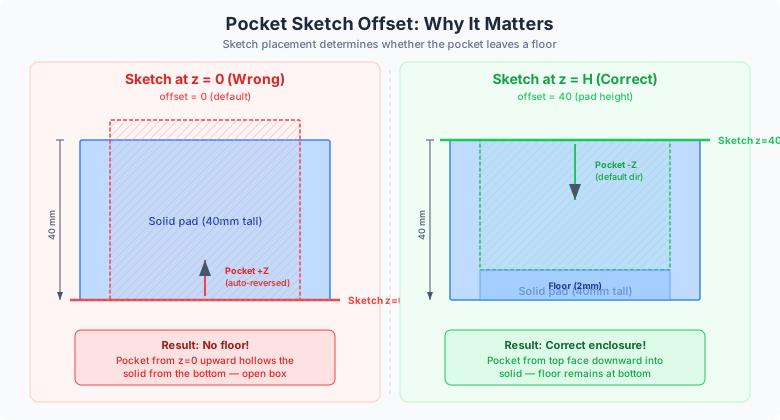
- Sketch at
offset=H(top face) -- pocket cuts downward (correct, leaves floor at bottom) - Sketch at
offset=0(bottom face) -- pocket cuts upward (wrong, no floor)
The rule of thumb: place pocket sketches on the face you want to cut from, not the face you want to keep.
Revolving a full circle profile (360 degrees) around an axis that passes through the circle can crash FreeCAD. This is a known FreeCAD kernel issue.
Workaround: The AI's code validator blocks dangerous revolution patterns. If you encounter this, the AI will use a semicircular arc (Part.ArcOfCircle) with a closing line instead of a full Part.Circle. This produces the same solid of revolution without the crash.
FreeCAD may silently rename objects when names conflict. For example, if you request create_body(label="Body") and a Body already exists, FreeCAD may name the new one Body001.
The AI tools handle this by searching:
- First by FreeCAD internal Name (e.g.
Body) - Then by Label (e.g.
EnclosureBase)
Best practice: When you have multiple bodies, always use explicit names in your requests: "Pad the sketch in EnclosureBase" rather than just "Pad the sketch".
Common causes:
-
Edge does not exist. The edge names changed after a previous operation (e.g. pocketing created new edges). Ask the AI to
measure edgesagain. - Radius too large. The fillet radius cannot exceed half the shortest adjacent edge. Reduce the radius.
- Open geometry. Fillets require solid geometry. If your shape has gaps, fix them first.
FreeCAD 1.0 uses the property name Midplane, not Symmetric. This is fixed in the latest version of FreeCAD AI tools. If you see errors about Symmetric, update to the latest version.
Part::Fuse, Part::Cut, and Part::Common require two overlapping or touching solids. If they produce an empty result:
- Check that the objects actually intersect (toggle visibility to see both)
- Check that both objects are valid solids (
Part.CheckShape()) - Try increasing the overlap slightly
-
Check the command. In settings, verify the MCP server command and arguments are correct. The command must be executable.
-
Check PYTHONHOME. The FreeCAD AppImage sets
PYTHONHOMEto its bundled Python. This leaks into subprocesses and causesModuleNotFoundError: encodings. The MCP transport strips these automatically, but custom server setups may need manual intervention. -
Check the fd 3 wrapper. When running FreeCAD as an MCP server, use the bash wrapper:
exec 3>&1 1>&2 && FreeCAD.AppImage -c mcp_server_entry.py
FreeCAD prints a banner to stdout before Python starts, which corrupts the JSON-RPC stream. The wrapper redirects stdout to stderr and uses fd 3 for clean protocol communication.
-
Check the log. Look for connection errors in the FreeCAD Python console.
MCP tools are loaded lazily on the first Act-mode message. They will not appear in the tool list until you send at least one message in Act mode.
If tools still do not appear, check that the MCP server is listed and enabled in settings, and that it exposes tools via the MCP protocol.
Several factors affect response time:
- Model size. Larger models (70B+) are slower. Try a smaller model for iterative design work and switch to a larger model for complex tasks.
- Ollama cold start. The first request after loading a model takes extra time. Subsequent requests are faster.
- Context length. As the conversation grows, each request processes more tokens. Context compacting triggers automatically at approximately 20,000 tokens when the conversation has more than 6 messages. This is normal.
-
Tool execution. Some tools (especially
execute_codewith complex scripts) take time in FreeCAD itself, not just the LLM.
This was a known bug where the chat display wiped on a final-turn LLM error. It is fixed in the latest version. If you see this:
- Update to the latest version of FreeCAD AI
- Your conversation is still saved -- use the Load button to recover it
- If the problem persists, check the FreeCAD Python console for errors
Not all models support thinking/reasoning mode. Supported configurations:
| Provider | Models | How it works |
|---|---|---|
| Anthropic | Claude 3.5+, Claude 4 |
thinking block with budget_tokens
|
| Ollama | qwen3 |
/think and /no_think tags in system prompt |
| OpenAI | o1, o3 series |
reasoning_effort parameter |
Does NOT work with:
- Ollama qwen3-coder-next (thinking not supported at all)
- Older models without reasoning capability
- Any model where thinking is not explicitly implemented in the provider adapter
Switch from "extended" to "on" in settings. Extended thinking gives the model a larger token budget for reasoning, which improves quality but increases latency.
Click the Load button in the chat panel footer. A list of your last 20 sessions appears. Click one to restore it.
The conversation loads with the full message history, including tool calls and results. The FreeCAD document state is NOT restored -- you need to have the corresponding document open.
<FreeCADAI dir>/conversations/
Each conversation is a JSON file with timestamps. The latest session is also available at:
<FreeCADAI dir>/logs/latest_session.json
Not directly from the UI, but the JSON files in the conversations directory are human-readable and can be processed with standard tools.
Click the Clear button in the chat panel footer. This starts a fresh conversation. The previous conversation is still saved and can be loaded later.
<FreeCADAI dir>/skills/<skill-name>/SKILL.md
Each skill is a Markdown file that describes a multi-step pattern for the AI to follow. See Creating Skills for how to write your own.
Skills are templates, not programs. The AI interprets the skill and may deviate from the exact steps described. If results are wrong:
- Check that you provided all required parameters
- Try being more specific in your request
- Check that the skill file is up to date
- Report the issue with the full chat log
See Creating Skills for a complete guide. In short: create a SKILL.md file in the skills directory with a structured description of the steps, parameters, and expected tool calls.