Repository navigation
Guide
Every part of the GITC Uplift tab, top to bottom, and what it does.
- Start the game and press Home to open ReShade.
- Click the GITC Uplift tab.
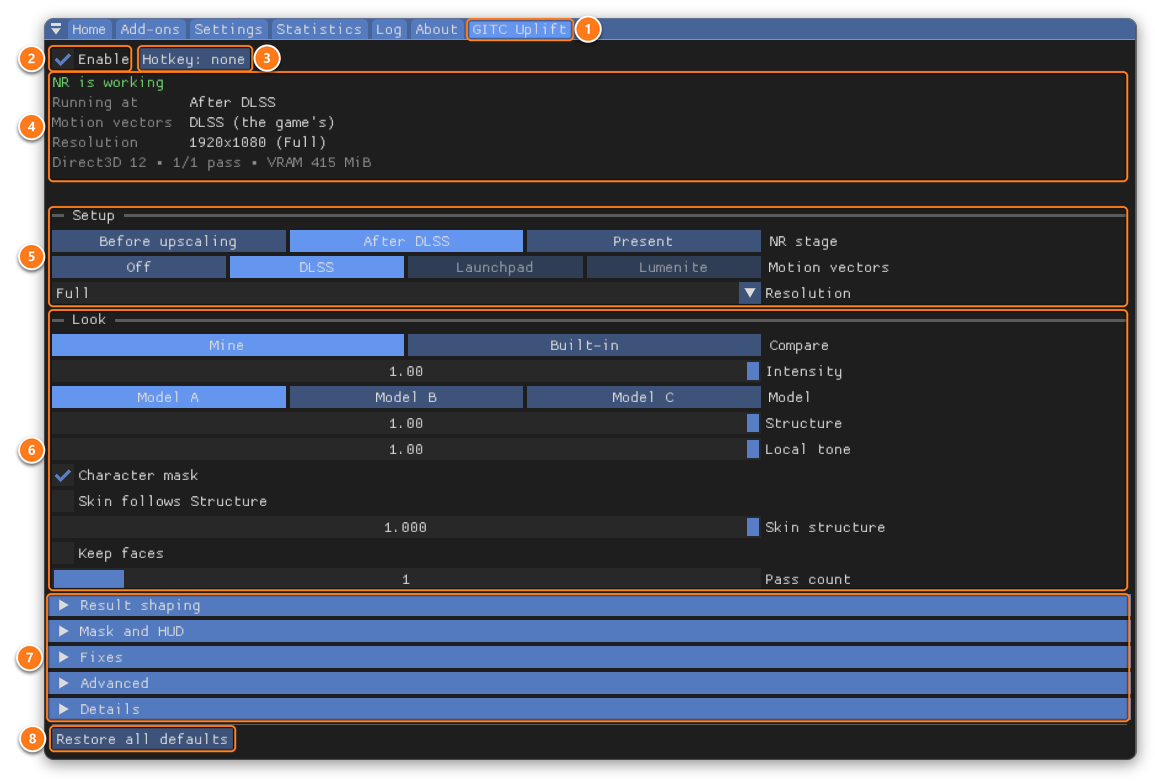
- GITC Uplift: the tab itself, next to ReShade's own.
- Enable switches NR on. Switch it off and NR gives its video memory back after a few seconds.
- Hotkey switches Enable from the game. Click it, then press a key; right-click it to clear it.
- The card tells you what NR is doing right now. It's green when NR is working; when it isn't, it says why and what to do.
- Setup chooses where NR runs, which motion vectors it uses and the size it works at.
- Look tunes the result to taste.
- More sections, closed until you click them: Result shaping, Mask and HUD, Fixes, Advanced and Details.
- Restore all defaults puts every setting back (the hotkey too; Enable stays as it is). It asks once first.
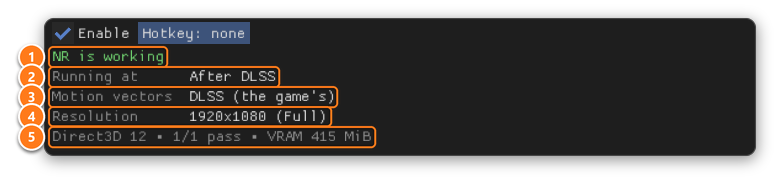
- NR is working: the green title.
- Running at: where NR runs now: Before upscaling, After DLSS or Present.
- Motion vectors: the motion vectors NR gets now.
- Resolution: the size NR works at now.
- The footer: the game's graphics API, the passes NR ran, and the video memory NR uses.
When what runs is not what you chose (for example, After DLSS before the game has started DLSS), a Why line says why. Your choice comes back by itself when it can.

- When NR isn't working, the title turns amber and says what's wrong, then what to do.
- When one button can fix it, the card has it: here Turn on; elsewhere Retry now or Clear latch.

- NR stage: where NR runs. Before upscaling works on the game's render-size image, and the game's DLSS upscales the result. Cheaper, and experimental. After DLSS works inside the game's frame, before the HUD and frame generation (games with DLSS). Present works on the finished image, HUD included. It works in every game.
-
Motion vectors: Auto picks for you. DLSS is the game's own. Launchpad is iMMERSE Launchpad's, at Present, with
Uplift.fx's Uplift technique below Launchpad. Lumenite works the same way: turn on LUMENITE: Kernel 2.0 and put Uplift below it. It needs theUplift.fxfrom Uplift 1.2.0 or newer, and doesn't work in DX9 games. With both turned on, Auto uses Launchpad. None uses none. - Resolution: the size NR works at. Full looks best. Quality, Balanced and Performance are faster and use less memory. Match game follows the game's DLSS render size. Custom lets you pick.
- Custom scale (%): only with Custom: the size in percent of the image.
- Upsampling: only below Full: how NR's change is scaled back up. Edge-aware keeps it on the right side of edges; Classic is slightly cheaper.
- (changed): you changed something in this section. Reset puts Setup back.
- < resets just this row. Every row you changed has one.
The highlighted option is always the one that runs.

- An option that can't work in your game right now is greyed out.
- Hover over it to see why. Your choice is remembered and comes back by itself when it can.
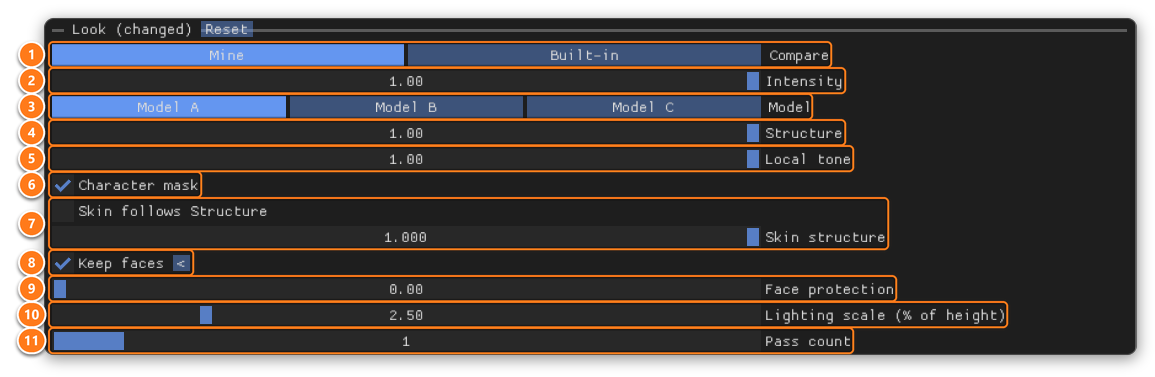
- Compare: Built-in shows the default look so you can compare; your own settings are kept. Mine goes back to them.
- Intensity: how strongly NR changes the image. Ctrl+click to type a value above 1.
- Model: the NR model, A, B or C.
- Structure: the fine structure NR adds.
- Local tone: the local contrast NR adds.
- Character mask: protects characters with NR's own mask.
- Skin structure: structure on skin. Tick Skin follows Structure to use Structure's value.
- Keep faces: keeps NR's lighting and shading on characters, but stops NR reshaping their faces. It costs more: NR runs one more time per frame, whatever the pass count, and it needs more video memory (about 1 GB at 4K). The two rows below appear when you tick it. Its tuning rows are in Advanced: see Tuning Keep faces.
- Face protection: how much of NR's fine structure faces still get. 0 leaves faces as the game drew them; 1 lets NR's structure through.
- Lighting scale (% of height): on characters, NR's change broader than this counts as lighting and is kept. Larger keeps only the broadest lighting; smaller keeps more of NR's change on faces.
- Pass count: runs NR again on its own result. Each extra pass costs as much as the first. From 2, each pass gets its own Pass tree: the same as pass 1, or its own settings, and where it runs (see below).
From Pass count 2, each Pass tree starts with Runs at: where in the game's frame that pass runs.
- Same as pass 1 (on pass 3, Same as pass 2, and so on) runs it with the pass before. That's the default.
- Before upscaling, After DLSS and Present are the same stages as Setup's NR stage.
Why split: passes before upscaling run at the game's render resolution, so they cost less. In DLSS Performance mode they see a quarter of the pixels. For example: pass 1 Before upscaling, pass 2 at Present.
- A pass never runs before the pass before it: those choices are greyed.
- A stage that can't run right now is greyed too (hover to see why). A pass saved there runs at the nearest stage that can, and the card says so in one line. It goes back by itself.
- The first pass at a later stage also has Resolution at After DLSS (or at Present): that stage's own size. With Keep faces on, it has Keep faces here too, which protects faces at that stage as well. It costs one more NR run per frame.
- Result shaping shapes only what the last stage changes. Earlier stages' changes pass through as they are.
- Each Pass tree's title says where it runs, and Details lists the whole chain.
- With frame generation on, a pass set to Present may run After DLSS instead (the card says why). After DLSS is the cheaper place then anyway: it runs once per real frame.
- For now this works in native DX12 and DX11 DLSS games, and in Vulkan games with Vulkan NR at Present on Native. Elsewhere every pass runs at one stage, and Runs at is greyed.
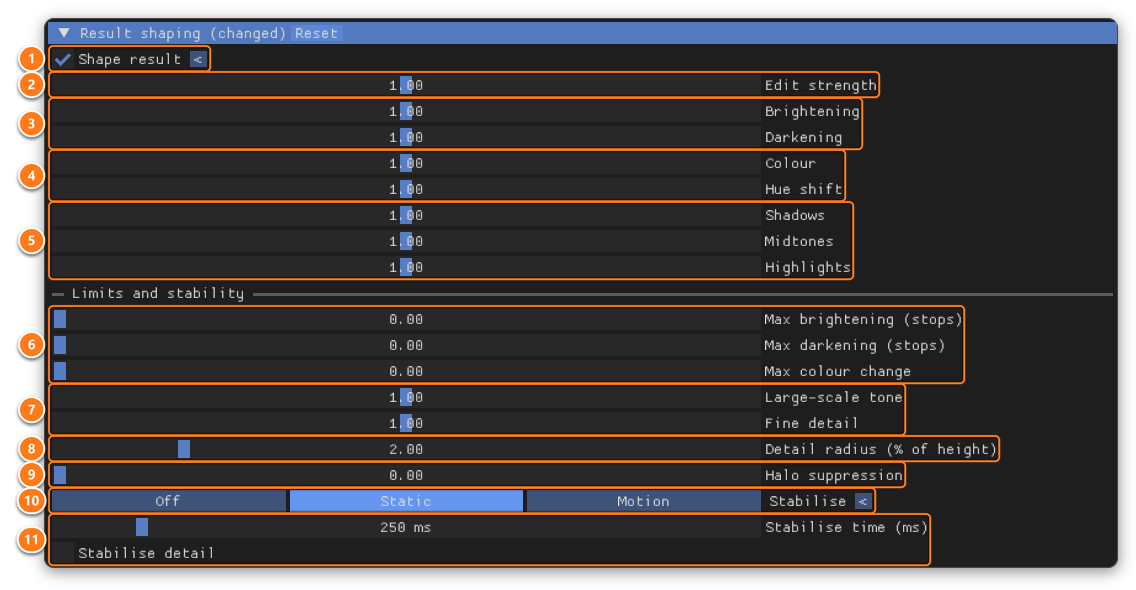
- Shape result: reshapes NR's result live. Off leaves NR's output exactly as it is. The rows below appear when it's on.
- Edit strength: 0 removes NR's change, 1 keeps it, 2 doubles it.
- Brightening and Darkening: how much of NR's brightening and darkening is kept.
- Colour and Hue shift: how far NR changes saturation and hues. 0 keeps the game's.
- Shadows, Midtones and Highlights: scale NR's change in the dark, middle and bright parts of the image.
- Max brightening, Max darkening and Max colour change: soft caps on how far a pixel can change. 0 is no cap.
- Large-scale tone and Fine detail: scale NR's broad lighting change and its small-scale change.
- Detail radius: where broad change ends and fine detail begins.
- Halo suppression: reduces the dark rings NR leaves next to bright objects.
- Stabilise: smooths NR's broad change over time. Static suits still views, Motion moving ones.
- Stabilise time and Stabilise detail: longer is steadier but slower to follow lighting; detail smooths the small-scale change too. They appear when Stabilise isn't Off.

-
NR mask: with Auto, an effect can limit where NR works.
UpliftMask.fxis an example. Off ignores it. The grey line below says what the mask is doing now. - UI correction: NR's own HUD protection. After DLSS it isn't needed (the HUD is drawn after NR); at Present, use the NR mask instead. The grey line below says whether it's needed here.
Only change these if you know what you are doing.
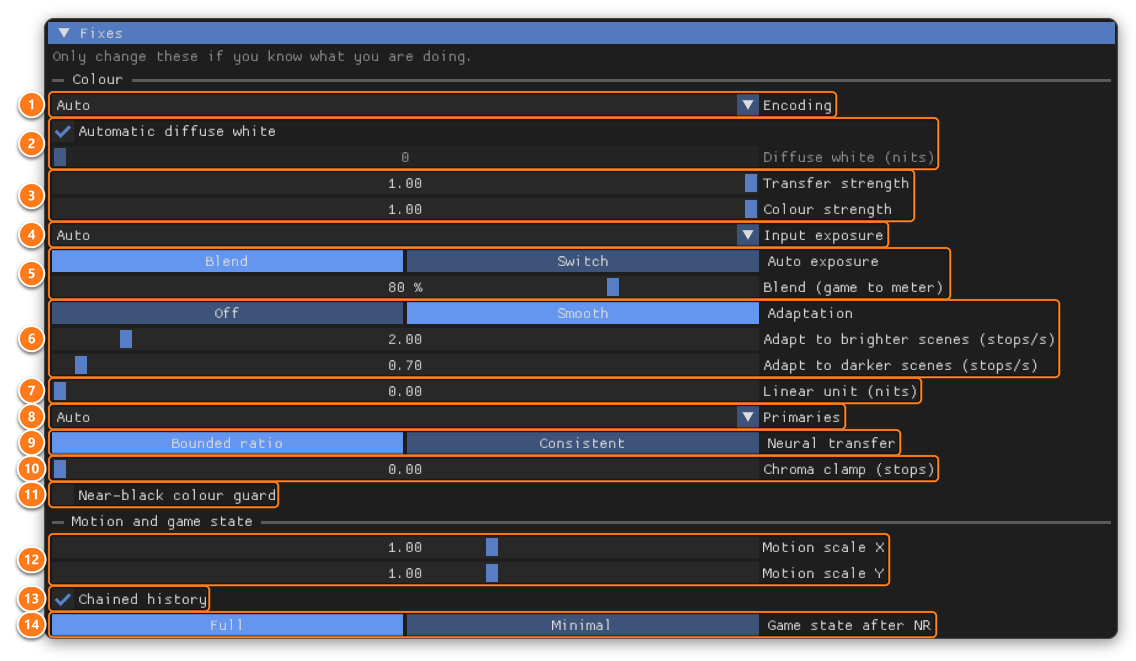
- Encoding: how the image is encoded. Auto follows the game.
- Diffuse white (nits): the brightness NR treats as paper white. Untick Automatic diffuse white to set it yourself.
- Transfer strength and Colour strength: how much of NR's brightness and colour change reaches the image.
- Input exposure: where NR's input brightness comes from in HDR games. A broken game exposure always falls back to the meter.
- Auto exposure and Blend (game to meter): only with Auto. Blend mixes the game's exposure and Uplift's meter (lower looks more like the game, higher is more even between scenes); Switch uses the game's own.
- Adaptation and its two rates: only with Auto or Metered. How fast the meter follows brighter and darker scenes.
- Linear unit (nits): the nits of 1.0 in a linear or scRGB image. 0 is automatic.
- Primaries: the image's colour primaries. Auto suits almost every game.
- Neural transfer: how NR's change returns to HDR.
- Chroma clamp (stops): keeps each colour's change close to the brightness change. 0 is off.
- Near-black colour guard: stops noise near black from turning into green or grey specks.
- Motion scale X and Y: multiply the motion NR is given. A negative value flips the axis.
- Chained history: off resets passes 2 and later every frame (for testing).
- Game state after NR: what Uplift restores after NR runs inside the game's frame. Greyed when NR can't run there.
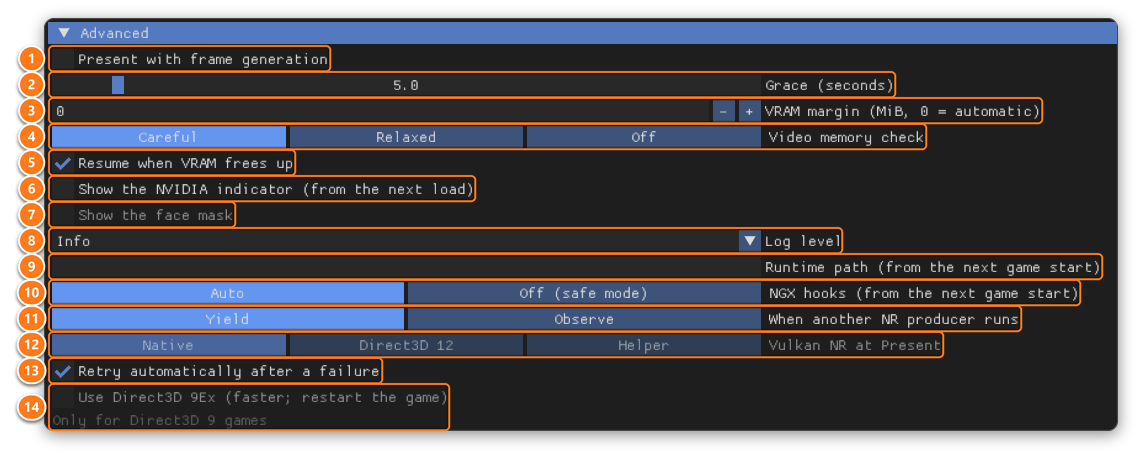
- Present with frame generation: lets NR at Present run while frame generation is on: on every frame, at twice the cost or more.
- Grace (seconds): how long NR keeps its memory after you switch it off, so a quick toggle doesn't reload it.
- VRAM margin: video memory NR always leaves free for the game. 0 is automatic (512 MiB).
- Video memory check: Careful leaves the game its budget and pauses NR when the game needs the memory back. Relaxed lets NR go about 1 GB past the game's budget; Off never checks, like other DLSS-NR add-ons. Both can stutter in games that really use all their video memory.
- Resume when VRAM frees up: after NR paused because the game needed video memory.
- Show the NVIDIA indicator: NVIDIA's on-screen NR indicator, from the next load.
- Show the face mask: greyed until you tick Keep faces (Look); then the Keep faces tuning rows appear below it. See Tuning Keep faces.
-
Log level: how much Uplift writes to
ReShade.log. -
Runtime path: where
nvngx_dlssnr.dllis. Empty looks in theGITC-Upliftfolder next to the add-on, then next to the add-on, then next to the game. From the next game start. - NGX hooks: Off is safe mode: nothing is hooked, and NR runs at Present only. From the next game start.
- When another NR producer runs: Yield stands down while another NR tool runs in the game; Observe keeps going.
- Vulkan NR at Present: 64-bit Vulkan games only. Native runs NR on the game's own Vulkan device; Direct3D 12 on a private DX12 device; Helper in Uplift's helper process. Each falls back to the next by itself, and Details says where NR runs and why. Native from the next game start. Only Native runs NR inside the game's DLSS: picking Direct3D 12 or Helper moves the NR stage to Present, and After DLSS and Before upscaling are greyed out. If native NR fails only at Present, After DLSS and Before upscaling stay available.
- Retry automatically after a failure: retries after 1, 2, 4, 8, 16 and 30 seconds, then waits for you.
- Use Direct3D 9Ex: Direct3D 9 games only (greyed elsewhere). Much faster; restart the game. If the game then won't start, start it again: Uplift turns this off by itself.
These rows are in Advanced. Show the face mask is greyed and the others are hidden until you tick Keep faces (Look). You don't need them most of the time.
Tuning is really simple:
- Tick Show the face mask. Magenta should cover skin only.
- Specks on glints or sparkles: raise Remove specks, or raise Mask threshold.
- Glowing spots on characters: raise Lighting density.
- Holes in shadowed skin: keep Fill skin by colour on, then raise Colour tolerance or Fill radius.
- Clothes or hair turning magenta: lower Colour tolerance, or turn Fill skin by colour off. If it isn't the fill, raise Full protection at.
- Untick Show the face mask to see the result.
Done!
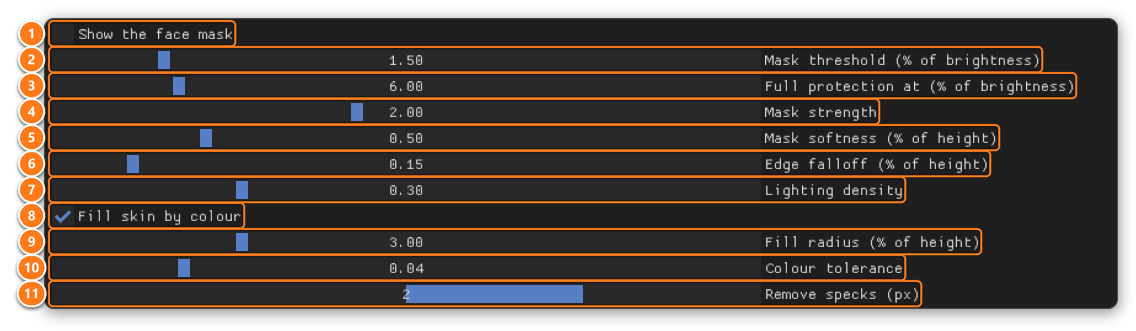
The rows:
- Show the face mask: tints what Keep faces protects in magenta, so you can see what it finds.
- Mask threshold (% of brightness): how small a change still counts as noise. Raise it if the mask speckles the background or bright glints; lower it if faces are only faintly tinted.
- Full protection at (% of brightness): from this change on, a pixel counts fully as face. Lower it if faces are tinted only in patches; raise it if hair or clothes are tinted too.
- Mask strength: raise it if the mask has holes inside faces; lower it if it spreads past them.
- Mask softness (% of height): raise it if the mask looks blotchy or flickers; lower it if it spreads past faces.
- Edge falloff (% of height): lower it if light glows past a character's outline; raise it if outlines show a dark rim.
- Lighting density: raise it if glints or bright edges leave glowing spots on characters; lower it if the lighting fades near the edges of faces.
- Fill skin by colour: grows the mask over nearby skin of the same colour, such as skin in shadow. Turn it off if clothes or hair of a skin-like colour turn magenta.
- Fill radius (% of height): how far the fill reaches. Raise it if broad patches of skin are still uncovered; lower it if the fill spreads onto nearby surfaces.
- Colour tolerance: how close to the skin colour a pixel must be to be filled. Raise it if skin in shadow is still uncovered; lower it if clothes or hair turn magenta.
- Remove specks (px): bright specks up to about this size (glints, sparkles) keep NR's normal result. Larger sizes also stop protecting tiny face details, such as a far-away eye. 0 turns it off.
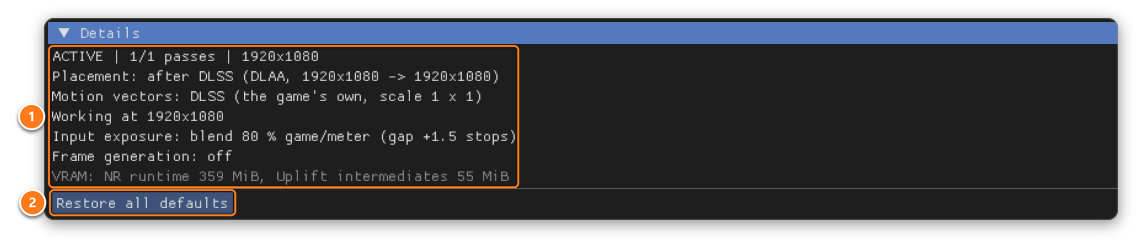
- Details: everything Uplift knows right now, one line each: its state, where NR runs, the motion vectors, the size it works at, frame generation and video memory. Include these lines when you report a problem.
- Restore all defaults: every setting back to its default. It asks once first.
- "NR is off": tick Enable, or press Turn on.
-
"The NR runtime was not found": put
nvngx_dlssnr.dllinto theGITC-Upliftfolder next to the add-ons and restart the game. -
"Move nvngx_dlssnr.dll": it's next to the game's .exe, where NVIDIA's DLSS loads it first (RTX 50 cards). Move it into the
GITC-Upliftfolder next to the add-ons and restart the game. -
"NR failed", with an NVIDIA error code: your
nvngx_dlssnr.dlldoesn't work with your card, or your driver is out of date. - "NR needs at least 640x360": raise the game's resolution or window size.
- "Another NR tool is running": remove the other DLSS5 add-on and restart the game.
- "Keep faces paused": not enough video memory for its extra NR run. NR keeps going without it, and Keep faces comes back by itself when there is room. Lower Resolution or Pass count to make room.
- "Keep faces stopped": its extra NR run failed, and NR keeps going without it. Untick and tick Keep faces to try again.
More in the README: If something's wrong.