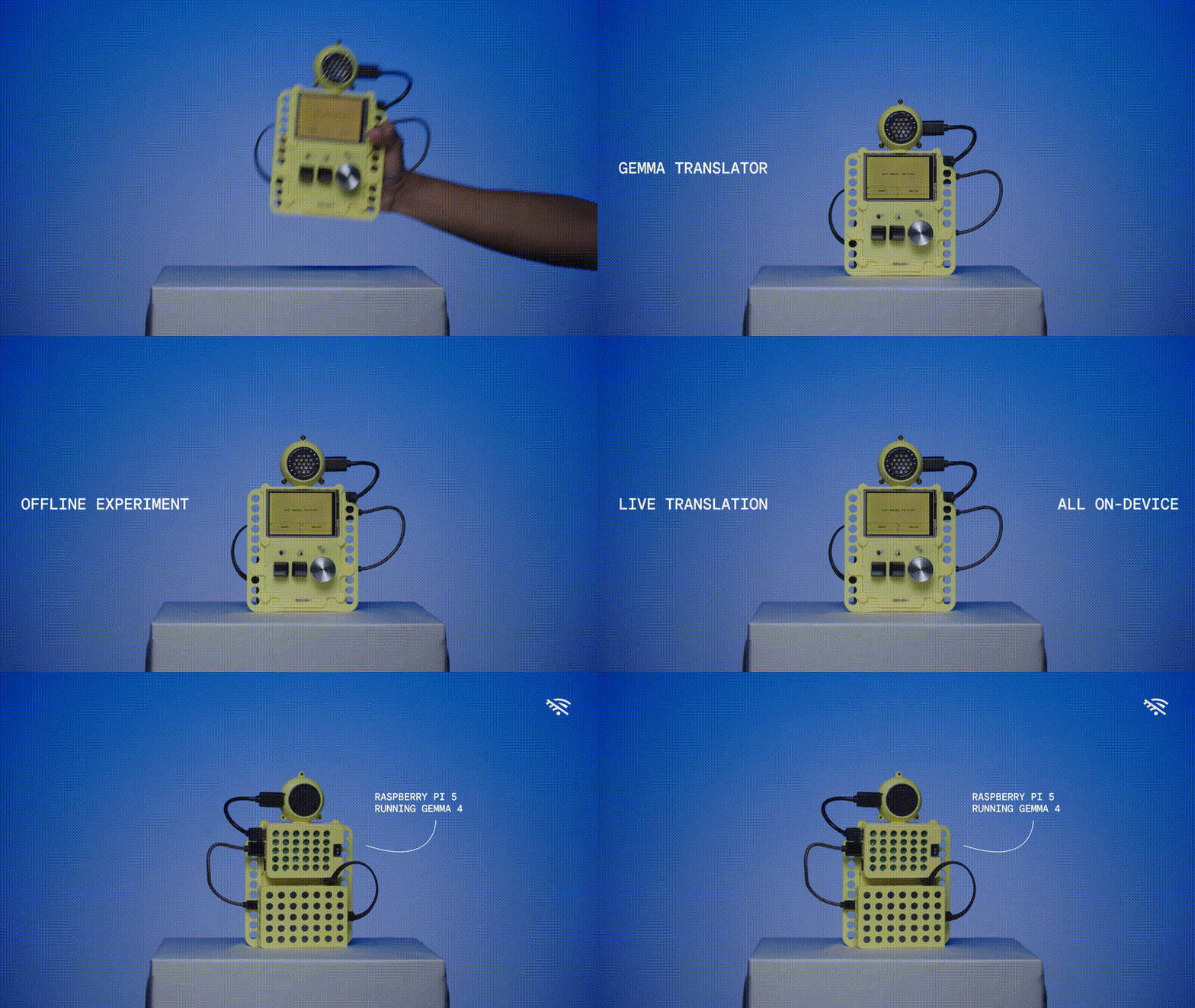
This repo was built with the assistance of Google Antigravity and includes code to run an on-device, fully offline voice translator powered by Gemma 4 and LiteRT-LM. This project features a web frontend optimized for small handheld displays (e.g., 480x320) and a Python API server (http.server) that communicates with Gemma. Text-to-speech is powered by Moonshine.
demo.mp4
- On-Device Inference: Uses LiteRT-LM to run the
gemma4-e2bmodel entirely locally. No internet required after setup. - Voice Interface: Captures microphone audio, processes it, and sends it to the local model.
- Optimized UI: Retro-terminal styling custom-built for small hardware screens (like Raspberry Pi displays).
- Unified Startup: One script to launch the LLM server, the Python API, and the React frontend.
- Python 3.10+
- Node.js 18+ (20 LTS recommended) & npm — installed automatically by
deploy-pi.shon Raspberry Pi OS / Debian - Linux or macOS
- Compute: Raspberry Pi 5 with 8GB RAM
- Audio Input: Microphone or USB audio capture interface
- Audio Output: Speaker or headphone output device
- Display: Display monitor or touchscreen (e.g., 480x320 kiosk display)
-
Make Scripts Executable Ensure the setup, download, start, and deployment scripts have execute permissions:
chmod +x setup.sh download_model.sh start.sh deploy-pi.sh
-
Install Dependencies Run the setup script to create a Python virtual environment (
venv) and install all required packages:./setup.sh
-
Download the Model Run the model downloader script to fetch the
gemma4-e2bmodel from Hugging Face and import it into LiteRT-LM:./download_model.sh
Start all services (LiteRT-LM, the Python API server, and the Vite Web UI) in development mode:
./start.shTo run in production mode (skipping Vite dev server and serving compiled UI assets from frontend/dist/ via backend/server.py on port 3000):
./start.sh --prodThe application will be accessible at:
- Web UI (Dev):
http://localhost:5173 - Web UI (Prod) / API server:
http://localhost:3000 - LiteRT-LM:
http://localhost:9379
To deploy as a permanent systemd kiosk service on a Raspberry Pi 5 (8GB):
./deploy-pi.shThis automated script installs Debian audio/venv packages, sets up the Python environment, builds production UI assets, downloads the LiteRT model, registers the systemd unit from deploy/gemma-translator.service, and configures LXDE GUI autostart (~/.config/lxsession/rpd-x/autostart) to launch Chromium in kiosk mode pointing to http://localhost:3000.
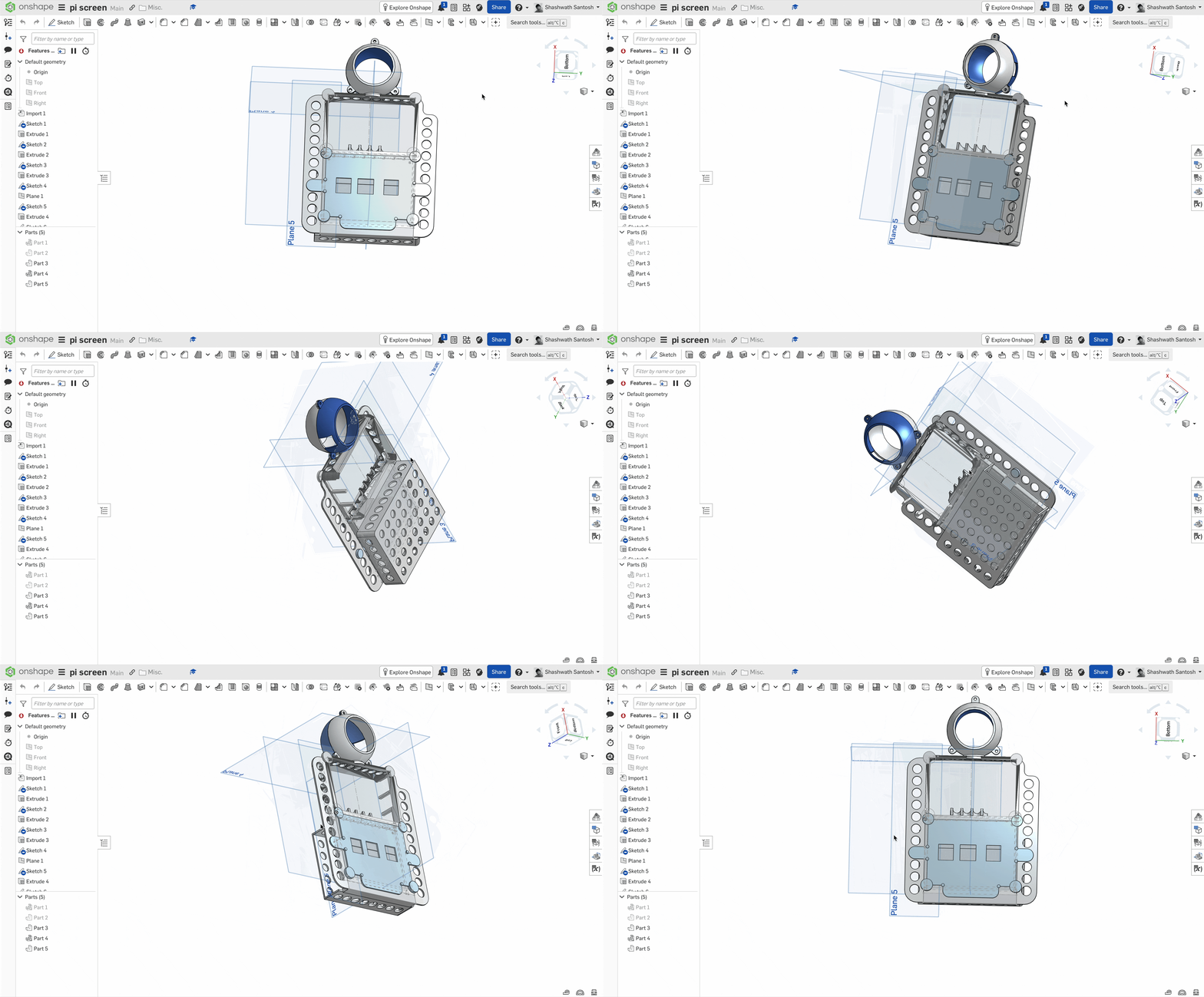
frontend/- React (Vite) web frontend (index.html,src/, styles, and Vite configuration).backend/- Python API server (server.pyandrequirements.txt) for Moonshine STT, moonshine-voice TTS, and model proxying.deploy/- Parameterizable systemd service unit template (gemma-translator.service).stl/- STL files for 3D printing the hardware case.setup.sh- Automates Python virtual environment creation and dependency installation.download_model.sh- Fetches the required LiteRT model.start.sh- Multi-process launcher supporting--prodand development modes.deploy-pi.sh- One-command Raspberry Pi automated deployment script.
The Gemma Translator supports two keyboard modes. Switch between them anytime from the Settings panel → "Keyboard Mode" dropdown. The choice is remembered across restarts (stored in the browser's localStorage under the key keyboardMode).
The app has two lanes (two people facing each other on the kiosk):
- Lane 1 / Person 1 — the left/top lane.
- Lane 2 / Person 2 — the right/bottom lane.
Each lane has a rotating language "revolver" and records speech, which is transcribed (Moonshine STT), translated (Gemma), and spoken back in the other lane's language (moonshine-voice TTS).
One lane is the active person at a time. The active lane is framed with corner brackets on all four corners. You drive everything from a single set of keys and switch focus with Space.
| Key | Action | Description |
|---|---|---|
| Spacebar | Switch active person | Toggles the active lane (Person 1 ⇄ Person 2). Disabled while recording. |
| Z | Record (push-to-talk) | Hold to record the active person; release to transcribe & translate. |
| ← Left Arrow | Previous language | Rotates the active person's language backward. |
| → Right Arrow | Next language | Rotates the active person's language forward. |
Notes:
- The active lane shows four-corner brackets; while it is recording, the brackets invert to black along with the lane's color reversal.
- Best for one-handed / single-operator use.
Each lane has its own dedicated keys — there is no active-person concept and no bracket highlight. Both people can be controlled independently.
| Key | Action | Description |
|---|---|---|
| Z | Record — Person 1 (push-to-talk) | Hold to record Lane 1; release to transcribe & translate. |
| X | Record — Person 2 (push-to-talk) | Hold to record Lane 2; release to transcribe & translate. |
| ← Left Arrow | Previous language — Person 1 | Rotates Lane 1's language backward. |
| → Right Arrow | Next language — Person 1 | Rotates Lane 1's language forward. |
− Minus (_) |
Previous language — Person 2 | Rotates Lane 2's language backward. |
+ Plus (=) |
Next language — Person 2 | Rotates Lane 2's language forward. |
Notes:
- No corner-bracket selection highlight in this mode.
- Best for two operators, each handling their own side.
- Input focus guard: all shortcuts are ignored while focus is on a configuration field (
<input>,<textarea>, or<select>) — e.g. when editing the API endpoint or settings. - Recording lock: language rotation is blocked while a recording is in progress.
- Keyboard-driven: recording and language rotation are keyboard-only in the current build; on-screen touch controls are not enabled.
Open Settings (⚙) → Keyboard Mode → choose Landscape or Vertical. The change takes effect immediately and persists on the device.
| Setting value | Mode |
|---|---|
landscape |
Active-person scheme (Space / Z / ← →) — default |
vertical |
Two-hand scheme (Z / X / ← → / − +) |
Made by a small team at Google Creative Lab:
This is not an officially supported Google product. This project is not eligible for the Google Open Source Software Vulnerability Rewards Program.