09 Brushes Drawer
What you'll learn: How to capture, transform, recolor and stamp custom brushes; the 30-slot Drawer panel for brush / pattern / gradient libraries; and DRAW's six dithering algorithms.
🎯 Goal: Create and use custom brushes.
A custom brush is any selection captured into the brush slot — DRAW remembers the pixels and treats them as the active stamp for every drawing tool that supports stamping.
Make a selection, then capture it as a brush via the Brush menu, the Organizer button, or the Command Palette. There are two capture modes:
- From Current Layer — only non-transparent pixels.
- From Selected Layers — union mask across the multi-selection.
Non-rectangular shapes are preserved via the alpha channel.
| Action | Key |
|---|---|
| Flip Horizontal | Home |
| Flip Vertical | End |
| Scale Up | PgUp |
| Scale Down | PgDn |
| Reset Scale | / |
| Tool | Effect |
|---|---|
| Brush / Spray | Stamp the brush at every step. |
| Line / Rect / Ellipse / Polygon | Stamp along the geometry. |
| Fill | Tiled fill of the brush as a seamless pattern. |
| Eraser | Stamp transparency in the brush shape. |
-
Recolor (
F9) — paints the brush in the current FG color, preserving its alpha. -
Outline (
Shift+O) — adds a BG-colored outline around the brush silhouette.
F12 exports the current brush as a standalone PNG (alpha preserved) — perfect for sharing brushes between projects.
🎨 Try it — leaf scatter
- Draw a small 8×8 leaf on a transparent layer.
- Marquee around it; capture as custom brush.
- Switch to Spray, increase brush size, set FG to a green family.
- Spray a tree's foliage onto a new layer in seconds.
🎯 Goal: Organize and reuse brushes and patterns.
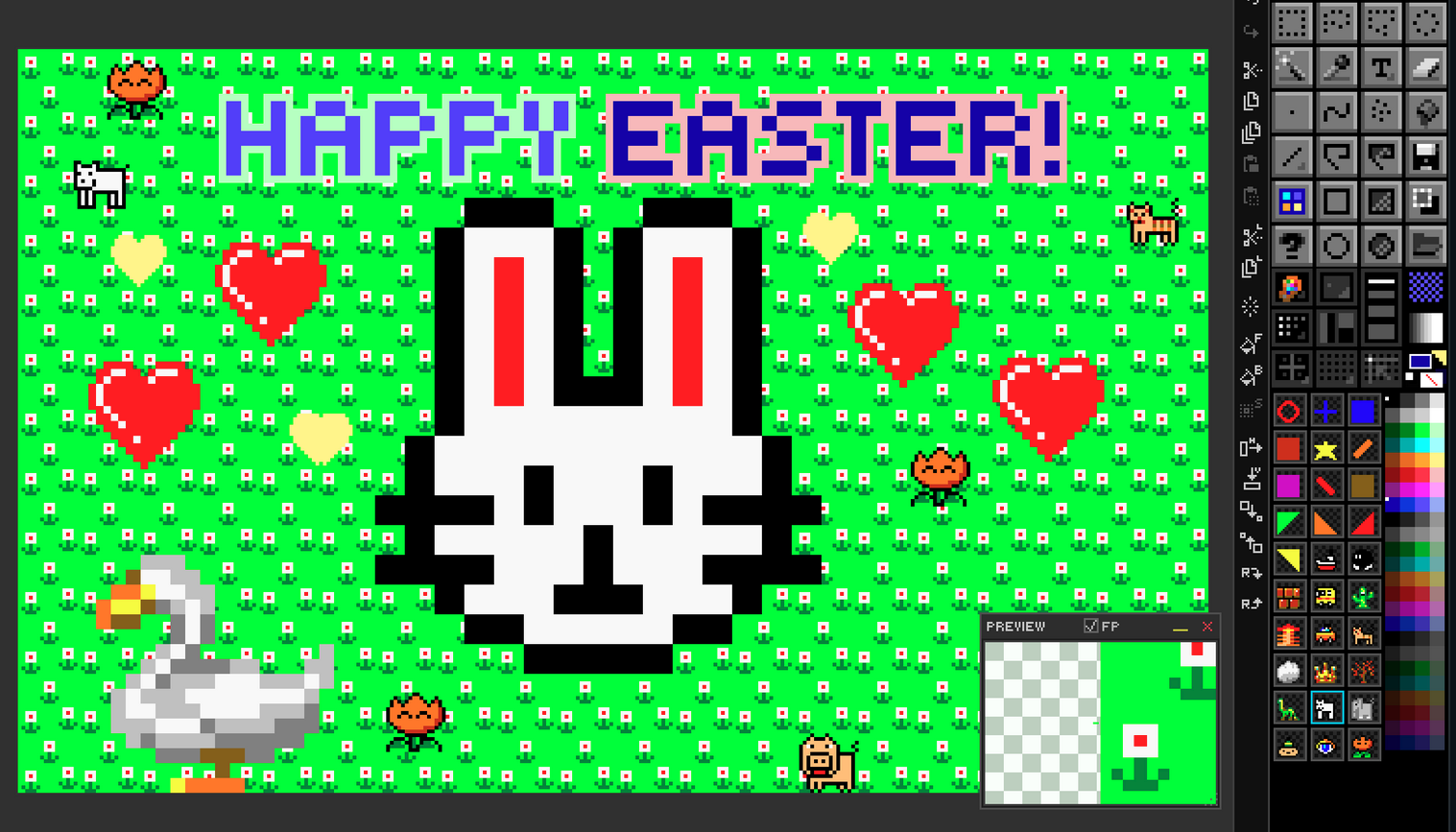
The Drawer panel is a docked grid of 30 slots that hold reusable brushes, patterns, or gradients. Each slot is one click away from being the active stamp.
| Mode | Shortcut | Use for |
|---|---|---|
| Brush | F1 |
Stamping and painting. |
| Gradient | F2 |
Color transitions for fills. |
| Pattern | F3 |
Seamless tiled fills. |
| Action | Result |
|---|---|
Shift+Left-click an empty slot |
Store the current brush there. |
| Right-click any slot | Context menu — load, save, clear, replace, export, etc. |
| Drag-and-drop slots | Reorder. |
| Drop image files onto the panel | Batch import as slot brushes. |
The drawer state can be saved as a .dset file and reloaded later — a clean way to share brush packs and pattern libraries between projects or with other artists. There's a sample set in DEV/brush-set.dset.
The Drawer also hosts a mini palette for quick FG / BG selection without hopping back to the main palette strip.
Patterns can be stored with opaque backgrounds (1-bit black/white) so that flooding with a 1-bit pattern under a colored FG produces classic Aldus PageMaker / DPaint dither patterns.
The drawer ties into three paint modes that affect Fill and Brush behaviour:
- Normal — solid current FG color.
- Pattern — tile the active drawer slot.
- Gradient — interpolate between palette stops via the active gradient slot.
When painting gradients (or applying Posterize) you can pick from:
- Ordered — Bayer 2×2, 4×4, 8×8.
- Floyd-Steinberg — error diffusion.
- Atkinson — classic Mac dither.
- Stucki — heavier diffusion.
- Blue Noise — perceptually uniform.
➡️ Next: Chapter 10 — File I/O & Export