Getting started
The Linux/Android experimental preview is available from GitHub Releases. USB/direct-stream workflows have been exercised on one Android 13 phone; the full physical-device and distribution matrix is still unverified. Check the release notes before installing. Windows and macOS remain in development and have no downloads in this release. Linux builds target x86-64, glibc 2.35 or newer, GTK 3, and a working OpenGL driver. Musl-based distributions such as Alpine are not supported by these binaries.
DroidPier uses FFmpeg under LGPL-2.1-or-later. The matching source and build instructions must accompany each binary release; see third-party software.
Download SHA256SUMS and the desired package from the same release.
Run sha256sum --ignore-missing -c SHA256SUMS in the download directory.
Require an OK result for every file you intend to use. Checksums detect
corruption; obtain both the files and checksums from the official repository.
Never install a package reported as failed or absent.
For Debian, Ubuntu or Mint, use sudo apt install ./droidpier-VERSION-linux-amd64.deb.
For Fedora, use sudo dnf install ./droidpier-VERSION-linux-x86_64.rpm.
Replace VERSION with the downloaded version. These commands install system
packages; launch DroidPier as your regular user, never as root.
For an AppImage, run chmod +x droidpier-VERSION-linux-x86_64.AppImage, then
open it. If FUSE mounting is unavailable, run it with --appimage-extract-and-run.
Alternatively use --appimage-extract and run squashfs-root/AppRun.
For the archive, extract it with tar -xzf droidpier-VERSION-linux-x86_64.tar.gz
and run ./droidpier/droidpier. Keep its data, lib, and resources directories
next to the executable. Portable formats still need the documented system libraries.
No Flutter, Java, Android SDK or compiler is required to use a completed package.
- Use a data-capable USB cable and unlock the phone.
- Enable Developer options on Android (usually tap Build number seven times), then enable USB debugging. Manufacturer menus differ.
- Start DroidPier and select the device. Accept Android's RSA authorization dialog only for a computer you trust. Do not post the dialog or device serial.
- DroidPier deploys its companion and shell agent. Allow any installation prompt.
- Open DroidPier Companion on the phone to check connection and permissions. Notification access is optional and can be revoked at any time.
- Open an app from the desktop launcher. Apps that disallow secondary displays, secure capture, or resizing may not work correctly.
If Linux reports insufficient USB permissions, use your distribution's Android
udev rules package (commonly android-sdk-platform-tools-common on Debian/Ubuntu
or android-tools on Fedora), then unplug and reconnect. Log in again if your
distribution requires a group change. Do not fix this by running the desktop or
ADB as root, or by giving every USB device unrestricted permissions.
Press Ctrl + / or F1 for the full list of shortcuts. A bare ? works too, except while you are typing into a search box. The list is generated from the shortcuts themselves, so it cannot fall out of date.
| Key | Does |
|---|---|
Ctrl + Space |
Open or close the launcher |
Ctrl + /, F1, ?
|
Show every keyboard shortcut |
Alt + Tab |
Switch window |
Alt + Shift + Tab |
Switch window, backwards |
Ctrl + Alt + → |
Next desk |
Ctrl + Alt + ← |
Previous desk |
F11 |
Fullscreen the focused window |
Ctrl + Shift + D |
Stream diagnostics |
Esc |
Close whatever is open, one layer at a time |
Finding an app. The launcher searches as you type and orders results by how
well they match and by which apps you actually open. Typing wa finds WhatsApp
from its initials, not only from names literally containing those letters.
Arrow Up and Down move the selection, Enter opens it.
Pinning. Right-click any app and choose Pin to top to give it a row of its own above the rest.
The Google bar on the desk searches on the phone: the phone's own browser opens as a desk window on the results page, and you carry on using it there. It needs a browser on the phone that appears in the app list. If there is none, the desk says so rather than quietly opening something on the computer.
The four keys in the taskbar are four desks, and every window lives on one of them. Right-click a window's title bar and choose Move to desk 2 to send it there, or press Ctrl + Alt + → and Ctrl + Alt + ← to step between desks from the keyboard. The desk names the one you land on for a moment. An app you open lands on the desk you are looking at.
Phone Mirror in the desk header opens a phone-shaped frame at the bottom right showing the phone's own screen, live. It is view only: what the phone displays appears here and rotates with it, but taps and keys go to the app windows, not to the mirror. Close the frame with its dot or the header pill to stop the stream; disconnecting the phone stops it too.
The frame says what it is doing when it has no picture to show. Connecting means the stream is starting; if it stops, the frame gives the reason and a Retry. A phone with its screen off mirrors as black, because that is what the phone is showing.
Android 11 or later normally exposes Developer options → Wireless debugging. Use a trusted local network. Choose Pair device with pairing code, then enter the pairing address, port and code in DroidPier. The pairing port and subsequent connection port can differ: use the addresses Android displays for each step. Never paste a real pairing code in an issue. Wireless debugging can be disabled on the phone after use. Older Android versions may need an initial USB connection and are not advertised as validated wireless configurations.
These controls are new in beta.2 and are not present in beta.1 downloads. Connect a phone brings USB, already-connected phones, and three Wi-Fi options into one screen:
- Nearby: shows advertised Android pairing/debugging services. Select a phone before pairing or connecting; being visible does not mean it is authenticated. Wireless debugging must be enabled. Guest isolation, blocked multicast, and different networks can hide phones. Manual entry remains available.
- QR code: on the phone choose Wireless debugging → Pair device with QR code, then scan the computer's QR. Codes are generated locally, expire after two minutes, and are discarded on cancellation or success. Do not share a QR.
- Manual: use the pairing screen's address, pairing port, and six-digit code (including any leading zero). After pairing, DroidPier looks for the matching debugging endpoint. If it cannot find one, enter the connection port from the main Wireless debugging screen. This is often a different port.
Disconnect drops this computer's active transport. It does not remove Android's saved pairing trust; remove that separately in Wireless debugging when wanted.
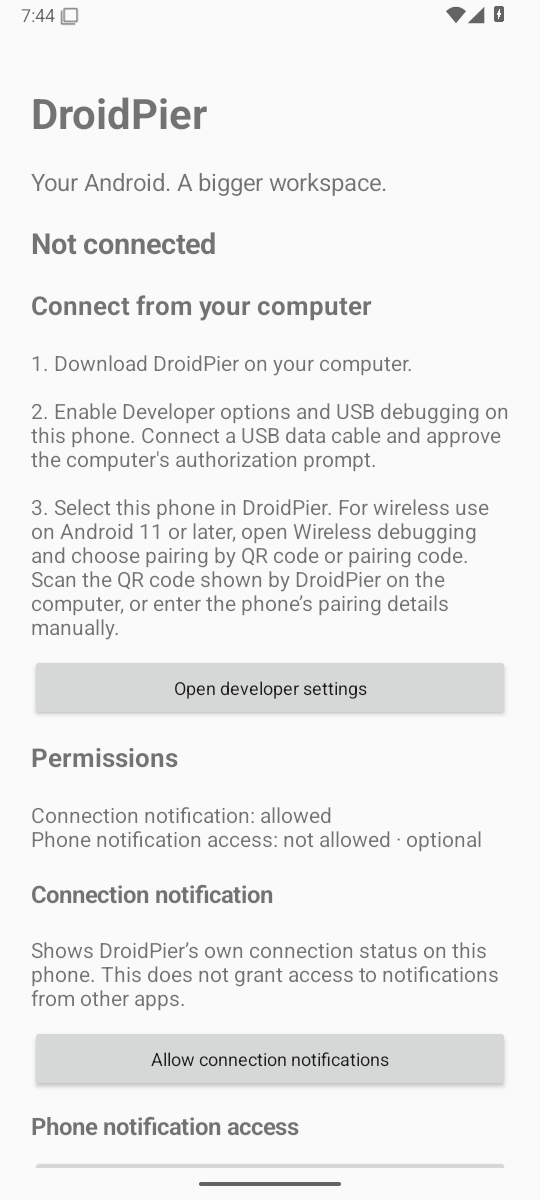
Actual Android setup screen on a clean emulator; full device compatibility is tracked separately.
The companion installs on Android 8 or later, but installation alone does not establish full desktop compatibility. See compatibility. The setup screen reports a desktop connection only after the authenticated connection opens. Its Disconnect button is enabled only when both applications support the negotiated disconnect command. Disconnect ends the session; use the desktop Connect action to resume.
On Android 13 or later, the notifications shortcut requests notification permission. The separate notification-access shortcut opens Android's listener settings. Denying either permission must not grant it implicitly. Notification access can expose message contents; grant it only if you want notifications on the desktop. Clipboard and remote input also move sensitive content between your devices.
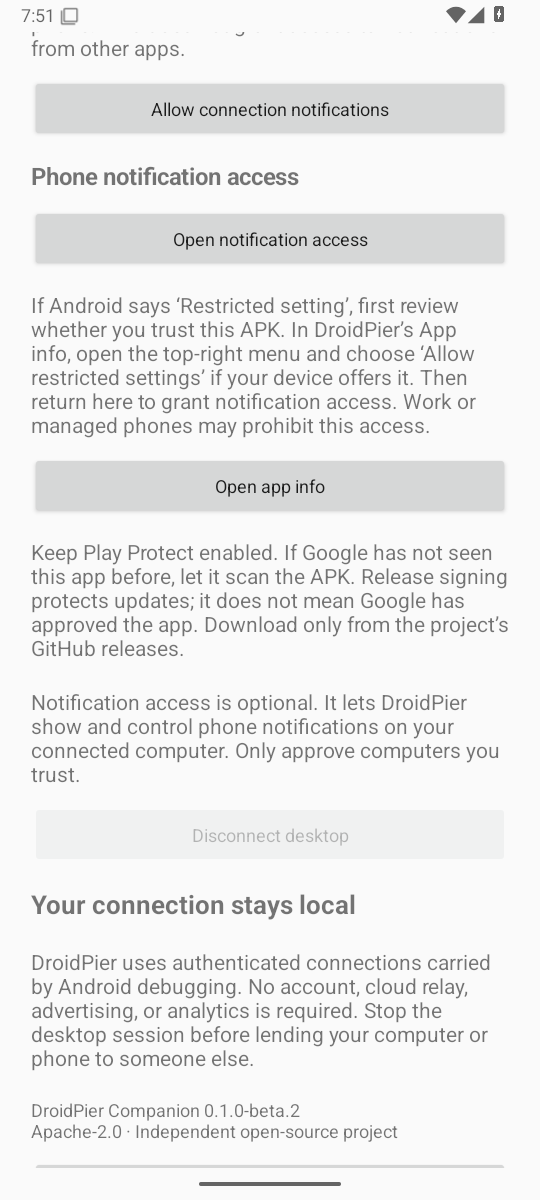
Connection-notification permission lets DroidPier show its own status on the phone. Notification-listener access lets it forward other apps' notifications; that separate access is optional. The beta.2 setup screen distinguishes granted access from an actually connected listener, and refreshes after returning from Settings.
If Android reports Restricted setting, review the APK's origin. If you trust it, open its App info and use Allow restricted settings in the app-specific menu when offered, then return to notification access. Managed devices may forbid this. Do not use ADB to grant access or disable Android protections. See Android's restricted-settings help.
Keep Play Protect enabled and allow its scan. An unknown-app scan prompt does not itself say the app is harmful. Permanent signing preserves update identity; it cannot guarantee warning-free sideloading. Verify the release checksum and signing provenance. If Play Protect explicitly identifies harmful behavior, stop installation and report the exact warning without private data.
Sharing starts off at startup and after disconnecting. Turn it on explicitly only for a connected, supported phone. Unsupported access shows an explanation beside the control. If sharing pauses after an error, resolve the cause and use Retry; background polling must not repeatedly display warnings. Never use private text for debugging clipboard synchronization.
Use packages from the same release. Android updates require the same permanent signing key and an increasing version code. A previously installed debug companion has a different signing identity and cannot be updated in place. DroidPier reports this conflict and never silently uninstalls it. If you choose to migrate, uninstall the development companion yourself, install the signed APK, and regrant permissions. Uninstalling removes its app data. Normal signed-to-signed updates preserve app data.
There is no silent updater: check GitHub Releases and install updates yourself. Do not downgrade Android version codes or replace published binaries in place.
Read what the app says first. Every failure now carries a line telling you what to do about it, and it names the device that has to change — most of these are fixed on the phone, not on the computer. A failed start also offers to choose a different phone, which is the answer when the real problem is that two are connected.
Where a failure has an underlying technical cause, there is a Copy technical details button rather than the text on screen. It can contain your device's identifier, network addresses and local paths, so read it before you paste it anywhere.
| Symptom | What to check |
|---|---|
| No phone listed | Data cable, unlocked phone, USB debugging and udev permissions |
| Device unauthorized | Accept the phone's RSA prompt; revoke old USB authorizations only if needed |
| Wireless connection fails | Same trusted network, correct pairing and connection ports, firewall rules |
| Companion install fails | Android version, permission prompt, or debug/release signature conflict |
| No notifications | Notification permission and separate notification-listener access |
| Black app window | The window now says when no video is arriving and offers to reopen. If it stays black without saying so, the app is drawing black — try an ordinary non-DRM app, and check Android/display support and GPU drivers |
| Resize or orientation fails | Some apps lock orientation or reject secondary displays |
| No desktop sound | Audio forwarding is not implemented; media controls do not play audio |
| AppImage cannot mount | Use the extraction fallback above |
| Disconnect button unavailable | Wait for authentication; both ends need disconnect capability support |
Disconnect/reconnect after device removal. Avoid starting competing ADB servers under different user accounts. When reporting a bug, include application versions, distribution, Android version, device model (not serial), steps, and redacted logs. Never upload pairing tokens, notifications, real clipboard contents or private captures.
Quit DroidPier and disconnect first. Use sudo apt remove droidpier or
sudo dnf remove droidpier for system packages. Delete the extracted directory or
AppImage for portable installs. Uninstall DroidPier Companion from Android settings
if no longer wanted. Revoke USB debugging authorizations, wireless pairings and
notification access on the phone as appropriate. Package removal does not wipe
phone apps or their data, and it must not delete another application's ADB processes.