Repository navigation
RecordAndPlayCharacterMovements_Text
This example provides the recording and playback function of a human avatar movement. The movement is recorded on a text file.
Execute the example scene according to the following steps.
- Open the SIGVerse project in Unity.
- Double-click [Assets/SIGVerse/ExampleScenes/Playbacker/Playbacker(.unity)] on the [Project] tab to open the target scene.
- Click the play button at the top center of the Unity to play the scene.
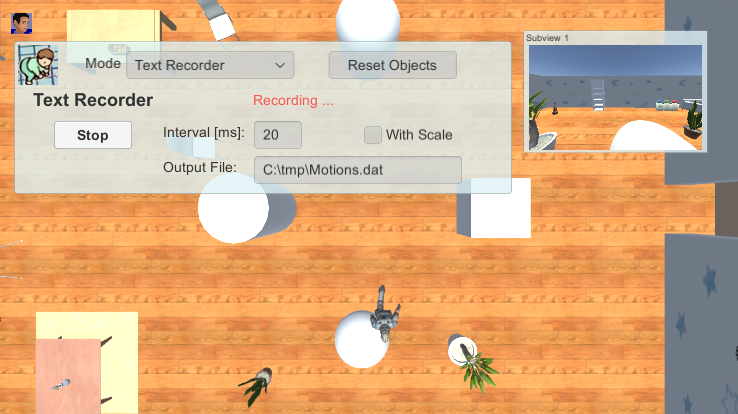
- Select [Text Recorder] for Mode.
- Make some settings such as [Output File].
- Click the [Start] button to start recording to a text file.
- Operate the character using arrow keys.
(Click [Baby icon] to show/hide the panel.) - Click the [Stop] button to stop recording to a text file.
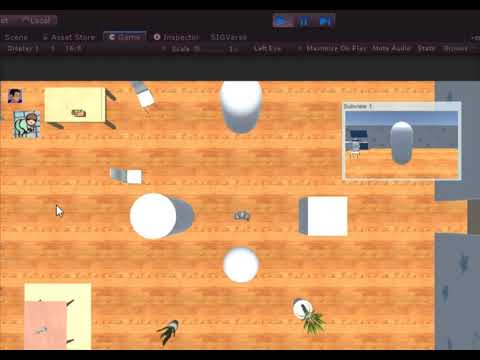
Screenshot of the example scene. (It might differ from the latest version)
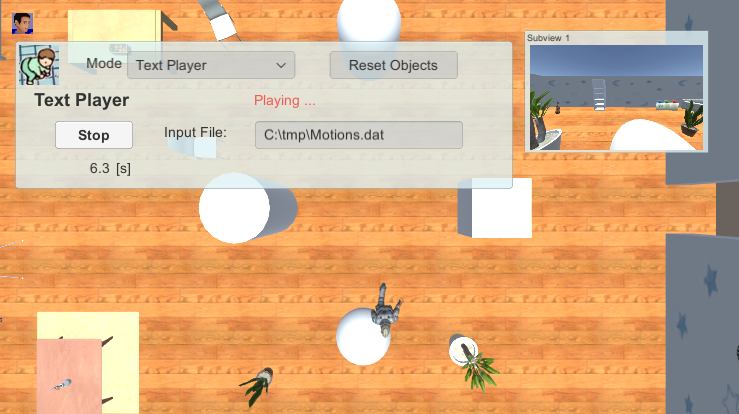
- Select [Text Player] for Mode.
- Set the file path for recording to [Input File].
- Press the [Start] button to start playback.
(Click [Baby icon] to show/hide the panel.) - When the [Stop] button is pressed or the recording time elapses, playback ends.
Screenshot of the example scene. (It might differ from the latest version)
Reference Video