Provider Setup
This plugin has been tested to work against various providers, though not all providers provide support for all of this plugins' features.
❗ Before you proceed, make sure you have another admin account if you are going to link an SSO provider to the only admin account on the server — permissions might get overwritten.
❗ SAML signing algorithm: SAML responses must be signed with RSA or ECDSA using SHA-256 or stronger (SHA-384/SHA-512). Signatures using SHA-1 (rsa-sha1) or a SHA-1 digest are rejected, so if your identity provider still signs with SHA-1, reconfigure it to SHA-256 — otherwise every login through that provider fails with a "SAML response validation failed" error. The server log records the offending signature algorithm to help you diagnose this.
This section is broken into providers that support Role-Based Access Control (RBAC), and those that do not
- ✅ Google OIDC
- ❗ Usernames are numeric
- ❗ Requires disabling validating OpenID endpoints
For any provider that supports RBAC, we can configure it as we see fit:
Enabled: true
EnableAuthorization: true
EnableAllFolders: true
EnabledFolders: []
Roles: ["jellyfin_user"]
AdminRoles: ["jellyfin_admin"]
EnableFolderRoles: false
FolderRoleMapping: []Map an identity-provider group to a Jellyfin maximum parental-rating score (#736), so a "kids" group
gets a content-rating ceiling straight from SSO. Turn it on with EnableParentalRatingRoles and list the
mappings; each entry is a Score (the ceiling — smaller is more restrictive) and the Roles it applies to.
This is a config-XML / config-API option (not on the provider form yet), and it uses the same role values as
the rest of RBAC (the claim named by RoleClaim for OpenID; the SAML Role attribute).
EnableAuthorization: true # the master switch; the ceiling is applied only when this is on
EnableParentalRatingRoles: true
ParentalRatingRoleMappings:
  - Score: 3 # kids: a low content ceiling
    Roles: ["kids"]
  - Score: 7 # teens: a higher ceiling
    Roles: ["teens"]
Rules:
-
Most restrictive wins. A login matching several groups gets the minimum score, never the loosest —
so a user in both
kidsandteensabove is capped at3. -
Unmapped never raises the ceiling. A login that matches no mapping (or a malformed/absent claim) leaves
the account's existing
MaxParentalRatingScoreuntouched — it is never widened by SSO. - A match is authoritative. When a login DOES match, the mapping wins even over a value an admin set by hand (like the other role-derived grants) — so keep the mappings in sync with the intended policy.
-
The score is your library's own rating scale. Jellyfin scores content by an integer; pick the ceiling
that matches how your libraries are rated.
null/unset means unrestricted. - Validated on save. A negative score, or a mapping with no roles, is rejected before it is persisted.
- Gated by
EnableAuthorizationlike the other role-derived grants, so turning RBAC off leaves the ceiling untouched.
The plugin validates the id_token returned by your OpenID provider (signature, issuer, audience and expiry). A few provider settings must therefore match, or login is refused (fail-closed):
-
The id_token must be signed with an asymmetric algorithm — RS256/384/512, PS256/384/512, or ES256/384/512. Tokens signed with a symmetric algorithm (HS256) or left unsigned (
alg: none) are rejected regardless of configuration. If your IdP client defaults to HS256 (some Auth0 and Keycloak client templates do), switch its id_token signing algorithm to RS256. EdDSA/Ed25519 (OKP keys) is not supported. -
The provider must publish a JWKS (its discovery document's
jwks_uri) so the signature can be verified. A rotated signing key is picked up automatically on the next login. -
Clocks must be roughly in sync. Expiry is checked with a 5-minute skew allowance; if the Jellyfin host or the IdP clock drifts further, every login fails — keep both on NTP.
-
Issuer is matched against the discovery issuer. If your IdP legitimately presents a different issuer (some templated or multi-tenant setups), set
DoNotValidateIssuerName: truefor that provider — this relaxes only the issuer check; signature, audience and expiry stay enforced. -
Authorization-response issuer (RFC 9207). When the provider adds an
issparameter to the authorization response (a mix-up defense), it is checked against the authorization server's issuer — its discovery issuer (RFC 9207 §2.4) or the id_token issuer — and a value matching neither is rejected. Accepting the id_token issuer too keeps templated / multi-tenant providers working underDoNotValidateIssuerName, where the responseissequals the concrete id_token issuer rather than the templated discovery issuer. If the provider's discovery document advertisesauthorization_response_iss_parameter_supported(RFC 9207 §2.4), a missingissis treated as a downgrade and rejected too; providers that do not advertise it and omitissare unaffected. If a provider legitimately sends a differentissthere, setDoNotValidateResponseIssuer: truefor that provider to relax only this check. -
PKCE (RFC 9700 §2.1.1). The plugin always sends a PKCE
code_challenge(S256), but a server that ignores PKCE would silently downgrade cross-session authorization-code-injection protection. On login the provider's discovery document is checked forS256incode_challenge_methods_supported; if it is absent, an[SSO Audit]warning is logged and the login still proceeds. SetRequirePkce: truefor a provider to fail the login closed instead whenS256is not advertised (or the discovery document cannot be read). -
If your IdP sends an
at_hashclaim it must match the issued access token — a correctly behaving provider always satisfies this. -
A
subclaim is required, and it must be stable. The account link is keyed on the immutablesub, not on the (mutable) username — so renaming a user at the identity provider keeps their Jellyfin account linked, and a recycled username cannot inherit another user's account. A provider that mints a differentsubfor the same user on every login (a misconfigured pairwise-subject setup) will work exactly once and then be refused — fix the IdP configuration; there is nothing safe to anchor the identity to otherwise. -
Account links are bound to the issuer that created them (repointing protection). Each OpenID canonical link records the id_token
issit was minted under, so a link is the full OIDC-recommended(iss, sub)pair, not a baresub. This matters when a provider entry is repointed at a different identity provider — because asubis only unique within an issuer, a new IdP that mints a short numeric subject like1could otherwise collide with an accumulated link and silently sign the new user in to the old user's account. Two independent guards close that:-
Login-time issuer check. On every login the resolved link's stored issuer is compared to the
login's issuer, and a mismatch refuses the login (fail closed). This catches a swapped IdP even
behind an unchanged discovery URL (a DNS/backend repoint), which nothing else can see. It is
self-healing: re-establish the link with the admin linking endpoint (
AddCanonicalLink), or clear the stale links, and logins resume. -
Clear-on-endpoint-change. Changing a provider's
OidEndpoint(through the admin form orOID/Add) drops that provider's accumulated links and their issuer bindings, treating the URL change as a provider re-identification — the same way the stored client secret is dropped on an endpoint change. This also protects links that predate this feature (see migration below) against a repoint. So an endpoint edit is a reconfiguration: users re-link on their next login (or via the admin endpoint), just as you must re-enter the client secret. The comparison is exact (ordinal), so even a benign normalization — adding a trailing slash, changing host case — clears the links. Plan a re-link window when you change an endpoint: withAllowExistingAccountLinkon, the next login wave re-adopts each account by name and re-stamps the links automatically (treat it as the short, controlled window described below, then turn the flag back off); withAllowExistingAccountLinkoff, every returning user instead hits the "an account already exists" refusal (HTTP 403) until you re-link them withAddCanonicalLinkor open that brief adoption window. If the URL edit was cosmetic and you did not intend to re-identify the provider, prefer leaving the endpoint string untouched.
Migration / compatibility. Links created before this feature carry no stored issuer. They keep working unchanged while the endpoint is unchanged, and are stamped with the current issuer on the next successful login (trust-on-first-use) — no userbase lockout on upgrade. One accepted, narrow residual (the issue itself calls it that, not a regression): if a provider was repointed at a new IdP before you upgraded to a version with this feature, an un-stamped legacy link whose
subcollides is stamped with the new issuer on first login rather than being caught; the clear-on-endpoint-change guard covers every repoint from the upgrade onward. -
Login-time issuer check. On every login the resolved link's stored issuer is compared to the
login's issuer, and a mismatch refuses the login (fail closed). This catches a swapped IdP even
behind an unchanged discovery URL (a DNS/backend repoint), which nothing else can see. It is
self-healing: re-establish the link with the admin linking endpoint (
-
DoNotValidateIssuerNamerelaxes the issuer binding. With this escape hatch on, the id_token'sissis not cross-checked against the discovery location, so the value bound to the link is whatever the signed token asserts (still signed by the discovered keyset, but not tied to the configured endpoint). The binding is still enforced login-to-login; it just trusts the token's self-declared issuer. Enabling it is recorded in the[SSO Audit]log like the other relaxations — prefer it only for genuinely templated / multi-tenant providers. -
Adopting a same-named pre-existing account is gated (
AllowExistingAccountLink). When a first login finds no link but a Jellyfin account already bears the SSO name, the account is adopted only if the provider hasAllowExistingAccountLinkset — otherwise the login is refused (HTTP 403). Adoption matches on the mutable display name (preferred_username/ SAML NameID), so enabling it trusts the identity provider to make usernames unique and non-reassignable; a provider that lets a new principal assert an existing user's name would otherwise hand that account over. Two fail-closed gates narrow that trust (#218):-
An administrator account is never adopted by name — regardless of any setting or protocol. An
admin account is the highest-value takeover target, so name-based adoption of one is always refused
(a
WARNINGis logged). Link an admin account to its SSO identity explicitly instead, via the admin linking endpoint (AddCanonicalLink), which needs no name trust. -
RequireVerifiedEmailForAdoption(OpenID only, off by default). Set it on a provider to additionally require the login to carryemail_verified == truebefore adopting a same-named (non-admin) account; an absent orfalseclaim is refused. This raises the bar from "asserts a name" to "asserts a name and holds a provider-verified email". Jellyfin accounts store no email to cross-check against, so this does not match the email to the target account — it does not replace the unique-username assumption, it narrows who can exploit it. It is off by default so a deployment already relying onAllowExistingAccountLinkis not silently locked out on upgrade. Enabling it needs theemailscope in the provider'sOidScopesso the IdP actually returnsemail_verified; without that scope the claim is absent and every adoption is refused. SAML has noemail_verifiedclaim, so this gate is not applicable there — only the admin refusal above applies, and SAML operators relying on name-based adoption should ensure their IdP issues stable, non-reassignable NameIDs. The transitional legacy re-key path below is exempt from the verified-email requirement (it continues a relationship established under the old scheme, not a new one), so on that one path the admin-takeover ceiling is still enforced but this verified-email defense-in-depth is not. BothAllowExistingAccountLinkandRequireVerifiedEmailForAdoptionare settable in the admin OpenID provider form, or by editing the provider'sconfig.xmldirectly.
-
An administrator account is never adopted by name — regardless of any setting or protocol. An
admin account is the highest-value takeover target, so name-based adoption of one is always refused
(a
-
Requiring a verified email for the login itself (
RequireVerifiedEmailForLogin, OpenID only, off by default). The adoption gate above only guards the one moment a login adopts a same-named account. SetRequireVerifiedEmailForLoginon a provider to instead require every OpenID login for that provider to carryemail_verified == true— whether it adopts, creates, or signs in to an already-linked account. A login whoseemail_verifiedis not exactlytrue(absent,false, or unparseable) is refused (HTTP 403). Use it when the provider allows unverified emails and you do not want such accounts to sign in at all. It is off by default so a deployment that does not set it — or an IdP that never emits the claim — is unaffected on upgrade; and it needs theemailscope in the provider'sOidScopes, otherwise the claim is absent and every login is refused. It is independent ofAllowExistingAccountLink/RequireVerifiedEmailForAdoption(you can run either, both, or neither). SAML carries noemail_verifiedclaim, so this gate does not apply there.RequireVerifiedEmailForLoginis settable in the admin OpenID provider form, or by editing the provider'sconfig.xmldirectly. -
Upgrading from a username-keyed version — read this before you upgrade. Links created by older plugin versions (up to and including 4.0.0.4) are keyed on the username. A username is something the identity provider can reassign, so following such a link is name-based account matching, governed by the same
AllowExistingAccountLinkopt-in as adopting a same-named account. Because 4.0.0.4 keyed every OpenID link on the username and predates the flag (it deserializes tofalse), a straight upgrade breaks OpenID sign-in for your whole userbase until you migrate — though not identically for everyone: with the flag off the legacy link is not followed, so a user whose name still matches their account is refused (HTTP 403), while a user whose name was freed by a rename silently lands on a fresh, empty account instead of their own (a successful login, not a 403). Either way no OpenID user reaches their existing account. This is deliberate: with only asuband a mutablepreferred_usernameto go on, the plugin cannot tell a returning user from an attacker who set theirpreferred_usernameto a victim's name, so it fails closed. Plan the migration:-
Keep a break-glass admin that does not depend on SSO. SSO-provisioned accounts get a random
password, so if your only admins sign in through OpenID they will be locked out by the 403 above
with no way back in-band. Before upgrading, make sure at least one Jellyfin administrator has a
normal password login (Dashboard → Users), or you will be left editing config on disk (next point).
Note the extra admin case (#218): a returning administrator who held a pre-#155 username-keyed
OpenID link is refused on their first post-upgrade login even with
AllowExistingAccountLinkon — an admin account is never adopted or re-keyed by name — so re-link it explicitly withAddCanonicalLink(from the break-glass admin) rather than expecting self-migration. If that admin was itself originally plugin-created and is your only admin (random password, signs in through SSO), recover server-side: reset its password from the Jellyfin dashboard using another admin, or — if truly locked out — link it by editing the provider's<CanonicalLinks>inconfig.xmlto map the currentsubto that user id, then restart. -
Fully locked out? Stop Jellyfin, open the plugin's
config.xmlin its data directory, set<AllowExistingAccountLink>true</AllowExistingAccountLink>inside the affected provider's config block, restart, and complete the migration below; then set it back tofalse. -
Migrate. The safest route is to link each account explicitly via the admin API
(
AddCanonicalLink) — it needs no name trust. If instead you enableAllowExistingAccountLinkto let logins self-migrate, treat it as a maintenance window, not a standing setting: while it is on, that provider is back to trustingpreferred_username, so whoever logs in first with a name a live account currently bears claims that account irreversibly (an attacker who knows a victim's current username can take that account first). The flag now self-migrates a legacy link only while the recorded account still bears that name (#361), so a name already renamed away no longer reaches the old account — but any name a live account currently holds is still fair game. Keep the window short and controlled, migrate your users in it, and turn the flag back off immediately. -
Renamed accounts are admin-recovery only. A legacy link is keyed on the username as it was
when the link was created. Enabling the flag self-migrates a legacy link only while the account
it points at still bears that name (#361), so it recovers the common case — a user whose name
never changed — but not an account that has since been renamed, on either side:
-
Jellyfin-side rename (the account was renamed, but the identity provider still sends the
original name): the recorded target no longer bears that name, so enabling
AllowExistingAccountLinkdoes not migrate it — and must not, since following a name the account no longer holds is exactly the stale-name takeover #361 closed. -
IdP-side rename (the provider now sends a different name than the legacy key, so the
recorded key is never matched), or a user who has already logged in without the flag and now
sits on a fresh
sub-keyed account (that link wins and the old entry is never consulted again). For all of these, recover by hand — as admin, delete any fresh account's link (DeleteCanonicalLink) andAddCanonicalLinkthe original account to the user's currentsub.
-
Jellyfin-side rename (the account was renamed, but the identity provider still sends the
original name): the recorded target no longer bears that name, so enabling
A server log line (
WARNING) marks a login that carries a pending legacy link and is either refused (flag off, a live account still bears the name) or lands on a fresh account (no live account bears the name, so the original is orphaned — now under the flag on as well as off, #361; the warning is worded to flag this case explicitly, since no 403 accompanies it). A flag-on login that instead adopts a different account currently bearing the name is recorded in the audit log as an ordinary adoption, not by this warning. Watch the refuse/orphan warnings so you can see who still needs migrating. Note that the self-service linking page now lists OpenID links by theirsubvalue, which for many providers is an opaque identifier rather than a readable name. If you run the anonymous SSO endpoints with rate limiting available, enable it during the window to blunt an attacker probing names while the flag is on. This runbook is mirrored on the Security Model wiki page. -
Keep a break-glass admin that does not depend on SSO. SSO-provisioned accounts get a random
password, so if your only admins sign in through OpenID they will be locked out by the 403 above
with no way back in-band. Before upgrading, make sure at least one Jellyfin administrator has a
normal password login (Dashboard → Users), or you will be left editing config on disk (next point).
Note the extra admin case (#218): a returning administrator who held a pre-#155 username-keyed
OpenID link is refused on their first post-upgrade login even with
When the identity provider's audience is broader than your intended Jellyfin audience — anyone in the
directory can authenticate, but you only want a subset to have working accounts — the built-in choices
were all-or-nothing: require a login role (a denied user never materializes for you to review) or map
roles (the account is enabled immediately). ProvisionNewUsersDisabled fills the middle: provision
the account, but inert, until you approve it.
-
What it does. With the flag on for a provider, an unknown identity's first successful SSO
login creates its Jellyfin account disabled, with no permissions, and the login is refused
(HTTP 403) with an "Your account is not active. It is awaiting administrator approval." message
instead of a session. Every later login of a still-pending account is refused the same way, and each
deferral is recorded in the audit log (
[SSO Audit] New account provisioned pending approval). - Approving an account. Enable it in the Jellyfin dashboard under Administration → Users (untick Disable this user), and set whatever library/permission access it should have. The next SSO login then mints a session normally. Role/folder mapping still applies on that login if the provider is configured for it.
- Off by default (fail-safe). When the flag is off (the default), a new account is created enabled and a session is minted, exactly as before — no change for existing deployments.
- It only ever disables a brand-new account. An existing or adopted account is never disabled by this path — the write is confined to the one place a genuinely new account is created (a conformance test enforces that), so the control cannot strand an existing admin. The break-glass admin (password-provider-pinned) is likewise untouched.
-
Where to set it. The OpenID provider form exposes it as a toggle
(Provision New Users Disabled (Pending Approval)); for SAML providers set
<ProvisionNewUsersDisabled>true</ProvisionNewUsersDisabled>in the provider's config XML. Pair it with the optional rate limiting on the SSO endpoints (see Security Model) so a broad IdP audience cannot flood the pending-account list.
For an internet-exposed server you often want the identity provider to enforce a specific authentication context — most commonly MFA — or to force a fresh authentication at Jellyfin login. The OpenID provider supports the three standard authorization-request parameters (OIDC Core §3.1.2.1), each sent only when you set it (an empty field leaves the request unchanged, so this is upgrade-safe):
-
Acr Values — space-separated
acr_values, most-preferred first: the authentication-context class references you request (e.g. an MFA reference your IdP advertises, or asilver/goldlevel). Also the allow-listRequire Acrchecks the returnedacragainst. -
Prompt — the
promptparameter, e.g.loginto force re-authentication, orconsent. -
Max Age (seconds) —
max_age: the maximum time since the user's last active authentication;0forces re-authentication.
These three only request a context — a provider may ignore them. To enforce it, enable:
-
Require Acr (off by default, for availability) — a fail-closed gate: every login for the provider must
return an
acrclaim, in the signature-verified id_token, that is within Acr Values. A login whoseacris absent or outside the list is refused with "A stronger authentication level (for example MFA) is required to log in." — no session is minted. This covers both login and account linking.
Setup notes.
-
Require Acrneeds Acr Values set — a save withRequire Acron but noacr_valuesis rejected, so a mis-set cannot silently lock out a userbase (nor silently do nothing). The list doubles as both the requestedacr_valuesand the accepted-acrallow-list, so the value the IdP returns for the level you request must appear in it (check your IdP'sacrmapping — e.g. Keycloak's authentication-flow ACR-to-LoA map, Authelia's1FA/2FA, authentik's authorization-flow ACR). - The break-glass password admin is unaffected by
Require Acr, so a misconfiguredacrcannot lock you out of administration entirely — fix the mapping and the SSO logins resume. - Matching is exact and case-sensitive (acr values are case-sensitive per OIDC Core §2).
-
Where to set it. The OpenID provider form exposes all four under Security & hardening → Step-up / MFA;
for SAML there is no equivalent (SAML uses
RequestedAuthnContext, not tracked here).
The plugin's at-rest secrets — the OpenID client secret (OidSecret) and the SAML request-signing keys
(SamlSigningKeyPfx and, during a rollover, SamlRolloverSigningKeyPfx) — are encrypted in the
configuration XML. Each is stored as an AES-256-GCM ssoenc:v1: envelope rather than plaintext, so a
leaked config file alone does not reveal them.
-
Key file. The data-encryption key lives in a dedicated file,
sso-secret.key, in the plugin data folder — separate from the config XML, and outside the config directory. On Linux it is created with owner-only (0600) permissions; on Windows it inherits the (already access-controlled) data folder's ACL. It is created the first time a secret is encrypted (a save), never at startup. Back it up together with the config, and never delete it: without the key file, every encrypted secret is permanently unrecoverable, and the plugin will refuse to start a signed SAML login or an OpenID token exchange rather than fall back to an empty or wrong secret (fail closed). - Transparent migration. An existing plaintext config keeps working unchanged: secrets are read through as-is, and each is rewritten as an envelope the next time the configuration is saved. No manual migration step is needed.
Downgrade / rollback (breaking on-disk format). This is a breaking change to how secrets are stored.
A version of the plugin without this change cannot read ssoenc: values — after a downgrade, the
affected OpenID/SAML providers would behave as if their secret were unset. To roll back safely:
- Before downgrading, open each affected provider on the settings page and re-enter its client secret / re-upload its signing key, then save — or keep a backup of the pre-upgrade (plaintext) config XML.
- Install the older plugin version and restore that plaintext config (or re-enter the secrets on the older version's settings page).
- The
sso-secret.keyfile is ignored by older versions and can be left in place or removed.
By default the plugin builds the OpenID redirect_uri and the SAML base URL from the request Host
header. Behind a reverse proxy that forwards an unfiltered X-Forwarded-Host, a client can influence
that host and point the authorization response — the authorization code included — at another origin.
Exact redirect-URI matching at the provider is the backstop, but it only helps if you register an
exact redirect URI (not a wildcard); many self-hosted providers allow wildcards.
-
Set
BaseUrlOverride(OpenID: the "Base URL Override" field in the admin page; SAML: theBaseUrlOverrideconfig value, like the other SAML options) to your canonical external base URL, e.g.https://jellyfin.example.com. When set, everyredirect_uriand SAML URL is built from it and the requestHostis ignored, so a spoofed host cannot redirect the login. It must be an absolutehttp/httpsURL with no query or fragment; a malformed value is rejected when you save. It overrides the per-provider scheme and port overrides. -
Register the exact callback URLs used by your deployment, matching the override. OpenID may use
<base URL>/sso/OID/redirect/<ProviderName>or the legacy<base URL>/sso/OID/r/<ProviderName>; SAML may use<base URL>/sso/SAML/post/<ProviderName>or<base URL>/sso/SAML/p/<ProviderName>. Register the form your deployment actually uses; do not rely on wildcard redirect URIs. The OpenID provider form now shows the exact redirect URI (with a copy button) as you type the provider name, computed from the Base URL Override when set (else this server's address) — copy that value verbatim rather than hand-assembling it. Behind a reverse proxy, set the override so the shown value matches what the login sends. -
Sub-path deployments: if Jellyfin is served under a path (e.g.
https://example.com/jellyfin), include that path in the override — it becomes authoritative and the request's own path base is not added. Omitting it breaks every/sso/...URL. - If you leave
BaseUrlOverrideblank, the URLs fall back to the requestHost; settingBaseUrlOverrideis the robust mitigation. Relying on the fallback behind a reverse proxy is safe only if Jellyfin's Known Proxies is set and the proxy sends a trustedX-Forwarded-Host(not a client-supplied one). Known Proxies alone only decides which upstreams may supply forwarded headers — it does not by itself make a forwarded host trustworthy. -
Scheme override behind a TLS-terminating proxy (fallback path only): when
SchemeOverridesets a scheme that differs from the one Jellyfin sees — a proxy terminates TLS, so Jellyfin receiveshttpwhile the public site ishttps— the derivedredirect_uriand SAML base use the canonical form, without the default port:https://host, nothttps://host:443(and, symmetrically,http://host, nothttp://host:80). Register that canonical no-port form at your provider. If you previously pinned an explicit:443/:80redirect_urito work around the old port-in-URL behavior, switch it to the no-port form.
By default a SAML response is accepted only if its assertion carries an AudienceRestriction that
names this service provider; an assertion minted for a different audience is rejected (fail
closed). This is what stops a response issued for another service that trusts the same identity
provider from being replayed here. Two per-provider options tune it:
-
SamlAudiencesets the SP entity id theAudienceRestrictionmust contain. Leave it blank to use theSamlClientId(the value the plugin sends as the requestIssuer), which is what most deployments want; set it only when your identity provider is configured to address the assertion to an entity id that differs from the client id. The value is compared trimmed. -
DoNotValidateAudience(off by default) skips the audience check entirely. Enable it only for a provider that cannot emit anAudienceRestrictionmatching this service provider — it removes a fail-closed check, so prefer settingSamlAudiencecorrectly over turning validation off.
Both are set through the SAML provider configuration (the SAML/Add API, like the other SAML
options — there is no admin-UI toggle yet); include them whenever you re-post a provider's config so
a save does not reset them.
Multiple AudienceRestriction blocks: SAML 2.0 core §2.5.1.4 permits an assertion to carry more
than one <AudienceRestriction> element, and the plugin requires this service provider's audience to
be named in every block (AND across blocks), while a single matching Audience anywhere inside
one block is enough for that block (OR within a block). An assertion whose first restriction names a
different service provider and whose second names this one is therefore rejected, even though it
matched one of the blocks — it is not strictly addressed to this service provider. An assertion
carrying no AudienceRestriction at all fails closed the same way (rejected).
Two per-provider SAML options, both off by default, tie a response more tightly to this service
provider. They are set through the SAML provider configuration (the SAML/Add API, like the other
SAML options — there is no admin-UI toggle yet); include them whenever you re-post a provider's
config so a save does not reset them.
-
ValidateRecipient— require the assertion's bearerSubjectConfirmationData/@Recipient(and the ResponseDestinationwhen present) to equal this server's assertion-consumer URL. This stops an assertion minted for a different endpoint — or for a different service provider that shares the identity provider — from being presented here. The Recipient is inside the signed assertion, so it is trustworthy even when only the assertion (not the whole Response) is signed. Caveat: the expected URL is built from the base URL, so this binding is only as strong as host resolution unless you pin it — setBaseUrlOverride(see Canonical base URL) to make it exact. The request-host fallback is only safe if Jellyfin's Known Proxies is set and the proxy sends a trustedX-Forwarded-Host. Treat it as defense-in-depth layered on theAudienceRestriction, signature, replay and time-bound checks, not as a standalone guarantee. -
ValidateInResponseTo— accept only solicited responses: the assertion'sInResponseTomust match anAuthnRequestthis server issued and has not yet consumed (one-time, time-bounded). Enabling this disables IdP-initiated (unsolicited) SSO, which carries noInResponseTo— leave it off if your identity provider starts the login from its own dashboard. It applies to the login flow only (not account linking). The outstanding-request store is in-process, so it requires a single Jellyfin instance or sticky sessions: behind a load balancer without session affinity, the challenge and the response can land on different instances and every solicited login is rejected. It also completes the browser-binding defense below: browser binding closes forced login for solicited (SP-initiated) responses, and turning this on refuses the unsolicited ones that binding cannot cover — so together they close the vector for an identity provider that can issue unsolicited responses.
Some identity providers require the service provider to sign its outgoing AuthnRequest ("signed
authentication requests" / "client signature required"). This is off by default — with it off the
request is sent exactly as before (unsigned), so existing deployments are unaffected. Enable it only
for a provider that demands it.
The plugin sends its AuthnRequest over the SAML HTTP-Redirect binding, so the signature is the
detached query-string signature the binding mandates (SAML Bindings §3.4.4.1): the SigAlg and
Signature parameters are appended to the redirect, computed over the URL-encoded
SAMLRequest/RelayState/SigAlg string with RSA-SHA256 (the same no-SHA-1 allowlist the inbound
response path enforces). An enveloped XML signature is not used, because identity providers ignore one
on a redirect-binding message.
Two per-provider SAML options control it (set through the SAML/Add API, like the other SAML options —
there is no admin-UI toggle yet; include them whenever you re-post a provider's config so a save does
not reset them):
-
SignAuthnRequests— turn request signing on for this provider. -
SamlSigningKeyPfx— the service-provider signing key, as a Base64-encoded, unencrypted PKCS#12 (PFX) blob containing the certificate and its RSA private key. Supply the keypair whose public certificate you have registered with the identity provider as the SP's request-signing certificate. For example, from an existing key and cert:openssl pkcs12 -export -inkey sp-key.pem -in sp-cert.pem -passout pass: -out sp.pfx, then Base64 the file (base64 -w0 sp.pfx). Treated as a secret: it is withheld from every config response (aSAMLprovider fetch returns it asnull) so the private key never reaches the admin browser, and a save that leaves it blank keeps the stored key. It is persisted only to the server's on-disk config, and there it is encrypted at rest (see Secrets encrypted at rest and downgrade). -
SamlRolloverSigningKeyPfx(optional) — a second service-provider signing key, in the same Base64-encoded PKCS#12 shape asSamlSigningKeyPfx, used only for a zero-downtime rollover of the SP's own signing certificate (see SP signing-key rollover below). It is publish-only:AuthnRequestsare always signed with the primary key, never this one. When it is set, the SP metadata advertises both public certificates so the identity provider trusts either during the overlap. It is treated as a secret exactly like the primary key — withheld from config responses, encrypted at rest, and preserved on a blank save. Leave it blank when you are not mid-rotation: behaviour is then identical to a single signing key.
Fail-closed: if SignAuthnRequests is on but the primary signing key is missing or unloadable, the
login challenge is refused with an error — it never silently falls back to sending an unsigned request,
so an operator who turned signing on cannot get a silent downgrade. A garbage primary or rollover key
is rejected when the provider is saved.
To rotate the service provider's own signing certificate without a hard cutover that would break logins the moment the identity provider stops trusting the old certificate, publish both the old and new public certificates during an overlap window while continuing to sign with the old one, then switch:
-
Stage the new key. Generate the new keypair and set
SamlRolloverSigningKeyPfxto it (leaveSamlSigningKeyPfx— the primary — as the current key). The plugin keeps signingAuthnRequestswith the primary (old) key, but the SP metadata now advertises twoKeyDescriptor use="signing"entries — the old and the new public certificate. - Let the identity provider pick up both certificates. Re-import the metadata (or wait for it to refresh if the IdP fetches it by URL) so the IdP trusts signatures from either certificate. There is no downtime: logins keep verifying against the old certificate throughout.
-
Promote the new key. Move the new key into the primary field — set
SamlSigningKeyPfxto the new key. The plugin now signs with the new key, which the IdP already trusts from step 2. -
Return to a single certificate. With the primary now equal to the staged key, the metadata
automatically collapses back to a single
KeyDescriptor(the duplicate is dropped), so no separate "clear the rollover key" step is needed. Once the IdP has re-imported this final metadata, only the new certificate is trusted and the rotation is complete.
Because the rollover key is publish-only and withheld from config responses, it can only be set or changed by posting a non-blank value; a blank save keeps whatever is stored, so an unrelated edit cannot end the overlap window by accident.
The counterpart to the SP-side rollover above: when the identity provider rotates its own
signing key, a hard cutover would break every login the moment it starts signing with the new key while
the plugin still trusts only the old SamlCertificate. To roll over with no downtime, the plugin accepts
a response whose signature verifies against either the primary SamlCertificate or an optional
second certificate:
-
SamlCertificate— the identity provider's public signing certificate, as a Base64-encoded (DER) X.509 certificate. This is the primary and only required certificate. -
SamlSecondaryCertificate(optional) — a second identity-provider public signing certificate, in the same Base64-encoded (DER) X.509 shape. A response is accepted when its signature verifies against either certificate, under the same checks as the primary (the no-SHA-1 algorithm allowlist, single-signature/anti-wrapping binding, XXE/DOCTYPE rejection, time-bound, audience and recipient). Leave it blank when you are not mid-rotation: validation is then byte-for-byte the primary-only behaviour. Unlike the SP's own signing keys (SamlSigningKeyPfx/SamlRolloverSigningKeyPfx, which carry a private key and are encrypted at rest), these are the identity provider's public certificates — not secrets — so they are stored and returned in the clear.
Expired certificates are rejected. A certificate is used to verify only while it is within its own
[NotBefore, NotAfter] validity window (with the same five-minute clock-skew tolerance the other SAML
time-bounds use); an expired (or not-yet-valid) certificate never verifies a response, whether it is the
primary or the secondary. This is what makes the overlap window terminate: once the identity
provider's old certificate expires, it stops authenticating logins on its own.
Upgrade note. Earlier versions did not check the certificate's validity dates at all (XML-DSig verification ignores them), so a deployment whose identity-provider signing certificate has already expired — but whose key still signs — kept working. From this version such a certificate is rejected. If logins for a SAML provider start failing right after upgrading, the primary
SamlCertificateis likely expired: obtain the identity provider's current certificate and set it (inSamlCertificate, or inSamlSecondaryCertificateduring a rotation).
Both are set through the SAML provider configuration (the SAML/Add API, like the other SAML options —
there is no admin-UI toggle yet); include them whenever you re-post a provider's config so a save does
not reset them. A garbage secondary certificate is rejected when the provider is saved, exactly like the
primary.
To roll the identity provider's signing key over:
-
Stage the new certificate. Before the identity provider cuts over, obtain its new public
signing certificate and set
SamlSecondaryCertificateto it (leaveSamlCertificate— the primary — as the current certificate). Logins now verify against either, so responses signed with the old or the new key are accepted throughout the overlap. - Let the identity provider cut over. When the provider starts signing with its new key, logins keep working — they now verify against the secondary. There is no downtime.
-
Promote the new certificate. Move the new certificate into the primary field — set
SamlCertificateto the new certificate — and clearSamlSecondaryCertificate. Validation is back to a single certificate (the new one), and the rotation is complete.
The plugin can publish standard SAML 2.0 service-provider metadata for a provider, so you can register this service provider at your identity provider by URL instead of typing the entity ID, assertion-consumer URL and signing certificate by hand:
GET <base URL>/sso/SAML/metadata/<ProviderName>
for example https://jellyfin.example.com/sso/SAML/metadata/keycloak. The response is an
application/samlmetadata+xml EntityDescriptor/SPSSODescriptor carrying:
- the entityID, which is the provider's configured client ID (
SamlClientId) — the same value the plugin sends as theAuthnRequestIssuer, so the identity provider correlates the two; - one HTTP-POST
AssertionConsumerServiceat<base URL>/sso/SAML/post/<ProviderName>; and - a
KeyDescriptor use="signing"carrying the SP's public request-signing certificate — but only when request signing (SignAuthnRequests) is enabled for that provider. Only the public certificate is published; the private key (SamlSigningKeyPfx) never leaves the server. When signing is off, noKeyDescriptoris emitted andAuthnRequestsSigned="false". During an SP signing-key rollover — whenSamlRolloverSigningKeyPfxis also set — two signingKeyDescriptorentries are published (the primary and the rollover public certificate), so the identity provider trusts either while you swap; again only the public certificates are ever published.
The endpoint is anonymous — SP metadata is public information, and a real identity provider fetches it unauthenticated.
The published entity ID and ACS URL come only from the configured
canonical base URL (BaseUrlOverride), never from the
request Host header. This is deliberate and security-critical: metadata is consumed by the identity
provider to decide where it POSTs assertions, so deriving the ACS from a spoofable (proxy-forwarded)
host would let an attacker point your identity provider at an attacker-controlled endpoint. Therefore the
endpoint fails closed — it returns 409 Conflict and publishes nothing — when the provider has no
BaseUrlOverride set (or no client ID, or request signing is on but the primary — or a configured
rollover — signing key cannot be loaded; a broken KeyDescriptor is never published). Set the
provider's BaseUrlOverride first, then fetch its metadata.
Each provider can be validated for connectivity and basic config before a user hits the failure at first login. In the plugin's admin config page, the OpenID provider form has a Test Connection button that runs the check against the saved provider and shows the result inline; the same checks are also reachable directly:
GET <base URL>/sso/OID/Test/<ProviderName>
GET <base URL>/sso/SAML/Test/<ProviderName>
Both endpoints require administrator privileges — unlike the anonymous provider-name listings, a test
makes the server fetch an admin-configured URL, so it is elevation-gated so that an unauthenticated caller
cannot use it as a server-side request probe. Each returns a small JSON { "Ok", "Message", "Details" }
result:
-
OpenID reads the provider's discovery document through the same hardened path the login uses —
the provider's discovery policy (
RequireHttpsunlessDisableHttpsis set, issuer and endpoint validation), the same bounded fetch — and reports the issuer, the authorization / token / UserInfo endpoints, JWKS reachability (and the advertised signing-key count), and whether the server advertises PKCE (S256) and the RFC 9207 responseissparameter. The client secret is never read for a test (discovery needs no credential) and never appears in the result or the log. -
SAML parses the configured identity-provider public signing certificate (
SamlCertificate) and reports its subject, issuer, validity window and SHA-256 thumbprint. There is no SAML metadata-URL setting, so the SAML test makes no network call; the service-provider signing key (SamlSigningKeyPfx) is never read or reported.
A failing probe returns Ok: false with an actionable, generic message (what to check — reachability,
HTTPS, the .well-known path, a parsable certificate) that never echoes a stored secret. Because the test
reads the stored provider config, save the provider first, then test.
The whole plugin configuration can be exported to a file on one instance and imported into another (for example when replicating a setup or migrating a server). Both actions live in the plugin's admin config page — an Export Configuration button and an Import Configuration button — and are also reachable directly:
GET  <base URL>/sso/Config/Export
POST <base URL>/sso/Config/Import
Both endpoints require administrator privileges, like every other config endpoint. The request body of an import is size-capped, so an oversized document is rejected before it is parsed.
The export document is the same redaction the config already applies on the JSON boundary, reused, not
a second copy: the provider secrets — the OpenID client secret (OidSecret) and the SAML signing
keys (SamlSigningKeyPfx, SamlRolloverSigningKeyPfx) — are withheld exactly as they are on a normal
config load, and the server-managed account-link maps (CanonicalLinks, CanonicalLinkIssuers) are
omitted entirely. So an exported file contains no plaintext secret, no encrypted ssoenc: envelope, and
no account-link data. The at-rest data-encryption key (sso-secret.key) lives in a separate file and is
never part of the configuration at all. Everything else — every provider's endpoints, client id, RBAC
roles, folder mappings, and the security toggles — is included, so the document is a complete,
shareable description of the setup minus its secrets. The global rate-limit settings are included in the
export for reference, but are not applied on import (see below).
An import is a fail-closed merge, not a blind overwrite:
- It is validated first through the same rules the config-page save uses (a malformed Base URL override, an unloadable SAML certificate or signing key, or a new provider name containing URI-reserved/control characters is rejected), and only a wholly-valid document is applied — atomically, so a rejected import changes nothing.
- For a provider that already exists on the target instance and whose identity is unchanged, the target's own secret is kept (the export carried none, so the blank value means "keep the stored secret"), and its server-managed account links, issuer bindings, and redirect-path state are preserved.
- Changing an OpenID provider's identity on import drops that provider's links and secret — by design. If the imported document gives an existing OpenID provider a different discovery endpoint or client id, the plugin treats it as a repoint to a potentially different identity provider and, exactly as a config-page edit does (#186), clears that provider's account links and issuer bindings and does not carry over its stored secret. Its users must re-link and an admin must re-enter the secret. This is a deliberate safety measure (a different IdP must not inherit the old one's account mappings), but because the endpoint change can ride in from a file, review an export before importing it over a live provider. SAML provider links are preserved regardless of endpoint changes.
- Providers on the target that are not in the imported document are left untouched (it is a merge, not a replace).
- A provider that is new to the target is added with a blank secret, so its login fails closed until an administrator supplies the secret.
- The global rate-limit settings are not imported — they are instance-local operational tuning (reverse-proxy dependent), so the target keeps its own limiter configuration. This is deliberate: a document from an instance that never enabled rate limiting must not silently turn a DoS control off on a target that had it on. Tune the limiter on the config page, not by import.
Round-trip in practice: export from instance A, import into instance B, then on B open each provider, re-enter its client secret / signing key, and save. The export deliberately never carried the secrets, so re-entering them on the target is the final step — everything else is already in place.
Every SP-initiated SAML login (one started from Jellyfin, i.e. SAML/start/...) is bound to the
browser that started it, the SAML analogue of the OpenID binding below. When the login begins the
plugin sets a short-lived Secure, HttpOnly, SameSite=Lax, __Host--prefixed cookie
(__Host-sso_saml_state_binding) carrying a random id, and records the same id against the
AuthnRequest; the session-minting callback (SAML/Auth/...) only proceeds when a solicited response
returns with the matching cookie. This closes the forced-login / session-fixation vector where an
attacker lures a victim to submit the attacker's own signed response. It is automatic, with no
configuration. Points worth knowing:
-
HTTPS is required at the browser edge. The
__Host-/Securecookie is only stored and returned over HTTPS (a TLS-terminating reverse proxy is fine — the browser sees HTTPS). Over plainhttp://the cookie never comes back and every SP-initiated login is refused. This is the same requirement the OpenID binding already imposes; serve SSO over HTTPS. - Complete the login in the same browser that started it, and serve the whole flow from one origin — the same two consequences as the OpenID binding below.
-
Single instance or sticky sessions, within ~15 minutes. A response that carries an
InResponseTo(every SP-initiated response does) must correlate to the outstanding request the challenge recorded, which lives in an in-process store — so it must be answered on the same instance that issued it and within the request's ~15-minute lifetime. A response whose outstanding request is gone (expired, or the challenge landed on a different instance behind a load balancer without session affinity) is refused rather than waved through, because a lost correlation must fail closed. Run a single Jellyfin instance or enable sticky sessions for SP-initiated SAML. (An IdP-initiated response carries noInResponseTo, so this does not apply to it.) -
Scope, and how to close it fully. Binding covers solicited responses (those answering a request
this plugin issued). An unsolicited (IdP-initiated) response carries no matching request, so binding
cannot bind it; if your identity provider can issue unsolicited responses, enable
ValidateInResponseTo(above) to refuse them and close forced login completely. Account linking (RelayState=linking) is a separate, differently-gated flow and is unaffected.
Every OpenID login is bound to the browser that started it. When the login begins, the plugin sets a
short-lived Secure, HttpOnly, SameSite=Lax, __Host--prefixed cookie
(__Host-sso_oid_state_binding) carrying a random id, and records the same id on the in-flight
authorize state; the callback is only honored when
the cookie matches. This ties the OAuth state to the initiating user-agent as the OAuth 2.0 Security
BCP requires, so a login started in one browser cannot be completed in another — closing a forced-login
/ session-fixation vector where an attacker lures a victim to the callback with the attacker's own code.
It is automatic, with no configuration. Two consequences worth knowing:
- Complete the login in the same browser that started it. A callback opened in a different browser (or after clearing cookies mid-flow) is rejected with the uniform "invalid or expired state" message; just start the login again. Two OpenID logins running at once in the same browser share the one cookie, so the later one wins and the earlier tab must be retried.
-
Serve the whole flow from one origin. If
BaseUrlOverridepoints at a host your users do not actually browse, the binding cookie will not travel with them; keep the challenge and callback on the same origin (which a working setup already does).
A few remaining per-provider OpenID settings, set through the config XML (no admin-UI toggle yet):
-
DisableHttps(off by default) turns off the requirement that the discovery document — and the endpoints it points at (JWKS, token) — be fetched over HTTPS (options.Policy.Discovery.RequireHttpsinSSOController.cs). With it on, the id_token's signing keys are fetched over a channel a network attacker can intercept, so only turn it on for a local/testing identity provider that genuinely has no TLS — never for a production deployment. Enabling it is recorded in the[SSO Audit]log alongside the other insecure toggles (see OpenID Connect id_token requirements). -
DoNotLoadProfile(off by default) skips the UserInfo endpoint call after token exchange (LoadProfileon theOidcClient). Some providers only return certain claims from UserInfo, not the id_token, so turning this on can leave role/username/avatar mapping without data it expects — set it only for a provider whose id_token alone already carries every claim you map. -
DefaultProvidersets the value the plugin writes into Jellyfin's ownAuthenticationProviderIdfield on the user record after a successful login through this provider (SessionMinter). This is a Jellyfin-native user attribute, not something the SSO plugin reads back to resolve SSO logins — those always resolve through the per-provider canonical-link maps regardless of this value. Leave it blank to leave the field untouched.
Each started login holds one short-lived in-flight entry (an OpenID authorize state or a SAML outstanding-request record) until it is completed or expires (~15 minutes). Those stores are globally capped so an abandoned-login flood cannot exhaust memory, and — so a single anonymous source cannot fill that global budget and lock out everyone's logins — each client is additionally bounded to a small share of it (1% — up to 1000 concurrent in-flight logins per client). This is automatic, always on, and needs no configuration; a real user starting a handful of logins never approaches it.
The per-client share is keyed on the client IP the plugin sees, so set Jellyfin's Known proxies if you run behind a reverse proxy. Otherwise the plugin sees the proxy's address for every request:
- If the proxy sits on a private/loopback address (the common co-located setup), that address is treated as un-attributable and is exempt from the per-client share — correct, since it is your whole userbase behind one hop, but it means the per-client protection does nothing until Known proxies is set so the real client IPs are attributed.
- If the proxy has a public address and Known proxies is unset, your entire userbase is attributed to that one public IP and therefore shares a single 1000-in-flight bucket — enough for normal use, but a very large deployment could brush it. Setting Known proxies resolves this (and is the correct configuration regardless). A refused login returns a generic "could not start login; please retry" and logs a throttled capacity warning server-side.
An opt-in, server-wide mode that makes SSO the only way to sign in: while it is on, every account is routed away from Jellyfin's built-in username/password login — except one designated break-glass administrator, who always keeps a working password login as the IdP-independent recovery door.
How it enforces. Jellyfin core has no global "password login off" switch, so the plugin enforces the mode per account, by repointing each account's authentication provider off the built-in password provider. Enabling the mode sweeps every account currently on the password provider (except the break-glass admin), and every later SSO login re-asserts the routing. Only the provider routing is changed — no stored password is ever reset, revealed, or deleted, so turning the mode off restores password login exactly as it was.
The activation runs a fail-closed last-admin guard: the mode cannot be turned on unless the designated break-glass account is an existing, enabled administrator that is still on the built-in password provider and has a password. An admin that can only sign in via SSO does not qualify — deliberately, because "the IdP is down or misconfigured" is exactly the lockout scenario the break-glass door exists for. An activation that would leave no working password-capable admin is refused (HTTP 400) with a single generic message that does not enumerate accounts, and nothing is changed.
While the mode is on, the break-glass admin's password door is protected on every path: it is never swept
or repointed (even if a provider's DefaultProvider points at the SSO provider), and an SSO login or
role mapping can never demote it from administrator or disable it.
The plugin settings page (Dashboard → Plugins → SSO-Auth) describes the mode, but saving the settings page never changes the SSO-only state. The mode, the break-glass designation, and the off-switch are driven only by four dedicated endpoints, all of which require administrator privileges:
GET  <base URL>/sso/SSO-Only/Status
POST <base URL>/sso/SSO-Only/Enable            (JSON body: the break-glass admin username)
POST <base URL>/sso/SSO-Only/Disable
POST <base URL>/sso/SSO-Only/BreakGlassAdmin   (JSON body: the new break-glass admin username)
For example, with an admin API key (pass it in the header, not the query string):
curl -X POST -H 'Authorization: MediaBrowser Token="YOUR_KEY"' \
  -H 'Content-Type: application/json' -d '"breakglass-admin"' \
https://jellyfin.example.com/sso/SSO-Only/Enable-
Status returns the mode, the designated username, and a live
GuardSatisfiedflag — check it after any account change, because it re-evaluates the guard against the current account state and turns false if the break-glass admin has since been deleted, demoted, disabled, or lost its password. - Enable runs the guard first, then designates the break-glass admin and sweeps every other password-provider account onto SSO routing in one step.
- Disable turns the mode off and restores password routing for exactly the accounts the mode moved. Accounts the plugin itself created for SSO users are natively SSO-routed and are never handed a password door by the restore.
- BreakGlassAdmin re-designates the recovery account; the new target must itself satisfy the guard. While the mode is on, no other account can qualify (every other admin has already been swept off the password provider) — so to hand the role over, disable the mode, re-designate, then re-enable.
These three settings (DisablePasswordLogin, BreakGlassAdminUsername, and the internal list of swept
accounts) are server-managed: a settings-page save, a config PUT, or a config
import can never flip the mode, move the designation, or alter the
restore list — only the endpoints above (and the on-disk recovery edit below) change them. Every enable,
disable, and refused activation is written to the [SSO Audit] log.
Two independent doors, neither of which depends on the IdP:
-
Break-glass login. The designated admin signs in with username and password as normal and either
fixes the provider or calls
SSO-Only/Disable. -
Total lockout (no working break-glass login). On the server, edit the plugin's configuration XML
(
<jellyfin data dir>/plugins/configurations/Jellyfin.Plugin.SSO_Auth.xml), set<DisablePasswordLogin>tofalse, and restart Jellyfin. A boot-time reconciliation then restores password routing for every account the mode had moved, so this recovery genuinely works even though the enforcement lives in the user database rather than the flag.
The threat model and design constraints behind the feature are recorded in SSO-Only Login Design; the enforcement properties are summarized in the Security Model.
Authelia is simple to configure, and RBAC is straightforward.
Below is the identity_providers section of an Authelia config:
identity_providers:
  oidc:
    # hmac secret and private key given by env variables
    clients:
      - client_id: jellyfin
        client_name: My media server
        # Client secret should be randomly generated
        client_secret: <redacted>
        token_endpoint_auth_method: client_secret_post
        authorization_policy: one_factor
        redirect_uris:
- https://jellyfin.example.com/sso/OID/redirect/autheliaidentity_providers:
oidc:
# hmac secret and private key given by env variables
clients:
- id: jellyfin
description: My media server
# Client secret should be randomly generated
secret: <redacted>
authorization_policy: one_factor
redirect_uris:
- https://jellyfin.example.com/sso/OID/redirect/autheliaOn Jellyfin's end, we need to configure an Authelia provider as follows:
In order to test group membership, we need to request Authelia's groups OIDC scope, which we will use to check user roles.
authelia:
  OidEndpoint: https://authelia.example.com
  OidClientId: jellyfin
  OidSecret: <redacted>
  RoleClaim: groups
  OidScopes: ["groups"]
DisablePushedAuthorization: trueTo begin with, we must set up an OIDC provider + application in authentik. Refer to the official documentation for detailed instruction.
authentik supports RBAC, but is slightly more complicated to configure than Authelia, as we need to configure a custom scope binding to include in the OIDC response.
To do this, we:
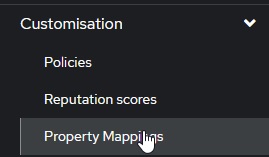
-
create a Custom Property Mapping
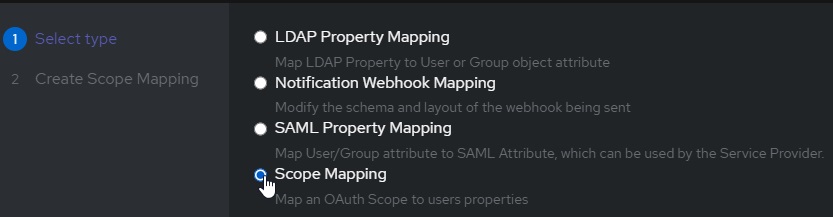
-
Create a Scope Mapping
-
Assign the following attributes:
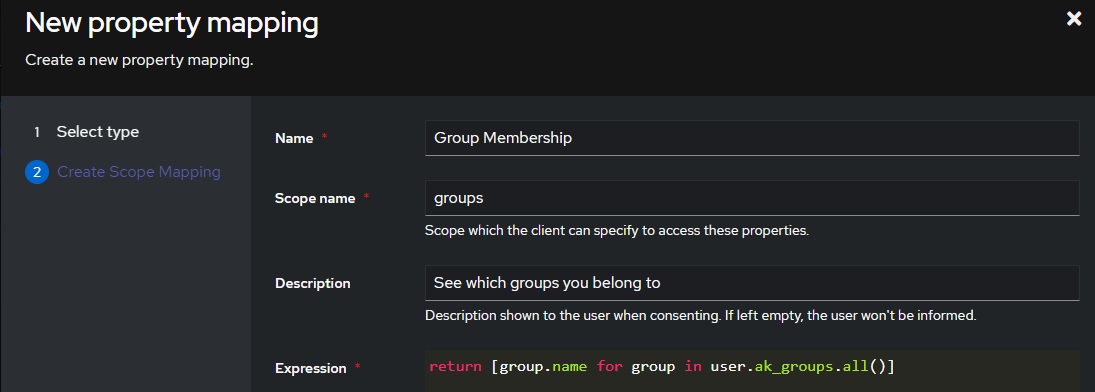
# A nice, human readable name
name: Group Membership
# The name of the scope a client must request to get access to a user's groups
Scope Name: groups
# A description of what is being requested to show to a user
Description: See Which Groups you belong to
-
For the Expression field, use the following code:
return [group.name for group in user.ak_groups.all()]
Now we can add this property mapping to authentik's Jellyfin OAuth provider:
-
Navigate to
Applications/providers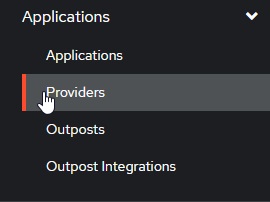
-
Edit / Update your Jellyfin OAuth provider
-
Verify your "Redirect URIs/Origins (RegEx)" follows the format:
https://domain.tld/sso/OID/redirect/Authentik. -
Under "Advanced Protocol Settings", add the Group Membership Scope
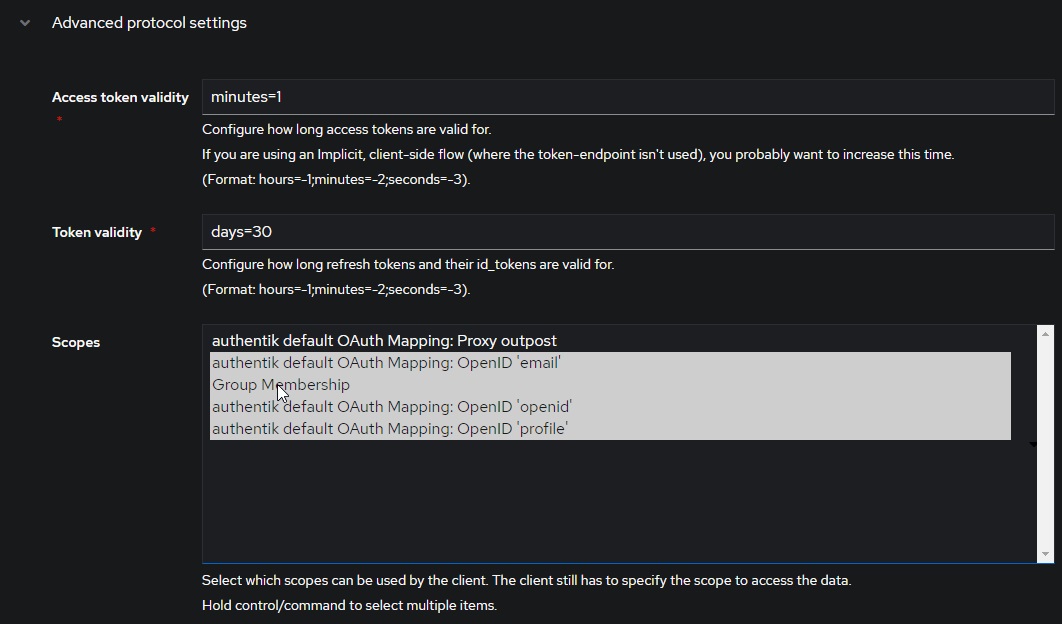
On Jellyfin's end, we need to configure an authentik provider as follows:
In order to test group membership, we need to request authentik's OIDC scope groups, which we will use to check user roles.
authentik:
  OidEndpoint: https://authentik.example.com/application/o/jellyfin
  OidClientId: <same-as-in-authentik>
  OidSecret: <redacted>
  RoleClaim: groups
  OidScopes: ["groups"]
If you receive the error Error processing request. from Jellyfin when attempting to login and the Jellyfin logs show Error loading discovery document: Endpoint belongs to different authority try setting Do not validate endpoints in the plugin settings.
Keycloak in general is a little more complicated than other providers. Ensure that you have a realm created and have some usable users.
Create a new Keycloak openid-connect application. Set the root URL to your Jellyfin URL (ie https://myjellyfin.example.com)
Ensure that the following configuration options are set:
- Access Type: Confidential
- Standard Flow Enabled
- Redirect URI: https://myjellyfin.example.com/sso/OID/redirect/PROVIDER_NAME
- Redirect URI (for Android app): org.jellyfin.mobile://login-callback
- Base URL: https://myjellyfin.example.com
Press the "Save" button at the bottom of the page and open the "Credentials" tab. Note down the secret.
For adding groups and RBAC, go to the "mappers" tab, press "Add Builtin", and select either "Groups", "Realm Roles", or "Client Roles", depending on the role system you are planning on using. Once the mapper is added, edit the mapper and ensure that you note down the Token Claim Name as well as enable all four toggles: "Multivalued", "Add to ID token", "Add to access token", and "Add to userinfo" are enabled.
Note that if you are using the template for the "Client Roles" mapper, the default token claim name has ${client_id} in it. When noting down this value, make sure you note down the actual Client ID (which should be written above).
On Jellyfin's side, we need to configure a Keycloak provider as follows:
keycloak:
  OidEndpoint: https://keycloak.example.com/realms/<realm>
  OidClientId: <same-as-in-keycloak>
  OidSecret: <redacted>
  RoleClaim: <same-as-token-claim-name>
Keycloak with SAML is very similar to OpenID. Again, Keycloak in general is a little more complicated than other providers. Ensure that you have a realm created and have some usable users.
Create a new Keycloak saml application. Set the root URL to your Jellyfin URL (ie https://myjellyfin.example.com)
Ensure that the following configuration options are set:
- Sign Documents on
- Sign Assertions off
- Client Signature Required off
- Redirect URI: https://myjellyfin.example.com/sso/SAML/post/PROVIDER_NAME
- Base URL: https://myjellyfin.example.com
- Master SAML processing URL: https://myjellyfin.example.com/sso/SAML/post/PROVIDER_NAME
These two URLs are the assertion consumer service endpoint Keycloak POSTs the SAML response to. The plugin accepts both the sso/SAML/post/PROVIDER_NAME spelling and the legacy sso/SAML/p/PROVIDER_NAME spelling; use either, consistently. (The challenge route sso/SAML/start/PROVIDER_NAME is only the URL a login starts from — it cannot process assertions.)
Press the "Save" button at the bottom of the page.
For adding groups and RBAC, go to the "mappers" tab, press "Add Builtin", and select either "Groups", "Realm Roles", or "Client Roles", depending on the role system you are planning on using. Once the mapper is added, edit the mapper and ensure that you note down the Token Claim Name as well as enable all four toggles: "Multivalued", "Add to ID token", "Add to access token", and "Add to userinfo" are enabled.
Note that if you are using the template for the "Client Roles" mapper, the default token claim name has ${client_id} in it. When noting down this value, make sure you note down the actual Client ID (which should be written above).
Finally, download the certificate. Open the "Installation" tab, select "Mod Auth Mellon files", and download the zip. Extract the zip file, and open the idp-metadata.xml file. Note down the contents of the X509Certificate value.
keycloak:
  SamlEndpoint: https://keycloak.example.com/realms/<realm>/protocol/saml
  SamlClientId: <same-as-in-keycloak>
SamlCertificate: <copied-from-xml-file>A simple and easy-to-use OIDC provider that allows users to authenticate with their passkeys to your services.
- Login to you Pocket ID admin account
- Go to
Administration -> OCID Clients - Click
Add OCID Client - Give the client a name e.g.
Jellyfin - Set the
Clent Launch URLto your Jellyfin endpoint - Set the callbak url to
https://jellyfin.example.com/sso/OID/redirect/pocketid. Thepocketidpart must match theName of OpenID Providerin the Jellyfin SSO provider - (optional) Enable PKCE if Jellyfin is an https endpoint
- (optional) Set a logo
- (optional) Set
Allowed User Groups
pocketid:
  OidEndpoint: https://pocketid.example.com/.well-known/openid-configuration
  OidClientId: <pocket-id-client-id>
  OidSecret: <pocket-id-secret>
  EnableAuthorization: true # (optional) If you want Jellyfin to read group permissions from pocket id
  RoleClaim: groups # (optional) If you want Jellyfin to be able to read group assignments from pocket id
  AdminRoles: admin # (optional) The pocket id group which will give a user Jellyfin admin privilges
  Roles: users  # (optional) The pocket id group which will give a user Jellyfin access
  AvatarUrlFormat: @{picture} # (optional) This will pull each users pocket id photo into Jellyfin
Kanidm is a modern and simple identity management platform written in rust.
kanidm system oauth2 create jellyfin "Jellyfin" https://jellyfin.example.com/

# Set this to drop the trailing @idm.example.com in usernames
kanidm system oauth2 prefer-short-username jellyfin

kanidm system oauth2 add-redirect-url jellyfin https://jellyfin.example.com/sso/OID/redirect/kanidm
kanidm system oauth2 add-redirect-url jellyfin https://jellyfin.example.com/sso/OID/r/kanidm

# Optionally setup groups for Jellyfin
kanidm group create jellyfin_admins
kanidm group create jellyfin_users

kanidm system oauth2 update-scope-map jellyfin jellyfin_admins openid profile groups
kanidm system oauth2 update-scope-map jellyfin jellyfin_users openid profile groups
Get the secret used in the Jellyfin config with kanidm system oauth2 show-basic-secret jellyfin.
kanidm:
  OidEndpoint: https://idm.example.com/oauth2/openid/jellyfin/
  OidClientId: jellyfin
  OidSecret: <kanidm-secret>
  # (optional) If you want Jellyfin to read group permissions from kanidm
  EnableAuthorization: true
  OidScopes:
    - groups
  RoleClaim: groups
  AdminRoles:
    - jellyfin_admins@idm.example.com
  Roles:
    - jellyfin_users@idm.example.com
    # If in your setup admin accounts aren't members of the users group you need to add the admins group to roles as well
    - jellyfin_admins@idm.example.com
  # (optional) If you want the name attribute instead of the spn attribute as username
  DefaultUsernameClaim: preferred_username