Repository navigation
Server
EDAM is on Google Play.
EDLD can serve what it knows to your phone or tablet, and the EDAM app draws it. In landscape and on a tablet, EDAM draws EDCARS as the desktop window does: the same header, the same sections on the same rail, and in each the same windows with the same tabs, tables and colors, sent from the one model the desktop window and the terminal dashboard draw. The Navigation window's forms — FSD, Neutron, Carrier, Survey, Nearby, Services and Discoveries — are drawn by the app and run by EDLD, and the buttons along a window's foot work from the phone: Follow, Copy Next and Clear Route, Set Target and Gal. Avg, Set Home. In portrait, one section fills the screen and swipes to the next. EDAM's Dashboard style is a drawer of pages instead — Overview, Session, Career, Alerts, Commander, Crew, Ship and the rest.
It is made for glancing at: open the app, see where things stand, put the phone away. EDLD's Options stay on the computer; EDAM has only its own settings.
edld -s                  # what a plain launch opens (EDCARS by default), plus the server
edld -s --edcars           # EDCARS, plus the server
edld -s --dasht          # terminal dashboard, plus the server
edld -s --dashg          # desktop window, Dashboard layout, plus the server
edld -s --headless       # no interface at all, for running as a service
-s on its own opens whatever a plain edld would — [UI] Interface,
EDCARS unless you have chosen another — with the server beside it. Name an
interface and you get that interface and the server, in one process.
Server mode is a setting rather than an interface: Options → Server →
Enabled (Enabled = true in [Server]) runs it beside whichever interface
opens, every time — a plain edld, which opens EDCARS, or any of the launcher
shortcuts. That is why there are no server copies of the shortcuts: turn it on
once and every launcher serves.
--headless prints nothing after startup; diagnostics go to the log file named
on its first line. It is what to use for a service.
EDLD-server is the same program built without either dashboard: about a
fifth of the size, with no Qt and no Textual. It always serves, runs the
terminal event log by default, and takes --headless, --pair, --paired
and --unpair like EDLD. It is published for Linux and Windows beside the
EDLD downloads, and scripts/build_local.sh --server builds it locally.
Running as a service:
-
Linux: a
systemd --userunit runningedld -s --headless. -
Windows: a Task Scheduler task triggered At log on for your own
account, running
EDLD.exe -s --headless. Not a Windows Service: a service runs in another session as another account and cannot see your Saved Games folder. Keep EDLD in the same folder across updates — Windows Firewall ties its rule to the program's path and will ask again if it moves.
If the server cannot start — the port is taken, a package is missing — EDLD says so on the terminal, in the log and in the Alerts pane, and carries on without it.
[Server]
Enabled         = false
Port            = 28510
BindAddress     = ""        # blank: every interface, IPv6 and IPv4
ExternalHost    = ""        # e.g. yourname.duckdns.org
AllowEndSession = false
PortMapping     = false     # ask the router to forward Port
DuckDNSDomain   = ""        # keep yourname.duckdns.org pointed here...
DuckDNSToken    = ""        # ...with this token
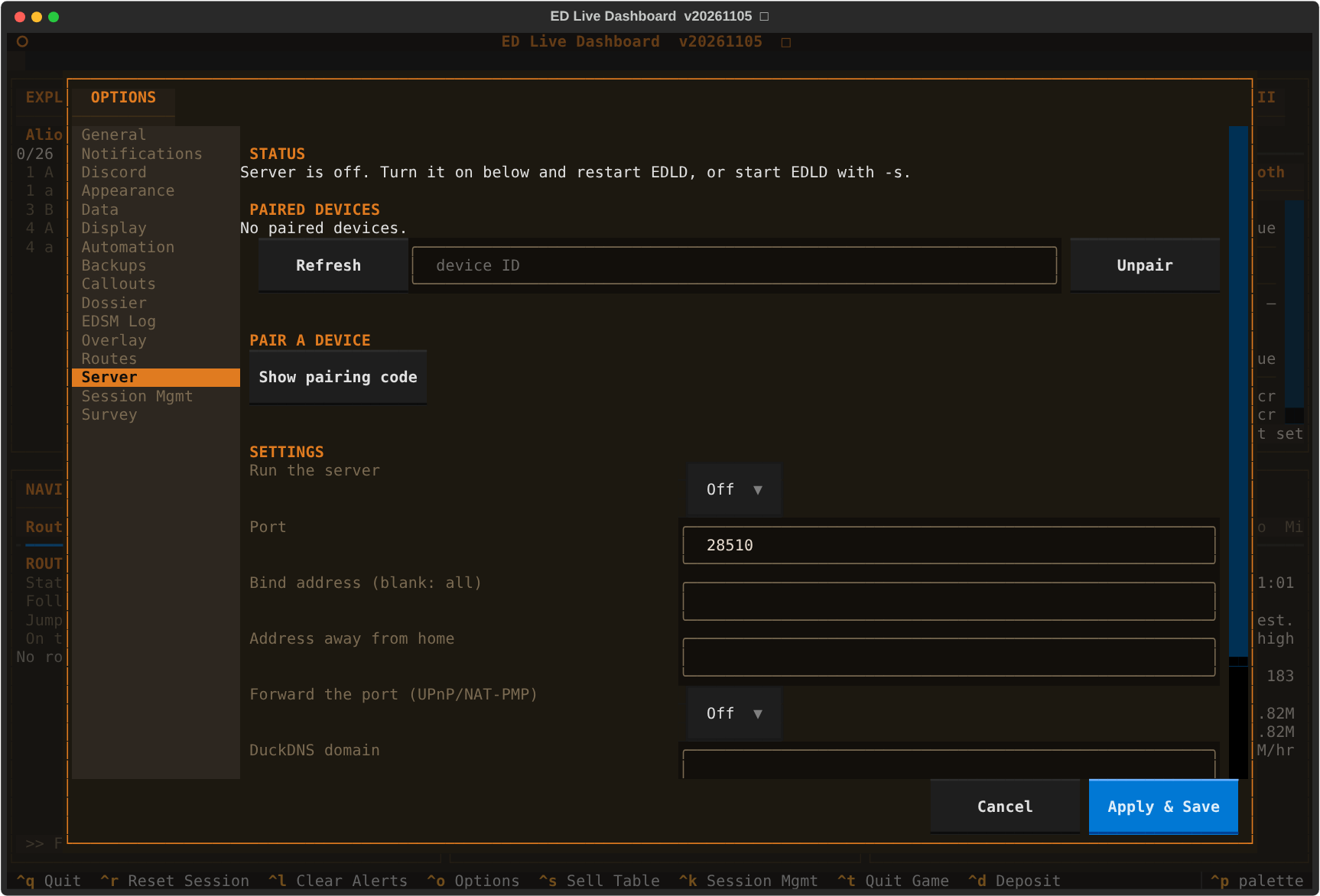
All of these are also on the Server tab in Options, in both the
terminal dashboard and the desktop window. That tab shows what the server is
doing — listening, who is connected, the port forward, DuckDNS — lists the
paired devices with an Unpair button, and has a Show pairing code button
that puts the same QR code edld --pair prints on the screen.
Each profile is its own server, with its own identity and its own paired
devices, so two profiles running at once need two ports:
EDP2.Server.Port = 28511 in the profile section.
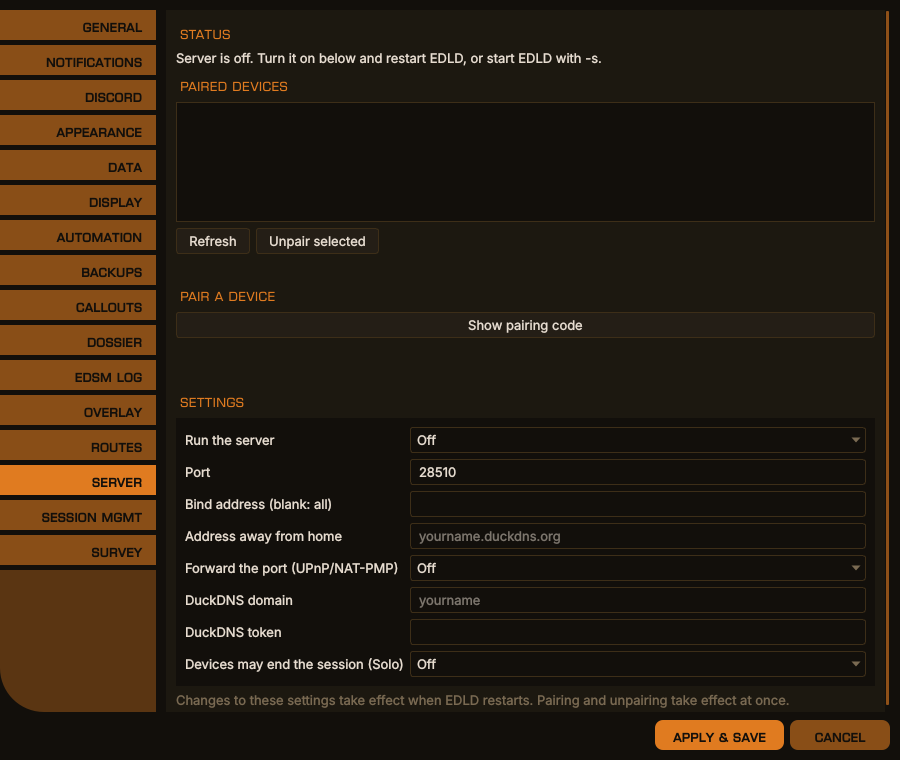
Options → Server, desktop window
The same in the terminal dashboard
Press Show pairing code on the Server tab in Options, or run this on the computer, in a second terminal if EDLD is already running:
edld --pair # or: edld -p PROFILE --pairIt prints a QR code, a one-time code, the server's fingerprint, the addresses it found, and a link. In EDAM, choose Add computer and scan the code, or paste the link. The app shows the addresses it will try and lets you add or change them before saving, because only you know how your network is set up.
If ExternalHost is not set, --pair asks for the address to use away from
home; leave it blank for this network only. A PNG of the QR code is also
written beside the server's files, for a machine whose console cannot draw it;
it is deleted when the code is used or expires.
The code is valid for five minutes, works once, and is destroyed after five
wrong attempts. Running --pair again replaces it.
edld --paired            # list paired devices
edld --unpair hNzebMq-   # remove one, by the ID --paired shows
A running EDLD disconnects an unpaired device within a few seconds; nothing needs restarting.
On the same network nothing else is needed, unless this computer's firewall blocks the port — see When a device will not pair below. The app tries the addresses in the pairing code in order.
Away from home, the app needs an address that reaches your computer from the internet:
-
A name that follows your address. Your home address can change;
DuckDNS gives you a free name, such as
yourname.duckdns.org. Sign in there, create a name, and copy the token it shows. Put the name inDuckDNSDomainand the token inDuckDNSToken, and EDLD keeps the name pointed at your connection while it runs. If your router or DuckDNS's own updater already does that, leave both blank and put the name inExternalHostinstead. -
A forwarded port. Turn on
PortMappingand EDLD asks the router to forward the port itself, by UPnP or NAT-PMP, and removes the forward when it exits. The Server tab says whether it worked. If your router has UPnP switched off, or you would rather not, forward TCP port 28510 (or whateverPortis) to this computer's LAN address in the router's settings instead — port forwarding, virtual server or NAT rules. - Pair again, or edit the address in the app.
If the phone works on Wi-Fi at home but not away, the forward is the thing to check. If it works away but not at home using the DuckDNS name, your router does not support NAT loopback; that is why the app keeps your LAN address too and tries both.
With PortMapping on, EDLD also reads back the address the router thinks it
has on the internet. If that is a private address, EDLD says so on the Server
tab and in the Alerts pane: it means your provider or a second router is doing
NAT as well, and the next paragraph applies.
If your provider uses CGNAT — common with Starlink, 4G/5G home internet
and some fibre providers — no router setting can make your computer reachable
from outside. Some providers give you a public address on request. Otherwise,
install Tailscale (free for personal use) on the
computer and the phone, and put the computer's Tailscale name or address in
ExternalHost. IPv6, where both ends have it, can also avoid the problem.
Read the app's message first. It lists every address it tried and what happened at each, in order. The first address — your LAN one — is the one that matters at home.
| The app says | What it means |
|---|---|
| no route to host | This computer's firewall rejected the connection. |
| no answer within 5 s | This computer's firewall dropped it, or the phone cannot reach that address at all (another network, guest Wi-Fi, a VPN on the phone). |
| refused | Nothing is listening. Start EDLD with -s, and check the port. |
| name not found | The DuckDNS name is misspelt, or not being updated. |
| answered with a different key | Something else answered on that address, or EDLD's identity was reset since the code was made. Run edld --pair again. |
The same-network case is nearly always this computer's firewall. It lets connections out and drops new ones coming in, so the phone waits and EDLD never sees anything to log. That a phone and computer can already see each other — Android Studio's wireless debugging, say — proves nothing here, because there the computer connects to the phone, not the other way round.
Linux. edld --pair, the Server tab and EDLD's start-up line all check for
nftables, ufw, firewalld and iptables and print the command that opens the
port. Arch's stock /etc/nftables.conf accepts ssh and drops everything else,
so on Arch this is the expected first hurdle. EDLD can read that file and
says so outright; ufw keeps its rules root-only, so there EDLD can only say
ufw is active and give the command (sudo ufw allow 28510/tcp). For nftables:
sudo nft insert rule inet filter input tcp dport 28510 accept # nowand to keep it, add tcp dport 28510 accept beside the tcp dport ssh accept
line in /etc/nftables.conf, then sudo systemctl restart nftables.
Windows. The first time EDLD listens, Windows asks whether to allow it. If that was dismissed, or the network is set to Public, devices are blocked: Windows Security → Firewall & network protection → Allow an app through firewall → allow EDLD for Private networks, and make sure your home network is set to Private.
Checking from another computer on the network takes the phone out of the
question. nc -vz 192.168.1.100 28510 says whether the port answers at all;
scripts/edld_client.py pair '<link>' does exactly what the app does.
On EDLD's side, a device that reaches the port and gives up before encryption starts is logged as connected and closed before TLS started, and every pairing attempt, right or wrong, is logged with its outcome. Nothing in the log at all during an attempt means the connection never arrived.
- Everything is encrypted with TLS 1.3.
- The phone trusts EDLD because the pairing code carried EDLD's public-key fingerprint. An impostor on the network cannot present that key, so the very first connection is safe even on public Wi-Fi.
- EDLD trusts the phone because the phone's own key was registered while you held a valid code. A device that was never paired, or has been unpaired, is refused during the TLS handshake, before it can send a single message.
- The only thing an unpaired connection can do is offer a pairing code, and
only while one from
--pairis open. -
Ending the game session from a device is off unless
AllowEndSessionis true, and even then only works in Solo, the same rule session management applies to its own triggers. The device must confirm, and the reason is recorded as ended from . - The buttons under a window do on the computer what the desktop's do: Copy Next puts the next system on the computer's clipboard, Follow and Clear Route change the followed route, Set Target and Set Home search Spansh. A plot from a device's Navigation forms becomes the followed route. None of them presses a key.
- Pressing keys from a device's Helm panel is off unless both Allow EDLD to press keys and Allow paired devices to press keys are on under Options → Automation. Even then a device can press only the controls EDLD lists — landing gear, lights, pips and the like, never typing — and only while the game has the focus. See AUTOMATION.md.
- EDLD never looks for devices, never scans your network and never contacts
ExternalHost: it answers devices that come to it. Its own LAN address is found by asking the operating system which interface it would use, which sends nothing. - Two settings, both off by default, add outgoing traffic, and only what they
describe.
PortMappingsends one NAT-PMP request to your default gateway and one UPnP search on the local network, then talks only to a router that answered from a private address — the same thing games and consoles do to open a port.DuckDNSDomainandDuckDNSTokenmake one HTTPS request to duckdns.org every ten minutes. The token is never written to any log. - Nothing is sent anywhere else, and game data goes only to devices you paired. Indevlin runs no service in between.
Files, per profile, in <data dir>/server/<profile>/:
| File | What |
|---|---|
server.key |
EDLD's private key (owner-only permissions) |
server.crt |
EDLD's certificate, whose key the devices pin |
devices.json |
paired devices: name, key fingerprint, certificate, dates |
pairing.json |
the open pairing code, hashed; present only while one is open |
Deleting the directory unpairs every device and gives EDLD a new identity.
TLS 1.3 over TCP. One JSON object per line, UTF-8, no line longer than 1 MiB.
Every message has a type, t. scripts/edld_client.py is a working client.
edld://pair?v=1&n=<name>&fp=<fingerprint>&c=<code>&h=<host:port>[&h=...]
fp is base64url (no padding) of the SHA-256 of the server certificate's DER
SubjectPublicKeyInfo. IPv6 hosts are bracketed. It is always 43 characters.
Pinning the key rather than the certificate is what lets the certificate be re-issued over the same key without breaking a pairing, and what lets one pin cover the LAN address, the DuckDNS name and IPv6 alike.
Every client computes this value independently — EDLD in Python, EDAM in
Kotlin from X509Certificate.publicKey.encoded, scripts/edld_client.py in
Python again — and a client that computes it differently cannot pair, with
nothing to say why. Assert against this vector on both sides rather than
trusting that two implementations of the sentence above agree.
This is a self-signed EC P-256 certificate of the shape edld -s generates:
-----BEGIN CERTIFICATE-----
MIIBNzCB36ADAgECAgUA7R1+VzAKBggqhkjOPQQDAjAbMRkwFwYDVQQDDBBFRExE
IHRlc3QgdmVjdG9yMB4XDTIwMDEwMTAwMDAwMFoXDTQ1MDEwMTAwMDAwMFowGzEZ
MBcGA1UEAwwQRURMRCB0ZXN0IHZlY3RvcjBZMBMGByqGSM49AgEGCCqGSM49AwEH
A0IABNOgtrqE9BPoDo38YiNtN95jJc8T123lF0fVPiSlXsn3uE7eluiJYh/qQEVH
YwICy0bRfYxdWAETWDP6JGmc/wmjEDAOMAwGA1UdEwEB/wQCMAAwCgYIKoZIzj0E
AwIDRwAwRAIgRrtLDXxKo6c8nLR3AUS2pyomSqcnrKc7B5RQdP/NZyACIEwZJrds
1dlkD5jdq4+NpNO5yMjOQF4CqmECm8oPy/r4
-----END CERTIFICATE-----
fp |
Ww-k_3c2NkupB5RICcUmQS8JmOb5ZxqdzmSxPeWgqFA |
short_id (what a person reads) |
Ww-k_3c2 |
| SHA-256 of the whole DER certificate | 341bf80add5df967e25f72e4bf0c22ee560cfbae36142ff98f8bde7ec1422d8d |
The last row is not the pin; it is there so a reader who computes it by
mistake — sha256(cert) instead of sha256(spki) — recognizes the wrong
answer instead of hunting for it. Any openssl build reproduces the pin:
$ openssl x509 -in vector.pem -pubkey -noout \
    | openssl pkey -pubin -outform DER \
    | openssl dgst -sha256 -binary | base64 | tr '+/' '-_' | tr -d '='
Ww-k_3c2NkupB5RICcUmQS8JmOb5ZxqdzmSxPeWgqFA
tests/test_server_fingerprint_vector.py holds EDLD to it.
On a connection presenting no client certificate, having checked the
server's key against fp:
→ {"t":"pair","v":1,"code":"ABCDE12345","name":"Pixel 8","cert":"<base64 DER>"}
← {"t":"paired","device":{"id":"hNzebMq-","name":"Pixel 8"},
   "server":{"name":"EDLD on devstation01 (EDP1)","fingerprint":"..."}}
or {"t":"error","code":...} with no-ticket, expired, wrong-code,
locked or bad-cert. The server closes the connection either way. The
certificate must be EC P-256/384/521, RSA of 2048 bits or more, or Ed25519,
and inside its validity dates; self-signed is expected.
Connect presenting the device certificate, then:
→ {"t":"hello","v":1,"app":"edam","appVersion":"20261105"}
← {"t":"welcome","v":1,"server":{"name":...,"edld":"20260923"},
   "device":{"id":...,"name":...},"features":["snapshot","panels","end_session","press","tool","action"]}
← {"t":"snapshot","v":1,"seq":12,"ts":"...","header":{...},"panels":[...]}
← {"t":"panels","seq":13,"ts":"...","upsert":[...],"remove":["id"],"header":{...}}
A panels message carries whole panels that changed, the ids of panels that
went away, and the header only if it changed. It is sent only when something
changed. Apply them in seq order; if one is missed, send
{"t":"snapshot"} for a fresh copy.
The client sends {"t":"ping","id":n} every 30 s (answered with
{"t":"pong","id":n}); a connection silent for 90 s is closed. Send
{"t":"bye"} before leaving.
{"cmdr":"MERRICK CALBRUIN",
 "squadron":{"name":"MINING AND LOGISTICS LTD","tag":"MALL","rank":"Executive Director"},
 "ship":{"name":"Prospect","ident":"MC-01","type":"Type-10 Defender"},
 "system":"Sol","location":"Abraham Lincoln","mode":"Solo",
 "game":{"running":true,"lastEvent":"2026-09-24T18:52:15+00:00"},
 "monitorError":null,
 "endSession":{"available":false,"reason":"only available in Solo"},
 "controls":[{"id":"honk","label":"Honk","group":"automation"},
             {"id":"gear","label":"Landing gear","group":"ship"},
             {"id":"pips-sys","label":"SYS","group":"power"}],
 "helm":{"name":"Helm","section":"helm",
         "groups":[{"id":"automation","label":"Automation"},{"id":"flight","label":"Flight"},
                   {"id":"ship","label":"Ship"},{"id":"combat","label":"Combat"},
                   {"id":"power","label":"Power"},{"id":"panels","label":"Panels"}],
         "note":null}}
tools (below, under Commands) are the Navigation window's forms.
controls are the Helm panel's buttons: what this device may ask EDLD to
press, in the order EDLD draws them. It is empty unless the commander has
allowed it, and lists only controls bound to a key or a mouse button in the
game. helm names the panel and its groups, in drawing order, and section
is its section among EDCARS's. group is one of the groups' ids; a client
should show a group it does not know rather than drop it. While controls is
empty, note says why — automation off, devices not allowed to press keys,
or nothing bound — for the device to show in place of the buttons. Two
controls are sequences rather than one key: honk holds the discovery
scanner in its fire group, and nextstop plots the galaxy map to the next
stop of the route EDLD plotted; their answer can take several seconds.
theme is the theme EDLD is drawing with:
"theme":{"id":"default-green","name":"EDLD Default Green",
         "colors":{"bg":"#0b0f0d","blockBg":"#141c18","titleBg":"#1a2420",
                   "fg":"#d4e4da","dim":"#567060","accent":"#00aa44",
                   "border":"#1e3428","green":"#57e389","amber":"#f8e45c",
                   "red":"#e05c5c","rowAlt":"#2b342f"}}
A custom theme arrives the same way, as the colors EDLD resolved from its CSS
file, so a device never needs to know the theme to draw it. EDLD's built-in
themes are also compiled into the app; scripts/export_edam_themes.py
regenerates that list from core/palette.py.
style is the style EDLD's desktop window uses, for a device set to follow
it, and edcars is what a device needs to draw EDCARS the way the
desktop window does — sent whatever EDLD's own style, because a device can
choose EDCARS by itself:
console is the console EDCARS is dressed as (Options → Appearance →
EDCARS: console; see EDCARS.md): edcars, order,
rebel or rogue. It is a field of its own rather than part of
style, which stays edcars for all four, so a device that knows only
EDCARS goes on drawing EDCARS. consoles names all four, in Options' order,
so a device offers the same choice without spelling a name itself.
"style":{"id":"edcars","name":"EDCARS"},
"console":{"id":"order","name":"ORDER",
           "consoles":[{"id":"edcars","name":"EDCARS"},{"id":"order","name":"ORDER"},
                       {"id":"rebel","name":"REBEL"},{"id":"rogue","name":"ROGUE"}]},
"edcars":{"name":"EDCARS",
        "title":"CMDR MERRICK CALBRUIN // MINING AND LOGISTICS LTD [MALL]",
        "titles":["CMDR MERRICK CALBRUIN // MINING AND LOGISTICS LTD [MALL]",
                  "CMDR MERRICK CALBRUIN [MALL]","CMDR MERRICK CALBRUIN"],
        "sections":[{"id":"command","label":"Command",
                     "groups":["commander","ship","vessel","crew"],"panels":[],
                     "columns":[45,55],
                     "parts":[{"id":"commander.identity","title":"Commander","column":0,
                               "weight":3,"groups":["commander"],"panels":[],"tabs":true,
                               "header":"","tools":false},
                              {"id":"status.crew","title":"Crew / SLF","column":0,
                               "weight":2,"groups":["crew"],"panels":[],"tabs":false,
                               "header":"","tools":false},
                              {"id":"ship_info","title":"Ship","column":1,"weight":1,
                               "groups":["ship","vessel"],"panels":[],"tabs":true,
                               "header":"ship","tools":false}]},
                    {"id":"helm","label":"Helm","groups":["helm"],"panels":[],
                     "columns":[1],
                     "parts":[{"id":"helm","title":"Helm","column":0,"weight":1,
                               "groups":["helm"],"panels":[],"tabs":false,
                               "header":"","tools":false}]},
                    {"id":"fleet","label":"Fleet","groups":[],
                     "panels":["commander.ships","commander.stored-modules",
                               "commander.carrier","commander.squadron-carrier"]}],
        "strip":[{"id":"cmdr","label":"CMDR","value":"MERRICK CALBRUIN"},
                 {"id":"vessel","label":"Vessel",
                  "value":"Fossor (T11-FO) · Type-11 Prospector","shrinks":true},
                 {"id":"cargo","label":"Cargo","value":"66/1,024 t"},
                 {"id":"hull","label":"Hull","value":"100%","tone":"good"}],
        "alerts":"pulse",
        "omit":["status"]}
style.id is dashboard or edcars; the name is for display, and is the only
place a device should take EDCARS's name from. A panel belongs to the first
section listing its id, or a prefix of it, under panels; otherwise to the
section listing its group. A group no section claims should be shown as a
section of its own. columns and parts are the desktop window's layout of
the section: columns the relative widths of its columns, left to right;
each part a framed window, in column, taking weight as its share of that
column's height, under title. A panel in the section goes in the first part
listing it, or a prefix of it, under panels, then the first listing its
group, and otherwise the last part. tabs says whether the desktop shows
that window's panels as tabs or one under another. header names a panel
drawn as the line above the part's tabs rather than as a tab — the vessel's
name and type over the Ship window's — and tools that the Navigation forms
follow the part's panels as tabs, as the desktop's follow Route. omit lists
panels EDLD sends that EDCARS does not draw: status, whose hull, shields and
fuel EDCARS shows in Info and on the strip. A device that draws EDCARS as the
desktop does follows these; EDAM does in landscape. title is the band's
title: the commander, and the squadron and tag when they are in one.
titles is the title longest first — with the squadron, with its tag alone,
the commander alone — for a band too narrow for it: draw the first that fits,
and end the last in "…" when none does.
strip is the header strip in order — commander (drawn in the title, not on
the strip), vessel, cargo, location, fuel, hull, game mode — each with an
optional tone of good, warn or crit; the device adds its own clock.
A fact with shrinks (the vessel and the location) ends in "…" when the
strip is too narrow, so that the others are always shown whole. The helm
section has no panels of its own: a device draws the Helm panel there, from
the header's controls and helm.
alerts is pulse or switch: how EDLD is set to surface a new urgent
alert.
location is the body or station within system.
Any of these may be null while EDLD does not know yet. game.running is the
authority on whether Elite is running; show "game not running" from it rather
than guessing from the age of lastEvent. EDLD finds the game's process by
its command line, which works at the main menu and under Proton, and sends a
header update within a few seconds of the game starting or stopping.
{"id":"cargo","title":"Cargo","group":"vessel","order":30,
 "rows":[{"label":"Commodity","value":"","kind":"head","cells":["Tons","Price","Value"]},
         {"label":"","value":"","kind":"rule"},
         {"label":"Platinum","value":"120 t · 200K cr · 24.0M cr","kind":"cells",
          "cells":["120 t","200K cr","24.0M cr"]},
         {"label":"Totals","value":"144/300 t · 24.2M cr","kind":"cells",
          "cells":["144/300 t","","24.2M cr"]}],
 "actions":[{"id":"target","label":"Set Target","input":"Station name…"},
            {"id":"galavg","label":"Gal. Avg"}],
 "footer":"No target set"}
Every window's tabs are sent, one panel per tab, from the same model the
desktop window and the terminal dashboard draw (core/windows), so the three
cannot show different things. group says which page of the client the panel
belongs on; order sorts within the whole list, and within a window it is
the desktop's tab order.
| group | panels | desktop window |
|---|---|---|
status |
status: hull, shields, fuel (not drawn by EDCARS) |
— |
vessel |
ship: the vessel's name and type; cargo, the hold priced as the Ship window prices it |
Ship |
ship |
ship.modules by power group, each engineered module's engineering as a note under it |
Ship |
engineering |
engineering.fitting: the ship chosen on the desktop, each slot fitted and planned, the work left and its materials; engineering.materials, its seven inner tabs as pages
|
Engineering |
alerts |
alerts: the Alerts pane |
Alerts |
commander |
commander.info, .ranks, .wallet, .ships, .stored-modules, .carrier, .squadron-carrier
|
Commander |
crew |
crew.crew: the NPC crew and fighter |
Crew / SLF |
exploration |
exploration.system: the current system, its bodies and their biology |
Exploration |
navigation |
navigation.route: the followed route and the next legs |
Navigation |
missions, colonisation
|
missions.missions, colonisation.colonisation
|
Objectives |
mining |
mining.hotspots, mining.sites (both filter) |
Mining |
session, career
|
session.session, career.summary … career.powerplay
|
Career / Session |
A client should show a group it does not recognize rather than drop it: EDAM lists unknown groups as pages of their own, so a window added to EDLD reaches the phone without an app release. Panel ids are stable across title changes (the module count, the system being explored), so a client may key on them.
Row kind:
| kind | meaning |
|---|---|
kv |
label and its value
|
sub |
a sub-heading, in label
|
line |
a full-width line of text, in value
|
rule |
a dividing line |
head |
a table's column headings: label over the first column, cells over the rest, right-aligned |
cells |
a table row: label, then cells under the headings; value joins them, for a client that draws no tables |
note |
a line under the row above, in label, set in as far as indent — text of that row's label — reaches; a client that draws indent unseen in the label's face lines the two up |
A row's optional tone colors its value, line or cells: crit, warn,
good, accent or dim, as the desktop colors them. rate is an optional
right-hand figure such as 22.5 /hr. An alert row carries ts, when it
happened, for the client to show as "4m ago", and "urgent": true when it
reports danger or loss — hull, shields down, fuel, a lost ship or fighter,
stolen cargo, an attack — rather than status such as a carrier's jump
schedule. Values arrive formatted; the client displays them as given; an
unknown kind should be drawn as kv.
A panel may also carry:
-
heading— the line the desktop shows above the tab's rows (MODULES — 2 damaged); -
pages— inner tabs,[{"id","title","rows"}], withrowsthen empty; a client that draws no inner tabs shows each page's rows under its title; -
actionsandfooter— the buttons along the foot of the desktop window, and the line beside them. Seeactionunder Commands. An action with"row": trueis not drawn as a button: a row naming it in its ownactionruns it when tapped; -
filter—truewhen the client should offer a text filter over the rows (mining.hotspots,mining.sites). A filter keeps thecellsrows whose label or cells contain the text, each with thelinerows under it.
A row may carry action, the id of one of its panel's actions, or an id the
desktop handles itself (edit:<id> on the mining panels, which a client
that edits nothing ignores).
→ {"t":"cmd","id":1,"cmd":"end_session","confirm":true}
← {"t":"result","id":1,"ok":true}
← {"t":"result","id":1,"ok":false,"error":"refused","message":"only available in Solo"}
→ {"t":"cmd","id":2,"cmd":"press","control":"gear"}
← {"t":"result","id":2,"ok":true}
← {"t":"result","id":2,"ok":false,"error":"refused","message":"the game is not the focused window (Firefox)"}press takes a control id from the header's controls. Anything else is
refused. The answer comes when the press, or the sequence, is done; the
session goes on meanwhile. A pressed key is reported as pressed, not as having done anything:
the game shows that.
The header's tools describe the Navigation window's forms — FSD, Neutron,
Carrier, Survey, Nearby, Services, Discoveries — as the desktop draws them:
"tools":[{"id":"fsd","title":"FSD","button":"Plot FSD",
          "fields":[{"key":"from","label":"From (current system)","kind":"text",
                     "choices":[],"default":"","onlyFor":[],"system":true},
                    {"key":"to","label":"To (e.g. Colonia)","kind":"text","choices":[],
                     "default":"","onlyFor":[],"system":true},
                    {"key":"range","label":"Jump range, ly — filled from your ship",
                     "kind":"text","choices":[],"default":"","onlyFor":[],"system":false},
                    {"key":"neutrons","label":"Use neutron and white-dwarf boosts",
                     "kind":"check","choices":[],"default":"","onlyFor":[],"system":false}],
          "values":{"from":"Sol","range":"48.12"},
          "intro":"…"}]
kind is text, check, or choice with choices as [value, label]
pairs; a check's default is true or false, or empty for false. A field with onlyFor is shown only while the form's kind field has
one of those values. values are what follow the game — the current system,
the jump range — to fill in until the commander types over them. Run one:
→ {"t":"cmd","id":3,"cmd":"tool","tool":"fsd","values":{"from":"Sol","to":"Colonia","range":"48"}}
← {"t":"result","id":3,"ok":true,"pending":true}
← {"t":"toolResult","id":3,"tool":"fsd","status":"412 jumps · 22,001 ly","tone":"good",
   "rows":[{"label":"Waypoints","value":"","kind":"sub"},
           {"label":"Colonia","value":"412 jumps","kind":"kv"}],
   "route":true}
A plot can take minutes, so the answer follows the acknowledgment; the
session goes on meanwhile. status is the line under the form, with a
tone; rows are as in panels; route is true when the result became the
followed route, as a plot from the desktop does. An unknown tool is refused
at once.
A panel's actions are the desktop's footer buttons — on navigation.route
Follow, Copy Next and Clear Route; on cargo Set Target and Gal. Avg; on
commander.info Set Home System, a row action on the Home System row; on
colonisation.colonisation clear:<market id>, a row action on each site's
Stop tracking row — and each runs exactly what the desktop does. Copy Next copies to the clipboard of the computer EDLD runs on,
ready to paste into the galaxy map.
→ {"t":"cmd","id":4,"cmd":"action","panel":"navigation.route","action":"copy-next"}
← {"t":"result","id":4,"ok":true,"message":"Copied Col 285 Sector NK-R b20-0"}
An action with an input prompt is a search, in two steps: send the text,
get back what matched, send the one chosen.
→ {"t":"cmd","id":5,"cmd":"action","panel":"cargo","action":"target","input":"Jameson"}
← {"t":"result","id":5,"ok":true,"message":"",
   "choices":[{"id":0,"label":"Jameson Memorial  Shinrarta Dezhra"}]}
→ {"t":"cmd","id":6,"cmd":"action","panel":"cargo","action":"target","choice":0}
← {"t":"result","id":6,"ok":true,"message":"Target: Jameson Memorial"}
A choice applies to that device's last search for that button, once. The
change reaches every device in the next panels message.
EDLD's Options are not offered to a device: EDAM carries only its own settings.
{"t":"error","code":...,"message":...}: not-paired, already-paired,
revoked, version, protocol, unknown. After not-paired or revoked,
the device should forget the pairing and offer to pair again.