Repository navigation
Theming
EDLD ships twelve built-in color themes and supports user-defined custom themes. A theme is just a palette — a small set of color values. All structural rules (layout, spacing, borders) are fixed in the UI and are not part of a theme, so switching themes only changes colors.
Themes apply to both interfaces. The palettes live in core/palette.py,
which the terminal dashboard turns into Textual CSS and the desktop window
turns into a Qt stylesheet, so a theme is defined once and appears in both.
Custom themes work the same way in each.
The same palette also colors the commander dossier — its web page is regenerated when you change theme — and, if you choose Follow dashboard for it, the streamer overlay.
EDCARS, the desktop window's console style, draws from the same palette: its header band, rail and frames are the theme's accent, and its pills mix the accent toward the background. A custom theme reaches it with nothing extra to set.
Either set it in your config:
[UI]
Theme = "default-blue"
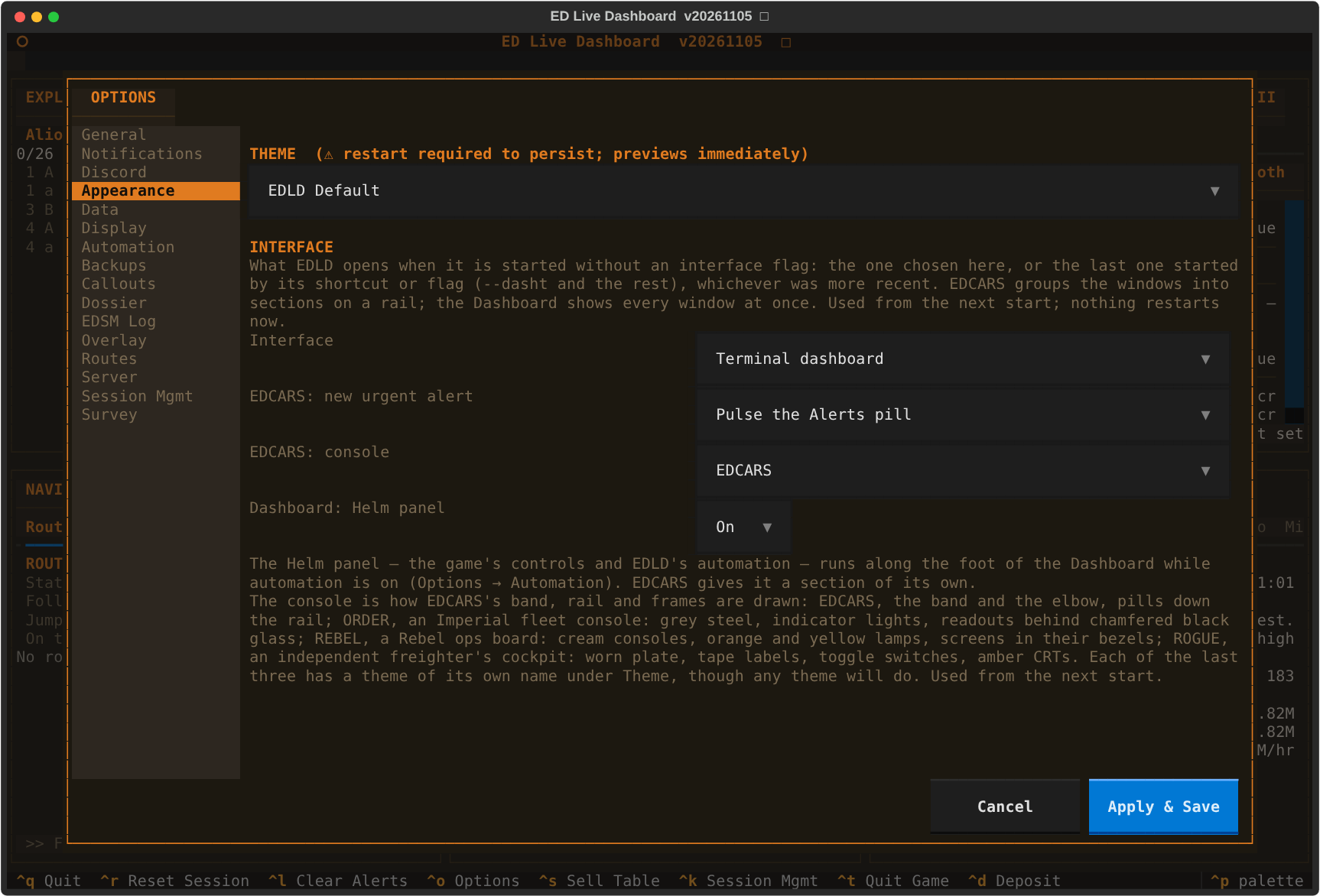
…or pick it from Options → Appearance (Ctrl+O), which restarts EDLD to apply it. A paired EDAM device set to follow EDLD changes with it. The same tab sets the Interface a plain launch opens — EDCARS, the Dashboard, the terminal dashboard or the terminal text.
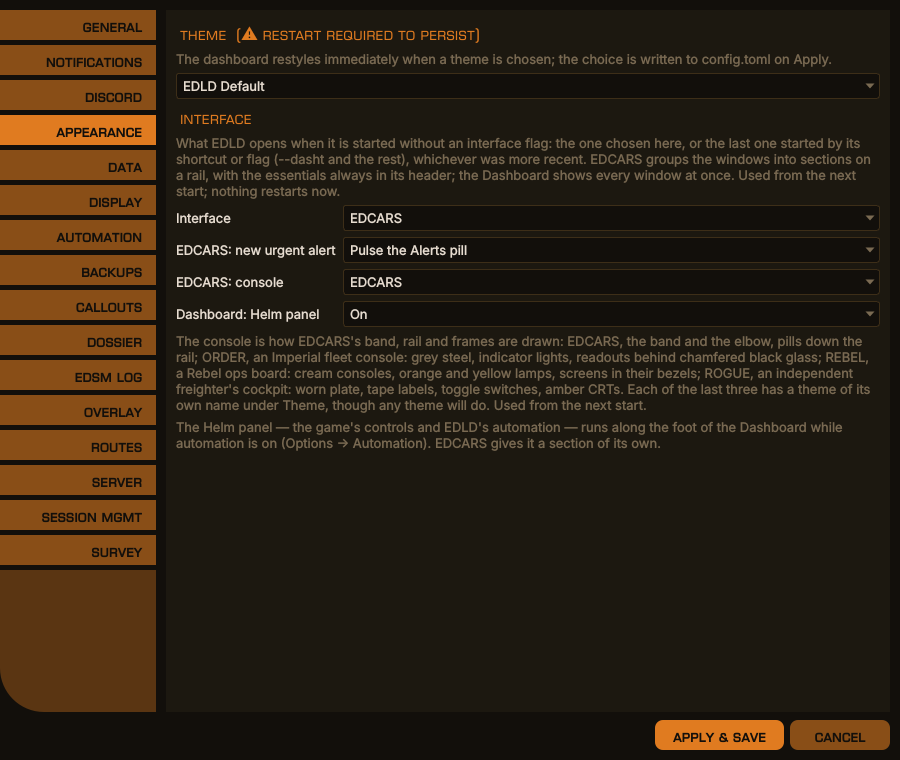
Options → Appearance, desktop window
The same in the terminal dashboard
| Theme | Accent |
|---|---|
elite-orange |
Orange #ff7100 on near-black — the game's own HUD colors |
default |
Orange #e07b20 — Elite Dangerous orange |
default-dark |
Orange #e07b20 — identical to default
|
default-blue |
Blue #3d8fd4
|
default-green |
Green #00aa44
|
default-purple |
Purple #9b59b6
|
default-red |
Red #cc3333
|
default-yellow |
Yellow #d4a017
|
default-light |
Light background variant |
order |
Red #e03a2f on black glass, white readouts — made for the ORDER console |
rebel |
Orange #e8762c, cream text on green-tinted screens in a navy room — made for REBEL
|
rogue |
Amber CRT phosphor #ffb347 on slate — made for ROGUE
|
The last three are made for EDCARS's consoles of the same names, and work anywhere: the Dashboard window and the terminal dashboard wear them too.
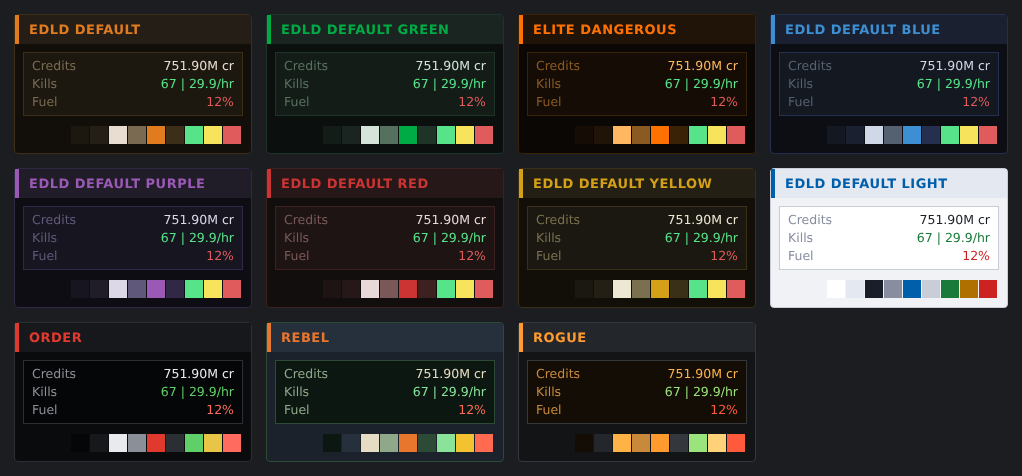
The built-in themes, each with a sample block and its ten colors
These palettes are built into the dashboard; no external files are required.
A custom theme is a single CSS file containing one :root { } block of color
variables. To create one:
-
Make a folder named
themes/customin EDLD's data directory and copy the template into it under the name you want. On Linux, from the EDLD folder:mkdir -p ~/.local/share/EDLD/themes/custom cp themes/custom-template.css ~/.local/share/EDLD/themes/custom/my-theme.cssSystem Folder Linux ~/.local/share/EDLD/themes/custom/Windows %LOCALAPPDATA%\EDLD\themes\custom\macOS ~/Library/Application Support/EDLD/themes/custom/With a packaged binary there is no
themes/folder to copy from: takethemes/custom-template.cssfrom the repository instead. -
Edit the color values in the
:root { }block ofmy-theme.css. Both interfaces read the same file, so there is nothing further to do for the desktop window. The recognized variables are:Variable Purpose --bg-deepWindow background --bg-midBlock background --bg-panelTitle-bar background --fgPrimary text --fg-dimDimmed/secondary text --accentAccent (titles, highlights) --borderBlock borders --green/--amber/--redStatus colors (good / warning / critical) Any variable you omit falls back to a sensible default.
-
Select it by stem name under Options → Appearance (it appears as
Custom: my-theme), or in config:[UI] Theme = "custom/my-theme"
Custom themes are found when Options opens, so a new file appears without a
restart. EDLD also still reads themes/custom/ beside its own code, where
custom themes lived before, for anyone running from source; if the same name
is in both places, the one in the data directory is used.
A paired EDAM device follows the theme EDLD is drawing with: every snapshot
carries the theme's name and its colors, so a custom theme reaches the phone
as the colors EDLD resolved and needs nothing installed there. The built-in
themes are also compiled into the app; after changing core/palette.py,
regenerate that list with scripts/export_edam_themes.py (see
SERVER.md).