Track your Auggie credits in real-time directly in your VS Code status bar.
- Real-time Credit Tracking - Automatically updates every 45 seconds
- Silent Background Updates - No disruptive loading indicators
- Clean Status Bar Integration - Displays credits with clear iconography
- Simple Setup - One-time configuration with your portal link
- Secure Token Handling - Uses official ORB API endpoints
- Navigate to Augment Code Account
- Log in to your account
- On the subscription page, click the "View Usage" button
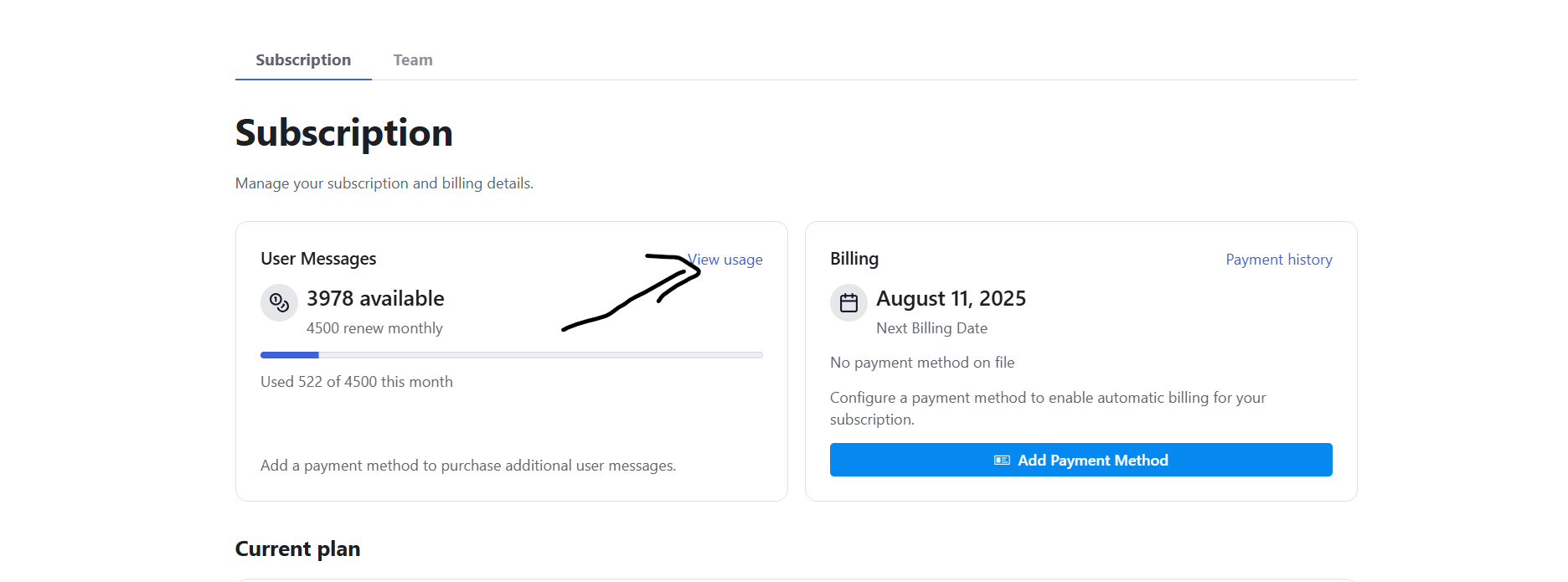
- After clicking "View Usage", copy the entire URL from your browser's address bar
- This URL contains your unique token and looks like:
https://portal.withorb.com/view?token=...

- In VS Code, look at the bottom-right status bar
- Click on the "Auggie Credits" item

- When prompted, paste the URL you copied from Step 3
- Press Enter to save

Your credits will now appear in the status bar as: Auggie Credits: 4009
- Updates automatically every 45 seconds
- Hover over the status bar item to see the last update time
The extension displays your credit balance in the VS Code status bar with different states:
- Active:
Auggie Credits: 4009- Shows current credit balance - Error:
Auggie Credits: Error- Indicates connection or authentication issues - Setup Required:
Auggie Credits: Click to set link- Prompts for initial configuration
| Command | Description |
|---|---|
Set Auggie Portal Link |
Configure your ORB portal link for credit tracking |
Access commands via Command Palette (Ctrl+Shift+P / Cmd+Shift+P)
No additional configuration required. The extension automatically:
- Extracts authentication tokens from your portal link
- Connects to ORB API endpoints securely
- Updates credit balance every 45 seconds
- Persists settings across VS Code sessions
- VS Code 1.74.0 or higher
- Active Augment Code subscription
- Internet connection
- Solution: Ensure you copied the complete URL from the usage page
- Check: URL should contain
portal.withorb.comandtoken=
- Solution: Verify your internet connection and that the portal link is still valid
- Check: Try refreshing the usage page and copying the URL again
- Solution: Restart VS Code after installation
- Check: Verify the extension is installed and enabled in Extensions view
If you need to change your portal link:
- Open Command Palette (
Ctrl+Shift+P/Cmd+Shift+P) - Type: "Set Auggie Portal Link"
- Paste your new portal URL