Uno Game By João Pedro Campos. Software Engineer at Kokku Games

Download the repository.
Run Uno.exe in the Solution build folder. You can specify which deck you want to use passing it as argument.
Not specifying a deck as argument is will use StandardDeck.txt file as default.
Deck files must be inside the GameData Folder.
./Uno.exe MyCustomDeck.txtYou have the option to craft a completely personalized deck by referencing the card IDs listed in the Game Data To create a full deck, include the corresponding card IDs as outlined in the file. Additionally, if you wish to customize the functionality of cards, feel free to modify the file accordingly. Ensure that the deck file is placed within the GameData folder alongside other necessary files. For guidance, you can refer to the Standard Deck as an example."
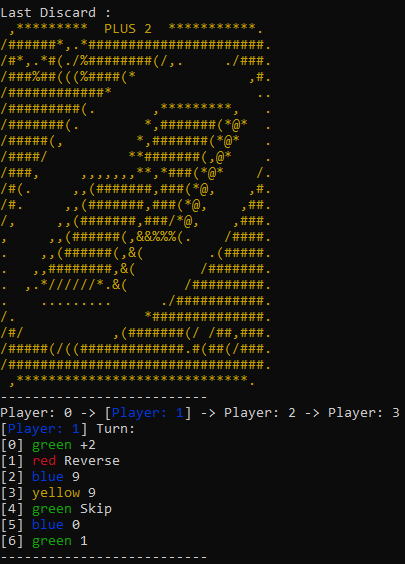
- For Playing a card
play [cardIndex] optional[Color] optional[uno]. - For Drawing a new card
draw. - For Challenging a +2 or +4
challenge [cardIndex] optional[Color] optional[uno].
For playing a card in your hand you can just type play For example:
play [1]"If you have a Wild Card, you must also indicate the next color. Simply specify the color immediately after playing the card. For example:
play [2] yellowIf you currently hold only two cards, playing the next card will leave you with just one card in hand. To avoid being compelled to draw two cards on the next turn, it is essential to announce 'UNO!' in the console as well. For example:
play [3] unoor
play [4] red unoIf a player plays a +2 or a +4 card on you, you have the option to challenge them by using the challenge feature. The standard rules still apply for selecting a color or calling 'UNO' as per the previous rules.
challenge [3] unoor
challenge [4] red unoColoring System by @aafulei | https://github.com/aafulei/color-console
ASCII images generated on https://manytools.org/hacker-tools/convert-images-to-ascii-art/