How to generate your own Google Cloud Console project credentials
Google does not allow open source projects to ship OAuth credentials, because anyone could read them out of the source. Each user therefore creates their own Google Cloud project once and pastes its Client ID and Client Secret into the add-on.
It takes about ten minutes and costs nothing. Everything happens at console.cloud.google.com.
The red arrows in the screenshots mark what to click.
These steps and screenshots were taken in August 2026. Google reorganises this console regularly, so the wording may drift.
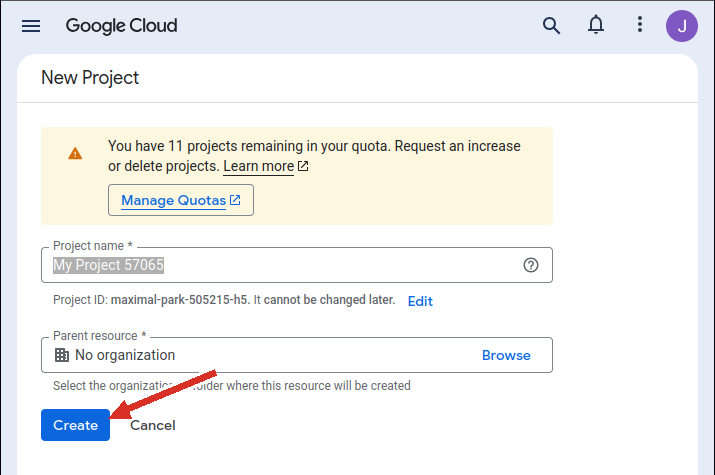
Open console.cloud.google.com/projectcreate. The suggested name is fine, or pick your own. Everything below applies to this project, so make sure it stays selected in the picker at the top of the page.
The add-on reads and writes your contacts through Google's People API, which has to be switched on for the project.
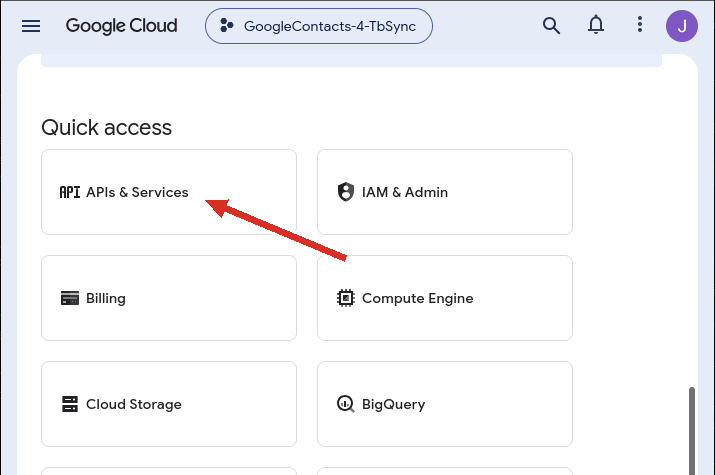
From the console home, open APIs & Services:
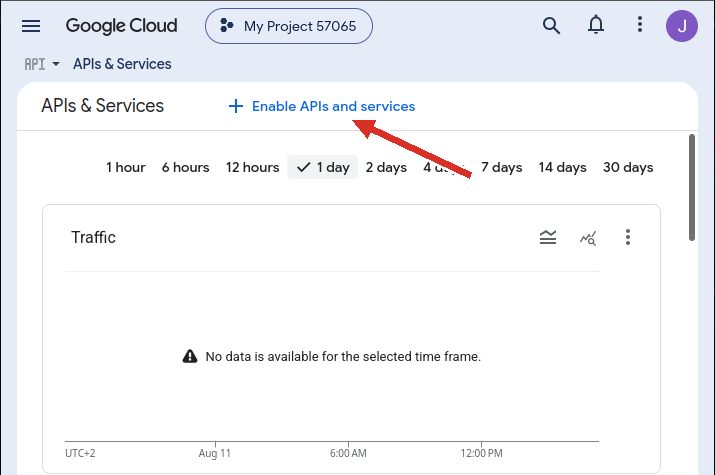
Then Enable APIs and services:
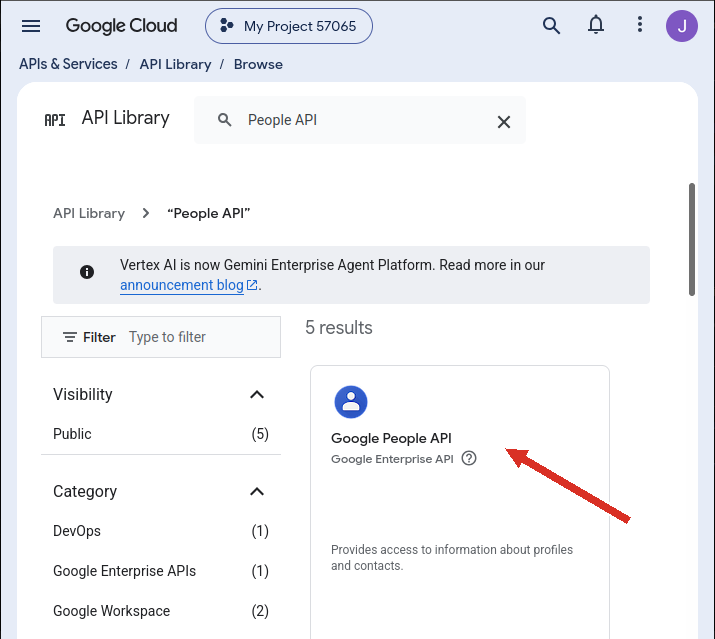
Search for People API and open the Google People API card:
Click Enable:
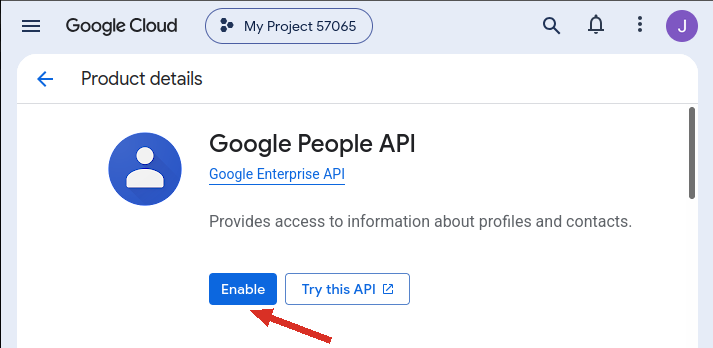
Leave the older Contacts API switched off. It conflicts with the People API.
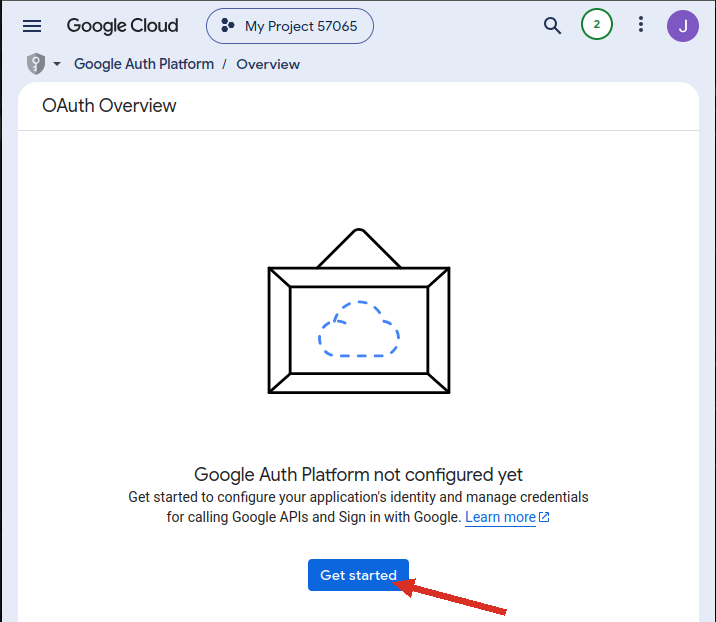
The consent screen is what Google shows when the add-on asks for access. It has to exist before an OAuth client can be created.
Open Google Auth Platform and click Get started:
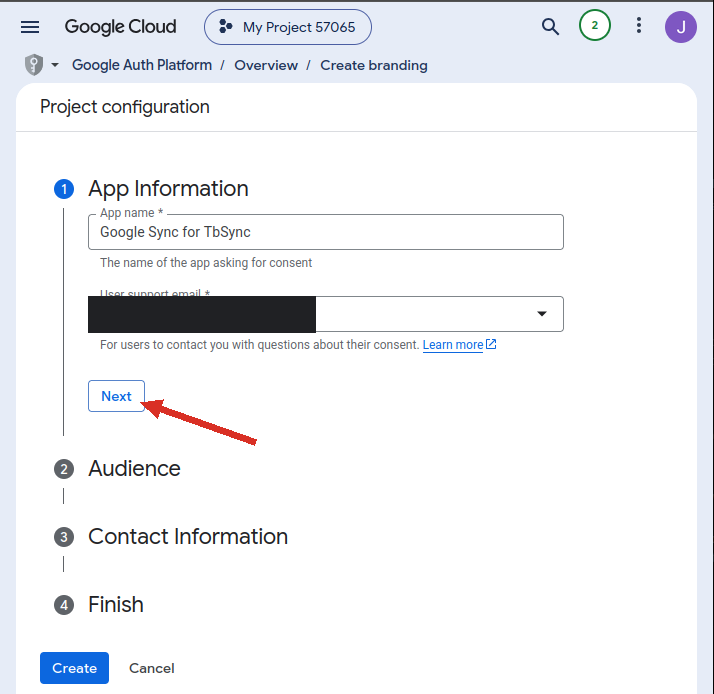
Give the app a name and pick your own address as the user support email. The name is only shown on the consent screen, so anything recognisable works:
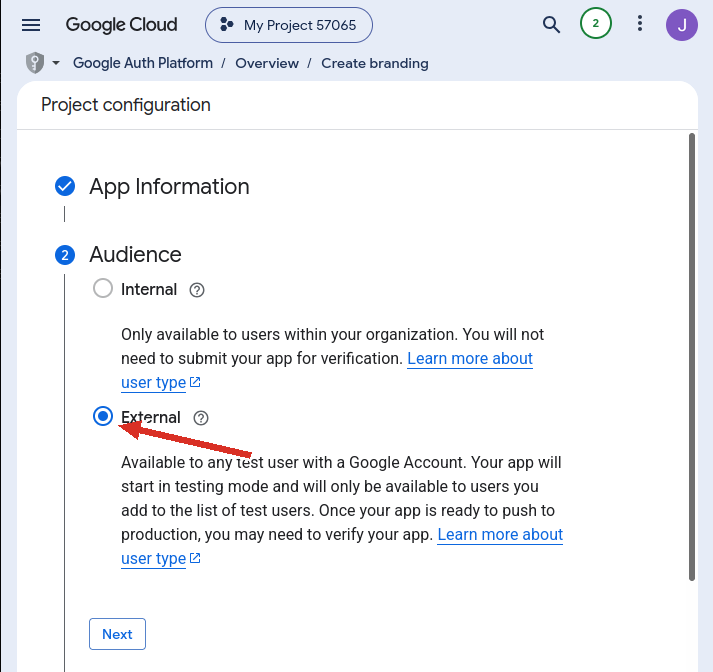
Choose External as the audience. Internal is only available to Google Workspace organisations:
Enter your email address again as the developer contact:
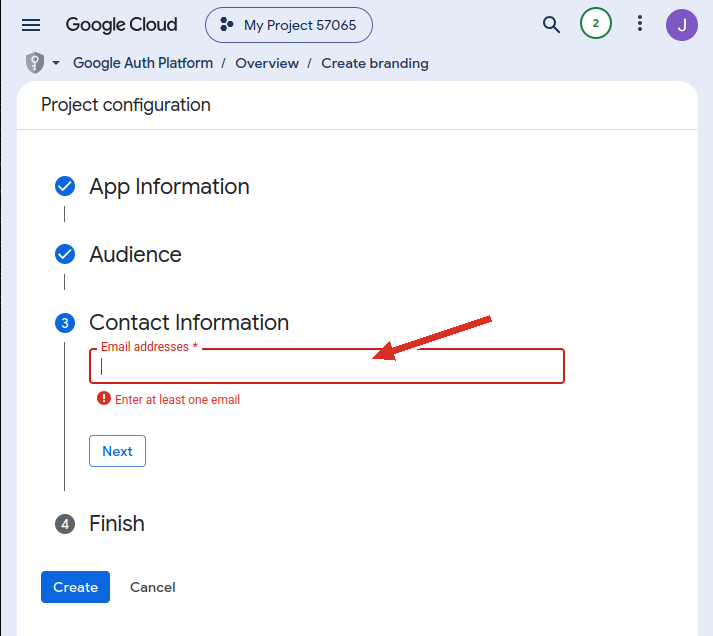
Agree to the user data policy and continue:
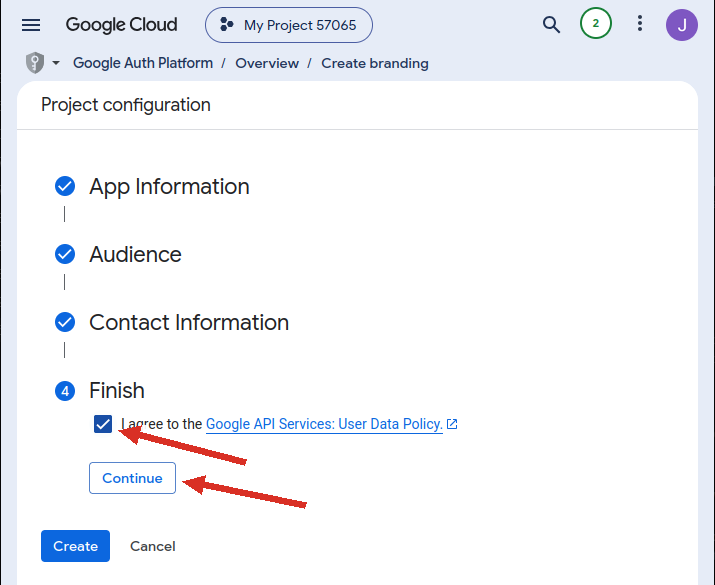
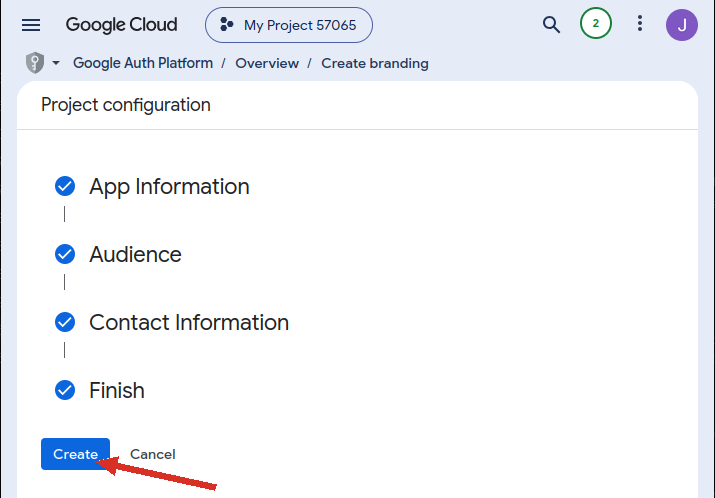
Then create the consent screen:
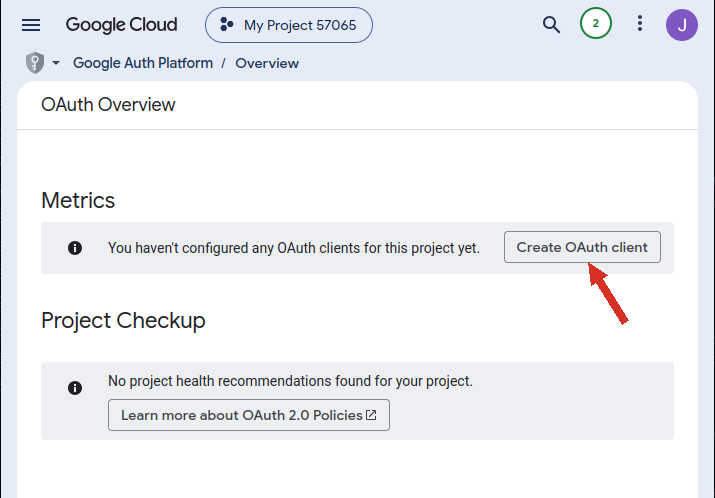
Still under Google Auth Platform, click Create OAuth client:
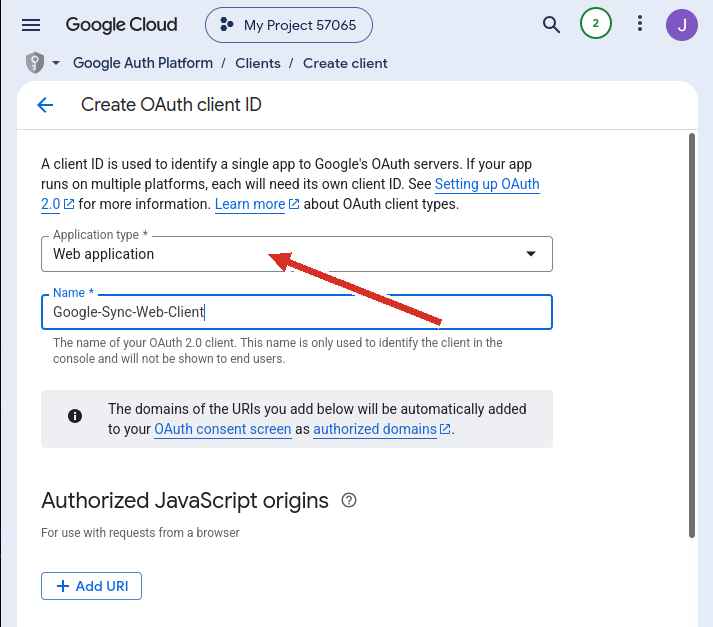
Set the application type to Web application and give the client a name:
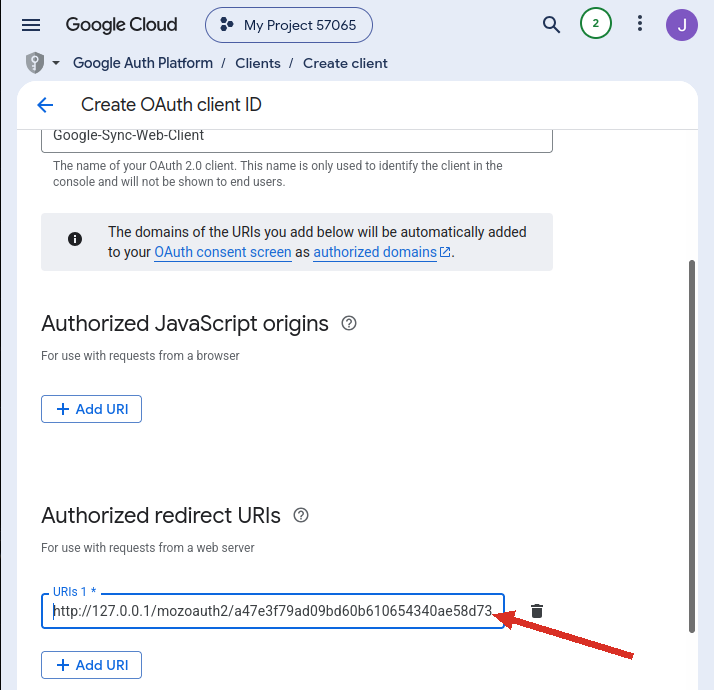
Under Authorized redirect URIs, click Add URI and paste the add-on's redirect URL. It is the same for every user, because it is derived from the add-on's ID rather than from your installation:
http://127.0.0.1/mozoauth2/a47e3f79ad09bd60b610654340ae58d7332718a3
Leave Authorized JavaScript origins empty.
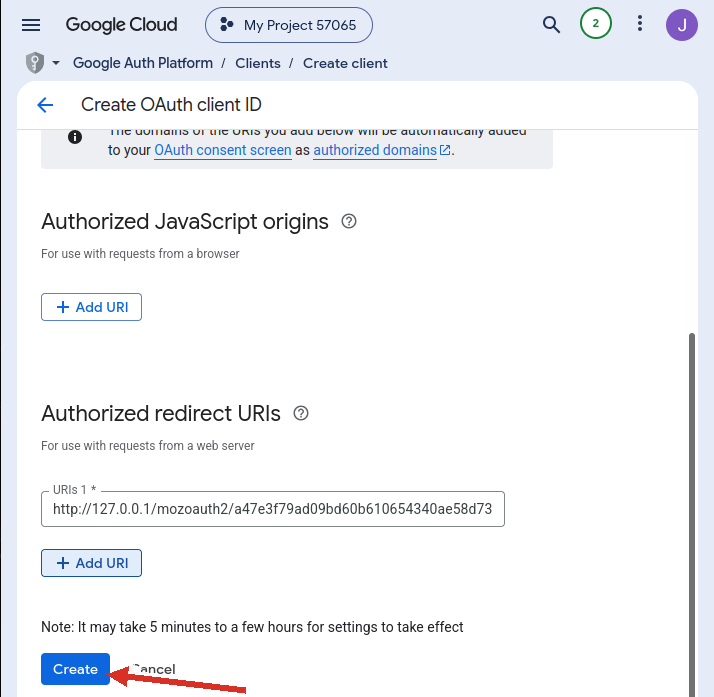
Click Create:
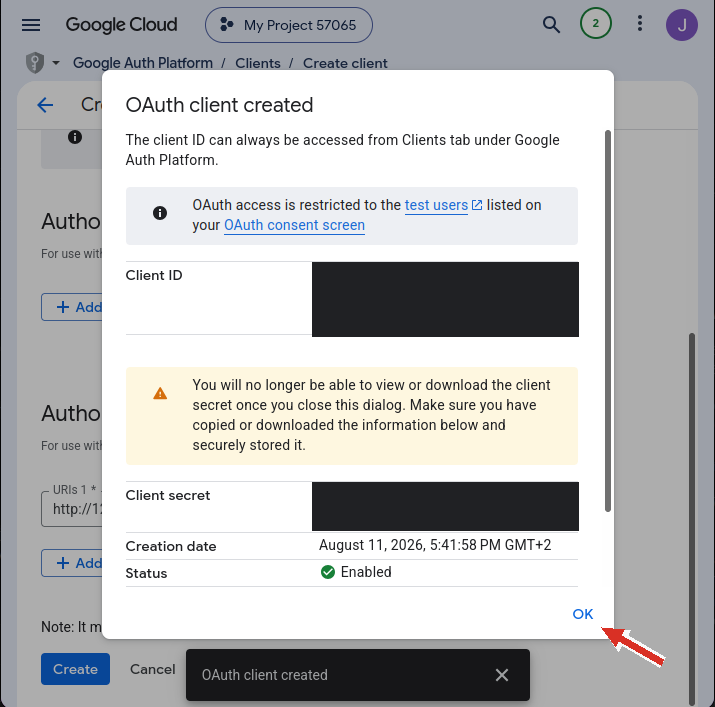
Google now shows the Client ID and Client Secret. Copy both somewhere safe before closing the dialog: the secret cannot be shown again, and a lost one means creating a new client.
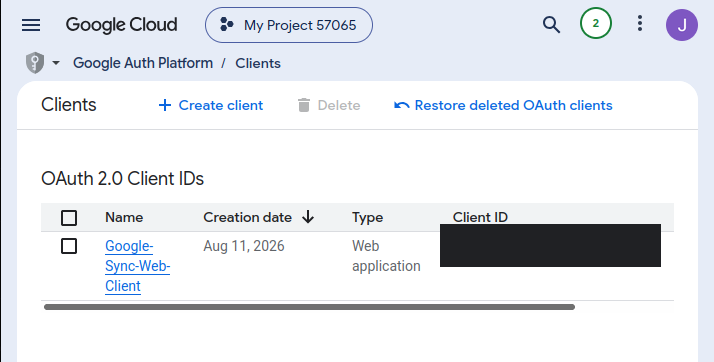
The client then appears in the list:
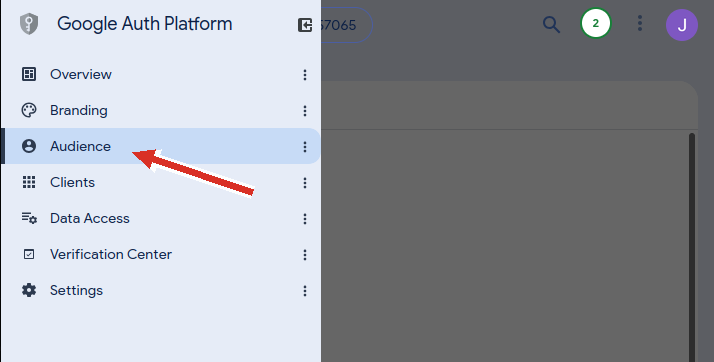
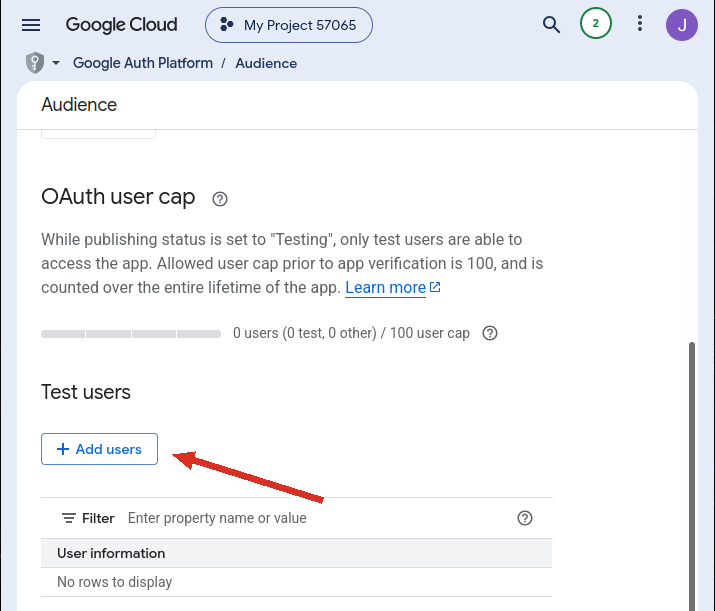
A new project starts in Testing mode, where only accounts you list explicitly may sign in. Without this step your own sign-in is refused.
Open Audience:
Click Add users:
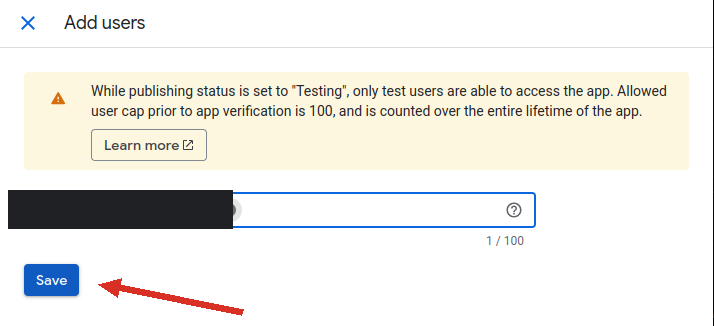
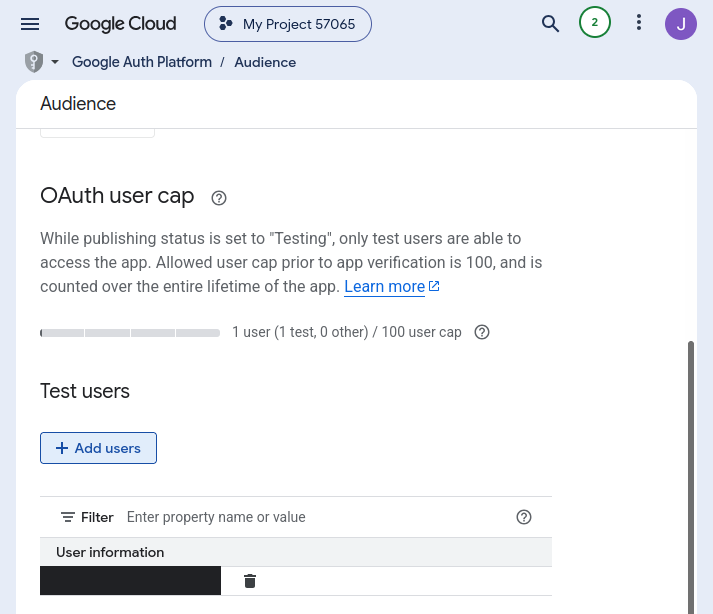
Enter the Google address you want to synchronise and save. Add one line per account if you use several:
The address is now listed as a test user:
Scopes decide what the add-on is allowed to do. It needs exactly two: one to read and write your contacts, one to confirm which account signed in.
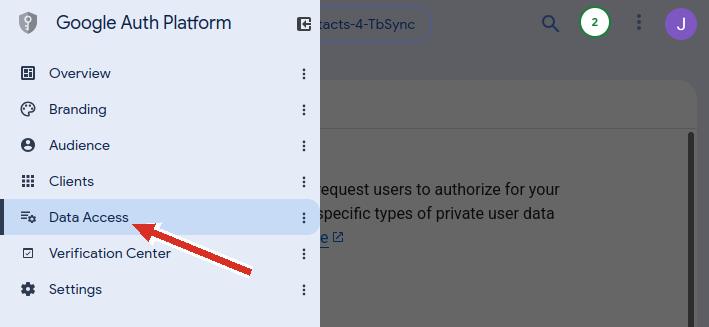
Open Data Access:
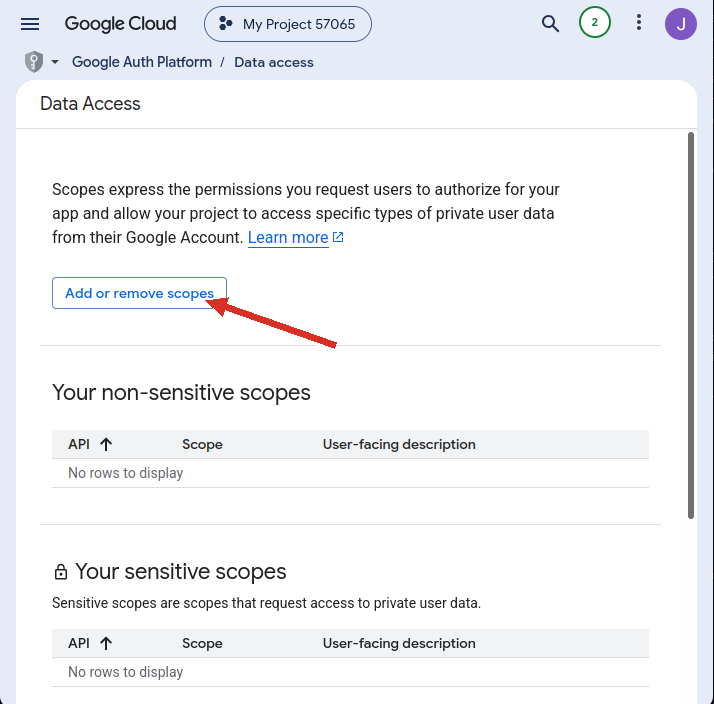
Click Add or remove scopes:
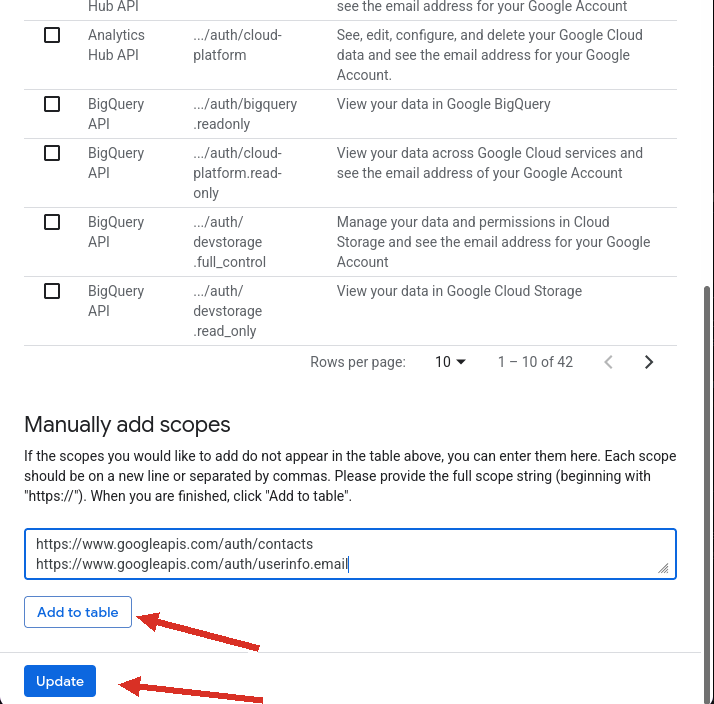
The picker lists only scopes belonging to APIs you have enabled, which is why the People API had to come first. Rather than hunting through the list, scroll to Manually add scopes at the bottom of the panel:
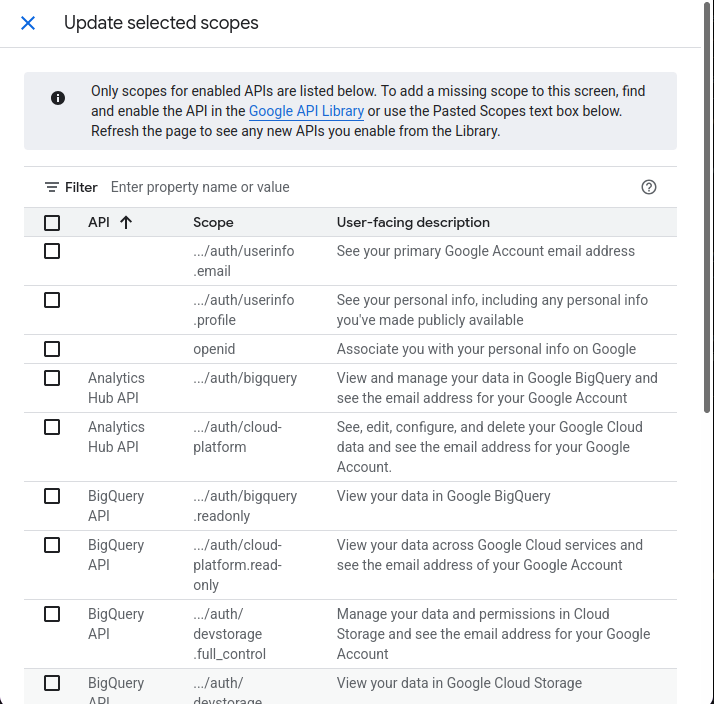
Paste both lines, click Add to table, then Update:
https://www.googleapis.com/auth/contacts
https://www.googleapis.com/auth/userinfo.email
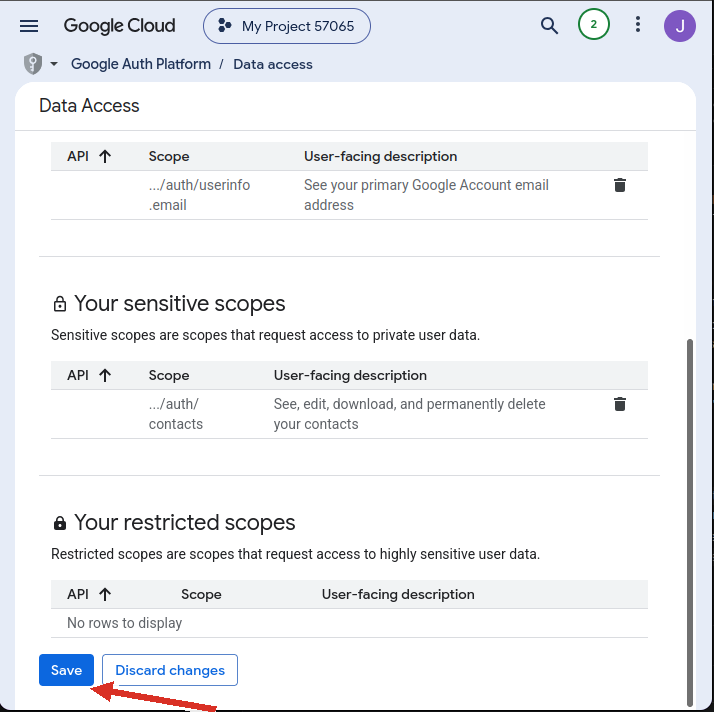
Finally Save. contacts is listed as a sensitive scope and
userinfo.email as a non-sensitive one, which confirms both were accepted:
Back in Thunderbird, add a Google account in TbSync. Choose Web OAuth Client, paste the Client ID and Client Secret from step 4, and sign in:
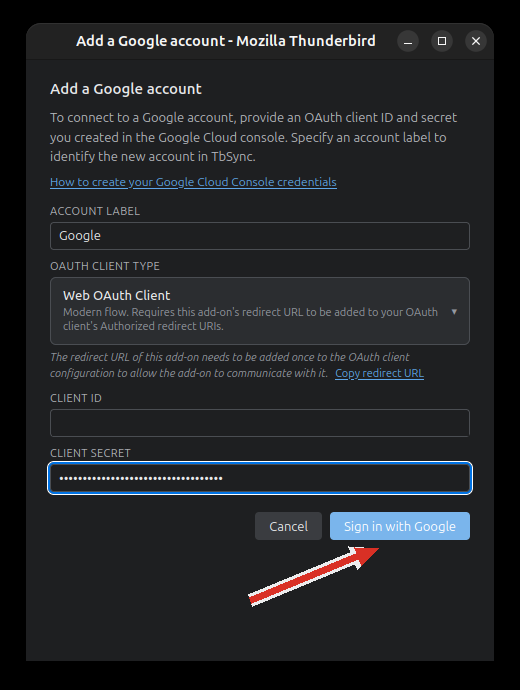
Google will warn that the app is unverified. That is expected for a project you created for yourself, and the warning cannot be removed without submitting the app for review. Continue, pick your account and grant access.
redirect_uri_mismatch — the URI in step 4 does not match what the add-on sends. Paste it exactly, with no trailing slash. The add-on's setup window also has a Copy redirect URL button.
Access blocked: app has not completed verification — the account you signed in with is not in the test user list from step 5.
.../auth/contacts is missing from the scope picker — the People API is not
enabled, or the page was loaded before you enabled it. Reload and try again.
Asked to sign in again after about a week — Google documents that a project
with an external audience and a publishing status of Testing gets refresh
tokens that expire after seven days, unless the only scopes requested are name,
email address and profile. The contacts scope is outside that set, so the rule
should apply here. In practice it often does not, and projects left in Testing
keep working for months. If it does affect you, set the project to
In production under Google Auth Platform → Audience. The unverified-app
warning at sign-in stays either way, which is harmless for a project only you
use.
Nothing synchronises — check that the old Contacts API from step 2 is disabled.