WOW Factor(s)
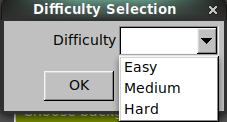
The settings include Easy, Medium, and Hard. Selecting the Easy difficulty allows the player to play puzzles 1-4. Selecting medium difficulty allows the player to play puzzles 1-8. Selecting hard difficulty allows the player to play puzzles 1-12. If a player does not select a difficulty, the difficulty is initially set to Easy, but if they select Easy difficulty and were on a puzzle higher than 4, and wish to continue their game, the difficulty is defaulted to Hard.
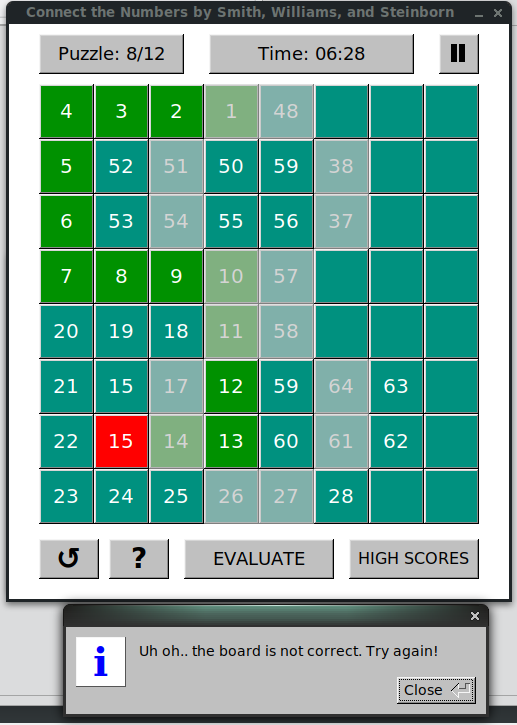
When an error is encountered, the game will highlight the last correct entry in red, and allow the player to continue from there.
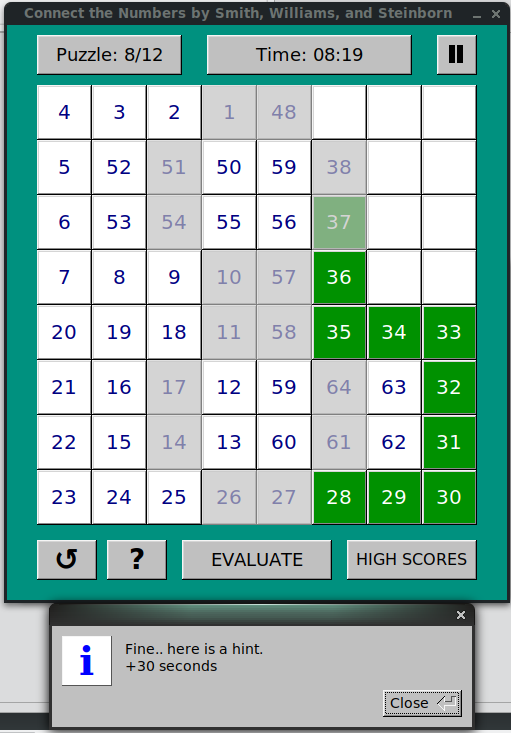
If the player cannot figure out how to complete the puzzle, they can click the question mark and be presented with the correct path from the first mistake to the next uneditable node.
This hint path is highlighted green and displays the correct entries, but taking a hint option will add 30 seconds to the player's timer.
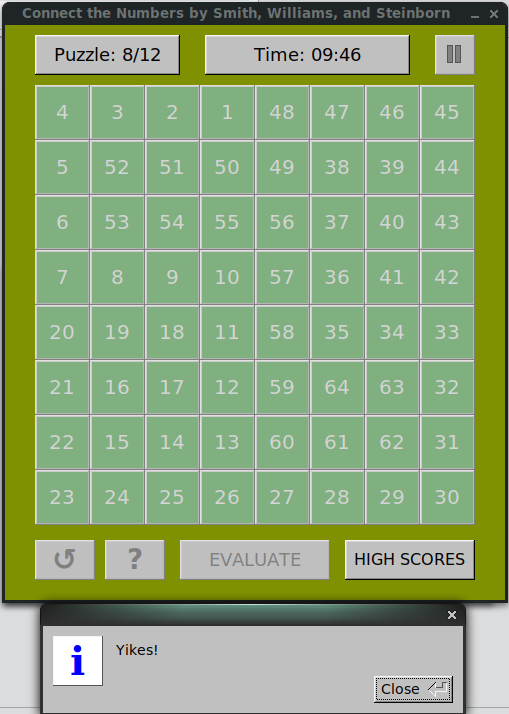
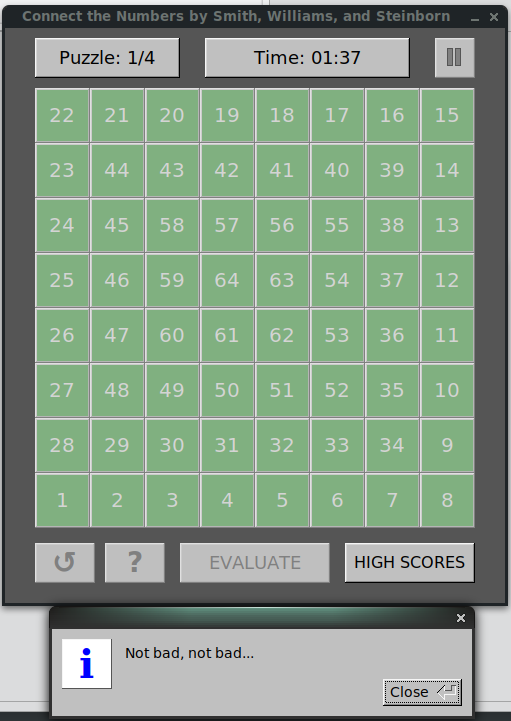
If the user completes a puzzle, the game will display a message depending on the time it took to complete the level.
These messages display upon completion and act as a way for the player to recognize their strengths and weaknesses in for each puzzle.