
View Setup Tutorial (GIF)
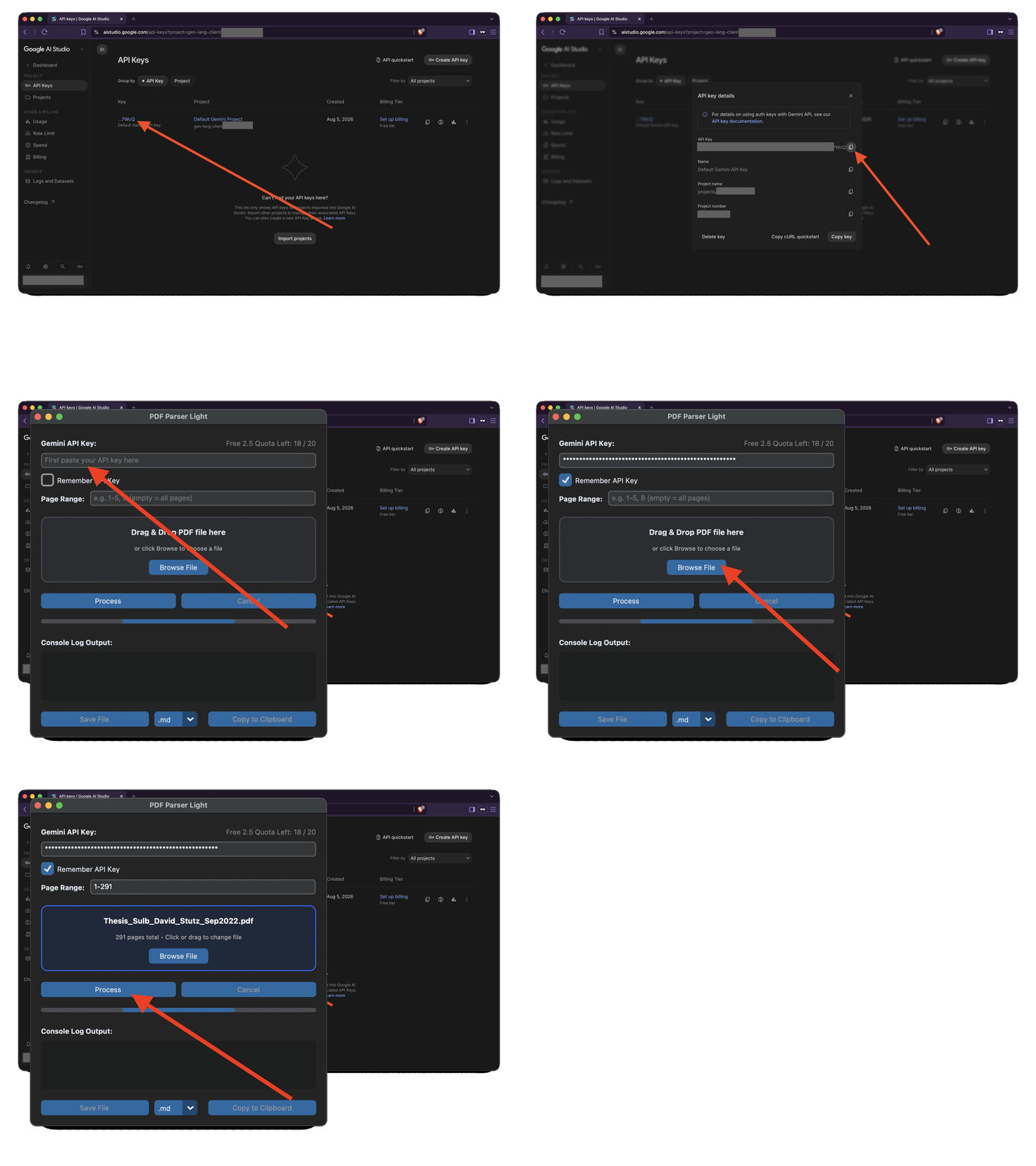
First-Time Launch Instructions (Unsigned Binaries)
Because standalone releases are built via automated CI without commercial developer certificates, your operating system may prompt a security warning on first launch:
macOS (Gatekeeper / macOS Sequoia 15+)
- Download
pdf-parser-light-macos.zip, extract it, and movePDF Parser Light.appinto your/Applicationsfolder. - Option 1 (System Settings):
- Control-Click (or Right-Click)
PDF Parser Light.appand select Open. - When the '"PDF Parser Light" Not Opened' prompt appears, click Done (do not click Move to Trash).
- Open System Settings → Privacy & Security, scroll down to the Security section.
- Click Open Anyway next to PDF Parser Light, enter your password / Touch ID, and click Open.
- Control-Click (or Right-Click)
- Option 2 (Terminal Command): Strip the download quarantine attribute directly in your Terminal:
xattr -d com.apple.quarantine "/Applications/PDF Parser Light.app"
🪟 Windows (SmartScreen)
- Extract
pdf-parser-light-windows.zipand runPDF Parser Light.exe. - If Windows SmartScreen appears, click More info, then click Run anyway.
🐧 Linux
- Extract
pdf-parser-light-linux.tar.gz. - Ensure the binary has execution permissions:
chmod +x "PDF Parser Light"
./"PDF Parser Light"
Full Changelog: v0.1.1...v0.1.2