






A plug-and-play Docker image that turns the official OpenCloud server into a genuine
one-click Unraid app: it runs the required first-boot init for you, heals the
appdata permissions and honours Unraid's PUID/PGID — no console,
no chown, no config-file editing required.

- Overview
- Quick Start
- Configuration
- Production vs Rolling
- How the Wrapper Works
- Reverse Proxy
- Building Locally
- Updating
- Troubleshooting
- Architecture
- Contributing / License
- Support this project
OpenCloud is a modern, self-hosted file sync-and-share platform (an actively developed member of the ownCloud/Infinite-Scale family). The official opencloudeu/opencloud image is excellent, but it is not built for a one-click NAS install:
- it runs its binary as a fixed UID with no
PUID/PGIDsupport, so on a fresh Unraid box the root-owned bind mounts make the very first boot fail with "permission denied" writing/etc/opencloud/opencloud.yamland/var/lib/opencloud/nats; - it requires a one-time
opencloud initto be run by hand beforeopencloud serverwill start.
This image is a thin wrapper around the official one that fixes exactly those two things and nothing else:
- Auto-init — runs
opencloud initonce on first boot (idempotent on later boots). - Permission heal — creates the config/data dirs and hands them to your
PUID:PGID, and repairs a previously root-owned tree once (sentinel-guarded, so it never recursively re-chowns your whole data set on every start). - PUID / PGID — drops privileges to Unraid's
nobody:users(99:100) by default via a staticgosu. - Two channels —
:production(stable, default) and:rolling(newest builds), from the same wrapper. - Multi-arch — amd64 and arm64.
The wrapper does not fork, patch or repackage OpenCloud itself — it layers a tiny entrypoint on top of the unmodified upstream image, so you always run real, current OpenCloud.
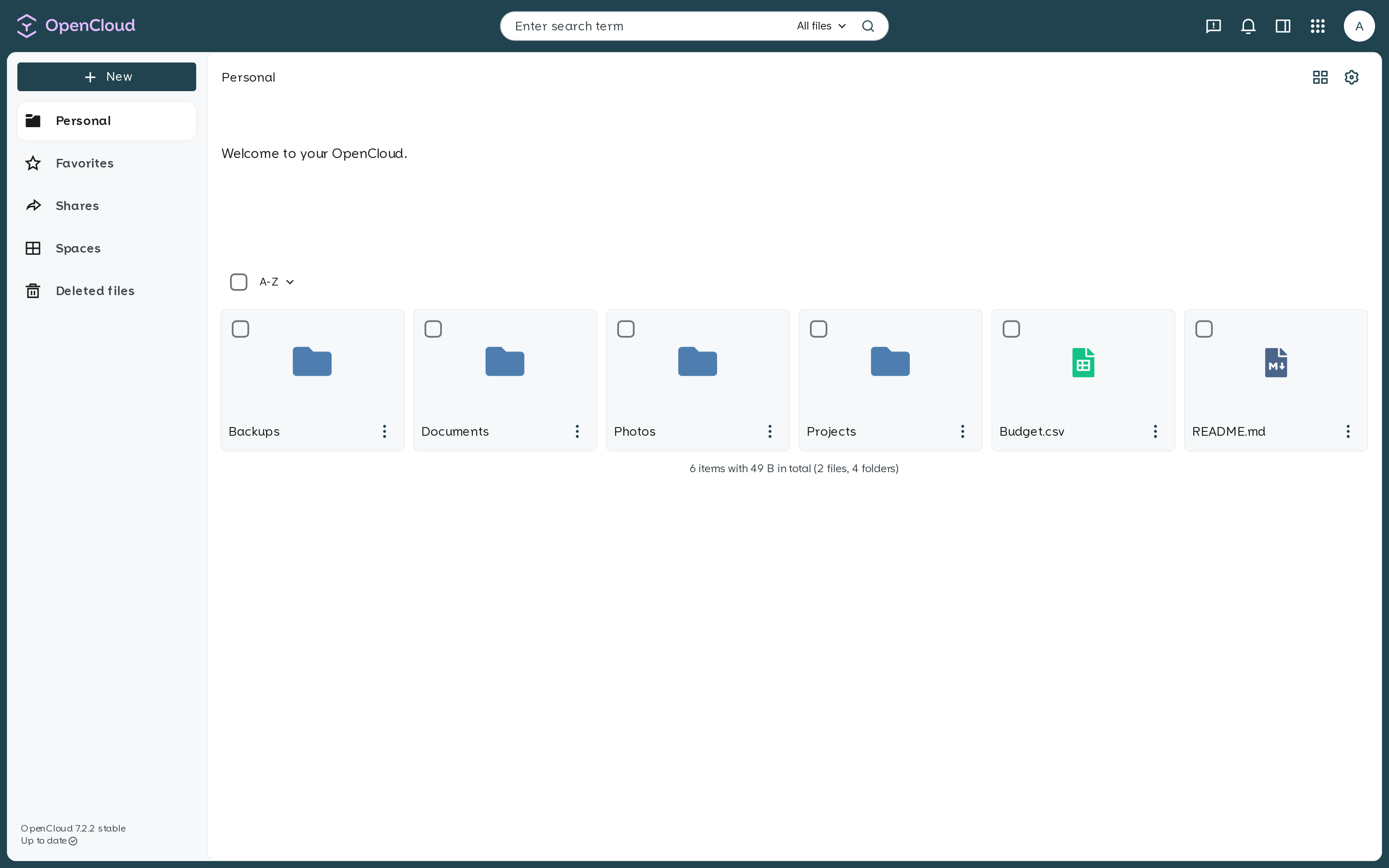
The OpenCloud web UI: your personal space with files, folders and spaces.
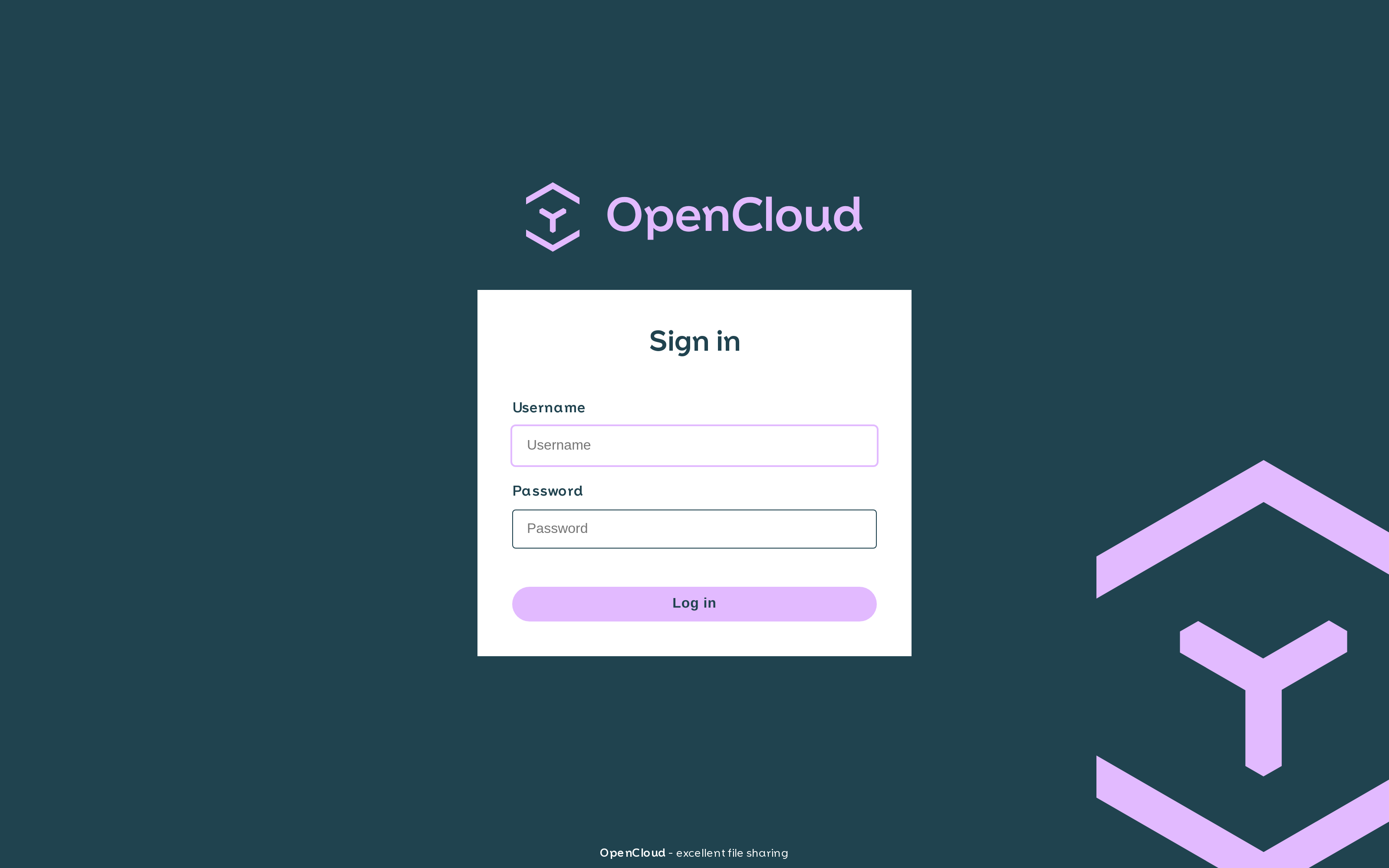
Sign in as admin with the password you set in the Unraid template.
On Unraid: Apps → search for OpenCloud → Install. The Community Applications template is published from the unraid-apps feed.
To load it by hand:
mkdir -p /boot/config/plugins/dockerMan/templates-user && \
curl -fsSL -o /boot/config/plugins/dockerMan/templates-user/my-OpenCloud.xml \
https://raw.githubusercontent.com/junkerderprovinz/unraid-apps/main/opencloud/opencloud.xmlIn the template, the only field you must set is Admin Password (IDM_ADMIN_PASSWORD) — it becomes the password for the built-in admin user on first start. The two volumes default to /mnt/user/appdata/opencloud/{config,data}; adjust the data path to a share with room to grow.
Hit Apply. The first start takes a moment while the container generates its config and a self-signed certificate. Watch the container log for:
  OpenCloud
  OPENCLOUD IS READY
Open https://<unraid-ip>:9200/ and accept the self-signed certificate once. Log in as admin with the password you set.
Plain Docker (no Unraid)
docker run -d \
  --name opencloud \
  --restart unless-stopped \
  -p 9200:9200 \
  -e PUID=99 -e PGID=100 \
  -e IDM_ADMIN_PASSWORD='change-me-please' \
  -e OC_URL='https://192.168.1.10:9200' \
  -e OC_INSECURE=true \
  -v /mnt/user/appdata/opencloud/config:/etc/opencloud \
  -v /mnt/user/appdata/opencloud/data:/var/lib/opencloud \
  junkerderprovinz/opencloud:production
Set OC_URL to how clients reach the server (its IP:port, or your proxied hostname).
| Variable | Default | Description |
|---|---|---|
IDM_ADMIN_PASSWORD |
(required) | Password for the built-in admin user — applied on first init. Set this. |
OC_URL |
https://[IP]:[PORT:9200] |
Public URL clients use to reach OpenCloud. Set to your proxied hostname behind a reverse proxy. |
OC_INSECURE |
true |
Accept the container's self-signed cert. Set false when a proxy provides a valid cert. |
OC_LOG_LEVEL |
info |
Log verbosity — info, warn, error, debug. |
IDM_CREATE_DEMO_USERS |
false |
Seed demo users (test only — unsafe for real use). |
PROXY_TLS |
true |
OpenCloud terminates TLS itself on 9200. Set false behind a TLS-terminating proxy (see §6). |
PUID |
99 |
User ID OpenCloud runs as — Unraid's nobody. |
PGID |
100 |
Group ID — Unraid's users. |
| Port | Purpose | Volume | Purpose | |
|---|---|---|---|---|
9200 |
HTTPS WebUI / API (self-signed by default) | /etc/opencloud |
Config (opencloud.yaml + secrets) |
|
/var/lib/opencloud |
Data — user files, index, nats bus |
No database. OpenCloud is not Nextcloud — it has no MySQL/Postgres and needs none. State lives in the decomposed metadata tree on the
/var/lib/opencloudvolume plus an embedded NATS bus. Don't add a database container; there's nothing to point it at.
OpenCloud can keep file blobs in any S3-compatible bucket (MinIO, AWS S3, Backblaze B2, Wasabi) while the metadata stays local. Set the storage driver to decomposeds3 and add the connection variables — leave them unset for normal local storage.
| Variable | Example | Description |
|---|---|---|
STORAGE_USERS_DRIVER |
decomposeds3 |
Switches blob storage to S3. Unset = local storage (default). |
STORAGE_USERS_DECOMPOSEDS3_ENDPOINT |
http://192.168.1.10:9000 |
S3 endpoint. Internal http:// URL for self-hosted MinIO; the provider's https:// endpoint for AWS/B2/Wasabi. |
STORAGE_USERS_DECOMPOSEDS3_REGION |
default |
default for most MinIO installs; the provider region (us-east-1, …) otherwise. |
STORAGE_USERS_DECOMPOSEDS3_ACCESS_KEY |
… |
Access key ID. |
STORAGE_USERS_DECOMPOSEDS3_SECRET_KEY |
… |
Secret access key. |
STORAGE_USERS_DECOMPOSEDS3_BUCKET |
opencloud |
Bucket name — create it first, the container does not. |
Where those values come from:
-
MinIO (self-hosted). In the MinIO console click Create Bucket (top left) and name it (e.g.
opencloud) — that is your bucket name. The current MinIO Community Edition console has no Access Keys page (only the object browser), so for the keys either:- Easiest: use your MinIO root credentials directly — access key =
MINIO_ROOT_USER, secret key =MINIO_ROOT_PASSWORD(the values you set on your MinIO container; check its Docker template). - Cleaner (dedicated, revocable key): create a service account with the
mcCLI —mc alias set my http://<minio-ip>:9000 <root-user> <root-pass>thenmc admin user svcacct add my <root-user>, which prints a fresh Access Key + Secret Key.
Point the endpoint at the API port
http://<minio-ip>:9000(not the9001console) with regiondefault. - Easiest: use your MinIO root credentials directly — access key =
-
AWS S3 / Backblaze B2 / Wasabi. Create a bucket in the provider console, then create an access key (AWS: an IAM access key; B2/Wasabi: an application/API key). Use the provider's
https://endpoint and the bucket's region.
The metadata always stays local.
decomposeds3puts only the blob bytes in S3; the file tree, xattrs and the blob→object mapping live on/var/lib/opencloud. That volume is therefore required and must be backed up even with S3 — losing it orphans your S3 objects (they are opaque IDs with no folder structure). There is no all-on-S3 mode. OpenCloud's system/metadata store (STORAGE_SYSTEM_DRIVER) staysdecomposed(local) and needs no change.
MinIO note: if uploads fail with a checksum error on a non-AWS endpoint, add STORAGE_USERS_DECOMPOSEDS3_PUT_OBJECT_DISABLE_CONTENT_SHA256=true. This wrapper's S3 path is verified end-to-end against MinIO (blob lands in the bucket, metadata on the local volume).
Two channels are built from this wrapper, differing only in the upstream base image:
| Tag | Base image | For |
|---|---|---|
junkerderprovinz/opencloud:production |
opencloudeu/opencloud (pinned stable) |
Default. The stable OpenCloud release line. |
junkerderprovinz/opencloud:rolling |
opencloudeu/opencloud-rolling (pinned) |
Newest features and fixes, faster moving. |
Switch by changing the Repository tag in the Unraid template (:production → :rolling). Back up your appdata before switching channels. Renovate keeps both base pins current, and the weekly rebuild picks up upstream and Alpine security patches.
The entrypoint runs as root only long enough to prepare the volumes, then drops to your user:
- Permission heal. Creates
/etc/opencloud+/var/lib/opencloudif missing andchowns them toPUID:PGID. The config dir is small and always fully healed; the data dir is onlychown -R'd once (or after aPUID/PGIDchange), tracked by a.uid-healsentinel — so a large data set is never recursively re-owned on every boot. Thenatsbus dir is always re-asserted (small, must stay writable). - Init. Runs
opencloud initas the target user (writesopencloud.yaml, consumingIDM_ADMIN_PASSWORD). Idempotent — it harmlessly errors once the config exists. - Hand-off. Prints the ready banner, then
execsopencloud serverdropped toPUID:PGIDvia a staticgosu(copied from the upstreamtianon/gosuimage — no package manager needed in the base).
By default OpenCloud serves HTTPS itself on 9200 with a self-signed certificate — ideal for a direct LAN install. To put it behind a reverse proxy that terminates TLS (Traefik, NGINX Proxy Manager, SWAG, …):
- set
PROXY_TLS=false(OpenCloud then serves plain HTTP for the proxy to wrap), - set
OC_URLto your external URL, e.g.https://cloud.example.com, - set
OC_INSECURE=false(your proxy presents a valid certificate), - point the proxy upstream at the container's port
9200.
Desktop or mobile client login returns 403 Forbidden while the browser works? The native clients sign in through a loopback OIDC redirect (redirect_uri=http://127.0.0.1:<port>, per RFC 8252). Many reverse-proxy "block exploits" filters reject a literal http:// inside a query string. In NGINX Proxy Manager this is the "Block Common Exploits" toggle: its block-exploits.conf contains if ($query_string ~ "[a-zA-Z0-9_]=http://") { return 403; }. The web UI avoids it (its redirect is URL-encoded), the desktop client trips it (plain http:// loopback). Switch that toggle off for the OpenCloud host and the client login succeeds. OpenCloud brings its own auth and CSRF protection, so the crude regex filter is redundant here.
git clone https://github.com/junkerderprovinz/opencloud.git
cd opencloud

# production channel (default base pin)
docker build -t opencloud:dev .

# rolling channel (reads the BASE_ROLLING pin from the Dockerfile)
docker build --build-arg BASE="$(grep -oE 'ARG BASE_ROLLING=[^[:space:]]+' Dockerfile | cut -d= -f2)" -t opencloud:rolling .

# multi-arch (amd64 + arm64) — needs buildx
docker buildx build --platform linux/amd64,linux/arm64 -t opencloud:dev --load .
just recipes mirror the CI flows — just build, just build-rolling, just smoke, just lint.
docker pull junkerderprovinz/opencloud:production
docker stop opencloud && docker rm opencloud
# re-create with the same template / docker run args
On Unraid: Docker tab → the container → Force Update. Your /etc/opencloud and /var/lib/opencloud are untouched. The image is rebuilt weekly for upstream OpenCloud and Alpine patches.
The container starts, heals ownership, then crash-loops and the WebUI never comes up. This means the Data volume is pointing at a non-fresh OpenCloud/oCIS data directory — an old install, or a data set created with a different storage backend (local vs S3). The layouts are not interchangeable and there is no in-place migration between backends, so the search service can't open its index and takes the whole server down.
Fix: give it a fresh, empty Data folder. Move the old directory aside (mv /mnt/user/opencloud /mnt/user/opencloud.old) and let a new empty one be created, then restart. To keep old files, start fresh and re-upload them through the web UI. This is not a bug in the wrapper or the image — a clean data dir boots normally, S3 included.
First start seems stuck / WebUI not reachable yet
The first boot runs opencloud init and generates a self-signed certificate — give it a moment. Watch the log for the OPENCLOUD IS READY banner, then open https://<ip>:9200/.
Browser warns about the certificate
That is expected with the default self-signed certificate (OC_INSECURE=true). Accept it once, or put OpenCloud behind a reverse proxy with a real certificate (see §6).
"permission denied" in the log
The wrapper heals ownership on start, but a data set created earlier as a different user can need a one-time repair. Stop the container, delete /var/lib/opencloud/.uid-heal, and start again to force a full re-chown to your PUID:PGID.
I forgot / want to change the admin password
IDM_ADMIN_PASSWORD is read on every start and overrides the stored admin password, so just set it in the template and restart.
Login loops or "redirect URI" errors behind a proxy
OC_URL must exactly match the URL in your browser (scheme + host + port). Set OC_URL to your external https URL and PROXY_TLS=false (see §6).
┌──────────────────────────────────────────────────────────────┐
│  opencloudeu/opencloud[:production] | opencloud-rolling        │
│  (Alpine base + the OpenCloud binary, unmodified)             │
│  ┌────────────────────────────────────────────────────────┐  │
│  │  entrypoint.sh  (runs as root)                          │  │
│  │   ↓ mkdir + chown /etc/opencloud, /var/lib/opencloud    │  │
│  │   ↓ one-time data heal (sentinel-guarded)               │  │
│  │   ↓ gosu PUID:PGID  opencloud init  (|| true)           │  │
│  │   ↓ print "OPENCLOUD IS READY" banner                   │  │
│  │   ↓ exec gosu PUID:PGID  opencloud server               │  │
│  └────────────────────────────────────────────────────────┘  │
│      static gosu  ← COPY --from=tianon/gosu (multi-stage)     │
└──────────────────────────────────────────────────────────────┘
Pull requests welcome. Issues: https://github.com/junkerderprovinz/opencloud/issues.
Licensing — dual:
- This wrapper repository (Dockerfile,
entrypoint.sh,print-banner.sh, Unraid template, README and banner/icon artwork) is licensed under the MIT License. - OpenCloud itself and the bundled
gosubinary are Apache-2.0; the Alpine base and its packages keep their own licenses. When you run, redistribute or rebuild the resulting image you must comply with all of those, not only this wrapper's MIT license. SeeNOTICE.
The OpenCloud logo and wordmark are the property of OpenCloud GmbH, used unmodified to identify the upstream project. This is an independent, community-maintained packaging and is not affiliated with or endorsed by OpenCloud GmbH.
- OpenCloud — the file sync-and-share platform this image wraps
- gosu — clean, static privilege-drop for the entrypoint
If this template saves you a setup hassle or a debug night, consider buying me a coffee: