KaiTerm is a desktop connection manager for SSH-heavy workflows. It combines an xterm.js terminal workspace with a searchable connection tree, reusable secrets, scripted actions, local backup/restore tools, and optional KaiTerm Pro features for clusters, startup automation, advanced connection workflows, and encrypted sync.
This README documents the Electron application in app-electron/.
KaiTerm stores connections in a folder tree. Connections are color-coded by protocol, and folders can be expanded, collapsed, filtered, and navigated from the keyboard. KaiTerm Pro also adds a dedicated cluster section.
- SSH, Mosh, SFTP, and FTP connection types.
- Folder-based organization with nested folder paths.
- Optional protocol labels in the tree, such as
[ssh]. - Configurable tree colors for folders, SSH, Mosh, SFTP, and FTP.
- Search/filter shortcut for fast connection lookup.
- Context menu actions for starting, editing, cloning, and deleting connections.
- Folder context menu for applying one field value to every connection in that folder and its nested subfolders.
- Folder context actions for deleting every nested connection and, with Pro, launching the folder as a new split-tab or separate-tabs runtime cluster.
- Dedicated buttons for a local terminal, new connection, and settings.
- KaiTerm Pro adds saved clusters, runtime terminal clusters, cluster tree colors, and a cluster toolbar action.
KaiTerm uses xterm.js and node-pty to run real terminal sessions inside the desktop app. Local terminals and remote sessions share the same workspace.
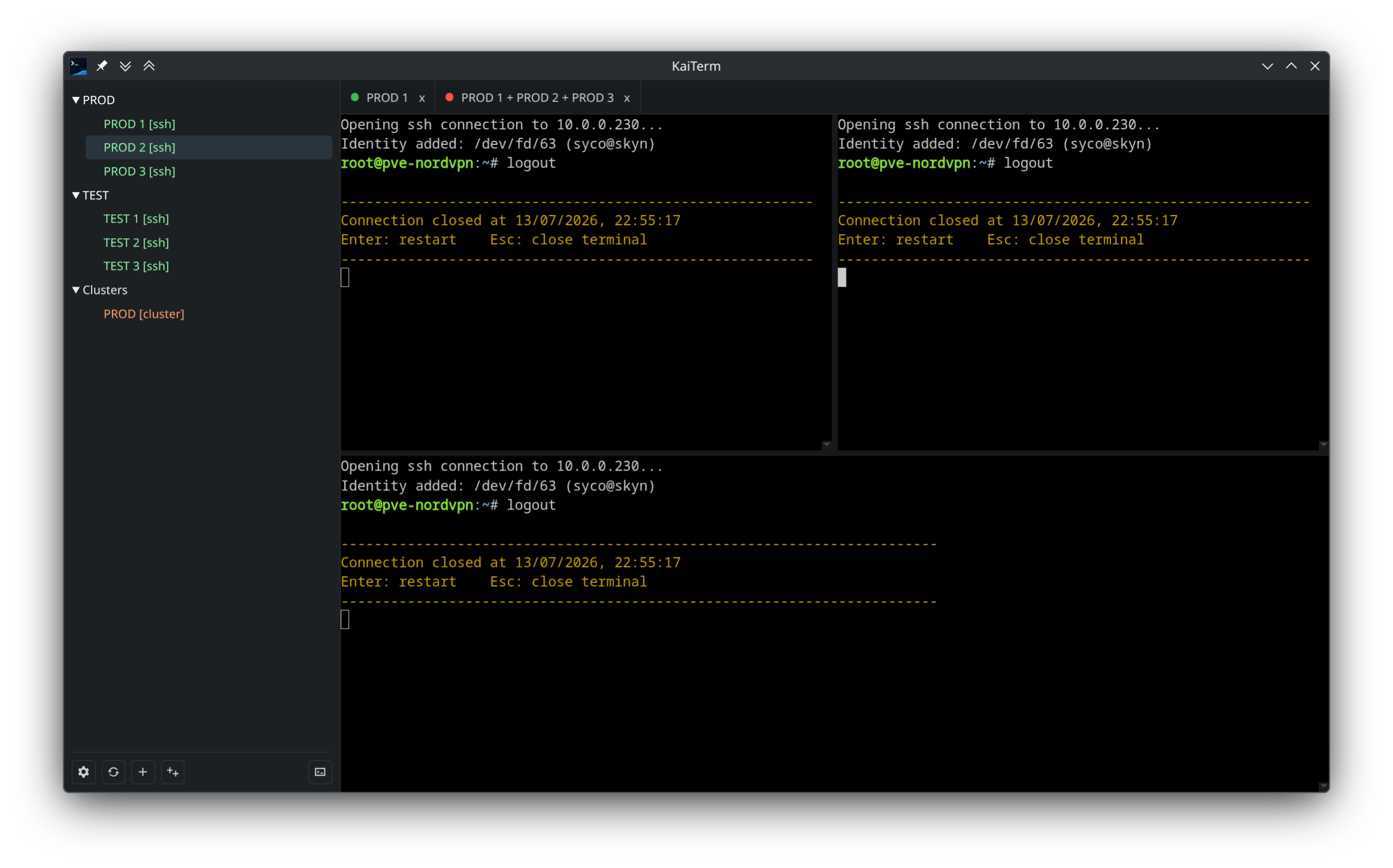
- Open local shell sessions.
- Open remote SSH, Mosh, SFTP, and FTP sessions.
- Duplicate the active terminal into a new tab.
- Split terminals horizontally or vertically.
- Combine multiple terminals in one tab.
- Drag terminal tabs to reorder them.
- Pop a terminal out into a separate window and reattach it later.
- Copy, paste, clear, reset, and exit from the terminal context menu.
- Configurable terminal font, font size, cursor shape, scrollback, scroll-on-keystroke behavior, audible bell, and disconnect behavior.
- Bell and connection-state indicators on tabs.
Clusters let you launch multiple saved connections together. A cluster can open as a single split terminal tab or as separate tabs.
- Save reusable groups of connections.
- Choose split-tab or separate-tab launch mode.
- Create ad hoc runtime clusters from an open terminal or from every split in a tab.
- Join terminals or whole tabs to an existing runtime cluster.
- Remove a terminal or tab from a runtime cluster.
- Stagger connection startup to avoid launching many sessions at the exact same moment.
Each connection profile can use global defaults or override connection-specific settings.
- Name, folder, host, port, type, and UUID fields.
- Per-connection secret selection.
- Inline username, password, private key, and key passphrase fields when no reusable secret is selected.
- Per-connection overrides for SSH, Mosh, SFTP, and FTP options.
- Manual per-connection SSH actions.
- KaiTerm Pro adds SSH/SFTP proxy jump selection, port probing, comma-separated host failover, SSH prepend commands, startup actions, and hybrid actions.
Reusable secrets keep authentication details separate from connection profiles and provide slugged values for command templates.
- Store password, login password, and login key secrets.
- Load private key text from a file picker.
- Attach a secret to any SSH, Mosh, SFTP, or FTP connection.
- Hide per-connection auth fields when a secret is selected.
- Preserve stored secret values without showing them back in plain text.
KaiTerm exposes protocol-specific flags globally and per connection.
SSH options include:
- Agent forwarding.
- Compression.
- X11 forwarding.
- Verbose and very verbose modes.
- Forced PTY allocation.
- Connect timeout.
- Additional raw SSH options.
- KaiTerm Pro: unique SOCKS proxy allocation with a dynamic local port.
- KaiTerm Pro: proxy jump support.
- KaiTerm Pro: port probing and comma-separated host failover.
Mosh options include:
- Local echo prediction mode: adaptive, always, or never.
SFTP options include:
- Agent forwarding.
- Compression.
- Verbose mode.
- Connect timeout.
- Additional raw SFTP options.
FTP options include:
- Active mode.
- Passive mode.
- Trace mode.
- Verbose mode.
Actions are named command snippets that can be run manually from a terminal or used as startup automation.
- Global and per-connection SSH actions.
- Remote actions that run on the remote SSH session.
- Local actions that run on the local machine.
- KaiTerm Pro: hybrid actions that run locally and feed generated commands into a remote session.
- KaiTerm Pro: startup action templates for SSH connections.
- KaiTerm Pro: startup output capture, prompt detection, and status reporting.
- Variable expansion for reusable command templates.
Supported template variables include:
{name},{type},{folder},{host},{port}{identity_user},{identity_password},{identity_key_file},{identity_key_passphrase}{proxy_port},{proxy_host},{proxy_url}{uuid},{connection_path},{user_host},{host_port}{home},{config_dir}{password slug},{user slug},{key_file slug},{key_passphrase slug}for saved secrets by slug
KaiTerm can be tuned for different terminal habits and layouts.
- Terminal theme selection from bundled theme definitions.
- Light, dark, or system-following app color mode.
- Font family and font size controls.
- Block, underline, and bar cursor shapes.
- Configurable scrollback lines and scroll-on-keystroke behavior.
- Optional audible bell.
- Sidebar on the right or left.
- Optional visible scrollbar.
- Terminal themes remain independent from the app color mode, so terminal colors can be chosen separately from the surrounding UI.
Keyboard shortcuts can be edited in the settings dialog, with duplicate shortcut validation before saving.
Default editable shortcuts:
| Shortcut | Action |
|---|---|
Alt+E |
Edit the selected connection or cluster |
Ctrl+F |
Focus connection search |
Ctrl+Alt+H |
Split the active terminal horizontally |
Ctrl+Alt+V |
Split the active terminal vertically |
Ctrl+Shift+C |
Copy terminal selection |
Ctrl+Shift+V |
Paste into terminal |
Ctrl+Shift+D |
Duplicate terminal |
Ctrl+Shift+T |
Open a local terminal |
Shift+ArrowLeft |
Previous tab |
Shift+ArrowRight |
Next tab |
The tree and editors also provide fixed keyboard interactions:
Escapecloses the editor or clears/hides search.Enterstarts the selected connection or cluster.Arrow Up/Arrow Downmoves through visible connections and clusters.
| Feature | Standard | Pro |
|---|---|---|
| Local terminal workspace, tabs, splits, and pop-outs | Yes | Yes |
| SSH, Mosh, SFTP, and FTP profiles | Yes | Yes |
| Folder tree, search, local backup, and reusable secrets | Yes | Yes |
| Manual local and remote actions | Yes | Yes |
| Saved and runtime clusters | No | Yes |
| Connection stagger for cluster launches | No | Yes |
| Encrypted cloud sync | No | Yes |
| CSV connection import | No | Yes |
| Startup automation and SSH prepend commands | No | Yes |
| Hybrid actions | No | Yes |
| Proxy jumps and unique SOCKS proxy ports | No | Yes |
| Port probing and comma-separated host failover | No | Yes |
KaiTerm includes free local backup tools and KaiTerm Pro encrypted settings sync.
- First-time email verification, after which the user can enroll a passkey in the system browser.
- Passkey sign-in, one-use recovery codes, and email account recovery.
- Atomic replacement of an existing passkey and its recovery-code set.
- Short-lived access tokens with rotating refresh tokens stored through Electron secure storage.
- KaiTerm Pro entitlement check before cloud sync.
- Initial download-or-upload choice when cloud settings already exist.
- Automatic pull on startup after Pro sync is configured.
- Automatic push after settings changes for Pro accounts.
- Conflict reporting when cloud settings changed since the last pull.
- Local sync passphrase storage through Electron secure storage.
- Settings backup export.
- Backup restore with sync passphrase validation.
- Sync logout.
- KaiTerm Pro CSV import for external connection migrations.
Sensitive sync data is encrypted client-side before upload using aes-256-gcm
with a pbkdf2-sha256 derived key. Locally stored passwords, private keys, and
key passphrases are encrypted with Electron safeStorage; portable backup and
sync payloads use the user-provided passphrase.
The app can use custom executable paths for the command-line tools it launches.
- SSH path.
- SSH agent path and SSH add path.
- Option to use an SSH agent for stored private keys.
- Mosh path.
- SFTP path.
- FTP path.
The About panel shows the app version, license, homepage, and repository. The homepage and repository links open in the system browser.
| Screenshot | Shows |
|---|---|
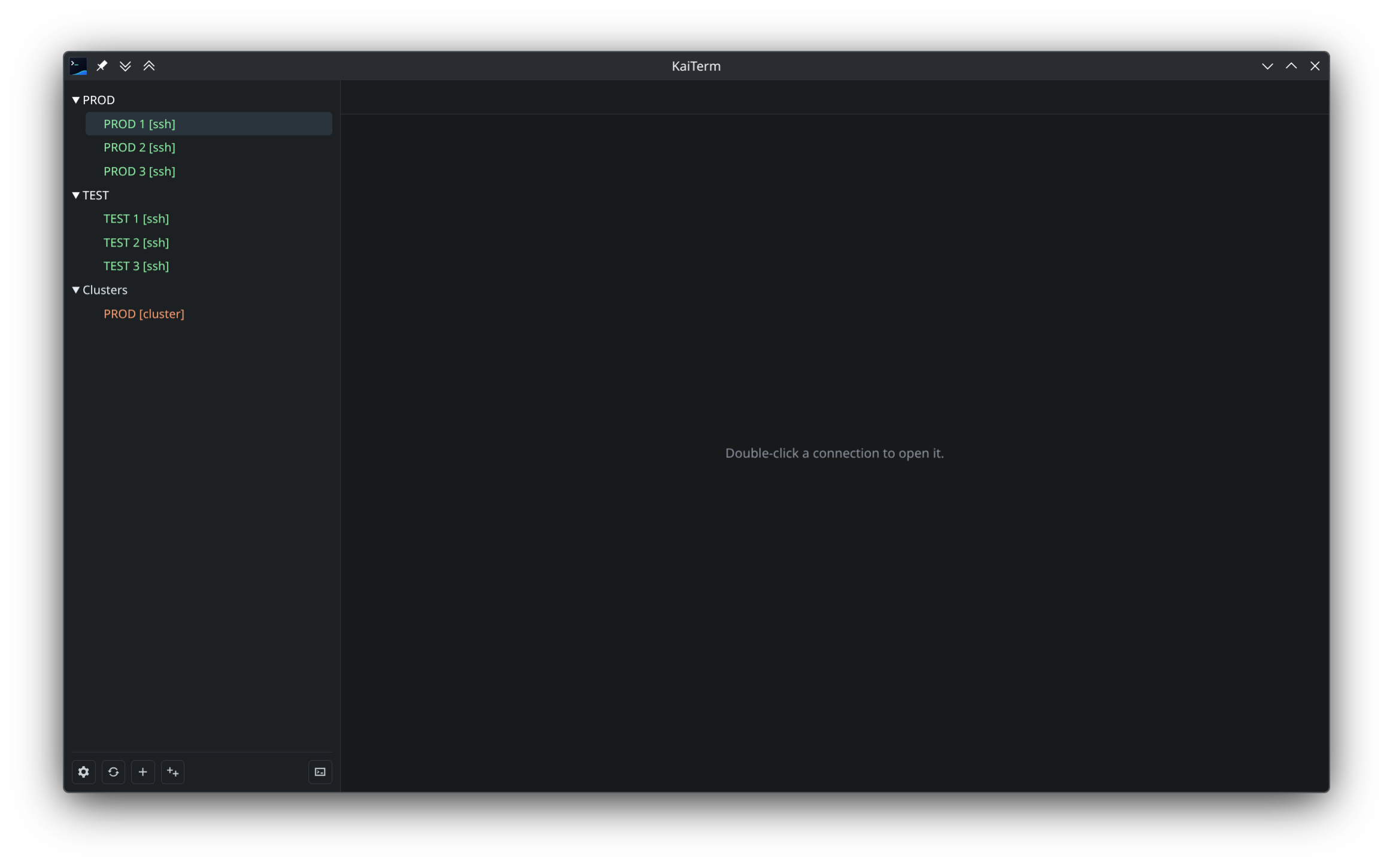 |
Main workspace, folder tree, and toolbar |
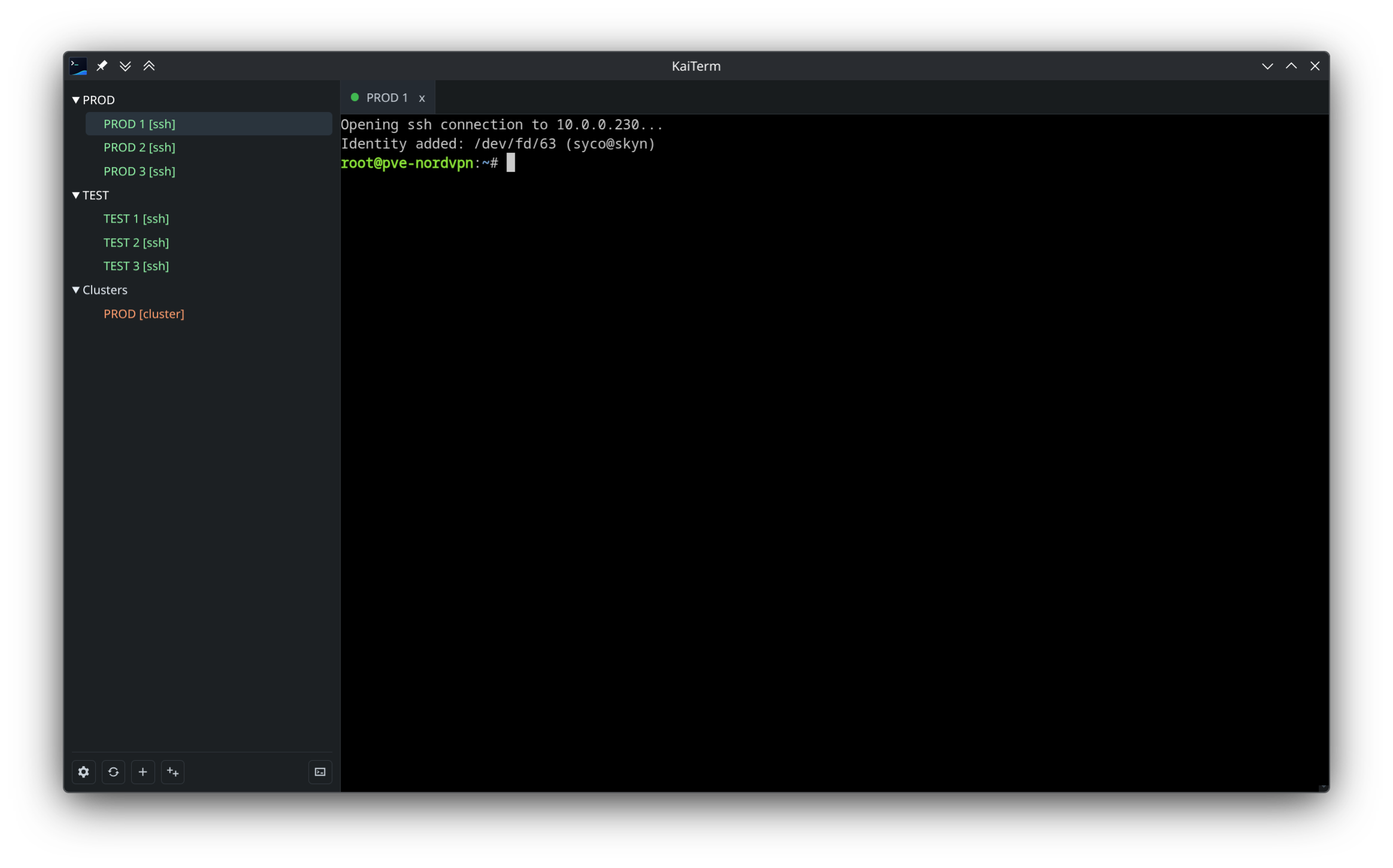 |
Single open terminal tab |
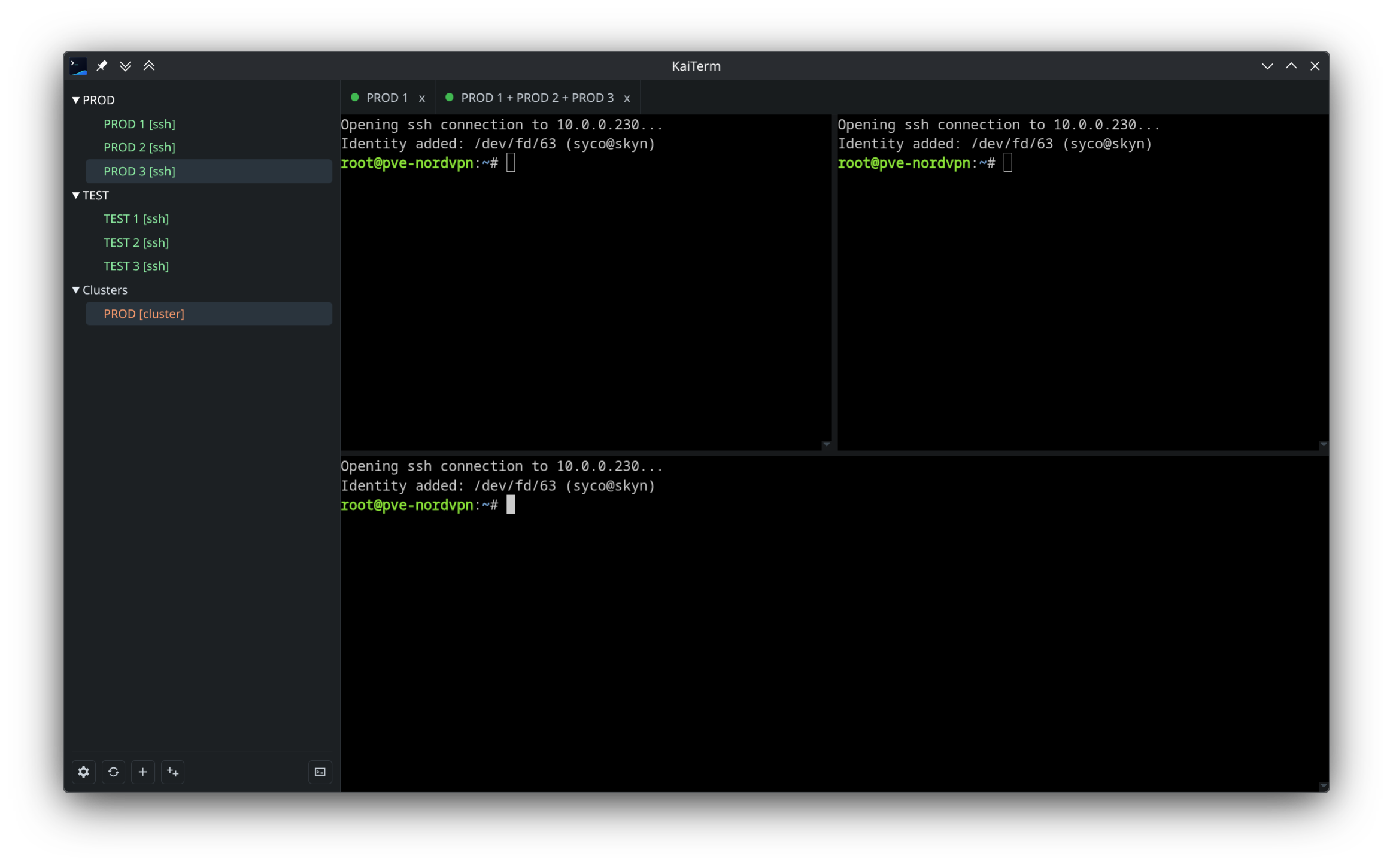 |
Multi-pane split terminal tab |
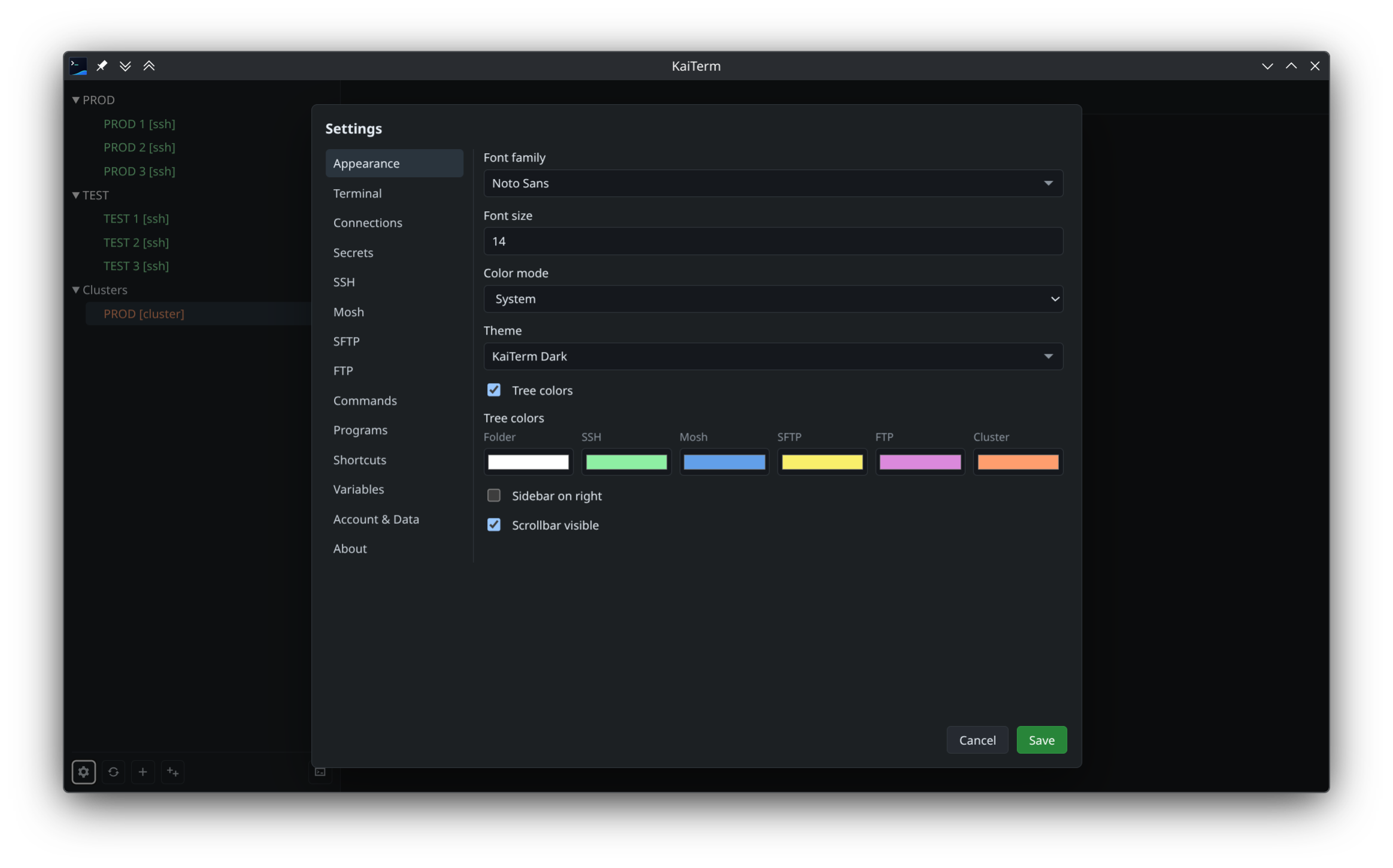 |
Logo-aligned theme, fonts, and tree colors |
 |
Terminal behavior preferences |
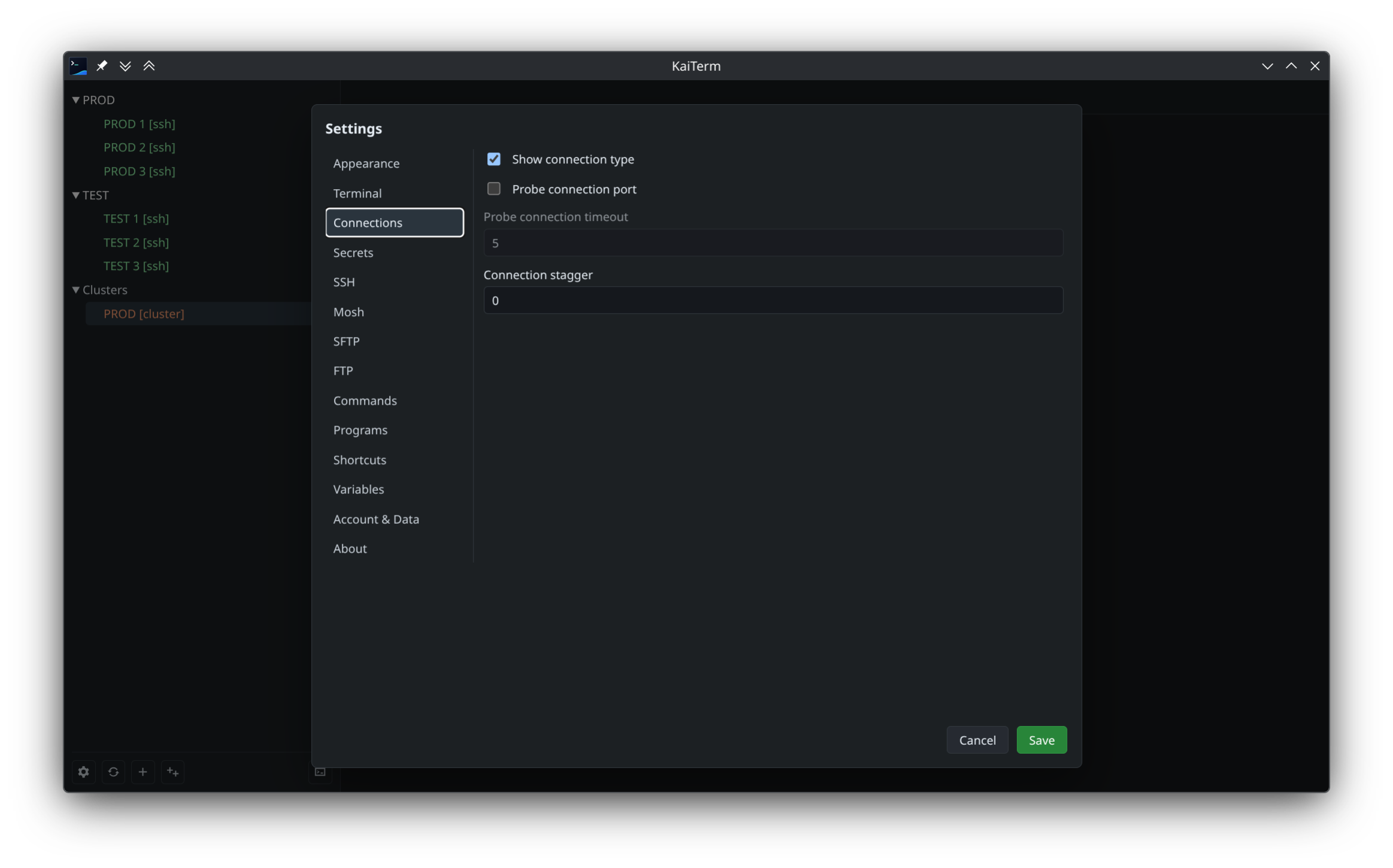 |
Connection defaults |
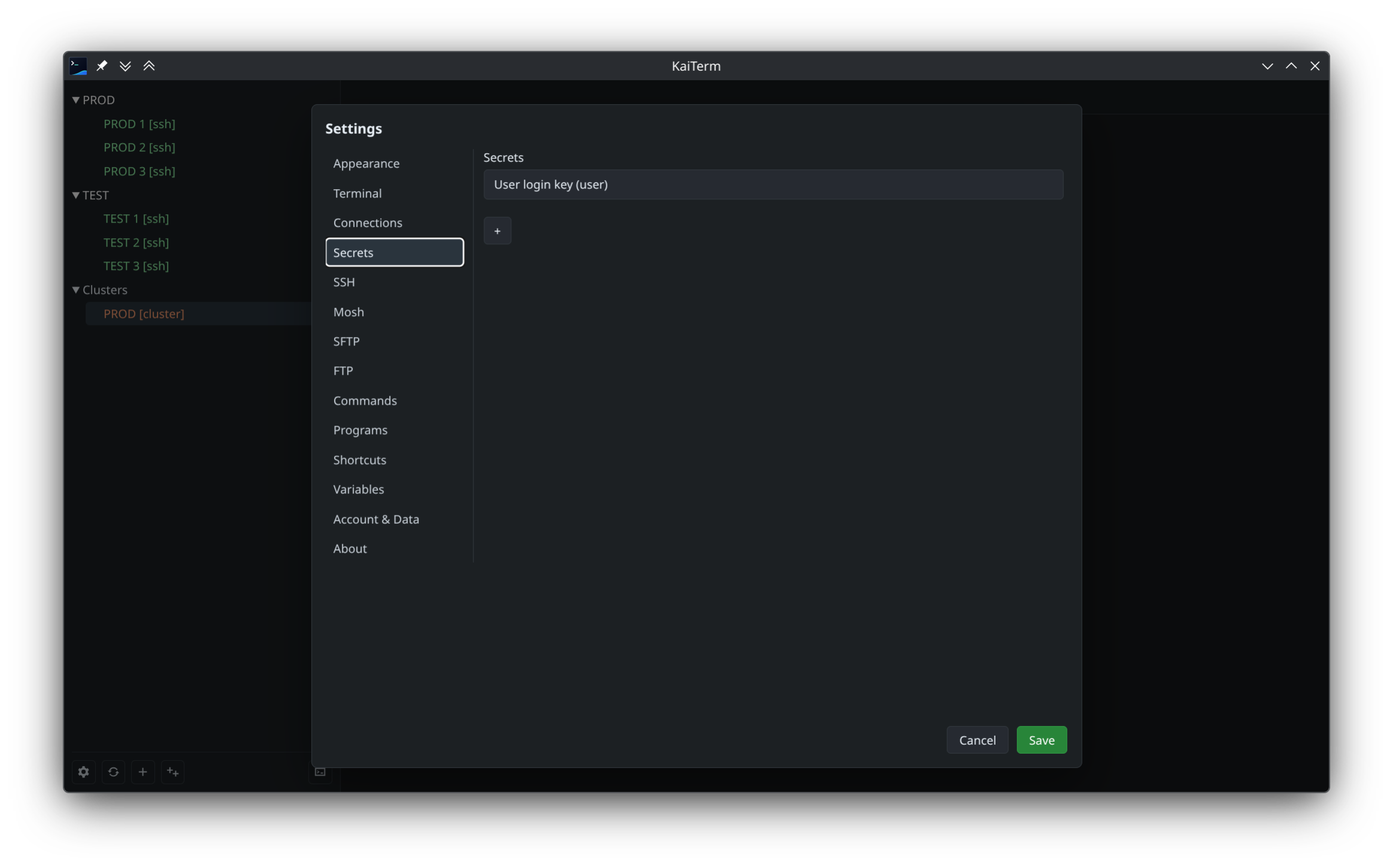 |
Reusable secret management |
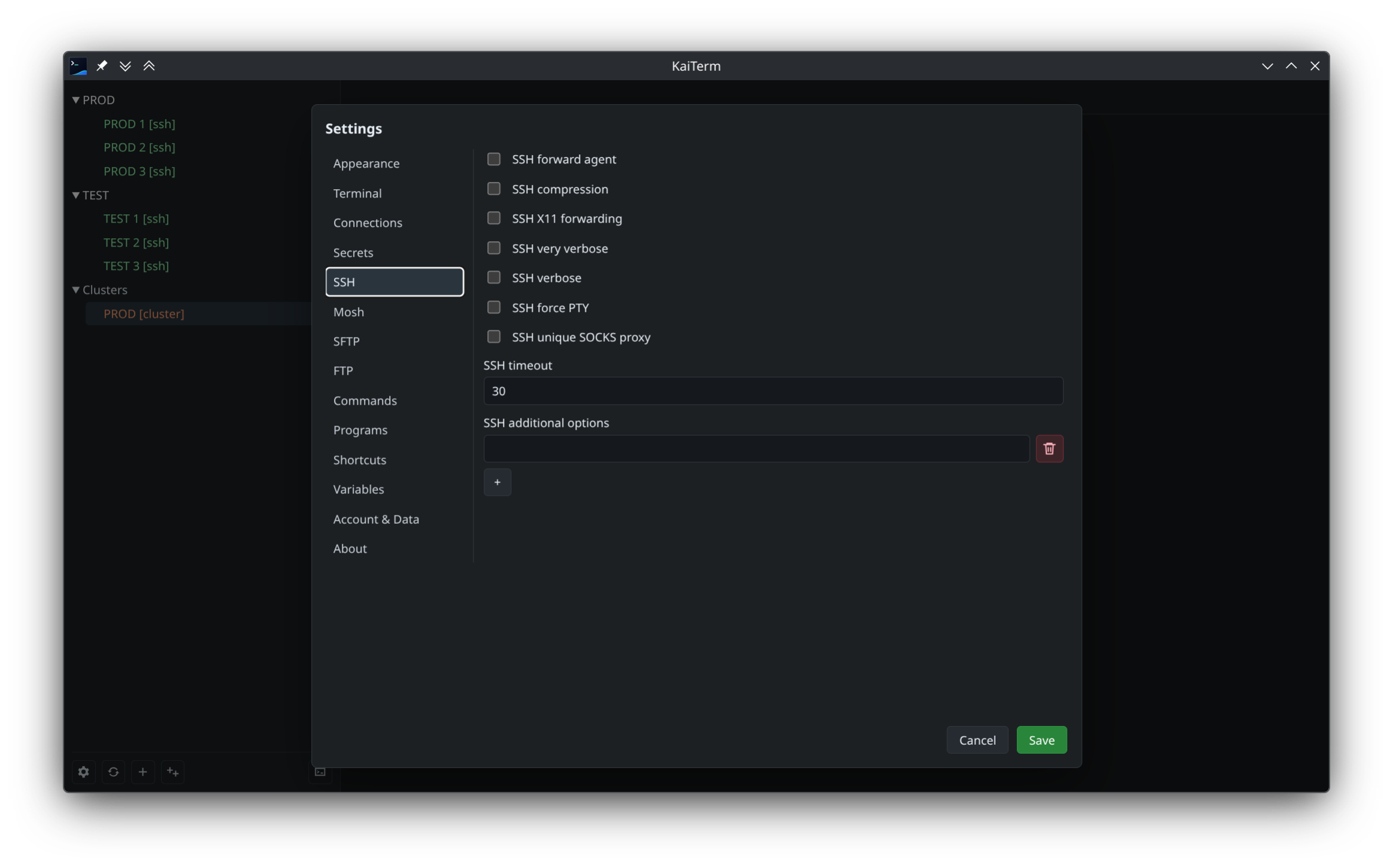 |
Global SSH options |
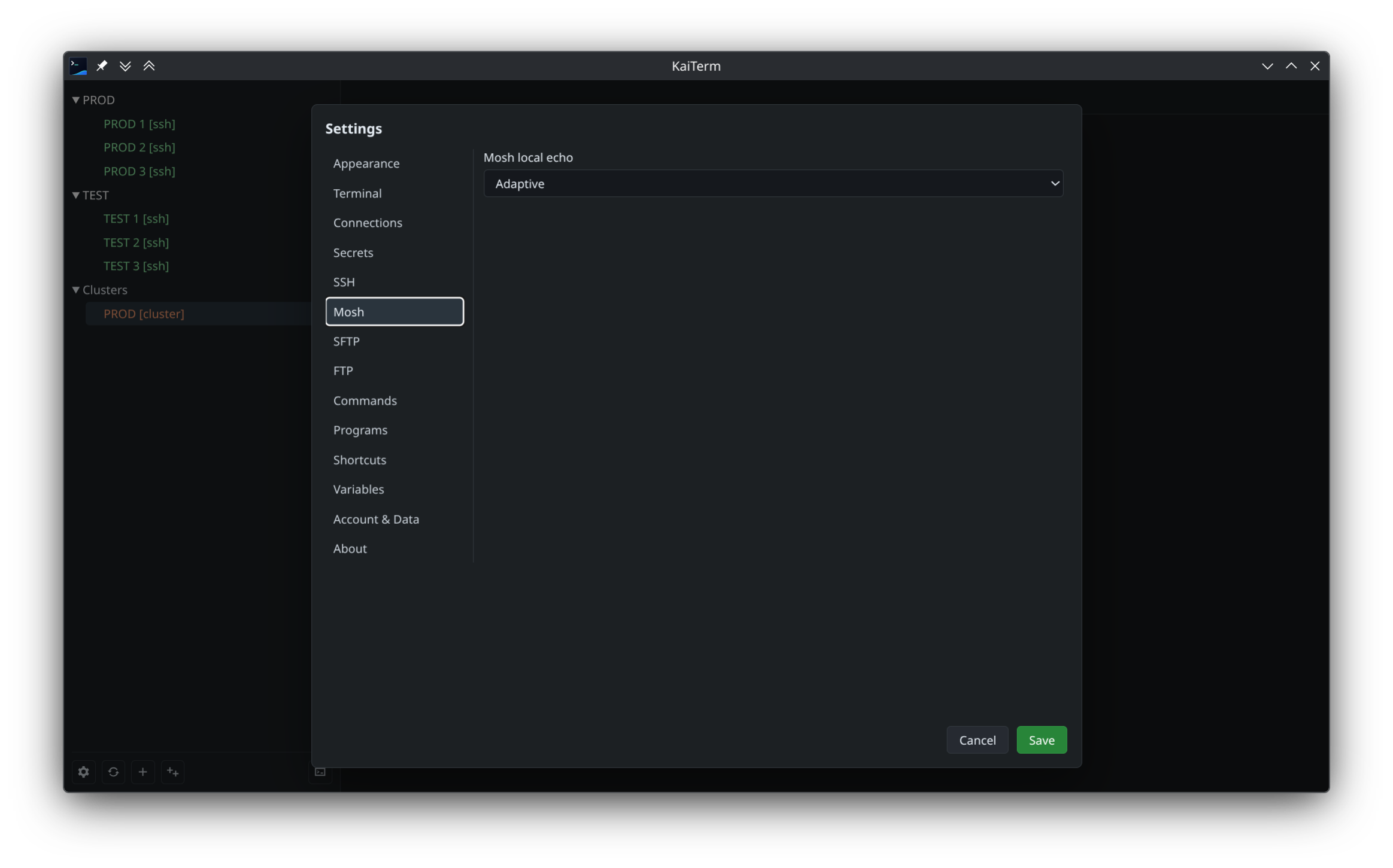 |
Global Mosh options |
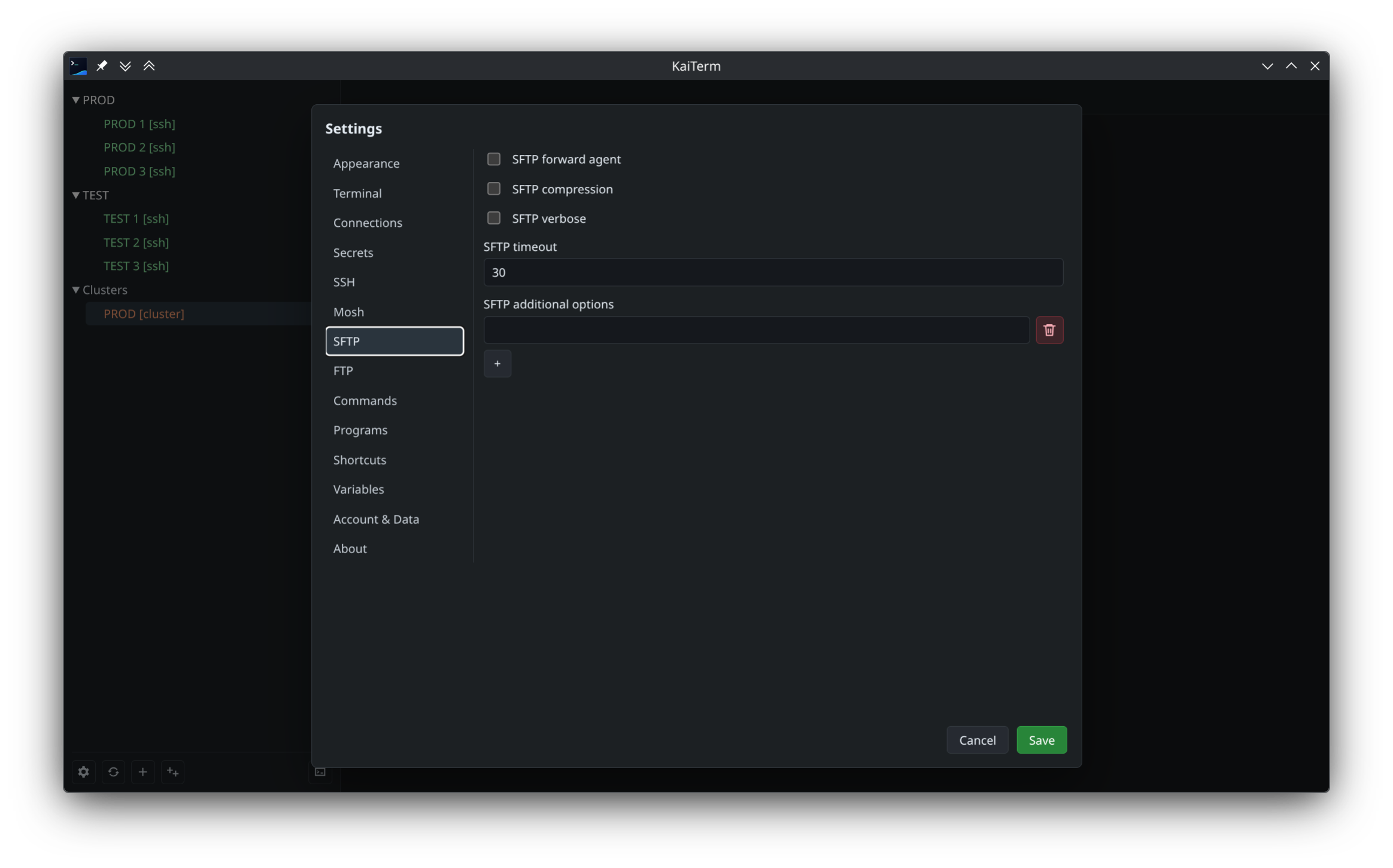 |
Global SFTP options |
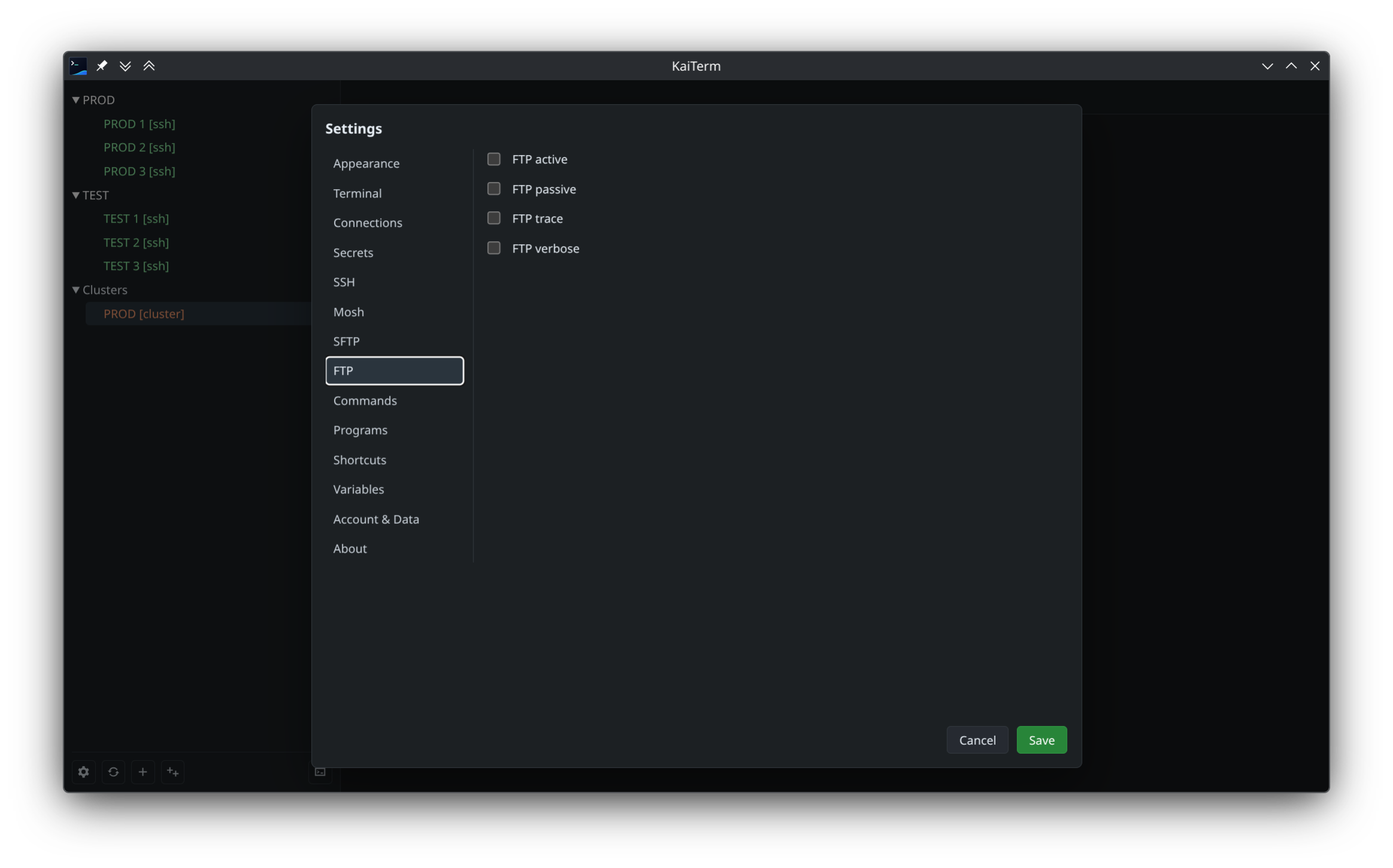 |
Global FTP options |
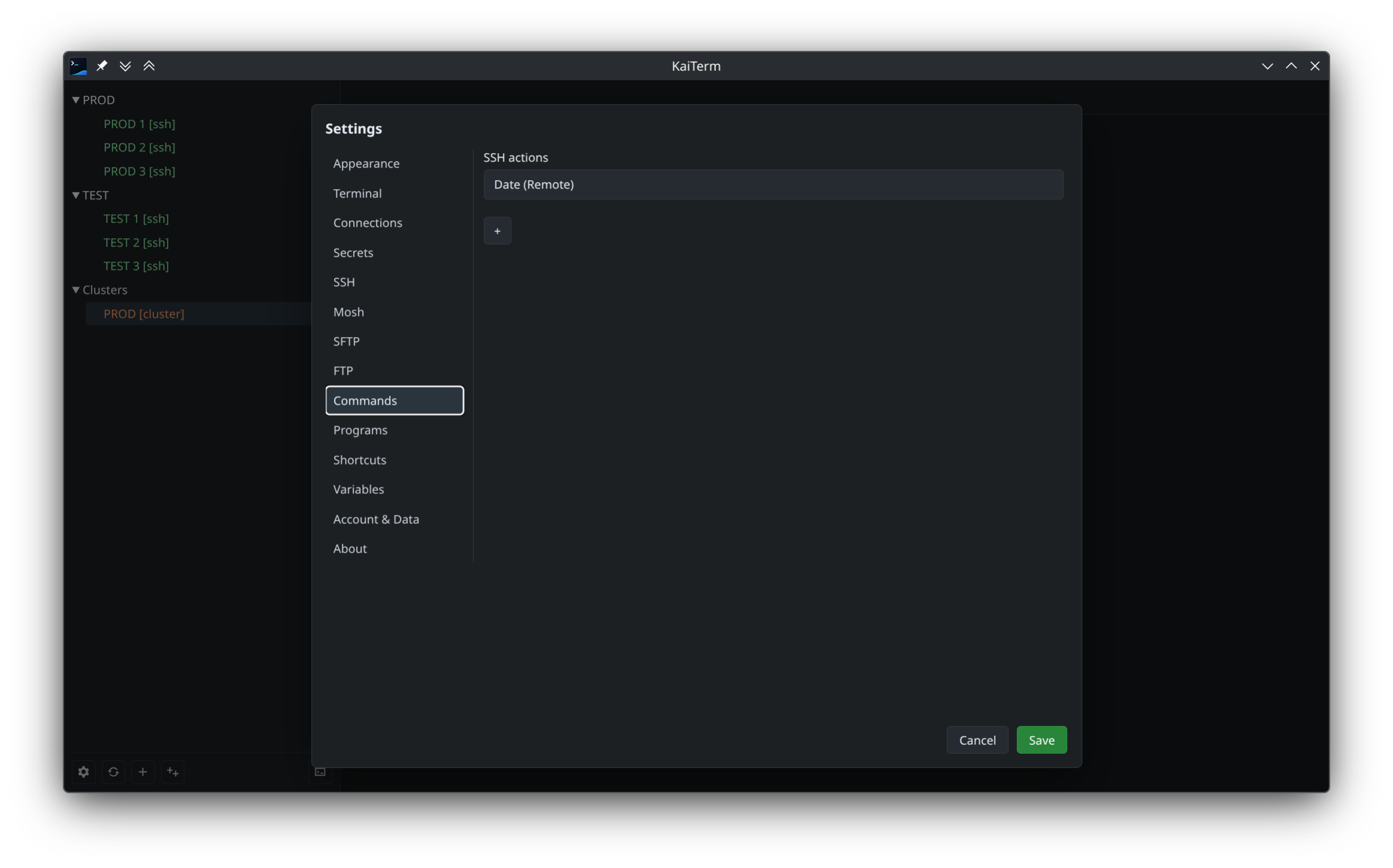 |
Global action commands |
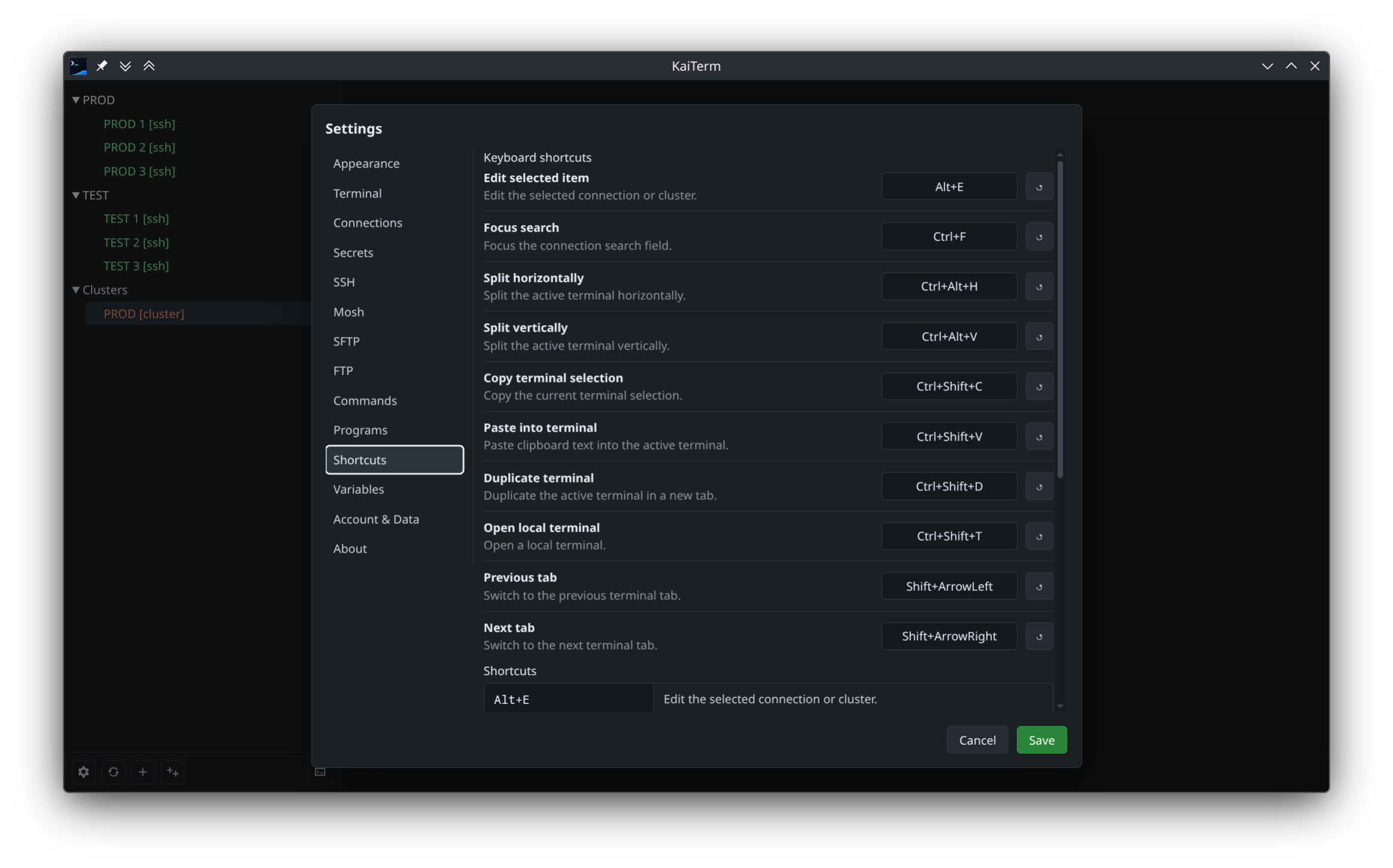 |
Editable keyboard shortcuts |
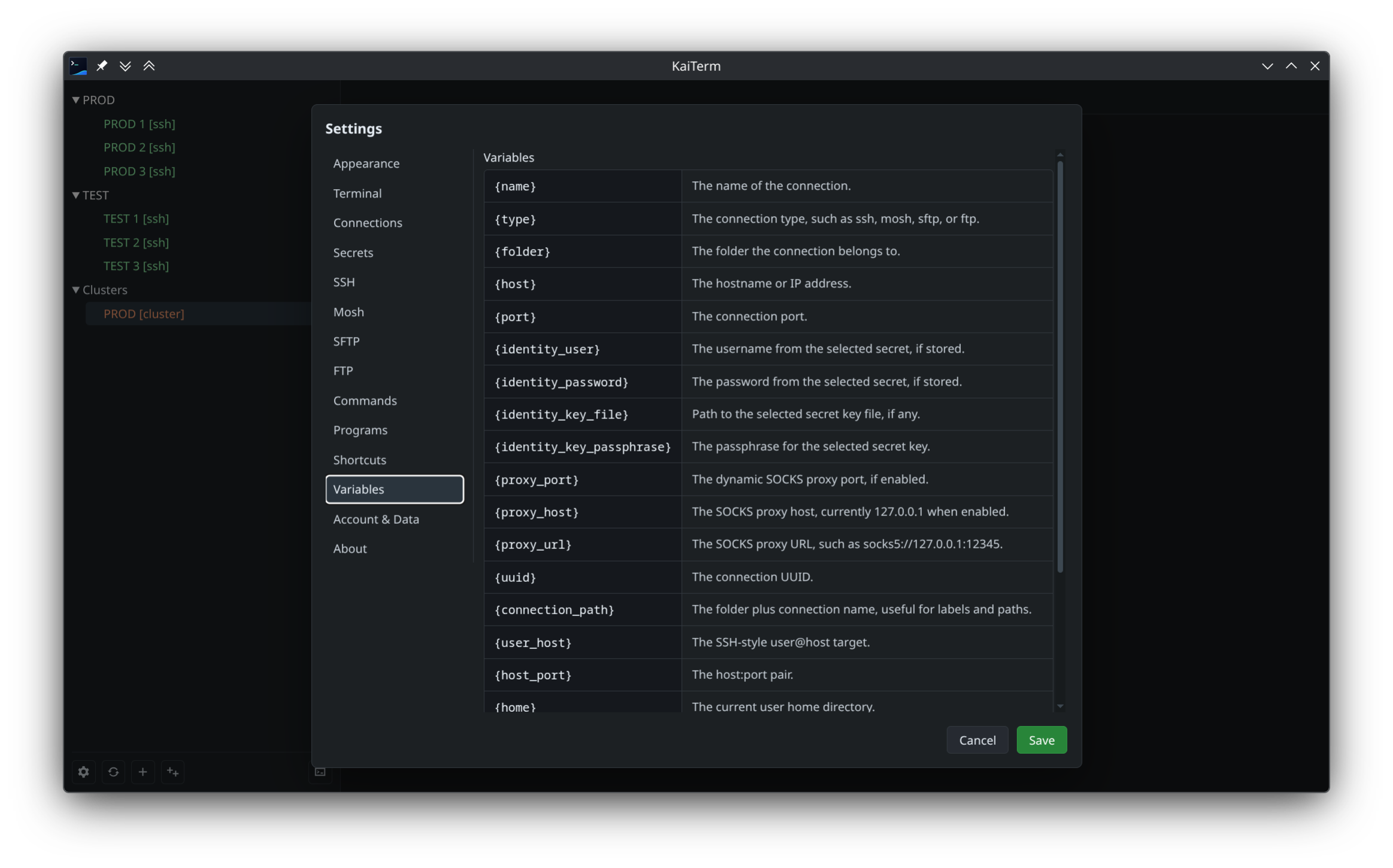 |
Command template variable reference |
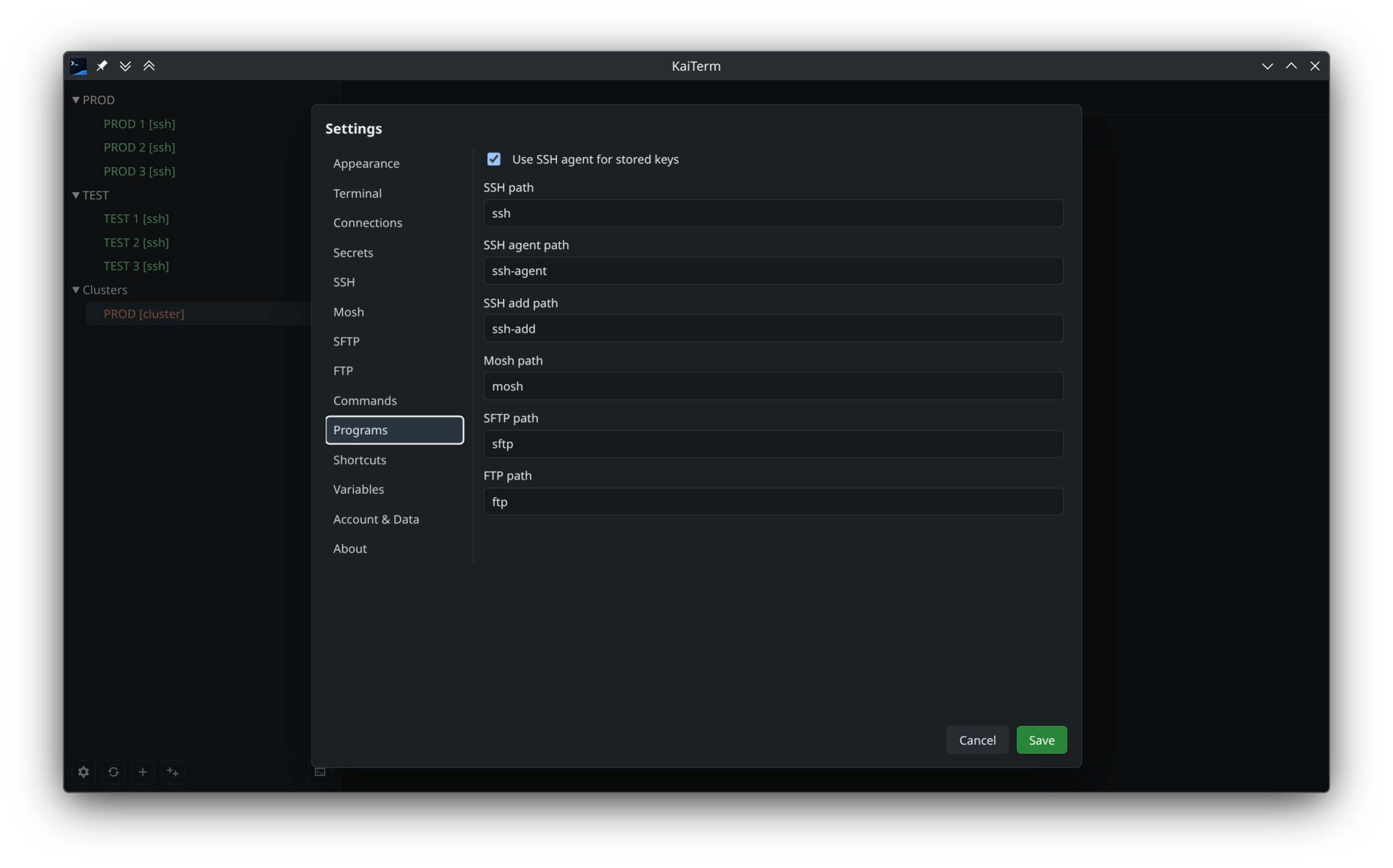 |
External program paths |
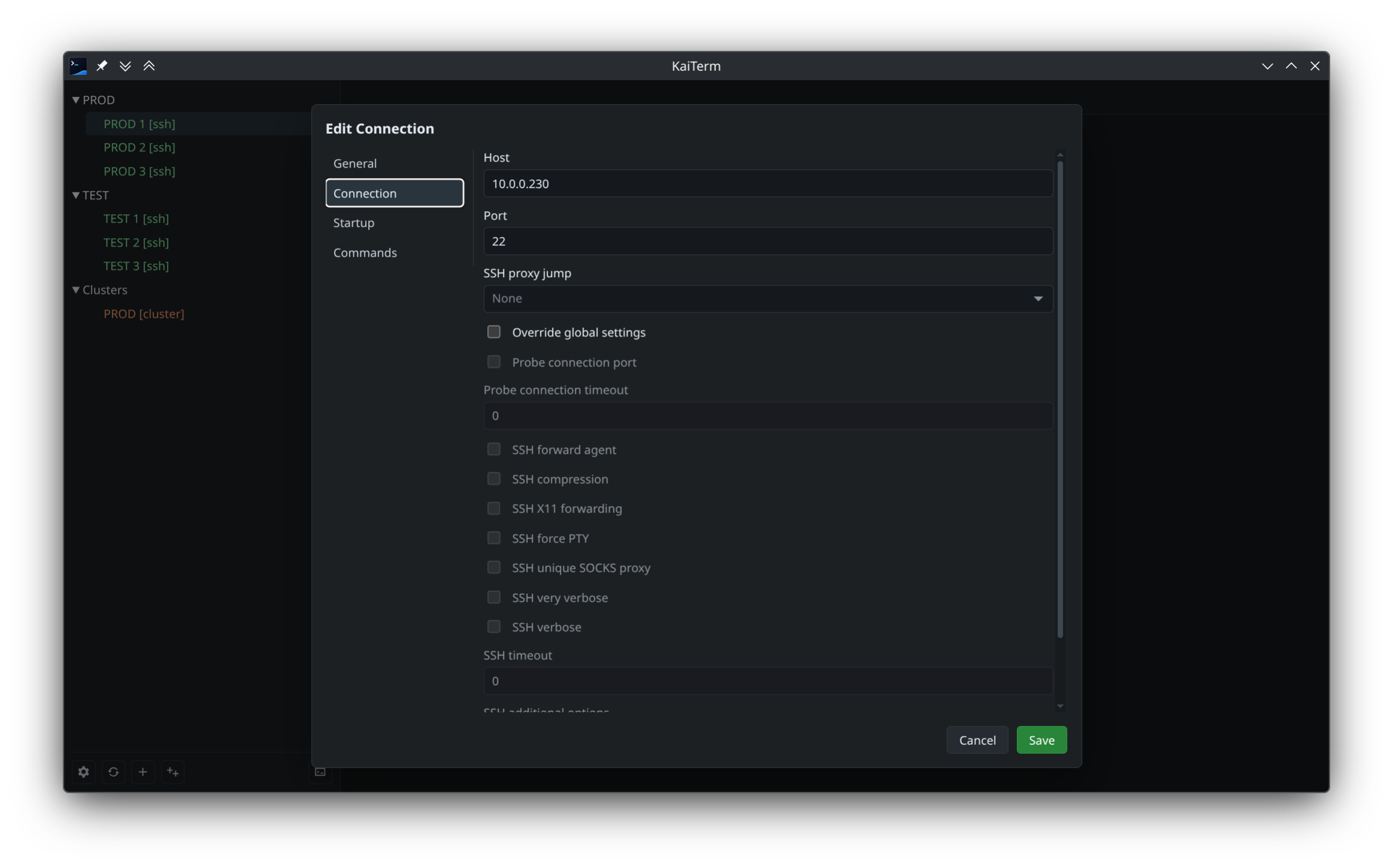 |
Per-connection profile editor |
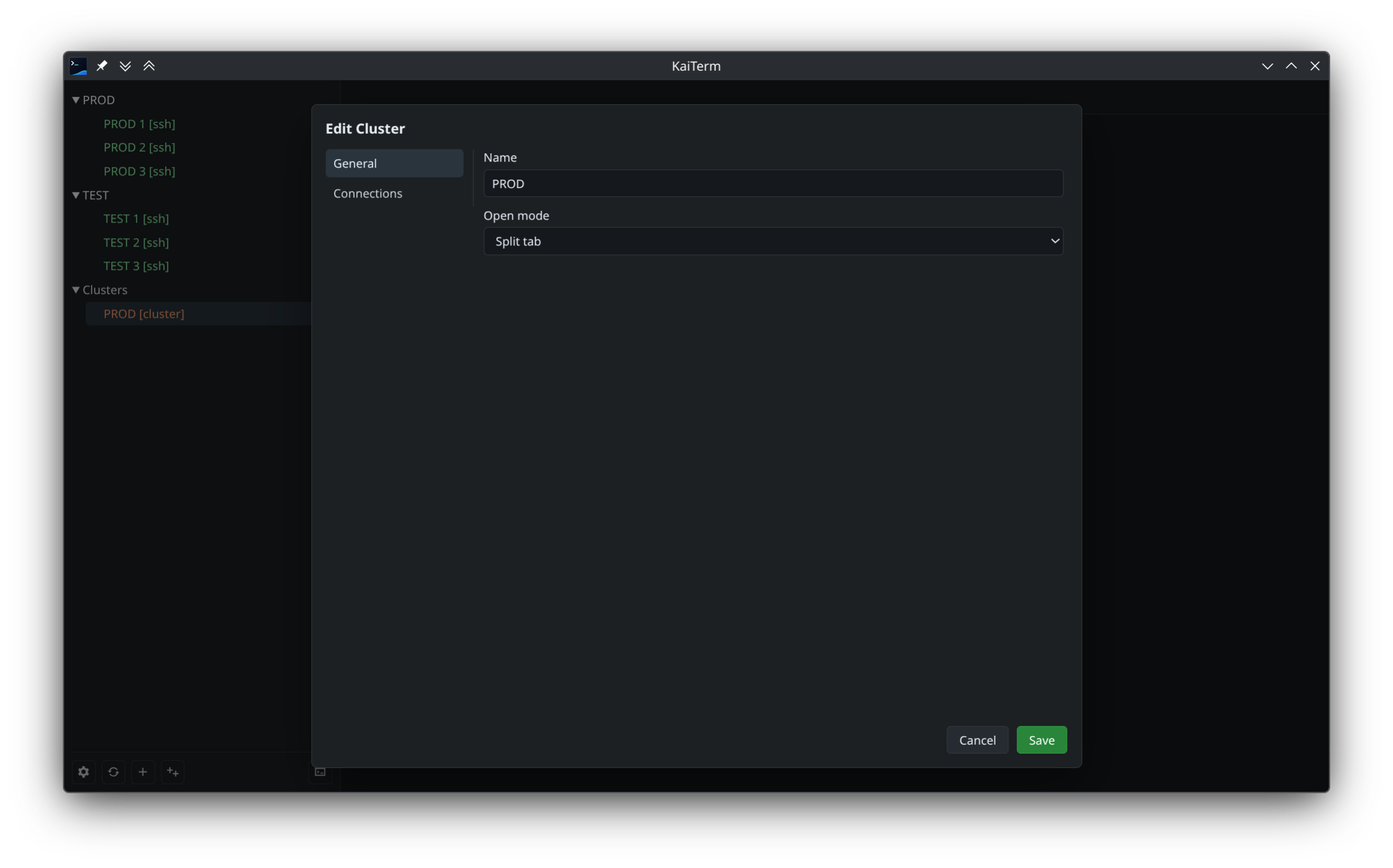 |
Saved cluster editor |
The Electron package currently declares Proprietary.