This is a QPKG package designed to simplify the installation of Jellyfin on QNAP NAS devices. It uses QNAP's Container Station and the official Jellyfin Docker image (jellyfin/jellyfin) with the 10.8.10 tag. Jellyfin is an open-source media server solution that helps you manage and stream your media content seamlessly across devices.This QPKG is built using QNAP's QDK Kit, ensuring compatibility with QNAP systems while leveraging the power of Jellyfin's Docker image.
To use this QPKG, you will need:
- A QNAP NAS with Container Station installed and configured.
- App Store configured to allow unsigned applications. This QPKG is unsigned because it was created by me, and my public key is not available to the QNAP App Store. Allowing unsigned applications is safe in this case, as long as the QPKG is downloaded from a trusted source. You can review the source code on GitHub to ensure it doesn't contain any harmful settings.
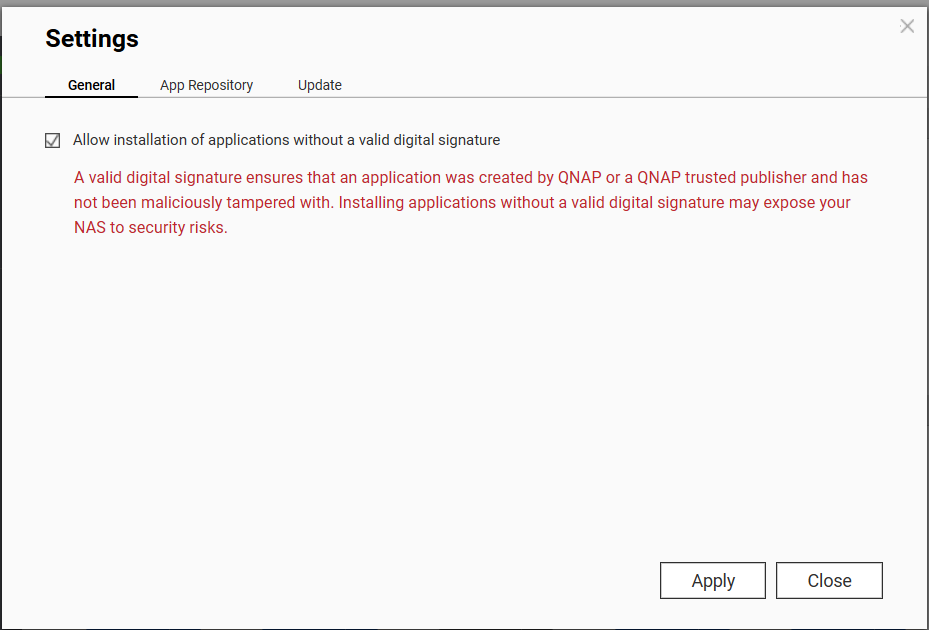
Since this QPKG is unsigned, you need to allow the installation of unsigned applications:
- Open your QNAP App Center.
- Navigate to Settings > General.
- Check the option Allow installation of applications without valid signatures.
- Download the Jellyfin QPKG from this repository's Releases section.
- In the App Center, click Install Manually.
- Select the downloaded QPKG file and follow the on-screen instructions.
- When you run the application for the first time, all available QNAP shares will be mounted to
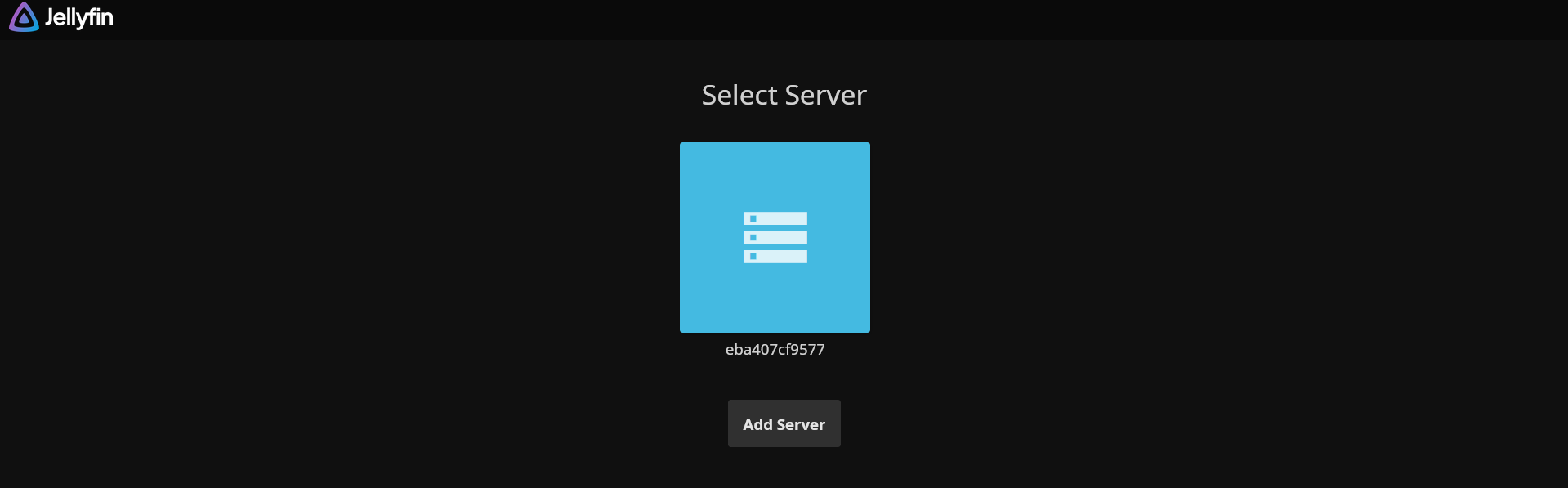
/mnt. - On the first run, you may see the Select Server screen. If so:
- Open a web browser and go to:
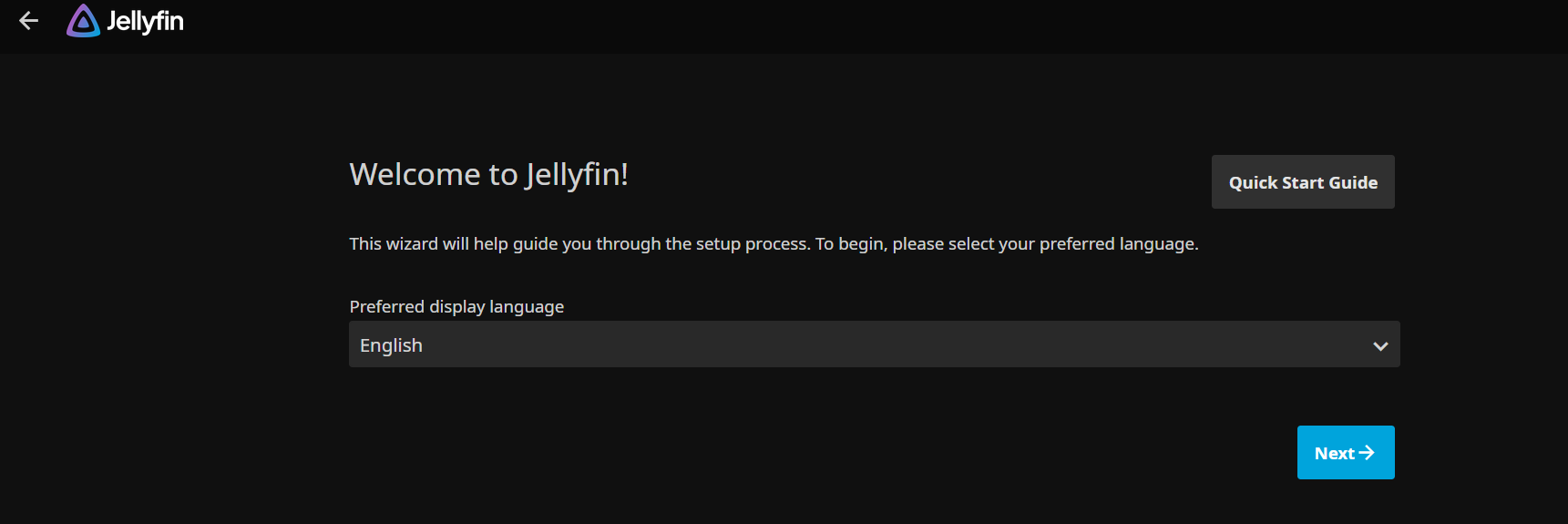
http://<your-qnap-ip>:8096/web/#/wizardstart.html
(Replace<your-qnap-ip>with your QNAP’s IP address, e.g.,192.168.1.100.) - Follow the on-screen steps to complete the initial setup, including setting your username and password.
- Open a web browser and go to:
Once Jellyfin is set up, you can easily add your media libraries:
- Go to the Jellyfin web interface.
- Navigate to Add Library.
- Select the appropriate folders under
/mnt, where all your QNAP shares are mounted.
- Built with QNAP's QDK Kit.
- Powered by the official Jellyfin Docker image: jellyfin/jellyfin.
Enjoy your Jellyfin media server on QNAP!