Repository navigation
Setup Guide (DigimonLinks EN)
- Extract the zip file to a local location
- Execute Exveemon.exe
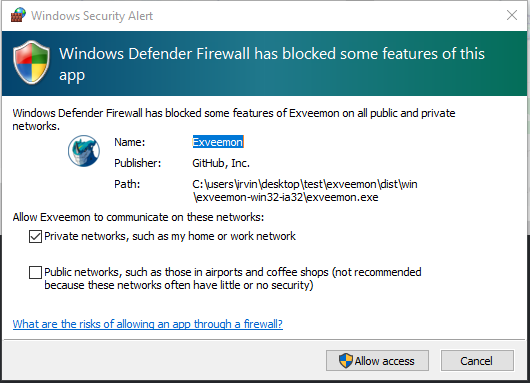
- If windows prompts you for permissions. Click Allow Access
- Exveemon should initialize and display you the following screen:
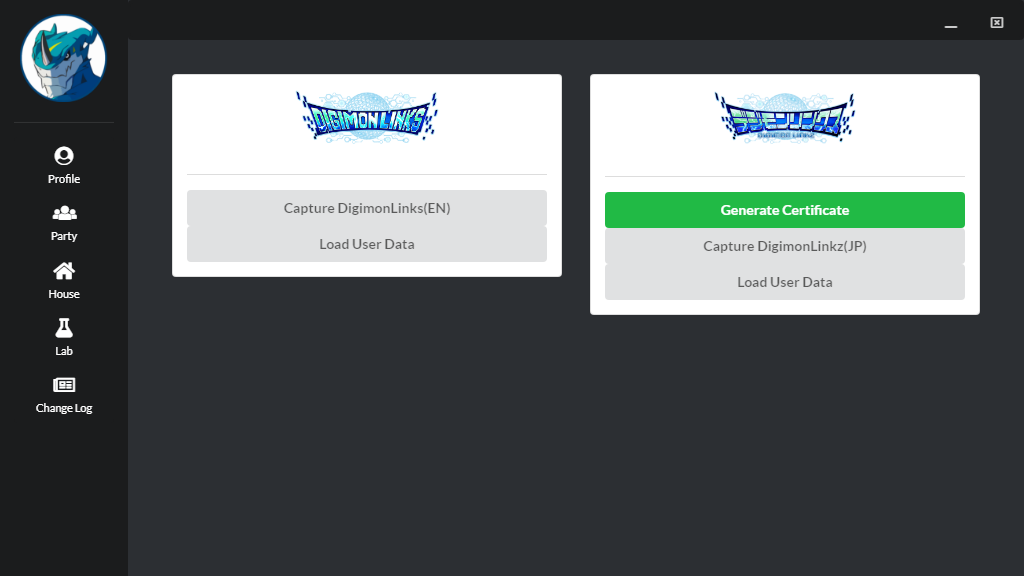
- Press the "Capture DigimonLinkz(EN)" button to start capturing packets
- Enable wifi/network of the device.
- Connect to the same network of desktop pc. (same router/wifi)
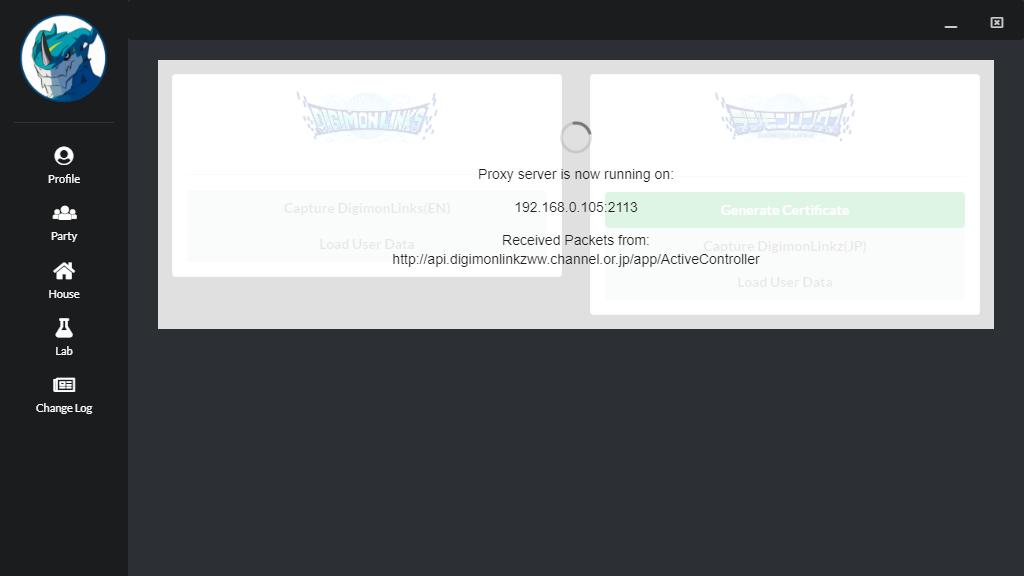
- Exveemon should display the IP Address and the port you need to set in your phone/emulator
Exveemon:
Mobile/Emulator Proxy Settings:
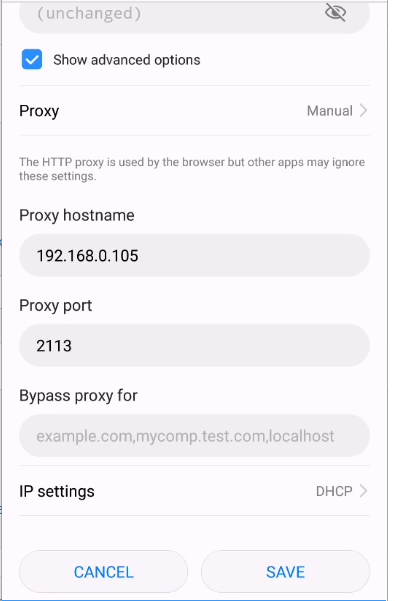
In my case: My PC's IP address is: 192.168.0.105 (Disable mobile data if enabled, to ensure packets passes the proxy server)
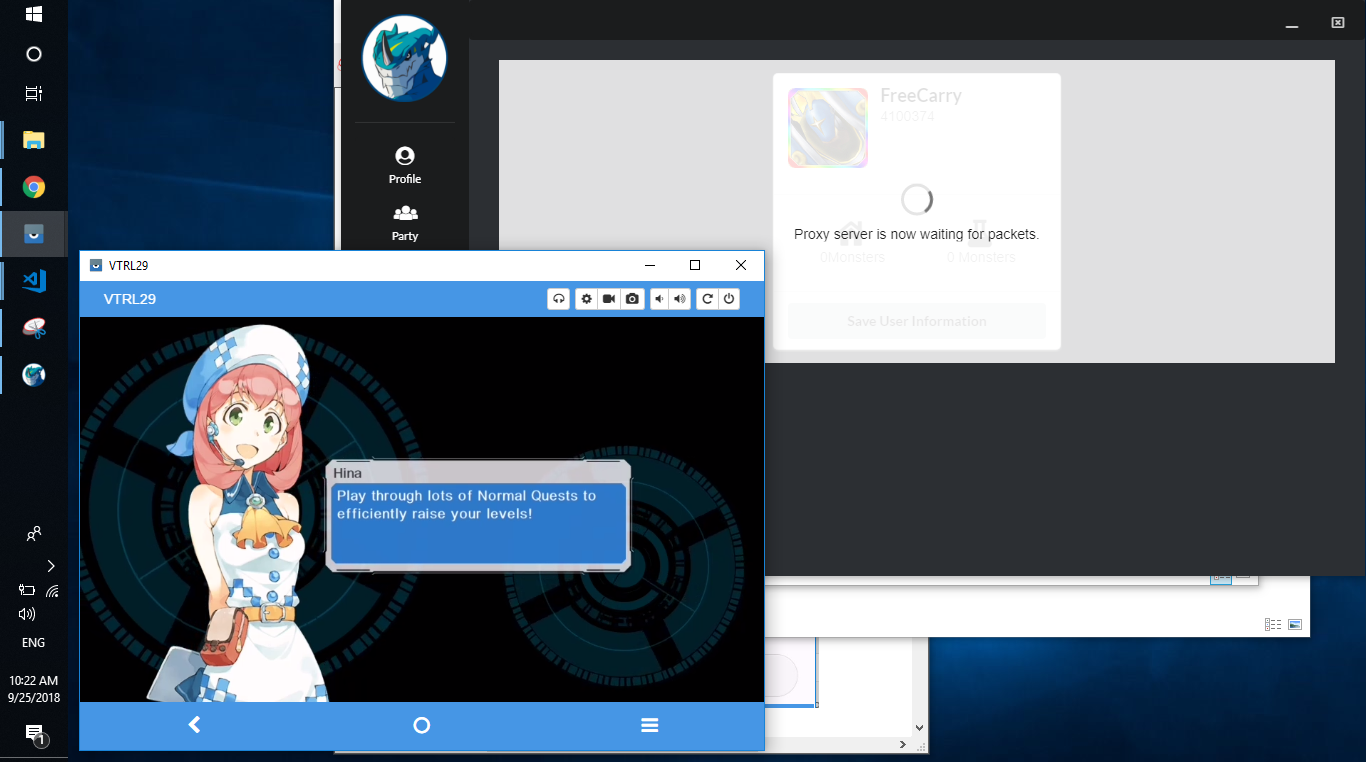
- While the proxy server is waiting for packets state. Try to visit www.google.com in your mobile/emulator's browser if the URL (https://www.google.com/) would show up in exveemon, this would mean that the proxy has been setup correctly.
- Tap the start of the game, it should start downloading your user information and the proxy server would be able to catch the information:
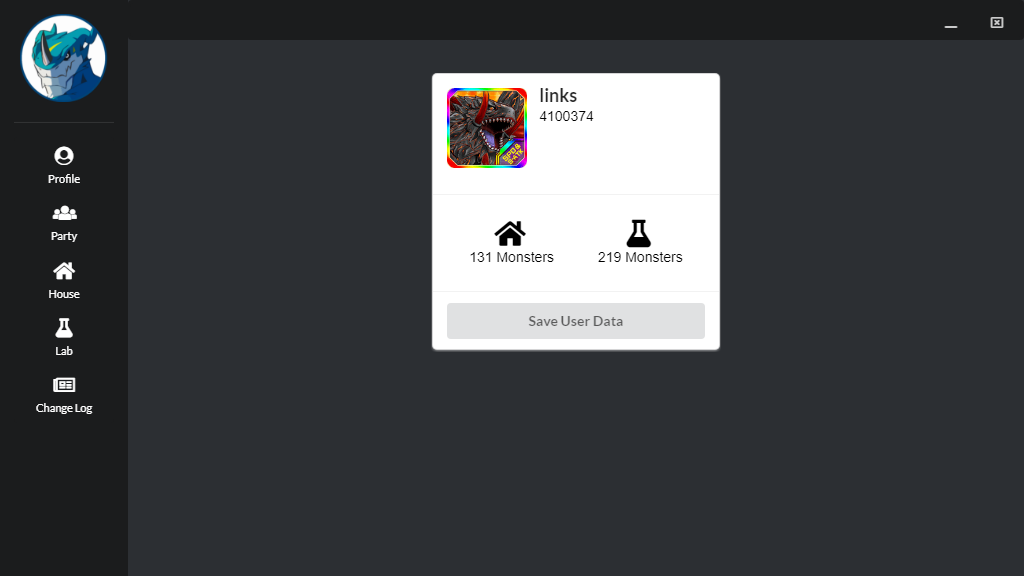
- Once done, save your monster details if you wish to load it at a different time.
- You can now view your monster information by clicking the navigation bar on the left side of the screen
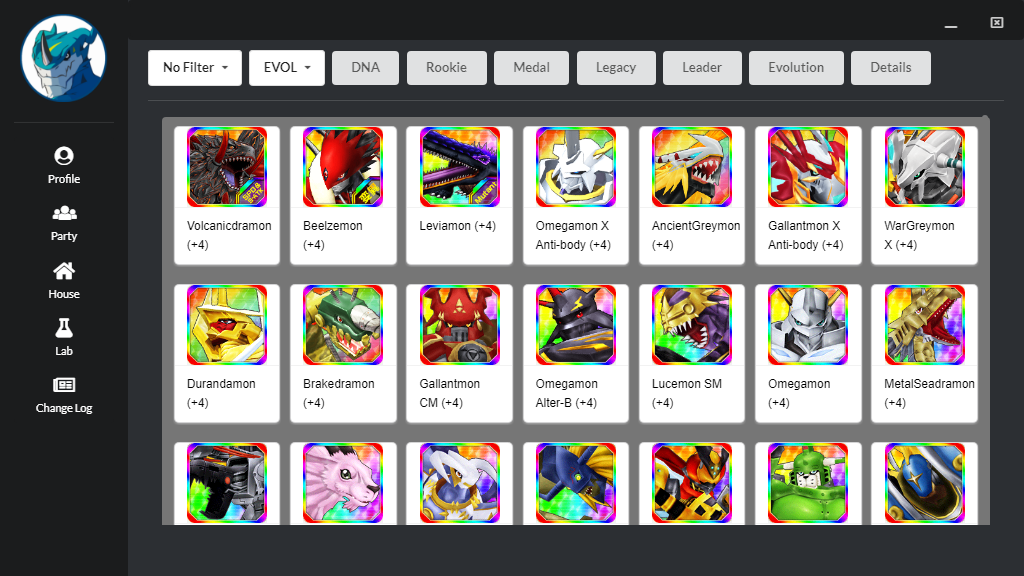
Notes: Do not use exveemon during gameplay, as the game sends fragments your monster list. These fragments would overwrite what the exveemon initially captured.
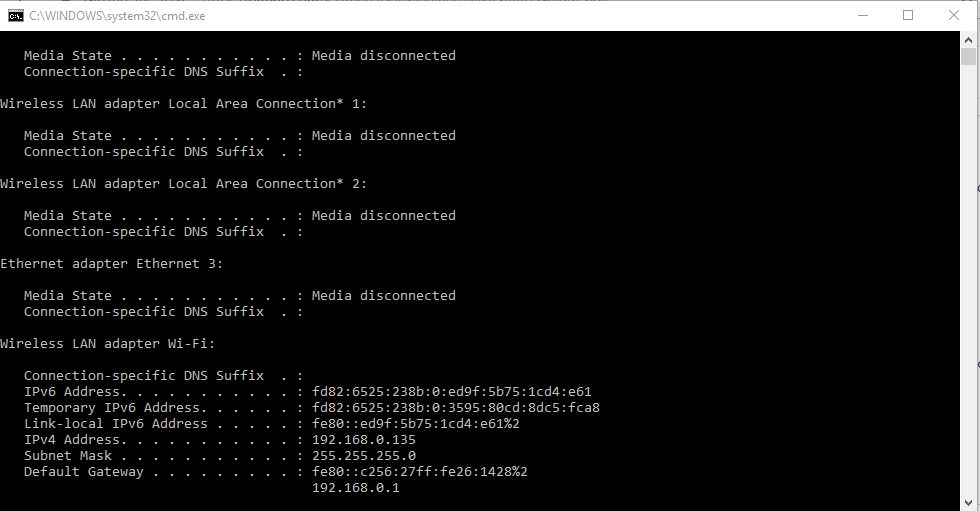
How to obtain your IP address:
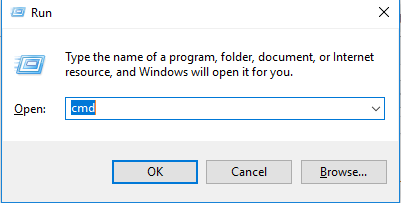
- open CMD (ctrl +r, type cmd and press enter)
- execute "ipconfig"